🎯 What are multiple choice questions in Microsoft Forms?
In 2026, every SMB running Microsoft 365 already has access to a powerful survey tool that most teams never use properly. Multiple choice Microsoft Forms questions let respondents pick one or several options from a predefined list. Specifically, they are the fastest way to build polls, quizzes, pre-meeting check-ins, onboarding surveys, and compliance acknowledgments without leaving the Microsoft 365 stack.
🛡️ Free: M365 Tenant Security Audit Checklist
17-page PDF with 50 hands-on checks covering Entra ID, Exchange Online, SharePoint, Teams, Intune, license waste, and audit logging. PowerShell commands included. Built from 60+ real tenant audits at Wintive.
At Wintive, across 60+ tenant audits for SMBs with 50 to 500 employees, we see Forms sitting unused while the same companies pay for third-party survey tools. In practice, the built-in tool handles 90% of SMB survey needs. As a result, most organizations can consolidate and save money just by learning how to create multiple choice Microsoft Forms questions correctly. This guide walks through the full workflow.
🚀 How to create a multiple choice question step-by-step
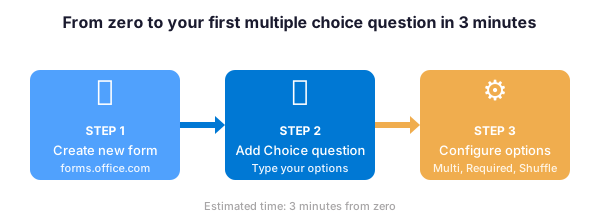
The workflow below takes about 3 minutes from zero. Therefore, if you can access Microsoft 365, you can build your first survey before the end of this section.
📝 Step 1: Create a new form
To begin with, navigate to forms.office.com and sign in with your Microsoft 365 account. Click New Form in the top-left corner. Then give your form a title and an optional description — these appear at the top of the form when respondents open it. Finally, decide whether the form collects responses from inside your organization only, or from anyone with the link.
➕ Step 2: Add a choice question
Next, click Add new, then select the Choice question type. This is the native Microsoft Forms option for multiple choice. Specifically, you can now type your question text and add the possible answer options. For example, a simple feedback form might ask: How satisfied are you with the new Teams rollout? with options ranging from Very satisfied to Very dissatisfied.
⚙️ Step 3: Configure the answer options
Furthermore, you can fine-tune each question with the toggles below the answer list. In particular, watch out for these three settings that most SMB admins miss:
- Multiple answers — toggle on when respondents can select more than one option (checkboxes instead of radio buttons)
- Required — blocks form submission until the question is answered
- Shuffle options — randomizes the answer order to reduce position bias in research-style surveys
🎛️ Advanced settings for multiple choice Microsoft Forms
Beyond the basic setup, Microsoft Forms offers three advanced features that make multiple choice questions much more powerful. In practice, these separate a basic poll from a professional SMB workflow.
| Feature | What it does | Typical SMB use case |
|---|---|---|
| Branching | Skips respondents to a specific later question based on their answer | Skip IT training questions if user says they are not an admin |
| Scoring (Quiz mode) | Assigns points to correct answers and auto-calculates a final score | Security awareness quizzes, onboarding knowledge checks |
| Answer validation | Forces specific formats (number range, date, regex) | Employee ID, phone number, or date range constraints |
To enable Quiz mode, create a new form and select New Quiz instead of New Form on the landing page. However, you cannot convert a regular form to a quiz later. Therefore, decide upfront whether scoring is part of the flow.
🛠️ Audit which users actually have Forms enabled in your tenant:
# PowerShell: list all users whose license includes Microsoft Forms
Connect-MgGraph -Scopes "Directory.Read.All"

# Forms service plan IDs across Microsoft 365 SKUs
$formsPlans = @(
  "2789c901-c14e-48ab-a76a-be334d9d793a",  # Forms (Plan E1)
  "e212cbc7-0961-4c40-9825-01117710dcb1",  # Forms (Plan E3)
  "4eb45c5b-0d19-4e33-b87c-adfc25268f20"   # Forms (Plan E5)
)

Get-MgUser -All -Property AssignedPlans, DisplayName, UserPrincipalName |
  Where-Object {
    $_.AssignedPlans | Where-Object {
      $_.ServicePlanId -in $formsPlans -and
      $_.CapabilityStatus -eq "Enabled"
    }
  } |
  Select-Object DisplayName, UserPrincipalName |
  Export-Csv "forms-licensed-users.csv" -NoTypeInformation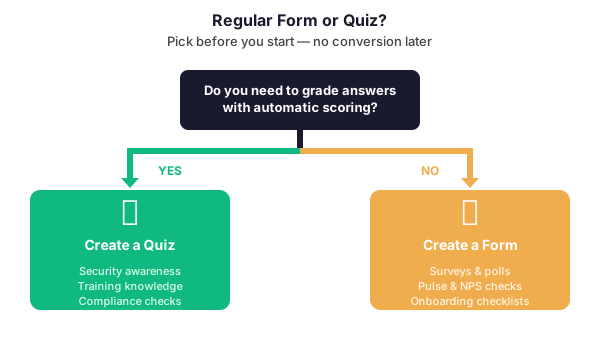
📊 Distribute the form and analyze responses
Once your multiple choice questions are configured, click Collect responses in the top-right corner. Specifically, Microsoft Forms gives you four distribution channels:
- Link — shareable URL, ideal for email campaigns and Teams posts
- QR code — perfect for in-office posters, events, and reception-desk surveys
- Embed — HTML snippet for SharePoint pages, Viva Engage, or your intranet
- Direct email — send directly from the Forms interface to a distribution list
After responses start coming in, switch to the Responses tab. In addition to visualizing answers with auto-generated charts, you can export the raw data to Excel for deeper analysis. As a result, your SMB can run surveys, quizzes, and polls without needing a dedicated third-party tool.
🔍 Check Microsoft Forms service health before a major rollout:
# PowerShell: verify Forms service health before launching a company-wide survey
Connect-MgGraph -Scopes "ServiceHealth.Read.All"

# Get current service health for Microsoft Forms
Get-MgServiceAnnouncementHealthOverview |
  Where-Object { $_.Service -like "*Forms*" } |
  Select-Object Service, Status, StatusDisplayName

# Also fetch any active incidents or advisories
Get-MgServiceAnnouncementIssue -Filter "service eq 'Microsoft Forms' and isResolved eq false" |
  Select-Object Title, ImpactDescription, StartDateTime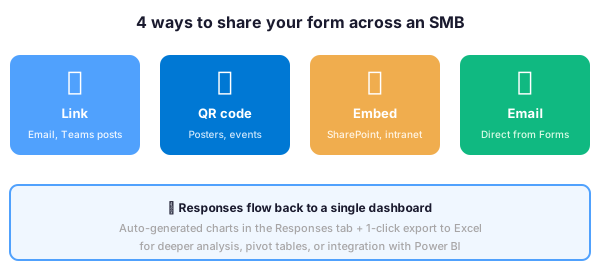
🧭 Wintive take: when multiple choice questions matter for SMBs
In practice, there are three SMB workflows where multiple choice Microsoft Forms questions pay for themselves instantly. Specifically:
- Security awareness quizzes — mandatory for cyber insurance renewals and compliance frameworks like ISO 27001 and SOC 2. Quiz mode auto-scores each user and exports attendance evidence for auditors.
- New hire onboarding checklists — required-field multiple choice questions (equipment received, policies read, accounts activated) create a clean audit trail for HR and IT.
- Internal NPS and pulse surveys — shuffled-answer multiple choice reduces bias on sensitive topics. Additionally, anonymous responses encourage honest feedback from frontline employees.
Therefore, if your SMB pays for SurveyMonkey, Google Forms, or Typeform while already having Microsoft 365, you are paying twice for the same capability. Consequently, consolidating to Microsoft Forms is one of the quickest license optimization wins we find during Wintive tenant audits.
❓ Multiple choice Microsoft Forms FAQ
Yes. Specifically, toggle on the Multiple answers option inside a Choice question. Respondents then see checkboxes instead of radio buttons and can select several options simultaneously.
Yes. Microsoft Forms is included in every Microsoft 365 Business and Enterprise plan at no additional cost, including Business Basic, Business Standard, Business Premium, E3, and E5.
Yes. Furthermore, the Shuffle options toggle on each Choice question randomizes the answer order for every respondent. This is particularly useful for research surveys and NPS polls where first-position bias skews results.
No. In practice, you must decide upfront whether to create a New Form or a New Quiz. Microsoft does not let you enable scoring on an existing regular form after creation, so duplicate and rebuild if needed.
🔗 Keep exploring
This tutorial covered one focused Microsoft 365 admin task. For a complete picture of how your full tenant performs against best practices:
🔍 Want a complete audit of your Microsoft 365 tenant?
The Automated Tenant Health Check scans your M365 environment in under 10 minutes: license waste, security posture, MFA coverage, compliance gaps, license rightsizing opportunities. Full PDF report with prioritized recommendations delivered instantly.