🎯 What is the Teams Exploratory License?
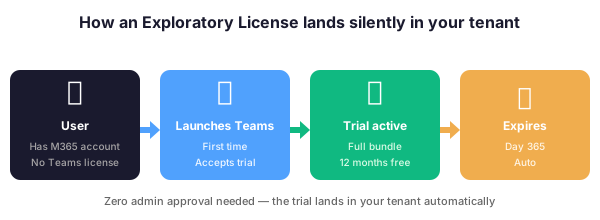
In 2026, rolling out Microsoft Teams across an organization often starts before every user has the right paid license. The Teams Exploratory License is Microsoft answer to that gap. Specifically, it is a self-service 12-month trial that activates automatically when an eligible user launches Teams for the first time without an existing Teams license. As a result, users get free access to Teams and the supporting Microsoft 365 services for a full year.
🛡️ Free: M365 Audit Checklist
19-page PDF with 50 hands-on checks covering Entra ID, Exchange Online, SharePoint, Teams, Intune, license waste, and audit logging. PowerShell commands included. Built from 60+ real tenant audits at Wintive.
At Wintive, across 60+ tenant audits for SMBs with 50 to 500 employees, we see the same pattern repeat. IT admins discover that dozens of these trial activations are already running in their tenant without deliberate approval. Consequently, some users end up on a time-limited trial while the rest of the organization sits on paid Microsoft 365 Business Premium or E3. Twelve months later, that becomes a surprise license gap with real business impact.
🎁 What does the Teams Exploratory License cover?
This Microsoft trial bundle is not just chat. Specifically, it bundles the collaboration stack that Teams depends on, so trial users can actually work, not just hold placeholder accounts. Here is what gets activated alongside Teams itself:
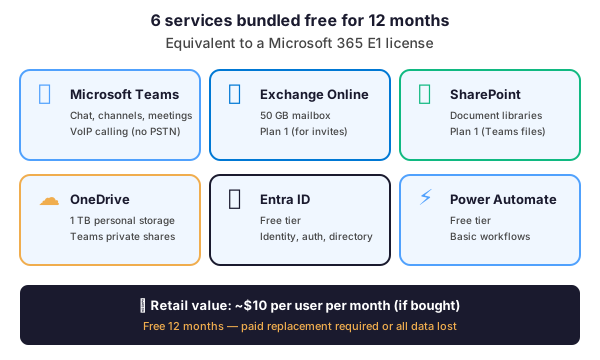
In practice, this overlaps closely with a Microsoft 365 E1 license. Therefore, users on this trial can collaborate, receive meeting invites, store files, and access SharePoint just like any fully licensed employee during the 12-month window.
🚀 How to activate or block the Teams Exploratory License
🛠️ How users activate it (often unintentionally)
Users activate the Exploratory trial themselves, without admin involvement. Specifically, when a person who already has a Microsoft 365 account (even just Exchange Online or Microsoft Entra ID) launches Teams for the first time, the sign-up flow offers them the trial. Most users accept without thinking twice. As a result, the activation happens silently in the background and the license lands in your tenant.
🚫 How to block it at the tenant level
Furthermore, if your IT governance does not allow surprise trials, you can disable new Exploratory sign-ups before they happen. In the Microsoft 365 admin center, navigate to Settings → Org settings → Services → Microsoft Teams. Then uncheck the option Let users try new Microsoft business subscriptions on behalf of your organization. From that point forward, no new user can self-activate an Exploratory License in your tenant.
# PowerShell: audit existing Teams Exploratory License assignments
Connect-MgGraph -Scopes "User.Read.All","Directory.Read.All"

# List all users with the Teams Exploratory SKU
$exploratorySku = Get-MgSubscribedSku | Where-Object { $_.SkuPartNumber -eq "TEAMS_EXPLORATORY" }

Get-MgUser -All -Property AssignedLicenses,DisplayName,UserPrincipalName |
  Where-Object { $_.AssignedLicenses.SkuId -contains $exploratorySku.SkuId } |
  Select-Object DisplayName, UserPrincipalName
⏰ What happens when the trial expires
After 12 months, the Exploratory trial expires. In practice, affected users lose access unless an administrator assigns a paid license before the deadline. Specifically, here is what happens at each stage:
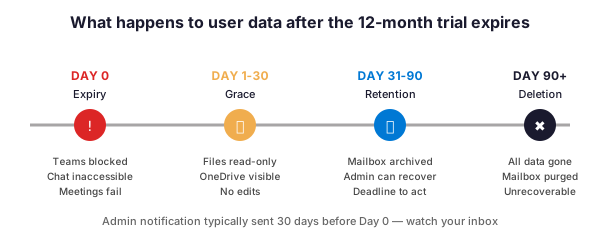
- Day 0 (expiration) — Teams chat, channels, and meeting features become inaccessible for the user
- Days 1 to 30 — SharePoint files and OneDrive content remain visible in a read-only grace state
- Days 31 to 90 — Mailbox, OneDrive, and Teams data move to a retention period; admins can still recover them
- Day 90+ — All user data is permanently deleted unless a paid license is assigned
Moreover, Microsoft typically sends an email notification to global admins 30 days before expiration. However, in our experience at Wintive, these notifications get buried in admin inboxes. Consequently, Exploratory License surprises are one of the most common findings in our SMB tenant audits — often uncovered only after users report that Teams suddenly stopped working.
💰 Transitioning users to a paid license
📋 The right paid license for each user
The correct replacement license depends on the user profile. For example, frontline staff and information workers have very different needs:
| User profile | Recommended license | Approx price/user/mo |
|---|---|---|
| Frontline worker | Microsoft 365 F1 or F3 | $2.25 / $8 |
| SMB information worker | Business Basic or Business Standard | $6 / $12.50 |
| SMB needing device management | Business Premium | $22 |
| Enterprise user | Microsoft 365 E3 or E5 | $36 / $57 |
🔄 How to assign the replacement license
In the Microsoft 365 admin center, navigate to the user profile, click Licenses and apps, unselect the Teams Exploratory License, and select the target paid license. The transition is seamless: mailbox, OneDrive, and Teams data all migrate automatically. As a result, end users experience no disruption and keep all their existing content.
🔄 Bulk migrate users from Exploratory to Business Premium before expiry:
# PowerShell: bulk-replace Exploratory licenses from a CSV input
Connect-MgGraph -Scopes "User.ReadWrite.All"

# Get the SKU IDs for both the source and target licenses
$exploratorySkuId = (Get-MgSubscribedSku |
  Where-Object { $_.SkuPartNumber -eq "TEAMS_EXPLORATORY" }).SkuId

# Target: Microsoft 365 Business Premium (SKU = SPB)
$targetSkuId = (Get-MgSubscribedSku |
  Where-Object { $_.SkuPartNumber -eq "SPB" }).SkuId

# Import a CSV containing a UserPrincipalName column and migrate each
Import-Csv "users-to-migrate.csv" | ForEach-Object {
  Set-MgUserLicense -UserId $_.UserPrincipalName `
    -AddLicenses @(@{ SkuId = $targetSkuId }) `
    -RemoveLicenses @($exploratorySkuId)
  Write-Host "Migrated: $($_.UserPrincipalName)" -ForegroundColor Green
}
🧭 Wintive take: when it matters (and when it does not)
In practice, there are three scenarios where the Exploratory trial becomes a real issue during an SMB tenant audit. Specifically:
| # | Audit scenario | What triggers it | Real business impact |
|---|---|---|---|
| 1 | Silent activations | Company never rolled out Teams deliberately; users self-activate the trial one by one | 60 users lose collaboration overnight at the 12-month mark unless paid licenses are budgeted in advance |
| 2 | Mixed Exploratory and paid licenses | Compliance teams audit access levels during ISO 27001 or SOC 2 reviews | Gaps flagged in retention, eDiscovery, and security capabilities vs paid license holders |
| 3 | M&A and org changes | Acquired employees land in the parent tenant with Exploratory, then get forgotten | Breach investigation later reveals mailboxes and data missing from audit logs |
Therefore, this trial is a useful onboarding mechanism — but only when it is tracked, budgeted, and transitioned deliberately. Leaving it to auto-activate and silently expire is how SMBs end up with accidental service outages, user frustration, and license cleanup fire drills during audits.
❓ Teams Exploratory License FAQ
Yes. Microsoft activates it automatically at no cost when an eligible user without a Teams license launches Teams for the first time. Specifically, it lasts 12 months and then requires a paid Microsoft 365 replacement license to keep working.
Connect to Microsoft Graph PowerShell and query users assigned the TEAMS_EXPLORATORY SKU. The PowerShell snippet earlier in this article does exactly that. Additionally, you can check the Microsoft 365 admin center under Billing then Your products.
Yes. In the Microsoft 365 admin center, navigate to Settings then Org settings then Services then Microsoft Teams. Then disable the option Let users try new Microsoft business subscriptions on behalf of your organization. From that point on, no new user can self-activate the trial in your tenant.
Teams access is cut off immediately at day 0. However, mailbox, SharePoint files, and OneDrive content enter a 30-day read-only grace period. After day 90, all user data is permanently deleted unless an administrator assigns a paid replacement license.
🔗 Keep exploring
This tutorial covered one focused Microsoft Teams workflow. For a complete picture of how your full Microsoft 365 environment — collaboration, identity, and security — performs against best practices:
🔍 Want a complete audit of your Microsoft 365 tenant?
The M365 Instant Audit scans your M365 environment in under 10 minutes: license waste, security posture, MFA coverage, compliance gaps, license rightsizing opportunities. Full PDF report with prioritized recommendations delivered instantly.