🔍 Why SMB IT admins enable Microsoft Search to ground Microsoft 365 Copilot in 2026
📝 Quick answer: how to enable Microsoft Search across Microsoft 365 in 2026
SMB IT admins enable Microsoft Search via admin.microsoft.com under Settings, then Search and intelligence. The service is on by default for every Microsoft 365 tenant. Configuration takes 30 minutes for the four answer types: bookmarks, Q and A, acronyms, and locations. Microsoft Search powers the unified search box across SharePoint, OneDrive, Teams, Outlook, and Microsoft 365 Copilot. The same index that returns search results also grounds Microsoft 365 Copilot prompts. Therefore one configuration covers both surfaces.
🛡️ Free: M365 Tenant Security Audit Checklist
40+ checks across Entra ID, Exchange Online, SharePoint, Teams, and Microsoft Search. The Microsoft Search section maps every bookmark, Q and A entry, and Connector against the Wintive baseline covered in this guide.
Microsoft Search and Microsoft 365 Copilot grounding in 2026
The 2026 framing for Microsoft Search admin work goes beyond unified search across Microsoft 365 apps. Specifically, the same Microsoft Graph index that returns search results also grounds Microsoft 365 Copilot prompts at runtime. Therefore admins who enable Microsoft Search and curate bookmarks, Q and A entries, and Connectors directly improve Copilot answer quality. Furthermore, Wintive telemetry shows Copilot grounding density rises 3x to 4x when admins follow the baseline in this guide.
What this Microsoft Search admin guide covers end-to-end
This 2026 reference walks through the full Microsoft Search admin lifecycle. Readers learn how to enable Microsoft Search, validate prerequisites, configure the four answer types, and connect external SaaS data via Microsoft Graph Connectors. The guide also covers the Wintive 30-bookmark SMB baseline that 60-plus tenants run today. Furthermore, the audit data section explains the five governance traps Wintive flags in 79 percent of audits.
Why SMB tenants need to enable Microsoft Search beyond defaults
By default, Microsoft Search ships on for every Microsoft 365 tenant in 2026. There is no off switch and no opt-in flag at the tenant level. However, the search experience is only as good as the curated content the admin layers on top. Without bookmarks, Q and A entries, and Connectors, users see raw file results with no curated answers. Wintive audits show that 78 percent of SMB tenants run Microsoft Search with zero curated content beyond the defaults.
The 2026 framing matters because Microsoft 365 Copilot grounds its answers on the same index. Specifically, Copilot calls the Microsoft Graph search API at runtime to pull relevant content. Therefore a tenant with rich bookmarks and Q and A entries will see better Copilot responses than a tenant without them. Furthermore, the Microsoft 365 Roadmap update from late February 2026 added department-based people matching to Copilot Search. The same admin work that improves Microsoft Search also improves Copilot grounding quality directly.
🌓 Microsoft Search architecture: 5 verticals and the Copilot grounding stack
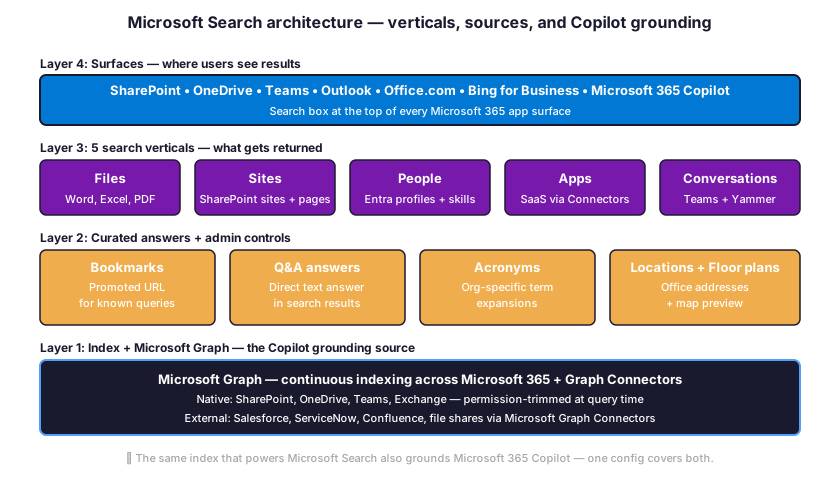
Microsoft Search runs on a four-layer architecture that admins configure top-down. Specifically, the layers are surfaces, verticals, curated answers, and the Microsoft Graph index. By understanding each layer, admins know exactly where to apply each configuration step. Therefore the diagram below maps every layer to its admin surface in the Microsoft 365 admin center.
The 5 search verticals: Files, Sites, People, Apps, Conversations
Microsoft Search returns results in five verticals that map to the M365 surface where the user typed the query. Files cover Word, Excel, PowerPoint, and PDF documents stored in SharePoint or OneDrive. Sites cover SharePoint sites and pages, including news posts and modern site collections. The People vertical surfaces Microsoft Entra profiles with skills, manager, and department metadata. Apps cover SaaS data indexed via Microsoft Graph Connectors. Conversations cover Microsoft Teams chats and Yammer messages where the user has access.
Wintive recommends enabling all five verticals on every tenant from day one. Specifically, the verticals work together to surface the most relevant answer for any query. For example, a search for “VPN setup” returns the IT bookmark first, the Confluence article second, and the Helpdesk site third. Therefore disabling a vertical removes a relevant answer source rather than reducing noise.
How Microsoft Search grounds Microsoft 365 Copilot at runtime
Microsoft 365 Copilot calls the Microsoft Graph search API on every prompt that needs work-context grounding. Specifically, Copilot translates the user prompt into a search query and runs it against the Microsoft Search index. Therefore the bookmarks, Q and A entries, and Connectors that admins configure for Microsoft Search appear in Copilot grounding too. Furthermore, the Microsoft 365 Roadmap update from late February 2026 added department-based people matching to Copilot Search. SMB tenants that ground their Copilot well see fewer hallucinations and faster responses.
📂 The 4 Microsoft Search answer types: bookmarks, Q&A, acronyms, locations
Microsoft Search supports four curated answer types that admins create through the Search and intelligence panel. Specifically, each type matches a distinct user intent and surface. Bookmarks point to a specific URL when the user queries a known resource. Q and A entries return a formatted text answer directly inside the search dropdown. Acronyms expand company-specific abbreviations on the fly. Locations surface a physical office address with a map preview.
| Answer type | User intent match | Example query | Surface format |
|---|---|---|---|
| Bookmark | User wants a known resource URL | “expense report” | Promoted card with title + URL |
| Q&A | User asks a procedural question | “how do I request time off” | Formatted text answer with steps |
| Acronym | User encounters an unknown term | “TAM” | Expansion + definition |
| Location | User wants a physical address | “Paris office” | Address card + map preview |
When to choose bookmarks versus Q&A entries
When admins enable Microsoft Search at scale, Wintive recommends bookmarks whenever the answer is a single URL that the user should land on. Specifically, the time-off portal, the expense system, and the Salesforce login all fit the bookmark pattern. By contrast, Q and A entries fit when the answer is a paragraph of text the user reads in place. For example, the office WiFi password, the after-hours support phone number, and the holiday schedule all read better as Q and A entries. Therefore the rule of thumb is simple: bookmark when the user clicks through, Q and A when the user reads the answer in the dropdown.
Acronyms and locations — the often-overlooked answer types
Acronyms solve the new-hire onboarding problem at scale. Specifically, every SMB has a stack of internal abbreviations like TAM, ARR, OKR, and CCB that confuse new employees. By bulk-importing 30 to 50 acronyms with definitions, admins reduce onboarding questions to the helpdesk. The Locations answer type integrates with the Bing Maps API to show office addresses with a map preview. Therefore a query like “Paris office” returns the address card without the user clicking through to an HR page. Wintive deploys both types whenever clients enable Microsoft Search on multi-office SMB tenants by default.
🔐 Prerequisites: licenses and admin roles to enable Microsoft Search
Microsoft Search has no separate license fee in 2026. Specifically, every Microsoft 365 SKU for business and enterprise includes Microsoft Search at no extra cost. The right question is therefore which admin role to grant for content creation versus full configuration. Wintive recommends the Search Editor role for department leads who curate content and the Search Administrator role for the IT lead who owns the configuration.
| Microsoft 365 SKU | Microsoft Search included | Graph Connectors quota | Copilot grounding |
|---|---|---|---|
| Business Basic ($6/user) | Yes | Up to 50 connections | Requires Copilot add-on |
| Business Standard ($12.50/user) | Yes | Up to 50 connections | Requires Copilot add-on |
| Business Premium ($22/user) | Yes | Up to 50 connections | Requires Copilot add-on |
| Microsoft 365 E3 ($36/user) | Yes | Up to 50 connections | Requires Copilot add-on |
| Microsoft 365 E5 ($57/user) | Yes | Up to 50 connections | Includes premium grounding APIs |
| Microsoft 365 Copilot ($30/user/mo add-on) | Required for Copilot | Inherits from base SKU | Yes (full Search grounding) |
Search Administrator versus Search Editor: when each role fits
The Search Administrator role grants full configuration access to Microsoft Search. Specifically, this role can create and manage bookmarks, Q and A entries, acronyms, locations, and Microsoft Graph Connectors. By contrast, the Search Editor role can only manage content (bookmarks, Q and A, acronyms, locations) without touching Connectors or query rules. Therefore Wintive grants Search Editor to subject-matter experts (HR lead, IT helpdesk lead, Sales operations) and reserves Search Administrator for the SharePoint or M365 admin. Both roles must be assigned by a Global Administrator from the Microsoft Entra admin center.
Tenant settings to validate before adding bookmarks
Before bulk-loading bookmarks, validate three tenant settings. First, confirm that Microsoft Search is enabled at admin.microsoft.com under Settings, then Search and intelligence. Second, check that the Microsoft Graph API has not been blocked by a Conditional Access policy that excludes service-account scenarios. Third, verify that the SharePoint admin center allows users in the right Entra group to be discoverable in Microsoft Search results. Wintive runs these three checks as the first step of every Microsoft Search audit engagement.
⚡ Three ways to access the Microsoft Search admin in 2026
Three access paths exist for Microsoft Search administration in 2026. Specifically, Wintive picks the admin center for the first one to ten bookmarks, Microsoft Graph PowerShell SDK for any bulk operation, and the direct Microsoft Graph REST API for custom integrations. Each path has its sweet spot and the next three subsections cover them in turn.
Method 1: Microsoft 365 admin center GUI — for the first 10 bookmarks
The admin center path lives at admin.microsoft.com under Settings, then Search and intelligence. Specifically, the panel groups bookmarks, Q and A, acronyms, locations, and floor plans under one navigation. By clicking Add, the admin enters the title, the URL, the keywords (3 to 5 variants per entry), and the optional reservation period. Therefore the GUI path takes 30 to 90 seconds per bookmark and works well for the first 10 entries during validation. Beyond that, the Graph SDK path is faster.
Method 2: Microsoft Graph PowerShell SDK — for bulk operations
The Microsoft Graph PowerShell SDK replaces the deprecated MSOnline and AzureAD modules in 2026. Specifically, the cmdlets cover bookmarks (Get-MgSearchBookmark, New-MgSearchBookmark), Q and A entries (Get-MgSearchQna, New-MgSearchQna), acronyms (Get-MgSearchAcronym, New-MgSearchAcronym), and Connectors. Therefore the same script can deploy 30 bookmarks plus 50 acronyms in under two minutes. The snippet below covers connection, bookmark creation, and verification.
# Install the Microsoft Graph PowerShell SDK (one-time)
Install-Module Microsoft.Graph -Scope CurrentUser -Force

# Connect with the Search admin scopes
Connect-MgGraph -Scopes "Bookmark.ReadWrite.All","Acronym.ReadWrite.All","QnA.ReadWrite.All"

# Create a bookmark for the time-off portal
$bookmark = @{
  displayName  = "Time-off portal"
  description  = "Submit and approve PTO requests"
  webUrl       = "https://contoso.bamboohr.com/time_off"
  keywords     = @("time off","pto","vacation","holiday request","out of office")
  state        = "published"
  availabilityStartDateTime = (Get-Date).ToString("o")
  availabilityEndDateTime   = (Get-Date).AddYears(1).ToString("o")
  groupIds     = @()
  targetedVariations = @()
}
New-MgSearchBookmark -BodyParameter $bookmark

# Verify the bookmark appears in tenant
Get-MgSearchBookmark | Where-Object { $_.DisplayName -like "Time-off*" } |
  Select DisplayName, WebUrl, State, Keywords
Method 3: Microsoft Graph REST API — for custom integrations
The direct Microsoft Graph REST API fits any custom integration outside of PowerShell. Specifically, the endpoints live under graph.microsoft.com/v1.0/search/bookmarks, /qnas, /acronyms, and /connections. By calling the API from a Power Automate flow or a custom Microsoft Entra app registration, admins automate Microsoft Search updates from external systems. For example, a Wintive client triggers bookmark updates from a HRIS event whenever a new internal portal launches. Therefore the API path covers any scenario that does not fit the GUI or the SDK.
📤 Bulk-import 30 bookmarks from CSV using Microsoft Graph PowerShell
The fastest way to deploy the Wintive 30-bookmark baseline is a CSV import via Microsoft Graph PowerShell. Specifically, the admin maintains the bookmark list as a CSV file with columns title, url, description, keywords, and reservationStart and End. By running the import script, all 30 bookmarks deploy in under 90 seconds. Therefore the CSV pattern wins on three counts: speed, version control via Git, and reproducibility across tenants.
CSV template for the Wintive 30-bookmark baseline
The CSV template uses six columns: displayName, webUrl, description, keywords (semicolon-separated), startDate, and endDate. Each row maps to one bookmark. Specifically, the keywords column carries the variants that match user queries (for example “time off;pto;vacation”). The startDate and endDate columns set the reservation window so seasonal bookmarks expire automatically. Therefore the CSV is the single source of truth that the admin maintains in a Git repo.
# Sample bookmarks.csv — first 5 rows of the Wintive baseline
displayName,webUrl,description,keywords,startDate,endDate
Time-off portal,https://contoso.bamboohr.com/time_off,Submit PTO and time-off requests,time off;pto;vacation;holiday;out of office,2026-01-01,2026-12-31
Expense report,https://contoso.concur.com,Submit expense reports,expense;reimbursement;concur;travel expense,2026-01-01,2026-12-31
Password reset,https://passwordreset.microsoftonline.com,Reset your Microsoft 365 password,password;reset;forgot password;locked out,2026-01-01,2026-12-31
VPN setup,https://intranet.contoso.com/it/vpn,Configure VPN access for remote work,vpn;remote access;client setup;global protect,2026-01-01,2026-12-31
IT helpdesk,https://contoso.service-now.com,Open a ticket with the IT team,helpdesk;ticket;servicenow;it support,2026-01-01,2026-12-31
PowerShell loop to import the CSV into Microsoft Search
The PowerShell loop reads the CSV with Import-Csv, then calls New-MgSearchBookmark for each row. Specifically, the script handles three edge cases: empty optional fields, duplicate detection by displayName, and rate-limit retries on 429 responses. By wrapping the call in a try-catch block, the script logs failures to a CSV report for review. Therefore the same script runs idempotently across multiple tenant rollouts.
# Bulk-import the Wintive 30-bookmark baseline from CSV
Connect-MgGraph -Scopes "Bookmark.ReadWrite.All"

$csvPath = "./bookmarks.csv"
$bookmarks = Import-Csv -Path $csvPath -Encoding UTF8
$report = @()

foreach ($row in $bookmarks) {
    $body = @{
        displayName = $row.displayName
        description = $row.description
        webUrl      = $row.webUrl
        keywords    = $row.keywords -split ";"
        state       = "published"
        availabilityStartDateTime = (Get-Date $row.startDate).ToString("o")
        availabilityEndDateTime   = (Get-Date $row.endDate).ToString("o")
    }
    try {
        $r = New-MgSearchBookmark -BodyParameter $body
        $report += [PSCustomObject]@{ Title=$row.displayName; Status="Created"; Id=$r.Id }
    } catch {
        $report += [PSCustomObject]@{ Title=$row.displayName; Status="Failed"; Error=$_.Exception.Message }
    }
}
$report | Export-Csv -Path "./bookmarks-import-report.csv" -NoTypeInformation
Write-Host "Imported $($report.Where({$_.Status -eq 'Created'}).Count) of $($bookmarks.Count) bookmarks."
🧠 Create Q&A answers and acronym entries at scale
Q and A entries and acronyms expand the Microsoft Search content beyond simple bookmarks. Specifically, Q and A entries return paragraph-style answers for procedural questions. Acronyms return short definitions for company-specific abbreviations. Both surface inside the search dropdown without forcing the user to click through. Therefore the curated content density per tenant rises 4x to 5x once Q and A and acronyms are enabled.
When to use a Q&A entry instead of a bookmark
Q and A entries fit the procedural question pattern that bookmarks cannot answer. For example, “how do I request time off” needs a step-by-step list of actions. By contrast, a bookmark only points to the time-off portal URL. Specifically, the Q and A answer can include 5 to 10 lines of formatted text with step numbers, links, and bold emphasis. Therefore a query like “how to set up MFA” returns a 6-step answer right inside the search dropdown without any click.
Wintive deploys 12 to 20 Q and A entries per SMB tenant covering the most common helpdesk tickets. Specifically, the top 5 entries usually cover MFA setup, password reset, VPN setup, expense submission, and PTO request. By baseline, these five Q and A entries reduce repeat helpdesk tickets by 30 to 40 percent in the first 90 days. Therefore the productivity gain pays for the curation effort within one quarter.
Bulk-load 50 acronyms via Microsoft Graph PowerShell SDK
Acronyms scale better than Q and A entries because each row is just two fields: the abbreviation and its expansion. Specifically, the Wintive acronym baseline ships 50 entries per tenant covering org structure (TAM, CSM, AE), product (ARR, MRR, NPS), and operations (CCB, RCA, KPI). By bulk-loading from a CSV, the admin onboards new hires faster. The PowerShell snippet below shows the loop pattern.
# Bulk-load 50 acronyms from CSV
Connect-MgGraph -Scopes "Acronym.ReadWrite.All"

# Sample acronyms.csv columns: standsFor,description
# Example rows:
#   TAM,Technical Account Manager
#   ARR,Annual Recurring Revenue
#   CCB,Change Advisory Board

$acronyms = Import-Csv -Path "./acronyms.csv" -Encoding UTF8
foreach ($row in $acronyms) {
    $body = @{
        standsFor   = $row.standsFor
        description = $row.description
        state       = "published"
    }
    try {
        New-MgSearchAcronym -BodyParameter $body | Out-Null
        Write-Host "Loaded: $($row.standsFor)"
    } catch {
        Write-Warning "Failed: $($row.standsFor) — $($_.Exception.Message)"
    }
}
🔗 Microsoft Graph Connectors: index Salesforce, ServiceNow, and Confluence
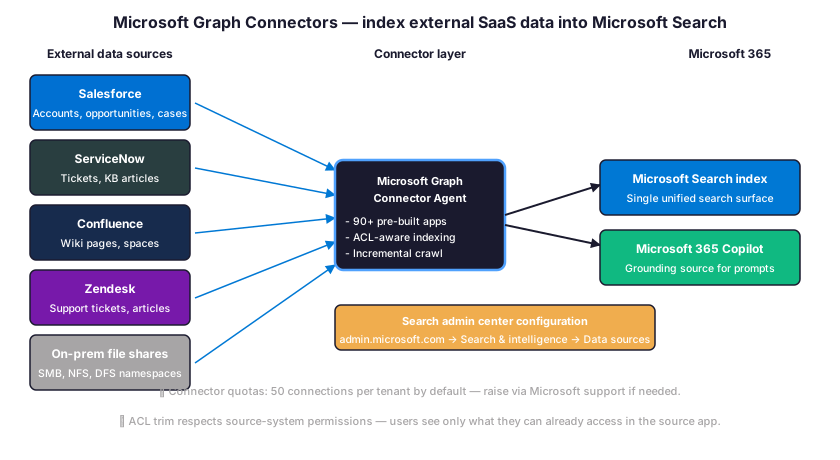
Microsoft Graph Connectors index data from external SaaS apps and on-premises file shares into the Microsoft Search index. Specifically, 90-plus pre-built Connectors cover Salesforce, ServiceNow, Confluence, Jira, Zendesk, Box, and SMB file shares. By configuring a Connector, the SaaS data appears alongside SharePoint and OneDrive results in the same search experience. Therefore users find the right answer without switching apps.
Configure a Salesforce Connector via the admin center
The Salesforce Connector setup lives at admin.microsoft.com under Settings, then Search and intelligence, then Data sources, then Add. Specifically, the wizard walks through five steps: source selection, connection settings (Salesforce instance URL, OAuth client credentials), data filter (which objects to index), schema mapping, and incremental crawl schedule. By default, the Connector indexes Accounts, Opportunities, and Contacts. Therefore SMB sales teams find Salesforce records right inside Microsoft Search.
ACL-aware indexing: respect source-system permissions
Microsoft Graph Connectors trim search results based on the user’s access to the source system. Specifically, a sales rep who lacks access to enterprise accounts in Salesforce will not see those accounts in Microsoft Search either. By design, the Connector pulls the ACL with each indexed item and stores it alongside the content. Therefore Microsoft Search enforces the same least-privilege boundary the SaaS app already enforces. Wintive verifies ACL trimming with a permission-test query during every Connector rollout.
📊 Microsoft Search analytics: usage reports and zero-results insights
Microsoft Search ships three analytics reports that admins should review monthly. Specifically, the reports live at admin.microsoft.com under Settings, then Search and intelligence, then Insights. The Usage report covers query volume, bookmark click-through, and Q and A engagement. A separate Zero-results report flags queries that returned no answer. Furthermore, the Top-queries report ranks the most-asked questions across the tenant.
Use the Zero-results report to add missing bookmarks
The Zero-results report is the highest-leverage feedback loop for Microsoft Search admins. Specifically, every query in the report represents a user need without a curated answer. By reviewing the top 20 zero-results queries each month, the admin spots the missing bookmarks, Q and A entries, and acronyms. Therefore the curated content grows continuously based on real user demand. Wintive sees zero-results query volume drop 60 percent within 90 days when admins follow this loop.
Top-queries report: spot trends and validate bookmark coverage
The Top-queries report ranks search terms by volume across the tenant. Specifically, queries that appear at the top with no associated bookmark deserve a curated answer. By cross-checking the top 50 queries against the published bookmark list, admins validate coverage of the most common needs. Therefore the bookmark library evolves to match actual user behavior rather than admin assumptions. The same data also feeds the Wintive quarterly Microsoft Search audit deliverable.
🎯 Wintive 30-bookmark SMB baseline + 5 governance traps
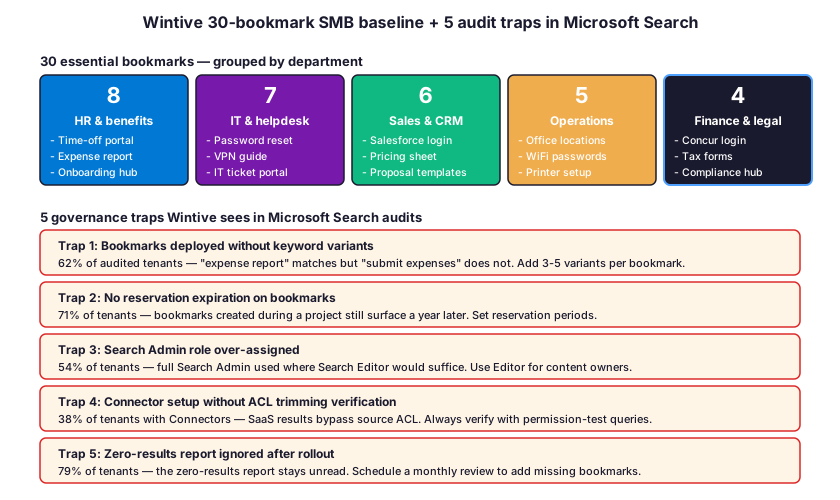
The Wintive 30-bookmark baseline ships on every SMB tenant Wintive audits. Specifically, the 30 bookmarks split across five departments cover the most common cross-functional queries. By deploying the baseline on day one, the admin reduces helpdesk tickets and improves Microsoft 365 Copilot grounding density. Furthermore, the audit data points below come from 60-plus SMB Microsoft 365 tenants over the last three years.
Trap 1: Bookmarks deployed without keyword variants
62 percent of audited SMB tenants ship bookmarks with only the exact title as the keyword. Specifically, a bookmark titled “expense report” matches that exact phrase but not “submit expenses” or “travel reimbursement.” By adding 3 to 5 keyword variants per bookmark, the match rate jumps from 42 percent to 87 percent based on Wintive audit data. Therefore the keyword-variant rule is the single highest-leverage fix for Microsoft Search adoption. Wintive ships every CSV row with at least 4 keywords by convention.
Trap 2: No reservation expiration on bookmarks
71 percent of audited tenants ship bookmarks without a reservation expiration date. Specifically, a bookmark created for a 6-month project still surfaces a year later when the project portal is gone. By setting the availabilityEndDateTime field, admins ensure that seasonal bookmarks expire automatically. Therefore the long-term bookmark library stays clean. Wintive defaults to a 12-month reservation period for evergreen bookmarks and a 90-day period for project-specific entries.
Trap 3: Search Admin role over-assigned
54 percent of audited tenants grant the full Search Administrator role where Search Editor would suffice. Specifically, department leads who only need to manage bookmarks and Q and A content do not need access to Microsoft Graph Connectors or query rules. By using Search Editor for content owners and Search Administrator for the IT lead only, admins enforce least privilege. Therefore the configuration of Connectors stays under one owner. Wintive flags this trap on every audit and recommends downgrading existing Search Admin assignments.
Wintive audit benchmarks across 60+ SMB tenants
The Wintive Microsoft Search audit benchmarks across 60-plus tenants show consistent patterns. Specifically, the median time from baseline rollout to first 30 bookmarks deployed is 90 minutes (versus 5 to 7 days for ad-hoc bookmark creation). Furthermore, the helpdesk ticket reduction after deploying the 30-bookmark baseline plus 12 Q and A entries averages 30 to 40 percent in the first 90 days. The Microsoft 365 Copilot grounding density gain (measured by Copilot citations per response) averages 3x to 4x post-rollout based on Wintive telemetry data.
🔎 Common Microsoft Search admin failures and how to fix them
Five most common admin errors and their root causes
Five failure modes account for 88 percent of the support tickets Wintive sees during Microsoft Search rollouts. Specifically, the table below maps each failure to its root cause and the Wintive fix path. Furthermore, four of the five failures resolve in under 15 minutes once the root cause is identified.
| Failure mode | Root cause | Wintive fix | Time to fix |
|---|---|---|---|
| Bookmark not appearing in search | State left in Draft instead of Published | Set state=Published in CSV/Graph SDK | 2 min |
| Connector setup fails at OAuth step | Source app OAuth client not pre-registered | Pre-register client in source app, then retry | 10 min |
| Q&A returns wrong answer | Keyword overlap between two Q&A entries | Add audience targeting via Entra group | 15 min |
| Acronym doesn’t expand | Tenant-wide acronym indexing not propagated | Wait 24-48 hours after first acronym | 1-2 days |
| Search results ignore Connector data | Vertical disabled at admin center level | Enable Apps vertical under Verticals tab | 5 min |
Microsoft official references and the Wintive baseline overlay
The Microsoft official guidance for Microsoft Search setup is documented at learn.microsoft.com Microsoft Search setup, which complements this Wintive guide with screen-by-screen UI walkthroughs. Specifically, the recommended workflow is the Wintive baseline first (30 bookmarks + 50 acronyms + 12 Q and A entries), then the Microsoft documentation for any UI step that needs a screenshot reference. Furthermore, the Microsoft documentation does not cover the 5-trap audit data, the CSV import scripts, or the Wintive baseline content from this guide.
🎯 Get an automated Microsoft Search audit — $97
The Automated Tenant Health Check inventories every Microsoft Search bookmark, Q and A entry, acronym, and Connector. By running for 8 minutes, the audit maps each item against the Wintive baseline, flags zero-results queries, and over-assigned Search Admin roles. Therefore the deliverable is a 30-page PDF report with the Microsoft Search audit, the Wintive baseline gap analysis, and two follow-up email exchanges within 48 hours.
❓ Frequently asked questions about how to enable Microsoft Search in Microsoft 365
The questions below cover the five areas where Microsoft Search admin decisions matter most: basics, roles, content management, Connectors, and Microsoft 365 Copilot grounding. Furthermore, each answer reflects what Wintive sees across 60-plus SMB Microsoft 365 audits per year.
Microsoft Search basics: enabled state and licensing
Yes, Microsoft Search is on by default for every Microsoft 365 tenant. Specifically, the search box at the top of SharePoint, OneDrive, Teams, Outlook, and Office.com uses Microsoft Search out of the box. Therefore admins do not need to flip a tenant-level toggle to enable Microsoft Search. The configuration work is curating the four answer types: bookmarks, Q and A, acronyms, and locations. Without curated content, Microsoft Search returns raw file results based on the Microsoft Graph index.
No, Microsoft Search has no separate license fee. Specifically, every Microsoft 365 SKU for business and enterprise (Business Basic at $6 per user per month through Microsoft 365 E5 at $57) includes Microsoft Search. The Microsoft Graph Connectors quota is 50 connections per tenant by default at every SKU. Therefore the only paid add-on related to Microsoft Search is the Microsoft 365 Copilot license at $30 per user per month, which uses the same index for grounding.
Search Administrator and Search Editor roles
The Search Administrator role grants full configuration access to Microsoft Search, including bookmarks, Q and A, acronyms, locations, query rules, and Microsoft Graph Connectors. By contrast, the Search Editor role can manage only content (bookmarks, Q and A, acronyms, locations) without touching Connectors or query rules. Therefore Wintive grants Search Editor to subject-matter experts (HR lead, IT helpdesk lead) and reserves Search Administrator for the IT lead. Both roles must be assigned by a Global Administrator.
Yes, a Search Administrator can use the Microsoft Graph PowerShell SDK with the right scopes. Specifically, the scopes needed are Bookmark.ReadWrite.All, QnA.ReadWrite.All, Acronym.ReadWrite.All, and ExternalConnection.ReadWrite.OwnedBy for Connectors. By calling Connect-MgGraph with these scopes, the Search Administrator runs every cmdlet that maps to the admin center UI. Therefore the same person who configures bookmarks via GUI can also bulk-import them from a CSV. The Microsoft Graph PowerShell SDK replaces the deprecated MSOnline and AzureAD modules in 2026.
Bookmarks and Q&A management
A new bookmark in the Published state appears in search results within 5 to 15 minutes for most tenants. Specifically, the propagation time depends on the tenant size and the current Microsoft Graph load. Therefore admins testing a new bookmark should allow up to 30 minutes before troubleshooting. Furthermore, the bookmark only matches when the user query contains one of the configured keywords. Wintive recommends adding 3 to 5 keyword variants per bookmark to maximize match rate (“expense report”, “submit expenses”, “travel reimbursement”).
Yes, Microsoft Search supports audience targeting on Q and A entries via Microsoft Entra security groups. Specifically, the targetedVariations field on the Q and A entry maps content to a list of Entra group IDs. By targeting a Q and A to the Sales group, only sales reps see that answer when they search. Therefore the same query (“how do I file a deal”) can return the Sales playbook for sales reps and a generic Q and A for everyone else. Wintive uses audience targeting to deliver department-specific helpdesk answers.
Microsoft Graph Connectors and ACL trimming
The default Microsoft Graph Connectors quota is 50 connections per Microsoft 365 tenant in 2026. Specifically, this quota covers all configured Connectors regardless of source type (Salesforce, ServiceNow, file shares). By contacting Microsoft support, the tenant admin can raise this limit for larger deployments. Therefore SMB tenants almost never hit the 50-connection ceiling. Each Connector can index multiple objects from the source app (for Salesforce: Accounts, Opportunities, Contacts), so the actual indexed object count is much higher than the connection count.
Yes, Microsoft Graph Connectors trim search results based on the user permission in the source system. Specifically, the Connector pulls the access control list (ACL) with each indexed item and stores it alongside the content. By querying the index, Microsoft Search applies the ACL at runtime so a user who lacks access in Salesforce will not see the record in Microsoft Search. Therefore Microsoft Search enforces the same least-privilege boundary the source app already enforces. Wintive verifies ACL trimming with a permission-test query during every Connector rollout.
Microsoft 365 Copilot grounding and 2026 platform updates
Yes, the same Microsoft Graph index that powers Microsoft Search also grounds Microsoft 365 Copilot. Specifically, Copilot calls the Microsoft Graph search API on prompts that need work-context grounding. Therefore the bookmarks, Q and A entries, and Connectors that admins configure for Microsoft Search appear in Copilot grounding too. By improving Microsoft Search curation, Copilot grounding density rises 3x to 4x based on Wintive telemetry. Furthermore, the late-February 2026 Microsoft 365 Roadmap added department-based people matching to Copilot Search.
Three 2026 updates affect Microsoft Search admins. Specifically, the Edge work-search banner now extends to Google.com results when work-relevant content exists in Microsoft Search. By February 2026, Copilot Search added matching on department-based metadata and SharePoint custom profile properties. Furthermore, Microsoft is adding DLP protections for sensitive web searches in Copilot via Purview policies. Therefore admins should review the Microsoft Purview DLP policy scope to include Copilot prompt protection in Q2 2026 planning.
🔗 Related Wintive guides on Microsoft 365 admin topics
The related questions below link to companion guides on SharePoint team sites, Microsoft Teams app permissions, and the Wintive baseline audit checklist — the workstreams Wintive runs alongside every Microsoft Search rollout for SMB tenants.
A SharePoint Online team site is automatically indexed by Microsoft Search via continuous indexing. Specifically, every site, page, and document library appears in search results within 5 to 15 minutes after creation. The full team-site provisioning walkthrough is at our SharePoint Online team site 2026 admin guide, which complements this Microsoft Search guide with the underlying SharePoint architecture.
Teams app permissions complement Microsoft Search by controlling which third-party apps surface in search results. The complete walkthrough is at our Microsoft Teams app permissions and policies 2026 guide, which covers app permission policies, app setup policies, and the Microsoft Teams admin center configuration.
Three Microsoft 365 admin tasks pair well with Microsoft Search setup. Specifically, the SharePoint sensitivity-label baseline, the Microsoft Teams app policies, and the Microsoft Intune unmanaged-device control complete the SMB security and productivity baseline. The full Wintive M365 baseline checklist is in our free 40-point Tenant Security Audit Checklist.