The New-DistributionGroup cmdlet has been part of Exchange PowerShell since 2007, and it remains one of the most misused commands in 2026 Exchange Online tenants. Many admins reach for it as the default for any “send email to a group” requirement — even when Microsoft 365 Groups, Teams channels, or Viva Engage Communities would deliver a far better experience.
🛡️ Free: M365 Tenant Security Audit Checklist
17-page PDF with 50 hands-on checks covering Entra ID, Exchange Online, SharePoint, Teams, Intune, license waste, and audit logging. PowerShell commands included. Built from 60+ real tenant audits at Wintive.
This guide takes a fresh 2026 angle on New-DistributionGroup. We cover when distribution groups still make sense, the modern PowerShell patterns that replace older backtick continuations, how Microsoft Purview now lets you audit DL changes, and the four-phase migration playbook we use at Wintive when a client outgrows DLs. Specifically, the goal is to give you the criteria to choose the right collaboration object — not blindly run the cmdlet because it works.
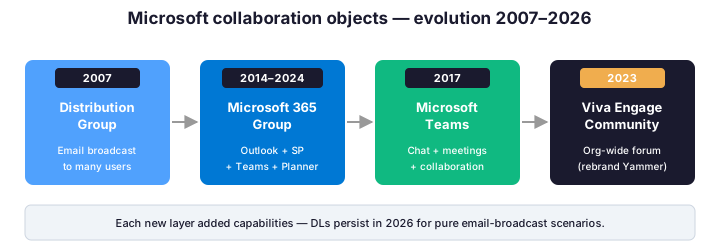
🆕 Are distribution groups still relevant in 2026?
Short answer: yes, but for narrower scenarios than five years ago. Distribution groups remain the right tool when you need a one-way email broadcast to a list of recipients, with no shared collaboration surface attached. Specifically, they handle up to 100,000 recipients per send, support nested membership, accept email contacts as members, and integrate cleanly with mail flow rules and Exchange Online Protection.
However, in our tenant audits at Wintive, we see DLs misused in scenarios where they should not be. For example, a “Marketing Team” DL with 25 members who all need to share files, schedule meetings, and chat — that is a Microsoft 365 Group request, not a DL. Conversely, a “Company Newsletter” DL with 4,000 recipients reading a monthly digest is exactly what DLs are designed for. Therefore, the decision tree below clarifies the boundaries.
🆚 DL vs M365 Group vs Teams Channel vs Viva Engage
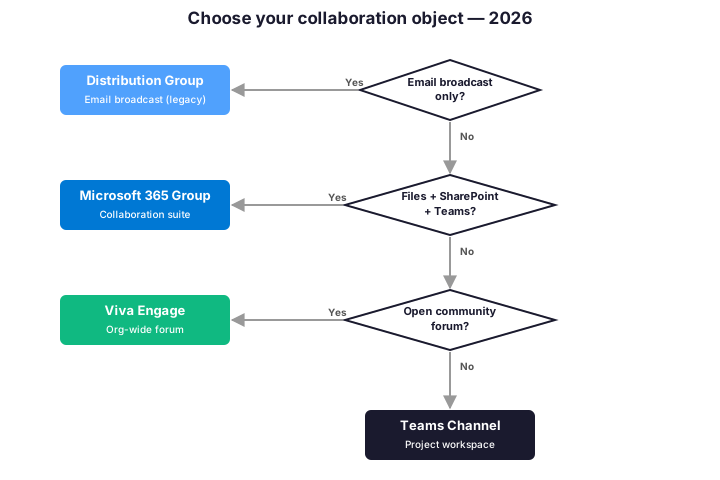
Each modern collaboration object solves a different problem. Distribution groups deliver email to many recipients. Microsoft 365 Groups bundle Outlook, SharePoint, Teams, OneNote, and Planner around a single membership list. Teams Channels surface the M365 Group as a chat-first project workspace. Viva Engage Communities, formerly Yammer, host open organization-wide discussions with social-feed mechanics.
The capability matrix below summarizes the differences across eight dimensions. In practice, we apply one simple rule at Wintive: if your users will have more than three back-and-forth replies on a topic, do not use a distribution group. Indeed, conversation history, threading, and notification controls are far better in M365 Groups, Teams, or Viva Engage.
| Capability | DL | M365 Group | Teams Channel | Viva Engage |
|---|---|---|---|---|
| Email broadcast | ✅ | ✅ | ~ | ✅ |
| Shared mailbox | ❌ | ✅ | ✅ | ~ |
| Files (SharePoint/OneDrive) | ❌ | ✅ | ✅ | ~ |
| Calendar | ❌ | ✅ | ✅ | ❌ |
| Real-time chat / meetings | ❌ | ~ | ✅ | ~ |
| Threaded conversations | ❌ | ~ | ✅ | ✅ |
| External members | ✅ | ~ | ~ | ❌ |
| Purview audit log | ✅ | ✅ | ✅ | ✅ |
📋 Prerequisites (2026 stack)
To create or manage distribution groups in 2026 Exchange Online tenants, you need the following baseline:
- Exchange Online PowerShell module v3.7 or later (
Install-Module ExchangeOnlineManagement) - Exchange Administrator or Global Administrator role on the tenant
- Modern authentication enabled — legacy basic auth was fully removed in 2023
- A planned naming convention for DLs and their primary SMTP addresses
- Optional: PIM-eligible Exchange Administrator activation if your tenant enforces JIT for high-privilege roles
⚡ Creating a DL with PowerShell — modern splatting
Older guides on this cmdlet rely on backtick line continuations, which break in many editors and cannot be commented per-line. In 2026, splatting is the cleaner pattern — and the Wintive standard for any production Exchange script.
Connect-ExchangeOnline -UserPrincipalName admin@example.com -ShowBanner:$false

$DLParams = @{
  Name                               = "Marketing Team"
  Alias                              = "marketing-team"
  PrimarySmtpAddress                 = "marketing-team@example.com"
  DisplayName                        = "Marketing Team"
  RequireSenderAuthenticationEnabled = $false
  ManagedBy                          = "marketing-lead@example.com"
  Members                            = @("alice@example.com", "bob@example.com")
}

New-DistributionGroup @DLParams
The splatted version executes identically but each parameter sits on its own line and is independently commentable. Furthermore, the Members parameter has been supported in New-DistributionGroup since 2021, so the older two-step pattern (create then Add-DistributionGroupMember) is no longer required for small lists.
🛡️ Delivery management, moderation, and BCC blocking
By default, a new distribution group accepts mail from anyone, including external senders. In every Wintive tenant audit we conduct, this default gets restricted on at least 80 percent of corporate DLs. Specifically, the three controls that matter most are:
# Restrict who can send to the DL
$Restrict = @{
  Identity                            = "marketing-team"
  RequireSenderAuthenticationEnabled  = $true
  AcceptMessagesOnlyFromDLMembers     = $true
}
Set-DistributionGroup @Restrict

# Block BCC delivery and enable moderation
$Moderation = @{
  Identity            = "marketing-team"
  BccBlocked          = $true
  ModerationEnabled   = $true
  ModeratedBy         = "marketing-lead@example.com"
}
Set-DistributionGroup @Moderation
BccBlocked is particularly useful for large company-wide DLs where users rely on inbox rules to filter messages. Indeed, those rules cannot evaluate BCC recipients, so blocking BCC delivery keeps filtering predictable.
👥 Bulk member management at scale
When a DL grows beyond 50 members, individual Add-DistributionGroupMember calls become slow and error-prone. Therefore, we use one of two patterns at Wintive:
# Pattern A: replace the entire membership in one call (recommended)
$Members = @(
  "alice@example.com"
  "bob@example.com"
  "carol@example.com"
)
Update-DistributionGroupMember -Identity "marketing-team" -Members $Members -Confirm:$false

# Pattern B: idempotent bulk add from CSV
$existing = Get-DistributionGroupMember -Identity "marketing-team" |
  Select-Object -ExpandProperty PrimarySmtpAddress

Import-Csv ./team.csv | ForEach-Object {
  if ($existing -notcontains $_.Email) {
    Add-DistributionGroupMember -Identity "marketing-team" -Member $_.Email
  }
}
Pattern A is the safest when you have a definitive list. Pattern B is better when you want to merge new members without removing existing ones. For example, we use Pattern A on quarterly membership reviews and Pattern B on weekly onboarding scripts.
🌐 Dynamic DLs vs Dynamic M365 Groups
Dynamic distribution groups calculate membership at send time based on a directory query. Specifically, they have one major advantage over dynamic Microsoft 365 Groups: they work with any Exchange Online license, while dynamic M365 Groups require Microsoft Entra ID Premium P1.
$DynamicParams = @{
  Name                        = "Editors-Dynamic"
  DisplayName                 = "Editors (Dynamic)"
  Alias                       = "editors-dynamic"
  PrimarySmtpAddress          = "editors-dynamic@example.com"
  IncludedRecipients          = "MailboxUsers"
  ConditionalCustomAttribute9 = "Editor"
}
New-DynamicDistributionGroup @DynamicParams
The Conditional* parameters apply pre-built filters. For complex membership logic, use -RecipientFilter with a custom expression. In Wintive engagements, we recommend dynamic DLs for any membership larger than 200 — manual maintenance becomes a liability past that scale.
🔍 Auditing DL changes via Microsoft Purview
When a compliance team asks who created a DL or modified its membership, the answer lives in the unified audit log. Microsoft Purview surfaces this through Search-UnifiedAuditLog, the modern replacement for legacy admin audit log queries.
# Find every DL creation or modification in the last 30 days
$Audit = @{
  StartDate  = (Get-Date).AddDays(-30)
  EndDate    = Get-Date
  Operations = @("New-DistributionGroup","Set-DistributionGroup","Remove-DistributionGroup")
  ResultSize = 5000
}
Search-UnifiedAuditLog @Audit |
  Select-Object CreationDate, UserIds, Operations, AuditData |
  Export-Csv ./dl-audit.csv -NoTypeInformation
This is the same query template we use for monthly tenant audit reports at Wintive. In addition, keep retention windows in mind: Microsoft Purview retains 180 days by default for E3 plans, 365 days for E5.
🔄 Migrating DLs to Microsoft 365 Groups
For DLs that meet the collaboration criteria from the decision tree above, migration to Microsoft 365 Groups is usually the right call. The four-phase playbook below is the structure we follow on every Wintive engagement.
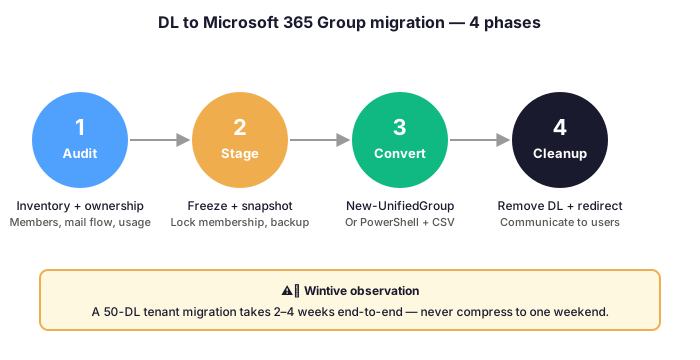
The Audit and Stage phases are mostly inventory work and stakeholder communication; in contrast, Convert and Cleanup require PowerShell. Specifically, the snippet below covers Phase 3 (Convert): it extracts the membership of an existing distribution group and creates the equivalent Microsoft 365 Group with the same members, ready for the Cleanup phase.
# Phase 3 (Convert): create the M365 Group from the DL membership
$DL = Get-DistributionGroup -Identity "marketing-team"
$Members = Get-DistributionGroupMember -Identity "marketing-team" |
  Select-Object -ExpandProperty PrimarySmtpAddress

$GroupParams = @{
  DisplayName        = $DL.DisplayName
  Alias              = $DL.Alias + "-grp"
  AccessType         = "Private"
  Owner              = $DL.ManagedBy[0]
  PrimarySmtpAddress = "marketing-team-grp@example.com"
}
New-UnifiedGroup @GroupParams
Add-UnifiedGroupLinks -Identity "marketing-team-grp" -LinkType Members -Links $Members
Note that the new SMTP address is intentionally different. Therefore, keep the original DL alive during migration to forward to the new group, then schedule its removal in Phase 4 once users have migrated their references.
💡 Wintive 2026 playbook
After auditing more than 60 tenants, here are the five rules we apply on every distribution group review:
- Audit before you create. Run a 30-day Purview query to check whether a similar DL already exists. In practice, we have flagged tenants with three distinct DLs serving the same group of 12 people.
- Force RequireSenderAuthenticationEnabled to $true on every DL by default. Indeed, external-sender exposure is the most common DL misconfiguration we find in audits.
- Document the owner in ManagedBy and the lifecycle in a custom attribute. A DL without an owner is a DL that nobody will revoke when the team disbands.
- Use M365 Groups by default for new collaboration needs. Only fall back to DLs for pure email-broadcast scenarios with more than 100 recipients.
- Schedule a quarterly DL review. In our experience, half of the DLs in a typical 50-DL tenant have not been used in the last 90 days.
❓ Frequently asked questions
Distribution groups are not deprecated. Microsoft continues to support New-DistributionGroup and related cmdlets in Exchange Online. However, Microsoft positions Microsoft 365 Groups as the recommended collaboration object for new scenarios that need shared files, calendar, or Teams chat.
New-DistributionGroup creates a classic Exchange Online distribution group used purely for email delivery. New-UnifiedGroup creates a Microsoft 365 Group, which bundles a shared mailbox with SharePoint, Teams, Planner, and OneNote.
Yes. Microsoft provides a built-in conversion tool in the Exchange Admin Center for cloud-only DLs that meet specific criteria. For complex tenants, we recommend a custom PowerShell migration script following the four-phase playbook in this guide.
Use Search-UnifiedAuditLog in Microsoft Purview to query the New-DistributionGroup operation. The unified audit log captures the creating user, the date, and the parameters used. Retention varies by Microsoft 365 plan.
A distribution group can deliver to up to 100,000 recipients per send in Exchange Online. The membership size itself can exceed this number, but per-message delivery is capped at 100,000.