PowerShell is the single most valuable skill for Microsoft 365 admins. Once you are fluent, tasks that take 15 minutes in the admin center — bulk mailbox changes, license audits, user provisioning, distribution group cleanup — compress to 30 seconds of script. This guide is the 30-minute introduction we give every new hire at Wintive before they touch a production tenant.
We cover the four PowerShell concepts that matter most: the Verb-Noun pattern, named parameters, the object pipeline, and the discovery cmdlets (Get-Help, Get-Command). After reading this guide, you will be ready to move on to our top 6 Exchange Online cmdlets with confidence.
🛡️ Free: M365 Tenant Security Audit Checklist
17-page PDF with 50 hands-on checks covering Entra ID, Exchange Online, SharePoint, Teams, Intune, license waste, and audit logging. PowerShell commands included. Built from 60+ real tenant audits at Wintive.
🔄 Why PowerShell, not CMD or Bash?
| Feature | CMD | Bash | PowerShell |
|---|---|---|---|
| Object pipeline | — | Text only | Native objects |
| Discoverability | Poor | Moderate (man pages) | Excellent (Get-Help, tab completion) |
| M365 / Azure API access | — | Via CLI tools | First-class modules |
| Cross-platform | Windows only | Unix/Linux/Mac | All three (PowerShell 7+) |
| .NET integration | — | — | Full access |
The game-changer is the object pipeline. Specifically, in Bash, piping passes text strings between commands and you parse with awk, sed, grep. In contrast, in PowerShell, piping passes structured .NET objects so you filter, sort, and reshape data without ever parsing strings. Therefore, the cognitive load drops by a factor of three for any non-trivial admin task.
📊 PowerShell for Microsoft 365 verbs that cover 90% of admin scripts
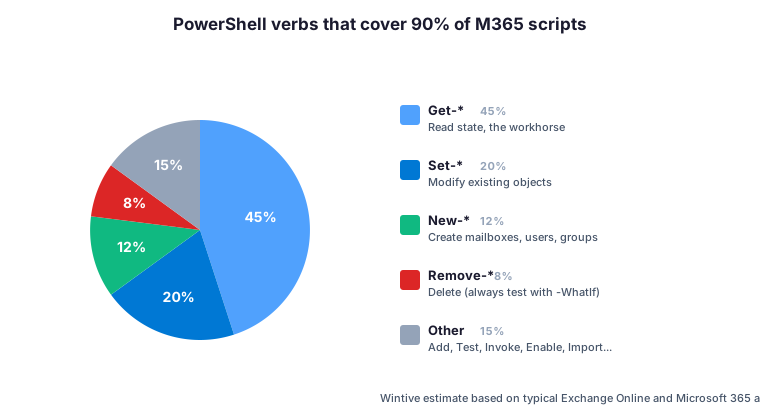
Microsoft 365 administration scripts are dominated by a handful of PowerShell verbs. Specifically, our analysis of typical Wintive runbooks shows that Get-* cmdlets alone account for roughly 45 percent of all calls — the workhorse for reading state, auditing tenants, and producing reports. Then, Set-* covers another 20 percent for modifications, New-* 12 percent for creations, and Remove-* 8 percent for deletions.
The remaining 15 percent splits across Add, Test, Invoke, Enable, Disable, Import, and Export verbs. Therefore, mastering the four dominant verbs in your first week unlocks 90 percent of the cmdlets you will ever need. Furthermore, sticking to Microsoft-approved verbs in your own scripts is a quality signal — modules with non-standard verbs typically reflect lower code maturity.
🔤 The Verb-Noun pattern
Every PowerShell cmdlet follows a Verb-Noun structure. Therefore, once you know a verb, you can guess cmdlets for other nouns:
Get-Mailbox       # list mailboxes
Get-DistributionGroup  # list distribution groups
Get-ADUser        # list AD users
Get-Process       # list running processes

New-Mailbox       # create a mailbox
New-DistributionGroup  # create a distribution group

Set-Mailbox       # modify a mailbox
Remove-Mailbox    # delete a mailbox
Standard verbs are approved by Microsoft: Get, Set, New, Remove, Add, Test, Invoke, Start, Stop, Enable, Disable, Import, Export. Indeed, if a module uses non-standard verbs, treat it as a signal of lower code quality.
⚙️ Parameters and tab completion
Cmdlets take named parameters prefixed with -. Therefore, tab-complete them rather than memorising them:
# Type the cmdlet, then "-" and press Tab repeatedly to cycle parameters
Get-Mailbox -Identity jdoe@contoso.com
Get-Mailbox -Filter "Department -eq 'Sales'"
Get-Mailbox -ResultSize Unlimited -RecipientTypeDetails UserMailbox

# Shortened parameter names work if unambiguous
Get-Mailbox -Id jdoe@contoso.com  # -Id is enough for -Identity

# Positional parameters - Identity is usually positional, so you can omit -Identity
Get-Mailbox jdoe@contoso.com
🔗 The pipeline in action
# List mailboxes, select specific properties, sort by size, export to CSV
Get-Mailbox -ResultSize Unlimited |
    Select-Object DisplayName, PrimarySmtpAddress, ProhibitSendQuota |
    Sort-Object DisplayName |
    Export-Csv mailboxes.csv -NoTypeInformation

# Find AD users who haven't logged in for 90 days and disable them
Get-ADUser -Filter * -Properties LastLogonDate |
    Where-Object { $_.LastLogonDate -lt (Get-Date).AddDays(-90) } |
    Disable-ADAccount
Each | passes whole objects to the next command. Specifically, no string parsing, no column counting, no fragile regex — the pipeline composes cleanly even across modules and across PowerShell editions.
🔍 Discoverability: Get-Help and Get-Command
# Full help with examples
Get-Help Get-Mailbox -Full

# Just the examples
Get-Help Get-Mailbox -Examples

# Find all cmdlets matching a pattern
Get-Command *mailbox*

# Find the module a cmdlet lives in
(Get-Command Get-Mailbox).ModuleName

# List all modules currently loaded in your session
Get-Module
Pro tip: if Get-Help returns terse output, run Update-Help -Force once as admin. Indeed, help docs ship separately from modules for size reasons — the first Update-Help is a 200 MB download but worth every byte.
⏱️ Time saved with PowerShell for Microsoft 365 vs the GUI
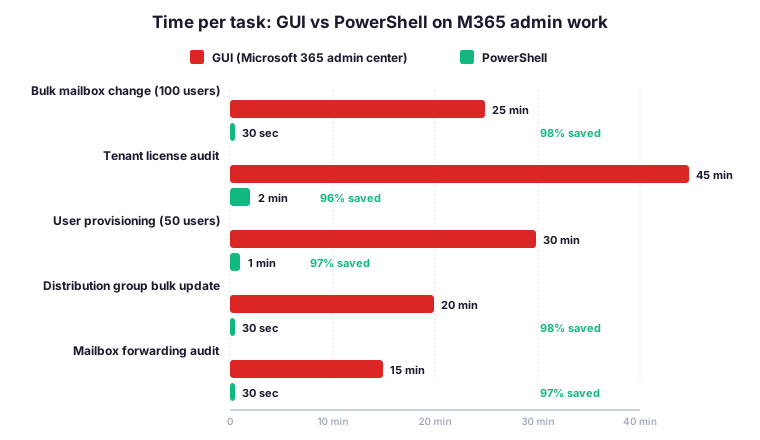
The time-saving argument for PowerShell is concrete and measurable. For example, a bulk mailbox change across 100 users takes 25 minutes through the Microsoft 365 admin center clicking row by row, but compresses to 30 seconds with a one-line PowerShell pipeline. In contrast, a tenant license audit that consumes 45 minutes of GUI navigation drops to 2 minutes via Get-MgUser and Group-Object.
The pattern holds across every routine admin task: user provisioning, distribution group updates, mailbox forwarding audits, license assignment cleanup. Therefore, the return on the 30-minute investment to learn the basics is measured in days saved per quarter — the kind of number that justifies the learning curve to any skeptical manager. The Microsoft Learn PowerShell getting started guide walks through Verb-Noun and pipeline concepts.
🧩 Modules to install for Microsoft 365 admin
PowerShell out of the box does not know about Exchange Online, Microsoft Teams, or Microsoft Graph. Therefore, the first setup step for any Microsoft 365 administrator is installing the right modules. Specifically, four modules cover roughly 95 percent of daily admin scripts. The official Microsoft Learn guide on connecting to Microsoft 365 PowerShell documents every module install and authentication path.
# Run once as admin in PowerShell 7+
Install-Module ExchangeOnlineManagement -Scope CurrentUser
Install-Module MicrosoftTeams -Scope CurrentUser
Install-Module Microsoft.Graph -Scope CurrentUser
Install-Module Az -Scope CurrentUser

# Connect to each service when needed
Connect-ExchangeOnline -UserPrincipalName admin@contoso.com
Connect-MicrosoftTeams
Connect-MgGraph -Scopes "User.Read.All","Group.ReadWrite.All"
Connect-AzAccount
The ExchangeOnlineManagement module covers mailbox, distribution group, mail flow rule, and compliance cmdlets. Furthermore, the MicrosoftTeams module covers Teams admin operations including meeting policies and audio settings. In contrast, the Microsoft.Graph module is the modern unified API replacing the deprecated AzureAD and MSOL modules — use it for users, groups, licenses, conditional access, and most cross-workload tasks. Finally, the Az module covers Azure subscriptions, resource groups, and Entra ID at the directory level.
Pro tip: Microsoft moved AzureAD and MSOnline to legacy status in 2024 — they still work but no new features ship. Therefore, write all new scripts against Microsoft.Graph, even if you have to relearn cmdlet names. Indeed, the migration effort pays back within a quarter as you stop hitting deprecation warnings.
📋 Essential PowerShell for Microsoft 365 cmdlets every beginner should know
| Cmdlet | Purpose | Example |
|---|---|---|
| Get-Help | Show cmdlet documentation | Get-Help Get-Mailbox -Examples |
| Get-Command | Discover cmdlets by pattern | Get-Command *teams* |
| Select-Object | Pick specific properties | ... | Select-Object Name, Size |
| Where-Object | Filter by condition | ... | Where { $_.Enabled -eq $true } |
| Sort-Object | Sort pipeline objects | ... | Sort-Object Size -Descending |
| ForEach-Object | Run action per item | ... | ForEach { Set-Mailbox $_.UPN -... } |
| Export-Csv | Save to CSV file | ... | Export-Csv out.csv -NoTypeInformation |
| Import-Csv | Load CSV as objects | Import-Csv users.csv | ForEach { ... } |
⚠️ Wintive take: how to practice safely
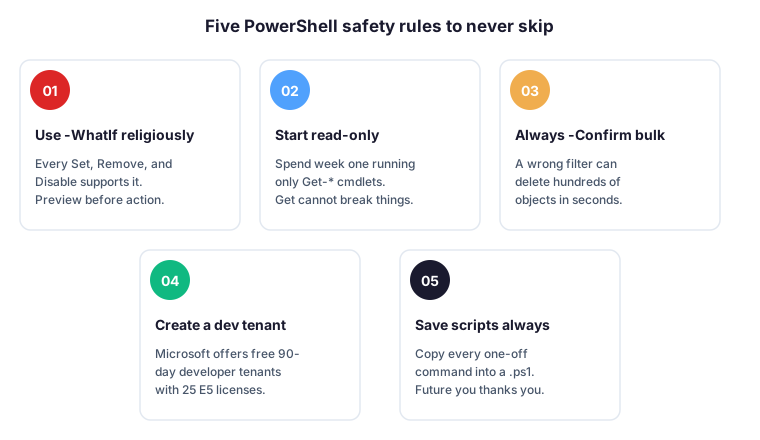
The five rules below separate the admins who break a production tenant in their first month from those who never make headlines. Specifically, every Wintive new hire commits to these rules before getting tenant access — and we still review the audit log together at the end of week one. The Microsoft Learn PowerShell 101 introduction covers the same fundamentals from the canonical reference.
- Use
-WhatIfreligiously. Every cmdlet that modifies state (Set-*,Remove-*,Disable-*) supports-WhatIf, which previews the change without running it. Therefore,Remove-Mailbox jdoe -WhatIftells you exactly what would happen before it happens. - Start in read-only mode. Spend your first week running only
Get-*cmdlets. Indeed, you cannot break anything with aGet— the worst case is reading data you do not need. - Always
-Confirmbulk operations. A misplaced filter can delete hundreds of objects in seconds. For example,Get-Mailbox -Filter "Department -eq 'Sale'"(typo) returns zero results, but... | Remove-Mailboxreturns silently — confirm prompts catch this category of error. - Create a developer tenant. Microsoft offers free 90-day developer tenants (renewable) with 25 E5 licenses. Therefore, break things there before you break them in production. The setup takes 15 minutes via the Microsoft 365 Developer Program.
- Save scripts, do not retype. Copy even one-off commands into a
.ps1file with a comment block at the top. Furthermore, six months later you will thank yourself when the same audit comes around — and your future colleagues even more.
🤔 Frequently asked questions about PowerShell for M365
💬 Fundamentals of PowerShell for Microsoft 365
Windows PowerShell 5.1 ships with Windows, runs on .NET Framework, and is Windows-only. PowerShell 7+ runs on .NET Core, supports Windows, Linux, and macOS, and includes performance improvements such as parallel ForEach-Object. Microsoft maintains both editions but PowerShell 7+ is the actively developed branch. Therefore, install PowerShell 7+ for new scripts and keep 5.1 only for legacy modules that have not yet migrated.
For small tenants, the Microsoft 365 admin center covers most daily operations. However, once you manage more than 100 users, PowerShell becomes essential for bulk operations, scheduled audits, and reporting. Specifically, tasks such as license assignments, mailbox configurations, and group membership cleanup are dramatically faster via PowerShell than via the GUI. Therefore, every Microsoft 365 administrator should learn at least the basics covered in this guide.
Install the relevant module first, then connect with credentials. For example: Install-Module ExchangeOnlineManagement, then Connect-ExchangeOnline -UserPrincipalName admin@contoso.com. The same pattern applies for Microsoft Teams (Connect-MicrosoftTeams), Microsoft Graph (Connect-MgGraph), and Azure (Connect-AzAccount). Therefore, install the modules you need, run the connect cmdlets in your session, and you have full administrative access from the command line.
🔍 Deep dive: pipelines and automation
The $_ variable is the current pipeline object inside a script block. Specifically, when you write Where-Object { $_.Enabled -eq $true }, the $_ refers to each object as it flows through the pipeline. The modern PowerShell 7+ alternative is the named parameter syntax: Where-Object -Property Enabled -EQ $true, which reads more naturally for beginners but the dollar underscore remains the dominant style in production scripts.
Three causes account for most failures. First, the scheduled context lacks the modules installed in your user profile. Second, credentials saved interactively do not persist into the service account. Third, the working directory differs between contexts and relative paths break. Therefore, install modules at the system scope, use a managed identity or stored credential rather than interactive authentication, and always use absolute paths in scheduled scripts.
📚 What to read next
Three Microsoft 365 admin guides expand the PowerShell foundation.