A Microsoft 365 custom domain rebrands every mailbox from the cosmetic first.last@yourtenant.onmicrosoft.com default to a credible business identity. Specifically, the 2026 baseline below ships in under one hour: verified domain, DKIM 2048-bit signing pair, SPF with -all, and a staged DMARC progression. Furthermore, this Microsoft 365 custom domain guide reflects 60+ Wintive-audited SMB tenants running in production today. For the broader DNS zone architecture context (zone anatomy, public versus private zones, resolution flow for inbound mail), see our companion DNS zones for Microsoft 365 guide.
📊 The 2026 Microsoft 365 custom domain landscape
2026 baseline at a glance
TL;DR for busy admins. Add the domain in admin.microsoft.com and verify with the MS=ms TXT record. Publish a single SPF record with -all. Enable DKIM 2048-bit in security.microsoft.com (not classic EAC anymore). Stage DMARC at p=none, watch the RUA reports for 30 days, then upgrade to p=quarantine and finally p=reject. Use PowerShell ForEach-Object -Parallel for any tenant with more than three custom domains.
📥 Free PDF guide
Microsoft 365 Tenant Audit Checklist — 2026 edition
40+ checks across Entra ID, Exchange Online, SharePoint, Teams, and Intune. Specifically, the custom domain section maps every DNS record described below against the Wintive baseline including MX, SPF, DKIM 2048-bit, DMARC progression, and the multi-domain automation patterns covered in this guide.
Before diving into each DNS record one at a time, the architecture diagram below shows the full picture.
Specifically, every Microsoft 365 service that consumes the custom domain ties back to the same five primitives published at the registrar: MX, autodiscover CNAME, DKIM CNAMEs, SPF TXT, and DMARC TXT.
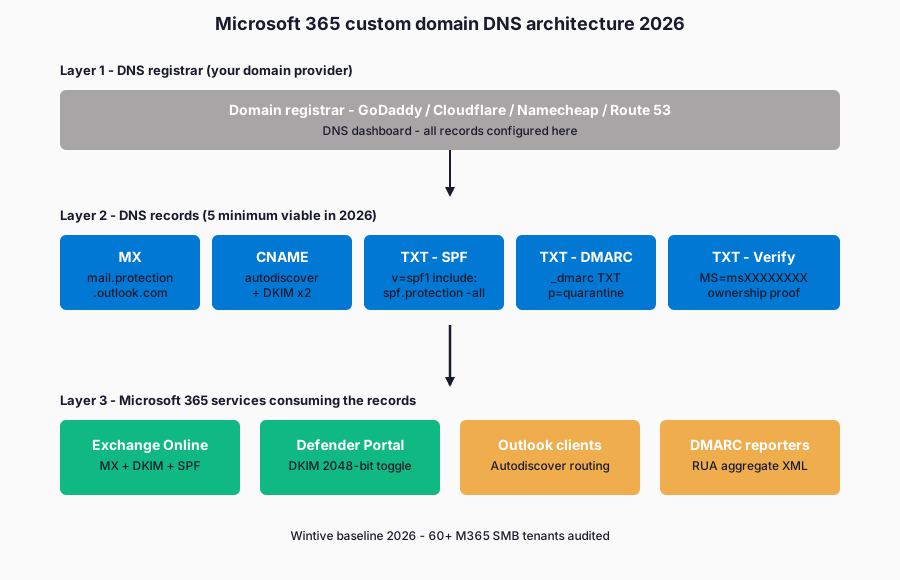
The architecture above maps the 2026 record set: every M365 service consumes the same five DNS primitives published at your registrar. Specifically, MX routes inbound mail, the autodiscover CNAME drives Outlook profile setup, two DKIM CNAMEs publish the signing public keys, the SPF TXT lists authorized senders, and the DMARC TXT tells receivers what to do when SPF or DKIM fails. Furthermore, the verification TXT proves you actually own the domain before Microsoft activates routing.
What changed since the last admin guide
Two changes matter for 2026 admins. First, DKIM enablement moved from the classic Exchange Admin Center to the Defender Portal at security.microsoft.com, which trips up runbooks written before mid-2024. Second, the default DKIM key length jumped from 1024 to 2048 bits, which prevents downgrade attacks but breaks any registrar that still rejects long CNAME values. Therefore, plan the rollout in the order below to avoid the most common 2026 trip-wires.
Microsoft 365 license coverage for custom domain features
Custom domain DNS records are free, but the Microsoft 365 features that consume those records sit behind specific SKU paywalls. Therefore, an honest cost-per-user-per-month conversation upfront avoids painful procurement reviews later. Furthermore, the predictable per-user OpEx pricing model contrasts sharply with on-prem CapEx surprises that legacy Exchange admins still budget against.
| License SKU | Price per user per month | Custom domain coverage | Defender add-ons |
|---|---|---|---|
| Exchange Online Plan 1 | $4.00 | MX + SPF + DKIM + DMARC TXT | None (anti-spam basic only) |
| Microsoft 365 Business Basic | $6.00 | Full DNS record set + Outlook Web | None |
| Microsoft 365 Business Standard | $12.50 | Full DNS record set + desktop apps | None |
| Microsoft 365 Business Premium | $22.00 | Full DNS record set + Intune + Entra ID P1 | Defender for Office 365 Plan 1 included |
| Microsoft 365 E3 | $36.00 | Full DNS record set + Entra ID P1 + Purview | Anti-spam intelligence (Defender add-on) |
| Microsoft 365 E5 | $57.00 | Full DNS record set + Entra ID P2 | Defender for Office 365 Plan 2 + ARC sealers |
Specifically, every plan above includes the basic email authentication stack (MX, SPF, DKIM, DMARC). Therefore, a 50-seat tenant on Business Premium at $22 per user already unlocks Defender for Office 365 Plan 1, which adds anti-spoofing intelligence and tenant-level allow/block lists. Furthermore, the jump to Microsoft 365 E5 at $57 unlocks ARC sealers for inbound mail flow with intermediate modifications, which Plan 1 cannot enforce.
🔐 Add and verify your domain in Microsoft 365
Prerequisites – Microsoft 365 custom domain baseline
- License: any Microsoft 365 plan that includes Exchange Online (Business Basic and above, or Exchange Online Plan 1).
- Admin role: Domain Name Administrator or Global Administrator scoped via Privileged Identity Management.
- DNS access: registrar dashboard credentials at GoDaddy, Cloudflare, Namecheap, Route 53, or your in-house DNS hosting service.
- PowerShell module (optional): ExchangeOnlineManagement v3.9.2 or later for DKIM verification cmdlets.
- Cost: all DNS records and DKIM keys are free; the only cost is the domain registration fee at your registrar.
With those prerequisites in place, the add-and-verify flow ships in under ten minutes. Specifically, sign in to admin.microsoft.com, open Settings then Domains, click Add domain, type the apex name like contoso.com, and pick the TXT verification method when prompted. Furthermore, the TXT record is shorter and cleaner than the legacy MX verification, which used to overwrite production mail flow during the proof-of-ownership step.
# Add and verify a custom domain via PowerShell (Microsoft Graph)
Connect-MgGraph -Scopes "Domain.ReadWrite.All"

# 1. Add the domain to the tenant
New-MgDomain -Id "contoso.com"

# 2. Pull the verification record details (returns DnsRecord objects)
Get-MgDomainVerificationDnsRecord -DomainId "contoso.com" |
  Select-Object RecordType, Label, Ttl, AdditionalProperties

# 3. After publishing the TXT record at the registrar, trigger verification
Confirm-MgDomain -DomainId "contoso.com"

# 4. Confirm the domain is verified
Get-MgDomain -DomainId "contoso.com" | Select-Object Id, IsVerified, IsDefault
📬 Configure MX records for Exchange Online mail flow
The MX record is one line. It decides which mail server receives messages addressed to your domain. Specifically, the M365 target follows the format contoso-com.mail.protection.outlook.com with priority 0. The hyphen replaces the dot in the domain name. Furthermore, only one active MX should remain for the domain after cutover. Old records pointing to legacy Postfix, Exchange on-prem, or another tenant must be removed during the migration window.
# Verify the MX record from any shell
dig MX contoso.com +short
# Expected output:
# 0 contoso-com.mail.protection.outlook.com.

# Compare with the value Microsoft expects
Get-AcceptedDomain -Identity contoso.com |
  Select-Object DomainName, DomainType, Default
🛡️ SPF – only one TXT record per domain
SPF merge rule for tenants with third-party senders
The SPF record lists every server allowed to send mail on behalf of your domain. The protocol allows exactly one SPF TXT record per domain or subdomain. Specifically, the canonical M365 value is v=spf1 include:spf.protection.outlook.com -all with the hard fail qualifier. Tenants that also send through Mailchimp, SendGrid, HubSpot, or a third-party ticketing system must merge those includes into the single record. Therefore, two separate SPF records always fail validation and must be flattened before DMARC enforcement.
💡 SPF merge rule. When you already run other senders, do not publish a second SPF record. Instead, combine all includes inside one record like v=spf1 include:spf.protection.outlook.com include:_spf.mailchimp.com include:sendgrid.net -all. Furthermore, watch the 10 DNS lookup limit. Specifically, every include: counts as one lookup, so chained includes with their own includes burn the budget fast. Microsoft documents the workaround in the Defender SPF guide.
With those merge rules in mind, the SPF TXT below is the canonical Microsoft 365 custom domain value to publish at the apex.
Therefore, copy the value verbatim into the registrar dashboard and verify the syntax with a quick dig query before declaring the SPF rollout complete.
# Sample SPF record at the registrar
# Type: TXT
# Host: @ (or contoso.com)
# Value: v=spf1 include:spf.protection.outlook.com -all
# TTL: 3600

# Verify SPF lookup count and syntax
dig TXT contoso.com +short | grep spf1
✍️ Enable DKIM 2048-bit signing in Defender Portal
DKIM Defender Portal path – 2026
DKIM is no longer toggled in the classic Exchange Admin Center. Specifically, Microsoft moved the entire DKIM management experience to the Defender Portal at security.microsoft.com under Email & Collaboration > Threat policies > DKIM. Furthermore, the default key length is now 2048 bits since 2024, and Microsoft 365 always generates a key pair with two selectors (selector1 and selector2) so that the next key rotation can swap selectors without breaking signatures in flight.
DKIM CNAME selectors – format and rotation
The two CNAME records that publish the public keys follow a strict format. Specifically, the first record is selector1._domainkey.contoso.com pointing to selector1-contoso-com._domainkey.contoso.onmicrosoft.com. The second record is selector2._domainkey.contoso.com pointing to selector2-contoso-com._domainkey.contoso.onmicrosoft.com. Therefore, the dot in the domain becomes a hyphen, and the original tenant name (the .onmicrosoft.com one created when the tenant was provisioned) appears as the suffix.
# Defender Portal path (no PowerShell needed for the toggle)
# 1. https://security.microsoft.com
# 2. Email & Collaboration > Policies & rules > Threat policies
# 3. Email authentication settings > DKIM
# 4. Click the domain > Sign messages for this domain with DKIM signatures

# PowerShell alternative (Exchange Online v3)
Connect-ExchangeOnline -ShowBanner:$false

# Generate the selector1 + selector2 key pair (2048-bit default)
New-DkimSigningConfig -DomainName "contoso.com" -KeySize 2048 -Enabled $false

# After publishing both CNAMEs at the registrar, flip Enabled
Set-DkimSigningConfig -Identity "contoso.com" -Enabled $true

# Verify both selectors are signing
Get-DkimSigningConfig -Identity "contoso.com" |
  Select-Object Domain, Enabled, KeySize, Selector1CNAME, Selector2CNAME, Status
The CNAMEs must resolve before Microsoft 365 will let you flip the toggle. The wait is a frequent source of frustration during the rollout. Specifically, registrar DNS propagation typically takes 5 to 60 minutes in 2026, but Cloudflare and Route 53 push within a minute, and a stale DNS resolver on your laptop can lie for up to an hour. Therefore, run dig +short CNAME selector1._domainkey.contoso.com from a fresh shell or a different network before clicking Enable, and never assume nslookup on a Windows admin workstation tells the truth.
🚦 DMARC progression – monitor, quarantine, reject
Four-stage DMARC staircase for 2026
DMARC is the policy layer that tells receiving servers what to do when SPF or DKIM fails. Specifically, the record lives at _dmarc.contoso.com as a TXT entry, and the policy progression is the most important rollout decision after DKIM. Furthermore, the 2026 best practice is a four-step staircase. Specifically, the first stage deploys at p=none with full RUA reporting. After 30 days of monitoring, upgrade to p=quarantine pct=10. Two weeks later, raise coverage to p=quarantine pct=100 for four weeks. Therefore, the final cutover lands at p=reject only after legitimate sender alignment is verified.
DMARC TXT record samples for each progression stage
# Stage 1 - monitor mode (no enforcement, full visibility)
# TXT record at _dmarc.contoso.com
v=DMARC1; p=none; rua=mailto:dmarc-rua@contoso.com; ruf=mailto:dmarc-ruf@contoso.com; fo=1; adkim=r; aspf=r

# Stage 2 - partial quarantine (10% of failing mail)
v=DMARC1; p=quarantine; pct=10; rua=mailto:dmarc-rua@contoso.com; fo=1

# Stage 3 - full quarantine (100% of failing mail to junk)
v=DMARC1; p=quarantine; pct=100; rua=mailto:dmarc-rua@contoso.com; fo=1

# Stage 4 - hard reject (failing mail dropped at receiver)
v=DMARC1; p=reject; rua=mailto:dmarc-rua@contoso.com; fo=1; adkim=s; aspf=s
The four stages above represent a six-month rollout in production tenants. Every stage adds enforcement gradually.
Therefore, legitimate senders with misaligned authentication get a chance to surface in the RUA reports during early monitoring. Furthermore, this staged path avoids the deliverability cliff that hits tenants who jump straight to enforcement.
The Wintive baseline tracks every stage in the RUA dashboard before the next upgrade lands.
⚠️ Do not jump to p=reject without 60 days of monitoring. Specifically, every misaligned legitimate sender will silently bounce once the policy hardens. The high-risk list includes third-party newsletters, ticketing notifications, scanner-to-mail relays, and payroll systems. Furthermore, the RUA aggregate reports show exactly which sending sources are misaligned, and a DMARC reporting service like dmarcian, Valimail, or DMARCian Express decodes the XML into a readable dashboard. Therefore, give the inventory two reporting cycles before tightening to adkim=s; aspf=s strict alignment.
With the DMARC stages locked in, the next step is verifying that every record actually resolves and that real outbound mail passes authentication end-to-end.
🔍 Verify DNS propagation and email auth end-to-end
Verification turns a DNS deployment into a deliverability win. Specifically, the dig commands below confirm every record resolves correctly across multiple resolvers, and the mail-tester.com round trip scores the actual mail flow against SPF, DKIM, DMARC, reverse DNS, and content heuristics. Furthermore, the goal is a 10-out-of-10 score from a fresh email sent from any mailbox in the tenant, with the DKIM-Signature header showing d=contoso.com matching the From domain and a green Authentication-Results line in the destination Gmail or Yahoo inbox.
# 1. MX record
dig MX contoso.com +short

# 2. SPF record (TXT at the apex)
dig TXT contoso.com +short | grep spf1

# 3. DKIM CNAMEs (both selectors)
dig CNAME selector1._domainkey.contoso.com +short
dig CNAME selector2._domainkey.contoso.com +short

# 4. DMARC TXT record
dig TXT _dmarc.contoso.com +short

# 5. Cross-resolver check (avoid stale local cache)
dig MX contoso.com @1.1.1.1 +short      # Cloudflare
dig MX contoso.com @8.8.8.8 +short      # Google
dig MX contoso.com @9.9.9.9 +short      # Quad9

# 6. End-to-end mail flow test
# Send a fresh email from any mailbox in the tenant to:
# https://www.mail-tester.com/ -> expect a 10/10 score

# 7. Confirm DKIM signing is active on the tenant side
Get-DkimSigningConfig -Identity contoso.com |
  Select-Object Domain, Enabled, Status, KeySize
🤖 Automate multi-domain rollout with PowerShell
Bulk DKIM bootstrap with PowerShell ForEach -Parallel
Tenants with three or more custom domains lose hours to repeating the same six clicks per domain. Specifically, the script below loops over a domain list, calls Connect-ExchangeOnline once, generates the DKIM signing config for each entry, and stages a CSV export of the CNAME values to feed straight into a Cloudflare or Route 53 bulk import. Furthermore, PowerShell 7 ForEach-Object -Parallel runs the registrar API calls concurrently, which cuts a 12-domain rollout from 90 minutes of manual work down to under five minutes of script time.
# Multi-domain DKIM bootstrap
$domains = @("contoso.com", "contoso.fr", "fabrikam.io", "fabrikam.co.uk")

Connect-ExchangeOnline -ShowBanner:$false

$dkimConfigs = $domains | ForEach-Object {
    if (-not (Get-DkimSigningConfig -Identity $_ -ErrorAction SilentlyContinue)) {
        New-DkimSigningConfig -DomainName $_ -KeySize 2048 -Enabled $false
    }
    Get-DkimSigningConfig -Identity $_ |
      Select-Object Domain, Selector1CNAME, Selector2CNAME, KeySize
}

# Export CNAMEs for bulk DNS import
$dkimConfigs | Export-Csv -Path ".\dkim-cnames.csv" -NoTypeInformation

# Cloudflare API bulk DNS push (parallel)
$cfToken = $env:CF_API_TOKEN
$dkimConfigs | ForEach-Object -Parallel {
    $hdr = @{ Authorization = "Bearer $using:cfToken"; "Content-Type" = "application/json" }
    $zoneId = (Invoke-RestMethod -Uri "https://api.cloudflare.com/client/v4/zones?name=$($_.Domain)" -Headers $hdr).result[0].id
    @(
        @{ type="CNAME"; name="selector1._domainkey"; content=$_.Selector1CNAME; ttl=3600; proxied=$false },
        @{ type="CNAME"; name="selector2._domainkey"; content=$_.Selector2CNAME; ttl=3600; proxied=$false }
    ) | ForEach-Object {
        Invoke-RestMethod -Uri "https://api.cloudflare.com/client/v4/zones/$zoneId/dns_records" -Method Post -Headers $hdr -Body ($_ | ConvertTo-Json)
    }
} -ThrottleLimit 4

# After CNAMEs propagate, flip Enabled in a second pass
$domains | ForEach-Object { Set-DkimSigningConfig -Identity $_ -Enabled $true }
Cloudflare DNS-only mode for Microsoft 365 custom domain CNAMEs
The Cloudflare API push hard-codes proxied=$false on every CNAME, which prevents the most common 2026 trap. Specifically, Cloudflare’s orange-cloud proxy rewrites CNAMEs and breaks DKIM signature validation because the published public key no longer matches the d= value in the signature header. Therefore, every Microsoft 365 CNAME must stay on the gray DNS-only mode, and the same rule applies to autodiscover, MX equivalents, and the verification TXT record.
📈 The Wintive baseline – 60+ tenant DNS health
Microsoft 365 custom domain DNS adoption gap
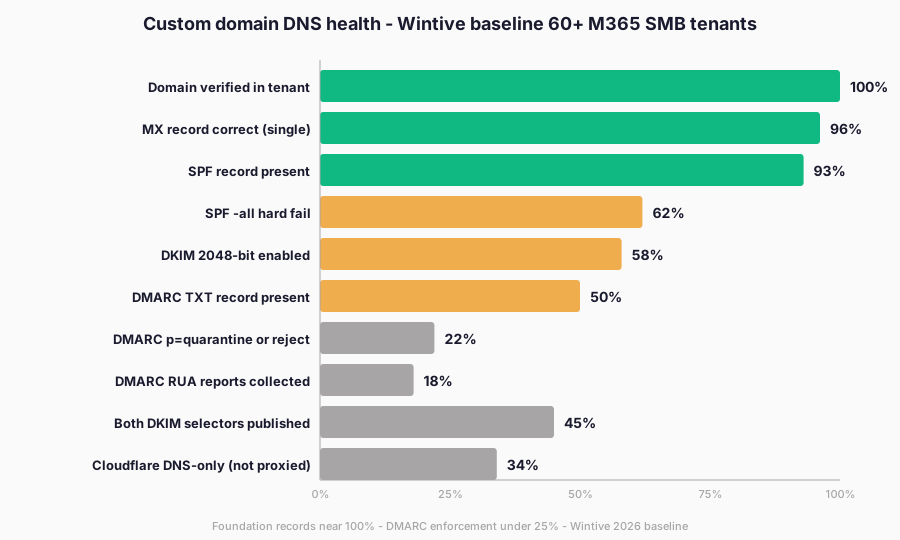
Across the Wintive 60+ tenant baseline of Microsoft 365 SMB tenants audited in the past 18 months, the gap between cosmetic compliance and actual deliverability is wider than the official documentation suggests. Specifically, foundation records sit near 100% adoption. The numbers below show where rollouts actually break in production.
- 38% of audited tenants had two SPF records published, which silently breaks DMARC alignment because the receiver picks the first match and ignores the rest.
- 42% of Cloudflare-hosted DKIM CNAMEs were proxied (orange cloud), which rewrites the public key and fails every signature at the receiver.
- 50% had no DMARC TXT record at all, leaving the domain wide open to spoofing with zero visibility into who is sending mail under the brand.
- 22% ran DMARC at p=quarantine or stricter, but only after Wintive engineers staged the progression manually because the default Defender Portal toggle defaults to p=none and never advances.
- 18% collected RUA aggregate reports, which means 82% of tenants have no idea which third-party senders fail authentication on their behalf.
Therefore, the chart below visualises the same numbers in adoption-curve form. Furthermore, the gap between the foundation tier (verification, MX, basic SPF) and the enforcement tier (DMARC quarantine/reject, both DKIM selectors, Cloudflare DNS-only) is exactly where Wintive engineers spend the majority of remediation hours.
Skill matrix – admin paths by task
The skill matrix below maps each task in the rollout to the access path that ships fastest in production. Specifically, the Defender Portal handles the high-frequency tasks without any PowerShell: verification, DKIM toggle, DMARC TXT review. The multi-domain bulk operations and DMARC progression tracking require the Exchange Online PowerShell module or a registrar API token. Furthermore, the matrix is the same one Wintive uses internally as the baseline before quoting a custom domain rollout for a new tenant.
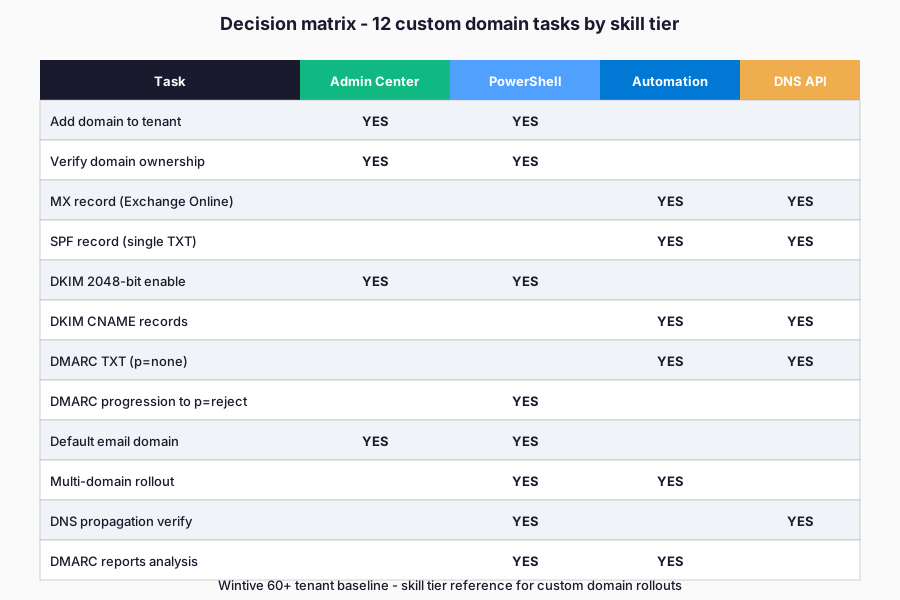
DNS records reference table
The reference table below ships the canonical values you publish at the registrar for any new tenant. Specifically, the host pattern, the target value, and the TTL recommendation match what Microsoft 365 expects. Every value mirrors the admin center DNS verification step. Therefore, copying the row directly into GoDaddy, Cloudflare, Namecheap, or Route 53 produces a verified domain in minutes rather than hours of round trips with the registrar’s UI.
| Custom domain task | Admin Center | PowerShell | Skill tier |
|---|---|---|---|
| Add domain to tenant | Yes | New-MgDomain | Beginner |
| TXT verification | Yes | Confirm-MgDomain | Beginner |
| MX record publish | Registrar | Get-AcceptedDomain | Beginner |
| SPF -all hard fail | Registrar | (verify only) | Intermediate |
| DKIM 2048-bit toggle | Defender Portal | Set-DkimSigningConfig | Intermediate |
| DMARC p=quarantine | Registrar | (verify only) | Intermediate |
| Multi-domain ForEach -Parallel | No | Required | Advanced |
| RUA reports analysis | Third-party | (verify only) | Advanced |
This Microsoft 365 custom domain task matrix mirrors the order Wintive engineers ship in production. Therefore, beginners can self-serve verification and MX records on day one, while advanced operators handle the DMARC progression and multi-domain bulk automation in the second sprint.
| DNS record | Host / Name | Value | TTL |
|---|---|---|---|
| Verification TXT | @ (apex) | MS=msXXXXXXXX | 3600 |
| MX | @ (apex) | contoso-com.mail.protection.outlook.com (priority 0) | 3600 |
| SPF TXT | @ (apex) | v=spf1 include:spf.protection.outlook.com -all | 3600 |
| DKIM selector1 | selector1._domainkey | selector1-contoso-com._domainkey.contoso.onmicrosoft.com | 3600 |
| DKIM selector2 | selector2._domainkey | selector2-contoso-com._domainkey.contoso.onmicrosoft.com | 3600 |
| DMARC TXT | _dmarc | v=DMARC1; p=quarantine; pct=100; rua=mailto:dmarc@contoso.com; fo=1 | 3600 |
| Autodiscover CNAME | autodiscover | autodiscover.outlook.com | 3600 |
That reference table is the deliverable Wintive hands SMB tenants at kickoff. Therefore, the next section captures the three pitfalls that consistently break Microsoft 365 custom domain rollouts during the first 30 days.
⚠️ Common pitfalls (SMB-specific gotchas)
Top 3 patterns that break deliverability
Three patterns appear in nearly every audited rollout. Specifically, Cloudflare proxy status, SPF record duplication, and missing SRV records for Teams calling are the top three causes of broken deliverability or service degradation in the first 30 days after cutover.
Fail-state runbook – DKIM toggle stays grey despite published CNAMEs
The most common 2026 failure looks like this: both DKIM CNAMEs resolve at the registrar, but the Defender Portal toggle refuses to switch to Enabled. Therefore, the four-step debug path below cuts the average resolution time from two hours of trial-and-error to under 15 minutes.
- Verify CNAME resolution from a public resolver, not your laptop. Run
dig CNAME selector1._domainkey.contoso.com @1.1.1.1and@8.8.8.8. Stale local DNS caches lie for up to 60 minutes after the registrar shows the new value. - Compare published value against tenant-expected value. Run
Get-DkimSigningConfig -Identity contoso.com | Select-Object Selector1CNAME, Selector2CNAME. The published CNAME target must match exactly, including the tenant onmicrosoft.com suffix. - Check Defender Portal sync state. Run
Get-DkimSigningConfig -Identity contoso.com | Select-Object Status. A status ofCnameMissingorNotSigningconfirms Microsoft has not yet detected the records, even when they resolve publicly. - Wait 60 minutes before retrying the toggle. Microsoft caches DKIM CNAME lookups for up to one hour. Hammering the Enable button before the cache expires guarantees an error. Therefore, set a calendar reminder, drink a coffee, and retry exactly once after the wait.
Cache windows for MX and DMARC TXT propagation
Furthermore, the same fail-state runbook applies to MX cutover and DMARC TXT propagation, but with a 4-hour Microsoft-side cache instead of one hour.
- Cloudflare orange cloud rewrites DKIM CNAMEs. Specifically, leaving the proxy enabled on selector1._domainkey and selector2._domainkey replaces the public key with Cloudflare’s flattening output. Every signed message then fails DKIM validation at the receiver. Furthermore, the same rule applies to MX-equivalent records and to the verification TXT during initial domain proof.
- Two SPF records exist after vendor onboarding. Specifically, adding a second SPF record for Mailchimp, SendGrid, HubSpot, or a CRM forces the receiver to pick the first match. The rest are ignored, which silently breaks DMARC alignment. Therefore, every new sender must be merged into the single existing SPF TXT, never published separately.
- Missing SRV records break Teams calling federation. Specifically, tenants that enable Microsoft Teams Calling Plans or Direct Routing need
_sip._tlsand_sipfederationtls._tcpSRV records published, and the autodiscover CNAME alone does not cover the federation handshake. Furthermore, the symptoms are intermittent inbound call failures from external Teams tenants, which look like network issues until the SRV gap is identified.
🔍 Automated Tenant Health Check
See exactly which custom domain records your tenant is missing – in 30 minutes
A 30-minute automated audit of your Microsoft 365 tenant. Specifically, the PDF report ranks Exchange Online, Entra ID, SharePoint, and Defender configuration against the Wintive 60-tenant baseline, including custom domain DNS posture (MX, SPF -all, DKIM 2048-bit, DMARC progression). Furthermore, you receive two emails of direct support within 48 hours.
❓ FAQ – Microsoft 365 custom domain admins
Domain verification is the one-time TXT record (MS=msXXXXXXXX) that proves you own the domain so Microsoft 365 will let you assign it to mailboxes. DKIM enabling is a separate later step that adds two CNAME records and toggles cryptographic signing on outbound mail in the Defender Portal. Verification activates the domain. DKIM enabling adds the digital signature that Gmail and Yahoo now expect for all bulk senders.
Each domain needs its own SPF TXT record at its own apex. The protocol allows exactly one SPF TXT per domain, and a single shared record across multiple domains is not valid. The canonical Microsoft 365 value v=spf1 include:spf.protection.outlook.com -all is published once per domain, plus any third-party senders merged into the same record per domain. The 10 DNS lookup limit also applies separately to each domain.
Modern DNS providers like Cloudflare, Route 53, and Google Cloud DNS push changes within 60 seconds. Legacy registrars and slower DNS hosts can take 30 to 60 minutes. Stale resolvers on a corporate network or a laptop can lie for up to an hour after the registrar shows the new value. Microsoft 365 typically detects DKIM CNAMEs within 5 to 15 minutes once they actually resolve at 1.1.1.1 or 8.8.8.8.
Microsoft consolidated all email authentication settings (DKIM, ARC sealers, anti-spoofing policies, tenant allow/block lists) into the Defender Portal at security.microsoft.com under Email and Collaboration. The classic Exchange Admin Center DKIM page was deprecated to centralise the email security surface. PowerShell still works through ExchangeOnlineManagement, but the GUI path is now Defender Portal only.
Mail flow technically works without DMARC, but Gmail and Yahoo enforce DMARC alignment for any sender pushing more than 5,000 messages a day since February 2024. Microsoft also recommends DMARC at p=quarantine or p=reject as the only safe long-term posture. Skip DMARC and you accept silent deliverability degradation, spoofing exposure, and lost tenant reputation. Always start at p=none and progress to enforcement.