PowerShell Web Access (PSWA) let administrators run PowerShell remotely from any browser, without needing a VPN. Specifically, the feature shipped in Windows Server 2012 and lived in the shadow of Remote Desktop Services for almost a decade. Microsoft has since deprecated PowerShell Web Access. It is no longer included in Windows Server 2025 by default, and current guidance points firmly to better alternatives.
This guide covers what PowerShell Web Access actually was, why Microsoft deprecated it, and which of the four modern alternatives fits your environment. Specifically, we walk through the migration matrix Wintive uses across 60+ tenants. Furthermore, we cover the JEA constrained endpoint pattern that should have replaced PSWA from the start, the Cloud Shell sweet spot for Azure and M365 admins, the Windows Admin Center deployment for hybrid fleets, and the Bastion + JEA + audit stack that gets you to Zero Trust. Therefore, by the end of this guide you will know which migration target is right for your tenant and how to deploy it without breaking existing automation.
📥 Free download. Microsoft 365 Tenant Audit Checklist
The same 47-point checklist Wintive uses to validate PSWA legacy exposure, JEA endpoint posture, Cloud Shell governance, Conditional Access policies, and 43 more tenant configuration items. Get the checklist →
📚 What PowerShell Web Access actually did
PowerShell Web Access was an IIS-hosted gateway that wrapped a remote PowerShell session inside a browser. Specifically, an admin would point Edge or Chrome at the gateway URL, log in with AD credentials, and get a PowerShell prompt that ran against a target Windows Server. Furthermore, the gateway handled session multiplexing, authorization rules, and session timeouts. Therefore, for the early 2010s, PowerShell Web Access was a genuinely clever solution to the “admin from anywhere” problem. Before Cloud Shell, before Windows Admin Center, before Conditional Access ever existed (see Microsoft Learn deprecation list).
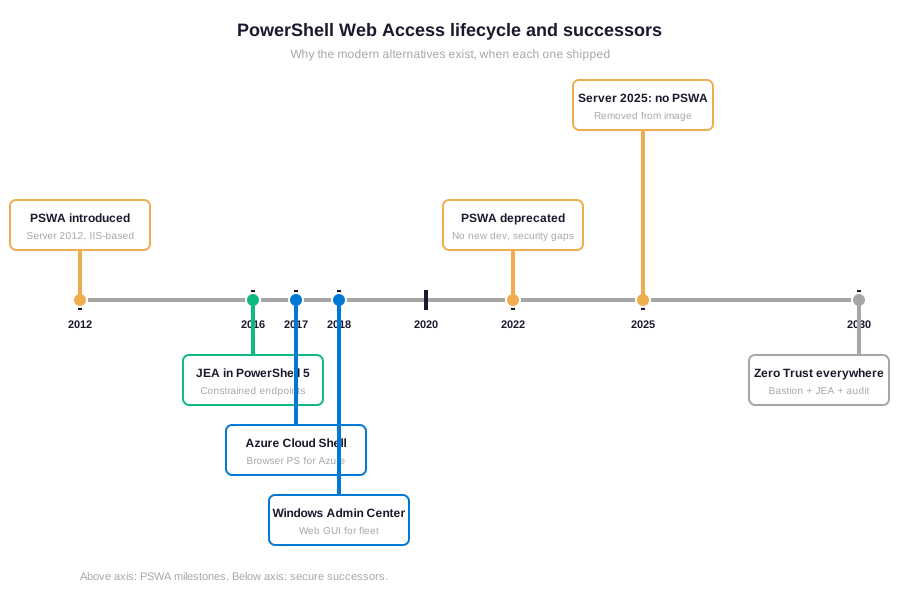
The timeline above tells the story. Specifically, PSWA shipped in 2012 when remote admin meant RDP, ADUC, and PowerShell Remoting. Furthermore, between 2016 and 2018 Microsoft delivered three structural successors: JEA (2016 with PowerShell 5), Azure Cloud Shell (2017), and Windows Admin Center (2018). Therefore, by 2022 when Microsoft formally deprecated PowerShell Web Access, every use case PSWA originally addressed had a more secure, better-architected modern equivalent. By 2025, Server 2025 ships without PSWA in the default image, leaving holdouts to plan a migration.
Production insight from 60+ Wintive tenant migrations. The most common PSWA legacy footprint we discover is not active usage. Specifically, it is forgotten infrastructure: a 2014-era IIS gateway running on a Windows Server 2012 R2 VM, never decommissioned, still listening on TCP 443, often without TLS 1.2 enforcement. Therefore, Wintive treats PSWA discovery as a security audit task first and a migration task second. The migration target depends on how the team uses remote admin today. Section 3 maps the four destinations.
⚠️ Why Microsoft deprecated PowerShell Web Access
The PSWA deprecation was not arbitrary. Specifically, three distinct problems converged on the same conclusion: PSWA had to go. Furthermore, each problem mapped to a successor that handles the use case better. A clue to which modern alternative to pick depending on which problem hits hardest in your environment.
The first problem was the broad attack surface. Specifically, PSWA exposed an internet-facing IIS gateway with forms-based authentication and unconstrained PowerShell once authenticated. Furthermore, attackers picked PSWA as a soft target. HackTheBox even built a CTF box (Acute) around exploiting a PSWA installation as a foothold for lateral movement. Therefore, in a Zero Trust security model where every admin session needs continuous evaluation, PSWA could not survive. The successor for this concern is JEA: constrained PowerShell endpoints that limit what an authenticated user can run, regardless of their underlying privileges.
PowerShell Web Access security gaps from MFA to conditional access
The second problem was conditional access integration. Specifically, PSWA predated Entra ID Conditional Access by 5 years. It could not enforce MFA, device compliance, or risk-based sign-in policies because those concepts did not exist when PSWA was designed. Furthermore, by 2020 Microsoft 365 customers expected every admin entry point to honor Conditional Access policies. PSWA had no path to add that capability. Therefore, for cloud-first tenants, the successor became Cloud Shell. It is a browser-based PowerShell that runs through Entra ID with full Conditional Access enforcement, MFA prompts, and PIM integration.
The third problem was the architectural mismatch with hybrid fleets. Specifically, PSWA was a per-server gateway model: each server had its own PSWA gateway, each with its own authorization rules, its own session timeouts, its own TLS certificate. Furthermore, managing 50 PSWA gateways across a hybrid fleet was a non-starter. Therefore, the third successor was Windows Admin Center. It is a single gateway that fronts an entire fleet. It has role-based access control, JEA integration, and a web GUI for the 80% of admin tasks that do not need a raw PowerShell prompt.
✅ Prerequisites: licenses, roles, and infrastructure
Each PSWA successor has different licensing and infrastructure requirements. Specifically, Cloud Shell ships with any Azure subscription at no marginal cost. Furthermore, Windows Admin Center is free but requires a gateway VM. Therefore, the choice of migration target affects not only the security posture but also the operational footprint. The box below summarizes what each path actually requires.
✅ License and role requirements per migration target
- JEA on-prem — PowerShell 5.1+ on every target server, AD groups for role mapping, no license SKU upgrade needed
- Azure Cloud Shell — any Azure subscription, $0.50/month storage account for $home, Entra ID admin role, optional MFA + Conditional Access (recommended)
- Windows Admin Center — free download, requires Server 2019+ or Server 2022+ as gateway VM, AD or Entra ID join, port 443 accessible from admin workstations
- Azure Bastion (full Zero Trust) — $138/month per region (Standard SKU), Entra ID PIM ($6/user/month for E5), Sentinel SIEM (consumption-based)
- Conditional Access policies — Entra ID P1 (included in M365 E3 + Business Premium), required for any modern admin entry point
- PowerShell 7.x recommended — cross-platform, supports newer cmdlets and modules, JEA still works in 7.x with minor config differences
The licensing footprint is intentionally light for the first three targets. Specifically, JEA, Cloud Shell, and Windows Admin Center are all included in licenses your tenant likely already has. Furthermore, only the full Zero Trust stack (Bastion + PIM + Sentinel) requires meaningful additional spend. Therefore, the budget conversation matters only at the highest maturity level. And even there, the spend is operational risk insurance, not a feature license.
🎯 The four modern alternatives to PowerShell Web Access
Microsoft Learn lists four alternatives but does not tell you which one fits which environment. Specifically, the choice depends on whether your team manages Azure resources, on-prem servers, or both, and on the security posture maturity already in place. Furthermore, picking the wrong target leads to either over-engineering (deploying Bastion + PIM for a 3-server shop) or under-protection (using PowerShell Web Access -style unconstrained shells in 2026). Therefore, the comparison cards below map each alternative to its sweet-spot use case.
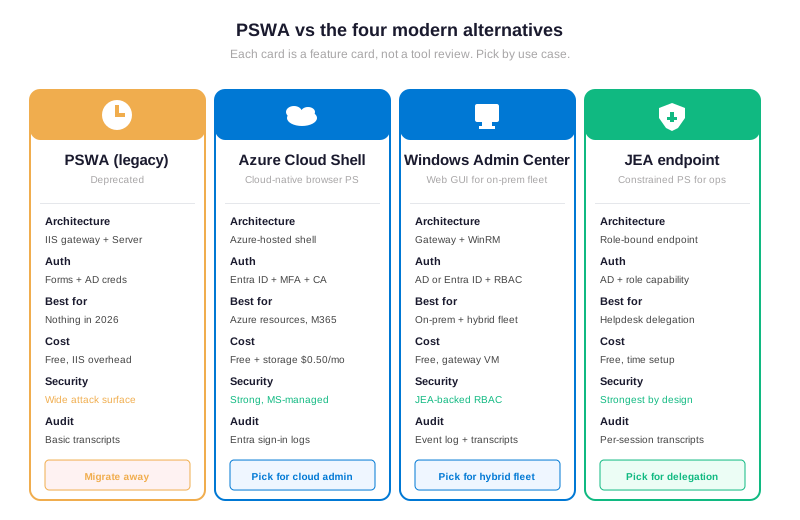
The four cards above show how each alternative differs not just in technology but in operational fit. Specifically, Cloud Shell wins for Azure-first admins, Windows Admin Center wins for hybrid fleets, JEA wins for delegated helpdesk roles, and the Zero Trust stack (Bastion + JEA + audit). The flow wins when SOC 2, HIPAA, or FINRA require maximum security posture. Furthermore, the four alternatives are not mutually exclusive. Most production environments end up running 2-3 of them in parallel for different operator roles. Therefore, the migration decision is not “which one tool replaces PSWA&rdquo. But “which combination handles each operator persona properly.”
🔨 Setting up a JEA endpoint to replace PSWA
JEA is the closest direct successor to PowerShell Web Access for the “admin runs PowerShell against a remote server” use case. Specifically, JEA gives you a constrained PowerShell remote endpoint that limits which cmdlets a user can call, regardless of their underlying privileges. Furthermore, the configuration lives in two files: a Role Capability file (.psrc) that defines what commands are allowed, and a Session Configuration file (.pssc) that registers the endpoint and binds AD groups to roles. Therefore, deploying a JEA endpoint takes 5 cmdlets and ships with full audit transcript capability out of the box.
# Deploy a JEA endpoint for a Helpdesk role replacing PSWA

# 1. Create the role capability file (what Helpdesk can run)
$roleCapPath = "C:Program FilesWindowsPowerShellModulesHelpdeskOpsRoleCapabilitiesHelpdeskRole.psrc"
New-Item -Path (Split-Path $roleCapPath) -ItemType Directory -Force | Out-Null

New-PSRoleCapabilityFile -Path $roleCapPath `
    -ModulesToImport "Microsoft.PowerShell.Management","Microsoft.PowerShell.Utility" `
    -VisibleCmdlets @(
        @{Name="Restart-Service"; Parameters=@{Name="Name"; ValidateSet="Print Spooler","DHCP Client"}},
        "Get-Service",
        "Get-Process",
        @{Name="Get-EventLog"; Parameters=@{Name="LogName"; ValidateSet="Application","System"}}
    ) `
    -VisibleFunctions "Get-NetIPAddress","Test-NetConnection"

# 2. Create the session configuration file (the endpoint definition)
$sessionConfigPath = "C:TempHelpdeskEndpoint.pssc"
New-PSSessionConfigurationFile -Path $sessionConfigPath `
    -SessionType RestrictedRemoteServer `
    -RunAsVirtualAccount `
    -TranscriptDirectory "C:JEATranscripts" `
    -RoleDefinitions @{
        "CONTOSOHelpdeskTeam" = @{ RoleCapabilities = "HelpdeskRole" }
    }

# 3. Validate the config syntax (must return True before registering)
Test-PSSessionConfigurationFile -Path $sessionConfigPath

# 4. Register the endpoint as a constrained PowerShell remote configuration
Register-PSSessionConfiguration -Name "HelpdeskOps" -Path $sessionConfigPath -Force

# 5. Verify the endpoint is live and accepting connections
Get-PSSessionConfiguration -Name "HelpdeskOps"

# Helpdesk users now connect with:
# Enter-PSSession -ComputerName ServerName -ConfigurationName HelpdeskOps
JEA configuration result: constrained sessions for PowerShell Web Access replacement
This pattern replaces the PowerShell Web Access “run anything as admin&rdquo. Model with a strictly bounded surface. Specifically, the Helpdesk user can only restart the Print Spooler or DHCP Client services, query Application/System event logs, and check network connectivity — nothing else. Furthermore, every session is transcripted to C:JEATranscripts with full command history and output, providing compliance-grade audit evidence that PowerShell Web Access never had. Therefore, JEA delivers what PSWA tried to be: a remotely accessible PowerShell that does not break the principle of least privilege.
☁️ Azure Cloud Shell with Conditional Access
Cloud Shell is the right migration target for cloud-first admin teams. Specifically, browser-based access to PowerShell that authenticates through Entra ID, runs in a Microsoft-managed container, and persists user files in a $0.50/month Azure storage account. Furthermore, the Conditional Access integration is the killer feature missing from PowerShell Web Access. Admins can be required to authenticate from compliant devices, with MFA enforced, with sign-in risk evaluated in real time. Therefore, for any team where the workload sits in Azure or Microsoft 365, Cloud Shell beats every other PSWA alternative on convenience and security simultaneously.
# Configure Conditional Access policy for Cloud Shell admin access
Connect-MgGraph -Scopes "Policy.ReadWrite.ConditionalAccess","Application.Read.All"

# 1. Build the policy targeting Azure portal sign-ins (covers Cloud Shell)
$policy = @{
    displayName = "Require MFA + compliant device for Cloud Shell admins"
    state = "enabled"
    conditions = @{
        users = @{
            includeGroups = @("<group-id-of-admins>")
        }
        applications = @{
            includeApplications = @(
                "797f4846-ba00-4fd7-ba43-dac1f8f63013"  # Azure Portal app ID
            )
        }
        signInRiskLevels = @("medium","high")
    }
    grantControls = @{
        operator = "AND"
        builtInControls = @("mfa","compliantDevice")
    }
}

# 2. Submit policy via Graph API
New-MgIdentityConditionalAccessPolicy -BodyParameter $policy

# 3. Verify the policy is enforced (test with a non-admin user expected to fail)
Get-MgIdentityConditionalAccessPolicy | Where-Object { $_.DisplayName -like "*Cloud Shell*" }

# 4. Restrict Cloud Shell launch to specific Entra ID security groups
# (in Azure Portal: Cloud Shell, Settings, Restrict by Entra ID group)
Cloud Shell Conditional Access enforcement result
This Conditional Access pattern blocks every Cloud Shell admin sign-in that does not satisfy MFA AND device compliance, with extra friction for risky sign-ins. Specifically, the policy targets the Azure Portal application ID (797f4846-ba00-4fd7-ba43-dac1f8f63013). This covers Cloud Shell launches because Cloud Shell authenticates as the same identity. Furthermore, restricting Cloud Shell launch to specific security groups adds defense-in-depth: even if an attacker compromises a non-admin Entra ID account, they cannot pivot through Cloud Shell because the launch is gated. Therefore, the combined Conditional Access + group restriction posture turns Cloud Shell from “same as PowerShell Web Access&rdquo. Into a measurably more secure admin entry point.
💻 Windows Admin Center for hybrid fleets
Windows Admin Center (WAC) is the right PowerShell Web Access migration target when the workload spans on-prem and Azure VMs. Specifically, WAC ships as a free download, deploys onto a single Windows Server 2019+ gateway VM, and fronts an entire fleet through a single web UI. Furthermore, WAC integrates JEA-backed role-based access control out of the box, with three built-in roles (administrators, Hyper-V administrators, and readers). The flow plus the option to define custom roles via JEA configuration files. Therefore, WAC consolidates the PSWA “web access to PowerShell” promise with the JEA “constrained endpoint” security model.
# Deploy Windows Admin Center on a gateway VM with role-based access
# Run on the gateway server (Windows Server 2019+ recommended)

# 1. Download Windows Admin Center latest from aka.ms/wacdownload
# Install with HTTPS port 443 and a trusted certificate
msiexec /i WindowsAdminCenter.msi /qn `
    SME_PORT=443 `
    SSL_CERTIFICATE_OPTION=installed `
    SME_THUMBPRINT=<your-cert-thumbprint>

# 2. Add target servers to manage (run from gateway PowerShell)
$servers = @("DC01.contoso.com","FILE01.contoso.com","WEB01.contoso.com")
foreach ($srv in $servers) {
    # Test WinRM connectivity (WAC requires this)
    Test-WSMan -ComputerName $srv -Authentication Default
}

# 3. Enable role-based access on each target (creates JEA endpoints)
$session = New-PSSession -ComputerName $servers
Invoke-Command -Session $session -ScriptBlock {
    # Activate WAC role-based access (downloads required JEA modules)
    Enable-WACRoleBasedAccessControl -Force
}

# 4. Add admin users to local groups created by WAC
# WAC creates: WAC-Administrators, WAC-Hyper-V-Administrators, WAC-Readers
Invoke-Command -Session $session -ScriptBlock {
    Add-LocalGroupMember -Group "WAC-Administrators" -Member "CONTOSOInfraTeam"
    Add-LocalGroupMember -Group "WAC-Readers" -Member "CONTOSOHelpdeskReadOnly"
}

# 5. Verify the JEA endpoints exist
Invoke-Command -Session $session -ScriptBlock { Get-PSSessionConfiguration }
WAC + JEA deployment outcome for PowerShell Web Access migration
This deployment pattern stands up a fleet-wide PSWA replacement in 30 minutes. Specifically, the gateway VM acts as a single entry point, with HTTPS termination and certificate management centralized. Furthermore, every managed target gets a JEA endpoint provisioned by WAC during the role-based access enablement step. Admins authenticate to the gateway. The actual PowerShell sessions run constrained on the target server. Therefore, the WAC + JEA combination delivers the PSWA browser-first admin experience without inheriting the PSWA security model, and scales linearly as servers are added to the managed inventory.
📋 Migration playbook: discover, replace, decommission
Migrating off PowerShell Web Access is a 3-step playbook Wintive runs on every legacy tenant with PSWA exposure. Specifically, step 1 discovers active PSWA installations across the fleet, step 2 deploys the chosen replacement (JEA, Cloud Shell, WAC, or a combination), and step 3 decommissions the PSWA gateway with safety rails. Furthermore, the discovery step matters most. Forgotten PSWA gateways often run on Windows Server 2012 R2 VMs that nobody owns operationally. This is the kind of shadow IT that audit firms love to flag during SOC 2 reviews. Therefore, treating PSWA migration as a discovery problem first leads to better outcomes than jumping straight to deployment.
# Discover active PowerShell Web Access installations across the fleet

# 1. Pull list of all servers from AD that may host PSWA
$servers = Get-ADComputer -Filter { OperatingSystem -like "*Windows Server*" } |
    Select-Object -ExpandProperty DNSHostName

# 2. Check each server for PSWA feature installation
$pswaFootprint = foreach ($srv in $servers) {
    try {
        $feature = Invoke-Command -ComputerName $srv -ScriptBlock {
            Get-WindowsFeature -Name WindowsPowerShellWebAccess
        } -ErrorAction Stop

        $iisAuth = Invoke-Command -ComputerName $srv -ScriptBlock {
            if (Get-Module -ListAvailable WebAdministration) {
                Import-Module WebAdministration
                Get-Website -Name "Default Web Site" -ErrorAction SilentlyContinue |
                    Where-Object { $_.PhysicalPath -like "*pswa*" }
            }
        } -ErrorAction SilentlyContinue

        [PSCustomObject]@{
            Server = $srv
            FeatureInstalled = $feature.Installed
            IISBindingActive = ($null -ne $iisAuth)
            OSVersion = (Invoke-Command -ComputerName $srv -ScriptBlock { (Get-CimInstance Win32_OperatingSystem).Caption })
        }
    } catch {
        Write-Warning "Failed to query $srv : $_"
    }
}

# 3. Export to CSV for migration planning
$pswaFootprint | Where-Object { $_.FeatureInstalled -eq $true } |
    Export-Csv "pswa-footprint-$(Get-Date -Format yyyy-MM-dd).csv" -NoTypeInformation

Write-Host "Active PSWA installations found: $(($pswaFootprint | Where { $_.FeatureInstalled }).Count)" -ForegroundColor Cyan

# 4. Decommission a confirmed PSWA gateway (after migration verified)
Invoke-Command -ComputerName "PSWA01.contoso.com" -ScriptBlock {
    Uninstall-WindowsFeature -Name WindowsPowerShellWebAccess
    # Remove IIS application binding
    Import-Module WebAdministration
    Remove-WebApplication -Site "Default Web Site" -Name "pswa" -ErrorAction SilentlyContinue
}
Active PSWA discovery script output for migration backlog
The script above produces compliance-grade discovery evidence in 5 minutes across a 100-server fleet. Specifically, the foreach loop queries every Windows Server in AD, checks the WindowsPowerShellWebAccess feature state, and verifies the IIS binding status. Furthermore, the CSV export becomes the migration backlog: each row a PSWA gateway that needs to map to a successor (JEA, Cloud Shell, or WAC) before decommissioning. Therefore, the discovery script is the first artifact Wintive produces during a PSWA migration engagement, and frequently surfaces 30-50% more PSWA installations than the customer initially admits to running.
🏁 Where you sit on the secure remote admin maturity ladder
The PSWA-to-modern migration is not a single jump, it is a maturity progression. Specifically, most teams sit somewhere between Level 0 (PSWA legacy) and Level 2 (WAC + RBAC), and the right next step depends on which level you currently occupy. Furthermore, the maturity ladder below maps the typical journey across the 5 levels we observe in client engagements. Therefore, identifying your current level is the first step in choosing the right migration target rather than jumping straight to the highest tier.
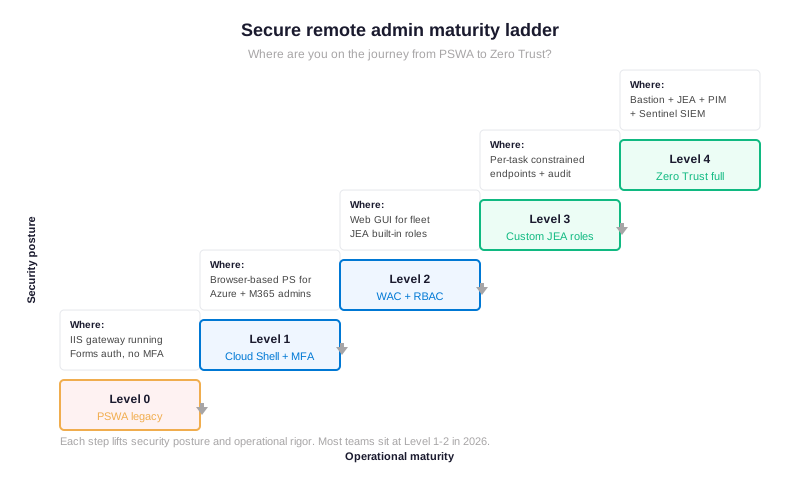
The ladder above shows the typical migration trajectory observed in 60+ Wintive tenants. Specifically, Level 0 (PSWA legacy) needs immediate attention regardless of operational maturity, because the security gaps are unrelated to operational practice. Furthermore, Level 1 (Cloud Shell + MFA) is the right target for cloud-only teams, while Level 2 (WAC + RBAC) is the right target for hybrid fleets. Therefore, only teams with regulatory pressure (SOC 2, HIPAA, FINRA) or active threat hunting need to push to Level 3 (custom JEA roles + transcripts). The flow or Level 4 (full Zero Trust with Bastion + PIM + Sentinel).
📋 PSWA-to-successor migration matrix
The migration matrix below maps the most common PowerShell Web Access usage patterns to the right successor. Specifically, each row represents an admin persona Wintive observes in real tenant migrations, with the recommended target and the decisive selection criterion. Furthermore, the table is the artifact Wintive produces in the discovery phase to align stakeholders before any deployment work starts. Therefore, use the matrix below as a decision aid, not a recipe. The right answer for your team may combine multiple targets across operator personas.
| Admin persona | Current PSWA usage | Recommended target | Why |
|---|---|---|---|
| Helpdesk operator | Restart services, check event logs | JEA endpoint | Constrained cmdlets + transcripts |
| Cloud admin | Manage Azure VMs, M365 tenants | Cloud Shell + Conditional Access | Entra ID native + MFA enforced |
| Hybrid sysadmin | Manage 20-100 mixed servers | Windows Admin Center + JEA | Single gateway, JEA-backed RBAC |
| Compliance-driven org | SOC 2, HIPAA, FINRA scope | Bastion + JEA + PIM + Sentinel | Full Zero Trust, audit-ready |
| Developer / DevOps | Deploy code, run scripts | Azure DevOps + service connections | CI/CD, no human admin shell needed |
The matrix shows that PowerShell Web Access serves five distinct personas, each with a different right answer. Specifically, helpdesk operators need JEA, cloud admins need Cloud Shell, hybrid sysadmins need WAC, compliance-driven organizations need the Zero Trust stack, and developers should not be using human admin shells at all. Their workflow belongs in CI/CD pipelines with service principal credentials. Furthermore, recognizing this multi-persona reality is the difference between a successful PSWA migration and a stalled one. This is a common mistake teams make when they treat PSWA migration as a single tool swap. Therefore, Wintive starts every migration engagement with a 30-minute persona inventory call before any tooling decisions are made.
🔒 Security gaps: PSWA vs the four successors
The security comparison table below maps the structural gaps of PowerShell Web Access against each modern successor. Specifically, this is the gotcha-by-gotcha comparison Wintive walks through with financial services and law firm clients during PSWA migration scoping. Furthermore, the table makes clear why no single feature add-on could have saved PowerShell Web Access. The gaps are architectural, not configuration mistakes admins struggle to fix. Therefore, treat this comparison as the why-rebuild rationale, not a why-not-just-patch debate.
| Security control | PSWA legacy | JEA | Cloud Shell | WAC + JEA |
|---|---|---|---|---|
| MFA enforcement | None natively | Inherited from AD | Conditional Access | AD or Entra ID CA |
| Constrained cmdlets | No (full PS surface) | Yes (per-role) | Yes (Azure RBAC) | Yes (JEA-backed) |
| Session transcripts | None | Built-in | Sign-in audit only | Per-target server |
| Conditional Access | Not supported | Not applicable | Native | Via Entra ID auth |
| Privileged Identity | None | None natively | PIM-compatible | Via Entra ID PIM |
Five rows is enough to make the verdict clear. Specifically, every cell where PSWA shows “none” or “not supported” is a control that auditors will flag during SOC 2, HIPAA, FINRA, or PCI-DSS reviews. Gotchas that silently fail compliance even when the technical functionality “works.” Furthermore, the JEA, Cloud Shell, and WAC columns each have at least four rows of native support, with WAC + JEA combination covering all five. Therefore, the structural conclusion is that PowerShell Web Access cannot be made compliant through configuration alone. Rebuild is the only viable path.
❓ Frequently asked questions
The most common questions teams ask before standardizing on a PowerShell Web Access migration target.
No. Specifically, Windows Server 2025 ships without the WindowsPowerShellWebAccess feature in the default image, so the Install-WindowsFeature path no longer works. Furthermore, existing PSWA gateways on older Windows Server versions continue to function but receive no security updates. Therefore, treat any in-place PSWA installation as legacy infrastructure that should be migrated immediately.
Technically yes, practically no. Specifically, you can build a Windows Server 2019 container image with PSWA installed and run it indefinitely, but the underlying security model still has the same gaps that motivated the deprecation. Furthermore, containers do not solve the missing Conditional Access integration, the unconstrained PowerShell once authenticated, or the per-server gateway sprawl. Therefore, containerizing PowerShell Web Access kicks the can rather than solving the problem. Pick a real successor instead.
For most teams, a JEA endpoint plus PowerShell Remoting from a jump server. Specifically, JEA gives you constrained sessions, transcripts, and AD group-based access control with zero licensing cost. Furthermore, the deployment is 5 cmdlets per target server, scriptable via DSC for fleet rollout. Therefore, JEA is the closest functional successor to the “admin remote-shells into a server through HTTPS&rdquo. Pattern that PowerShell Web Access pioneered.
Advanced PSWA migration questions: AWS comparison, hybrid Cloud Shell, audit retention
AWS Systems Manager Session Manager provides equivalent functionality for AWS workloads. Browser-based shell access with IAM-based authorization and CloudTrail audit logging. Specifically, JEA covers the same use case for Windows Server with AD-based authorization and PowerShell transcripts. Furthermore, both technologies share the same underlying philosophy: replace SSH or RDP with a constrained session that is auditable and managed by identity. Therefore, multi-cloud teams typically run JEA for Windows-on-prem, Session Manager for AWS, and Cloud Shell for Azure. Matching each tool to its native cloud or on-prem environment.
Yes, with VPN or hybrid networking. Specifically, Cloud Shell can run PowerShell Remoting (Enter-PSSession, Invoke-Command) against on-prem servers if the storage account network is configured to reach the on-prem network through ExpressRoute, Site-to-Site VPN, or Azure Private Endpoints. Furthermore, this hybrid pattern combines the Conditional Access posture of Cloud Shell with on-prem WinRM target servers. Effectively giving you the WAC experience without deploying a WAC gateway. Therefore, Cloud Shell + hybrid networking is a valid migration target for environments already invested in ExpressRoute or VPN connectivity.
Indirectly. Specifically, Microsoft 365 audit log retention covers cloud workloads (Entra ID sign-ins, Exchange Online, SharePoint), not on-prem PSWA gateway logs. Furthermore, PSWA gateway logs live in the IIS log directory on the gateway server itself. Meaning the decommission script should archive these logs to a long-term retention location (Azure Blob, Splunk, or Sentinel). The flow before the gateway is removed. Therefore, the audit hygiene step in a PSWA migration is to capture and archive the IIS gateway logs, not to expect them to integrate with M365 audit retention automatically.
Related Wintive resources
Microsoft 365 tenant configuration snapshot. Capture full tenant configuration (Conditional Access, JEA endpoints, PSWA legacy state) in versionable PowerShell DSC code.
SharePoint Online recycle bin restore patterns. Complementary recovery posture topic, including how M365 Backup at $0.15 per GB per month closes the retention gap beyond native recycle bin defaults.
License expiration notifications. Power Automate flow pattern for tracking SaaS licenses, SSL certificates, and Azure reservation renewals using SharePoint Lists and Teams adaptive cards.
$97 Automated Tenant Health Check validates PSWA legacy exposure, JEA endpoint posture, Cloud Shell governance, Conditional Access policies, and 43 more audit points in 10 minutes — no PowerShell required.
Audit your PowerShell Web Access exposure in minutes — $97 flat
Our Automated Tenant Health Check validates PSWA legacy footprint, JEA endpoint posture, Cloud Shell governance, Conditional Access policies, and 43 more audit points in minutes, not days. Specifically, the $97 flat-rate audit runs the same patterns covered in this tutorial across your full tenant. Therefore, you get a production-grade PowerShell Web Access migration diagnostic without setting up your own discovery pipeline first.