Setting up SharePoint change notifications lets you stay informed whenever files or list items are modified in your SharePoint sites. This article explains how to configure SharePoint change notifications via email alerts and Power Automate.
Indeed, keeping track of important documents is essential when collaborating in SharePoint. Fortunately, you can configure notifications to know whenever other users modify them.
Specifically, alerts can be set up for individual files, folders, or entire libraries. This way, you receive an email whenever a change occurs in the monitored location.
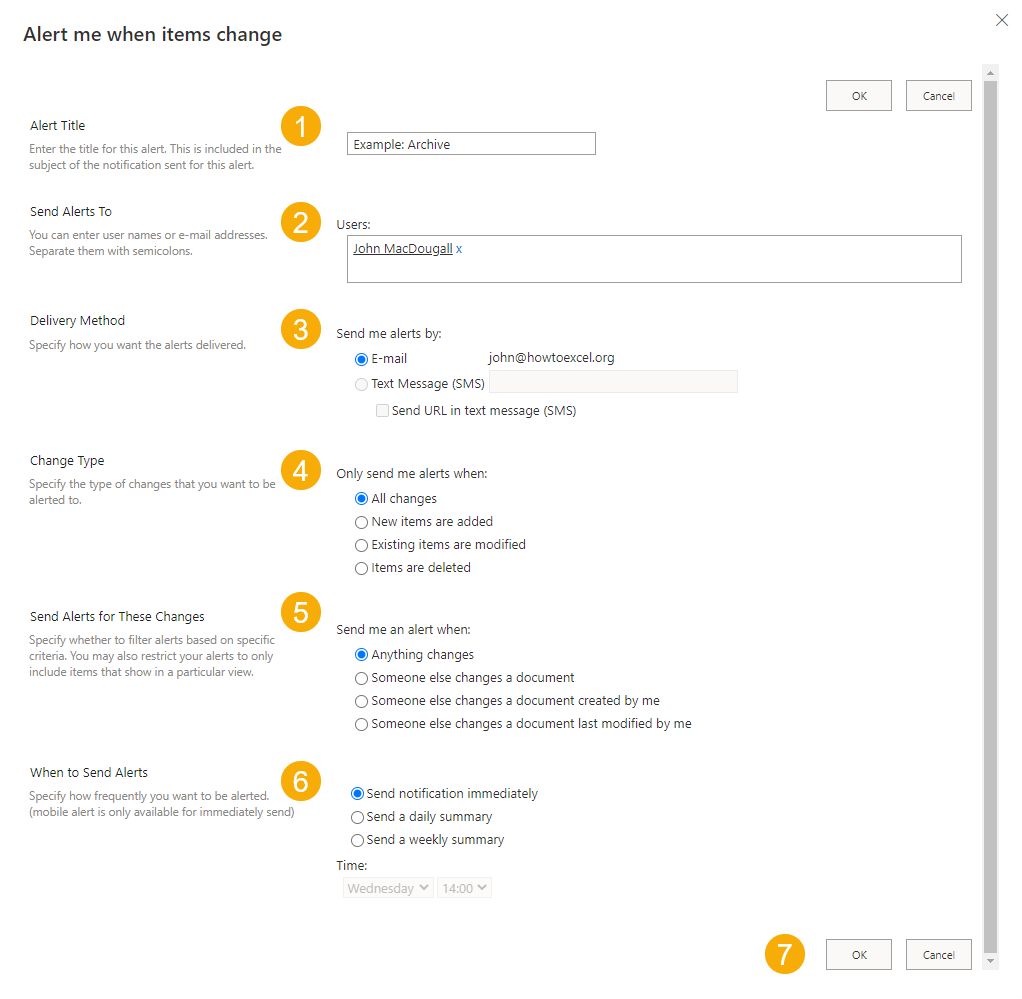
To get started, simply click the three-dot menu next to the file or folder and select Alert me.
- Title: First, give your alert a name. This becomes the subject line of the notification email.
- Recipients: Next, add the people who should receive the alert emails.
- Delivery method: Although an SMS option appears, it is only available in SharePoint on-premises — not in SharePoint Online.
- Change type: Select which actions trigger the alert — adding, modifying, deleting items, or all changes. This option appears only for folder alerts.
- Filter by author: Additionally, you can limit alerts to changes made by specific people.
- Frequency: Finally, choose between immediate alerts or a daily/weekly digest, depending on how often the document changes.
- Press OK to save your alert.
As a result, email notifications will arrive based on the criteria you configured.
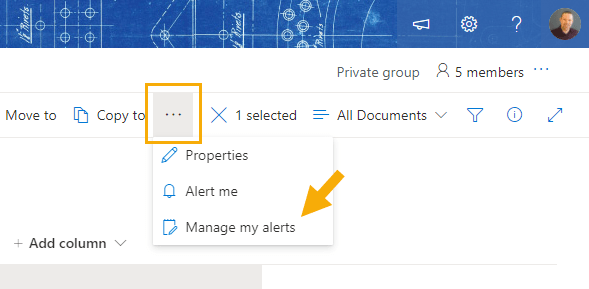
To modify or remove an existing alert, open the Document Library ribbon, click the three-dot menu, and select Manage my alerts. Furthermore, you can add the Microsoft guide on managing SharePoint alerts as a reference.
Types of SharePoint Notifications
In practice, alert notifications in SharePoint come in two forms: built-in email alerts and Power Automate flows. You configure built-in alerts directly from a list or library, with no additional tools required. By contrast, Power Automate provides more advanced notifications with conditional logic, HTML formatting, and multi-channel delivery (email, Teams, SMS).
Summary
In summary, configuring SharePoint notifications keeps your team informed without manual checking. Whether you use built-in alerts or Power Automate, configuring these notifications takes only a few minutes and immediately improves your team’s responsiveness to document changes.
You can manage your SharePoint alerts from the Settings menu of any list or library. Go to Settings > Manage My Alerts to view, edit, or remove existing alerts. This gives you full control over which changes trigger notifications.
📱 Need help building or governing your SharePoint environment?
We design SharePoint intranets, configure permissions, and set up document management for growing organizations. Book a free 30-minute call to discuss your project. 📅 Book a free 30-min call | 💬 Chat on WhatsApp
Types of SharePoint Change Notifications
SharePoint offers two main notification methods: email alerts and RSS feeds. Email alerts are the most common approach for end users, while RSS feeds suit users who prefer aggregating updates in a feed reader. Additionally, Microsoft 365 administrators can configure Power Automate flows for more advanced notification scenarios, such as notifying a Teams channel or triggering approval workflows when specific changes occur.
How to Set Up Email Alerts in SharePoint
- Navigate to the SharePoint document library or list you want to monitor
- Click the three-dot menu (…) next to the library name in the navigation
- Select Alert me → Set alert on this library
- Configure the alert: choose the delivery method (email or SMS), the change types to monitor (any change, new items, modified items, deleted items), and the frequency (immediately, daily digest, or weekly summary)
- Click OK to save
SharePoint sends alerts to the email address associated with your Microsoft 365 account. Administrators can also set alerts on behalf of other users from the Site Settings → User Alerts panel.
Manage Alerts in SharePoint
To view and manage all your active alerts, go to Settings (gear icon) → Site contents → Site Settings → My Alerts. From this page you can modify or delete individual alerts. As an administrator, navigate to Site Settings → User Alerts to manage alerts for all users in the site collection.
Use Power Automate for Advanced Notifications
For more complex notification scenarios, Power Automate extends SharePoint alerts significantly. Common use cases include: notifying a specific Teams channel when a document enters a folder, sending approval emails to managers when a new item appears in a list, or posting a summary of daily changes to a SharePoint page. To create a flow, go to the library or list, click Automate → Power Automate → Create a flow. Microsoft provides pre-built templates for the most common notification scenarios.
For a broader overview of SharePoint collaboration features, see our introduction to SharePoint pages and web parts. You can also combine notifications with Microsoft Flow triggers in SharePoint lists.
Microsoft 365 – Introduction to SharePoint Pages and Web Parts