Triggering Power Automate from a SharePoint list automates the repetitive work that drains hours every week. Instead of manually emailing approvers, copying data between systems, or chasing people for status updates, a flow fires the moment an item changes and runs the entire chain end-to-end.
This guide covers the six SharePoint triggers available in Power Automate, the connectors required for each, the difference between standard and premium licensing, and the throttling limits that affect production workloads. The walkthrough builds a real flow end-to-end and finishes with monitoring practices that every Microsoft 365 admin should know.
🛡️ Free: M365 Tenant Security Audit Checklist
17-page PDF with 50 hands-on checks covering Entra ID, Exchange Online, SharePoint, Teams, Intune, license waste, and audit logging. PowerShell commands included. Built from 60+ real tenant audits at Wintive.
⚡ Why Power Automate replaced classic SharePoint workflows
Microsoft retired SharePoint 2010 workflows in November 2020 and SharePoint Designer 2013 workflows in April 2024. Therefore, every new automation built on SharePoint Online must use Power Automate. Legacy workflows still running need a migration plan.
Power Automate brings three concrete improvements over the legacy engine. First, the connector library covers more than 1,000 services beyond SharePoint, including Teams, Outlook, Dynamics 365, and external REST APIs. Second, the run history retains 28 days of detailed traces per flow. Third, error handling supports retries, parallel branches, and conditional logic that classic workflows could not express.
Wintive observation: every SharePoint Online tenant audited in 2026 still has at least one orphaned classic workflow lurking somewhere. Therefore, run a discovery query before any migration decision. The Microsoft Assessment Tool flags every workflow that needs replacement.
🎯 The 6 SharePoint triggers available in Power Automate
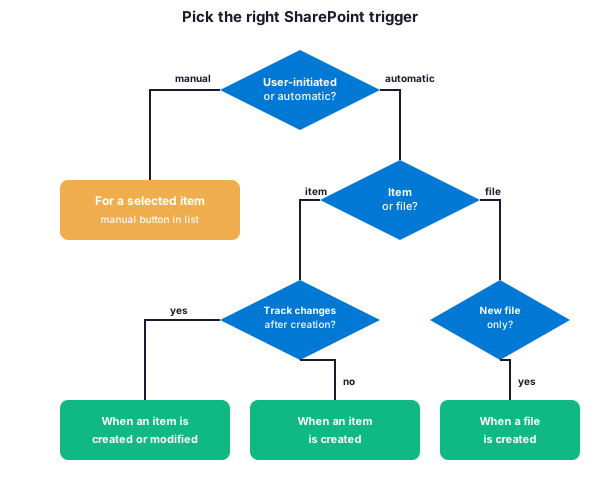
SharePoint exposes six native triggers to Power Automate. Each fires on a specific event in a list or library. Understanding the differences saves countless hours of debugging flows that fire too often, fire too late, or never fire at all.
| Trigger | When it fires | Connector | Common use case |
|---|---|---|---|
| When an item is created | Every new list item | Standard | Notifications, audit logs |
| When an item is created or modified | Create or edit on an existing item | Standard | Status changes, data sync |
| When an item is deleted | Item removed from list | Standard | Compliance, audit trails |
| When a file is created in a folder | New file uploaded to library | Standard | Document workflows, OCR pipelines |
| For a selected item | User clicks Flow button on a row | Standard | Manual approval, ad-hoc actions |
| For a selected file | User clicks Flow button on a file | Standard | Document review, e-signature |
📥 Item-based triggers (created, modified, deleted)
Item triggers fire on metadata changes in a SharePoint list. The most common pattern is When an item is created or modified because it covers both first creation and any later edit. By contrast, When an item is created fires only once per item and skips later edits. As a result, choose the create-or-modified version when the flow needs to react to status field changes. Choose the create-only version when the flow handles welcome emails or one-shot provisioning.
📁 File-based triggers (file created or modified)
File triggers operate on document libraries rather than lists. They expose the file content as part of the trigger payload, which is critical for OCR, classification, or content scanning scenarios. In practice, the When a file is created in a folder trigger lets the flow target a specific subfolder rather than the entire library. As a result, notifications fire only on uploads that match the intended scope.
👆 Manual triggers (For a selected item or file)
Manual triggers expose a button in the SharePoint list interface. The user clicks the button on a row and the flow runs once for that specific item. This pattern fits ad-hoc approval requests, on-demand exports, or any action that should not run automatically. Specifically, manual triggers shine when the trigger condition cannot be expressed in declarative logic and requires human judgment.
🛠️ Build a flow: notify on new item creation
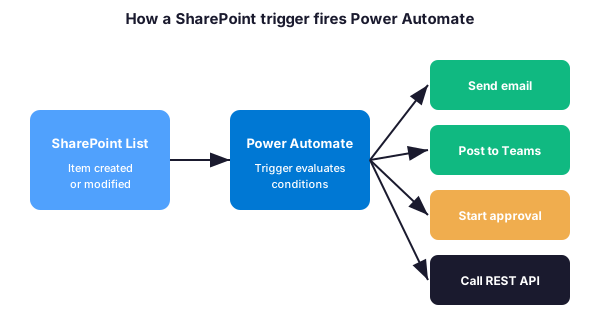
The simplest production flow uses When an item is created to send a Teams notification on every new list entry. This walkthrough builds the flow end-to-end. The result fires automatically and requires zero maintenance once deployed.
🔌 Set the SharePoint connection
Open Power Automate at make.powerautomate.com. Click Create, then Automated cloud flow. Pick the When an item is created SharePoint trigger from the search box. Authenticate with the same account that owns the SharePoint list. Specifically, pick the site URL and the list name from the two dropdowns that appear after authentication.
✉️ Add a Send email or Post to Teams action
Click New step under the trigger. Search for Office 365 Outlook for email or Teams for a channel post. The dynamic content panel exposes every column from the SharePoint item: Title, Created, Modified, and any custom fields. Therefore, drop those tokens into the email body to produce contextual notifications. The trigger expression below pulls the item title into the message:
triggerOutputs()?['body/Title']
@{triggerOutputs()?['body/Modified']}
@{triggerOutputs()?['body/Editor/DisplayName']}
✅ Test the flow
Save the flow, then click Test. Choose Manually as the test mode. Add a new item to the SharePoint list. The flow run appears in the test panel within 30 seconds. Furthermore, every test run logs to the run history for the next 28 days, which makes troubleshooting straightforward.
👆 Manual trigger: For a selected item
The For a selected item trigger adds a button to the SharePoint list ribbon. Users click Automate, then pick the flow name from the dropdown. The flow runs once against the selected row. In practice, this pattern fits expense report submissions, ad-hoc data exports, or single-item escalations that should not fire on every list change.
The trigger accepts user input parameters. Specifically, the configuration screen lets the flow author add Text, Number, Date, or Choice prompts that appear in a side panel when the user clicks Run. The expressions below access the selected item ID and any custom prompt:
triggerBody()?['entity']?['ID']
triggerBody()?['rows']?[0]?['ID']
triggerBody()?['text_1']
✅ Approval flows triggered from SharePoint
Approval flows combine a SharePoint trigger with the Approvals connector. Therefore, an item creation or status change kicks off an approval request that lands in the approver Teams chat or email inbox. The approver clicks Approve or Reject, and the flow branches accordingly to update the SharePoint item.
The Start and wait for an approval action supports four approval types: Approve/Reject First to respond, Approve/Reject Everyone must approve, Custom Responses Wait for one, and Custom Responses Wait for all. As a result, the choice depends on whether one approver can decide alone or all named approvers must respond. The configuration block below shows a typical setup:
Approval type: Approve/Reject - First to respond
Title:        Approve item @{triggerOutputs()?['body/Title']}
Assigned to:  manager@example.com
Details:      Submitted by @{triggerOutputs()?['body/Author/DisplayName']}
Link:         @{triggerOutputs()?['body/{Link}']}
After the approval action, add a Condition step that branches on the @{outputs(‘Start_and_wait_for_an_approval’)?[‘body/outcome’]} expression. Specifically, the Approve branch updates the SharePoint Status field to Approved, while the Reject branch sends a notification back to the requester.
⚖️ Standard vs Premium connectors
Microsoft 365 licenses include the standard connector tier. Therefore, every SharePoint, Outlook, Teams, OneDrive, and Approvals connector works without extra licensing. Premium connectors require a Power Automate Premium license at fifteen dollars per user per month, or a per-flow license at one hundred dollars per flow per month.
Premium connectors include HTTP requests to arbitrary REST APIs, SQL Server, Salesforce, ServiceNow, and most non-Microsoft enterprise systems. As a result, a flow that posts to Teams from a SharePoint list trigger stays standard, while a flow that calls an external billing API needs Premium. Wintive recommended approach: design every flow to use standard connectors first; introduce Premium only when no native Microsoft 365 alternative exists.
🚧 Power Automate throttling and limits
Power Automate enforces three throttling limits that every IT admin should know. First, the standard tier allows 6,000 API calls per user per 24 hours. Second, the Power Platform request quota caps at 40,000 requests per user for paid licenses. Third, SharePoint itself throttles list operations once a flow exceeds 600 calls per minute against the same list.
Furthermore, the SharePoint list view threshold of 5,000 items affects every flow that filters or sorts on non-indexed columns. Therefore, queries that scan unindexed fields fail silently when the list grows past the threshold. The PowerShell snippet below queries the current Power Platform request usage for the connected user:
Connect-PowerAppsAccount
Get-AdminPowerAppConnectionReferences |
  Where-Object { $_.UserAddedAt -gt (Get-Date).AddDays(-1) } |
  Select-Object UserPrincipalName, ConnectorId, EnvironmentName |
  Sort-Object UserPrincipalName
🔍 Monitor and troubleshoot flow runs
Every flow exposes a 28-day run history at make.powerautomate.com under My flows then the flow name. Each entry shows the trigger payload, the action outputs, and the success or failure status. Specifically, failed runs surface a red error icon with a stack trace that points to the exact action that broke.
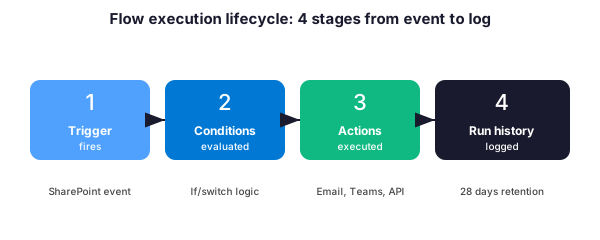
Three patterns cover the bulk of failures observed in production. First, expired connections after a password reset stop the flow until the user re-authenticates the SharePoint connector. Second, throttling errors return HTTP 429 and the flow retries automatically with exponential backoff. Third, broken dynamic content references occur when a SharePoint column is renamed or deleted; the action must be re-bound manually.
Wintive monthly verification checklist queries flow health programmatically. Therefore, the snippet below pulls every flow in the tenant with at least one failed run in the last seven days:
Connect-MgGraph -Scopes Flow.Read.All
$failedFlows = Get-AdminFlow |
  ForEach-Object {
    $runs = Get-FlowRun -FlowName $_.FlowName -EnvironmentName $_.EnvironmentName |
      Where-Object { $_.Status -eq 'Failed' -and $_.StartTime -gt (Get-Date).AddDays(-7) }
    if ($runs) { [pscustomobject]@{ Flow = $_.DisplayName; FailedRuns = $runs.Count } }
  }
$failedFlows | Sort-Object FailedRuns -Descending | Format-Table -AutoSize
❓ Frequently Asked Questions
Yes. The SharePoint connector and the six native triggers are all standard connectors. Therefore, every Microsoft 365 license that includes Power Automate (Business Standard, Business Premium, E3, E5) covers SharePoint-triggered flows at no extra cost. Premium pricing only applies when the flow uses non-Microsoft connectors like Salesforce, SQL Server, or arbitrary HTTP endpoints.
SharePoint workflows refer to the legacy engine deprecated in November 2020 (SP 2010 workflows) and April 2024 (SP Designer 2013 workflows). Power Automate is the modern replacement with 1,000+ connectors, 28-day run history, and conditional branching. Every new automation on SharePoint Online must use Power Automate; existing legacy workflows need a migration plan.
The most common cause is a connection that expired after a password reset or MFA challenge. Specifically, open the flow at make.powerautomate.com, check the connection status, and re-authenticate if the SharePoint connector shows a red icon. Other causes include the flow being disabled, the trigger pointing to the wrong list, or the user lacking read access to the list.
Yes, but with care. Use the Update item action and reference the trigger ID with the triggerOutputs body ID expression. Critically, if the trigger is When an item is created or modified, the update fires the trigger again and creates an infinite loop. Therefore, add a Condition step that checks a custom field (like Processed equals false) before updating, and set the field to true within the action.
Power Automate parallelizes triggers within the same flow up to 50 concurrent runs by default, configurable up to 100. However, the SharePoint list itself throttles when the combined API rate exceeds 600 calls per minute. As a result, multiple flows targeting the same list compete for the throttling budget. Wintive recommended approach: consolidate flows that target the same list whenever possible.
🔗 Keep Exploring
Microsoft 365 – Introduction to SharePoint Pages and Web Parts
Microsoft Defender for Office 365: Anti-Phishing, Safe Links, Safe Attachments