Further reading: for edge delivery of static assets, see our guide on Azure CDN.
This Microsoft Azure tutorial walks you through the essentials. First, Azure is a cloud computing platform that provides a wide variety of services — so you can use them without buying your own hardware. Moreover, the platform enables rapid solution development. It also provides the resources needed to accomplish tasks that would not be possible in an on-premises environment. Azure services (compute, storage, network, and application) let you focus on solutions. As a result, you do not have to worry about assembling physical infrastructure.
🛡️ Free: M365 Tenant Security Audit Checklist
17-page PDF with 50 hands-on checks covering Entra ID, Exchange Online, SharePoint, Teams, Intune, license waste, and audit logging. PowerShell commands included. Built from 60+ real tenant audits at Wintive.
In short, this Microsoft Azure tutorial covers the fundamentals. It gives you a clear view of all the key Azure services you need to know to start developing solutions. After completing the tutorial, you will be ready to succeed in job interviews or pursue various Microsoft Azure certifications.
☁️ What is Microsoft Azure?
Microsoft Azure is a growing set of cloud computing services from Microsoft. It hosts existing applications, streamlines new application development, and enhances on-premises infrastructure. Azure offers compute, storage, networking, databases, AI, and DevOps services. Organizations build, test, and deploy applications worldwide. You pay only for what you use.
First, Microsoft Azure is a growing set of cloud computing services created by Microsoft. These services host your existing applications, streamline new application development, and also enhance your on-premises applications. Moreover, this Microsoft Azure tutorial shows how the platform helps organizations build, test, and deploy applications and services.
📦 Microsoft Azure services
Azure groups its hundreds of services into six core categories. Compute services run virtual machines, container apps, functions, and Kubernetes clusters. Data services store, query, and analyze structured and unstructured data. Networking services connect Azure resources to each other and to on-premises networks. Identity, security, and DevOps services handle authentication, threat protection, and CI/CD. The six categories cover almost every IT workload from infrastructure to AI.
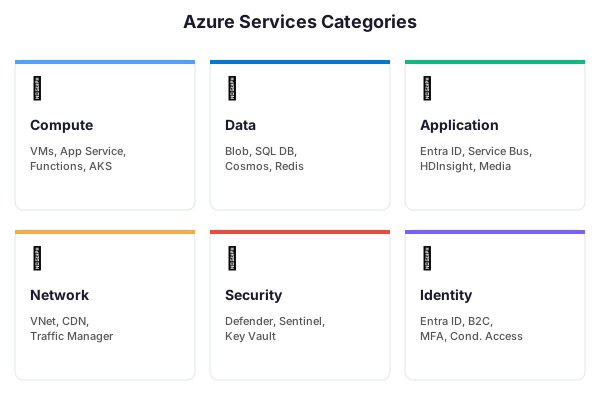
- Compute Services: These are the cloud services, VMs, portal, and mobile services that process data in the cloud.
- Data Services: This service is used to store data in the cloud. Data can be scaled as needed. It includes Microsoft Azure Storage (Blob, Queue Table, and Azure File services), Azure SQL Database, and Redis Cache.
- Application Services: It includes services that help us build and operate our application. (Microsoft Entra ID, Service Bus, HDInsight, Azure Scheduler, and Azure Media Services)
- Network Services: Helps you connect to cloud and on-premises infrastructure. This includes virtual networks, Azure Content Delivery Network, and Azure Traffic Manager.
📜 Try it yourself — list your Azure resource groups:
# Azure CLI
az group list --output table

# PowerShell
Get-AzResourceGroup | Format-Table ResourceGroupName, Location
🌐 The Azure Portal: Your Command Center
The Azure Portal is the web-based management console at portal.azure.com. It replaces the dozens of admin tools a traditional data center needs. From a single browser tab, you provision virtual machines, review billing, configure networking, and deploy databases. You also set role-based access controls and monitor every resource. The portal supports drag-and-drop dashboards and embedded Cloud Shell. You switch between UI clicks and PowerShell or Azure CLI without leaving the page.
The Azure Portal is the web-based management console where you operate every resource in your subscription. Available at portal.azure.com, it replaces the dozens of admin tools you would otherwise need for a traditional data center. From a single browser tab, you can provision virtual machines, review billing, configure networking, deploy databases, and monitor everything that runs in Azure.
Moreover, what makes the Azure Portal useful in practice is the dashboard. Each administrator can pin frequently used resources, cost alerts, and performance metrics to a personalized home screen. Blades open side-by-side, so you can compare a virtual machine’s configuration against its metrics without switching context. For deeper operations, the integrated Cloud Shell lets you run Azure CLI and PowerShell commands directly in the browser, with authentication already handled.
Identity, cost, and security in the Azure Portal
In addition, beyond day-to-day admin work, the portal is also where you manage Microsoft Entra ID (identity), Cost Management (budgets and forecasts), and the Azure Marketplace. For SMBs and mid-market organizations, this all-in-one console is the reason Azure feels accessible without a dedicated cloud team. If you are new to the interface, our dedicated Azure Portal overview tutorial walks through each blade and the navigation tricks that save real time.
Hands-on: explore the Azure Portal
🌐 Try it yourself — list your Azure subscriptions and current context:
# Azure CLI
az account list --output table
az account show --query id -o tsv

# PowerShell
Get-AzSubscription | Format-Table Name, Id, State
Get-AzContext
💻 Azure Virtual Machines Explained
An Azure virtual machine gives you on-demand Windows or Linux servers without buying hardware. Pick a size, a region, and a disk configuration. Azure provisions the VM in a few minutes. You manage it like any server: install software, configure networking, apply patches. Azure handles the underlying hypervisor, host hardware lifecycle, and physical data center. You pay per second of runtime. Reserved instances and spot capacity offer significant discounts.
An Azure virtual machine is one of the most common services in this Microsoft Azure tutorial — and for good reason. Virtual machines give you on-demand Windows or Linux servers without buying hardware, racking it, or worrying about lifecycle replacement. You pick a size, a region, and a disk configuration; Azure provisions the VM in a few minutes and bills you only for the runtime.
Specifically, Azure VMs are grouped into series tuned for different workloads: B-series for burstable dev workloads, D-series for general-purpose production, E-series for memory-heavy databases, F-series for compute-intensive tasks, and L-series for storage-heavy scenarios. Each series has multiple sizes. For resilience, you can deploy VMs across availability zones or group them in virtual machine scale sets that auto-scale on CPU or schedule.
Hands-on: list your Azure VMs
💻 Try it yourself — list your running VMs:
# Azure CLI
az vm list --show-details --query "[?powerState=='VM running'].{Name:name, Size:hardwareProfile.vmSize, RG:resourceGroup}" -o table

# PowerShell
Get-AzVM -Status | Where-Object {$_.PowerState -eq 'VM running'} | Format-Table Name, ResourceGroupName, Location
Cost control matters: with Reserved Instances you can cut VM bills by up to 72% on predictable workloads, and Spot VMs run at a fraction of the price for interruptible batch jobs. For a walkthrough of deployment options and sizing decisions, see our Deploy Azure Virtual Machines tutorial.
💾 The Azure Storage Account
An Azure Storage Account is the container that holds blobs, files, queues, and tables. It is the foundation for file shares, static website hosting, VM disks, application backups, and data lakes. Each account has a globally unique name, an endpoint URL, and access keys. You configure redundancy per account: LRS, ZRS, GRS, or RA-GRS. You set access controls per blob container or file share. One account scales to petabytes.
An Azure Storage Account is the container that holds every blob, file, queue, and table you store in Azure. It is the foundation for file shares, static website hosting, VM disks, application backups, and data lakes. Each storage account gets a globally unique name, an endpoint URL, and an access key — everything else (blob containers, file shares, queues) lives inside.
In practice, the three storage account types you will actually pick from in 2026 are general-purpose v2 (the default, covers almost every workload), Premium block blob (low-latency, high-throughput object storage), and Premium file share (SSD-backed SMB/NFS file shares). Redundancy options scale from LRS (3 copies in one data center) to GRS and RA-GRS, which replicate your data to a paired region hundreds of kilometers away for disaster recovery.
🌡️ Access tiers and lifecycle management
Cost matters most for blob storage: specifically, you choose between hot, cool, and archive access tiers depending on how often data is read. A monthly compliance report sitting untouched belongs in archive (pennies per GB). Active application data belongs in hot. Azure lifecycle management rules can automatically move blobs between tiers as they age. For a complete walkthrough of creation, redundancy configuration, and access key rotation, see our Azure Storage Account tutorial.
| Redundancy | Copies | Location | Annual durability | Typical use |
|---|---|---|---|---|
| LRS | 3 | Single data center | 99.999999999% (11 nines) | Dev, test, non-critical blobs |
| ZRS | 3 | 3 availability zones, same region | 99.9999999999% (12 nines) | Production apps, zone fault tolerance |
| GRS | 6 | Primary + paired region | 99.99999999999999% (16 nines) | Compliance, disaster recovery |
| RA-GRS | 6 | Primary + paired region (readable) | 99.99999999999999% | Apps needing read access to the secondary |
| GZRS | 6 | 3 AZs primary + paired region | 99.99999999999999% | Mission-critical workloads |
🔗 Azure Virtual Network and Networking
An Azure virtual network (VNet) is the isolated private network for Azure resources. VMs, app services, SQL databases, and storage accounts attach to a VNet for private connectivity. Azure networking offers the same constructs as a traditional data center. These include subnets, route tables, network security groups, VPN gateways, and ExpressRoute private circuits. You define the address space. Azure handles physical routing across global regions.
An Azure virtual network (VNet) is the isolated private network where your Azure resources talk to each other — and to your on-premises infrastructure. Every VM, app service, SQL database, and storage account that needs private connectivity is attached to a VNet. Azure networking gives you the same constructs as a traditional data center (subnets, routing tables, DNS) plus cloud-native features like service endpoints and private endpoints.
Specifically, inside a VNet you split the address space into subnets, attach Network Security Groups (NSGs) to control inbound and outbound traffic, and use route tables to steer traffic through firewalls or NVAs. To connect multiple VNets, you deploy VNet peering (low-latency, same region or cross-region) or a VPN Gateway for site-to-site tunnels. For enterprise hybrid networking, ExpressRoute provides a private, high-bandwidth circuit to Azure that never crosses the public internet.
DNS and connectivity in Azure VNets
Furthermore, for DNS, Azure gives you two choices: Azure-provided DNS inside the VNet (automatic, works out of the box) or Azure DNS private zones for custom internal namespaces. Outbound internet access is controlled with NAT Gateway or an Azure Firewall. If you are setting up your first VNet, start with our Azure Virtual Network tutorial and then read the Azure networking fundamentals guide for the deeper model.
Hands-on: create your first VNet
🔗 Try it yourself — create a VNet with a default subnet:
# Azure CLI
az network vnet create
  --resource-group MyResourceGroup
  --name MyVNet
  --address-prefix 10.0.0.0/16
  --subnet-name default
  --subnet-prefix 10.0.0.0/24
  --location eastus

# PowerShell
$subnet = New-AzVirtualNetworkSubnetConfig -Name default -AddressPrefix "10.0.0.0/24"
New-AzVirtualNetwork -ResourceGroupName MyResourceGroup -Name MyVNet
  -AddressPrefix "10.0.0.0/16" -Location eastus -Subnet $subnet
🛡️ Azure Backup: Protection Without the Tape Drive
Azure Backup is the managed backup service. It replaces on-premises tape libraries, backup appliances, and silently failing nightly scripts. Azure Backup protects Azure virtual machines, on-premises Windows and Linux servers, SQL Server databases, SAP HANA workloads, Azure file shares, and PostgreSQL. Every backup lands in a Recovery Services Vault with policy-driven retention. Soft delete protection and built-in encryption are included. You restore individual files or entire VMs through the Azure portal.
Azure Backup is the managed backup service that replaces on-premises tape libraries, backup appliances, and the nightly scripts that failed silently at 2 AM. It protects Azure virtual machines, on-premises servers (Windows and Linux), SQL Server databases, SAP HANA workloads, Azure files shares, and even PostgreSQL. Every backup lands in a Recovery Services Vault, which handles encryption, retention, and geo-redundancy for you.
In practice, the operational model is refreshingly simple. You define a backup policy that specifies schedule and retention — for example, daily backups kept 30 days, plus weekly backups kept 12 weeks, plus monthly kept 5 years. Assign the policy to each protected item and Azure handles the rest: snapshots, incremental transfers, compression, encryption. There is no backup server to patch, no media to rotate, and soft delete protects deleted backups for 14 extra days in case of ransomware or a deletion mistake.
Why Azure Backup fits SMB economics
In particular, for SMBs Azure Backup matters most because of its pay-per-GB pricing and instant restore: you can mount a VM’s backup as a data disk in minutes, recover individual files from a snapshot, or restore an entire SQL database to any point in time within the retention window. If you are designing your backup strategy, our Azure Backup tutorial covers the full setup from vault creation to first successful restore.
⚙️ How does Microsoft Azure work?
Azure runs on virtualization across Microsoft data centers worldwide. Each request flows through four layers: user, control plane, fabric controller, and physical rack. The fabric controller orchestrates compute, storage, and networking across thousands of host servers. Azure abstracts hardware behind APIs. Applications scale automatically and recover from failures transparently. You pay only for active capacity. Understanding these layers helps design applications with high availability and cost efficiency.
🖥️ Virtualization
Understanding the inner workings of Azure is essential. As a result, you can efficiently design applications on Azure with high availability, resilience, and scalability.
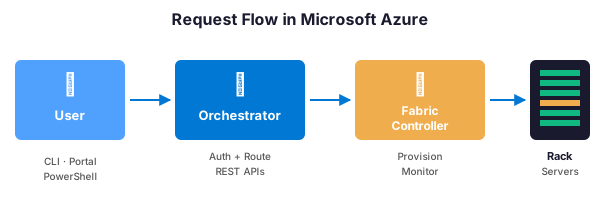
Microsoft Azure is entirely built on the concept of virtualization. Like other virtualized data centers, it also contains racks. Each rack has a separate power supply and network switch. Each rack is also integrated with a software called Fabric Controller. This fabric controller is a distributed application responsible for managing and monitoring the servers within the rack. If a server fails, the Fabric Controller recognizes and recovers it. Each of these Fabric Controllers is, in turn, connected to software called Orchestrator. This Orchestrator includes web services and REST APIs for creating, updating, and deleting resources.
🖥️ Try it yourself — provision a virtual machine:
# Azure CLI
az vm create
  --resource-group MyResourceGroup
  --name MyVM
  --image Ubuntu2204
  --admin-username azureuser
  --generate-ssh-keys

# PowerShell
New-AzVM -ResourceGroupName "MyResourceGroup" -Name "MyVM" -Image "Ubuntu2204" -Credential $cred
The user sends a request, either through PowerShell or the Azure portal. First, this request will go to the Orchestrator, which will basically do three things:
- Authenticate the user
- It will authorize the user, that is, check whether the user has permission to perform the requested task.
- It will search the database for space availability based on resources. Then it will forward the request to an appropriate Azure Fabric controller to fulfill the request.
🌍 Geography
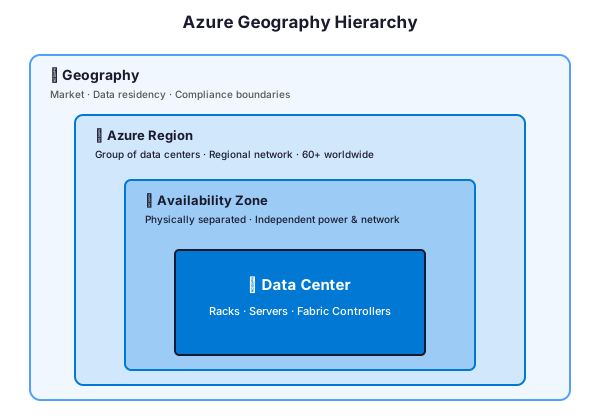
Combinations of racks form a cluster. Then, clusters are located in a data center, an availability zone, a region, and finally a geographic area.
- Geographies: This is a discrete market, typically containing two or more regions, that preserves data residency and compliance boundaries.
- Azure Regions: A region is a set of data centers deployed within a defined perimeter and interconnected by a dedicated regional network.
Azure covers more global regions than any other cloud provider. This provides the scalability needed to bring applications and users closer together around the world. It is globally available in 50 regions worldwide. With its availability in multiple regions, it preserves data residency. It also offers comprehensive solutions to customers.
- Availability Zones: These are the physically separated locations within an Azure region. Each of them consists of one or more independently configured data centers.
💰 Microsoft Azure pricing
Microsoft Azure runs pay-as-you-go pricing. You pay only for the resources you provision. Compute is billed per second. Storage is billed per gigabyte. Many services are billed per transaction. Free credits come with new accounts for first-time exploration. Reserved instances cut compute costs 40–60% on predictable workloads. The Azure Pricing Calculator estimates monthly bills before deployment. Azure Cost Management dashboards track actual spend versus budgets.
Pricing is one of the main reasons to learn Azure. Indeed, Microsoft provides free credits in the Azure account to access the services for free for a short period of time. In this Microsoft Azure tutorial, you will see that this credit is sufficient for people who are new to the platform and want to try the services.
Microsoft offers a pay-as-you-go approach that helps organizations meet their needs. Cloud services are typically billed based on usage. Flexible pricing lets the architecture scale as needed.
💰 Try it yourself — check your Azure consumption:
# Azure CLI
az consumption usage list --top 10 --output table

# PowerShell
Get-AzConsumptionUsageDetail -StartDate 2026-04-01 -EndDate 2026-04-24
🎓 Microsoft Azure certification
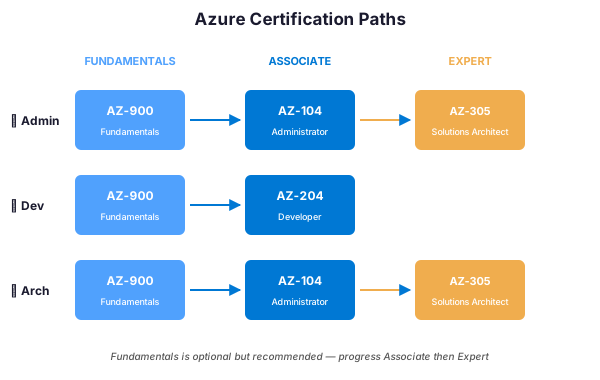
Microsoft offers Azure certifications across three main career paths: administrator, developer, and solutions architect. The Azure Administrator track (AZ-104) covers identity, governance, storage, compute, and networking. The Azure Developer track (AZ-204) focuses on building cloud apps. The Solutions Architect track (AZ-305) designs enterprise architectures. Each track has a fundamentals prerequisite (AZ-900) for newcomers. Certifications renew annually online and remain a strong differentiator in the US IT job market.
Microsoft Azure helps bridge the gap between industry needs and available resources. Additionally, Microsoft provides Azure certification in three main categories, which are:
- Azure Administrator: Individuals who implement, monitor, and maintain Microsoft Azure solutions, including core services.
- Azure Developer: These are the people who design, build, test, and maintain cloud computing solutions. These individuals work in partnership with architects, administrators, and customers to implement these solutions.
Azure Solutions Architect: Those with expertise in:
- calculation,
- network,
- storage
- security
in order to be able to design solutions that work on Azure.
All of these certifications consist of different levels. The candidate must first obtain an associate level certification and then move on to the advanced level.
📋 Prerequisites
Before learning Azure, one should have a basic understanding of cloud computing and computer fundamentals.
👥 Audience
Our Microsoft Azure tutorial is designed for students and working IT professionals.
🎯 Purpose of this Microsoft Azure tutorial
First, this Microsoft Azure tutorial takes a look at the overview of cloud computing, the inner workings of Azure, and how Azure allocates resources. Then, it dives into the different areas of Azure services, including:
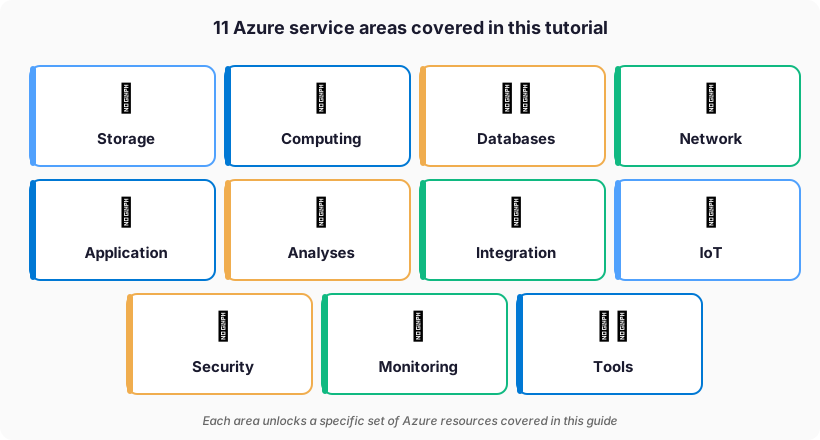
This tutorial also gives an idea about creating VMs, website and storage accounts, etc.
To get started with your free Azure account, visit the Microsoft Azure free account page and explore the official Azure documentation.
🔍 Keep exploring
The CFO’s Guide to Microsoft 365: Predictable Costs, Zero Surprises