Office 365 email encryption — manageable via our Exchange Online PowerShell guide — combined with MFA and Microsoft Defender policies, protects sensitive messages so that only intended recipients can read them. Using Office 365 Message Encryption (OME), you can prevent unauthorized access to confidential emails both inside and outside your organization. This guide covers licensing requirements and how to set up email encryption rules in Office 365.
In Office 365, you can continue to do what you do to be productive while staying secure. In Exchange Online (the technology that manages your email), for example, you can encrypt your email so that only the intended recipients can read it. You can apply protection to your email so that if it’s confidential, the email can only be read by people within your organization. If someone accidentally forwards or copies a recipient outside the organization on an email marked confidential, that recipient will receive the email but won’t be able to read it.
Ultimately, these email security features are available through the Office 365 Message Encryption (OME) service.
Office 365 Message Encryption Licensing Terms
Office 365 Message Encryption (OME) is part of the Office 365 subscriptions listed as follows. There is no need to purchase additional licenses for users when they are assigned the following subscriptions:
- Office 365 E3 and E5 (Enterprise)
- Enterprise Mobility + E3 Security
- Microsoft 365 E3
- Office 365 A1, A3 and A5 (Education)
- Office 365 G3 and G5 (Government)
If a user’s license doesn’t match any of these subscriptions, you can purchase a standalone subscription called Azure Information Protection Plan 1 for $2 per user per month to enable OME as long as the user’s current license matches one of the following subscriptions:
- Exchange Online Plan 1 or Plan 2
- Office 365 F1 or E1
- Office 365 Business Premium or Business Essentials
Enable email encryption
Email encryption rules can be added to encrypt a message with a specific keyword in the subject or body of the message. The most common way to encrypt a message is to add “Secure” as a keyword in the subject. Note that M365/O365 message encryption works with Outlook.com, Yahoo, Gmail, and other email services. Email encryption ensures that only the intended recipients can see the message content.
- In the Microsoft 365 admin center, click Exchange under Admin centers.
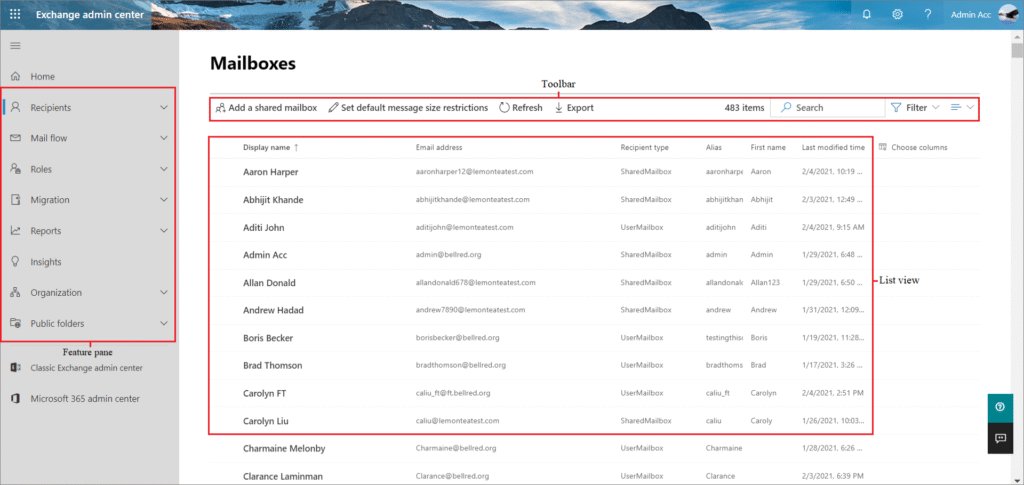
- In the “Mail flow” section, click on rules
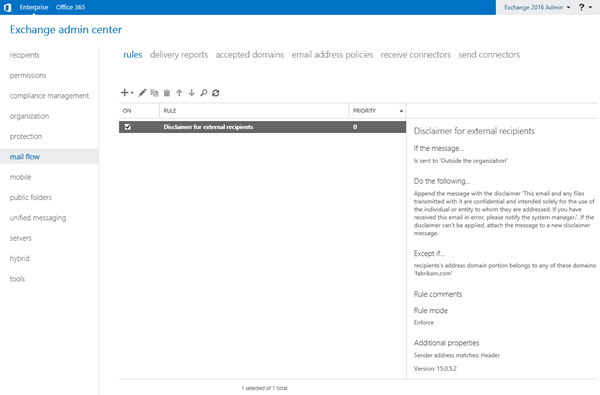
- Click the + sign and then click Apply Office 365 Message Encryption
- Then name your rule and Apply this rule if “subject or body includes…” and add the keywords. Here we put “Encrypt”
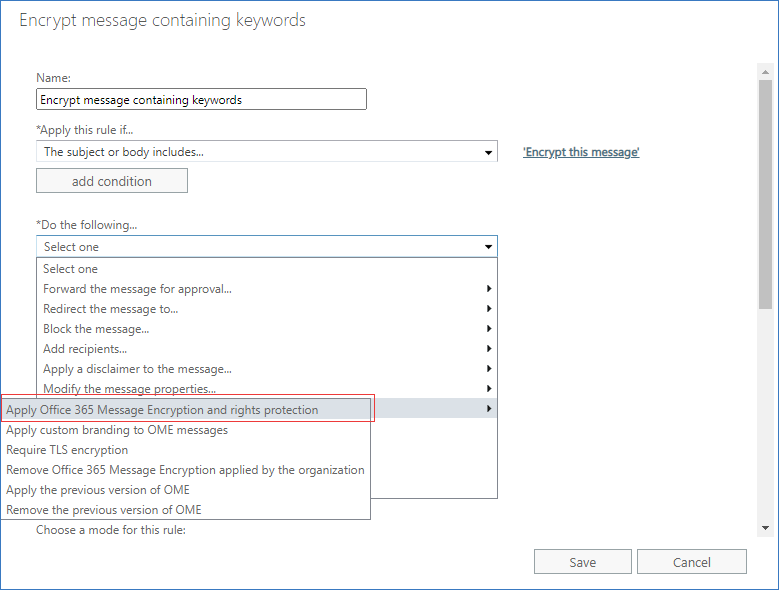
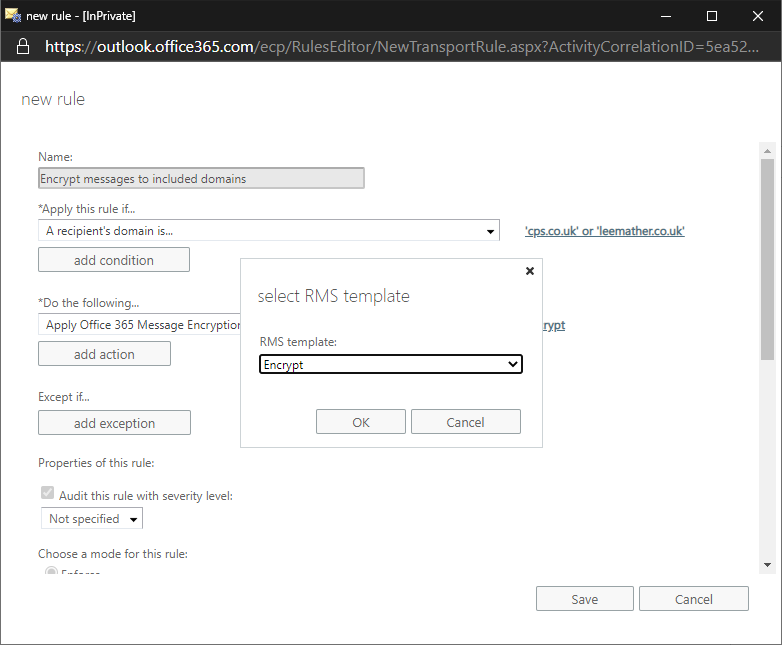
- In the next part, click “select one” for the RMS model and choose “Encrypt”
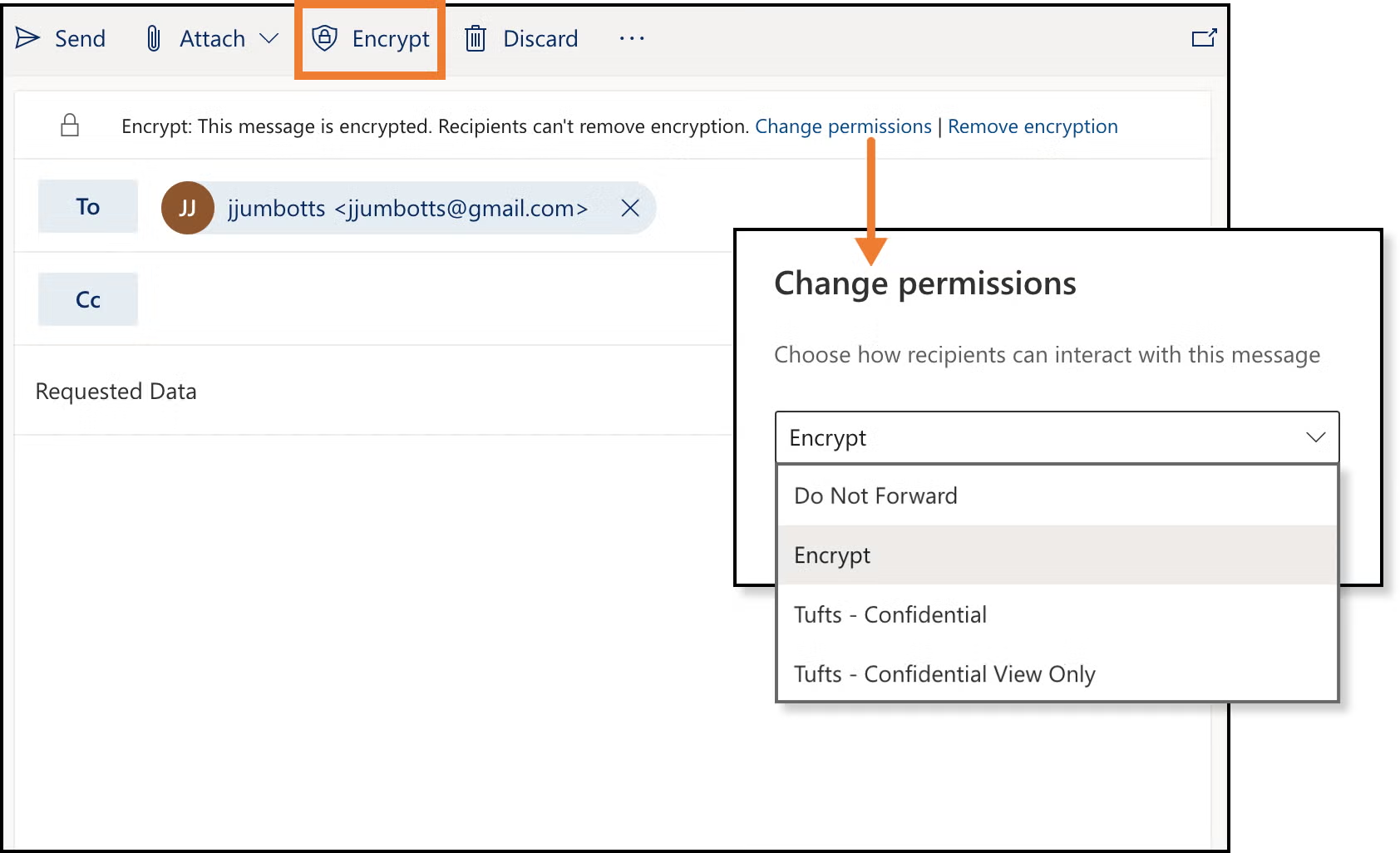
- After you register and you can now test. With sending to Gmail:
- Gmail user inbox:
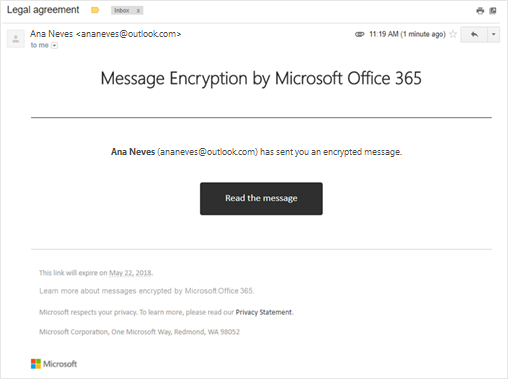
- When the Gmail user saves and opens the attachment (message.html), they can choose to log in with their Google credentials or receive a one-time access code sent to their email.
Office 365 Email Encryption Best Practices
To get the most out of Office 365 email encryption, follow these best practices. First, define clear keyword conventions (for example, “Encrypt” or “Confidential”) that employees use consistently in email subjects. Additionally, combine OME with Azure Information Protection for more granular control over who can forward, print, or copy encrypted messages. Furthermore, train your users to recognize when encryption applies and how external recipients can access encrypted emails using a one-time passcode.
For the full Microsoft Purview Message Encryption documentation, see the official Microsoft Purview encryption guide.
📱 Need help with your Exchange Online setup or migration?
We handle Exchange migrations, mail flow configuration, and PowerShell automation for organizations of all sizes. Get in touch for a free assessment. 📅 Book a free 30-min call | 💬 Chat on WhatsApp
Office 365 Email Encryption with Azure Information Protection
Microsoft Defender: Getting the Most Out of Office 365 Policies
Configure Microsoft Purview Message Encryption
Microsoft Purview Message Encryption (formerly Office 365 Message Encryption) lets users send encrypted emails to anyone — including external recipients using Gmail or Yahoo. Recipients receive a protected message and authenticate via a one-time passcode or Microsoft account. To enable it, you create a mail flow rule in the Exchange admin center that applies encryption when specific conditions are met, such as when the subject contains “Confidential” or when a sensitivity label is applied.
Email Security Best Practices for Exchange Online
- Enable DKIM — sign outbound emails with a domain-specific key to prevent spoofing
- Configure DMARC — instruct receiving servers how to handle emails that fail SPF or DKIM checks
- Enable Safe Attachments and Safe Links via Microsoft Defender for Office 365 to protect against malicious content
- Audit mailbox access — enable mailbox auditing via PowerShell to log all access and send-on-behalf actions
For advanced mail flow security, see our guide on spam filtering with Exchange mail flow rules and our Exchange Online PowerShell command reference.