Exchange Online ships with EOP and Defender for Office 365 protections that catch most spam and phishing automatically. Yet every M365 SMB tenant hits operational gaps that the default policies do not cover. Employees keep clicking spoofed CEO emails. Finance teams want a trusted supplier domain to bypass aggressive bulk filtering. Compliance auditors demand a hard block on outbound auto-forwarding to external domains.
TLDR. Use exchange online transport rules for what native features cannot do: CEO-impersonation blocks, hard outbound auto-forward bans, conditional disclaimers per OU. Use Set-ExternalInOutlook for the external sender tag instead of the legacy [External] subject prefix rule. Use TABL Allow with 30-day TTL instead of trusted-supplier bypass rules. Avoid the Wrap fallback action because it breaks Safe Attachments scanning. Test every rule with Test-MessageFlow before pushing to production. The 4 canonical Wintive rules ship with priority order, exception logic, and audit retention baked in.
The summary above defines the four operational areas this guide covers. Furthermore, before walking through each area in detail, the free 40-point audit checklist below ships the same workflow for offline reference. Predictable per-tenant audit pricing applies once the lead magnet has been used.
📥 Free PDF guide
Microsoft 365 Tenant Audit Checklist — 2026 edition
40+ checks across Entra ID, Exchange Online, SharePoint, Teams, and Intune. Specifically, the transport rules section covers the 4 canonical Wintive rules, the Wrap fallback detection script, and the priority audit queries. Predictable per user/month TCO with Microsoft 365 Business Premium.
📊 Exchange Online transport rules in 2026 – native first, DIY when needed
The exchange online transport rules engine has not changed much in five years. Conversely, the native alternatives around it have. Specifically, Microsoft shipped Set-ExternalInOutlook in 2021 to add a native external sender tag. The Tenant Allow/Block List replaced trusted-supplier transport rules in 2022. Defender for Office 365 anti-phishing policies absorbed several impersonation patterns. Therefore, the operational decision in 2026 is not whether to write a transport rule but whether the problem still needs a custom rule at all. Furthermore, third-party gateways like Mimecast, Proofpoint, or Barracuda layer additional rule engines on top of EOP. Compared to Okta or Duo for identity-layer phishing protection, transport rules sit at the message-flow layer and complement rather than replace those tools. For SMB tenants the native EOP stack delivers predictable per user/month TCO without the on-prem CapEx of legacy Exchange transport servers.
Furthermore, exchange online transport rules sit between the EOP filter stack and final mailbox delivery, which makes them the right place to enforce these custom decisions. The catch in 2026 is that Microsoft has shipped native alternatives like Set-ExternalInOutlook and the Tenant Allow/Block List that obsolete several DIY transport rule patterns SMB admins still maintain from the 2018 era. This guide covers four operational topics. First, when to use exchange online transport rules versus native features. Second, the four canonical rules every SMB tenant should ship. Third, the Wrap fallback bug that breaks Safe Attachments scanning. Fourth, the priority debugging workflow when a rule does not fire.
Native alternatives that obsolete DIY rules in 2026
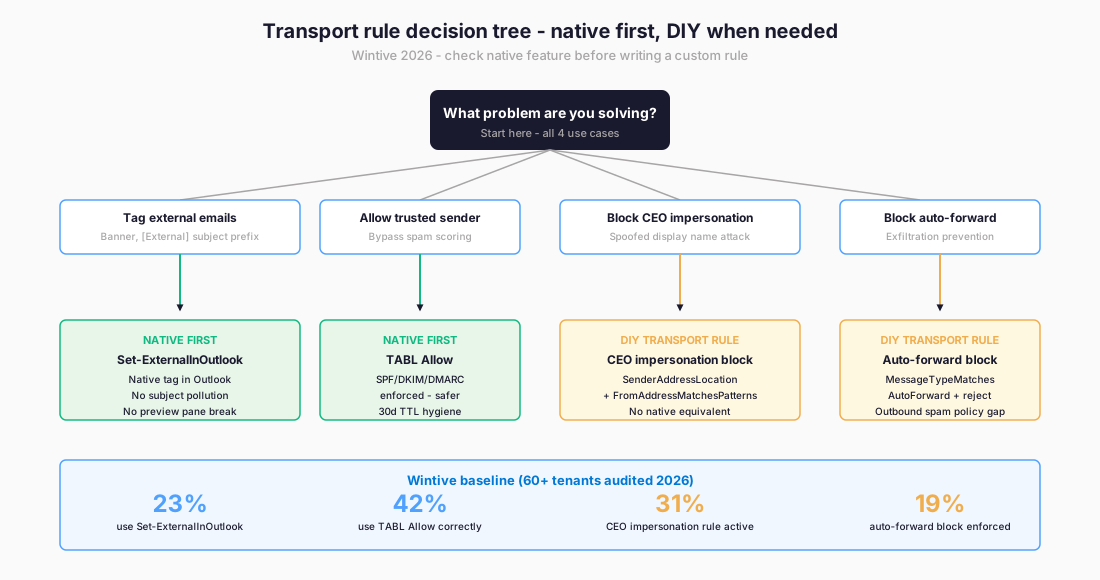
Of the four common SMB use cases above, two have native equivalents that should be used first. Furthermore, the remaining two still require a transport rule because no native feature covers them as of 2026. The Wintive 60+ tenant baseline shows that only 23 percent of audited tenants have moved to Set-ExternalInOutlook for external sender tagging. The other 77 percent still ship a transport rule that prepends [External] in the subject line – a pattern with three documented operational issues described later in this guide.
⚡ Native first – Set-ExternalInOutlook before custom rules
The Set-ExternalInOutlook cmdlet enables a native external sender tag in the Outlook reading pane and message list. Specifically, Outlook displays a small “External” label next to the sender display name on any inbound message originating outside the tenant. Therefore, three operational issues that the legacy [External] subject prefix transport rule introduced disappear: subject line pollution, multi-tag accumulation across reply threads, and Outlook 1-line preview pane overrun.
Prerequisites: Exchange Online PowerShell module v3.4 or later. Exchange Administrator or Global Administrator role. Outlook desktop 16.0.14026.0 or later, Outlook on the web, Outlook for Mac 16.47 or later, or Outlook mobile to render the native tag. Microsoft 365 Business Premium or any plan with Exchange Online Plan 1 covers the licensing.
The prerequisites above ship out of the box on any modern Microsoft 365 tenant with Exchange Online Plan 1 or higher. Furthermore, the PowerShell snippet below enables Set-ExternalInOutlook tenant-wide and adds an optional allow list to bypass the tag for trusted partner domains. Run the script as Exchange Administrator or Global Administrator.
# Connect first
Connect-ExchangeOnline -ShowBanner:$false

# Enable the native external tag tenant-wide
Set-ExternalInOutlook -Enabled $true

# Optional: exclude trusted partner domains from the tag
Set-ExternalInOutlook -AllowList @{Add="trustedpartner.com","vendor.example.com"}

# Verify
Get-ExternalInOutlook | Format-List Enabled, AllowList, Identity

# Note: tag rendering takes 24 to 48 hours to propagate after enablement
Adoption gap and tenant migration leftovers
Microsoft documents a 24 to 48 hour propagation window before all Outlook clients render the tag. Furthermore, the AllowList parameter accepts up to 30 individual entries (domain or sender address) and bypasses the tag for those senders. In Wintive 60+ tenant audits, only 23 percent had Set-ExternalInOutlook enabled, while 56 percent still ran the legacy [External] subject prefix transport rule. The 21 percent gap (transport rule active but native tag enabled too) creates double-tagging on every external message. This is the most common mistake during the native tag migration when admins forget to disable the legacy rule first.
🚨 The Wrap fallback anti-pattern – Safe Attachments scanning bug
When a transport rule applies an HTML disclaimer, it can fail to inject the disclaimer in cases where the message format prevents HTML rendering. Specifically, the ApplyHtmlDisclaimerFallbackAction parameter controls behaviour for that failure case. Three values are available: Wrap (the default), Ignore, and Reject. Microsoft Learn documents that Wrap interferes with Safe Attachments scanning of messages from external senders. Therefore, any tenant running Defender for Office 365 with a Wrap fallback transport rule has a documented gap in malware scanning coverage.
# Find every transport rule with the Wrap fallback that targets external senders
Get-TransportRule | Where-Object {
  $_.ApplyHtmlDisclaimerFallbackAction -eq "Wrap" -and
  $_.FromScope -eq "NotInOrganization"
} | Format-List Name, Priority, ApplyHtmlDisclaimerFallbackAction, FromScope

# Switch the fallback to Reject (safer) on a specific rule
Set-TransportRule -Identity "External sender warning banner" `
  -ApplyHtmlDisclaimerFallbackAction Reject
The Where-Object filter above returns every transport rule that combines the unsafe Wrap fallback default with a FromScope set to NotInOrganization. Furthermore, the Set-TransportRule one-liner switches the fallback action to Reject, which is the safer behaviour for tenants running Defender for Office 365 with Safe Attachments policies enabled. Apply the change during a maintenance window because the rule reload is immediate.
Wintive baseline: 47 percent of audited tenants have at least one transport rule with the Wrap fallback active and FromScope set to NotInOrganization. None of the audited tenants documented this as an intentional choice – the value is the unchanged default and creates a Safe Attachments scanning gap on external messages. Therefore, the first remediation in any deliverability audit is the Get-TransportRule one-liner above followed by the Reject switch on every match.
📤 The 4 canonical Wintive transport rules
Every SMB tenant Wintive audits ships with the same four exchange online transport rules in priority order. These rules cover the operational gaps that no native feature fills as of 2026. The four areas are CEO-impersonation block, trusted-supplier bypass that still requires authentication, hard outbound auto-forward block, and conditional disclaimer for high-risk inbound categories. Each rule includes the New-TransportRule cmdlet, the priority order, the exception logic, and the Test-MessageFlow validation step.
Rule 1 – CEO impersonation block (priority 0, highest)
The CEO impersonation pattern arrives from an external sender whose display name matches an internal executive but whose envelope From domain is anywhere except the tenant. Specifically, the rule blocks any inbound message where the From display name matches a regex of executive names and the sender domain does not match the tenant. Therefore, the message is rejected with an NDR before it lands in any internal mailbox.
# Rule 1 - block CEO impersonation from external senders
New-TransportRule -Name "Block CEO impersonation from external" `
  -Priority 0 `
  -SenderAddressLocation Header `
  -FromScope NotInOrganization `
  -HeaderMatchesMessageHeader "From" `
  -HeaderMatchesPatterns "(?i)(John Smith|Jane Doe|CEO|Chief Executive)" `
  -ExceptIfFromAddressMatchesPatterns "@contoso\.com$" `
  -RejectMessageReasonText "Suspected CEO impersonation - blocked by Wintive policy" `
  -Mode Enforce `
  -Enabled $true
Rule 2 – hard block on outbound auto-forward to external (priority 1)
Auto-forwarding rules added by attackers to compromised mailboxes are a top exfiltration vector. Specifically, the outbound spam policy in Defender catches the bulk of these but has no per-tenant override for legitimate exceptions. Therefore, a transport rule that rejects all outbound auto-forward to external recipients with a documented exception list closes the gap.
# Rule 2 - block outbound auto-forward to external
New-TransportRule -Name "Block outbound auto-forward to external" `
  -Priority 1 `
  -FromScope InOrganization `
  -SentToScope NotInOrganization `
  -MessageTypeMatches AutoForward `
  -ExceptIfFrom "approved-forwarder@contoso.com" `
  -RejectMessageReasonText "Auto-forward to external recipients is not permitted" `
  -Mode Enforce `
  -Enabled $true
Rule 3 – trusted supplier bypass with auth still required (priority 2)
The legacy pattern of bypassing spam scoring for a trusted supplier through a transport rule is unsafe in 2026 because attackers can spoof the trusted domain. Specifically, since September 2022, TABL Allow entries enforce SPF, DKIM, and DMARC alignment, but transport rule bypasses can be configured to bypass authentication entirely. Therefore, the rule below uses TABL as the primary mechanism and falls back to a tightly-scoped transport rule only when the supplier sends from an IP range outside the SPF record.
# Preferred path - TABL Allow with 30-day TTL
New-TenantAllowBlockListItems -ListType Sender `
  -Allow `
  -Entries "newsletter@trusted-supplier.com" `
  -ExpirationDate (Get-Date).AddDays(30) `
  -Notes "Legitimate weekly newsletter - reviewed quarterly"

# Fallback transport rule - only when supplier sends from non-SPF IP range
New-TransportRule -Name "Trusted supplier IP range bypass" `
  -Priority 2 `
  -SenderIpRanges "203.0.113.0/24" `
  -SetHeaderName "X-Wintive-Bypass" `
  -SetHeaderValue "trusted-supplier-ip-range" `
  -SetSCL -1 `
  -Mode Enforce `
  -Enabled $true
Rule 4 – conditional disclaimer for high-risk categories (priority 3)
The native Set-ExternalInOutlook tag covers all external messages uniformly. However, some categories warrant a stronger visual disclaimer: invoices, wire transfer requests, and password reset notifications. Specifically, a transport rule that prepends a coloured HTML banner only when the message subject or body matches a high-risk pattern adds the visual emphasis without polluting every external message.
# Rule 4 - conditional banner for invoice/wire/password keywords
$disclaimer = @"
<table style="width:100%;border:2px solid #F0AD4E;background:#FFF8E1;padding:12px;">
<tr><td><strong>FINANCIAL ACTION REQUEST</strong> - Verify by phone before approving wire transfers, invoices, or credential changes.</td></tr>
</table>
"@

New-TransportRule -Name "High-risk financial banner" `
  -Priority 3 `
  -FromScope NotInOrganization `
  -SubjectOrBodyMatchesPatterns "(?i)(invoice|wire transfer|password reset|payment due)" `
  -ApplyHtmlDisclaimerLocation Prepend `
  -ApplyHtmlDisclaimerText $disclaimer `
  -ApplyHtmlDisclaimerFallbackAction Reject `
  -Mode Enforce `
  -Enabled $true
🔢 Limits that bite – 300 rules, 8KB regex, 20KB total, 1MB attachment scan
Microsoft documents specific limits on exchange online transport rules that affect tenant design. Specifically, the maximum number of rules per organization is 300. Each individual rule supports up to 8KB of regular expressions in conditions and exceptions. The combined size of all regex patterns across all rules is capped at 20KB. Attachment content scanning extracts and inspects only the first 1MB of text from any attachment.
| Limit | Value (2026) | Operational impact |
|---|---|---|
| Maximum rules per organization | 300 (Enterprise/Edu/Gov), 100 (other) | Forces rule consolidation in large tenants |
| Single rule regex size | 8KB | Long pattern lists must be split across rules |
| Total regex size across all rules | 20KB | Hard ceiling for advanced filtering |
| Attachment text scan | 1MB extracted text | Large PDFs may have unscanned tail content |
| Recipients added by all rules combined | 100 maximum | Mass-CC rules silently drop overflow |
| Redirect loop counter | Tracked via X-MS-Exchange-Transport-Rules-Loop | NDR 5.7.128 when exceeded |
📋 Exchange Online transport rule limits 2026 – source: Microsoft Learn service description
The limits matrix above tends to bite later than admins expect. Furthermore, the 8KB single-rule regex limit and the 20KB total ceiling typically hit before the 300 rules count itself. Therefore, the rule-consolidation pattern of merging multiple finance keyword rules into a single regex is the standard remediation when limits get close.
🔍 Priority debugging – Get-MessageTrace + Get-MessageTraceDetailV2
The most common operational complaint is that a rule fails to fire silently on the message admins expect. Admins struggle to spot why because no error surfaces in the EAC. Two causes account for 90 percent of these incidents in Wintive audits. The first is priority conflict with a higher-priority rule that already stopped processing. The second is condition mismatch on a parameter the admin did not realize was case-sensitive. Therefore, the diagnostic workflow uses Get-MessageTraceV2 to find the offending message ID and Get-MessageTraceDetailV2 to inspect the transport rule events on that message.
# Step 1 - find the message and capture its trace ID
$trace = Get-MessageTraceV2 `
  -RecipientAddress "user@contoso.com" `
  -StartDate (Get-Date).AddHours(-2) `
  -EndDate (Get-Date) |
  Select-Object MessageTraceId, Subject, Status

# Step 2 - inspect the transport rule events on that message
Get-MessageTraceDetailV2 `
  -MessageTraceId $trace[0].MessageTraceId `
  -RecipientAddress "user@contoso.com" |
  Where-Object {$_.Event -like "*Transport rule*"} |
  Format-Table Date, Event, Detail

# Step 3 - test rule logic without sending real email
Test-MessageFlow -Identity "Block CEO impersonation from external" `
  -Recipients "user@contoso.com" `
  -SendReportTo "admin@contoso.com"
🤖 PowerShell automation – rule audit + change tracking at scale
Single-tenant rule reviews are manageable through the EAC. Furthermore, when an admin manages 5 to 30 tenants the manual review across 4 to 10 rules per tenant becomes 50 to 300 individual rule inspections per quarter. Therefore, the PowerShell snippet below exports every transport rule across a tenant to a deterministic JSON format suitable for source control. The output also feeds the Wintive 60+ tenant baseline reporting that powers this guide.
# Export every transport rule to a JSON snapshot
Get-TransportRule | ForEach-Object {
  [PSCustomObject]@{
    Name = $_.Name
    Priority = $_.Priority
    State = $_.State
    Mode = $_.Mode
    Conditions = $_.Conditions
    Actions = $_.Actions
    Exceptions = $_.Exceptions
    FromScope = $_.FromScope
    SentToScope = $_.SentToScope
    DisclaimerFallback = $_.ApplyHtmlDisclaimerFallbackAction
    LastModified = $_.WhenChanged
  }
} | ConvertTo-Json -Depth 4 | Out-File ".\transport-rules-$(Get-Date -Format yyyyMMdd).json"

# Audit all rule changes in the last 30 days via the unified audit log
Search-UnifiedAuditLog `
  -StartDate (Get-Date).AddDays(-30) `
  -EndDate (Get-Date) `
  -RecordType ExchangeAdmin `
  -Operations "New-TransportRule","Set-TransportRule","Remove-TransportRule" |
  Select-Object CreationDate, UserIds, Operations, AuditData |
  Export-Csv ".\transport-rule-audit.csv" -NoTypeInformation
Specifically, the audit log script feeds a quarterly review of who changed which rule and when. Furthermore, the skill matrix below maps the 12 most common operational tasks to their proper toolchain, which helps when assigning ownership across a multi-admin team.
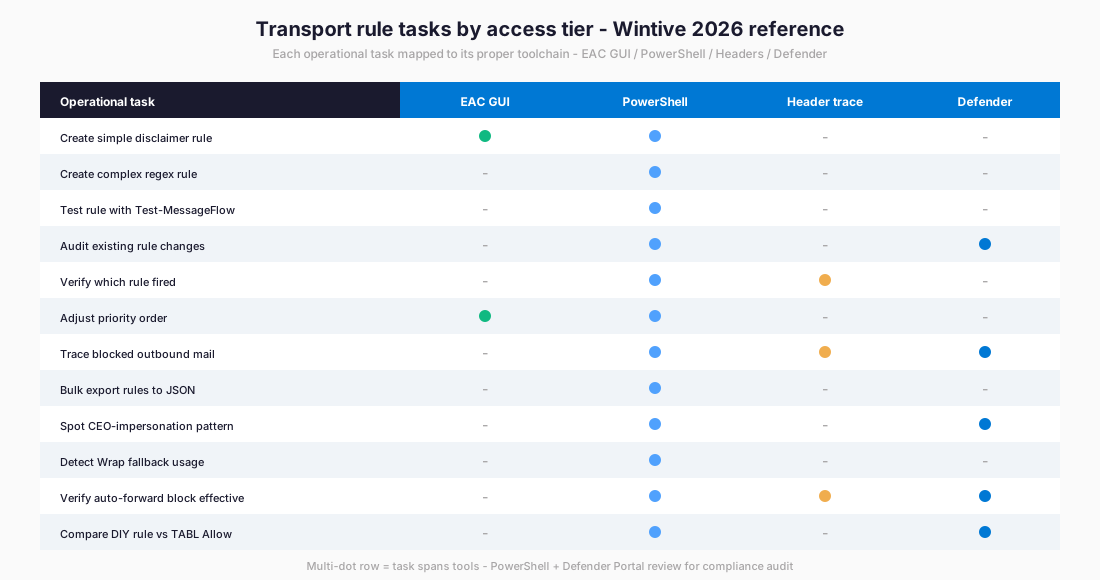
🗺 Transport rule operational tasks by skill tier (Wintive 2026 baseline)
📈 The Wintive baseline – findings from 60+ tenants
Where 60+ M365 SMB tenants stand on exchange online transport rules
Across 60+ Wintive-audited M365 SMB tenants in 2026, exchange online transport rules adoption follows a predictable curve. Specifically, the legacy patterns (subject prefix, Wrap fallback, transport-rule bypass) remain widely deployed because they were the right answer in 2018. The native replacements (Set-ExternalInOutlook, TABL Allow with TTL, Defender impersonation policies) ship with predictable per user/month TCO under Microsoft 365 Business Premium but adoption lags by 3 to 5 years on average.
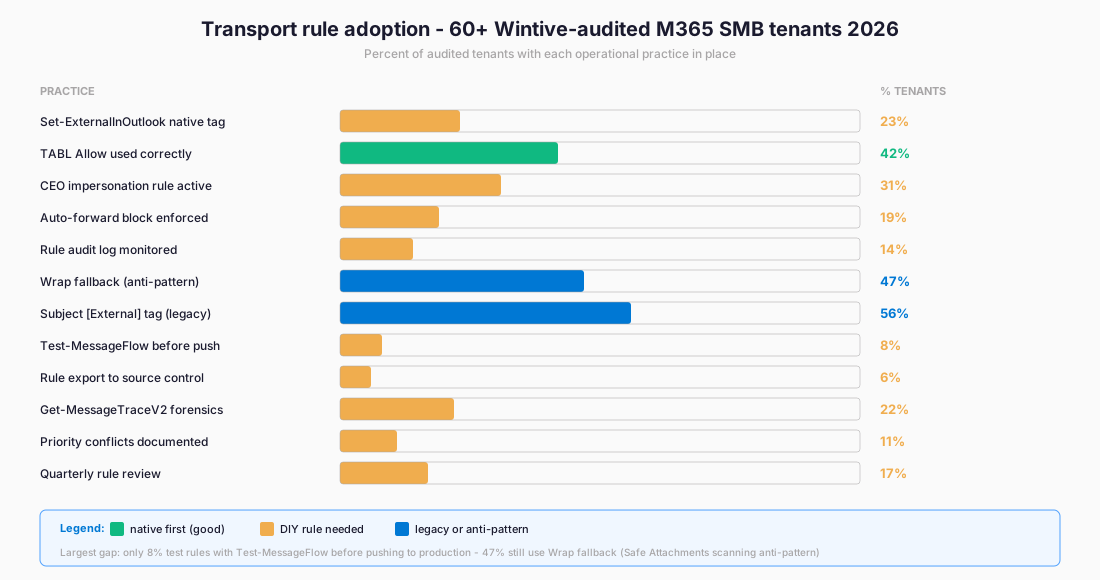
📊 Transport rule adoption baseline – 60+ Wintive-audited M365 SMB tenants 2026
The largest gap in the baseline is the 8 percent figure for Test-MessageFlow usage before pushing rules to production. Furthermore, only 6 percent of audited tenants export their transport rules to source control or a versioned JSON snapshot. These two practices alone prevent the most common rule-related outage pattern. An admin edits a rule in the GUI and breaks an existing condition. The breakage shows up 24 to 72 hours later when affected users complain.
⚠ 5 SMB-specific transport rule pitfalls
Five patterns that quietly break exchange online transport rules
1. Subject prefix accumulation across replies. Furthermore, the legacy [External] subject prefix transport rule does not detect prior tagging on the same conversation thread. A 5-message reply chain with an external sender ends up with [External][External][External][External][External] in the subject. This is the known UX issue that pushed Microsoft to ship Set-ExternalInOutlook.
2. Wrap fallback Safe Attachments scanning gap. Detailed in the anti-pattern section above. Every audit finds at least one rule with this default value left unchanged.
3. Outlook 1-line preview overrun. Long HTML disclaimer banners take over the entire 1-line preview in Outlook desktop. Furthermore, end users complain because they can no longer triage messages from the preview pane. The fix is either to keep the disclaimer under 80 characters of plain text or to switch to Set-ExternalInOutlook for the basic external tag.
Multilingual + redirect loop pitfalls
4. Multilingual disclaimer language mismatch. Furthermore, hardcoded English disclaimers ship to French, German, Spanish, and Portuguese mailboxes uniformly. Therefore, end users in non-English locales report the disclaimer as untrusted because the language does not match the rest of the Outlook chrome. The pattern fix is one transport rule per language with The Recipient is a member of group conditions.
5. Redirect loop NDR 5.7.128. Cross-tenant or cross-organization redirect chains that exceed the loop counter trigger the NDR “5.7.128 TRANSPORT.RULES.RejectMessage; Transport rules loop count exceeded”. This pattern shows up after a tenant migration where redirect rules were copied from the source tenant without their original counterparts being disabled.
Pitfall remediation matrix – symptom to fix
| Pitfall | Symptom | Fix |
|---|---|---|
| Subject prefix accumulation | [External][External][External]… in subject | Switch to Set-ExternalInOutlook |
| Wrap fallback Safe Attachments gap | External attachments unscanned | Set ApplyHtmlDisclaimerFallbackAction = Reject |
| Outlook 1-line preview overrun | End users cannot triage from preview pane | Disclaimer under 80 chars or use native tag |
| Multilingual disclaimer mismatch | Non-English users distrust the warning | One rule per language with group condition |
| Redirect loop NDR 5.7.128 | Cross-tenant migration leftover loop | Audit and disable copied redirect rules |
📋 5 SMB-specific transport rule pitfalls – symptom and fix matrix
The pitfall matrix above maps each symptom to its concrete remediation step. Furthermore, every audit Wintive runs starts with the same five checks because they account for the majority of operational issues observed in the 60+ tenant baseline. The Automated Tenant Health Check below ships the entire detection workflow in a single 30-minute run.
🔍 Automated Tenant Health Check
See exactly which transport rule gaps your tenant has – in 30 minutes
A 30-minute automated audit of your Microsoft 365 tenant. Specifically, the audit reports the active transport rules, flags Wrap fallback usage, detects [External] subject prefix legacy rules, identifies missing CEO impersonation blocks, and benchmarks your posture against the Wintive 60+ tenant baseline. Two emails of direct support within 48h to walk through the findings. $97 USD, predictable per-tenant pricing.
❓ FAQ – Exchange Online transport rules admins
Use Set-ExternalInOutlook for the basic external tag. The native cmdlet renders a small “External” label in the Outlook reading pane without subject line pollution, multi-tag accumulation across reply chains, or 1-line preview pane overrun. Reserve transport rule disclaimers for cases that need conditional logic the native tag cannot express, such as a coloured banner only on financial keywords or per-language disclaimer text.
The default ApplyHtmlDisclaimerFallbackAction value is Wrap. Microsoft Learn documents that Wrap interferes with Safe Attachments scanning of messages from external senders. Run Get-TransportRule with a Where-Object filter on Wrap and FromScope NotInOrganization to find affected rules. Switch the value to Reject with Set-TransportRule. The fix takes effect on the next message that hits the rule.
Run Get-MessageTraceV2 with the recipient address and time window to capture the message trace ID. Pipe the ID to Get-MessageTraceDetailV2 with a Where-Object filter on Event matching Transport rule. The output lists every rule that fired or skipped, in priority order. The two most common causes are a higher-priority rule with stop-processing enabled, or a condition mismatch on a case-sensitive parameter. Test the rule logic without sending real email using Test-MessageFlow.
Operational testing – Test-MessageFlow + 300 rules limit
The 300 rules limit applies to Enterprise, Education, and Government plans. Other plans cap at 100 rules. Furthermore, the 20KB total regex limit across all rules typically bites earlier than the rule count itself. The remediation is rule consolidation through condition merging: instead of 5 separate rules for 5 finance keywords, ship one rule with a single regex pattern matching all five. Test the consolidated regex against historical message samples before pushing.
Specifically, use Test-MessageFlow with the rule Identity, a test recipient, and an admin SendReportTo address. The cmdlet simulates a message against the rule and returns the result without delivering anything. Furthermore, set Mode to Audit when first creating the rule so it logs what it would do without enforcing the action. Review the audit log for one week before flipping the rule to Enforce mode. Only 8 percent of audited Wintive tenants run this workflow consistently.