Configuring Microsoft Defender for Office 365 properly is no longer optional in 2026. Phishing and business email compromise drive the largest share of breaches against Microsoft 365 tenants. The default protection that ships with EOP catches the obvious threats. However, it leaves significant gaps. This guide walks through the four pillars Defender adds on top of Exchange Online Protection, the Wintive recommended baseline configuration, and the PowerShell commands needed to verify everything works as intended.
Specifically, this guide covers Plan 1 versus Plan 2 features. It then walks through anti-phishing with impersonation protection and Mailbox Intelligence. Next, it tackles anti-malware with the Common Attachment Filter. Finally, it covers Safe Links URL rewriting and Safe Attachments sandbox detonation. As a result, an IT admin finishes with a deployable configuration template, not just a feature tour.
🛡️ Free: M365 Tenant Security Audit Checklist
17-page PDF with 50 hands-on checks covering Entra ID, Exchange Online, SharePoint, Teams, Intune, license waste, and audit logging. PowerShell commands included. Built from 60+ real tenant audits at Wintive.
🆕 Microsoft Defender for Office 365 in 2026: what is actually included
Exchange Online Protection (EOP) ships with every Microsoft 365 plan. It handles baseline anti-spam, anti-malware, and connection filtering. However, EOP alone does not detect modern phishing techniques such as display-name impersonation, lookalike domains, or compromised internal accounts. Microsoft Defender for Office 365 sits on top of EOP and adds four protection pillars. Plan 1 covers anti-phishing with impersonation analysis, Safe Attachments with sandbox detonation, and Safe Links with click-time URL inspection. Plan 2 layers automated investigation and threat hunting tools on top.
🎯 Plan 1 vs Plan 2: where each fits
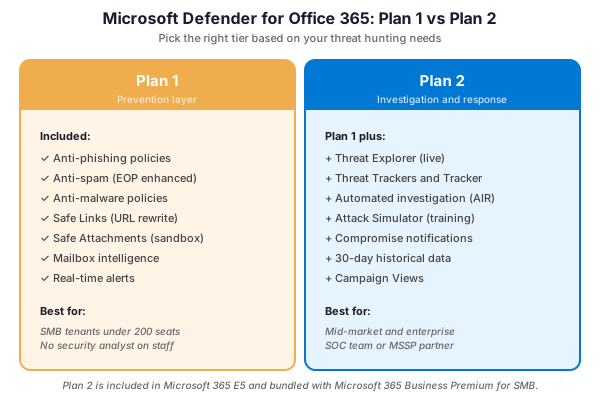
Plan 1 covers prevention. It stops the phishing email before it reaches the user. Plan 2 adds visibility and response. When an email gets through, the security team can trace what happened, who clicked, and which mailboxes need remediation. The two tiers complement each other rather than substitute. The right choice depends on whether the organization has staff to act on detection signals.
Furthermore, Defender for Office 365 is not just an Exchange Online feature: Safe Attachments and Safe Links extend to SharePoint Online, OneDrive for Business, and Microsoft Teams. Consequently, a properly configured Defender deployment protects file uploads in Teams chats and links shared in OneDrive folders the same way it protects email body content.
🛡️ Plan 1 vs Plan 2: pick what you need
The decision between Plan 1 and Plan 2 comes down to operational maturity. In particular, Plan 2 features require someone to look at the data: Threat Explorer, Campaign Views, and Automated Investigation produce signals that need triage. Therefore, an SMB without a security analyst on staff often wastes Plan 2 budget on dashboards nobody reviews.
| Feature | Plan 1 | Plan 2 |
|---|---|---|
| Anti-phishing policies | Yes | Yes |
| Mailbox Intelligence | Yes | Yes |
| Safe Attachments (sandbox) | Yes | Yes |
| Safe Links (URL rewrite) | Yes | Yes |
| Real-time alerts | Yes | Yes |
| Threat Explorer (live) | No | Yes |
| Automated Investigation (AIR) | No | Yes |
| Attack Simulator (training) | No | Yes |
| Campaign Views | No | Yes |
| 30-day historical data | No | Yes |
For licensing, Plan 1 ships with Microsoft 365 Business Premium. In addition, Microsoft sells it as a standalone add-on. By contrast, Plan 2 ships with Microsoft 365 E5 and requires the higher-tier license. Therefore, to verify the active plan in a tenant, use the PowerShell command below.
# Check which Defender for Office 365 SKU is active in the tenant
Connect-MgGraph -Scopes "Directory.Read.All"
Get-MgSubscribedSku |
    Where-Object { $_.SkuPartNumber -match "ATP_ENTERPRISE|THREAT_INTELLIGENCE" } |
    Select-Object SkuPartNumber, ConsumedUnits, @{Name="Total";Expression={$_.PrepaidUnits.Enabled}}
🎯 Anti-Phishing policy: the core
In practice, the anti-phishing policy is the single highest-impact configuration in Defender for Office 365. Specifically, it controls impersonation protection for users and domains, Mailbox Intelligence, the phishing threshold scale, and the safety tips shown to users. Therefore, every tenant should have at least one custom anti-phishing policy. The custom policy applies on top of the default policy and covers all recipient mailboxes.
The recommended baseline starts with impersonation protection.
👤 Impersonation protection: users and domains
List the executives and finance staff most likely to be impersonated by attackers. Add the corporate domain itself to the protected list. For example, if the CFO email address is finance.lead@example.com, an inbound email from finance.lead@examp1e.com (with the digit 1 replacing the letter l) will be flagged as an impersonation attempt and quarantined.
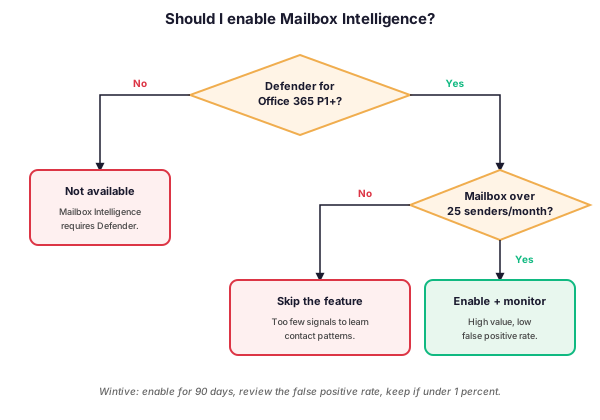
This second key feature deserves its own attention.
🧠 Mailbox Intelligence: learn the contact patterns
Mailbox Intelligence is the second key feature. In particular, it learns each user normal sender patterns over a 30-day window and flags emails that look superficially legitimate but break the pattern. For example, the CEO might receive an email from an unknown vendor mimicking a known supplier. Mailbox Intelligence raises the phishing score for that message, even when the sender domain looks technically valid.
The third configuration knob is the threshold itself.
📈 Phishing threshold: pick the aggressiveness level
The phishing threshold setting controls the aggressiveness of the policy on a 1-to-4 scale. Level 1 (Standard) stays permissive. Level 4 (Most aggressive) blocks anything suspicious. The Wintive recommended baseline applies level 2 (Aggressive) to general staff. Finance and executive mailboxes get level 3 (More aggressive) through a separate scoped policy.
# List current anti-phishing policies and their thresholds
Get-AntiPhishPolicy |
    Select-Object Identity, Enabled, PhishThresholdLevel, EnableMailboxIntelligence, EnableImpersonationProtection
🦠 Anti-Malware and the Common Attachment Filter
The anti-malware policy in Defender for Office 365 inherits from the EOP baseline. It also adds the Common Attachment Filter. The filter blocks file types historically used to deliver malware, regardless of scan results. Specifically, the default list covers extensions such as .ace, .ani, .app, .docm, .exe, .iso, .jar, .msi, .scr, .vbs, and several others. As a result, Defender rejects any file with one of these extensions at the gateway, before further inspection.
In practice, the Wintive recommended approach keeps the default list and adds four extensions common in 2026 phishing campaigns. First, .lnk targets Windows shortcut files that launch PowerShell. Second, .one covers OneNote attachments containing macros. Third, .img blocks disk images that bypass the zone identifier. Fourth, .iso closes the modern ISO trojan vector. Furthermore, keep internal sender notifications enabled. By contrast, disable external sender notifications to avoid leaking configuration details to attackers.
# View the current Common Attachment Filter file types
Get-MalwareFilterPolicy -Identity Default |
    Select-Object FileTypes, EnableFileFilter, ZapEnabled
🔗 Safe Links: protect URL clicks at runtime
Specifically, Safe Links rewrites every URL in inbound emails. Each rewritten URL then routes through Microsoft inspection servers. When a user clicks a link in Outlook, Microsoft intercepts the click and scans the destination in real time. As a result, only a clean verdict allows the navigation to proceed. Even links that were safe at delivery time but turned malicious afterward (a common phishing tactic) still get blocked at click time.
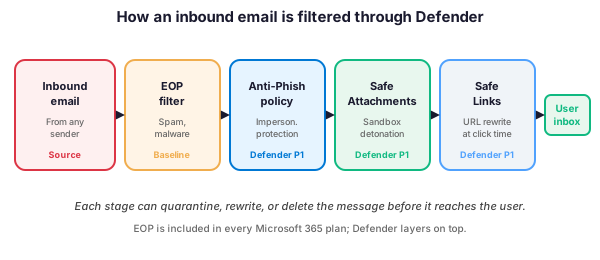
In practice, the Wintive recommended baseline enables Safe Links for all email recipients. Furthermore, it covers all Office 365 apps (Outlook, Word, Excel, PowerPoint, Teams) and the SharePoint and OneDrive content channels. Keep the Wait for verdict before delivery option enabled. Although it adds 1-3 seconds of latency per click, the trade-off is worthwhile. By contrast, disable the Allow users to click through to original URL option. Otherwise, users override every block with a single confirmation click.
# Verify Safe Links is enabled across all channels
Get-SafeLinksPolicy |
    Select-Object Name, EnableSafeLinksForEmail, EnableSafeLinksForOffice, EnableSafeLinksForTeams, DeliverMessageAfterScan
📎 Safe Attachments: detonate before delivery
Safe Attachments opens every inbound attachment in a virtual machine sandbox. Inside the sandbox, Defender observes the behavior. Once the verdict comes back clean, the service delivers the file to the user. Critically, the sandbox detects payloads that anti-virus engines miss. These payloads include macro-based loaders, polymorphic ransomware, and zero-day exploits. They trigger only at execution time, which signature scanners cannot catch. As a result, Safe Attachments catches what signature-based anti-malware misses.
Therefore, the recommended action policy is Dynamic Delivery. This setting delivers the email body immediately. Meanwhile, Defender scans the attachment and replaces it with a placeholder. By contrast, the simpler Block policy holds the entire message until the scan completes. In practice, Wintive observation: dynamic delivery gives a better user experience for time-sensitive workflows like contracts and PO confirmations, without compromising security.
# Inspect Safe Attachments policy and delivery action
Get-SafeAttachmentPolicy |
    Select-Object Name, Enable, Action, Redirect, RedirectAddress
🚀 Wintive recommended baseline configuration
Microsoft offers two preset security policies: Standard and Strict. Each preset bundles recommended values for anti-phishing, anti-malware, Safe Links, and Safe Attachments in one assignment. In practice, the Standard preset roughly matches the Wintive baseline for general staff. By contrast, Strict matches the recommended configuration for finance, executive, and IT admin mailboxes. As a result, the recommended deployment pattern applies Standard preset to all users. Strict preset then overrides for the high-risk subset.
Custom policies make sense only when a specific tenant requirement cannot fit the presets. In practice, anti-phishing customs are common because impersonation protection lists vary per tenant. However, custom Safe Links and Safe Attachments policies remain rare. Therefore, the layered approach uses Strict preset for high-risk groups. Standard preset then covers everyone else. Finally, one custom anti-phishing policy adds tenant-specific impersonation targets.
# Apply the Standard preset to all users (illustrative; verify before running)
Get-EOPProtectionPolicyRule -Identity "Standard Preset Security Policy" |
    Set-EOPProtectionPolicyRule -SentTo "" -SentToMemberOf "" -RecipientDomainIs "yourtenant.onmicrosoft.com"
🔍 How to verify your config is working
Configuration without verification is operational theater. Three observable signals indicate Defender for Office 365 is doing its job. First, detection events appear in the Unified Audit Log. Second, quarantine entries match expected attack patterns. Third, user-reported phishing tickets show a measurable drop. Therefore, the Wintive monthly verification checklist runs all three.
📊 Pull detection events from the audit log
First, query the Unified Audit Log for recent threat detection events. The operations to filter on include AdvancedHunting, ThreatIntelligence, and PhishUrlAnalyze. Together, these capture the bulk of Defender activity:
# Pull last 7 days of Defender detection events
Search-UnifiedAuditLog -StartDate (Get-Date).AddDays(-7) `
    -EndDate (Get-Date) `
    -RecordType ThreatIntelligence `
    -ResultSize 5000 |
    Select-Object CreationDate, UserIds, Operations, ObjectId |
    Export-Csv -Path "C:\Reports\defender-events.csv" -NoTypeInformation
🔎 Review quarantine and Threat Explorer
Second, review the quarantine in the Defender portal weekly to confirm legitimate detections. Furthermore, Plan 2 customers should run Threat Explorer against the same time range. Threat Explorer provides the campaign-level view that the Unified Audit Log alone cannot show. As a result, the combination of audit log queries (Plan 1) plus Threat Explorer (Plan 2) gives complete coverage of what Defender catches across the tenant.
❓ Frequently Asked Questions
Plan 1 covers prevention: anti-phishing, anti-malware, Safe Links, and Safe Attachments. Plan 2 adds investigation and response: Threat Explorer, Automated Investigation, Attack Simulator, Campaign Views, and 30-day historical data. Specifically, Plan 1 stops threats and Plan 2 lets the security team analyze what happened after the fact.
Yes. EOP ships with every Microsoft 365 plan and provides baseline anti-spam and anti-malware filtering. However, it does not include impersonation protection, Mailbox Intelligence, Safe Attachments sandbox detonation, or Safe Links URL rewriting. EOP alone leaves significant gaps that modern phishing campaigns exploit.
Policy changes typically apply within 30 minutes for new mail flow, but full propagation across the tenant can take up to 6 hours. In particular, anti-phishing rule changes and impersonation list updates apply within 15 minutes, while Safe Links and Safe Attachments policy changes require the full 6-hour window in some cases.
It is technically possible to add domains or sender addresses to the Safe Links bypass list, but the Wintive recommendation is to keep the bypass list empty. Specifically, internal compromise scenarios where a real internal sender forwards a malicious link bypass any internal-domain exception, so the protection is more valuable than the latency saved.
Run Search-UnifiedAuditLog filtered by RecordType ThreatIntelligence to extract Defender detection events from the last 30 days. Furthermore, Plan 2 customers can use Threat Explorer in the Defender portal for a campaign-level view, and the Quarantine in the Microsoft 365 admin center for individual message inspection.