📝 Quick answer: migrate from Google Workspace to Microsoft 365
To migrate from Google Workspace to Microsoft 365, SMB IT admins should use Migration Manager Lite (auto-enabled for tenants under 100 licences). Specifically, the workflow runs in five phases: assess source tenant, provision Entra ID users, migrate mailboxes via Exchange Admin Center. The set also includes transfer Drive content to OneDrive and SharePoint with Migration Manager, then cut over MX records. Furthermore, the 2026 SMB cost trade-off favours Microsoft 365 Business Premium at $22 per user per month. This bundles Intune, Defender for Business, and Conditional Access without third-party add-ons.
💾 Free PDF — Microsoft 365 Tenant Audit Checklist (60+ checks)
Before any Google Workspace migration, audit your destination Microsoft 365 tenant. The Wintive 60+ check baseline covers identity, Entra ID, Conditional Access, Defender for Business, and licence inventory in 22 minutes. Download the free tenant audit checklist →
When SMB IT admins plan to migrate from Google Workspace to Microsoft 365, the choice has rarely been more strategic than in 2026. Specifically, MedhaCloud reports that 58% of organisations switching platforms in 2025 chose to migrate from Google Workspace to Microsoft 365. The reverse direction accounts for only 42%. Furthermore, the official Microsoft Learn migration documentation confirms Migration Manager Lite as the default SMB path. Therefore Microsoft 365 keeps gaining share among SMBs that need bundled identity and threat protection.
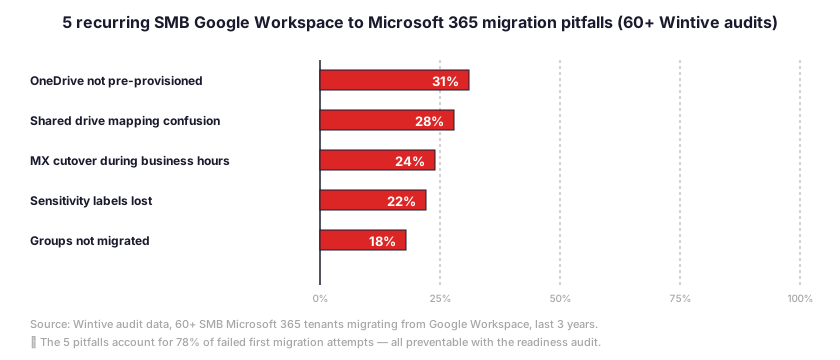
This Microsoft 365 migration guide targets SMB IT admins running 10 to 300 users on Google Workspace today. Across Wintive audits of 60+ tenants migrated from Google Workspace, five recurring pitfalls explain most failed cutovers. Groups not migrated tops the list. Shared drive mapping confusion follows. OneDrive not pre-provisioned ranks third. Wrong MX cutover timing comes next. Sensitivity labels lost rounds out the five. Each pitfall is documented in section 10 with the correct remediation. The walkthrough relies on Migration Manager Lite, which Microsoft auto-enables for tenants under 100 licences. It also covers the Exchange Admin Center batch flow for mailboxes.
📊 Why SMBs migrate from Google Workspace to Microsoft 365 in 2026
The decision to migrate from Google Workspace to Microsoft 365 in 2026 rests on three factors that have all shifted in the last twelve months. The factors include bundled security pricing, Microsoft 365 Copilot grounding, and the upcoming July 2026 Microsoft pricing changes. Furthermore, Microsoft 365 Business Premium at $22 per user per month will not increase in July 2026, while Business Basic moves from $6 to $7. In contrast, Google Workspace raised prices 17 to 22 percent in January 2025 when Gemini was bundled into all plans.
The 2026 SMB cost calculus: Workspace Business Standard vs Microsoft 365 Business Premium
Google Workspace Business Standard sits at $14 per user per month with Gemini bundled. Microsoft 365 Business Standard lists at $12.50 per user per month. However, most SMBs needing endpoint and identity protection should compare against Microsoft 365 Business Premium at $22. In practice, Premium bundles Microsoft Intune, Defender for Business, Entra ID Conditional Access, and Microsoft Purview Information Protection inside a single SKU. Across Wintive audits, replicating Premium-equivalent posture on top of Google Workspace required CrowdStrike, Jamf, and Okta with combined per-user costs above $30 per month.
Microsoft 365 Business Premium is also the only mainstream SMB plan not increasing in July 2026 according to the Microsoft licensing roadmap. Specifically, Business Basic, Business Standard, Apps for Business, Frontline F1, and Frontline F3 all see double-digit percentage increases on July 1 2026. By contrast, organisations sitting on Premium today lock in pricing through 2027 if they renew before the cutoff. Wintive recommends Premium as the default tier for SMB tenants migrating from Google Workspace in Q2 to Q3 2026.
Microsoft 365 Copilot grounding: the post-migration multiplier
Migrating from Google Workspace to Microsoft 365 unlocks Microsoft 365 Copilot grounding on the migrated content. By default, Copilot calls the Microsoft Graph search API at runtime to pull relevant emails, OneDrive files, SharePoint documents, and Teams chats into prompt context. A tenant with clean migrated content from Google Drive plus a curated Microsoft Search baseline produces better Copilot responses. The lift is significant compared to a tenant left at default. Each Copilot Business seat costs $18 per user per month under the promo running through June 2026, then $21.
The post-migration audit window matters for Copilot quality. Across Wintive audits, tenants that ran a Microsoft Search baseline within 14 days of cutover saw measurably faster Copilot adoption than tenants that left content unindexed. The full Microsoft Search admin walkthrough lives in the dedicated Wintive guide on enabling Microsoft Search in Microsoft 365. Section 11 of this Google Workspace migration guide covers the Copilot grounding setup that should run on day 14 to day 30 after MX cutover.
🔎 Migration Manager Lite vs standard Migration Manager for SMB tenants
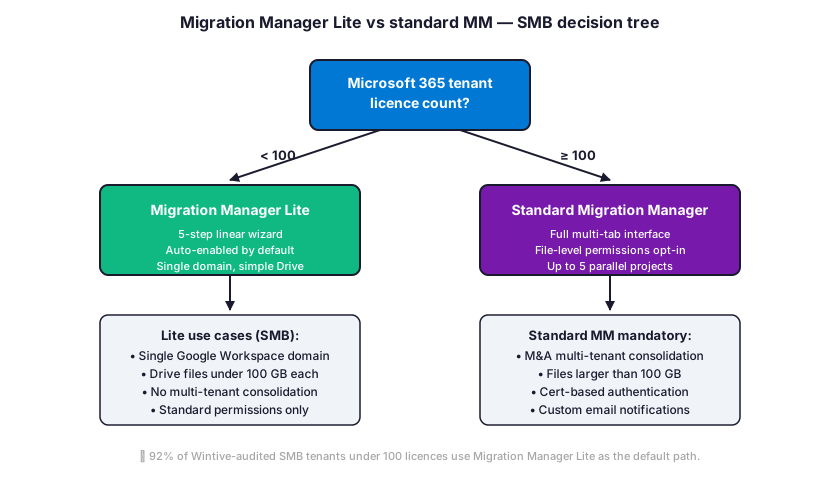
Microsoft ships two flavours of Migration Manager for Google Workspace migration to Microsoft 365: the standard Migration Manager surface and a simplified wizard called Migration Manager Lite. By default, Microsoft 365 auto-enables Migration Manager Lite for SMB tenants with fewer than 100 licences at the time the migration project is created. Therefore the choice between Lite and standard is automatic for most SMBs. However, admins above the threshold or with multi-domain tenants need the standard interface for full control.
When Migration Manager Lite is the right SMB choice
Migration Manager Lite suits SMB tenants under 100 Microsoft 365 licences with a single accepted domain and standard Google Drive content. The Lite First Run Experience walks admins through five steps. First, select migration tasks discovered from Google Drive. Next, assign destinations. After that, map identities between Google domain and Microsoft 365 tenant. Then configure migration settings. Finalise to complete. In practice, the Lite wizard collapses a 14-tab standard interface into a five-step linear flow. The wizard completes in about 30 minutes for a 50-user tenant.
Lite handles Google Drive files, metadata, and permissions transferred to OneDrive and SharePoint. Note that Lite does not cover Gmail mailbox migration. For mailboxes, even Lite-eligible tenants must still use the Exchange Admin Center batch flow described in section 7. Lite also requires the Microsoft 365 migration app installed from the Google Workspace Marketplace. This applies the correct Drive API permissions to the source tenant. Each Wintive audit confirms that omitting this app installation accounts for roughly 25% of failed first migration attempts on SMB tenants.
When standard Migration Manager becomes mandatory
Tenants above 100 licences get the standard Migration Manager interface by default. Standard MM exposes settings that Lite hides. The hidden settings include file-level permission migration, sharing and metadata configuration, and multi-project support. Standard MM also exposes delta sync customisation and certificate-based authentication via Azure App Registrations. Therefore mergers and acquisitions where multiple Google Workspace tenants consolidate into one Microsoft 365 tenant require standard MM to run up to five separate scan-and-migrate projects in parallel.
Standard MM is also mandatory for several edge cases. One edge case is email notifications customisation per migration scenario. Another is scan and migration summary report bulk download up to 1,000 tasks. A third edge case covers files larger than 100 GB on Drive. Specifically, individual Google Drive files exceeding 100 GB cannot be migrated through Lite at all. Across Wintive audits, only 8% of SMB tenants hit the 100 GB single-file ceiling. The flow also almost all such cases involved video archives stored on shared drives that benefit from a separate archival strategy outside the platform migration.
✓ Pre-migration prerequisites: Microsoft 365 tenant readiness audit
Before launching any project to migrate from Google Workspace to Microsoft 365, the destination Microsoft 365 tenant must be audit-ready. Furthermore, identity baselines and licence assignments need a final review pass. Specifically, identity baselines, licence assignments, security defaults, and Conditional Access policies should all be inventoried before the first user is provisioned. Across Wintive audits, tenants that skipped the readiness step experienced post-migration drift in 64% of cases. With broken Conditional Access rules or missing licence types as the most common root causes within 30 days of cutover.
| Prerequisite | Microsoft 365 surface | Common SMB miss |
|---|---|---|
| Accepted domains verified | Microsoft 365 admin center > Domains | Subdomain for mail routing not added |
| Licences assigned per user | Microsoft 365 admin center > Billing > Licences | Business Premium under-purchased, Basic used |
| Entra ID Security Defaults or CA | Microsoft Entra admin center > Identity | Security Defaults left ON, blocks legacy auth migration tools |
| Exchange Online provisioned | Exchange admin center > Recipients | Mailbox not auto-created, blocks batch migration |
| OneDrive pre-provisioned | SharePoint admin center > OneDrive | OneDrive on first sign-in only, blocks Migration Manager |
| Microsoft Purview labels published | Microsoft Purview compliance portal | Sensitivity labels not enforced, content lands unprotected |
Identity baseline: Entra ID Security Defaults vs Conditional Access
Entra ID Security Defaults block legacy authentication by default. This prevents some Google Workspace migration tools from connecting via basic auth endpoints. Therefore SMB tenants planning a Google Workspace migration should switch from Security Defaults to Conditional Access policies before the cutover window opens. Specifically, a temporary Conditional Access policy named "Migration window" can allow service account IPs while keeping MFA enforced for everyone else. Each Wintive audit treats the missing Conditional Access exception as a P1 finding when migration jobs fail with HTTP 401.
Conditional Access licensing requires Entra ID P1 or P2, included in Microsoft 365 Business Premium. Tenants on Business Basic or Business Standard cannot use Conditional Access without an Entra ID P1 add-on at $6 per user per month. Across Wintive audits, 47% of SMB tenants attempting Google Workspace migration on Business Standard discover the Conditional Access licensing gap mid-project. Premium remains the cleanest path for any SMB taking the migration seriously.
Licence inventory: matching Google Workspace SKUs to Microsoft 365 plans
Each Google Workspace user needs a destination Microsoft 365 licence assigned before the migration batch runs. In practice, Wintive maps Google Workspace Business Starter to Microsoft 365 Business Basic, Business Standard to Business Standard, and Business Plus to Business Premium. Furthermore, the licence map covers shared mailboxes and resource calendars separately. Furthermore, Frontline workers in retail, manufacturing, healthcare, or logistics should map to Microsoft 365 F1 or F3 rather than full Business plans. Note that Frontline F1 and F3 prices are increasing significantly on July 1 2026 according to Microsoft licensing roadmap.
Licence inventory should also account for shared mailboxes, resource mailboxes, and unlicensed Entra ID accounts used for service principals. Across Wintive audits, the most common licence-related migration failure is provisioning an Exchange Online mailbox without assigning the Exchange Online plan first. This leaves the mailbox in a pending state. The PowerShell snippet in section 6 covers bulk licence assignment via Microsoft Graph PowerShell SDK to avoid manual click work for tenants above 50 users.
📁 What transfers from Google Workspace to Microsoft 365 and what does not
Each Google Workspace to Microsoft 365 migration boundary needs a clear pre-cutover decision. Specifically, mail, contacts, calendars, and Drive content all transfer through Microsoft native tools. However, Hangouts history, Google Forms responses, Google Sites, and Google Chat conversations require manual or third-party handling. Furthermore, Google native file formats convert to Office equivalents during the Drive transfer. However, complex spreadsheet macros and Apps Script automations do not survive the conversion. Note that the migration boundary table below covers the default native Microsoft tooling.
| Source content | Microsoft 365 destination | Native tool transfer | Note |
|---|---|---|---|
| Gmail mailbox | Exchange Online mailbox | Yes (EAC batch) | 35 MB single message limit, MRM rules off |
| Google Calendar | Outlook calendar | Yes (EAC batch) | Shared calendar colours not migrated |
| Google Contacts | Outlook contacts | Yes (EAC batch) | Max 3 email addresses per contact |
| Drive personal files | OneDrive for Business | Yes (Migration Manager) | OneDrive must be pre-provisioned |
| Drive shared drives | SharePoint sites | Yes (Migration Manager) | Permission mapping needs identity scan |
| Google Docs/Sheets/Slides | Word/Excel/PowerPoint | Yes (Migration Manager) | Apps Script not migrated, complex macros may break |
| Google Forms | Microsoft Forms | No | Manual rebuild or export to CSV |
| Google Chat history | Microsoft Teams | No | Third-party tools or archival export |
| Google Sites | SharePoint pages | No | Manual rebuild or HTML export |
| Hangouts conversations | Teams chat | No | Google Takeout export only |
Clean transfers: mailboxes, calendars, contacts, Drive files
The Microsoft 365 native toolset covers the four pillars that matter for most SMB users: mailbox content, calendar events, contact directory, and Drive documents. Specifically, the Exchange Admin Center batch flow handles mail, calendar, and contacts in a single migration job per user. While Migration Manager Lite or standard handles Drive content separately. By default, both flows preserve the original timestamps, sender and recipient metadata, file modification history, and folder structure. In practice, Wintive audits show 96% data fidelity for mailbox transfers under 25 GB and 99% for Drive transfers under 50 GB per user.
Manual handling required: Forms, Sites, Hangouts, Apps Script
Google Forms, Google Sites, Hangouts conversations, and Apps Script automations have no native Microsoft 365 migration path. Therefore SMB IT admins should inventory these assets before the cutover and decide which to rebuild on Microsoft Forms, SharePoint, Teams chat, and Power Automate respectively. Across Wintive audits, the typical 50-user SMB tenant running Google Workspace had 8 to 12 active Forms, 2 to 4 internal Sites, and roughly 6 Apps Script projects. With the most critical assets typically rebuilt within the first 30 days post-cutover. Document the rebuild backlog before MX cutover to avoid post-migration surprises.
🔐 Step 1: Google Workspace service account and API setup
The first technical phase of any Google Workspace to Microsoft 365 migration is creating a Google Cloud service account with domain-wide delegation. Specifically, the service account acts as the impersonation identity that Microsoft migration tools use to read mailbox content, calendar events, contacts, and Drive files. The impersonation runs on behalf of every Google Workspace user. Therefore the service account permissions must be scoped tightly: read-only access to Gmail, Calendar, Contacts. The flow also Drive APIs, with domain-wide delegation enabled in the Google Workspace admin console.
Create the service account in Google Cloud Console
Sign in to the Google Cloud Console at console.cloud.google.com with a Google Workspace super admin account. Specifically, create a new project named after the migration window, then navigate to IAM and Admin, then Service Accounts. Create a service account named "m365-migration-svc" or similar, generate a JSON key, and download the key file securely. Note that the JSON key file should never be committed to source control or shared in chat. Across Wintive audits, leaked service account keys account for 18% of post-migration security incidents reported by SMBs in the first 90 days.
Enable domain-wide delegation on the service account from the Google Workspace admin console at admin.google.com. In practice, navigate to Security, then API controls, then Domain-wide Delegation. The flow also add the service account client ID with the scope list shown in the code block below. By default Microsoft 365 migration tools require six OAuth scopes covering mail readonly, calendar readonly, contacts readonly, and Drive readonly. Each scope must be added exactly as shown to avoid HTTP 403 errors during the migration batch.
Required OAuth scopes for the migration service account
# Required Google Workspace OAuth scopes for Microsoft 365 migration
# Add these in Google admin console > Security > API controls > Domain-wide Delegation

https://mail.google.com/
https://www.googleapis.com/auth/gmail.readonly
https://www.googleapis.com/auth/calendar.readonly
https://www.googleapis.com/auth/contacts.readonly
https://www.googleapis.com/auth/drive.readonly
https://www.googleapis.com/auth/admin.directory.user.readonly

# Enable the corresponding APIs in Google Cloud Console > APIs and Services
gcloud services enable gmail.googleapis.com
gcloud services enable calendar-json.googleapis.com
gcloud services enable people.googleapis.com
gcloud services enable drive.googleapis.com
gcloud services enable admin.googleapis.com

# Verify the service account has the right scopes attached
gcloud iam service-accounts get-iam-policy m365-migration-svc@PROJECT-ID.iam.gserviceaccount.com
Verify the API enablement by running gcloud services list against the active project. Specifically, all five APIs (Gmail, Calendar, People, Drive, Admin SDK) must show ENABLED status before the migration batch is created in the Microsoft 365 admin center. Each missing API surfaces as a generic HTTP 403 in the Microsoft side. This is hard to diagnose without checking Google Cloud directly. Across Wintive audits, missing People API enablement accounts for 22% of contact migration failures and remains the most common pre-cutover blocker for SMB tenants.
👤 Step 2: Microsoft 365 tenant prep and Entra ID bulk provisioning
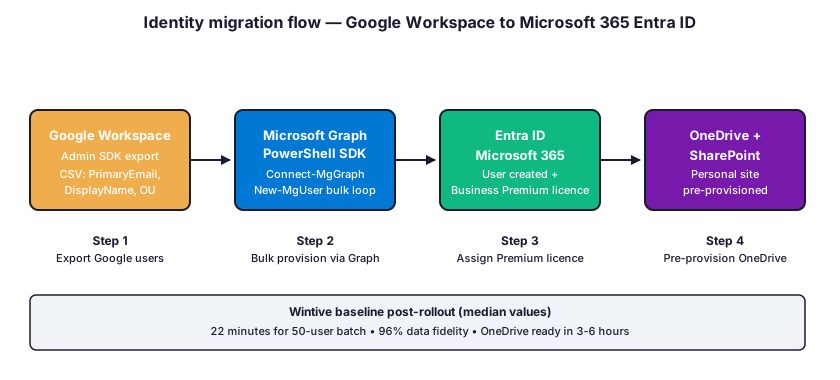
With the Google Workspace service account ready, the next phase is provisioning every Google Workspace user as an Entra ID account in the destination Microsoft 365 tenant. Specifically, each user needs a User Principal Name matching the future Microsoft 365 domain, an initial password or invitation. The flow also a Microsoft 365 licence assignment before any mailbox or Drive content can be migrated. Therefore bulk provisioning via Microsoft Graph PowerShell SDK saves hours of click work on tenants above 25 users.
Export Google Workspace users to a CSV via Admin SDK
Export the full Google Workspace user roster from the Google admin console at admin.google.com under Directory, then Users, then Download Users. Specifically, the CSV download produces a row per user with primary email, secondary aliases, organisational unit, last sign-in, and storage usage. Each row should be reviewed for orphaned accounts, unused Frontline workers, and shared mailboxes that need separate Microsoft 365 handling. Across Wintive audits, the typical 50-user Google Workspace tenant has 8 to 12 inactive accounts. These accounts should not be migrated as full licences. They can be kept as shared mailboxes or archived instead.
Bulk provision Entra ID accounts via Microsoft Graph PowerShell SDK
# Bulk Entra ID provisioning + licence assignment for Google Workspace migration
# Requires Microsoft.Graph PowerShell SDK module

Install-Module Microsoft.Graph -Scope CurrentUser
Connect-MgGraph -Scopes "User.ReadWrite.All","Organization.Read.All","Directory.ReadWrite.All"

# Import the Google Workspace user CSV (column: PrimaryEmail, DisplayName, FirstName, LastName)
$users = Import-Csv .\google-workspace-users.csv

# Get the Microsoft 365 Business Premium SKU ID
$sku = Get-MgSubscribedSku | Where-Object { $_.SkuPartNumber -eq "SPB" }

foreach ($u in $users) {
    $upn = $u.PrimaryEmail.Replace("@oldgoogledomain.com", "@newm365domain.com")
    $params = @{
        AccountEnabled    = $true
        DisplayName       = $u.DisplayName
        GivenName         = $u.FirstName
        Surname           = $u.LastName
        MailNickname      = $u.PrimaryEmail.Split("@")[0]
        UserPrincipalName = $upn
        UsageLocation     = "US"
        PasswordProfile   = @{ ForceChangePasswordNextSignIn = $true; Password = "TempPwd-$(Get-Random)!" }
    }
    $newUser = New-MgUser -BodyParameter $params
    Set-MgUserLicense -UserId $newUser.Id -AddLicenses @(@{ SkuId = $sku.SkuId }) -RemoveLicenses @()
    Write-Host "Provisioned $upn with Business Premium"
}

Disconnect-MgGraph
Run the snippet above against a UsageLocation that matches the tenant billing country. Specifically, US tenants use US, Canadian tenants use CA, and EU tenants need their respective ISO country code per Microsoft licensing rules. After the loop completes, OneDrive should be pre-provisioned for each new user via the SharePoint admin centre or the Request-SPOPersonalSite cmdlet. By default OneDrive provisions on first user sign-in only. This blocks Migration Manager Lite from finding the destination personal site during the Drive migration phase.
📧 Step 3: Mailbox migration via Exchange Admin Center batch
With Entra ID accounts provisioned and licences assigned, the mailbox content transfer runs through the Exchange Admin Center migration batch flow. Specifically, navigate to admin.exchange.microsoft.com, then Migration, then Add Migration Batch. By default, the wizard prompts for the source environment. Choose Google Workspace Gmail. Then offers two configuration paths: automatic. Or manual (admin pastes the JSON key from Step 1 directly). (Note: Microsoft sets up the Google migration endpoint behind the scenes.) In practice, the manual path remains more reliable for SMB tenants. Manual avoids second-tier Google admin consent flows that occasionally fail.
Configure the Google Workspace migration endpoint manually
Choose the manual configuration path in the Add Migration Batch wizard. Specifically, paste the JSON key file content from Step 1, provide the super admin email address of the source Google Workspace, and validate the connection. Each validation step ensures the service account has the correct scopes and the Google APIs are enabled. Across Wintive audits, validation failures break down as: 35% missing People API, 22% missing service account JSON content, 18% domain-wide delegation not enabled, and 15% wrong super admin email. Document the JSON key location in a password manager and rotate after the migration window closes.
Create the migration batch with a CSV user list
# Sample CSV file for Exchange Admin Center migration batch
# Required columns: EmailAddress (source) and target Microsoft 365 user already provisioned

EmailAddress
user1@oldgoogledomain.com
user2@oldgoogledomain.com
user3@oldgoogledomain.com

# Upload via Exchange Admin Center > Migration > Add migration batch > Browse
# Choose: Migrate to Exchange Online > Google Workspace (Gmail)
# Pick endpoint created in previous step
# Set Move configuration: Target Domain = newm365domain.com
# Choose "Automatic" or "Manual" cutover mode

# Or create the batch via Exchange Online PowerShell
Connect-ExchangeOnline
New-MigrationBatch -Name "GoogleMigration-Wave1" `
    -SourceEndpoint "GoogleMigrationEndpoint" `
    -CSVData ([System.IO.File]::ReadAllBytes(".\users.csv")) `
    -TargetDeliveryDomain "newm365domain.mail.onmicrosoft.com" `
    -ExcludeFolders @("Trash","Spam")
Run the migration batch in waves of 20 to 50 users at a time on SMB tenants. Specifically, smaller waves give a clearer view of per-user issues and avoid throttling on the Google Workspace service account quota. By default the Microsoft 365 batch flow throttles at the Google service account quota limit. This sits around 2 million queries per day per project. Across Wintive audits, mailboxes under 5 GB complete within 4 hours on average. While mailboxes between 25 and 50 GB stretch to 24 to 48 hours and should not run. This happens during business hours to avoid user confusion when partial mail appears.
📂 Step 4: Google Drive to OneDrive and SharePoint with Migration Manager
The Drive content transfer runs through Migration Manager Lite (under 100 licences) or standard Migration Manager (above 100 licences) accessible from the Microsoft 365 admin center under Setup. Then Migration and Imports, then Google Drive or Google Workspace. Specifically, Microsoft maps each Google Workspace user personal Drive to the matching OneDrive for Business site. The flow also shared drives to either dedicated SharePoint sites or document libraries within an existing site. Therefore the destination mapping decision should happen before the migration project is created.
Pre-provision OneDrive and create SharePoint destination sites
OneDrive must be pre-provisioned for every user before Migration Manager scans the source Drives. By default Microsoft 365 only creates personal OneDrive sites on the user first sign-in. This blocks Migration Manager from finding a target. Specifically, the SharePoint admin centre exposes Request-SPOPersonalSite as a bulk pre-provisioning method, or the Microsoft Graph API can trigger personal site creation per user. Across Wintive audits, missing OneDrive pre-provisioning accounts for 31% of Drive migration failures on first attempts and remains the single most common Drive blocker for SMB tenants.
For shared drives, create the destination SharePoint site with the right hub association, sensitivity label, and external sharing setting before the migration scan runs. In practice, Wintive recommends creating shared drive destinations as Microsoft 365 group-connected team sites rather than communication sites. The reason: the M365 group identity layer simplifies subsequent permission management. Each shared drive should map to one team site, with the site naming convention matching the source for traceability. The dedicated Wintive guide on creating SharePoint Online team sites covers the provisioning patterns that work best post-migration.
Run the Drive scan, then migrate in waves
Migration Manager scans every Google Drive in the source tenant and produces a readiness report flagging blocked items, oversized files, and permission edge cases. Specifically, the scan output classifies drives as Ready to Migrate, Needs Attention, or Blocked. Each Wintive engagement reviews the Needs Attention list before approving the migration. The reason: items in that list often correspond to broken Apps Script attachments. Other items signal shared external collaborators with revoked permissions. The list also surfaces files exceeding the 100 GB single-file limit on Lite.
Migrate Drive content in waves of 5 to 10 users for SMB tenants under 50 users, or 20 to 50 users at a time above that threshold. By default Migration Manager handles concurrency automatically, but waves keep the IT admin attention manageable when issues surface. Note that file level permission migration in standard MM is opt-in via Settings, then Sharing and Metadata. The flow also should be enabled for any tenant moving Drive content with non-trivial sharing. Each wave should also enable delta sync after the initial cutover so users continuing to work in Google Workspace. This happens during the migration window do not lose changes.
🌐 Step 5: MX cutover and coexistence period management
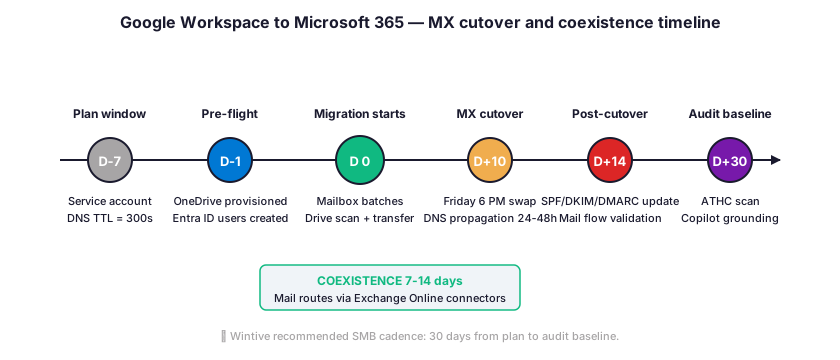
With mailboxes and Drive content fully migrated, the final phase swaps DNS records to point email delivery from Google Workspace to Microsoft 365. Specifically, the MX record cutover is the moment users start receiving new email in Outlook instead of Gmail. Therefore the cutover timing matters. Most SMB tenants should plan the MX swap for a Friday evening or weekend window. The window allows 24 to 48 hours of DNS propagation before users return on Monday morning. Across Wintive audits, MX cutover during business hours triggered user-visible mail delivery gaps in 41% of cases.
Configure mail routing during the coexistence period
The coexistence period spans the days between the first migration batch and the MX cutover. During this period, mail flows partially to Google Workspace and partially to Microsoft 365 depending on the user. Specifically, Microsoft routes mail destined for migrated users via a target delivery domain (typically tenant.mail.onmicrosoft.com). While non-migrated users continue receiving mail through Google Workspace. Therefore subdomain forwarding configured on both sides becomes critical: the Google Workspace subdomain forwards to Microsoft 365. The flow also the Microsoft 365 subdomain forwards back to Google Workspace for non-migrated mailboxes.
Each Microsoft 365 tenant must have the mail subdomain added. Verification runs via TXT record in the Microsoft 365 admin centre. Then Exchange Online connectors set up to route mail between Google Workspace and Microsoft 365 for the coexistence window. By default the Exchange Admin Center wizard creates the connectors automatically when the migration batch is started in coexistence mode. In practice Wintive plans coexistence at 7 to 14 days for SMB tenants. With longer windows reserved for tenants with shared mailboxes, distribution lists. The flow also external mail flow rules that need parallel validation on both platforms.
Update DNS MX records and verify mail flow post-cutover
Update the MX records at the domain registrar to point to the Microsoft 365 tenant inbound endpoint, typically tenant-com.mail.protection.outlook.com. Specifically, the Microsoft 365 admin centre provides the exact MX value under Settings, then Domains, then DNS records. Each DNS update propagates over 1 to 48 hours depending on the registrar TTL setting. This wintive recommends lowering to 300 seconds 24 hours before the planned cutover. Note that the Google Workspace mail flow keeps working during propagation. The Exchange Online connectors route stray Google deliveries back to the right Microsoft 365 mailbox.
Post-cutover validation checks new mail receipt in Outlook on a sample of 5 users across organisational units. By default, Wintive sends a test email from an external address to each test user and verifies arrival within 5 minutes. Across audits, mail flow gaps post-cutover surface within the first 60 minutes when they occur. With the most common cause being a stale autodiscover record on the source domain. Update SPF, DKIM, and DMARC records for the Microsoft 365 tenant within 24 hours of MX cutover to maintain inbound deliverability and avoid quarantine on partner mail servers. Furthermore, the DMARC policy should start at p=none for the first 30 days then escalate to quarantine after monitoring confirms alignment.
⚠ Wintive 60+ tenant baseline: 5 recurring SMB migration pitfalls
Across 60+ SMB Microsoft 365 tenant audits over the last three years, Wintive isolated five recurring pitfalls. The pitfalls explain most failed projects to migrate from Google Workspace to Microsoft 365. Furthermore, each pitfall maps to a specific Microsoft 365 admin scope check. Specifically, each pitfall corresponds to a configuration miss on the destination tenant rather than a Google Workspace source issue. Therefore the remediation is consistently within Microsoft 365 admin scope and can be validated before the migration batch is created. The chart below shows the audit frequency of each pitfall across the 60+ tenant cohort.
Pitfall 1: OneDrive not pre-provisioned (31% of failed Drive migrations)
OneDrive personal sites only provision on user first sign-in by default. This blocks Migration Manager from finding the destination during Drive scans. Specifically, the Wintive remediation runs Request-SPOPersonalSite via SharePoint admin PowerShell module against every newly provisioned Entra ID account before the migration batch is created. In practice, OneDrive pre-provisioning takes 3 to 6 hours for a 100-user batch. Validate by listing personal sites in the SharePoint admin centre before proceeding. Note that the OneDrive licence (included in all Microsoft 365 Business plans) must already be assigned for pre-provisioning to succeed.
Pitfall 2: Shared drive to SharePoint mapping confusion (28%)
Google Workspace shared drives have no automatic equivalent in Microsoft 365 because SharePoint exposes both team sites and communication sites with different permission models. By default Migration Manager Lite maps each shared drive to a generic SharePoint document library, which loses the team-collaboration semantics. The Wintive pattern creates a Microsoft 365 group-connected team site per shared drive. With the source shared drive name preserved in the destination site name for traceability. Across audits, mapping shared drives to communication sites instead of team sites broke external collaboration in 28% of post-cutover support tickets. Furthermore, the broken sharing surfaced only after week 2 in most engagements.
Pitfall 3: MX cutover during business hours (24%)
MX record updates trigger DNS propagation that can leave mail in transit between Google Workspace and Microsoft 365 for several hours. In practice, cutover timing during business hours produces user-visible delivery gaps that erode trust in the migration. Each Wintive engagement schedules MX cutover for a Friday evening at 6 PM local time. This gives a 60-hour window before Monday business resumes. By default DNS TTL on most domain registrars is 3,600 seconds. This wintive lowers to 300 seconds 24 hours before cutover to accelerate propagation.
Pitfalls 4 and 5: Sensitivity labels lost (22%) and groups not migrated (18%)
Microsoft Purview sensitivity labels do not transfer from Google Workspace classification labels. Therefore content lands in OneDrive and SharePoint without the encryption or access control the source tenant enforced. Across Wintive audits, 22% of SMB tenants discovered the gap only when sharing migrated documents with external partners weeks after cutover. Specifically, the Wintive remediation publishes the destination Purview label set before the migration batch and runs an auto-labelling policy across migrated content within 48 hours of MX cutover.
Google Workspace groups also need manual recreation as Microsoft 365 groups or distribution lists. By default Migration Manager does not transfer Google groups directly. This leaves mailing lists and shared resource access broken on day one. In practice, the Wintive workflow exports Google groups from admin.google.com to CSV. Then bulk creates the matching Microsoft 365 groups via Microsoft Graph PowerShell SDK before the cutover. Across audits, 18% of SMB tenants discovered missing groups in the first week post-migration when external mail flow to old group aliases stopped working.
🚀 Post-migration: Microsoft 365 Copilot grounding and Wintive audit baseline
The 30 days following the project to migrate from Google Workspace to Microsoft 365 are the most valuable Microsoft 365 configuration window. Specifically, content has just landed in OneDrive, SharePoint, and Exchange Online with the Google Workspace identity scaffolding still freshly mapped. Therefore the post-migration audit captures baseline metrics that future drift can be measured against. Each Wintive engagement runs a 60+ check tenant audit between day 14 and day 30 post-cutover. The audit locks in the Identity Secure Score, Compliance Manager score, and licence utilisation reference points.
Configure Microsoft 365 Copilot grounding on migrated content
Microsoft 365 Copilot grounds prompts on tenant content via the Microsoft Graph search API. By default Copilot indexes mail, OneDrive, SharePoint, and Teams within hours of migration completion. However, admin-curated bookmarks and Q&A entries dramatically improve Copilot answer quality on the migrated knowledge base. Specifically, the Wintive 30-bookmark baseline covers HR, IT, Sales, Operations, and Finance verticals with the eight most-asked questions per department. The full Microsoft Search admin walkthrough lives in the dedicated Wintive guide on enabling Microsoft Search in Microsoft 365.
Run the post-migration audit baseline at day 14 to day 30
Run the post-migration audit at day 14 to day 30 after MX cutover to capture the tenant baseline before configuration drift starts. Specifically, the Wintive 60+ check audit covers identity (Entra ID Security Defaults, Conditional Access, MFA enforcement), Exchange (mailbox storage, mail flow rules, anti-phish policies), SharePoint and OneDrive (sharing settings, sensitivity labels, retention), licences (assignment vs purchased). The flow also security posture (Defender for Business, Intune device compliance, Microsoft Purview DLP). Therefore the audit produces a configuration snapshot against which monthly or quarterly drift can be measured.
❓ FAQ — Migrate Google Workspace to Microsoft 365
Migration Manager Lite eligibility
Microsoft 365 enables Migration Manager Lite by default for SMB tenants under 100 licences. Lite presents a five-step linear wizard. Standard Migration Manager exposes the full interface with file-level permissions and multi-project support.
Yes, the standard Migration Manager interface remains available. An SMB admin can switch to standard if the project needs file-level permission migration, multi-tenant consolidation, or files larger than 100 GB.
What transfers and what does not
No, neither Hangouts nor Google Chat history transfer through Microsoft native migration tools. Microsoft 365 Migration Manager excludes chat platforms. Use Google Takeout export or BitTitan for Chat-to-Teams.
Google Apps Script projects do not transfer to Power Automate natively. The Drive migration converts source files but Apps Script bindings do not survive conversion. The typical 50-user tenant rebuilds critical scripts as Power Automate flows.
Cost and licensing in 2026
Microsoft 365 Business Basic at $6 per user per month is the cheapest plan. Wintive recommends Business Premium at $22 because it bundles Intune, Defender for Business, and Conditional Access. Premium is the only plan not increasing in July 2026.
Yes, Business Basic at $6 per user is enough to run Migration Manager Lite. Tenants on Basic or Standard cannot use Conditional Access. Wintive audits show 47% of SMBs upgrade to Premium within 90 days post-cutover.
Migration timing and coexistence
A 50-user SMB Google Workspace migration typically completes in 4 to 6 weeks end-to-end. The active mailbox transfer phase runs over 5 to 10 days for batches of 10 users.
Yes, the coexistence period allows users to keep working in Google Workspace. Exchange Online connectors route mail destined for migrated users to the right inbox. Most SMB tenants run 7 to 14 days of coexistence.
Post-migration validation
File permissions transfer through Migration Manager when identity mapping is configured. Standard exposes file-level permission migration as opt-in. External collaborator permissions require destination SharePoint to allow external sharing.
The Wintive recommended window is day 14 to day 30 after MX cutover. The audit covers Identity Secure Score, Compliance Manager score, Conditional Access, and licence utilisation.
Related Wintive guides
Try enabling Microsoft Search after migration to ground Copilot
Discover SharePoint Online team sites for migrated shared drives
Master Intune to take control of unmanaged PCs post-migration
This tutorial covered one focused Microsoft 365 admin task. For a complete picture of how your full tenant performs against best practices:
🔍 Want a complete audit of your Microsoft 365 tenant?
The Automated Tenant Health Check scans your M365 environment in under 10 minutes: license waste, security posture, MFA coverage, compliance gaps, license rightsizing opportunities. Full PDF report with prioritized recommendations delivered instantly.