Azure Storage monitoring is the discipline of tracking performance, capacity, errors, and cost across blobs, files, queues, and tables. Specifically, the goal is to catch slow transactions before users notice, alert on availability drops within minutes, and spot tier mismatches that quietly inflate the bill by 30 to 60 percent. Therefore, every Azure Storage account should ship diagnostic data to a central workspace from day one.
This guide walks through the four-step monitoring setup we deploy at Wintive on every customer Azure project. Furthermore, we share the KQL queries, alert thresholds, and tier-management rules we have refined across 40 plus tenant audits since 2022.
🛡️ Free: M365 Tenant Security Audit Checklist
17-page PDF with 50 hands-on checks covering Entra ID, Exchange Online, SharePoint, Teams, Intune, license waste, and audit logging. PowerShell commands included. Built from 60+ real tenant audits at Wintive.
🎯 What Azure Storage monitoring actually covers
Microsoft splits Azure Storage monitoring across four distinct surfaces, and the documentation rarely tells you which one to use first. In practice, the table below maps each tool to a specific monitoring need. Therefore, you can pick the right one for the question at hand instead of enabling everything by default.
| Tool | Best for | Latency | Cost driver |
|---|---|---|---|
| Azure Monitor Metrics | Real-time dashboards, threshold alerts | 1 to 3 minutes | Free for platform metrics |
| Diagnostic Logs (LA) | KQL queries on per-request data | 5 to 15 minutes | $2.30 per GB ingested |
| Storage Analytics | Legacy text logs in $logs container | 1 hour | Storage of log blobs |
| Application Insights | Client SDK telemetry only | 1 to 5 minutes | Per ingestion volume |
📊 Storage tier distribution and cost reality
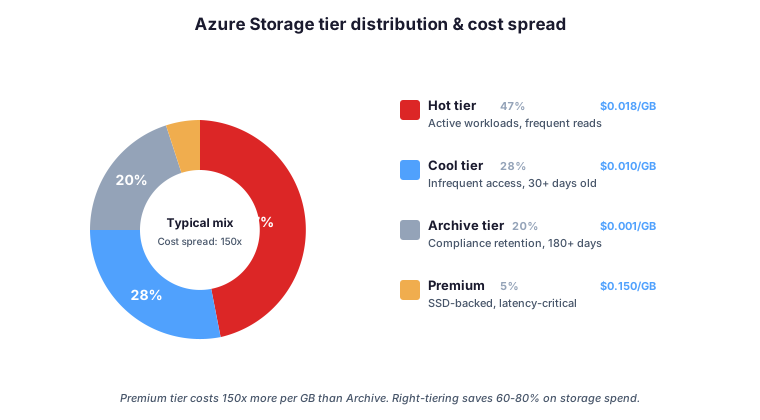
One observation drives every Azure storage monitoring conversation we have at Wintive: cost per gigabyte varies by 150 times across access tiers. Specifically, Premium SSD-backed storage costs around $0.15 per GB per month while Archive tier costs roughly $0.001 per GB per month. Therefore, a 10 TB dataset incorrectly placed in Premium instead of Cool burns roughly $1500 per month versus $100 — the same data, the same redundancy, only the access pattern decision differs.
The typical enterprise distribution above reflects what we see across audited Wintive customers. However, most environments start with everything in Hot tier by default and only realise the savings opportunity when the first quarterly invoice surprises the CFO. For this reason, monitoring should track tier distribution monthly and flag any account where Cool or Archive eligibility exceeds 30 percent without the migration having happened.
🏗️ Architecture: where the data flows
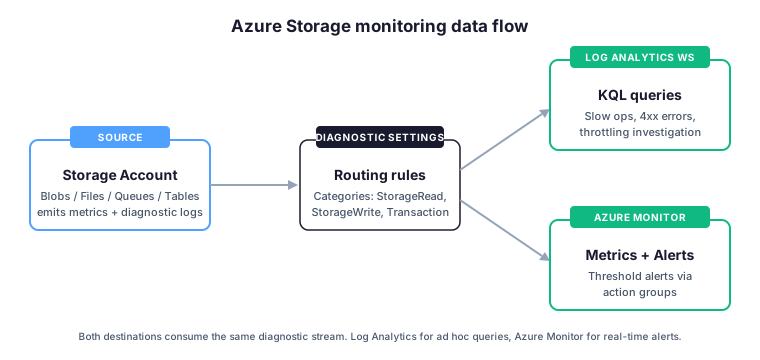
The Azure Storage monitoring pipeline is simple once you draw it. Specifically, the storage account emits two streams: platform metrics that Azure collects automatically, and diagnostic logs that you opt into via diagnostic settings. Then, both streams flow to whichever destinations you select — Log Analytics workspace for KQL queries, Azure Monitor for threshold alerts, or both in parallel.
Most Wintive deployments route to both destinations. Indeed, Log Analytics handles ad hoc investigations and trend analysis, while Azure Monitor handles real-time alerts. Furthermore, sending the same stream to both costs no extra ingress — you only pay for Log Analytics ingestion based on volume.
🛠️ Azure Storage monitoring setup at a glance
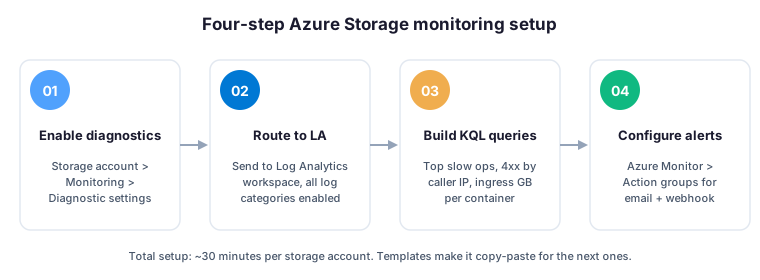
The four-step procedure below takes about 30 minutes per storage account on the first run. However, the configuration becomes copy-paste from the second account onwards because diagnostic settings, KQL queries, and alert rules can all be templated as ARM or Bicep modules.
⚙️ Step 1 — Enable diagnostic settings
The diagnostic settings define which log categories the storage account emits and where they flow. Specifically, you enable categories per service (blob, file, queue, table) and target one or more destinations. The official Microsoft Learn guide on monitoring Azure Blob Storage documents every supported log category and metric in depth.
# Enable diagnostic settings via Azure PowerShell
Connect-AzAccount

$storageAccount = "mystorageaccount"
$resourceGroup  = "rg-prod"
$workspaceId    = "/subscriptions/.../workspaces/la-prod"

Set-AzDiagnosticSetting `
  -ResourceId "/subscriptions/.../storageAccounts/$storageAccount/blobServices/default" `
  -Name "send-to-la" `
  -WorkspaceId $workspaceId `
  -Category @("StorageRead", "StorageWrite", "StorageDelete") `
  -MetricCategory @("Transaction", "Capacity") `
  -Enabled $true
📡 Step 2 — Send to Log Analytics workspace
Step 1 already connects the storage account to a Log Analytics workspace. However, you should verify that data arrives within 15 minutes. Therefore, run a quick KQL test query to confirm ingestion before moving to alert configuration.
# Verify diagnostic data is flowing (run via Azure CLI)
az monitor log-analytics query \
  --workspace la-prod \
  --analytics-query "StorageBlobLogs | take 5" \
  --output table

# If no rows return, check diagnostic settings status
az monitor diagnostic-settings list \
  --resource "/subscriptions/.../storageAccounts/mystorageaccount/blobServices/default" \
  --output table
🔍 Step 3 — Build KQL queries that matter
The three KQL queries below answer the questions that Azure Storage monitoring really exists to answer. Specifically, slowest operations point to performance problems, 4xx errors by caller IP point to client misconfiguration, and ingress per container points to cost surprises. The Log Analytics KQL tutorial on Microsoft Learn covers the full query language for adapting these patterns.
// Top 10 slowest blob operations in the last hour
StorageBlobLogs
| where TimeGenerated > ago(1h)
| project TimeGenerated, OperationName, DurationMs, StatusCode, CallerIpAddress
| top 10 by DurationMs desc

// 4xx errors grouped by caller IP (find misbehaving clients)
StorageBlobLogs
| where TimeGenerated > ago(24h)
| where StatusCode startswith "4"
| summarize ErrorCount = count() by CallerIpAddress, StatusCode
| order by ErrorCount desc

// Daily ingress per container (cost attribution)
StorageBlobLogs
| where TimeGenerated > ago(7d)
| where OperationName == "PutBlob"
| extend Container = tostring(split(Uri, "/")[3])
| summarize IngressGB = sum(RequestBodySize) / 1073741824.0 by bin(TimeGenerated, 1d), Container
| order by TimeGenerated desc
🚨 Step 4 — Configure alerts via Azure Monitor
Alerts are where Azure Storage monitoring becomes proactive instead of reactive. Specifically, three alert rules cover 90 percent of incidents at Wintive: availability below 99.9 percent, transaction error rate above 5 percent, and capacity growth above 20 percent week over week. The Azure Monitor alerts overview on Microsoft Learn documents action group routing for email, webhook, and ITSM integrations.
# Create an availability alert via Azure PowerShell
$actionGroup = Get-AzActionGroup -ResourceGroupName "rg-prod" -Name "on-call-team"

$criteria = New-AzMetricAlertRuleV2Criteria `
  -MetricName "Availability" `
  -Operator LessThan `
  -Threshold 99.9 `
  -TimeAggregation Average

Add-AzMetricAlertRuleV2 `
  -Name "storage-availability-low" `
  -ResourceGroupName "rg-prod" `
  -WindowSize 00:05:00 `
  -Frequency 00:01:00 `
  -TargetResourceId "/subscriptions/.../storageAccounts/mystorageaccount" `
  -Condition $criteria `
  -ActionGroup $actionGroup.Id `
  -Severity 2
💥 Common pitfalls that break Azure Storage monitoring
Even with diagnostic settings configured correctly, four pitfalls systematically degrade the value of Azure Storage monitoring in real customer projects. Specifically, these account for most of the monitoring-related tickets we see at Wintive. Therefore, address them during the initial setup rather than discovering them after the first incident.
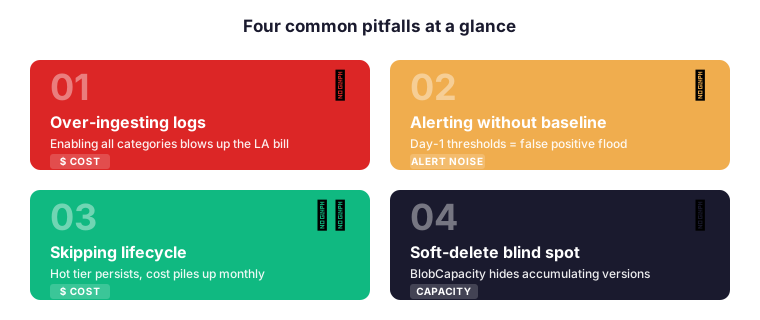
💸 Pitfall 1: Azure Storage monitoring with over-ingested diagnostic logs
Enabling all log categories without thinking blows up the Log Analytics bill. Specifically, the StorageRead category alone can generate 50 GB per day on a moderately busy account. Therefore, enable only the categories you actually query on, and use the Log Analytics ingestion limit to cap surprise spikes.
📢 Pitfall 2: Azure Storage monitoring alerts without a baseline
Setting threshold alerts on day one produces noise. Specifically, you do not yet know what normal looks like for the account. Therefore, observe metrics for two weeks before configuring threshold alerts, then set thresholds at roughly 1.5 times the observed maximum.
♻️ Pitfall 3: Azure Storage monitoring without lifecycle management
Monitoring without lifecycle policies leaves obvious savings on the table. Specifically, blobs untouched for 60 days should move from Hot to Cool automatically, and untouched for 180 days should move to Archive. Therefore, configure lifecycle management rules alongside monitoring — one decision is reactive, the other is proactive cost control.
🔒 Pitfall 4: Ignoring soft delete metrics
Soft delete and versioning protect against accidental loss but inflate storage capacity silently. Specifically, the BlobCapacity metric counts both active and soft-deleted data. Therefore, monitor the gap between BlobCapacity and the active blob count weekly — a widening gap means soft-deleted versions are accumulating without cleanup.
⚠️ Wintive take: monitoring rules from real Azure projects
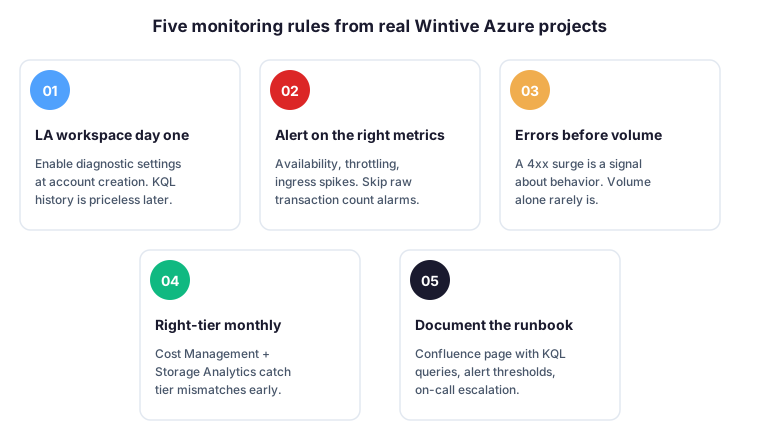
The five rules below come from 40 plus Wintive Azure tenant audits since 2022. Specifically, every rule has caught at least one production incident or cost overrun across our customer base — so we ship them as standard configuration on every new Azure project.
- Log Analytics workspace from day one. Specifically, enable diagnostic settings at storage account creation time. Indeed, the KQL history accumulated during normal operations is invaluable when an incident strikes — there is no way to retrofit historical data.
- Alert on the right metrics. Specifically, availability, throttling events, and ingress spikes catch real problems. However, raw transaction count alarms produce false positives whenever a legitimate batch job runs.
- Watch errors before volume. A surge in 4xx errors signals a client behaviour change. In contrast, raw volume alone rarely points to a real issue — traffic just naturally fluctuates with business cycles.
- Right-tier monthly. Therefore, schedule a monthly review combining Cost Management and Storage Analytics to catch tier mismatches early. For example, blobs untouched for 60 days in Hot tier should move to Cool automatically via lifecycle policies.
- Document the runbook. Specifically, maintain a Confluence or Notion page with the standard KQL queries, alert thresholds, and on-call escalation paths. Indeed, monitoring tooling without a runbook generates noise instead of signal.
🤔 Frequently asked questions about Azure Storage monitoring
💬 Fundamentals: metrics, costs, and prerequisites
Azure Monitor metrics are pre-aggregated numerical values (transaction count, availability, latency) that arrive within 1 to 3 minutes and are free for platform metrics. Specifically, they power real-time dashboards and threshold alerts. In contrast, Log Analytics ingests per-request diagnostic logs that arrive within 5 to 15 minutes and cost roughly $2.30 per GB ingested. Therefore, use metrics for real-time alerting and Log Analytics for KQL investigations on individual requests.
Log Analytics charges roughly $2.30 per GB ingested in the Pay-As-You-Go tier, with discounted commitment tiers starting at 100 GB per day. Specifically, a typical Wintive customer storage account generating 5 GB of diagnostic logs per day costs around $345 per month at PAYG pricing. Therefore, route only the categories you actually query on to control cost — enabling all log categories indiscriminately can multiply ingestion volume by ten times.
Platform metrics like transaction count, availability, ingress and egress are collected automatically and require zero configuration. Specifically, you can build dashboards and alerts on these metrics from any storage account without touching diagnostic settings. However, per-request analysis (slow operations, error attribution, caller IP filtering) requires diagnostic logs sent to Log Analytics. Therefore, the right answer depends on how deeply you need to investigate when something breaks.
🔍 Deep dive: legacy logs and alert priorities
Storage Analytics is the legacy logging system that writes plain text logs to a $logs container inside the storage account itself. Specifically, it has a hard 1-hour latency and a 20 TB cap on log storage. In contrast, modern diagnostic logs flow through diagnostic settings to Log Analytics with 5 to 15 minute latency and full KQL query support. Therefore, treat Storage Analytics as deprecated for new deployments — only enable it if you have legacy tooling that still reads the $logs container.
Three alert rules cover 90 percent of incidents at Wintive customers. Specifically, alert one fires when availability drops below 99.9 percent over a 5-minute window. Alert two fires when transaction error rate exceeds 5 percent. Alert three fires when capacity grows by more than 20 percent week over week. Therefore, start with these three threshold-based rules, route them to a single action group with email and webhook channels, and add more sophisticated alerts only after observing baseline behaviour for two weeks.
📚 What to read next
Three deep dives expand the surrounding context: the broader Azure surface, the Storage Account configuration, and the Blob Storage workload patterns that monitoring observes.
🔗 Continue across the broader Azure surface
📦 Deep dive into Blob Storage workload patterns
This tutorial covered one focused Azure workflow. For a complete picture of how your full Microsoft 365 and Azure environment performs against best practices:
🔍 Want a complete audit of your Microsoft 365 tenant?
The Automated Tenant Health Check scans your M365 environment in under 10 minutes: license waste, security posture, MFA coverage, compliance gaps, license rightsizing opportunities. Full PDF report with prioritized recommendations delivered instantly.