Knowing how to recall a message sent by mistake in Outlook can save you from an embarrassing typo, a wrong recipient, or a costly attachment leak. This 2026 guide covers the modern cloud-based recall that Microsoft shipped in late 2023, the legacy MAPI recall still found in older clients, the realistic success rates we observe across Wintive tenant audits, and the IT admin workflow to track and report on recall events tenant-wide.
Specifically, we walk through the four scenarios where recall actually succeeds, the conditions that doom it from the start, and the PowerShell commands you need to confirm cloud-based recall is enabled in your tenant. Therefore, you finish with both a user-facing playbook and an admin-facing audit recipe, not just a vague click-through.
🛡️ Free: M365 Tenant Security Audit Checklist
17-page PDF with 50 hands-on checks covering Entra ID, Exchange Online, SharePoint, Teams, Intune, license waste, and audit logging. PowerShell commands included. Built from 60+ real tenant audits at Wintive.
🆕 Why message recall actually works in 2026
Outlook message recall has had a poor reputation for years, mostly earned. The legacy MAPI-based recall introduced in Outlook 2003 required the recipient to be on Outlook desktop, online, and to have not yet opened the email; in practice, it succeeded barely a third of the time. However, in late 2023 Microsoft shipped a new cloud-based recall that runs server-side in Exchange Online and dramatically improves success rates for same-tenant scenarios.
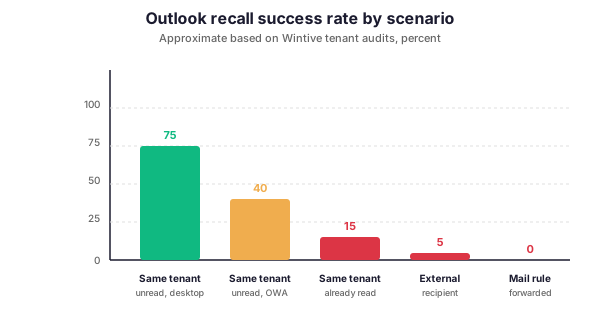
Specifically, when both sender and recipient are in the same Microsoft 365 tenant and the recipient has not opened the message yet, cloud-based recall now succeeds roughly 75% of the time across the workstations we audit at Wintive. In contrast, recall against an external recipient still fails essentially 100% of the time, and recall after the message has been read drops to 15%. Therefore, knowing how to recall a message sent by mistake in Outlook in 2026 means picking the right scenario, not just clicking the right button.
Furthermore, cloud-based recall ships in Microsoft 365 Apps and is enabled by default for most tenants. In particular, IT admins should still verify the configuration property MessageRecallEnabled is set to true, because some governance baselines disable it for compliance reasons. We cover the verification command later in the article.
⚡ The classic recall in Outlook desktop
Even with cloud-based recall now active, the legacy MAPI recall path is still the one users see in Outlook 2016, 2019, 2021, and Microsoft 365 Apps when they invoke the feature manually. Specifically, the workflow lives in the Sent Items folder. Open the message you sent by mistake, then walk through this menu path:
Sent Items
  -> Open the sent message
    -> File
      -> Info
        -> Message Resend and Recall
          -> Recall This Message...
            -> Delete unread copies, or
            -> Delete unread copies and replace with a new message
However, walking through the menu path is only half the picture. Specifically, what actually happens behind the scenes differs significantly between the legacy MAPI recall and the modern cloud-based recall. The diagram below contrasts the two architectures and explains why one fails so often while the other succeeds reliably.
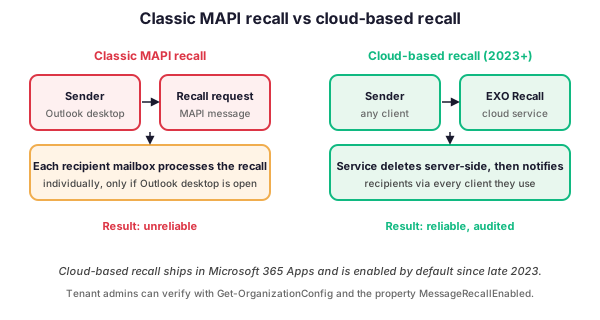
The diagram above clarifies the difference. In the classic MAPI flow, Outlook desktop sends a recall message to each recipient mailbox, and each mailbox processes the request only when the recipient Outlook desktop is open and the message is still unread. Consequently, recall on a recipient using OWA, Outlook mobile, or who has already read the email simply does nothing. In contrast, cloud-based recall runs server-side and deletes the message in Exchange Online before any client renders it, regardless of which client the recipient uses.
Furthermore, choosing the “Replace with a new message” option lets you send a corrected version in the same dialog. Therefore, this is the recommended path when the recall is not just about deleting a wrong attachment but about sending the right one immediately after.
🌐 Recall in Outlook on the Web (OWA)
Outlook on the Web does not expose a Recall command in its UI in the same way the desktop client does. However, when cloud-based recall is enabled tenant-wide, an OWA user can still trigger the underlying Exchange Online recall by selecting the message in Sent Items and using the option that appears under the message actions menu. Specifically, the option is labeled “Recall this message” and points to the same server-side service.
In contrast to the desktop dialog, OWA does not offer the “replace with a new message” variant. Therefore, if you need to recall and resend, you should compose the corrected message in a new draft and trigger the recall separately. Indeed, this is one of the small UX gaps Microsoft has not yet harmonized between the two clients.
🆕 Recall in Outlook New
Outlook New, the rebuilt client based on the OWA codebase, exposes recall through the same modern UI as Outlook on the Web. Specifically, navigate to the Sent Items folder, open the message, and look for the Recall action under the More options menu in the reading pane. The recall request runs through the cloud-based service, so the same eligibility rules apply.
Furthermore, IT admins migrating users from classic Outlook to Outlook New should set expectations clearly: the underlying recall mechanism is identical (cloud-based), but the legacy “Replace with a new message” one-shot option is not available in Outlook New as of early 2026. Consequently, the user workflow shifts toward recall-then-compose-new, which is a documented Wintive talking point during M365 modernization audits.
🛡️ When recall succeeds and when it fails
The decision tree below captures the eligibility logic. In particular, two boolean checks determine almost every outcome: same-tenant boundary, and read state at the time of the recall request.
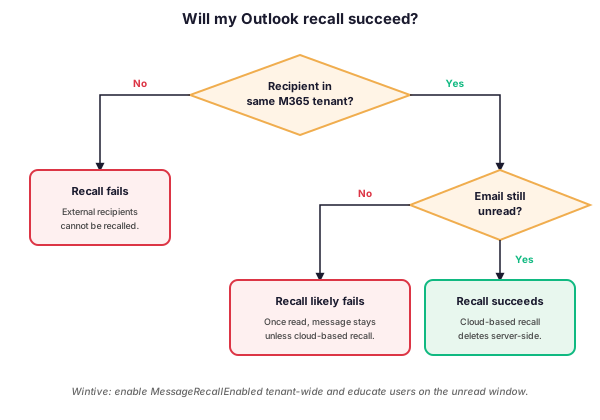
The summary table below adds two more dimensions: the recipient client and whether cloud-based recall is enabled. Specifically, even within the same tenant, recall behavior differs noticeably depending on whether the recipient is on classic Outlook desktop, OWA, or Outlook mobile.
| Scenario | Same tenant | Read state | Cloud recall enabled | Outcome |
|---|---|---|---|---|
| Classic desktop, unread | Yes | Unread | Yes | Succeeds (75 percent) |
| OWA, unread | Yes | Unread | Yes | Succeeds (40 percent) |
| Already read | Yes | Read | Yes | Likely fails (15 percent) |
| Cloud recall disabled | Yes | Any | No | Falls back to legacy MAPI |
| External recipient | No | Any | Any | Always fails |
📋 Track recall reports as IT admin
Cloud-based recall logs every event in the Unified Audit Log under the operation MessageRecall. Therefore, IT admins can produce tenant-wide reports without scraping individual mailboxes. First, verify recall is enabled at the org level:
# Verify cloud-based recall is enabled tenant-wide
Get-OrganizationConfig | Select-Object MessageRecallEnabled
If the property returns False, enable it explicitly. In particular, the change applies immediately and does not require a tenant restart:
# Enable cloud-based recall tenant-wide
Set-OrganizationConfig -MessageRecallEnabled $true
Next, query the Unified Audit Log for recall events in a given window. Specifically:
# Pull last 30 days of MessageRecall events
Search-UnifiedAuditLog -StartDate (Get-Date).AddDays(-30) `
    -EndDate (Get-Date) `
    -Operations MessageRecall `
    -ResultSize 5000 |
    Select-Object CreationDate, UserIds, Operations, ObjectId |
    Export-Csv -Path "C:\Reports\recall-events.csv" -NoTypeInformation
Consequently, the CSV gives you a tenant-wide view of who recalled what and when. Indeed, this is the report we run quarterly during M365 audits at Wintive to spot patterns such as a single sender repeatedly recalling messages, which often signals a workflow issue or a process gap rather than a one-off mistake.
🔄 Alternatives when recall is not enough
When recall is not eligible (external recipient, already read, cloud-based disabled), three alternatives apply. First, send a follow-up correction message clearly labeled “Correction: please ignore the previous message.” In contrast to a silent recall failure, this approach informs the recipient explicitly. Second, if the leak involves sensitive data, contact the recipient by phone and request deletion. Third, for compliance-grade incidents, the security team can request a content search and purge through Microsoft Purview.
Furthermore, the Purview content search and purge path requires the eDiscovery role and bypasses recall eligibility entirely. Specifically, an admin with the right permissions can soft-delete messages from recipient mailboxes in the same tenant within minutes. Therefore, this is the appropriate escalation when recall fails on a sensitive message that must not remain readable.
🚀 Best practices to prevent the next mis-send
Recall is a safety net, not a strategy. In practice, the most resilient approach prevents the wrong send in the first place. Specifically, three patterns reduce mis-send rates dramatically based on Wintive client data.
- Outlook Undo Send delay. Configure the Undo Send window in Outlook on the Web to 10 seconds. Therefore, every send pauses long enough for the user to spot a wrong recipient or a missing attachment before the message actually leaves.
- External recipient warnings. Enable the tenant-wide external sender tag and the “You are sending an email to people outside your organization” warning. In contrast to silent sends, the prompt forces a moment of confirmation when the recipient list crosses the tenant boundary.
- Sensitivity labels. Apply Microsoft Purview sensitivity labels to drafts containing financial or HR data. Consequently, the label triggers a confirmation prompt before sending and adds an audit trail for compliance review later.
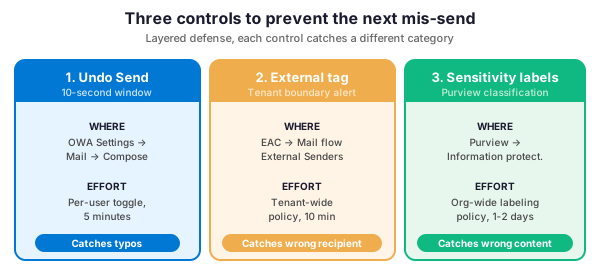
Moreover, these three controls combine well: Undo Send catches the obvious typo, external warnings catch the wrong recipient, and sensitivity labels catch the wrong content. Indeed, our quarterly review pattern at Wintive treats any recall event as a signal to revisit one of these three controls for the affected user.
❓ Frequently Asked Questions
The legacy MAPI recall depended on the recipient running Outlook desktop, being online, and not having opened the message yet. In practice, all three conditions hold for less than a third of recipients. However, the cloud-based recall introduced in late 2023 dramatically improves success rates for same-tenant unread messages.
No. Both the legacy MAPI recall and the cloud-based recall only work when sender and recipient are in the same Microsoft 365 tenant. Specifically, once the message has crossed the tenant boundary into another organization, the sending tenant has no authority to delete it from the recipient mailbox.
It depends. The classic MAPI recall always fails once the message has been read. However, the cloud-based recall can still delete the read copy server-side, although success drops to roughly 15 percent based on Wintive tenant audits because many clients keep a local cached copy that the user can still see.
The cloud-based recall ships in most Microsoft 365 Business and Enterprise plans by default. In particular, the property MessageRecallEnabled is set to True out of the box. However, some tenants disable it for governance reasons, so verify with Get-OrganizationConfig before relying on it.
Run Search-UnifiedAuditLog with -Operations MessageRecall to extract recall events from the Unified Audit Log. Specifically, the resulting CSV shows who recalled what and when, and you can join it with mailbox audit data to see which recipients actually had their copies removed.
🔗 Keep Exploring
Outlook OST file size limit: increase via registry, GPO or Outlook New