Six PowerShell cmdlets cover about 80% of daily Exchange Online admin work. Once you’ve internalized these, the Admin Center becomes the slow path for everything except one-off lookups. This guide shows each cmdlet with runnable examples, modern V3 syntax, and the gotchas we’ve hit on real SMB tenants.
New to PowerShell? Start with our PowerShell basics guide first, then come back here.
🛡️ Free: M365 Tenant Security Audit Checklist
17-page PDF with 50 hands-on checks covering Entra ID, Exchange Online, SharePoint, Teams, Intune, license waste, and audit logging. PowerShell commands included. Built from 60+ real tenant audits at Wintive.
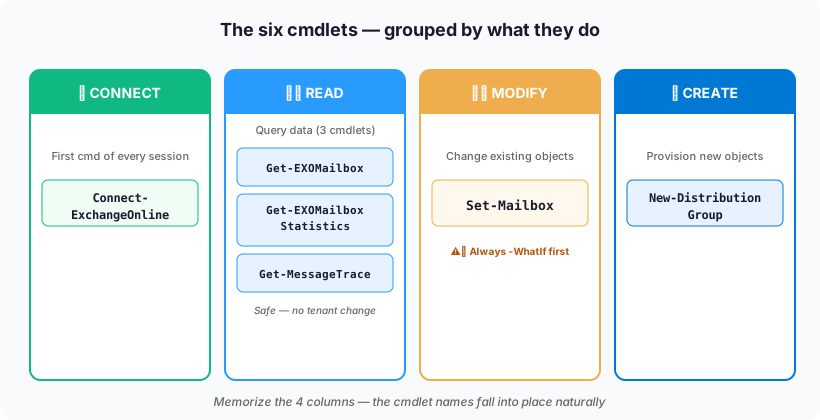
📋 The six cmdlets at a glance
| Cmdlet | What it does | When you reach for it |
|---|---|---|
| Connect-ExchangeOnline | Authenticates your session to Exchange Online | First command of every session |
| Get-EXOMailbox | Lists mailboxes (V3, 10× faster than Get-Mailbox) | Any bulk mailbox query |
| Set-Mailbox | Modifies mailbox settings (quota, forwarding, litigation hold) | Changes to a specific mailbox |
| Get-EXOMailboxStatistics | Returns size, item count, last logon time | Storage audits, inactive account cleanup |
| New-DistributionGroup | Creates a shared distribution list | Group creation at scale |
| Get-MessageTrace | Searches mail flow logs (up to 10 days back) | “Why didn’t this email arrive?” |
🔐 1. Connect-ExchangeOnline
The entry point. Requires the ExchangeOnlineManagement module (install it once):
# Install the module (one-time, run as admin)
Install-Module ExchangeOnlineManagement -Scope CurrentUser -Force

# Connect with interactive sign-in
Connect-ExchangeOnline -UserPrincipalName admin@contoso.com

# For unattended scripts, use certificate-based auth instead:
Connect-ExchangeOnline -AppId <app-id> -Organization contoso.onmicrosoft.com `
  -CertificateThumbprint <thumbprint>
Gotcha: if you use MFA (which you should), you cannot pipe a password — use interactive auth or certificate auth. Basic auth is dead as of 2022.
📬 2. Get-EXOMailbox
Get-EXOMailbox replaces the classic Get-Mailbox for bulk queries. On a 500-seat tenant it returns results in 3–5 seconds vs. 30+ seconds with Get-Mailbox.
# List all user mailboxes with a few key properties
Get-EXOMailbox -ResultSize Unlimited -RecipientTypeDetails UserMailbox |
    Select-Object DisplayName, UserPrincipalName, PrimarySmtpAddress

# Find mailboxes larger than 40 GB
Get-EXOMailbox -ResultSize Unlimited |
    Get-EXOMailboxStatistics |
    Where-Object { [int64]($_.TotalItemSize -replace '[d., GB]','') -gt 40 }

# Find mailboxes with active forwarding (common security audit check)
Get-EXOMailbox -ResultSize Unlimited -PropertySets Delivery |
    Where-Object { $_.ForwardingSmtpAddress -ne $null }
Tip: use -PropertySets to only pull the properties you need. Pulling all 200+ properties for every mailbox is slow and wasteful.
✏️ 3. Set-Mailbox
Modifies mailbox properties — quotas, forwarding, litigation hold, custom attributes, and more.
# Increase a single mailbox quota to 100 GB
Set-Mailbox -Identity jdoe@contoso.com `
  -ProhibitSendQuota 100GB -ProhibitSendReceiveQuota 100GB -IssueWarningQuota 95GB

# Enable auto-forwarding to an external address (requires outbound spam policy allows it)
Set-Mailbox -Identity jdoe@contoso.com `
  -ForwardingSmtpAddress external@partner.com -DeliverToMailboxAndForward $true

# Place a departing employee on litigation hold (preserves mailbox content)
Set-Mailbox -Identity former.employee@contoso.com -LitigationHoldEnabled $true
📊 4. Get-EXOMailboxStatistics
# Storage usage, item count, last logon time for one mailbox
Get-EXOMailboxStatistics -Identity jdoe@contoso.com |
    Select-Object DisplayName, TotalItemSize, ItemCount, LastLogonTime

# Find inactive mailboxes (no logon in 90 days) - common in license audits
Get-EXOMailbox -ResultSize Unlimited |
    Get-EXOMailboxStatistics |
    Where-Object { $_.LastLogonTime -lt (Get-Date).AddDays(-90) } |
    Select-Object DisplayName, LastLogonTime |
    Export-Csv inactive-mailboxes.csv -NoTypeInformation
In our audits, inactive-mailbox reports typically reveal 8–15% of licensed users who haven’t signed in for 90+ days — often $2,000–5,000/year in reclaimable E3 or Business Standard licenses for a 200-seat tenant.
👥 5. New-DistributionGroup
# Create a distribution list and add members
New-DistributionGroup -Name "Marketing Team" -Alias marketing `
  -PrimarySmtpAddress marketing@contoso.com -Type Distribution

# Add members
Add-DistributionGroupMember -Identity "Marketing Team" -Member alice@contoso.com
Add-DistributionGroupMember -Identity "Marketing Team" -Member bob@contoso.com

# Bulk add from CSV (columns: GroupName, MemberSmtp)
Import-Csv members.csv | ForEach-Object {
    Add-DistributionGroupMember -Identity $_.GroupName -Member $_.MemberSmtp
}
For nuances on distribution groups vs. Microsoft 365 Groups vs. mail-enabled security groups, see our New-DistributionGroup deep-dive.
🔍 6. Get-MessageTrace
Mail-flow troubleshooting. Searches the last 10 days of message logs (use Get-HistoricalSearch for older queries).
# What happened to this email from an external sender?
Get-MessageTrace -SenderAddress sender@partner.com `
  -RecipientAddress jdoe@contoso.com `
  -StartDate (Get-Date).AddDays(-2) -EndDate (Get-Date)

# All blocked/filtered mail to a specific user in the last day
Get-MessageTrace -RecipientAddress jdoe@contoso.com `
  -StartDate (Get-Date).AddDays(-1) -EndDate (Get-Date) |
  Where-Object { $_.Status -in 'FilteredAsSpam', 'Quarantined', 'Failed' }
Gotcha: Get-MessageTrace has a 1,000-result cap per query. For busy senders or long ranges, use -Page to paginate or Start-HistoricalSearch for a queued full export.
💡 Wintive take: memorize these three first
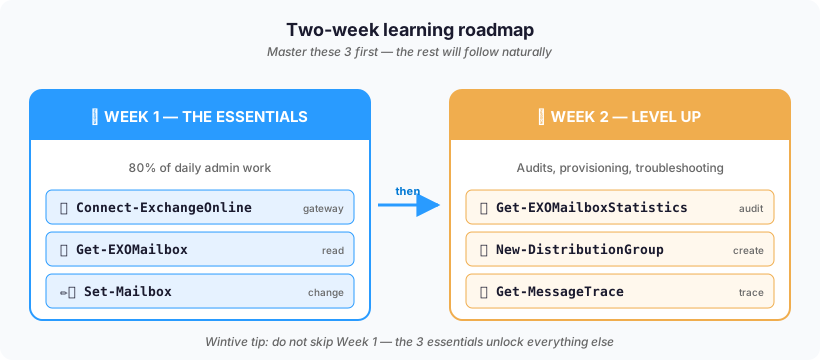
If you’re starting out, focus on three cmdlets before the others:
- Get-EXOMailbox — you’ll use it every day. Learn
-Filter,-RecipientTypeDetails, and-PropertySets. - Get-MessageTrace — 70% of Exchange admin tickets are “why didn’t this email arrive?” This cmdlet answers most of them in 30 seconds.
- Get-EXOMailboxStatistics — essential for capacity planning and license audits. Runs quarterly in our managed tenant reviews.
The remaining three (Set-Mailbox, New-DistributionGroup, Connect-ExchangeOnline) are muscle-memory once the first three are comfortable.
🔄 Migration note: dropping the legacy Get-Mailbox
If you have scripts still using Get-Mailbox, migrate them to Get-EXOMailbox. Our full compatibility guide is at Adapting Exchange scripts to Get-EXOMailbox — most scripts need 2-3 line changes.
Top 6 PowerShell Commands for Managing Office 365
If you are new to PowerShell, see our PowerShell introduction for beginners first. Then come back here for the top commands. This will help you in your day-to-day tasks as an Office 365 administrator.
In this section, I’m going to explain a little more about the basics of PowerShell and how you can get started today.
💻 PowerShell Basics
The great thing about PowerShell is that it’s easy to understand key concepts that can be reused over and over again.
In the days of command-line scripting, we had good reason to fear the command line. In those environments, there simply isn’t a common standard for how to do things.
One command may take parameters one way, while another may take them completely differently. In some cases, command-line tools present their own environment (like netsh or ntdsutil). Figuring out how to get help on the command itself can be very complex. And with VBS scripts, you’d be in the wild west. Some scripts may require parameters, while others may even ask for user input when you run them. While others may not use parameters at all.
🧠 Concept
PowerShell, on the other hand, works very differently. Once you understand how PowerShell commands work, you can reuse that knowledge.
PowerShell cmdlets work primarily on a Verb-Noun pair:
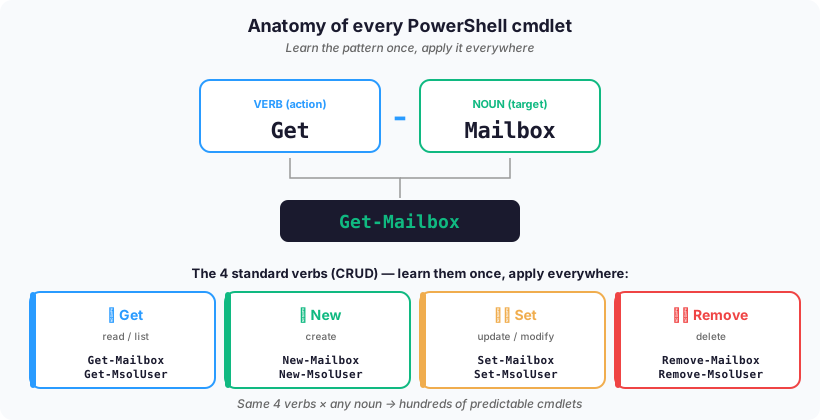
- The verb component is the part of the noun that defines the action of the command.
- The noun component is the part of the noun that defines what the action will be performed on.
For example, most PowerShell modules have Get- cmdlets that retrieve information about components like mailboxes. They also have verbs for creating, updating, or deleting components. This means you can create a New-Mailbox, update it with additional information using Set-Mailbox, and then get a list of all your mailboxes with Get-Mailbox.
Input in PowerShell is just as consistent. PowerShell cmdlets can accept parameters. These are added after the cmdlet, in any order you choose. And they can be easily discovered using tab-based autocompletion. A parameter has the form -Parameter followed by the data you want to provide. For example, if you want to retrieve information about a mailbox, you would use Get-Mailbox -Identity steve@contoso.com.
🔎 Interpret the results
PowerShell output is a little more complex to understand. But you don’t need to know everything about how it works to run cmdlets. Because PowerShell is object-oriented, the output of a cmdlet isn’t purely textual. Rather, it’s an object—which can be a list of objects, each containing attributes with information about each object. For example, PowerShell can display a list of mailboxes in tabular format with only the important information. However, the object contains all the information the cmdlet provided as output. Running Get-Mailbox, for example, will contain all the mailbox information. This information will be visible if you examine the mailbox using the Exchange Admin Center and more.
Finally, you need to know how to connect to Office 365 if you want to manage it. You’ll find everything you need to know in our Office 365 Admin Portals and PowerShell Connections tutorial. Personally, I use the Connect to Office 365 script on my workstations to easily connect to each service.
🛠️ Useful cmdlets you need to know
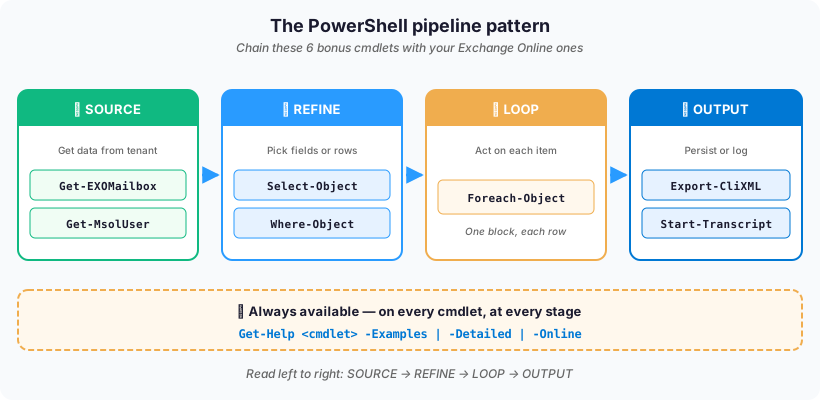
Now, it’s helpful to know some common cmdlets and command combinations you can use. In no particular order, here are six that I use almost daily.
🔍 Select-Object
When you use cmdlets like Get-Mailbox, you get a pre-formatted, filtered result. Sometimes, however, you just want to get specific information. Especially if you want to export it to a CSV file for further analysis.
Select-Object is perfect for this. Use the pipe symbol | after the cmdlet you ran to pass the output object to Select-Object. Then enter the attribute names, followed by commas to select only those attributes:
Get-Mailbox | Select-Object DisplayName, PrimarySMTPAddressGet-MailboxStatistics | Select-Object DisplayName,TotalItemSizeIf in doubt, simply use Select * to select all attributes before collapsing.
🎯 Where-Object
When you use a cmdlet like Get-Mailbox without any parameters, you receive a complete list of all objects. With Get-Mailbox, this can be all mailboxes. You may want to filter this list based on how an attribute is set. For example, you can find all mailboxes that are hidden from the address book. You can use Where-Object to achieve this.
In the Where-Object cmdlet, each line of the output object is evaluated based on the defined condition. You can use comparison operators like -eq or -like to evaluate whether an attribute matches, is similar, does not match, is less than, or is greater than. As we did with Select-Object, we can specify the attributes to check. However, in the Where-Object cmdlet, we prefix the attribute name with the special characters $_:
Get-Mailbox | Where-Object {$_.HiddenFromAddressBook -eq $False}
Get-MsolDomain | Where-Object {$_.Authentication -eq "Federated"}
🔁 Foreach-Object
The foreach loop allows you to access each line of the output object. And it executes the same set of commands on each line. This is a very simple technique and fundamental to all but the simplest scripts:
Get-Mailbox | Foreach-Object {
	Get-MsolUser -UserPrincipalName $_.UserPrincipalName
}
📝 Start-Transcript.
Is this the command I ran last week? With Start-Transcript, you can check what you did and maybe spot the mistake you made.
Start-Transcript starts transcribing a text file that records all the cmdlets (and text output) from your PowerShell session. You don’t even need to think about the file name. If you simply use the cmdlet without any parameters, it will create a new file in your Documents folder with the machine name and timestamp. When you’re done making changes, use Stop-Transcript to stop logging:
Start-Transcript
# Do the thing that you were planning to do…
Stop-Transcript
# Next week, check the logs when you are asked to show them what you did
💾 Export-CliXML.
Our penultimate cmdlet is one of the most useful tools if you’re working with Office 365. It’s Export-CliXML and its sister cmdlet Import-CliXML.
This pair of cmdlets allows us to capture the complete output into an XML file – a point-in-time snapshot of the state of Office 365.
In our example below, we can use the Get-Mailbox cmdlet to export whatever the cmdlet would return to the Mailboxes.XML file. If we then use Import-CliXML at a later date to import the Mailboxes.XML file, we can then treat it as if we were running Get-Mailbox over and over again. I will be using this set of cmdlets on a daily basis to capture information from an Office 365 tenant. And thus run scripts on that data without needing to access the tenant itself.
Get-MsolUser -All | Export-Clixml .MsolUser.XML
Get-Mailbox -ResultSize Unlimited | Export-CliXML .Mailboxes.XML
# Copy it somewhere else
Import-CliXML .Mailboxes.XML
📖 Get-Help.
Finally, there’s the most useful cmdlet in your PowerShell toolbox, Get-Help. If you haven’t used a cmdlet in a while, Get-Help provides detailed information with examples. In the example below, you’ll see my most useful parameter for Get-Help. This will remind me not only of the parameters to use, but also of typical values. Detailed provides more information about the cmdlet, including detailed information about each parameter. While -Online redirects us to the Microsoft Docs version of the cmdlet’s documentation.
Get-Help Get-MsolAdministrativeUnit -Examples
Get-Help Get-MsolAdministrativeUnit -Detailed
Get-Help Get-SPOTenant -Online
🚀 What to do next?
If you’re not using PowerShell today, check out our dedicated PowerShell section to learn a little more.
If you want to start using these examples, consider doing the following…
- Use Start-Transcript and Export-CliXML to keep a copy of the before and after state and a log of what you did.
- Choose a few Get- commands that seem useful to you and use Get-Help to learn more about them. Can’t find any? Try Get-Command
- Use Select-Object in combination with Export-CSV or Out-gridview to allow you to easily provide reports from commands or view them on screen.
- Use Where-Object and Foreach-Object to automate your first task!