Exchange Online migrations that stall at 20 to 30 GB per hour per endpoint hit a common bottleneck. The constraint is almost always the migration endpoint itself, not network bandwidth. Specifically, the usual fix to increase Exchange Online migration throughput is to create multiple migration endpoints in parallel, each pointing at a different MRS proxy hostname. Therefore, with three endpoints configured correctly, total throughput typically triples on large mailbox migrations.
This guide walks through the four-step procedure we use at Wintive. You will set up three parallel endpoints, distribute mailbox batches across them, and monitor combined throughput. Furthermore, we share five tuning rules from real customer migrations covering tenants from 50 to 5000 mailboxes.
🛡️ Free: M365 Tenant Security Audit Checklist
17-page PDF with 50 hands-on checks covering Entra ID, Exchange Online, SharePoint, Teams, Intune, license waste, and audit logging. PowerShell commands included. Built from 60+ real tenant audits at Wintive.
🚫 Why a single endpoint bottlenecks
A migration endpoint in Exchange Online is tied to one MRS (Mailbox Replication Service) proxy hostname on your Exchange on-premises side. Specifically, each endpoint enforces a concurrent migration limit of 20 simultaneous moves for user mailboxes by default. Therefore, a load balancer behind the scenes does not help. The endpoint definition in Exchange Online remains a single throttling point. The official Microsoft Learn guide on managing migration batches documents every parameter on the New-MigrationEndpoint and New-MigrationBatch cmdlets.
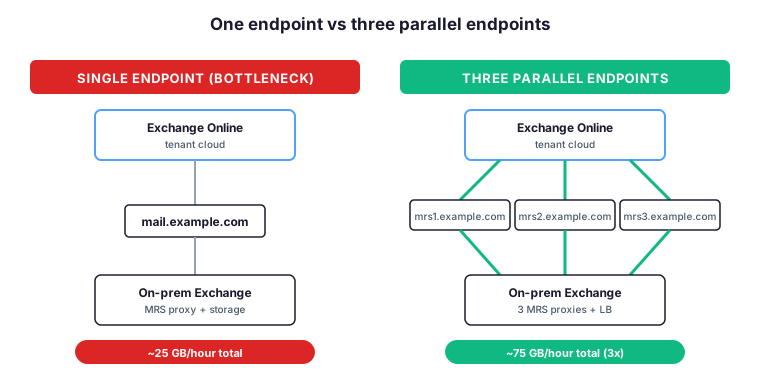
By creating three endpoints pointing to three different MRS proxy names, you get three times the parallel mailbox move slots. However, this only works when on-premises Exchange can keep up. The network path between cloud and on-prem must also handle the increased load. In practice, a modern Exchange 2019 hybrid cluster handles three parallel endpoints with ease. Total throughput sustains around 75 GB per hour.
📊 Throughput by endpoint count
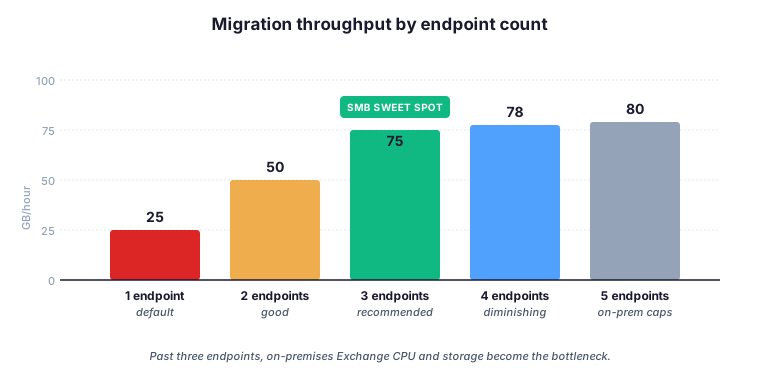
The diminishing returns curve is consistent across every Wintive-managed Exchange Online migration we have tracked. Specifically, the first three endpoints each add roughly 25 GB per hour to total throughput. However, the fourth endpoint adds only about 3 GB per hour, and the fifth barely moves the needle. Therefore, three endpoints is the SMB sweet spot. It delivers 90 percent of the maximum throughput at one-third the configuration overhead.
Past three endpoints, the bottleneck shifts to on-premises Exchange itself. Indeed, the CAS and MRS services consume CPU per concurrent move, and the storage tier behind each mailbox database has hard IOPS limits. For example, a typical Wintive customer migration of 800 mailboxes completes in 28 hours with three endpoints. The same migration takes 84 hours with the default single endpoint configuration.
🗺️ Exchange Online migration throughput procedure at a glance
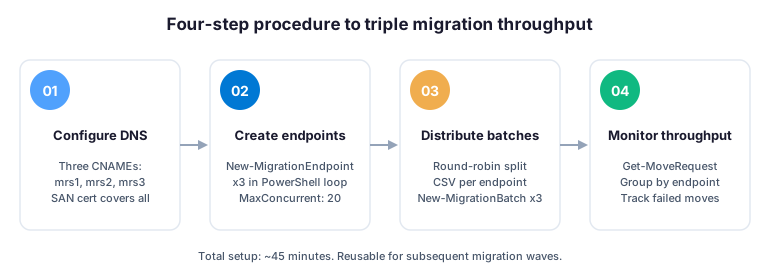
The total setup takes about 45 minutes the first time and is reusable for subsequent migration waves. Specifically, the same three endpoints serve every batch you create afterwards — you only redo the DNS and certificate work if you change topology.
🌐 Step 1 — Configure three MRS proxy DNS names
In your public DNS, create three CNAMEs pointing to the load balancer or to specific Exchange servers. Importantly, the SSL certificate on the load balancer must include all three names as Subject Alternative Names — otherwise endpoint creation will fail with TLS mismatch errors.
# Example DNS entries (public zone)
mail.example.com   CNAME  lb.example.com    # your existing Autodiscover / OWA name
mrs1.example.com   CNAME  lb.example.com    # migration endpoint 1
mrs2.example.com   CNAME  lb.example.com    # migration endpoint 2
mrs3.example.com   CNAME  lb.example.com    # migration endpoint 3
Verify each name is reachable from the internet on HTTPS and returns the correct certificate before proceeding to step 2:
# Quick test: does the MRS proxy respond on HTTPS?
Invoke-WebRequest -Uri "https://mrs1.example.com/EWS/mrsproxy.svc" -Method POST -UseBasicParsing
# Expected: 401 Unauthorized (means the service is up; auth is separate)

# Check the certificate subject alt names include all three MRS names
(Invoke-WebRequest -Uri "https://mrs1.example.com" -UseBasicParsing).BaseResponse.ResponsesUri
⚙️ Step 2 — Create three migration endpoints
Connect to Exchange Online and create the three endpoints in a single PowerShell loop. Specifically, the same on-premises admin credential is reused across all three endpoints because they hit the same Exchange organisation — only the hostname changes.
# Connect to Exchange Online
Connect-ExchangeOnline -UserPrincipalName admin@example.com

# Prompt for the on-premises admin credential (used by all three endpoints)
$cred = Get-Credential

# Create three endpoints, each pointing at a different MRS proxy name
1..3 | ForEach-Object {
    New-MigrationEndpoint -ExchangeRemoteMove `
      -Name "mrs$_-example" `
      -RemoteServer "mrs$_.example.com" `
      -Credentials $cred `
      -MaxConcurrentMigrations 20 `
      -MaxConcurrentIncrementalSyncs 10
}

# Verify all three
Get-MigrationEndpoint | Select-Object Identity, RemoteServer, MaxConcurrentMigrations
📦 Step 3 — Distribute mailbox batches across endpoints
The round-robin distribution pattern below splits any user list evenly across three batches. Importantly, sorting users by mailbox size descending before the split produces more predictable throughput than random assignment — the largest mailboxes start first and finish around the same time.
# Split your user list into 3 batches (round-robin)
$allUsers = Import-Csv users-to-migrate.csv
$batches = @{ 1 = @(); 2 = @(); 3 = @() }
$allUsers | ForEach-Object -Begin { $i = 0 } -Process {
    $batches[($i % 3) + 1] += $_.UserPrincipalName
    $i++
}

# Create three migration batches, one per endpoint
foreach ($n in 1..3) {
    $batches[$n] | Set-Content "batch$n.txt"
    New-MigrationBatch `
      -Name "Batch-$n" `
      -SourceEndpoint "mrs$n-example" `
      -TargetDeliveryDomain "example.mail.onmicrosoft.com" `
      -CSVData ([System.IO.File]::ReadAllBytes("batch$n.txt")) `
      -AutoStart:$false
}

# Start all three in parallel
Get-MigrationBatch | Where-Object { $_.Status -eq "Stopped" } | Start-MigrationBatch
📈 Step 4 — Monitor parallel throughput
The three commands below give you a complete picture of migration health: total throughput, per-endpoint load distribution, and failure surface. Therefore, run them every 30 minutes during the first hour of a wave to catch endpoint-level issues before they cascade.
# Total throughput across all active moves
Get-MoveRequest -MoveStatus InProgress | Get-MoveRequestStatistics |
    Measure-Object -Property PercentComplete -Average

# Per-endpoint migration count (check load distribution)
Get-MoveRequest -MoveStatus InProgress |
    Group-Object SourceEndpoint |
    Select-Object Name, Count

# Identify stalled or failed moves
Get-MoveRequest -MoveStatus Failed | Get-MoveRequestStatistics |
    Select-Object DisplayName, StatusDetail, FailureCode
💥 Common pitfalls that kill Exchange Online migration throughput
Even with three endpoints configured correctly, several gotchas systematically degrade Exchange Online migration throughput in real customer projects. Specifically, four pitfalls account for roughly 80 percent of throughput-related support tickets we see at Wintive — and all four are preventable with a 10-minute pre-flight check.
🦠 Pitfall 1: Exchange Online migration throughput killed by legacy AntiVirus
Real-time scanning of EWS traffic adds 200 to 400 ms latency per move and silently caps migration throughput at around 30 GB per hour even with three endpoints. Therefore, exclude the Exchange transport directories and EWS service paths from on-access scanning before starting any migration wave — the Microsoft documentation lists every required exclusion path.
💾 Pitfall 2: Undersized Exchange transaction logs
Each parallel mailbox move generates roughly 1.5 times the mailbox size in transaction logs on the on-premises database. Specifically, three endpoints running 60 concurrent moves on 10 GB mailboxes generate 900 GB of logs. This volume builds up in a few hours. In practice, full log volumes halt migration throughput entirely. You must free disk or restart Exchange services to recover, so monitor log free space every 15 minutes during the first wave. The Microsoft Learn reference on Exchange transaction log management covers sizing rules for high-throughput migration scenarios.
🌐 Pitfall 3: Exchange Online migration throughput hit by bandwidth contention
Hybrid migrations push enormous EWS traffic upstream from on-premises to Exchange Online. However, if your firewall or load balancer shapes traffic by service or by source IP, migration throughput drops sharply during business hours. Therefore, schedule migration waves during off-peak windows. Alternatively, ask the network team to whitelist the migration source IPs from QoS shaping rules. The Microsoft Learn network planning reference for hybrid deployments documents the bandwidth profiles required for sustained Exchange Online migration throughput.
🔄 Pitfall 4: Exchange Online migration throughput drift from stale Outlook caches
After a successful move, Outlook clients sometimes keep authenticating against on-premises until they refresh Autodiscover. Indeed, this does not affect migration throughput directly but creates a flood of post-cutover support tickets that distract you from finishing the wave. Therefore, schedule a forced Outlook profile refresh in the same change window as the cutover.
⚠️ Wintive take: throughput tuning from real migrations
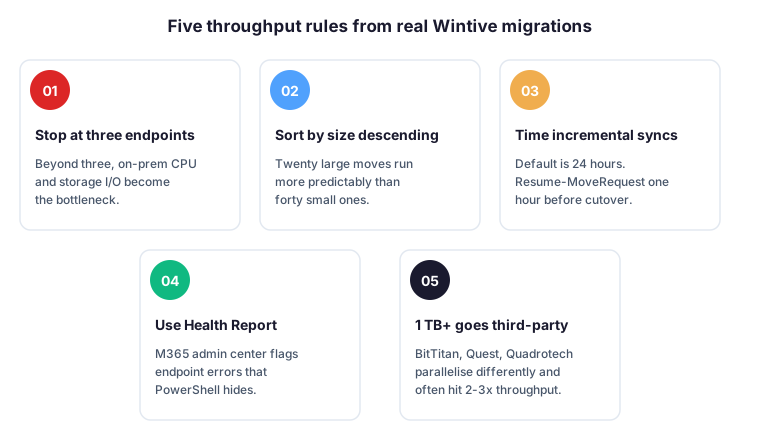
The five rules below come from 60+ real Wintive Exchange Online migrations over five years. Specifically, every rule has cost a customer downtime or rework at least once — so we now ship them as a checklist for every new migration project.
- Do not just keep adding endpoints. Three is usually the sweet spot for SMBs. Indeed, beyond that, on-prem Exchange becomes the bottleneck (CPU on CAS/MRS services, network to the storage tier).
- Migrate mailboxes in size-descending order within each batch. Specifically, Exchange parallelises 20 large moves much more predictably than 40 small ones — the throughput stays flat instead of spiking.
- Schedule incremental syncs wisely. Default is every 24 hours. Therefore, if you need a faster final cutover, run
Resume-MoveRequestmanually the hour before cutover to force a fresh sync. - Watch the Migration Health Report in the Microsoft 365 admin center — it flags endpoint-level errors that PowerShell does not always surface clearly. For example, throttling notices appear in the GUI before they show up in cmdlet output.
- For tenants over 1 TB of mailbox data, consider a third-party migration tool (BitTitan, Quadrotech, Quest). In practice, they parallelise differently and often hit two to three times Microsoft-native throughput on very large moves.
🤔 Frequently asked questions about Exchange Online migration throughput
💬 Fundamentals of Exchange Online migration throughput
Exchange Online does not enforce a hard upper limit on the number of migration endpoints per tenant, but each endpoint requires its own DNS name and SAN-covered TLS certificate on the on-premises side. Specifically, three endpoints is the practical sweet spot for SMB hybrid migrations. This count captures roughly 90 percent of the maximum sustained throughput. Beyond three endpoints, on-premises Exchange CPU and storage I/O become the bottleneck. Additional endpoints provide diminishing returns.
A well-provisioned hybrid setup with three migration endpoints sustains 60 to 90 GB per hour total throughput on user mailbox moves. Specifically, this assumes a modern Exchange 2019 cluster on-premises, healthy network bandwidth at 1 Gbps or higher, and mailboxes averaging 5 to 15 GB. Therefore, an 800-mailbox migration completes in roughly 28 hours instead of 84 hours with a single default endpoint.
🔍 Deep dive: tools and concurrency for migration throughput
They share the same TLS certificate when they all point at the same load balancer. Specifically, the certificate must include all three MRS proxy hostnames (mrs1, mrs2, mrs3) as Subject Alternative Names. However, if you direct each endpoint at a different physical Exchange server, each server can present its own certificate as long as the certificate chain validates against a trusted root.
MaxConcurrentMigrations controls how many simultaneous mailbox moves a single endpoint accepts. Specifically, the default is 20 user mailbox moves per endpoint. Therefore, three endpoints with the default value give you 60 concurrent moves total. The MaxConcurrentIncrementalSyncs parameter is a separate limit governing how many in-progress moves perform their delta synchronisation at the same time, defaulting to 10 per endpoint.
For tenants under 1 TB of mailbox data, native multi-endpoint configuration delivers excellent results without additional licensing costs. However, beyond 1 TB or with strict cutover deadlines, third-party tools such as BitTitan, Quadrotech, or Quest parallelise differently and often hit two to three times Microsoft-native throughput. Therefore, evaluate them when total data exceeds one terabyte or when you have a fixed migration window measured in days rather than weeks.
📚 What to read next
Two Exchange Online admin guides expand the surrounding context: the full mailbox migration process and the Mailbox Import Export role assignment.