Exchange Server 2019 reached end of extended support on October 14, 2025. In 2026, we still see SMBs running it — usually because a contract or compliance constraint locks the migration window. At Wintive, we have built and audited 60+ Exchange anonymous SMTP relays for SMB clients between 50 and 500 employees, and we still get the same call: a printer or backup app stopped sending mail, and nobody remembers how the relay was configured.
This guide does two things. First, it walks the playbook we use to stand up an Exchange 2019 anonymous SMTP relay correctly — the DNS alias, the locked-down receive connector, the PowerShell tests. Second, and more importantly, it tells you when you should not configure this in 2026, and which modern alternative fits your tenant. In short, read the decision tree first.
🛡️ Free: M365 Tenant Security Audit Checklist
17-page PDF with 50 hands-on checks covering Entra ID, Exchange Online, SharePoint, Teams, Intune, license waste, and audit logging. PowerShell commands included. Built from 60+ real tenant audits at Wintive.
🤔 Should you still configure an Exchange 2019 anonymous SMTP relay in 2026?
Before you touch a receive connector, decide whether you actually need one. In practice, three scenarios cover almost every SMB call we get.
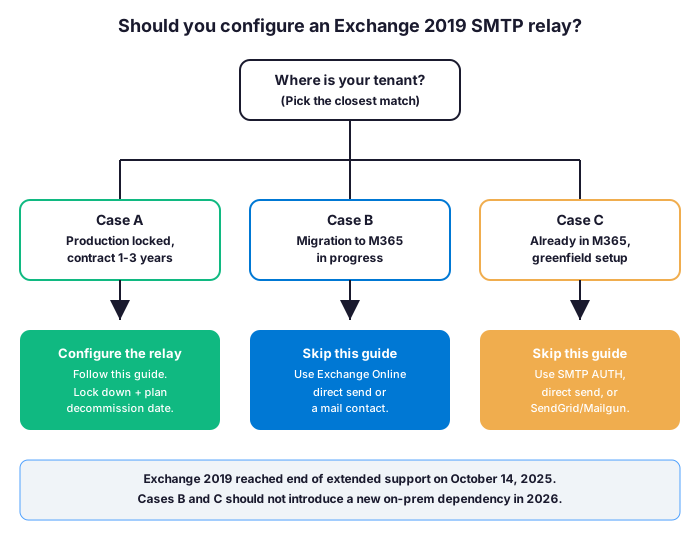
🔒 Case A — Production is locked, migration window 1-3 years out
You signed a 36-month vendor contract on a line-of-business app that hard-codes an SMTP server, or your security team froze the Exchange migration until next fiscal year. In this case, configure the relay properly, lock it down, and document the migration trigger date. The rest of this guide applies. However, treat the deployment as temporary — verbose protocol logging on day one, IP allowlist reviewed quarterly, no exceptions.
🚀 Case B — Migration to Microsoft 365 is in progress
Mailboxes are moving to Exchange Online and you are looking at relay options for the apps left behind. Skip this guide. Configure Exchange Online direct send or a mail contact instead — both are free, scoped per sender, and survive your Exchange 2019 decommission without any client reconfiguration. Direct send works from any source IP and requires only that your sending domain has correct SPF, DKIM, and DMARC.
🌱 Case C — You are already in Microsoft 365 and rebuilding from scratch
Greenfield setup, no on-prem Exchange. Therefore, configuring such a relay would mean spinning up a deprecated server purely for relay, which is unjustifiable in 2026. Instead, choose between three Microsoft 365 native paths: SMTP AUTH (works for apps that authenticate), direct send (works for any IP, internal domain only), or a third-party relay like SendGrid or Mailgun for high-volume transactional mail. We cover the trade-offs in our SMTP AUTH guide.
| Scenario | Tenant state | Recommended path | This guide? |
|---|---|---|---|
| 🔒 Case A | Production locked, contract 1-3 yr | Configure the Exchange 2019 relay, plan decommission | Yes — follow on |
| 🚀 Case B | Migration to M365 in progress | Exchange Online direct send or mail contact | No — skip |
| 🌱 Case C | Greenfield, already in M365 | SMTP AUTH, direct send, or SendGrid/Mailgun | No — skip |
❓ Why anonymous relay (and when not to use it)
If you landed in Case A, anonymous SMTP relay is the right tool. Specifically, anonymous relay lets internal applications send mail through Exchange without authenticating. Legacy multifunction printers, ERP systems, monitoring tools, and backup software often support only unauthenticated SMTP — therefore, an anonymous receive connector scoped to internal IPs is the cleanest path.
That said, importantly restrict the connector to specific source IPs — never expose an open relay to the internet. Open relays get abused within hours and your domain ends up on public blocklists. In summary, anonymous relay equals trust in your internal network; the connector configuration is the only thing standing between your tenant and a spam outbreak.
Before you create a new connector, audit what you already have. For example, an Exchange 2019 box inherited from a previous admin often hides a half-configured open relay nobody documented. Run this audit first.
# Wintive audit: list every receive connector and its IP scope
# Run BEFORE creating a new connector to spot legacy open relays
Get-ReceiveConnector |
  Select-Object Name, Server, Bindings, RemoteIPRanges, AuthMechanism, PermissionGroups |
  Format-Table -AutoSize

# Flag connectors with overly broad RemoteIPRanges (likely open relays)
Get-ReceiveConnector |
  Where-Object {
    ($_.RemoteIPRanges -match '0.0.0.0') -or
    ($_.RemoteIPRanges.Count -gt 5)
  } |
  Select-Object Name, RemoteIPRanges
📋 Prerequisites
- Exchange Server 2019 (CU14 or later if you are still patching post-EOL via ESU)
- Internal DNS zone you can edit (to create the relay alias)
- A fixed list of source IP ranges that will use the relay — never CIDR blocks larger than your actual app subnet
- Exchange Organization Management rights
- Confirmed migration trigger date (decommission target for Exchange 2019)
🌐 Step 1 — Create the DNS alias
Internal apps should send mail to a stable alias like mail.example.com, not directly to an Exchange server name. Consequently, when you migrate Exchange servers later, you only update the CNAME — no changes to every app config. For example, this single decision can save days of vendor coordination during a relay decommission.
# In your internal DNS (or via PowerShell on a DC with DnsServer module):
Add-DnsServerResourceRecordCName -Name "mail" -HostNameAlias "exch01.example.com" `
  -ZoneName "example.com"

# Verify resolution from a relay client:
Resolve-DnsName -Name mail.example.com -Type CNAME
🔧 Step 2 — Create the receive connector
The Exchange 2019 anonymous SMTP relay lives in a dedicated receive connector. Therefore, never reuse the default frontend transport connector for this purpose — you want a separate, named, IP-scoped object you can audit, disable, or rebuild without touching authenticated mail flow.
# Connect to Exchange Management Shell on the Exchange server
# Create a dedicated anonymous relay connector scoped to internal IPs only
New-ReceiveConnector -Name "SMTP Relay Internal" `
  -Server EXCH01 `
  -TransportRole FrontendTransport `
  -Usage Custom `
  -Bindings 0.0.0.0:25 `
  -RemoteIPRanges 10.0.0.0/24, 192.168.1.0/24 `
  -AuthMechanism ExternalAuthoritative `
  -PermissionGroups AnonymousUsers

# Grant the anonymous account permission to relay externally
Get-ReceiveConnector "EXCH01SMTP Relay Internal" |
  Add-ADPermission -User "NT AUTHORITYANONYMOUS LOGON" `
    -ExtendedRights "Ms-Exch-SMTP-Accept-Any-Recipient"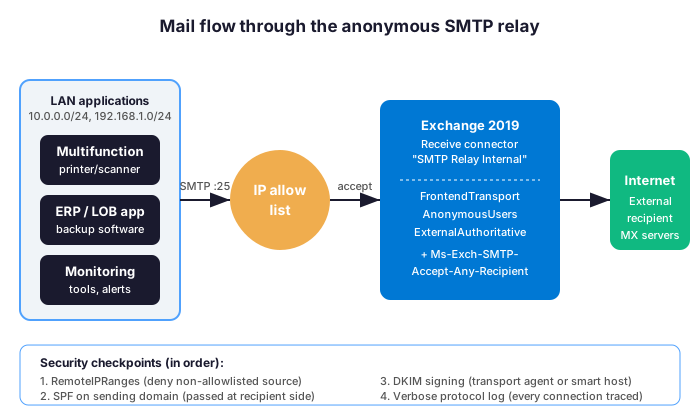
Key parameters explained:
RemoteIPRanges— the security gate. Only requests from these IPs can use this connector.AuthMechanism ExternalAuthoritative— treats the source as trusted (skips content filtering for known-good internal IPs).Ms-Exch-SMTP-Accept-Any-Recipient— the permission that allows external recipients. Without it, only internal addresses accept mail.
🛡️ Lock down the connector before testing
Three commands harden the relay before any client touches it. First, enable verbose protocol logging so every connection is traceable. Then, limit message size to prevent abuse. Finally, set explicit timeouts and connection limits per source IP.
# Harden the Exchange 2019 anonymous SMTP relay before testing
Set-ReceiveConnector "EXCH01SMTP Relay Internal" `
  -ProtocolLoggingLevel Verbose `
  -MaxMessageSize 25MB `
  -MaxRecipientsPerMessage 100 `
  -ConnectionInactivityTimeout 00:05:00 `
  -ConnectionTimeout 00:10:00 `
  -MaxInboundConnectionPerSource 20

# Logs land here (FrontEndTransport):
# %ExchangeInstallPath%TransportRolesLogsFrontEndProtocolLogSmtpReceive
🧪 Step 3 — Test with PowerShell
Test from a host inside the allowed IP range. In particular, never test from the Exchange server itself — localhost loopback bypasses the IP allowlist and gives a false positive.
# From a machine inside the allowed IP range:
Send-MailMessage `
  -SmtpServer mail.example.com `
  -From "relay-test@example.com" `
  -To "your.personal@gmail.com" `
  -Subject "Relay test" `
  -Body "If you receive this, relay works"

# For deeper troubleshooting, use Telnet to confirm the SMTP handshake:
telnet mail.example.com 25
# Expected banner: 220 exch01.example.com Microsoft ESMTP MAIL Service ready ...

# Or test via .NET directly (more detailed errors than Send-MailMessage):
$smtp = New-Object Net.Mail.SmtpClient("mail.example.com", 25)
$smtp.EnableSsl = $false
$smtp.Send("relay-test@example.com", "your.personal@gmail.com", "Test", "Works")
🚨 Troubleshoot the four errors you will actually hit
Across 60+ Wintive deployments, four error patterns account for most relay failures. Specifically, the diagnosis path is almost always the same: identify the SMTP response code, check the protocol log, then trace back to a configuration mismatch.
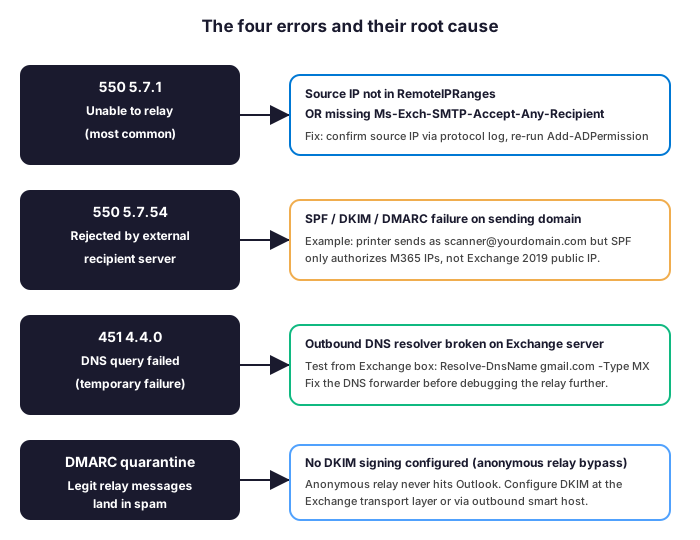
⚠️ 550 5.7.1 Unable to relay
The most common error. In practice, this means one of two things: the source IP is not in RemoteIPRanges, or the Ms-Exch-SMTP-Accept-Any-Recipient permission is missing. Confirm the source IP first using the protocol log, then re-run the Add-ADPermission step.
⚠️ 550 5.7.54 SMTP rejected by external recipient
Relay accepted the message but the external mail server rejected it. Typically, the cause is SPF, DKIM, or DMARC failure on the sending domain. For example, your printer sends as scanner@yourdomain.com but your SPF record only authorizes Microsoft 365 IPs — not your Exchange 2019 public IP. Add the Exchange 2019 public IP to your SPF record, or rewrite the sender to a sub-domain with its own SPF.
⚠️ 451 4.4.0 DNS query failed
Exchange could not resolve the recipient domain. Indeed, this is almost never an Exchange bug — it is a DNS issue on the Exchange server itself. Verify outbound DNS works: Resolve-DnsName gmail.com -Type MX from the Exchange box. Therefore, if it fails, fix the DNS forwarder configuration before debugging the relay further.
⚠️ DMARC quarantine on legitimate relay traffic
Legitimate relay messages land in spam at Gmail, Outlook.com, or third-party tenants. Consequently, recipients complain and you suspect the relay is broken — it is not. Furthermore, anonymous relay bypasses Outlook clients, which means no automatic DKIM signing happens. Configure DKIM signing at the Exchange transport level, or route relay traffic through an outbound smart host that signs on your behalf.
☁️ The modern alternative: Exchange Online direct send
If your tenant is in Microsoft 365, Exchange Online direct send replaces the Exchange 2019 anonymous SMTP relay entirely — without an on-prem server, without an IP allowlist, and without quarterly maintenance. Specifically, direct send accepts mail from any source IP, but only if the recipient is in your tenant or if your sending domain has correct SPF, DKIM, and DMARC for external delivery.
# Test Exchange Online direct send from any host
# (Use your tenant's MX record as the SMTP target)
$mx = (Resolve-DnsName -Type MX yourdomain.com).NameExchange | Select-Object -First 1

Send-MailMessage `
  -SmtpServer $mx `
  -Port 25 `
  -From "scanner@yourdomain.com" `
  -To "user@yourdomain.com" `
  -Subject "Direct send test" `
  -Body "If this lands in the inbox, direct send is configured" `
  -UseSsl

# For external recipients, verify your SPF includes the sending IP
# and DKIM is signed at the domain level
For most SMB scenarios — printers, scanners, and internal monitoring — direct send to internal recipients is the simplest path. Moreover, it removes the Exchange 2019 dependency entirely, which means one fewer system to patch, monitor, and eventually decommission. We walk through the full configuration in our SMTP AUTH and direct send guide.
💡 Wintive take: gotchas we have hit in production
- Exchange 2019 EOL changes the calculus. Since October 2025, Exchange 2019 receives no security patches outside ESU. Consequently, every month the relay stays online increases your exposure surface. Treat the configuration as documented temporary, not permanent.
- Anonymous relay plus SPF breaks external delivery. When an app sends as
@yourdomain.comthrough your Exchange server, the external recipient’s SPF check must pass. Add the Exchange server’s public IP to your SPF TXT record, or configure the app to send from a sub-domain with its own SPF. - DKIM signing is your responsibility. Anonymous relay bypasses Outlook clients, so no automatic DKIM signing happens. Configure DKIM at the Exchange transport level or via an outbound smart host. Otherwise, expect quarantine reports from every recipient running modern DMARC.
- Monitor the relay logs continuously. Set
Set-ReceiveConnector "SMTP Relay Internal" -ProtocolLoggingLevel Verboseat creation time. Logs live in%ExchangeInstallPath%TransportRolesLogsFrontEndProtocolLogSmtpReceive. In particular, ship them to your SIEM — an unmonitored relay is a liability. - Migrating to Exchange Online? Retire the relay by moving apps to authenticated SMTP AUTH or direct send. Furthermore, Exchange Online supports both, and direct send is free for any source IP. We have migrated 14 SMB clients off Exchange 2019 anonymous SMTP relays in the last 18 months — the median project takes 4 weeks for a 200-seat tenant.
✅ Final word
An Exchange 2019 anonymous SMTP relay is three moving parts: a DNS alias, a locked-down receive connector, and the permission that allows external recipients. Tested end-to-end with PowerShell, the whole setup takes about 20 minutes — once you know which scenario applies. However, in 2026, the more important question is when you decommission the relay, not how you configure it. If your tenant is in Microsoft 365 and you have not migrated this workload yet, put the migration on the next quarter’s plan and use this guide to keep the lights on until then.
🔗 Dig Deeper
Why Your Law Firm Is Drowning in Email Chaos (And How to Fix It)