Knowing the Outlook OST file size limit is essential when mailboxes grow past the default 50 GB threshold and Outlook starts complaining that the OST file has reached its maximum size. This 2026 guide covers why the limit exists, the three ways to raise it (registry, Group Policy, Outlook New), and a decision tree we use at Wintive to decide whether raising the OST limit is actually the right fix.
Specifically, we walk through the registry keys that control MaxLargeFileSize and WarnLargeFileSize, the Group Policy Administrative Templates that enforce them at scale, and the new sync slider in Outlook New that exposes the limit to end users. Therefore, you finish with a clean, audited approach for managing Outlook cache size across a fleet, not just one workstation.
🛡️ Free: M365 Audit Checklist
19-page PDF with 50 hands-on checks covering Entra ID, Exchange Online, SharePoint, Teams, Intune, license waste, and audit logging. PowerShell commands included. Built from 60+ real tenant audits at Wintive.
🆕 Why the OST size limit still matters in 2026
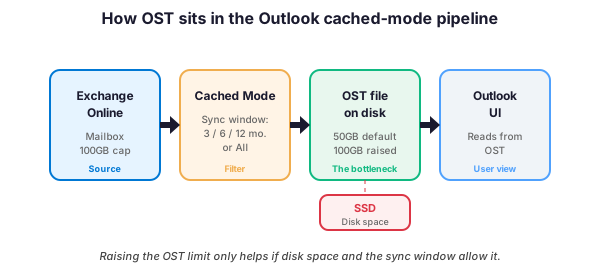
Microsoft 365 mailboxes are capped at 100 GB on most plans, archive mailboxes at 1.5 TB with auto-expansion, and shared mailboxes commonly exceed 50 GB. Therefore, the local OST file size limit is the single most common reason a fully-licensed user still hits sync failures, missing items, or the dreaded The file C:\Users\name\AppData\Local\Microsoft\Outlook\name.ost has reached its maximum size error.
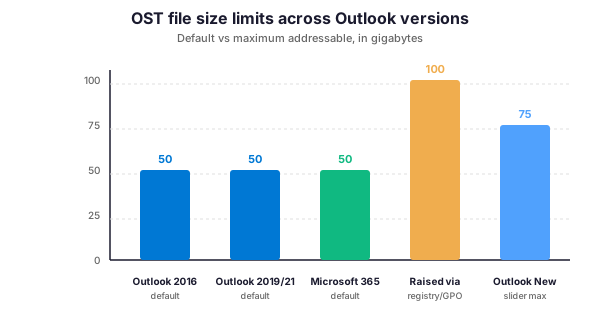
Specifically, three patterns surface in nearly every Wintive workstation audit. First, executives with 80 GB mailboxes whose Outlook crops the cached window silently to fit a 50 GB OST. Second, finance teams with seven years of attachments where the OST file balloons past 75 GB and the SSD runs out of free space. Third, sales reps with shared-mailbox access where every shared inbox is partially cached, multiplying the OST footprint per profile.
Furthermore, raising the limit is not always the right answer. In contrast to a quick registry tweak, the durable fix often involves trimming the cached sync window, archiving older items to the In-Place Archive, or migrating power users to Outlook on the Web. We cover that decision logic at the end of this guide.
⚡ Quick reference: limits and where they live
Before changing anything, get the lay of the land. The default OST file size limit and its hard ceiling have changed across Outlook versions; in particular, the values stored in the registry are expressed in megabytes (decimal), not bytes.
| Configuration path | Outlook 2016/2019/2021 | Microsoft 365 Apps | Outlook New (2024+) |
|---|---|---|---|
| Default OST size limit | 50 GB | 50 GB | 75 GB (slider max) |
| Hard ceiling | 100 GB (raised) | 100 GB (raised) | 75 GB |
| Registry key | HKCU/Outlook/PST | HKCU/Outlook/PST | Profile metadata |
| GPO support | Yes (ADMX) | Yes (ADMX) | Limited |
| Bulk-friendly | Registry script + GPO | Registry script + GPO | Per-user UI |
Furthermore, you can read the current values from the registry to see exactly where a workstation stands. For example:
# Read current MaxLargeFileSize and WarnLargeFileSize for the active user
$path = "HKCU:\Software\Microsoft\Office\16.0\Outlook\PST"
if (Test-Path $path) {
    Get-ItemProperty -Path $path |
        Select-Object MaxLargeFileSize, WarnLargeFileSize
} else {
    Write-Host "Registry path not present, defaults of 50 GB / 47 GB apply."
}
🛠️ Method 1: Increase the limit via registry
The registry path controlling the Outlook OST file size limit is HKEY_CURRENT_USER\Software\Microsoft\Office\X.0\Outlook\PST, where X.0 maps to the Office build (16.0 covers Outlook 2016/2019/2021 and Microsoft 365 Apps). Two DWORD values matter: MaxLargeFileSize (the hard ceiling) and WarnLargeFileSize (the threshold where Outlook starts warning). For example, to raise the limit to roughly 100 GB:
Windows Registry Editor Version 5.00

[HKEY_CURRENT_USER\Software\Microsoft\Office\16.0\Outlook\PST]
"MaxLargeFileSize"=dword:0001E848
"WarnLargeFileSize"=dword:0001CA28
The hexadecimal value 0x0001E848 equals 125000 in decimal, which represents 125 GB minus a safety margin so Outlook flags issues before the absolute ceiling. In contrast, WarnLargeFileSize at 0x0001CA28 (117800) triggers a UI warning roughly 7 GB before the ceiling. Furthermore, Microsoft documentation recommends keeping these two values within the same proportional gap.
🚀 Push the registry change to multiple workstations
For fleet-wide deployment without GPO, the same registry change can be pushed via PowerShell remoting. Specifically:
# Push MaxLargeFileSize and WarnLargeFileSize to a list of computers
$computers = Get-Content "C:\Reports\workstations.txt"
$path = "HKCU:\Software\Microsoft\Office\16.0\Outlook\PST"

Invoke-Command -ComputerName $computers -ScriptBlock {
    if (-not (Test-Path $using:path)) {
        New-Item -Path $using:path -Force | Out-Null
    }
    Set-ItemProperty -Path $using:path -Name "MaxLargeFileSize"  -Value 125000 -Type DWord
    Set-ItemProperty -Path $using:path -Name "WarnLargeFileSize" -Value 117800 -Type DWord
}
Indeed, this approach scales to hundreds of machines and writes to HKCU under the user context, which means the change applies the next time Outlook starts. However, the user must close Outlook for the new ceiling to take effect.
📋 Method 2: Increase the limit via Group Policy
For domain-joined fleets, Group Policy is the cleaner path. The Office Administrative Templates ship a dedicated setting that maps to the same registry values. Specifically, navigate to the policy in the Group Policy Management Editor:
User Configuration
  \ Policies
    \ Administrative Templates
      \ Microsoft Outlook 2016 (or current version)
        \ Account Settings
          \ Exchange
            \ Cached Exchange Mode
              \ Cached Exchange Mode (File Size Limits)
The policy exposes two values: Large folder cap (MB) and Large folder warning (MB). Therefore, set them to the same numbers used in the registry method (for example 125000 and 117800), enable the policy, and link the GPO to the OU containing your Outlook clients. Moreover, the next gpupdate /force pushes the change.
Furthermore, GPO has a key advantage over loose registry scripts: it self-heals. In contrast to a one-shot Invoke-Command run, the policy reapplies on every Group Policy refresh, so a user who edits the registry manually cannot regress the configuration. Consequently, GPO is the Wintive recommendation for any environment with more than fifty workstations.
🚀 Method 3: Modern alternative — Outlook New + slider
Outlook New (the rebuilt client based on the web codebase) handles cached storage differently. Specifically, there is no traditional OST file under AppData; instead, the client maintains an internal IndexedDB-style cache governed by a per-account slider in Settings → General → Storage. The slider exposes 1, 3, 6, or 12 months and an “all available” option, with an effective ceiling around 75 GB.
Therefore, on Outlook New there is no MaxLargeFileSize registry to edit. In particular, IT admins migrating users to Outlook New should plan the cached window deliberately rather than assume the previous registry-tuned limit carries over. Indeed, this is one of the items we audit at Wintive when a tenant migrates to Outlook New across more than fifty users.
🔍 Audit OST file sizes across a fleet
Before changing any registry, you should know who is actually approaching the current limit. The following PowerShell snippet enumerates OST files for the running user profile and reports their size in gigabytes:
# Audit OST file sizes for the current user
$ostPath = "$env:LOCALAPPDATA\Microsoft\Outlook"
Get-ChildItem -Path $ostPath -Filter "*.ost" -ErrorAction SilentlyContinue |
    Select-Object Name, @{Name="SizeGB";Expression={[math]::Round($_.Length/1GB,2)}}, LastWriteTime |
    Sort-Object SizeGB -Descending
Furthermore, when run via Intune Remediation script or RMM tooling, the same snippet wrapped in Invoke-Command produces a tenant-wide inventory ready for triage. Consequently, you can target only the workstations that actually need the limit raised, instead of pushing a blanket registry change.
🔍 When increasing is the wrong fix
Raising the OST limit is a tempting fix, but it is not always the right one. In contrast to a registry tweak, three alternatives often deliver better outcomes: reducing the cached sync window, enabling the In-Place Archive, or pointing power users to Outlook on the Web for older content.
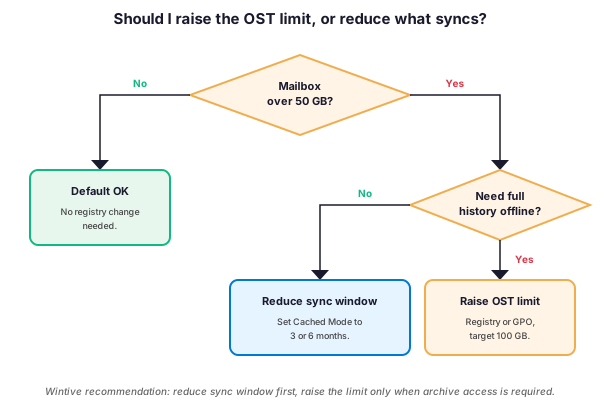
Specifically, the decision tree above is the one we apply during M365 audits at Wintive. First, we check whether the mailbox really exceeds 50 GB; if not, no registry change is needed. Second, we ask whether the user truly needs offline access to old archive items; for most knowledge workers, three or six months of cached mail is plenty. Therefore, only when archive access is non-negotiable do we raise the registry ceiling.
Moreover, a smaller cached window has positive side effects. In particular, Outlook startup is faster, search index rebuilds are quicker, and SSD wear is reduced. Consequently, the steady-state recommendation is: raise the limit only for documented archive use cases, and treat the default 50 GB OST as a healthy ceiling for the rest of the fleet.
❓ Frequently Asked Questions
The default OST file size limit on Outlook 2016, 2019, 2021, and Microsoft 365 Apps is 50 GB. Specifically, this is the value of MaxLargeFileSize when no registry override or Group Policy is applied. Outlook New uses an internal cache with a slider that maxes around 75 GB.
Yes, but only in the classic Outlook clients. The MaxLargeFileSize registry value is a DWORD expressed in megabytes, so values up to 4 TB are technically accepted. However, in practice 125 GB is the highest figure Microsoft documents as tested, and going beyond that introduces SSD pressure and search index instability.
No. Outlook New uses a different storage architecture and does not honor the legacy registry settings. Therefore, the only knob in Outlook New is the per-account storage slider in Settings, which currently caps around 75 GB.
Outlook displays this error when the OST file reaches the value of MaxLargeFileSize for the current profile. Specifically, the most common cause is a mailbox larger than 50 GB combined with a cached sync window set to All. Reducing the sync window or raising MaxLargeFileSize both resolve the symptom.
Deleting the OST file is safe because it is a local cache rebuilt from the server, but it forces a full re-sync that can take hours and saturate the WAN link. In contrast, reducing the cached sync window in Account Settings achieves the same disk savings without the full re-download.
🔗 Keep Exploring
This tutorial covered one focused Exchange Online workflow. For a complete picture of how your full Microsoft 365 environment — mail flow, security posture, and beyond — performs against best practices:
🔍 Want a complete audit of your Microsoft 365 tenant?
The M365 Instant Audit scans your M365 environment in under 10 minutes: license waste, security posture, MFA coverage, compliance gaps, license rightsizing opportunities. Full PDF report with prioritized recommendations delivered instantly.