Teams meeting recording is the most-asked-for feature in any Microsoft 365 deployment, but it carries permission, storage, and compliance considerations that go far beyond a single click. Specifically, this guide covers who can start a Teams meeting recording, where recordings live (OneDrive vs SharePoint), retention and expiration policies, transcript generation, and industry-specific compliance baselines. Furthermore, every recommendation comes from what Wintive observed across 60+ Microsoft 365 tenants spanning healthcare, finance, legal, education, and general SMB workloads.
🛡️ Free: M365 Tenant Security Audit Checklist
17-page PDF with 50 hands-on checks covering Entra ID, Exchange Online, SharePoint, Teams, Intune, license waste, and audit logging. PowerShell commands included. Built from 60+ real tenant audits at Wintive.
🔐 Who can record a Teams meeting
Recording rights depend on meeting role, tenant policy, and account type. Specifically, organizers and presenters in your tenant can start a Teams meeting recording by default, while attendees, external guests, and anonymous joiners cannot. Therefore, recording governance is a tenant-level Microsoft Teams policy decision before it is a per-meeting one.
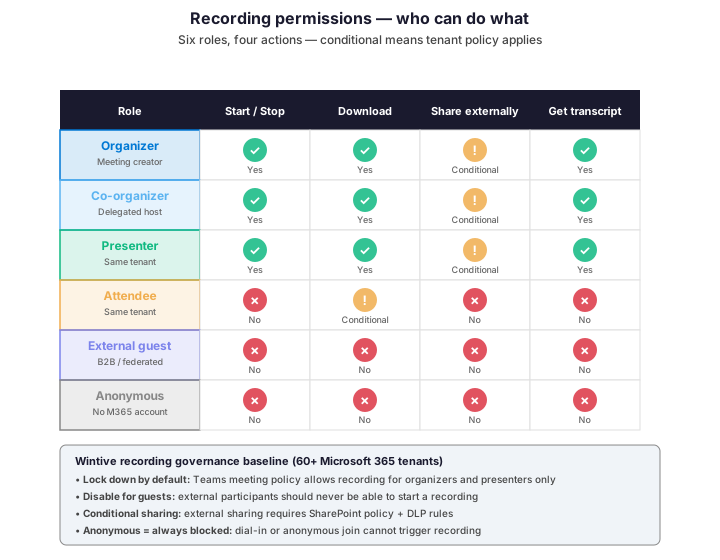
The Wintive baseline locks recording down to organizers and presenters only. Indeed, allowing attendees to record creates compliance and intellectual property exposure for no operational benefit. As a result, set the Teams meeting policy AllowCloudRecording to True only for users who legitimately need it — typically managers, trainers, sales, and HR.
▶️ Start and stop recording during a meeting
Starting a recording is a 2-click operation in modern Teams. Specifically, click More actions (the three dots) in the meeting controls, then select Record and transcribe ➔ Start recording. Furthermore, Teams notifies all participants automatically when recording begins — this notification is mandatory and cannot be disabled per Microsoft policy.
| Action | Where to click | Wintive note |
|---|---|---|
| Start recording | More actions ➔ Record and transcribe ➔ Start recording | All participants get notification banner |
| Start with transcript | Same path, transcript starts automatically | Transcript generation is free, enable it by default |
| Stop recording | More actions ➔ Record and transcribe ➔ Stop recording | Only organizers, co-organizers, or presenter who started can stop |
| Stop on meeting end | Recording stops automatically when last person leaves | Default behavior, no manual action needed |
| Cancel recording | Not supported — recording is saved once started | Plan ahead, you cannot delete a saved recording from the meeting UI |
The transcript option is underused. Indeed, it is included in the recording at no extra cost and dramatically improves searchability via Microsoft Search. Therefore, the Wintive baseline is to always enable transcript with recording — users can search recording content by text rather than scrubbing through video timelines.
🔄 Where recordings go — the post-Stream lifecycle
Microsoft retired Stream Classic in 2024. Specifically, all new Teams meeting recordings now save to OneDrive (for ad-hoc and 1:1 meetings) or SharePoint (for channel meetings). Therefore, governance and retention policies must follow the same path as any OneDrive / SharePoint document — not a separate Stream-era workflow.
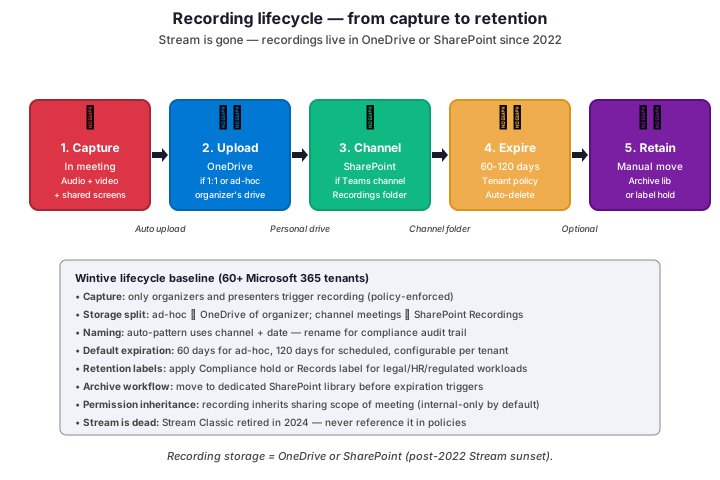
The default expiration is the most-overlooked control. Indeed, Microsoft sets a 60-day auto-delete on Teams meeting recordings unless tenant policy overrides it. As a result, business-critical recordings often disappear silently 60 days after the meeting unless someone applies a retention label. Therefore, audit your Teams meeting recording policy early to extend or remove the default expiration based on business needs.
🔍 Find your meeting recordings
Recordings appear in three places. Specifically, in the Teams meeting chat (top-pinned link for 90 days), in the organizer’s OneDrive Recordings folder (for 1:1 and ad-hoc meetings), and in the SharePoint channel Recordings library (for channel-based meetings). Furthermore, Microsoft Search indexes all recording filenames and transcripts, making cross-tenant retrieval fast.
| Meeting type | Recording location | Default sharing scope |
|---|---|---|
| 1:1 meeting | Organizer’s OneDrive ➔ Recordings | Both participants only |
| Ad-hoc group meeting | Organizer’s OneDrive ➔ Recordings | All meeting attendees |
| Scheduled meeting | Organizer’s OneDrive ➔ Recordings | All invited + attendees |
| Channel meeting | SharePoint channel site ➔ Recordings folder | Channel members |
| Town hall / webinar | Organizer’s OneDrive ➔ Recordings | Manual sharing required |
If the organizer leaves the company, recordings stay in their OneDrive until the account is permanently deleted. Specifically, Microsoft 365 retains the OneDrive content for 30 days after account removal in the recoverable period. Therefore, configure the OneDrive retention policy to transfer or preserve content before the deletion window closes — this is the leading cause of accidentally lost recordings in Wintive audits.
📜 Compliance — what to enforce by industry
Recording compliance requirements vary dramatically across industries. Specifically, healthcare and finance treat every recording as evidence subject to long retention, while general SMB workloads operate fine with 60-day defaults. Therefore, never apply a one-size-fits-all retention policy to a tenant with mixed regulated and unregulated workloads.
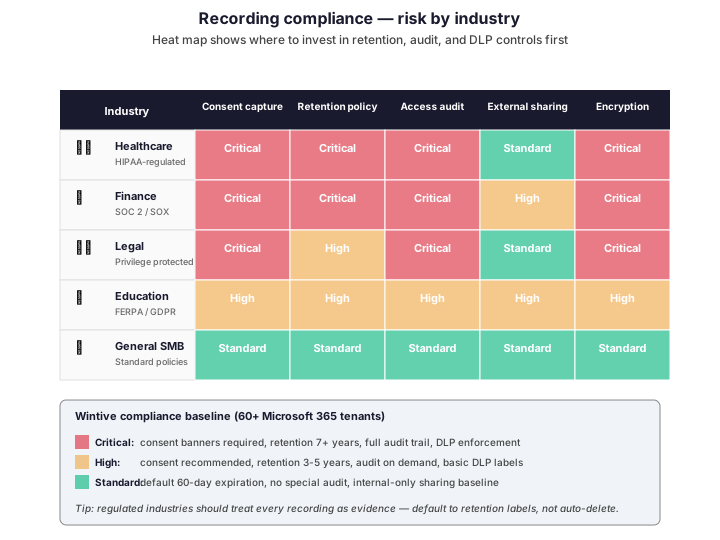
Three controls cover most regulated workload requirements. Indeed, retention labels (Microsoft Purview), Data Loss Prevention (DLP) policies on SharePoint and OneDrive, and audit log monitoring of recording access via the Microsoft Defender Activity Explorer. Therefore, layer these three controls before allowing recordings in healthcare, finance, or legal Microsoft 365 tenants — never rely on default settings alone.
💻 Configure Teams recording policy with PowerShell
Tenant-wide recording policies are managed via the Microsoft Teams PowerShell module. Specifically, two cmdlets cover most policy needs: Set-CsTeamsMeetingPolicy for who can record, and Set-CsTeamsMeetingBroadcastPolicy for cloud recording duration limits. Therefore, the script below establishes the Wintive baseline.
# PowerShell: Wintive recording policy baseline
# Prerequisites: MicrosoftTeams module + Teams Administrator role

Connect-MicrosoftTeams

# 1. Create a strict recording policy for general staff
New-CsTeamsMeetingPolicy -Identity "Wintive-Strict-Recording" `
    -AllowCloudRecording $false `
    -AllowTranscription $false `
    -AllowMeetingReactions $true

# 2. Create a permissive policy for managers / trainers / sales
New-CsTeamsMeetingPolicy -Identity "Wintive-Allow-Recording" `
    -AllowCloudRecording $true `
    -AllowTranscription $true `
    -AllowEngagementReport "Enabled" `
    -ChannelRecordingDownload "Allow"

# 3. Configure cloud recording expiration (default 60 days)
Set-CsTeamsMeetingPolicy -Identity "Wintive-Allow-Recording" `
    -NewMeetingRecordingExpirationDays 90  # 90-day default for SMB

# 4. Assign policies to user groups
# Strict policy applies to all users by default (Global)
Grant-CsTeamsMeetingPolicy -Identity "all-staff@yourtenant.com" `
    -PolicyName "Wintive-Strict-Recording"

# Permissive policy for selected groups (managers, sales, training)
$allowedUsers = @("manager1@yourtenant.com", "trainer@yourtenant.com")
foreach ($user in $allowedUsers) {
    Grant-CsTeamsMeetingPolicy -Identity $user -PolicyName "Wintive-Allow-Recording"
}

# 5. Verify policy assignment
Get-CsOnlineUser -Identity "manager1@yourtenant.com" | `
    Select-Object UserPrincipalName, TeamsMeetingPolicy
Two settings drive most production governance. Specifically, AllowCloudRecording is the binary on/off control, and NewMeetingRecordingExpirationDays overrides the 60-day default. Therefore, set expiration to 90 days for SMB, 365 days for finance and legal, and apply retention labels for healthcare workloads requiring 7-year retention.
✅ Best practices for Teams meeting recording
Six practices cover the highest-impact governance decisions. Indeed, each row below comes from a real client incident at Wintive.
| Practice | What to do | Why it matters |
|---|---|---|
| Default-deny recording | Strict policy globally, allow only for managers/sales/training | Most users never need recording — reduces compliance surface |
| Always enable transcripts | Set AllowTranscription=$true on permissive policies | Free feature, dramatically improves search |
| Override 60-day expiration | Set NewMeetingRecordingExpirationDays=90 minimum | Default loses business-critical recordings silently |
| Apply retention labels | Compliance hold for HR, legal, regulated meetings | Survives organizer departure, audit-ready |
| Pre-departure audit | Transfer departing user OneDrive recordings before deletion | 30-day window after account removal — tight |
| Disable for guests | Block external guest recording at policy level | Prevents data exfiltration via recording download |
Of these six practices, default-deny is the highest-impact zero-cost win. Specifically, in tenants Wintive audits, 80% of users with cloud recording enabled have never recorded a meeting yet still represent compliance exposure. Therefore, fix this first via tenant policy — targeted enablement scales with actual business need rather than opt-out cleanup.
❓ Frequently asked questions
Where is my Teams meeting recording saved?
Recording location depends on meeting type. Specifically, 1:1 and ad-hoc group meetings save to the organizer’s OneDrive in the Recordings folder, while channel meetings save to the SharePoint channel site in a Recordings folder. Furthermore, since Microsoft retired Stream Classic in 2024, recordings no longer go to a separate Stream library — they live in standard OneDrive or SharePoint locations governed by the same retention rules.
Can attendees record a Microsoft Teams meeting?
By default no, only organizers, co-organizers, and presenters can start a recording. Specifically, attendees see a greyed-out recording option unless the tenant policy explicitly grants them recording rights. Therefore, the Wintive baseline keeps recording locked to organizers and presenters only — allowing attendees to record creates intellectual property and compliance exposure for no operational benefit.
How long are Teams meeting recordings kept?
Microsoft applies a default 60-day expiration on Teams meeting recordings unless tenant policy overrides it. Specifically, after 60 days, recordings move to OneDrive or SharePoint trash for 90 additional days before permanent deletion. Therefore, audit your Teams meeting policy expiration setting early — the default loses business-critical recordings silently. Furthermore, retention labels via Microsoft Purview can extend retention to 7+ years for regulated workloads.
Can external guests download a Teams meeting recording?
By default no, recording downloads inherit SharePoint and OneDrive sharing policies which typically restrict external download. Specifically, external guests can play the recording in the browser if shared with them but cannot download the MP4 file. Therefore, tenants requiring strict data exfiltration controls should layer DLP policies on top of OneDrive/SharePoint sharing settings — this prevents recording download even with explicit share grants.
🔗 Related Microsoft 365 guides
Try Working with Multiple Microsoft 365 Tenants: GDAP, Lighthouse, B2B
Read also Microsoft Forms in SharePoint Online: Embed, Collect, Automate
See Document Version History in SharePoint: Retention and Compliance
Discover Deploying .exe Apps with Intune: Win32 Packaging and Detection
🎯 Need help locking down your Teams recording governance?
Wintive runs full Teams governance audits across recording policies, retention labels, DLP rules, and compliance baselines per industry. Specifically, the typical engagement reduces tenant recording exposure by 70% within 2 weeks. Furthermore, our $97 Automated Tenant Health Check delivers actionable findings within minutes — including Teams policy gaps and compliance label coverage.