

Learning how to update Microsoft Teams takes two minutes, and it fixes more problems than almost anything else. A stale client causes missing features, broken meetings, and odd sign-in errors. The good news is that Teams mostly updates itself, so you rarely have to lift a finger. When you do, this guide shows the exact steps on every platform, how to force an update, how to fix one that sticks, and how admins control it across a whole company.
We keep it current for 2026, including the move to the new Teams client. You will learn how updates work, how to update on Windows, Mac, mobile, and the web, how to switch to the new Teams, how to check your version, and how to clear a stuck update. Admins get the PowerShell and policy steps to manage all of it at scale.
📋 Free: the M365 Audit Checklist (50 points)
An out-of-date client is one of many small gaps that add up. See where your tenant stands today.
🔄 How does Microsoft Teams update?
In short: Microsoft Teams updates itself automatically in the background, so most people never act. To force it, click the three dots next to your photo, choose Settings and more, then Check for updates, and Teams updates while you keep working. On mobile, update through the App Store or Play Store. If an update sticks, quit Teams fully and clear its cache. Admins control all of this with update policies.
Teams was built to stay current on its own. The desktop app checks for updates roughly every few hours and installs them quietly in the background. So when you restart Teams now and then, you usually pick up the newest version without noticing. That design keeps most users on a supported build without any effort at all.
Each platform handles it a little differently, though. The desktop apps self-update, mobile relies on the app store, and the web version is always the latest by definition. Knowing which path you are on tells you exactly where to look when something is off. The chart below sums up all four.
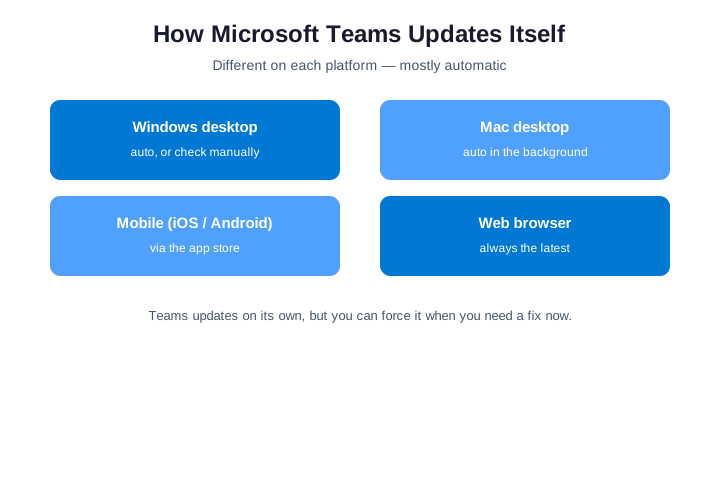
One more thing shapes how you update: who manages your computer. On a personal device, Teams updates itself freely. On a work machine, your IT team may steer updates through policy, so what you see depends on their setup. We cover both the personal steps and the admin controls below, so you find your exact case either way.
📅 How often does Microsoft Teams update?
The desktop app checks for updates on its own several times a day. When it finds one, it downloads quietly and waits for a calm moment to apply it. So in practice you pick up most updates simply by leaving Teams running and restarting it now and then. You rarely have to schedule anything yourself.
Microsoft ships new features on a roughly monthly rhythm, with urgent fixes in between. Each release rolls out to tenants in waves, so a feature you read about may reach your build a few weeks later. That staggered pace is normal, which is why your version can lag a colleague’s for a short while.
The other platforms run on their own clocks. Mobile follows your app store, updating overnight if you allow it, while the web app is always current the moment you load it. So when you ask how often Teams updates, the honest answer is: the desktop is the one you can nudge, and the rest keep pace on their own.
🪟 How to update Microsoft Teams on Windows
On Windows, the new Teams client updates itself, but you can push it along. Click the three dots next to your profile picture at the top, then choose Settings and more. Pick Check for updates, and Teams looks for a new version right away. It downloads and applies it in the background, so you keep chatting while it works.
When the update is ready, Teams shows a small banner asking you to refresh. Click it, and the app reloads on the new version in a second or two. You lose nothing in the refresh, since your chats and settings are stored in the cloud. So there is no reason to put it off when the banner appears.
If you never see updates at all, your client may be the retired classic Teams. Classic no longer receives them, which is why it feels frozen in time. In that case the fix is not an update but a switch to the new Teams, which we cover in its own section below. Until you make that move, no amount of checking will help.
Restart Teams to trigger a Windows update
A quick restart often does the same job as a manual check. Fully quitting Teams and reopening it triggers an update check on launch. So if you have not closed Teams in days, that alone may pull the latest build. Make it a habit to restart once a week, and you stay current with almost no thought.
🍎 How to update Microsoft Teams on Mac
The Mac client behaves much like Windows. The new Teams app updates automatically in the background, and you can prompt it the same way. Click the three dots by your photo, open Settings and more, and choose Check for updates. macOS may ask for your password to finish, since installing an app needs permission.
How you got Teams matters on a Mac. A version bundled by your IT team updates through their tools, while a personal download updates itself. If you are unsure which you have, ask your admin or check whether other company apps update on their own. That tells you where the update actually comes from.
When in doubt, a full quit forces a fresh check. Right-click the Teams icon in the dock and choose Quit, rather than just closing the window. Then reopen it, and the app checks for updates on launch. On Apple silicon and Intel Macs alike, the new Teams runs natively, so the current build is the one you want.
📱 How to update Microsoft Teams on mobile
On a phone or tablet, the app store handles updates. iPhone and iPad users open the App Store, tap their profile, and look for Teams under available updates. Android users open the Play Store, tap the profile menu, choose Manage apps and device, and update Teams from there. Either way, one tap pulls the newest build.
The easiest fix is to turn on automatic app updates. Both stores can update apps overnight while the device charges on wifi. So you wake up to a current Teams without ever thinking about it. If a meeting feature is missing on mobile, a quick store update is almost always the cure.
Mobile updates also fix the small annoyances fast. Push notifications that stop, calls that drop, or a blank screen usually trace back to an old app. Because the store version is tested for your exact device, updating clears most of these in one step. So make the store your first stop whenever mobile Teams misbehaves.
🌐 How to update Microsoft Teams on the web and VDI
The web version never needs updating. When you open teams.microsoft.com, you always load the latest code, because it runs in the browser. So if a desktop update is stuck before an urgent call, the web app is your instant fallback. Just sign in and join, and you are on the current version automatically.
Shared and virtual computers are a different story. On a Citrix or AVD setup, the new Teams installs once for every user on the machine, and updates come through the image or the admin. So a normal Check for updates may do nothing there by design. If you work on a virtual desktop, raise update questions with your IT team rather than fighting the client.
🔁 Switch to and update the new Teams
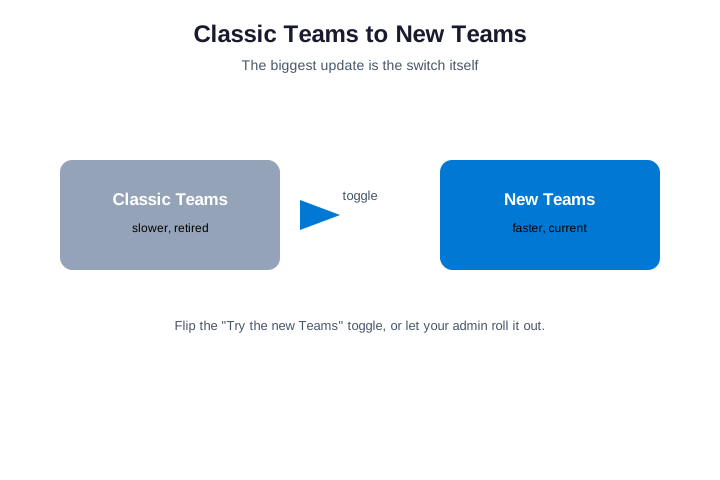
The single biggest Teams update was the move to the new client. The new Teams is faster, uses far less memory, and is where every new feature now ships. Classic Teams has been retired, so staying on it means missing updates entirely. If you are still on the old app, switching is the real update you need.
Switching is usually one toggle. At the top of classic Teams, flip the “Try the new Teams” switch, and the app upgrades in place. Your chats, teams, and settings carry straight over, so nothing is lost in the move. The first launch may take a moment longer while it sets up, and then it runs.
Why the new Teams toggle is missing
If you do not see the toggle, your admin likely controls the rollout. Many companies push the new Teams centrally and hide the switch, so users land on it automatically. In that case there is nothing to do on your end. If you genuinely need it sooner, a quick word with IT is faster than any workaround.
🔢 Check your Microsoft Teams version
Sometimes you just need to know which version you are on. Click the three dots next to your profile picture, hover over About, and choose Version. Teams shows the build number and date, which is exactly what support asks for. Note it down before you open a ticket, because it speeds up every diagnosis.
The version also tells you whether you are current. Compare it against the latest build Microsoft lists, and a big gap explains missing features fast. If your number is months old yet Teams will not update, that points to a deeper issue. The troubleshooting steps further down clear most of those quickly.
To check against the current release, go straight to the source. Microsoft keeps an official Teams update history that lists the latest build numbers and what each one changed. Comparing your version with that page tells you in seconds whether you are behind, and it is the authoritative answer when a feature you expected has not appeared yet.
📡 Get new Teams features early with preview channels
If you like to see features before everyone else, Teams has two early lanes. Public Preview is an individual opt-in: click the three dots, open About, and choose Public preview. From then on, your client receives new features ahead of the standard release. So a curious user can test what is coming without waiting.
Targeted Release is the admin version of the same idea. From the Microsoft 365 admin center, IT can put the whole tenant or a chosen group on the early track. That lets a help desk learn new features before staff ask about them. As a result, support is ready on day one instead of caught off guard.
Use the early lanes with a little caution, though. Preview builds ship faster, so they occasionally carry rough edges. Keep critical users on the standard track, and let a small group ride preview to scout ahead. That balance gets you early warning without risking everyone’s daily work.
🆓 Updating free Teams versus work Teams
There are two different Teams apps, and they update separately. The free, personal Teams comes with a Microsoft account for home and small projects. The work or school Teams is the business client tied to Microsoft 365. They look similar, but they are distinct products with their own release schedules.
Both still update the same easy way. On desktop, each self-updates in the background and offers a manual Check for updates. On mobile, both come from the app store, so a single store update covers them. To tell which you are on, look at the account: a personal address means free Teams, while a company address means the work client.
🧰 How to update Microsoft Teams manually
Auto-update is fine until a bug blocks your meeting today. To force it, open Settings and more from the three dots, then click Check for updates. Teams pulls and applies the newest build in the background, and a refresh banner appears when it is done. Click the banner, and you are on the latest version in seconds.
If the check finds nothing yet a fix exists, wait an hour and try again. Rollouts reach tenants in waves, so your build may simply not be available yet. Meanwhile, the web version is always current, so use it as a stopgap for an urgent call. That way a pending update never costs you a meeting.
Across the tenants we manage, the most common “Teams is broken” ticket is just an old client. Before anyone touches settings, we have them check for updates and restart. That one step resolves a large share of meeting and login complaints on its own, so it is always our first move.
🛠️ Fix Microsoft Teams when it will not update
When an update refuses to apply, work through a short list. Most stuck updates come from a running process, a corrupt cache, or a company block. Start with the simplest fix and move down only if you need to.
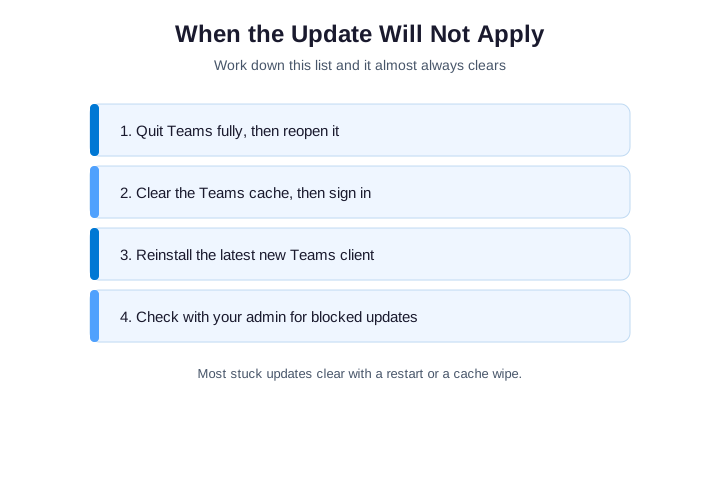
The big lever is clearing the cache. A bad cache stops the new build from loading, and wiping it forces a clean start. Quit Teams completely first, because an open process locks the files. The commands below close the new Teams and clear its cache on Windows.
# Close the new Teams, then clear its cache (Windows PowerShell)
Get-Process ms-teams -ErrorAction SilentlyContinue | Stop-Process -Force
Remove-Item "$env:LOCALAPPDATA\Packages\MSTeams_8wekyb3d8bbwe\LocalCache\*" `
  -Recurse -Force -ErrorAction SilentlyContinue
If clearing the cache does not help, reinstall the client. Remove the new Teams, download it fresh from Microsoft, and sign back in. A clean install almost always lands on the latest version straight away. Two other culprits are worth a look too: very low disk space, and an antivirus or firewall blocking the update servers.
| Update symptom | Most likely fix |
|---|---|
| Check for updates does nothing | You are on classic Teams; switch to new Teams |
| Update downloads then loops | Quit fully and clear the cache |
| “Update failed” error | Reinstall the new Teams client |
| Stuck behind the company network | Ask IT to allow the update endpoints |
| An old version is pinned | An update policy is holding it back |
When even a reinstall fails, the block is usually on the company side. A proxy may stop the update traffic, or a policy may pin an older build on purpose. So if nothing on your machine works, the next section is where the real answer lives.
📂 Where the Teams cache lives
It helps to know where Teams keeps its cache, because the new and classic clients differ. The new Teams stores its data under a packaged app folder, while classic used a simple Teams folder in your roaming profile. Clearing the right one is what makes the fix work.
| Client | Cache location (Windows) |
|---|---|
| New Teams | %LocalAppData%\Packages\MSTeams_8wekyb3d8bbwe |
| Classic Teams | %AppData%\Microsoft\Teams |
| Either, quick reset | Sign out, quit, then reopen |
Clearing the cache never deletes your messages or files. Everything lives in the cloud, so the cache only holds temporary local data. As a result, wiping it is safe and simply forces Teams to rebuild a clean copy. That is why it is one of the most reliable fixes for a stubborn update.
🏢 How admins control Microsoft Teams updates
In a managed company, IT decides how Teams updates. Admins use a Teams update management policy to set the pace, show or hide update prompts, and steer the new Teams rollout. So if a user cannot update, the answer often sits in a policy rather than on their machine. PowerShell sets it cleanly across many users at once.
# Control Teams updates for a policy (Teams PowerShell)
Set-CsTeamsUpdateManagementPolicy -Identity "Global" `
  -AllowManagedUpdates $true `
  -UseNewTeamsClient "MicrosoftChoice"
Policies also let you stage a rollout in rings. You can offer the new Teams to a pilot group first, watch for issues, then open it to everyone. Because the change is centrally managed, you avoid a hundred separate support calls. That control is exactly why update policies exist.
From the Teams admin center, you can also watch update status across the fleet. The Teams apps and devices views show which clients are current and which lag behind. So instead of guessing, you target the machines that actually need attention. That visibility turns a vague worry into a short task list.
🚀 Deploy the new Teams across your organization
For a full rollout, admins push the new Teams to every device. The Teams bootstrapper installs and provisions the client without a user clicking anything. You can run it by hand on a single machine, or deliver it through Intune to the whole fleet. The command below installs and then confirms it.
# Provision the new Teams on a device, then confirm it
.\teamsbootstrapper.exe -p
Get-AppxPackage MSTeams | Select Name, Version
Pair the deployment with a short note to users. Tell them the icon may change and point them at one quick guide, so the switch feels planned rather than sprung. Because the new client keeps their data, the transition is smooth when it is communicated. A little warning turns a forced update into a non-event.
🔌 Update Teams behind a proxy or firewall
On a corporate network, the most overlooked cause of a stuck update is the firewall. Teams pulls new builds from Microsoft’s content delivery endpoints, and if a proxy blocks them, the client simply never sees an update. It fails quietly, with no error, so the machine looks fine while it quietly falls behind.
The fix is to allow the right traffic. Microsoft publishes the Office 365 URLs and IP ranges, including the Teams and update endpoints, so your network team can whitelist them on the proxy. Once that traffic is allowed, clients across the whole site start updating again without anyone touching a single desktop.
There is a quick way to confirm the firewall is the culprit. Open the web app from the same network: if teams.microsoft.com works but the desktop will not update, the block sits on the update endpoints specifically. That one test saves hours of poking at individual machines that were never the problem.
📚 More for IT Admins
🔍 Updates are one small piece of a healthy tenant
An updated client helps, but real safety lives in your settings. Our review checks 50 of them across your Microsoft 365 in minutes.
❓ How to Update Microsoft Teams: Frequently Asked Questions
On desktop, click the three dots next to your profile picture, choose Settings and more, then Check for updates. Teams downloads and applies the newest build in the background. On a phone, update Teams through the App Store or Play Store instead.
The usual causes are the retired classic Teams, a corrupt cache, or a company update policy. Switch to the new Teams, fully quit and clear the cache, or ask your IT team whether a policy is holding an older build in place.
Click the three dots beside your profile picture, hover over About, and choose Version. Teams shows the build number and date, which is exactly what support asks for when you open a ticket.
Yes. The desktop app checks for updates on its own several times a day and installs them quietly in the background, so most people stay current just by restarting Teams now and then.
Open the App Store on iPhone or the Play Store on Android, find Teams under available updates, and tap update. Turning on automatic app updates keeps mobile Teams current with no effort.
🏢 Admin FAQ: managing Teams updates
Yes. Classic Teams is retired and no longer receives updates, while the new client is faster and gets every new feature. Switch with the “Try the new Teams” toggle, and your chats and settings carry over.
Open Settings and more, click Check for updates, then click the refresh banner when it appears. If nothing is found, clear the cache or use teams.microsoft.com as an instant fallback for an urgent call.
Yes. Admins use a Teams update management policy in PowerShell or the Teams admin center to set the pace, show or hide prompts, and stage the new Teams rollout in rings across the organization.