

Teams meeting recording looks simple until you need to find one, share it with a client, or explain to an auditor where six months of recordings actually live. Most people know the Record button; far fewer know where the file lands, who can reach it, or when it disappears. That gap is where recordings get lost or, worse, leaked.
This guide covers both sides. Wintive runs Microsoft 365 for 60+ tenants, therefore we explain the everyday how-to and the admin layer: where each recording is stored, who can record, how sharing works inside and outside the company, and how to govern it all. Moreover, every section answers a real question, so you can find a recording today and govern recordings for good.
🛡️ Free: M365 Audit Checklist
19-page PDF with 50 hands-on checks across Entra ID, Exchange Online, SharePoint, Teams and Intune. Run it before you govern recordings, so you start from a clean tenant. PowerShell commands included. Built from 60+ real tenant audits at Wintive.
📹 What Teams meeting recording is
Quick answer. A Teams meeting recording captures the audio, video and shared screen of a meeting, plus an optional transcript. Channel meetings save to the channel’s SharePoint site; all other meetings save to the recorder’s OneDrive. Anyone with the right policy can start a recording, attendees get access automatically, and recordings can be set to auto-expire. You manage it all from the Teams admin center and PowerShell.
Recording is built into Teams, not a bolt-on, so it uses the same OneDrive and SharePoint storage as the rest of Microsoft 365. Therefore a recording is just a video file with permissions, retention and sharing like any document. Consequently the skills you already have for files apply directly to recordings. That is the mental model that makes the rest of this guide click. Moreover, it means a Teams meeting recording is searchable, shareable and governable from day one, with no separate system to learn.
There is a practical reason this matters for storage and cost. Specifically, video is large and a busy team can generate gigabytes of recordings a month, so knowing what each meeting captures lets you keep the video only when it earns its space. Therefore many routine meetings need a transcript, not a full recording. As a result, you capture the knowledge without paying to store hours of unwatched video.
Recording, transcript and recap
It helps to separate three things people lump together. Specifically, the recording is the video file, the transcript is the text of what was said, and the AI recap is the summary, which we cover in our Teams AI note taker guide. Therefore you can have a transcript without a recap, or both alongside the video. As a result, you choose how much to capture per meeting rather than getting all or nothing.
Knowing this model up front also prevents the panic call. Specifically, when someone says a recording has disappeared, the answer is almost always that they are looking in the wrong place, not that the file is gone. Therefore a quick rule about meeting type and storage saves your help desk a recurring ticket. As a result, staff find their own recordings instead of escalating every time.
📂 Where Teams meeting recordings are stored
The most common question is also the one people get wrong: where does the file go? The answer depends entirely on the meeting type, as the matrix below shows. So once you know the meeting type, you know exactly where to look.
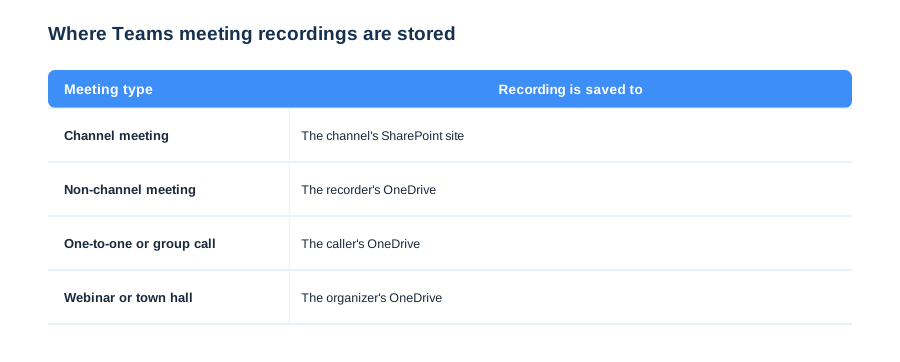
The split is logical once you see it. Specifically, a channel meeting belongs to the team, so its recording lands in that channel’s SharePoint document library, while every other meeting belongs to the person who hit record, so it lands in their OneDrive. Therefore a recording is never truly lost; it is in a predictable place. As a result, finding one is a matter of knowing the rule, not hunting through Teams.
Storage also has a quota dimension worth planning. Specifically, recordings count against the recorder’s OneDrive quota, so a few power users can fill their storage with video and start hitting limits. Therefore auto-expiration and moving key files to shared libraries keep personal storage healthy. As a result, a Teams meeting recording never quietly blocks someone from saving their actual work.
Why OneDrive storage matters
Storing in OneDrive has a consequence worth planning for. Specifically, if the recorder leaves the company and their OneDrive is deleted, the recording goes with it unless you act first. Therefore important recordings should be moved to a shared library, an angle that ties into the same recovery thinking as our Teams security guide. As a result, a key recording does not vanish with an offboarding.
There is a second storage control on the same policy worth setting. Specifically, you can keep recordings in your own region for data-residency reasons, which matters for regulated or international businesses. Therefore the recording policy is where both who-can-record and where-it-lives are decided together. As a result, one policy pass settles permission and compliance in a single place.
🔐 Who can record, and the policy behind it
Recording is governed by meeting policy, so who can record is an admin decision, not a free-for-all. By default many tenants let anyone record, which is rarely what a business wants. Therefore we scope recording to organisers and presenters, and we set how recordings are stored, from the Teams admin center or PowerShell.
# Control who can record and how (Teams PowerShell)
Set-CsTeamsMeetingPolicy -Identity Global `
    -AllowCloudRecording $true `
    -RecordingStorageMode "OneDriveForBusiness" `
    -AllowRecordingStorageOutsideRegion $false
Practice beats policy text here. Specifically, we ask organisers to announce recording at the top of external calls, not just rely on the banner, so consent is explicit and friendly. Therefore the recording starts on a basis nobody can dispute later. As a result, a Teams meeting recording stays useful as evidence rather than becoming a liability in a dispute.
Storage mode is worth a deliberate choice, not a default. Specifically, keeping recordings in OneDrive and SharePoint, rather than the legacy Stream classic, means they inherit your existing file governance, search and retention. Therefore the modern storage mode is the one we standardise on. As a result, a Teams meeting recording behaves like every other governed file from the moment it is created.
Consent and the law
Recording people is sensitive and, in many places, regulated. Specifically, Teams shows a recording notification, but you still owe staff and guests a clear policy on when meetings are recorded. Therefore we document consent and keep it proportionate, especially for external or customer calls. As a result, recording stays a trust-building tool rather than a compliance risk.
It also helps to know the recording is not buried in some separate app. Specifically, the link sits in the same conversation as the meeting, so the place you talked about the meeting is the place you find its recording. Therefore there is no separate library to learn for everyday access. As a result, finding a recording is muscle memory within a week of turning recording on.
🔎 How to find and download a Teams meeting recording
Finding a Teams meeting recording is quick once you know the path. The recording link appears right in the meeting chat or channel conversation, and from there you open it, then download or share. The four steps below are the whole routine, and they work the same on desktop and web.
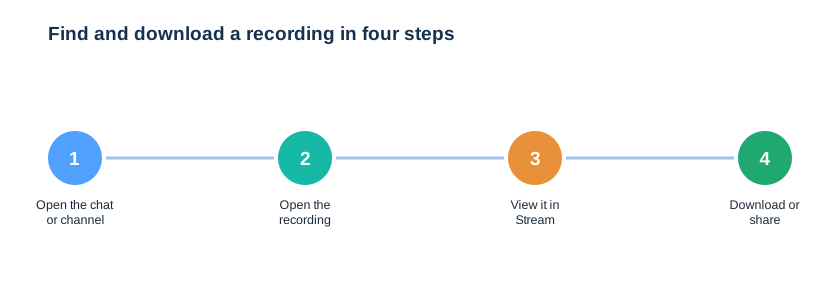
Stream gives the link more power than a raw file. Specifically, opening a recording in Stream lets a viewer scrub by transcript, jump to a chapter and read along, none of which a downloaded MP4 offers. Therefore we point people to the link first and reserve downloads for archiving. As a result, most viewers get a richer experience and you keep fewer loose copies.
Download a Teams meeting recording to archive
Sometimes you need the file itself, not just a link. Specifically, downloading gives you an MP4 you can archive, edit or send outside the platform, subject to your policy. Therefore a board recording can be filed in a governed library rather than left in a personal OneDrive. As a result, the recordings that matter end up somewhere deliberate, not scattered.
Downloading deserves one caution before we move on. Specifically, once a recording is downloaded as a file it leaves the governed platform, so retention, expiry and audit no longer apply to that copy. Therefore we keep downloads deliberate and rare, preferring shared links inside the tenant. As a result, a sensitive Teams meeting recording does not multiply into uncontrolled copies on local drives.
One more finding tip saves frustration. Specifically, if a recording link is missing for an attendee, it is almost always a permissions gap on the underlying file, not a Teams bug, so checking the file in OneDrive or SharePoint resolves it. Therefore you troubleshoot a recording the same way you troubleshoot any shared document. As a result, access problems are quick to diagnose and fix.
🔗 Sharing a recording internally and externally
Sharing is where recordings most often leak, so it deserves care. Internally, meeting attendees usually get access automatically; externally, you must share a link deliberately and your sharing policy decides whether that is even allowed. The comparison below shows the difference at a glance.
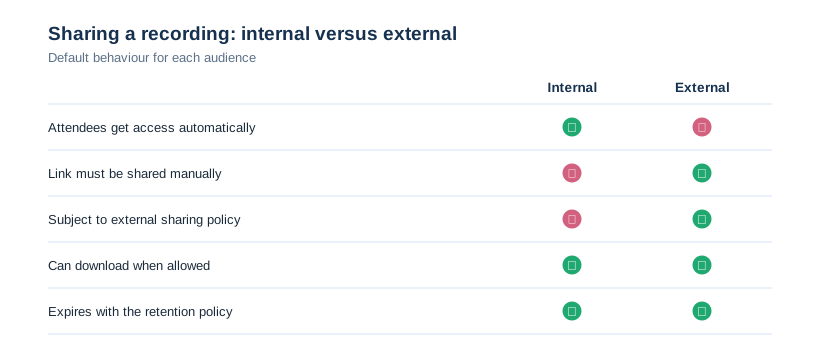
External sharing of a recording follows the same controls as any SharePoint or OneDrive file. Therefore if your tenant blocks external sharing, a recording link will not work for a guest until you allow it for that file. Consequently governance is consistent across documents and recordings, which is exactly what you want. The PowerShell below checks the org-wide sharing posture.
# Check the tenant external sharing posture (SharePoint Online Shell)
Get-SPOTenant | Select-Object SharingCapability,
    OneDriveSharingCapability, RequireAnonymousLinksExpireInDays
The sharing rule has a simple upside once it is set. Specifically, because recordings follow your existing file-sharing policy, you do not need a separate process for video, and your guardrails apply automatically. Therefore the work you have already done on document sharing protects recordings too. As a result, governance stays consistent instead of splintering per content type.
📊 Why businesses record meetings
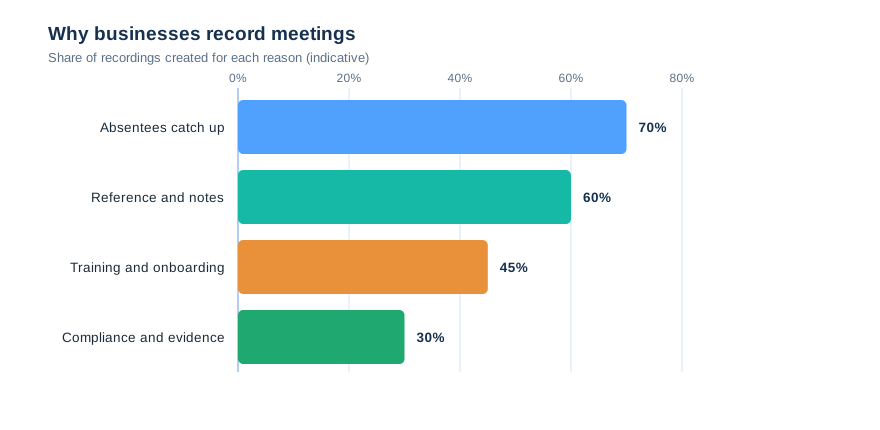
Recording is not just a convenience; it has real business uses, and knowing them helps you set sensible policy. The chart shows why teams record, from letting absentees catch up to keeping evidence for compliance. So you can match your retention and access rules to how recordings are actually used.
💡 Wintive insight
On most tenants we audit, recordings pile up in personal OneDrives forever, with no expiry and no owner once people leave. Therefore we set an auto-expiration default and move business-critical recordings to governed libraries. As a result, a Teams meeting recording is either deliberately kept or automatically cleaned up, instead of becoming a silent, growing liability nobody manages.
Reasons also shape who should have access. Specifically, a training recording is for the whole company while a sensitive client call is for a handful of people, so access should follow purpose. Therefore we set sharing per recording rather than treating them all the same. As a result, the right people reach a recording and the wrong ones never do.
Match policy to the use
Different uses need different rules, so one policy rarely fits all. Specifically, a training library may keep recordings for a year, while routine stand-ups should expire in weeks. Therefore we set retention by purpose rather than a blanket number. As a result, you keep what matters and clear the noise that just consumes storage.
Understanding the use changes how you keep recordings. Specifically, a training session is an asset worth a long retention, while a daily stand-up is noise that should clear itself quickly. Therefore mapping retention to purpose turns a storage problem into a deliberate policy. As a result, the recordings people actually rewatch stay available and the rest stop piling up.
Use also tells you what to capture in the first place. Specifically, a meeting kept only so absentees can catch up may need just a transcript, while a compliance call needs the full video and audio. Therefore matching the capture to the reason avoids storing more than you need. As a result, the recording estate stays proportionate to its actual value.
⏳ Retention and auto-expiration
Left alone, recordings accumulate forever and quietly consume storage you pay for. Therefore Teams can auto-expire recordings after a set number of days, and Microsoft 365 retention policies can keep or purge them on a schedule. The table below shows the options and the defaults we apply.
| Mechanism | What it does | Wintive default |
|---|---|---|
| Auto-expiration | Deletes a recording after N days | 60 to 120 days |
| Retention policy | Keeps or purges on a schedule | By library purpose |
| Manual archive | Move key files to a library | For board / legal |
| Recycle Bin | Holds deleted recordings 93 days | Safety net |
Microsoft documents the storage and expiry behaviour in its meeting recording guide, and the command below sets a tenant-wide default. Therefore every new recording inherits an expiry instead of living forever, while a retention policy still overrides it where needed. As a result, routine storage shrinks on its own.
# Set the default recording auto-expiration (Teams PowerShell)
Set-CsTeamsMeetingPolicy -Identity Global `
    -NewMeetingRecordingExpirationDays 90
Expiry is not deletion of evidence
Auto-expiration worries compliance teams until they understand it. Specifically, an expired recording goes to the Recycle Bin and a retention policy always overrides expiry, so anything under legal hold is safe. Therefore you can clean up routine recordings without risking the ones that matter. As a result, storage stays lean and compliance stays intact.
Compliance teams sometimes fear auto-expiration, so it is worth being precise. Specifically, expiry only ever moves a routine recording to the Recycle Bin, and any explicit retention or legal hold always wins, so nothing under obligation is lost. Therefore you can be aggressive about clearing clutter without touching protected content. As a result, a Teams meeting recording estate stays both lean and defensible.
📝 Transcription, captions and Stream
A recording is more useful with its words attached. Therefore Teams can generate a transcript and live captions alongside the video, and recordings play in Stream, which adds search, chapters and noise suppression. Consequently you can jump to the moment someone said a thing rather than scrubbing the whole video.
Captions matter beyond convenience, too. Specifically, live captions and a transcript make a meeting accessible to people who are deaf or hard of hearing, and to anyone joining in a second language. Therefore enabling them is an inclusion decision as much as a productivity one. As a result, a recording serves the whole team, not only those who can sit and watch the video.
Make every Teams meeting recording searchable
Transcripts turn a video into searchable text, which changes how people use recordings. Specifically, a transcript lets you find a decision in a two-hour meeting in seconds, and it makes the content accessible to everyone. Therefore we enable transcription by default, with consent. As a result, recordings become a knowledge base rather than a pile of unwatched video.
Playback in Stream is more than a player, which surprises people. Specifically, Stream adds search across the transcript, chapters, speaker detection and noise suppression, so a recording becomes navigable rather than a flat video. Therefore viewers jump to the part they need instead of scrubbing. As a result, recordings get watched and used, which is the only way they ever pay back the storage they cost.
🔧 The Wintive Teams meeting recording baseline
After enough tenants, the right settings stop being a debate. So we apply the same Teams meeting recording baseline everywhere, then adjust per business. The card below is that baseline, and it keeps recordings useful without letting them become a liability.
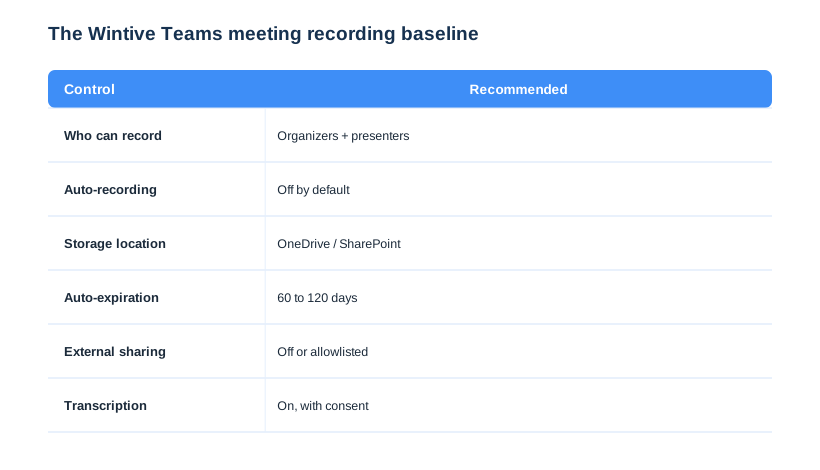
Two settings on this card do most of the work. First, scoping who can record to organisers and presenters stops careless or covert recording. Second, an auto-expiration default keeps storage and risk under control without anyone remembering to tidy up. We tune the rest per tenant, but these defaults make recording safe on day one, and they sit inside the wider Teams security baseline.
The baseline only works if it is reviewed, not set once. Specifically, new staff, new external partners and new meeting habits steadily erode any recording policy, so we re-check it alongside the wider security review. Therefore a Teams meeting recording estate that was tidy in spring is still tidy by year-end. As a result, recordings remain an asset under control rather than a slowly growing risk.
🚨 Common Teams meeting recording mistakes
Each of these mistakes is cheap to fix and expensive to ignore. Specifically, they are all configuration, so closing them costs a short admin session rather than any new spend. Therefore an hour of policy work removes most of the recording risk in a tenant. As a result, the fix is almost always a setting, not a purchase.
Letting anyone record anything
The costliest mistake is leaving recording open to everyone. Therefore scope it to organisers and presenters, because covert or careless recordings create real legal exposure. As a result, recording stays intentional rather than a surprise on someone’s OneDrive.
Ownership is the quiet half of this mistake. Specifically, a recording in a departed employee’s OneDrive has no clear owner, so nobody is responsible for keeping or deleting it. Therefore we assign business-critical recordings to a team library with a named owner. As a result, every important Teams meeting recording has someone accountable for it.
No expiry, no owner
The second mistake is never expiring recordings, so they pile up in personal OneDrives. Consequently storage grows and recordings vanish when staff leave. So set an auto-expiration default and move key files to governed libraries. As a result, the estate stays clean and nothing important is lost to an offboarding.
External requests feel urgent, which is exactly when mistakes happen. Specifically, a salesperson under pressure will share a recording link fast unless the policy quietly stops an unsafe share. Therefore the guardrail has to live in configuration, not in good intentions. As a result, the safe choice is also the default one, even on a busy day.
Sharing externally with no controls
The third mistake is treating a recording link as harmless. Specifically, a recording shared externally with no policy can leak a sensitive discussion to anyone. Therefore govern external sharing exactly as you would any file. As a result, a client never receives a recording they were never meant to see.
Pulling it together, a Teams meeting recording is simply a governed file: it lives in a predictable place, follows your sharing and retention rules, and stays useful when you can find and search it. Therefore the work is not learning a new system but applying the file discipline you already have. As a result, recordings become a dependable asset rather than a scattered, growing risk.
📚 More for Growing Businesses
🔍 Want your Teams tenant checked first?
The M365 Instant Audit scans your tenant in under 10 minutes: license waste, plan right-sizing, MFA coverage, security posture and compliance gaps. As a result, you get a full PDF report with prioritized fixes, delivered instantly.
❓ Teams Meeting Recording: Frequently Asked Questions
It depends on the meeting type. A channel meeting saves its recording to the channel’s SharePoint document library, while every other meeting, including one-to-one calls, saves to the recorder’s OneDrive. The link also appears in the meeting chat or channel for quick access.
Open the meeting chat or channel where the meeting happened, select the recording, and it opens in Stream. From there you can play it, or use the download option to save the MP4 for archive or offline use, subject to your tenant policy.
It is controlled by meeting policy. By default many tenants allow anyone to record, but it is better to scope recording to organisers and presenters with Set-CsTeamsMeetingPolicy. Teams also shows a recording notification to everyone in the meeting.
Open the recording in OneDrive or SharePoint and share it like any file, then send the link. External sharing only works if your tenant’s sharing policy allows it for that file, so a recording follows the same governance as any document.
They can. Teams can auto-expire recordings after a set number of days, and Microsoft 365 retention policies can keep or purge them on a schedule. An expired recording goes to the Recycle Bin, and a retention policy always overrides expiry, so anything held for compliance is safe.