

A microsoft teams ai note taker writes up your meeting for you: a summary, the decisions, and a list of who owns what. However, search the term and you mostly find third-party apps selling their own bots. So it is hard to tell what Teams already does natively, and what you actually need to pay for.
This guide fixes that, for anyone who already knows how to use Microsoft Teams. Wintive runs Microsoft 365 for 60+ tenants, therefore we compare the native options against third-party bots on the things that matter: licensing, setup, and above all privacy. Moreover, every section answers a real question, from “does Teams have an AI note taker” to “how do I enable AI notes”.
🛡️ Free: M365 Audit Checklist
19-page PDF with 50 hands-on checks across Entra ID, Exchange Online, SharePoint, Teams and Intune. Run it before you turn on meeting AI, so you start from a clean tenant. PowerShell commands included. Built from 60+ real tenant audits at Wintive.
🤖 What a microsoft teams ai note taker actually is
Quick answer. A microsoft teams ai note taker turns a meeting transcript into a summary, decisions and action items. Teams has this built in: AI notes (Intelligent Recap) need Teams Premium, while a full Copilot meeting recap needs a Microsoft 365 Copilot license. Third-party bots can do it too, but they pull your meeting data out of your tenant, so most businesses should start native.
Notes, transcript and recap are not the same thing
Three words get mixed up. A transcript is the raw text of who said what. A recording is the video. The recap is the smart layer on top: a summary, chapters, and suggested tasks. So when people ask for an AI note taker, they really want the recap, not just the transcript. Getting the words right also helps you buy the right thing. Therefore, when a vendor says note taker, ask whether they mean transcript, recap or live notes.
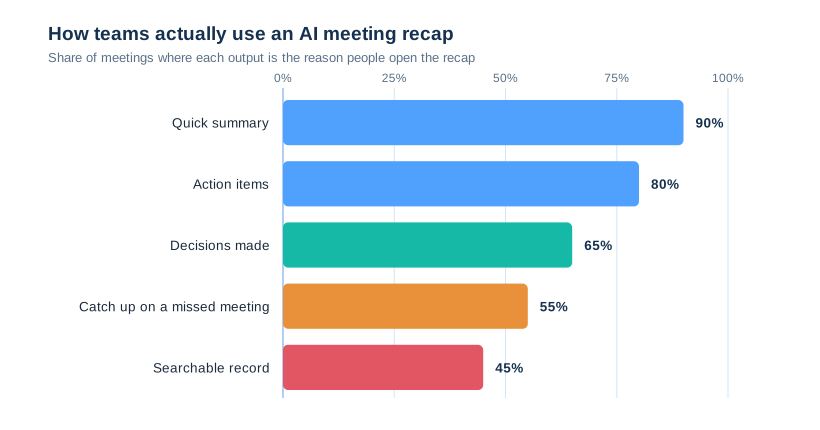
Notice why people open a recap. First, they want the summary. Next, they want the action items so nothing slips. Consequently, accuracy on those two outputs matters more than any flashy feature. Search comes later. People rarely re-read a recap word for word; instead, they jump to the part they need. Therefore a good note taker is judged on its summary and its task list, not on length.
🧠 The native options inside Teams
Microsoft ships three native ways to capture a meeting with AI. Each one sits in a different license, so it helps to name them clearly before you buy anything. Name them once and the rest of this guide gets simple. Specifically, AI notes, Copilot recap and Facilitator map cleanly onto Teams Premium, Copilot and Copilot again.
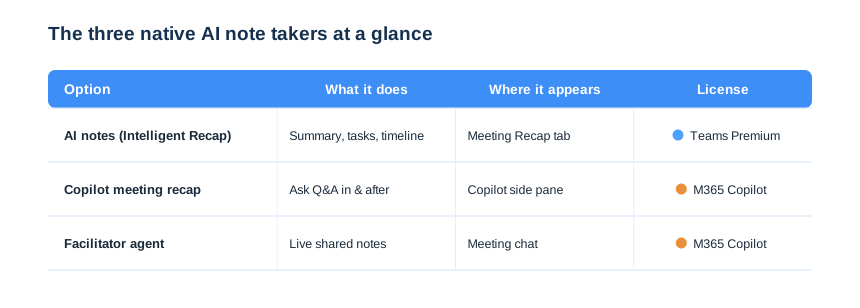
Read the table top to bottom and the choice gets simple. AI notes cover most teams on Teams Premium, while Copilot and Facilitator add the live, conversational layer for the roles that need it. So you can match each option to a job before you read the detail below.
Live transcription and recording: the base layer
Before any AI, Teams can transcribe and record. The transcript is the text of who said what; the recording is the video stored in OneDrive or SharePoint. Crucially, the AI recap is built from that transcript, so transcription has to be on for notes to exist. Therefore the base layer is the real foundation, even though it is not the headline feature.
Many plans include transcription and recording at no extra cost. So a tenant with no add-on still gets a searchable transcript and a stored recording. However, it does not get the summary, the chapters or the action items, which is exactly the gap the AI layer fills. For some small teams, that floor is genuinely enough. So we always price the add-on against the cost of the manual minute-taking it removes.
AI notes and Intelligent Recap
AI notes, part of Intelligent Recap, generate a written summary, a speaker timeline and suggested follow-ups. Microsoft documents the feature in its Intelligent Recap guide. It appears on the meeting Recap tab once the meeting ends. The recap also links each point back to the moment it was said. As a result, you can jump to the exact clip instead of scrubbing the whole recording. However, it needs Teams Premium on the organiser license.
Copilot meeting recap
Copilot goes further. During the meeting you can ask it what you missed, and afterwards you can query the whole conversation in plain language. Therefore Copilot is the most powerful microsoft teams ai note taker, but it needs a Microsoft 365 Copilot license, which is a separate paid add-on. Copilot also answers questions the recap never anticipated. For example, you can ask what the client objected to, and it pulls the answer from the transcript.
Facilitator, the Copilot agent
Facilitator is a newer agent that takes collaborative notes live, in the meeting chat. As a result, the notes build up as people talk, rather than only at the end. It also rides on Copilot licensing. Think of the three as a ladder. Transcription is the floor, AI notes are the middle, and Copilot plus Facilitator are the top. As a result, you can match the rung to the role, rather than buying the top tier for everyone. A quick word on naming: Microsoft keeps renaming these features, so do not chase the label. Instead, decide what you need — a summary, an in-meeting assistant, or live shared notes — and the right tier follows.
🧾 Which license unlocks the microsoft teams ai note taker
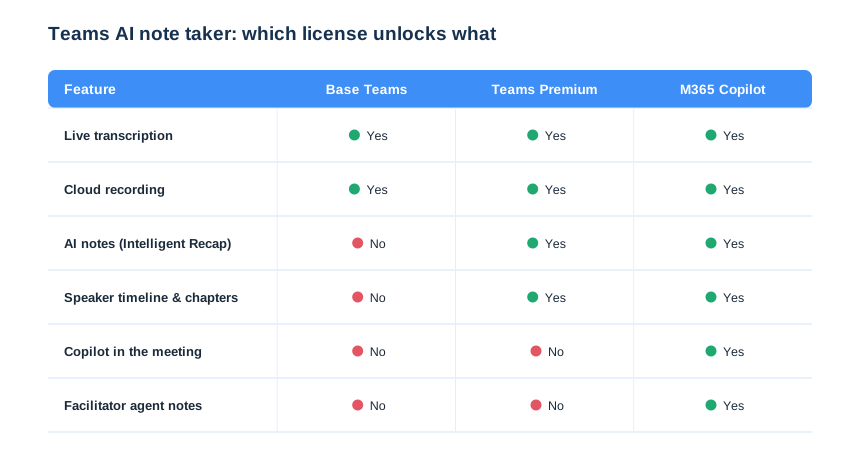
Licensing is where most teams get stuck. Every plan records and transcribes, yet the AI layer is gated. So the matrix below settles it before a single purchase. Read it top to bottom by feature, then across by plan. Consequently, you can point at the exact row a user needs and stop the guesswork. The matrix also kills double-buying. For example, a Copilot user does not need Teams Premium on top, because Copilot already includes the recap. Therefore the chart is a budget tool as much as a feature map.
Teams Premium vs Microsoft 365 Copilot
Teams Premium unlocks AI notes and Intelligent Recap at a modest per-user price. Microsoft 365 Copilot costs more, but it adds the in-meeting assistant and works across Word, Outlook and the rest. For a deeper breakdown, see our Teams Premium features guide. In practice, we start most clients on Teams Premium and add Copilot only for the roles that live in meetings. That split keeps the bill sane. Notably, frontline staff rarely need the in-meeting assistant, while managers and sales almost always do.
Do not double-pay
Copilot already includes the Intelligent Recap experience. Therefore a user with Copilot does not also need Teams Premium for AI notes. So audit who has what before you renew, or you pay twice for the same recap. The reverse trap is real too. A user with only Teams Premium will not get the in-meeting Copilot chat, so do not promise it. In short, map the feature to the exact license before you set expectations.
What you get with no add-on
It helps to know the free floor. Without Teams Premium or Copilot, you still get live captions, a full transcript and a cloud recording. Moreover, you keep the classic collaborative meeting notes that people type by hand. So a no-add-on tenant is not blind; it simply works harder, because a human still writes the summary and chases the actions. That said, the manual route quietly burns senior time. Therefore the moment a team runs many meetings, the paid recap usually wins on cost alone.
⚙ How to enable Teams AI notes for your tenant
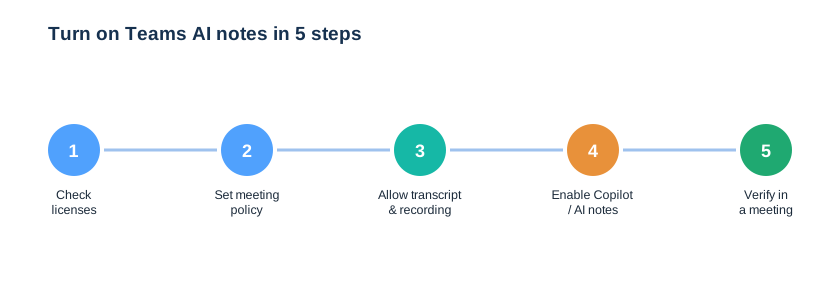
Enabling the AI note taker takes minutes, but it is an admin job, not a user toggle. First you confirm licenses, then you set a meeting policy that allows transcription, recording and Copilot. Skip the license check and the policy looks fine while users still see nothing. Therefore confirm both halves before you announce the feature. The five steps below map to the commands that follow.
Set the meeting policy in PowerShell
The admin center works, yet PowerShell scales the change across the whole tenant. First connect to Teams, then update the policy. Because the cmdlet is idempotent, re-running it does no harm. Apply it to a custom policy first, not just Global. As a result, the pilot group gets the change while everyone else waits.
# Allow transcription, recording and Copilot in the meeting policy
# Connect-MicrosoftTeams

Set-CsTeamsMeetingPolicy -Identity Global `
  -AllowTranscription $true `
  -AllowCloudRecording $true `
  -Copilot "EnabledWithTranscript"

# Confirm the settings landed
Get-CsTeamsMeetingPolicy -Identity Global |
  Select AllowTranscription, AllowCloudRecording, Copilot
Check who actually has the license
Policy is half the job; the license is the other half. The script below lists users with Copilot or Teams Premium, so you target the rollout instead of guessing.
# Find who holds Copilot / Teams Premium (Microsoft Graph PowerShell)
# Connect-MgGraph -Scopes "User.Read.All","Organization.Read.All"

$sku = Get-MgSubscribedSku
Get-MgUser -All -Property DisplayName,UserPrincipalName,AssignedLicenses |
  Where-Object { $_.AssignedLicenses.SkuId -contains
    ($sku | Where SkuPartNumber -in "Microsoft_Teams_Premium","Microsoft_365_Copilot").SkuId } |
  Select DisplayName, UserPrincipalName
Run the policy change first, then assign licenses in waves. Consequently, a pilot group gets the AI note taker before the whole company does. Keep the pilot small and visible. For example, pick one team that runs many meetings, and let them prove the value for a fortnight. Then the wider rollout sells itself.
Block uninvited meeting bots while you are here
One more switch belongs in the same change: blocking uninvited bots. Specifically, you stop anonymous and unmanaged apps from joining calls, so no external note taker sneaks in. As a result, the only AI in the room is the one you chose. The policy below tightens that boundary across the tenant.
# Stop anonymous joiners and untrusted external chat in meetings
# Connect-MicrosoftTeams

Set-CsTeamsMeetingPolicy -Identity Global `
  -AllowAnonymousUsersToJoinMeeting $false `
  -AllowExternalNonTrustedMeetingChat $false

# Restrict third-party meeting apps tenant-wide (allow-list model)
Set-CsTeamsAppPermissionPolicy -Identity Global `
  -DefaultCatalogAppsType "BlockedAppList"
Pair the policy with a short approval process. Therefore, when a team genuinely needs an outside app, it goes through review instead of a silent install. In practice, that one habit stops most shadow note-takers before they start. It also protects your brand. Specifically, a client who sees an unknown bot in the call may question how seriously you take their data. So the native recap is the more professional look as well as the safer one. In short, the safe choice and the polished choice are the same choice here. Clients notice that discipline, and it builds the trust that keeps them with a managed provider.
🔐 Native AI notes vs a third-party bot: the privacy question
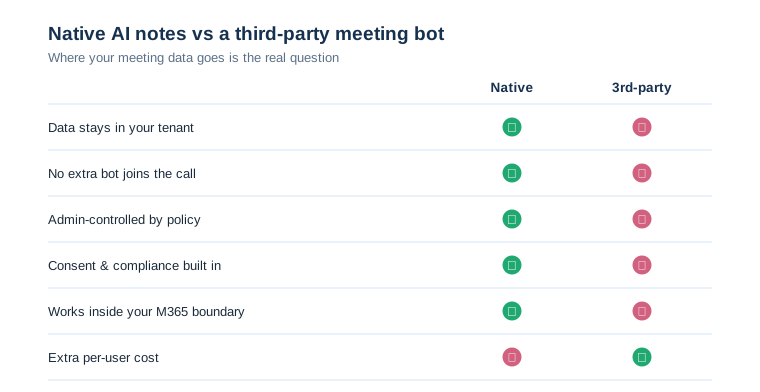
This is the section the tool vendors skip. A third-party note taker joins your meeting as a guest, then streams the audio to its own servers. So your confidential conversation leaves your tenant, often to a company you never vetted. Worse, the bot often keeps a copy after the call. Consequently, a single free trial can scatter client data across servers you do not control.
Where your meeting data goes
With native AI notes, the recap stays inside Microsoft 365. Therefore your retention labels, eDiscovery and data-residency rules still apply. With an outside bot, none of that is guaranteed, and the data may train someone else model. For regulated teams, that gap is the whole decision; our Teams HIPAA compliance guide covers the same boundary.
Data residency reinforces the point. Specifically, native content stays in the Microsoft 365 region you chose, while a third-party bot can store it anywhere it likes. Therefore the native recap is the simplest way to keep a clean compliance story. Moreover, your security team can already search, label and expire that content, so it fits the controls you run today.
Consent, recording law and uninvited bots
Recording carries legal weight. Many regions require consent, and Teams shows a banner for a reason. Meanwhile, uninvited bots are a real risk, so we block anonymous and external apps from joining meetings by default. As a result, no rogue note taker slips into a board call. Education matters as much as the setting. Specifically, we tell staff why an outside bot is risky and show them the native recap that replaces it. Consequently, people stop reaching for free tools on their own.
eDiscovery and retention for the recap
A recap is a record, so treat it like one. Because native notes and transcripts live in Microsoft 365, they fall under your retention labels and eDiscovery searches. Therefore a legal hold reaches them, and a retention rule expires them on schedule. The check below confirms a policy actually covers Teams meeting content.
# Confirm Teams meeting content is covered by retention / hold
# Connect-IPPSSession  (Security & Compliance PowerShell)

Get-RetentionCompliancePolicy -DistributionDetail |
  Where-Object { $_.TeamsChatLocation } |
  Select Name, Enabled, TeamsChatLocation

# eDiscovery cases that can search Teams content
Get-ComplianceCase | Select Name, Status
Decide the retention window before you scale, not after. Otherwise recaps pile up for years and widen your risk surface. So set a label, let policy enforce it, and review it with the rest of your governance.
📈 What an AI recap delivers, and where it still fails
An honest guide names the limits. The recap is excellent at summaries and action items, and it saves real time after every call. However, it is not perfect, so treat it as a strong draft, not gospel.
The genuine wins
First, nobody scrambles to take notes, so people actually pay attention. Second, action items are captured with an owner. Third, anyone who missed the call can catch up in two minutes. Overall, that is a meaningful productivity gain across a busy week. The effect compounds for managers. Because they sit in back-to-back calls, a reliable recap turns a lost afternoon into a five-minute review. As a result, the licence pays for itself fastest at the top of the org.
Where it pays off most
Some meetings benefit far more than others. Specifically, recurring project stand-ups, client calls and interviews gain the most, because the follow-up is structured and repeatable. Conversely, a quick one-to-one rarely needs a formal recap. So we point the licence at the meeting types that generate real follow-up, not at every calendar invite. Concretely, a sales team logs next steps in the CRM from the recap, while project leads paste action items straight into the plan. Support teams gain too. Specifically, they turn a call recap into a ticket summary in seconds, which keeps the record clean without extra typing.
The limits to manage
Accuracy drops on heavy accents, crosstalk and niche jargon. Occasionally the summary over-states a casual remark as a decision. Therefore a human still skims the recap before it becomes the record. In short, the AI drafts, a person approves. Audio quality is the quiet lever. A cheap room mic produces a messy transcript, and a messy transcript makes a weak recap. Therefore better microphones often improve the notes more than any setting does.
One more limit is cultural, not technical. Because the recap captures everything said, people sometimes self-censor on a recorded call. So we tell teams when notes are on, keep sensitive items off the record, and treat the recap as a working draft. As a result, the AI helps the meeting instead of chilling it.
📊 The Wintive baseline across 60+ tenants
Patterns repeat across our tenants. Most teams already pay for an AI note taker through Copilot or Teams Premium without realising it. So the cheapest win is usually switching on what you own. In practice, we find paid recap features dormant in most tenants we audit. So our first move is almost always an audit, not a purchase.
Wintive insight
Across 60+ Microsoft 365 tenants, the most expensive mistake with a microsoft teams ai note taker is not licensing, it is shadow note-taking. In several audits, staff had quietly added free third-party bots that streamed client calls to outside servers, outside any retention or eDiscovery control. Therefore our baseline blocks unmanaged meeting apps, turns on the native recap for the roles that need it, sets a clear recording-consent notice, and writes retention into policy. Critically, we review who has Copilot every quarter, because that single licence is where the budget quietly leaks.
We also standardise the rollout. Specifically, we template the meeting policy, the consent notice and the retention rule, so every tenant starts from a known-good baseline rather than a free-for-all. We also measure adoption, not just rollout. As a result, we can show a client that meetings end with clear actions, which is the outcome they actually pay for.
| What we set | Default we use | Why it matters |
|---|---|---|
| Meeting policy | Transcription + recap on | No recap without a transcript |
| Third-party meeting apps | Blocked unless approved | Keeps data in the tenant |
| Recording consent | Banner + written notice | Meets two-party consent law |
| Recap retention | Per compliance need | Recaps are records, not chatter |
🗓 A governance-first AI notes rollout
A clean rollout puts governance before features. Each phase has an owner and an exit test, so nothing goes wide before it is safe. The schedule below assumes about 100 seats.
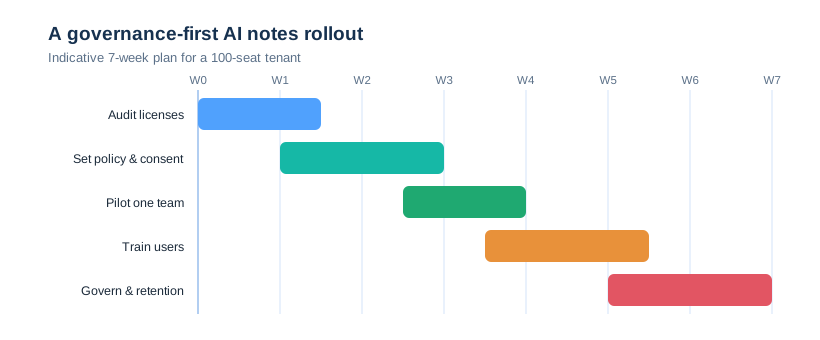
First you audit licenses and current bots. The bot audit alone often surprises clients. Specifically, we usually find two or three unmanaged note takers already running. Then you decide who truly needs the recap, role by role. As a result, the licence spend matches the meeting load instead of the headcount. The audit also sets the consent baseline. Notably, we standardise one recording notice across the tenant, so every meeting starts on the right legal footing. Second, you set the policy and the consent notice. Third, a pilot team proves the value. Then you train users on what the recap can and cannot do. Finally, you lock in retention and review. Because each phase gates the next, the rollout stays calm. Communication runs alongside every phase. Specifically, users hear what changes and why before it reaches them, so the recap feels like a help, not surveillance.
🚨 Common microsoft teams ai note taker mistakes
Paying twice for the same recap
Copilot already includes AI notes, so buying Teams Premium on top is wasted money. Therefore audit licenses before every renewal. A quick license report each quarter catches the overlap early. Consequently, the budget stays tied to who genuinely needs the recap.
Letting free bots into client calls
A free bot feels harmless until a client recording lands on an outside server. So block unmanaged meeting apps and offer the native recap instead. Make the safe path the easy path. Specifically, when the native recap is one click away, staff stop hunting for outside tools.
Treating the recap as the final record
The AI drafts well, yet it still misreads jargon and crosstalk. Consequently, a human should approve any recap that becomes an official decision log.
📚 More for Growing Businesses
🔍 Want your Teams meeting governance checked first?
The M365 Instant Audit scans your tenant in under 10 minutes: license waste, plan right-sizing, MFA coverage, security posture and compliance gaps. As a result, you get a full PDF report with prioritized fixes, delivered instantly.
❓ Microsoft Teams AI Note Taker: Frequently Asked Questions
Yes. Teams includes AI notes (Intelligent Recap) with Teams Premium, and a full meeting recap with Microsoft 365 Copilot. Both turn the transcript into a summary, decisions and action items inside your tenant.
AI notes and Intelligent Recap need Teams Premium. The in-meeting Copilot assistant and Facilitator need a Microsoft 365 Copilot license. Copilot already includes the recap, so you do not need both. Therefore audit who has each license before you renew, or you pay twice.
An admin allows transcription, recording and Copilot in the Teams meeting policy, then assigns the right license. In PowerShell, Set-CsTeamsMeetingPolicy turns it on across the tenant.
They carry real risk. A third-party bot streams your meeting to outside servers, beyond your retention and eDiscovery controls, and it often keeps a copy after the call. Therefore most businesses should use the native recap and block unmanaged meeting apps, then approve outside tools only by exception.
It is a strong draft. Summaries and action items are usually reliable, yet accuracy drops on accents and jargon. So a human should review any recap that becomes an official record. Better meeting audio, notably a decent room mic, improves the result more than any setting.
It needs a transcript, which comes from transcription or recording. So you allow transcription in the meeting policy; without it, the recap has nothing to summarise.