

If you want to add SharePoint to File Explorer, the good news is that it is easy once you pick the right method. The modern, supported way is to sync the library through OneDrive, which drops a normal-looking folder into Windows. The bad news is that older guides still push dead methods, so people end up frustrated. So this guide shows the method that works, the two that still have a place, and the one you should never touch.
We set this up for small businesses every week, so the steps below are the ones that actually hold. First you will sync a library the right way. Then we compare adding a shortcut, mapping a drive, and the old Open in Explorer trick. Finally you get the fixes for a greyed-out Sync button and the status icons you will see. By the end, your SharePoint files will sit in File Explorer like any other folder.
🛡️ Free: M365 Audit Checklist
19-page PDF with 50 hands-on checks covering Entra ID, Exchange Online, SharePoint, Teams, Intune, license waste, and audit logging. PowerShell commands included. Built from 60+ real tenant audits at Wintive.
🧭 How to add SharePoint to File Explorer
To add SharePoint to File Explorer, open the document library in a browser and click Sync, which uses the OneDrive app to mirror it into Windows. In short, the OneDrive sync method is the supported route, and “Add shortcut to OneDrive” is the lighter alternative. The old “Open in Explorer” needs Internet Explorer and is effectively dead, while a mapped network drive is fragile. So sync the library, and the folder appears under your work account.
There are really three live ways to do this, plus one legacy trick that no longer works. The chart below lines them up. Notice that two of them rely on the OneDrive app, which is exactly why it must be installed and signed in first.
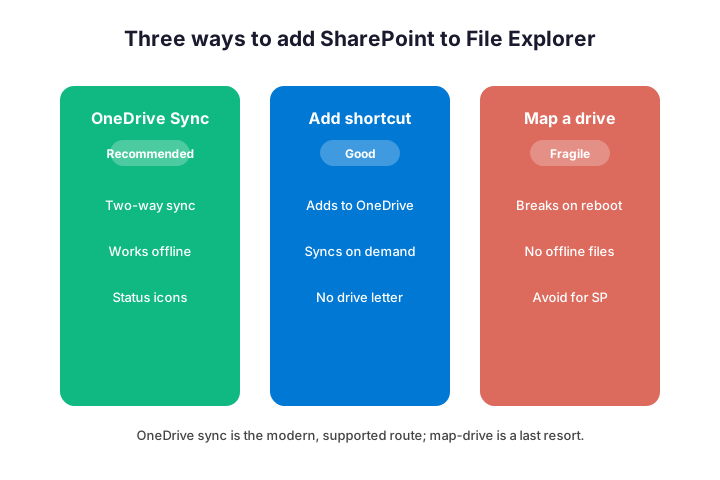
Throughout this guide, “the OneDrive app” means the sync client built into Windows. It is the engine behind both the Sync button and the Add shortcut option. So before any method, confirm a user is signed into OneDrive with their work account. Without it, the Sync button does nothing.
🔄 Method 1: the OneDrive sync route
This is the method we recommend for almost everyone. You open the SharePoint library in a browser, click the Sync button on the command bar, and OneDrive takes over. After a moment, the library shows up as a folder in File Explorer under your organisation name.
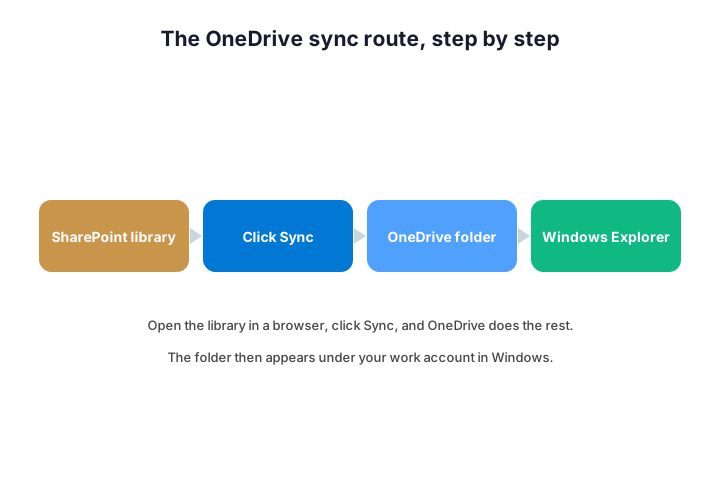
- Open the SharePoint site and go to the document library.
- Click “Sync” on the toolbar above the file list.
- Approve the prompt to open the OneDrive app.
- Wait for the folder to appear under your work account in File Explorer.
- Confirm the green tick, which means the files are ready offline.
The folder lands in a predictable place, which helps once you know it. Look in the left pane of File Explorer for your organisation name, not under your personal OneDrive. Inside it sits the library, with the site and library names in the path. So a synced library reads like “Contoso / Marketing – Documents”, which makes it easy to spot.
Files On-Demand keeps the whole thing light. By default, synced files show as online-only until you open them, so they do not all download at once. When you open one, it downloads and stays local until space runs low. So even a large library syncs in seconds and barely touches your disk at first.
If nothing happens when you click Sync, OneDrive is usually the culprit. The quick check below confirms the app is actually running before you troubleshoot anything else.
# Confirm the OneDrive sync app is running and signed in (run on the device)
Get-Process OneDrive -ErrorAction SilentlyContinue |
  Select Name, Id, StartTime
# No result means OneDrive is not running - start it before you click Sync.
📌 Method 2: Add shortcut to OneDrive
The newer option is “Add shortcut to OneDrive”, and it suits people who follow many shared sites. Instead of syncing a whole library to its own folder, it places the library inside your OneDrive. So it appears in File Explorer alongside your personal files, and it downloads on demand.
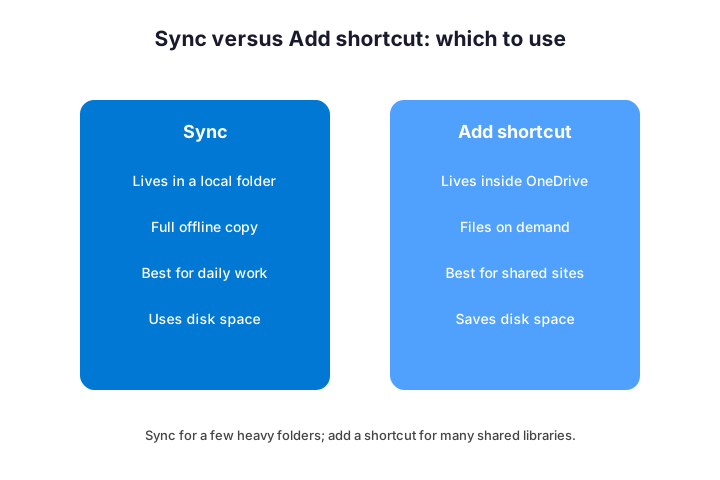
To use it, open the library or folder, then click “Add shortcut to OneDrive” rather than Sync. The folder then shows up under your OneDrive in Windows. Because it streams files on demand, it uses far less disk space, which is ideal when you belong to a dozen sites.
Removing a shortcut is just as clean, which matters when sites change. You right-click the shortcut in OneDrive and choose to remove it, and the cloud copy stays untouched. So you can follow a project site for a quarter, then drop it without losing anything. That tidiness is a real advantage over a synced folder you have to unlink.
There is one more reason admins prefer shortcuts at scale. A shortcut roams with the user across devices, since it lives in their OneDrive. So someone who signs in to a new laptop sees the same shared folders automatically. A synced library, by contrast, must be set up again on each machine.
🗺️ Method 3: mapping a network drive
You can map a SharePoint library to a drive letter, and some teams still ask for it. It gives you the familiar “S: drive” feeling that older line-of-business apps sometimes expect. So in a few narrow cases, it remains useful.
Be warned, though, that mapping SharePoint as a network drive is fragile. The mapping depends on a browser cookie, so it breaks after a reboot or a password change. Meanwhile it offers no offline files and no sync status. So we only map a drive when an old app truly demands a drive letter, and we sync everywhere else.
The mechanics explain the fragility. A mapped drive points at the library over WebDAV and leans on a sign-in token that expires. When that token lapses, the drive shows as disconnected until you re-authenticate in a browser. So even when it works, it nags users with re-logins. For a modern setup, that friction is exactly what OneDrive sync removes.
If you must map one anyway, the steps are short. You copy the library path, open “This PC”, choose Map network drive, and paste the address. So it takes a minute, and it will look like a normal drive at first. Just set the expectation that it may need a re-login after each restart, so nobody is surprised when it drops.
⚰️ The dead method: Open in Explorer
For years, the classic trick was “Open with Explorer” from the library ribbon. It opened the library straight in a File Explorer window, with no sync at all. So many old guides and habits still point to it.
That method is effectively dead, however, and you should stop using it. It relies on Internet Explorer, which Microsoft has retired, so it fails on modern Windows. Treat any guide that recommends it as out of date. The sync method below replaces it completely and works far better.
It helps to know why it lingered so long. For years it was the only way to add SharePoint to File Explorer, so a generation of admins learned it by heart. Then the browser it depended on reached end of life, and the trick went with it. So if a colleague swears by “Open in Explorer”, they are remembering a tool that no longer exists.
You may hear that Edge “IE mode” brings it back, but do not rely on that. IE mode is a compatibility shim for old internal sites, not a supported route for file access. So even where it appears to work, it is brittle and unsupported. Point anyone chasing it to the sync method instead, which is the modern answer Microsoft actually backs.
⚖️ Sync or Add shortcut: which to choose
Both live methods are solid, so the choice comes down to how you work. Sync gives you a full local copy, which is perfect for a few heavy folders you use all day. Add shortcut keeps files in the cloud until you need them, which is better when you follow many sites.
| Method | Offline copy | Disk use | Reliability |
|---|---|---|---|
| OneDrive Sync | Yes, full | Higher | Excellent |
| Add shortcut | On demand | Lower | Excellent |
| Map a network drive | No | None | Fragile |
| Open in Explorer (legacy) | No | None | Dead |
A simple rule keeps it clean. Sync the one or two libraries you live in, and add shortcuts for the rest. So you get offline speed where it matters and a tidy, low-disk setup everywhere else. Avoid syncing everything, since that fills the disk and slows the first sign-in.
Think about how you actually work before you decide. A finance person who lives in one folder all day benefits from a full synced copy. A manager who dips into ten project sites is better served by shortcuts. So match the method to the habit, and the setup feels effortless rather than heavy.
🛠️ Fixing a greyed-out or missing Sync button
The most common complaint is a Sync button that does nothing, or one that is greyed out. Almost always, the fix is on the OneDrive side rather than SharePoint. So work through the checks in order before you blame the site.
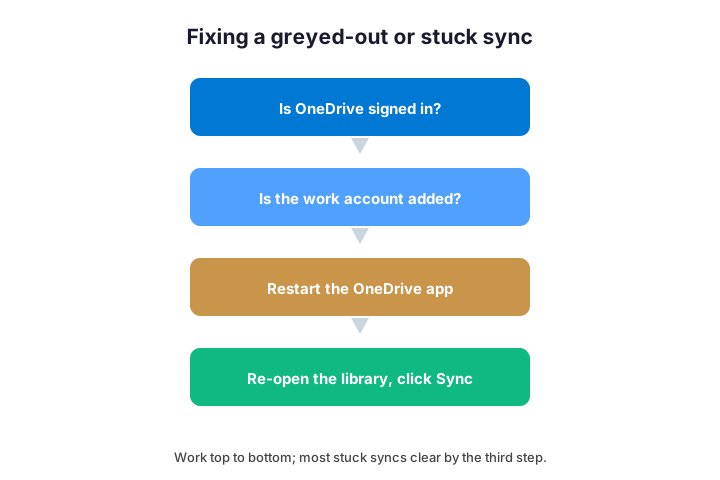
- Confirm the OneDrive app is installed, running, and signed in.
- Check the work or school account is added, not just a personal one.
- Make sure your admin has not blocked syncing for the device or site.
- Restart the OneDrive app, then re-open the library and click Sync.
- As a last step, reset OneDrive and sign in again.
Resetting OneDrive is the fix that clears most stubborn cases. It re-reads every setting and rebuilds the sync without deleting your files. So when a library half-syncs or an icon sticks, a reset usually sorts it. You run it from the Run box with the OneDrive reset command, then let the app start again.
If the button is missing entirely, an admin policy is the usual reason. Some tenants restrict which libraries can sync, or block unmanaged devices. So when a fix needs a policy change, that is a conversation with whoever runs your Microsoft 365.
One more check catches the rare case: the library itself. A site set to block downloads, or one with a broken permission, will refuse to sync however healthy OneDrive is. So if a single library fails while others work, look at that site. The fix then lives in SharePoint admin, not on the device.
🔍 Sync status icons and conflicts
Once a library is in File Explorer, small overlay icons tell you its state. Learning them saves a lot of confusion, because a blue cloud is not an error. So the table below decodes the ones you will see most.
| Status icon | What it means | What to do |
|---|---|---|
| Green tick | File is synced and stored locally | Nothing; it is ready offline |
| Blue cloud | Available online only, not downloaded | Open it once to pull it down |
| Spinning arrows | Sync in progress | Wait for it to finish |
| Red circle with cross | Sync error or conflict | Open OneDrive and resolve it |
| People icon | Item is shared with others | Check who has access |
Conflicts deserve a quick word too. If two people edit the same file offline, OneDrive keeps both copies and flags the clash. So you open OneDrive, pick the version to keep, and move on. Because conflicts are rare with normal use, this is reassurance rather than a daily chore.
Co-authoring avoids most conflicts in the first place. When people edit an Office file together online, their changes merge live, so there is nothing to clash. Conflicts mostly appear with non-Office files or true offline edits. So encourage editing in the apps, and the red error icon stays rare.
Watch the OneDrive activity centre when something looks off. The cloud icon in the system tray shows what is uploading, what is paused, and what errored. So before you panic about a file, click it and read the status. Often the answer is simply “still uploading”, not a real problem.
📊 Which method is most reliable
If you only remember one thing, make it this ranking. The sync and shortcut methods are both rock solid, since they run on the supported OneDrive engine. The mapped drive is fragile, and the legacy Explorer method is gone.
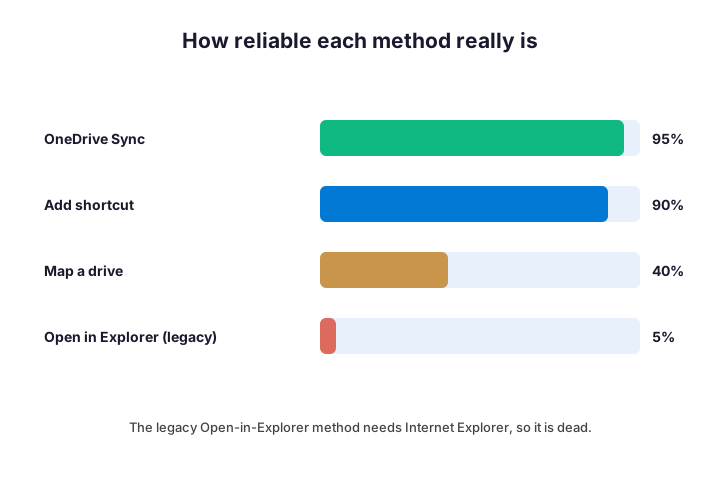
So default to sync or shortcut, and reach for a mapped drive only when an old app forces your hand. Microsoft documents the supported approach in its guide to syncing SharePoint files with OneDrive, which is worth a bookmark. Read it alongside this article, and you will never touch the dead method again.
Reliability also depends on keeping the app current. An outdated OneDrive client is the hidden cause behind many “it used to work” reports. So let it update itself, and most quirks never appear. A modern, signed-in OneDrive app is the single biggest factor in a sync that just works.
There is a deeper reason the supported routes win. Because Microsoft actively maintains the OneDrive engine, bugs get fixed and new Windows versions stay compatible. The mapped drive and the legacy trick get no such care, so they rot over time. So choosing a supported method is really choosing something that will still work next year, not just today.
🏢 Rolling this out across a team
Doing this on one laptop is easy; doing it for fifty is an admin job. The trick is to remove the manual clicks, so users do not each fight the Sync button. OneDrive policies make that possible, pushed through Group Policy or Intune.
# Admins: turn on silent account config so work accounts sign in automatically
# (Group Policy or this registry value, pushed via Intune)
reg add "HKLM\SOFTWARE\Policies\Microsoft\OneDrive" /v SilentAccountConfig /t REG_DWORD /d 1 /f
Silent account configuration signs people into OneDrive with their work account automatically. So the sync engine is ready before anyone tries to add a library. On top of that, you can auto-mount specific libraries for everyone, which skips the click entirely.
# Admins: auto-mount specific SharePoint libraries for everyone
# Policy: "Configure team site libraries to sync automatically"
# Value = the library ID copied from the site's Sync URL, so users skip the click.
Pair these with a short note to staff explaining where their files now live. Because the change is visible in File Explorer, a one-line heads-up prevents a wave of “where did my drive go” tickets. So the rollout feels planned rather than sprung on people.
Known Folder Move is the natural partner here. It redirects the Desktop, Documents, and Pictures folders into OneDrive, so personal files are protected alongside the shared libraries. So one policy set covers both the team sites and each user’s own work. That combination is what a tidy, backed-up Windows estate looks like.
Decide your sync restrictions on the SharePoint side too. An admin can limit syncing to managed devices, or block specific file types, from the OneDrive admin centre. So you open the door wide enough to be useful, but no wider.
🪤 Common mistakes to avoid
A few habits turn a simple setup into a mess. None are obvious until they bite, so scan this list before you start. Each one is easy to dodge once you know it.
- Syncing every library, which fills the disk and slows sign-in.
- Using the dead Open in Explorer trick from an old guide.
- Mapping a network drive for files that should simply sync.
- Ignoring the blue-cloud icon and assuming a file is missing.
- Rolling out to a whole team with no OneDrive policy in place.
One mistake is subtle but costly: treating the synced folder as a backup. The synced copy mirrors the cloud, so a deletion syncs straight back up and removes the file for everyone. So sync is convenience, not protection. For real safety you still need versioning and a separate backup, which the cloud library provides.
A path-length limit causes one more avoidable headache. Windows still struggles with very long folder paths, so deeply nested libraries can leave a few files unsynced. So keep folder names short and the structure reasonably flat. It is an old limit, yet it still trips teams up years later.
Wintive insight. In the tenants we audit, the problem is rarely SharePoint; it is the method. For example, a team mapped drives years ago, and now half of them break after every reboot. As a result, we move them to OneDrive sync and the tickets stop overnight. So the fix is usually to retire an old habit, not to touch the site at all.
✅ Best practices that keep it stable
A few simple rules keep your File Explorer setup fast and reliable. None take long, yet together they prevent most of the noise. So build them in from day one.
- Sync the one or two libraries you use daily; add shortcuts for the rest.
- Keep the OneDrive app updated and signed into the work account.
- Use Files On-Demand so the cloud copy is the source of truth.
- Never store the only copy of anything outside the synced folder.
- For teams, push silent config and auto-mount through policy.
Review your synced folders every so often, because needs drift. A library you synced for one project may sit untouched a year later, quietly using disk. So unlink the ones you no longer need, and your File Explorer stays relevant. A two-minute clean-up each quarter keeps the whole thing fast.
It also helps to understand where SharePoint ends and OneDrive begins. Our guide to SharePoint vs OneDrive explains which one should hold what, and our walkthrough of how to create a SharePoint site covers the library you are syncing from. So the whole picture fits together.
📚 More for SharePoint admins
These published Wintive guides go deeper on the topics around syncing. Each one tackles a single area, so you can read only what you need. Therefore bookmark the ones that fit your setup.
🔍 Want a complete audit of your Microsoft 365 tenant?
The M365 Instant Audit scans your environment in under 10 minutes: license waste, security posture, MFA coverage, compliance gaps, and rightsizing. A full PDF report with prioritized fixes arrives instantly.
❓ Frequently Asked Questions
Open the document library in a browser, click Sync on the toolbar, and approve the OneDrive prompt. The library then appears as a folder in File Explorer under your work account.
Usually because OneDrive is not signed in with your work account, or an admin policy blocks syncing for the device or library. Check OneDrive first, then the policy.
Sync the one or two libraries you use all day for a full offline copy. Add a shortcut for the many sites you only dip into, since it saves disk space.
You can, but it is fragile. The mapping breaks after a reboot or password change and has no offline files, so use OneDrive sync unless an old app needs a drive letter.
It relied on Internet Explorer, which Microsoft has retired. On modern Windows it fails, so the OneDrive sync method replaces it.
It means the file is available online only and has not downloaded yet. Open it once and it becomes available offline, then shows a green tick.
🧭 Your next step
Start by syncing the one library you use most, then add shortcuts for the rest. Because the OneDrive method is the only supported route, it is the one to standardise on. Once it works on your own machine, you can roll it out to the team with policy. When you want a hand setting it up cleanly, we are happy to help.
If you remember only three things, make them these. First, the OneDrive Sync button is the right way to add SharePoint to File Explorer, not the old Open-in-Explorer trick. Second, sync the few folders you live in and add shortcuts for the rest. Third, fix a dead Sync button at the OneDrive app, not the site. Follow that simple order, communicate the change to your team, and your SharePoint files just appear in Windows like any other folder.
Related Wintive guides: SharePoint document library guide, how SharePoint lists work, and SharePoint templates.