

A SharePoint document library is where your team’s files actually live in Microsoft 365, and it is far more than a shared folder. It stores documents, yes, but it also adds columns, version history, permissions, and views on top. So a SharePoint document library turns a pile of files into structured, searchable, governed data. That difference is exactly why it beats a plain network folder.
Most teams use a SharePoint document library every day without ever using its real power. They drag files in and stop there, missing metadata, views, and versioning entirely. So this guide shows the whole thing: how to create one, how columns and views work, versioning and permissions, syncing to File Explorer, backup, and the limits to respect. We set these up for small businesses, so the advice is practical, not theoretical.
🛡️ Free: M365 Audit Checklist
19-page PDF with 50 hands-on checks covering Entra ID, Exchange Online, SharePoint, Teams, Intune, license waste, and audit logging. PowerShell commands included. Built from 60+ real tenant audits at Wintive.
🧭 What a SharePoint document library is
A SharePoint document library is a container on a SharePoint site that stores files together with metadata, versions, and permissions. In short, it looks like a folder in the browser, but each file can carry columns such as Status or Owner, keep a full version history, and follow its own sharing rules. You can also sync it to File Explorer. So a SharePoint document library is the team file store that a plain folder only pretends to be.
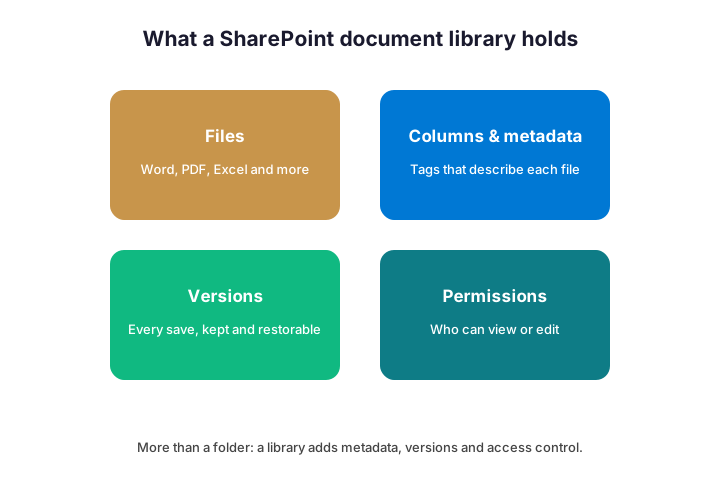
The chart below shows the four things a library adds beyond storage. Files are just the start. Columns describe each document, versions keep every save, and permissions decide who sees what.
It also sits inside a Microsoft 365 group or site, which gives it structure. A team site comes with its own library, members, and permissions out of the box. So a SharePoint document library is never an island; it inherits the membership and security of the site around it. That context is what makes it a team store rather than a personal drive.
Every SharePoint site comes with one library by default, usually called Documents. You can add more, so a project site might hold separate libraries for contracts, designs, and reports. Because each library has its own columns and permissions, that separation keeps things tidy and secure.
The modern experience is what most people see today. It is the clean, responsive interface with the command bar across the top, where Sync, Add column, and New all live. So if a screenshot in an old guide looks cluttered, it is the retired classic view. Everything in this guide assumes the modern SharePoint document library that ships now.
🆚 SharePoint document library versus a plain folder
It helps to see what you gain over a simple shared folder. A folder on a file server knows only file names and a last-saved date. A SharePoint document library knows far more, and it does far more with it.
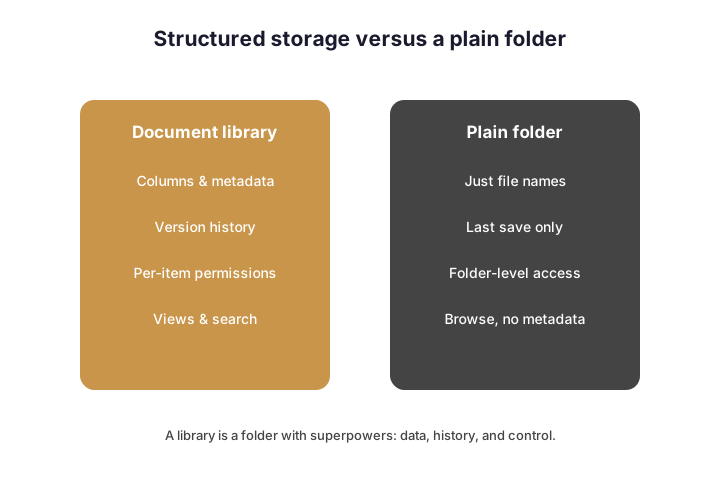
The practical wins stack up fast. You get metadata to find files by attribute, versions to undo mistakes, and granular permissions per item. Meanwhile search indexes the content and the columns together. So once a team feels these, they rarely want to go back to a flat folder.
This matters most when you migrate from an old file server. The temptation is to copy the folder tree across verbatim, which throws away every advantage. So instead, flatten the deepest folders and replace them with columns as you move. A migration is the rare moment when redesigning the structure costs almost nothing extra.
There is one comfort for nervous users, though. A library still supports folders if a team truly wants them, so nobody is forced to abandon a familiar habit overnight. So you can introduce columns gradually, alongside the folders people know. Over time, the views earn trust, and the folders quietly fade.
🛠️ How to create a SharePoint document library
Creating one takes under a minute in the browser. You open the site, add a new library, and name it. Then you can shape it with columns and views, which is where the value lives.
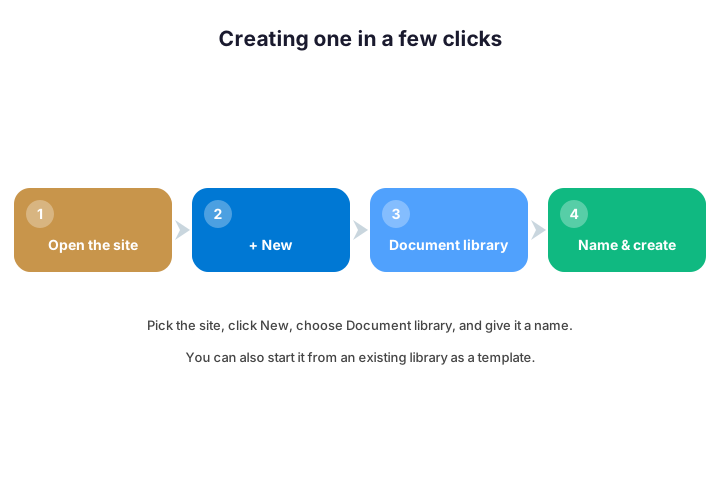
- Open the SharePoint site that should own the files.
- Click “+ New” on the site, then choose “Document library”.
- Give it a clear name, such as “Client Contracts”.
- Open the new library and start adding columns and views.
- Set permissions if it should differ from the site default.
Admins who manage many sites often script this instead. The PnP PowerShell below creates a library and adds a Status column in one go, which is perfect for a repeatable setup.
# Create a library and add a column with PnP PowerShell
Connect-PnPOnline -Url "https://contoso.sharepoint.com/sites/Marketing" -Interactive
New-PnPList -Title "Project Files" -Template DocumentLibrary
Add-PnPField -List "Project Files" -DisplayName "Status" -InternalName Status -Type Choice -Choices "Draft","In review","Approved"
Think about whether you need one library or several before you start. One big library with good columns suits a single team and one set of permissions. Several smaller libraries make sense when access rules genuinely differ, such as HR files versus shared marketing assets. So split by permission boundary, not by topic, and you avoid a permissions tangle later.
If you want the official click-by-click, Microsoft keeps it current. Its guide to creating a document library walks each screen, and it is the reference to keep open beside this article. So use their steps for the exact buttons, and use this guide for the design decisions around them. Together they cover both the how and the why.
🏷️ Columns and metadata: the real power
Metadata is what separates a library from a folder, and most teams ignore it. A column is just a property you attach to each file, such as a status, an owner, or a client name. So instead of burying files in nested folders, you tag them and let views do the sorting.
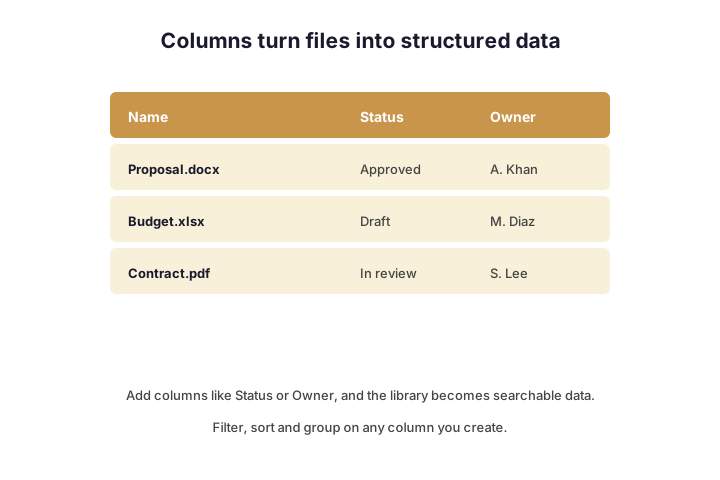
You can add several column types, each suited to a different job. The table below lists the ones you will use most, with an example of each.
| Column type | What it captures | Example |
|---|---|---|
| Single line of text | Short labels or codes | Project code |
| Choice | A fixed set of options | Status: Draft / Approved |
| Person or group | A user or team | Document owner |
| Date and time | A deadline or review date | Review by |
| Yes / No | A simple flag | Client-ready |
The payoff is huge once columns exist. You filter to “Approved” contracts, group by owner, or search by client in seconds. So a single flat library with good columns beats a maze of folders every time.
Two features make metadata even stronger at scale. Default column values can stamp a value automatically based on the folder a file lands in, so users barely type. Managed metadata adds a shared term store, so everyone tags from the same controlled list. Because both reduce human error, they keep a growing library consistent rather than chaotic.
👁️ Views in a SharePoint document library
A view is a saved way of looking at the same files. One view might show everything, while another shows only your drafts due this week. Because views read the columns, good metadata makes them powerful.
You create a view by filtering, sorting, or grouping on a column, then saving it with a name. So a SharePoint document library can present a tidy “My approved files” view to one person and a “Needs review” view to another. Meanwhile the underlying files never move.
Set a sensible default view, since that is what people see first. Most teams want the default to hide clutter and show the columns that matter, sorted by the most useful field. So spend a minute on the default, and every visit starts in the right place. A good default does more for daily usability than any other single setting.
Views also keep large libraries fast and usable. Rather than scrolling thousands of items, people open the view that matches their task. So as the library grows, views are what stop it feeling overwhelming.
Know the difference between public and personal views, too. A public view is shared with everyone who opens the library, while a personal view is yours alone. So you can publish a clean default for the team and still keep a private working view for yourself. Column formatting then adds colour, such as a red badge for overdue items, without any code.
🕒 Versioning and check-in or check-out
Version history is the safety net every library should have on. Each time someone saves, SharePoint keeps the previous version, so a bad edit is never permanent. You restore an earlier version in two clicks, with no help-desk ticket.
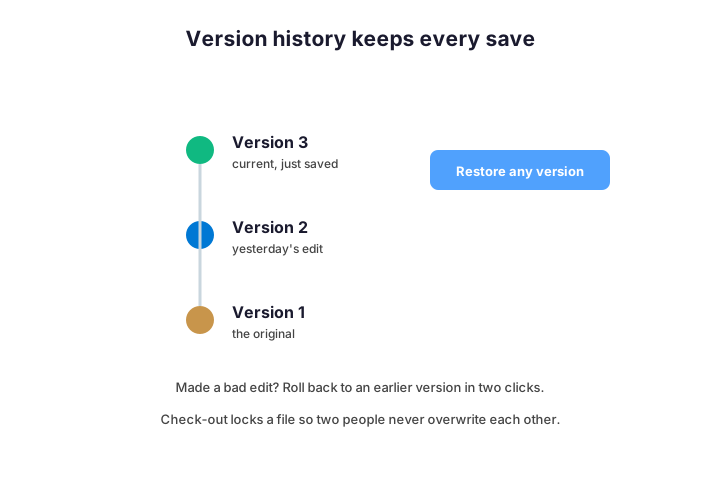
Check-out adds a stronger lock for sensitive files. When you check a document out, others can see it but not overwrite it until you check it back in. So two people never clobber each other on a critical contract. The command below confirms versioning is on and sets a sensible limit.
# Turn on versioning and keep a sensible number of major versions
Set-PnPList -Identity "Project Files" -EnableVersioning $true -MajorVersions 50
Get-PnPList -Identity "Project Files" | Select Title, EnableVersioning, MajorVersionLimit
Set a version limit so history does not grow forever. Keeping the last fifty major versions covers almost any real need without bloating storage. Major and minor versions are an option too, where minor ones are drafts and major ones are published. So for most teams, major-only with a sane limit is the simplest choice that still protects every save.
🔐 Permissions and sharing
By default, a library inherits the permissions of its site, which keeps things simple. So everyone with access to the site can use the library, unless you decide otherwise. For most teams, that default is the right starting point.
When a folder or file needs tighter control, you can break inheritance and set unique permissions. Use this sparingly, though, because a web of unique permissions becomes a nightmare to audit. So prefer separate libraries or sites over a tangle of one-off shares.
Lean on the built-in permission levels rather than inventing your own. Read, Edit, and Full Control cover almost every case, and they map to groups cleanly. So add people to a group, and the group to a level, instead of granting individuals one by one. That habit keeps access readable a year later, when nobody remembers the one-off shares.
Sharing links are the everyday way people grant access. A link can be for specific people, the whole organisation, or anyone, and you set which types are allowed at the tenant level. So decide your sharing policy once, and the library follows it.
Audit who has access from time to time, especially on sensitive libraries. SharePoint can show the effective permissions on any item, so you see exactly who can open it and why. Because access quietly drifts as people join and leave, a quick review each quarter keeps a SharePoint document library from leaking. So schedule it rather than waiting for an incident.
💻 Sync a SharePoint document library to File Explorer
You do not have to live in the browser. The OneDrive sync app can mirror a library into Windows, so it appears as a normal folder in File Explorer. So people work in Explorer or Office while SharePoint quietly keeps versions and metadata.
You click Sync on the library toolbar, or “Add shortcut to OneDrive”, and the folder shows up under your work account. Because this is the supported route, it replaces the dead “Open in Explorer” trick. For the full walkthrough and the fixes, see our guide to adding SharePoint to File Explorer.
Sync the libraries people use daily, but resist syncing everything. A huge library mirrored onto a slow laptop fills the disk and drags the first sign-in. So for sites you only dip into, add a shortcut instead, which streams files on demand. That mix keeps Windows fast while still putting every SharePoint document library a click away.
Editing in the desktop Office apps stays seamless either way. You open a Word or Excel file from the synced folder, and it saves straight back to the cloud with versions intact. So users get the familiar desktop experience while the library quietly does the governance. That blend of comfort and control is the whole point of syncing.
💾 Backup and retention: the gap to mind
Here is a point that surprises many teams. SharePoint keeps your files highly available, yet that is not the same as a backup. Versions and the recycle bin help, but they expire, and a determined deletion or ransomware hit can still bite.
So treat recovery as your responsibility, not Microsoft’s. Set retention policies for content you must keep, and add a third-party backup for anything you cannot lose. Because the recycle bin only holds deleted items for a window, it is a convenience, not a safety net.
Ransomware is the scenario that makes this concrete. If a synced device encrypts its files, OneDrive happily syncs the damage up to the library. Versioning can help you roll back, yet a wide attack can outrun it. So a separate, immutable backup is the only thing that guarantees a clean restore. For most small businesses, that one safeguard is well worth its modest cost.
Retention labels add governance on top. You can keep or delete documents on a schedule, which auditors love. So if your industry has record-keeping rules, plan retention before the library fills up, not after.
Know how the recycle bin actually works, because it has two stages. A deleted file sits in the site recycle bin first, then moves to a second-stage bin for the admin, and only then is it gone. So you usually have a window to recover a mistake. Still, that window is finite, which is exactly why a real backup matters for anything critical.
📐 SharePoint document library limits to respect
A SharePoint document library scales to millions of items, but a few limits shape how you design it. The famous one is the 5,000-item list view threshold, which affects how views behave on big libraries. Knowing it up front saves a redesign later.
| Limit | Value | Why it matters |
|---|---|---|
| List view threshold | 5,000 items | Plan indexed columns and views above it |
| Items per library | 30 million | Effectively unlimited for SMBs |
| Single file size | 250 GB | Huge; rarely a real constraint |
| Path length | about 400 characters | Deep folders break sync |
The fix for the threshold is metadata, not folders. With indexed columns and filtered views, a library holds far more than 5,000 items without trouble. The command below counts items so you can watch the line.
# Watch the 5,000-item list view threshold before it bites
(Get-PnPListItem -List "Project Files" -PageSize 2000).Count
# Above 5,000, plan indexed columns and filtered views, not giant flat folders.
Indexing is the quiet hero above the threshold. When you index the column a view filters on, that view keeps working even with hundreds of thousands of items. So add an index to your key columns early, before the library gets big. Doing it later, on a full library, is slower and needs a quiet maintenance window.
Performance also depends on how you structure the view itself. A view that returns a few hundred filtered rows loads instantly, while one that tries to show everything stalls. So always filter big libraries down to what the task needs. Pair an indexed column with a tight filter, and even a massive SharePoint document library feels snappy.
🪤 Common mistakes to avoid
The same habits trip up teams again and again. None are obvious until the library gets messy, so scan this list early. Each one is easy to avoid with a little planning.
- Recreating deep folder trees instead of using columns and views.
- Leaving versioning off, then losing an edit with no way back.
- Breaking permission inheritance everywhere until nobody can audit it.
- Assuming SharePoint is a backup, so skipping retention and third-party copies.
- Dumping tens of thousands of files in one flat view past the threshold.
One more mistake hides in plain sight: ignoring search. Teams build elaborate folders to “find things”, then never type in the search box that already indexes every file and column. So before you add another folder layer, try searching. Often the structure you were about to build already exists in the index.
Wintive insight. In the tenants we audit, the library is rarely the problem; the structure is. For example, a team rebuilds its old file-server folders inside SharePoint and wonders why search is useless. As a result, we replace folders with a few good columns, and the same files suddenly become findable. So design with metadata first, and the SharePoint document library does the rest.
✅ SharePoint document library best practices
A few rules keep a library fast, tidy, and safe for years. None take long, yet together they prevent most of the pain. So build them in from day one.
- Favour columns and views over deep folders.
- Turn versioning on and set a sensible version limit.
- Keep permissions at the site or library level, not per file.
- Sync only the libraries people use daily; add shortcuts for the rest.
- Plan retention and a real backup before the library grows.
- Name libraries and columns clearly, for whoever comes next.
Document the small decisions, too, because memory fades. A one-line note on why a column exists or who owns a library saves the next admin hours. So keep a short register beside the site. When staff change, that record is what keeps the whole thing sane rather than mysterious.
It also helps to know where a library fits in the wider picture. Our guide to SharePoint vs OneDrive explains which store holds what, and how to create a SharePoint site covers the site your libraries live on. So the whole setup hangs together.
📚 More for SharePoint admins
These published Wintive guides go deeper on the topics around libraries. Each one tackles a single area, so you can read only what you need. Therefore bookmark the ones that fit your setup.
🔍 Want a complete audit of your Microsoft 365 tenant?
The M365 Instant Audit scans your environment in under 10 minutes: license waste, security posture, MFA coverage, compliance gaps, and rightsizing. A full PDF report with prioritized fixes arrives instantly.
❓ Frequently Asked Questions
It is a container on a SharePoint site that stores files together with columns, version history, and permissions, so documents become structured, searchable, governed data rather than a plain folder.
Open the site, click “+ New”, choose “Document library”, and give it a name. Then add columns and views, and adjust permissions if it should differ from the site.
A folder only knows file names and the last save. A library adds metadata columns, full version history, per-item permissions, and saved views on top.
No. It keeps files available and versioned, but that is not a backup. Use retention policies and a third-party backup for anything you cannot lose.
It is the list view threshold. Above 5,000 items, plain views slow down, so you use indexed columns and filtered views instead of one giant flat list.
Yes. Click Sync or “Add shortcut to OneDrive” on the library, and it appears as a folder in Windows under your work account.
🧭 Your next step
Start by adding two or three columns to the library you use most, then build a view that filters on them. Because metadata is the real power of a SharePoint document library, that one change transforms how your team finds files. Once it clicks, roll the pattern out to your other libraries. When you want a hand designing it cleanly, we are happy to help.
If you remember only three things, make them these. First, use columns and views instead of deep folders, because that is where the power lives. Second, turn versioning on and add a real backup, since SharePoint is not one. Third, keep permissions simple and audited. Follow that, lean on search, and review the setup each quarter, and a SharePoint document library stays fast, findable, and safe for years to come.
Related Wintive guides: adding a library to File Explorer, the SharePoint API, and SharePoint templates.