

Microsoft Teams Rooms turns a meeting room into a one-touch video space: you walk in, tap join, and the screen, camera and audio just work. However, search it and you hit dense Microsoft docs, pricing tables and hardware vendors all at once. So it is hard to tell what you actually need to buy, and what you can run for free.
This guide clears that up, for teams that already know how to use Microsoft Teams. Wintive deploys and manages rooms across 60+ Microsoft 365 tenants, therefore we cover the parts that decide a project: Basic versus Pro licensing, Windows versus Android, certified hardware by room size, and the resource-account setup in PowerShell. Moreover, every section answers a real question, from “what does Pro add” to “how do I set a room up”.
🛡️ Free: M365 Audit Checklist
19-page PDF with 50 hands-on checks across Entra ID, Exchange Online, SharePoint, Teams and Intune. Run it before you fit rooms, so you start from a clean tenant. PowerShell commands included. Built from 60+ real tenant audits at Wintive.
🏢 What Microsoft Teams Rooms actually is
Quick answer. Microsoft Teams Rooms is a certified room system that runs Teams meetings from a shared console. Teams Rooms Basic is free for up to 25 rooms; Teams Rooms Pro is a paid per-room license that adds dual screen, intelligent audio and video, central management and security. Each room needs a resource account and a Teams-certified device. For most SMBs, a few Pro rooms plus Basic huddle spaces is the right mix. We size it from how the business actually meets, not from a vendor quote. A short discovery call usually settles it. Specifically, we ask how each room is used, who presents, and how many join remotely, then the right plan and device follow. From there, the quote writes itself. Therefore the client sees exactly what each room costs and why, with no surprises later. That clarity is half of why clients say yes.
Microsoft Teams Rooms vs a personal device
A personal Teams app runs on your laptop; Microsoft Teams Rooms runs the room itself. Specifically, a certified console drives the displays, the camera and the microphones as one managed unit. Therefore anyone can walk in and start a meeting without cables or a host laptop. As a result, the room stops being the reason meetings start late. It also removes the daily cable hunt. Specifically, content shares over the console or a single cable, so nobody crawls under the table mid-call.
The system also presents remote and in-room people fairly. For example, gallery view and intelligent cameras frame whoever is talking, so a hybrid call feels balanced. Consequently, the people dialing in are no longer second-class participants. That fairness is the real return on a room. Therefore, when remote staff feel seen, hybrid meetings get shorter and decisions land faster.
Why SMBs adopt it now
Hybrid work made the meeting room the weak link. Notably, a laptop on a tripod cannot match a certified room for audio or framing. So small firms increasingly fit a couple of proper rooms rather than fight bad calls. The cost has fallen too. Notably, a certified Android bar now fits a small room for the price of a decent laptop, which puts proper rooms within SMB reach.
The return shows up in time, not just calls. Specifically, a room that starts on time saves a few minutes per meeting, which across a week is a real chunk of the working week. Microsoft documents the platform in its Teams Rooms overview, but the docs assume you already know the trade-offs.
🧾 Microsoft Teams Rooms Basic vs Pro licensing
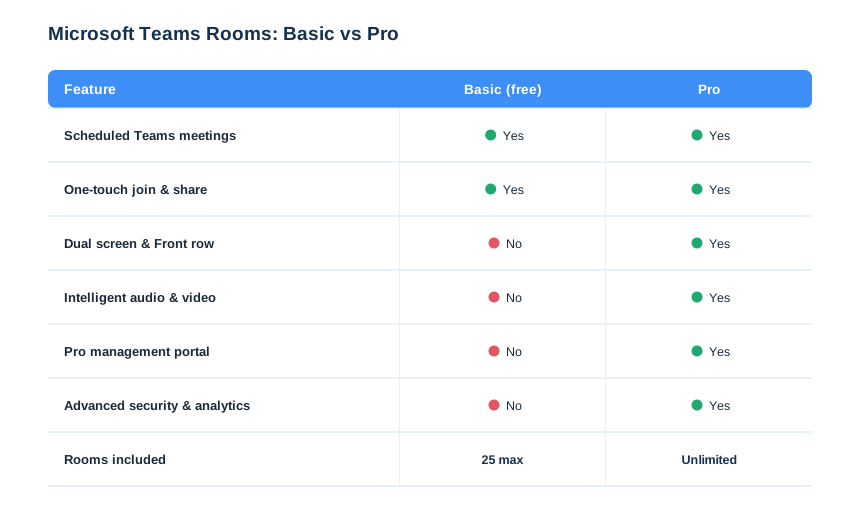
Licensing is where most projects stall. Every room needs a license, yet the free tier covers more than people expect. So the matrix below settles Basic versus Pro before you spend a cent. Read it by feature, then by plan, and the choice gets obvious.
Teams Rooms Basic (free)
Basic is genuinely useful and costs nothing for up to 25 rooms per tenant. It gives scheduled meetings, one-touch join, content sharing and whiteboard. Therefore a huddle space or a small meeting room often runs perfectly on Basic. However, it stops at the essentials, with no central management. For a single huddle room, that limit rarely bites. As a result, we leave low-traffic spaces on Basic and spend the budget where it shows.
Teams Rooms Pro
Pro is the paid, per-room license, and Microsoft details it in its rooms licensing guide. It adds dual screen, Front row, intelligent audio and video, the management portal, advanced security and analytics. Moreover, Pro removes the 25-room cap. So your flagship and larger rooms belong on Pro.
Pro also future-proofs the room. Specifically, the AI and Copilot meeting features land on Pro first, so a presenting room stays current rather than dated.
Which Microsoft Teams Rooms mix to buy
Most SMBs do not need Pro everywhere. That single decision saves the most money on a fleet. Notably, half-and-half is common: Pro on the rooms clients see, Basic on internal huddles. Specifically, we put Pro on the rooms people present from, and Basic on quiet huddle spaces. As a result, the bill matches how each room is actually used, not a blanket assumption. We revisit the split yearly. Because usage shifts, a huddle room may earn a Pro upgrade, or a quiet boardroom may drop to Basic.
🖥 Windows vs Android Microsoft Teams Rooms
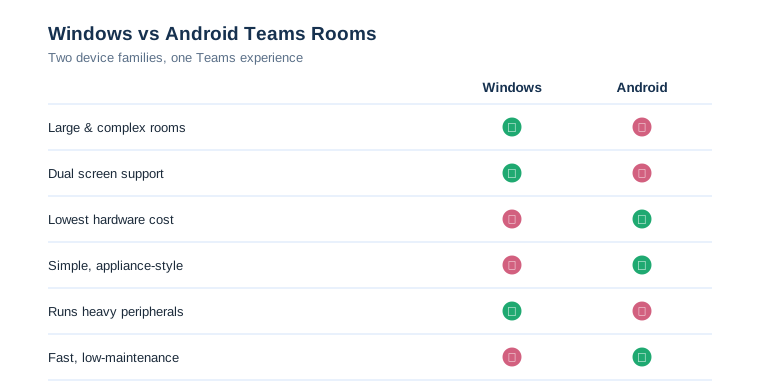
Certified devices come in two families, and the choice shapes cost and capability. So decide the family per room, not for the whole company. The comparison below shows where each one wins.
Windows rooms for scale
Windows rooms pair a compute unit with separate peripherals. Therefore they handle large rooms, dual screens and heavy cameras that Android cannot. However, they cost more and carry a small Windows footprint to manage. So we reserve Windows for boardrooms and complex spaces. Windows also suits rooms with existing AV. Therefore, when a client already owns good cameras and a switcher, a Windows compute unit ties it together.
Android rooms for simplicity
Android rooms are appliance-style all-in-one bars. Consequently, they install fast, cost less and need little maintenance. For a huddle or small room, an Android bar is usually the smart default. In practice, most SMB rooms we fit are Android, with Windows kept for the few big rooms. Updates are easier on Android too. Consequently, the appliance model means fewer moving parts and fewer late-night patches.
📐 Certified hardware by room size
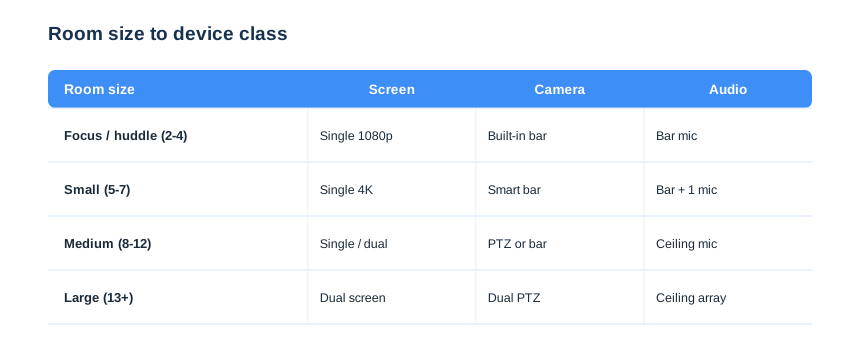
Hardware is the biggest line item, so size it to the room rather than the brochure. Crucially, only Teams-certified devices are supported, which protects the experience and your warranty. The table maps a sensible device class to each room size.
Match the device to the room
A huddle space needs a single screen and an all-in-one bar; a boardroom needs dual screens, a pan-tilt-zoom camera and ceiling microphones. Therefore buying one standard kit for every room either overspends on small rooms or underserves big ones. So we right-size each room from the start.
Budget and brand both ride on this call. Therefore a client-facing room earns better kit, while an internal huddle stays lean, and the spend follows the value. We capture that decision in writing per room. Consequently, the reasoning survives staff changes, and the next refresh starts from a clear record rather than memory. Acoustics matter as much as the camera. Specifically, a hard-walled room needs better microphones, so we treat audio as a first-class decision, not an afterthought. Lighting and screen size follow the same logic. For example, a bright glass-walled room needs a brighter display, while a long room needs a second screen so the far end can read content.
Mounting and sightlines round it out. Therefore we plan camera height and screen position so everyone is framed well, because a great camera aimed badly still ruins the call. A quick site visit prevents most of these mistakes. Specifically, we measure the room, check the lighting, and test the network before a single device is ordered. Cabling is the unglamorous part that makes or breaks the room. Specifically, a clean table cutout and a single console cable keep the space tidy and the experience reliable, so we plan the wiring before the furniture, not after.
Stick to certified devices
It is tempting to reuse a random webcam and call it a room. However, uncertified gear breaks features and support. As a result, we only fit devices on the Microsoft certified list, then standardise on one or two vendors to keep spares and training simple. Standardising pays off at support time. Therefore a faulty bar is swapped in minutes, because every room runs the same known kit. It also speeds training. Consequently, staff learn one console once, then every room feels familiar, which lifts adoption far more than any memo.
⚙ How to set up a Microsoft Teams Rooms resource account
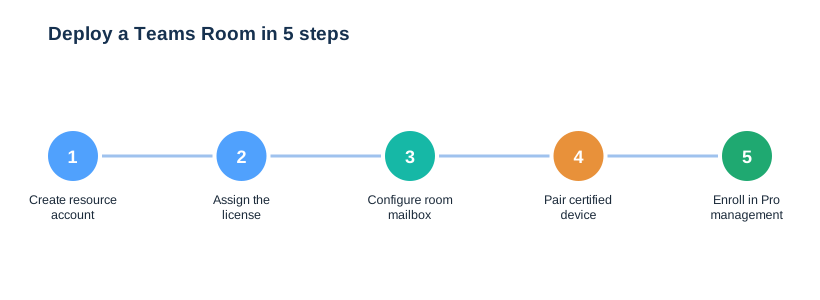
Every room signs in with its own resource account, not a person. First you create the account, then license it, then set the calendar to auto-accept bookings. The five steps below map to the commands that follow.
Create and license the resource account
You create a room mailbox, give it a strong password, and assign a Teams Rooms license. Because the room signs in unattended, you exclude it from interactive MFA and protect it with conditional access on a compliant device instead. Treat the room password like any privileged secret. Therefore we store it in the vault, rotate it on a schedule, and never reuse it across rooms.
# Create the room resource account (Exchange Online + Graph PowerShell)
# Connect-ExchangeOnline ; Connect-MgGraph -Scopes "User.ReadWrite.All"

New-Mailbox -Name "Room - Boardroom" -Room `
  -MicrosoftOnlineServicesID "boardroom@contoso.com"

# Set a usage location, then assign the Teams Rooms Pro license
Update-MgUser -UserId "boardroom@contoso.com" -UsageLocation "US"
$sku = (Get-MgSubscribedSku | Where SkuPartNumber -eq "Microsoft_Teams_Rooms_Pro").SkuId
Set-MgUserLicense -UserId "boardroom@contoso.com" -AddLicenses @{SkuId=$sku} -RemoveLicenses @()
Tune the room calendar
A room should accept its own bookings and keep the meeting subject and organiser. So you set calendar processing to auto-accept and stop it deleting the details staff rely on.
# Make the room auto-accept bookings and keep meeting context
Set-CalendarProcessing -Identity "boardroom@contoso.com" `
  -AutomateProcessing AutoAccept `
  -DeleteComments $false -DeleteSubject $false `
  -AddOrganizerToSubject $false -RemovePrivateProperty $false

Get-CalendarProcessing "boardroom@contoso.com" | Select AutomateProcessing
Pair the certified device
Finally, you sign the device in with the resource account and let it pair. Then it appears in your tenant, ready to join meetings with one touch. Provisioning the device is the easy half; the room readiness check is the half that earns trust. Therefore we never mark a room done until a real meeting works end to end. Consequently, the room is live without a technician babysitting it. We still verify the first real meeting. Specifically, we run a test call, check audio and framing, and confirm one-touch join before we hand the room over. We also label the room clearly in the directory. As a result, staff book the right space, and nobody double-books the boardroom for a one-to-one.
Bulk-create rooms with PowerShell
One room is a few commands; ten rooms is a script. So we drive the whole fleet from a CSV: name, address and size in, configured rooms out. As a result, a multi-room rollout takes an afternoon instead of a week, and every room comes out identical.
# Provision many rooms from a CSV (Exchange Online PowerShell)
# CSV columns: Name, Upn, Capacity

Import-Csv .\rooms.csv | ForEach-Object {
  New-Mailbox -Name $_.Name -Room -MicrosoftOnlineServicesID $_.Upn | Out-Null
  Set-CalendarProcessing -Identity $_.Upn `
    -AutomateProcessing AutoAccept -DeleteComments $false -DeleteSubject $false
  Set-Place -Identity $_.Upn -Capacity $_.Capacity -IsWheelChairAccessible $true
}

# Review every room mailbox in one list
Get-Mailbox -RecipientTypeDetails RoomMailbox -ResultSize Unlimited |
  Select DisplayName, PrimarySmtpAddress
Pair the script with your device standard and the rollout stays consistent. Therefore the room that opens in March looks and behaves exactly like the one from January, which keeps support simple. Documentation rides along with it. Specifically, each room gets a one-page runbook with its account, device model and quirks, so any engineer can support it cold. Naming conventions help here as well. As a result, a clear room name and a consistent account format make the whole fleet easy to find and audit.
🔐 Securing and managing Microsoft Teams Rooms
A room console is a shared, always-on endpoint, so it needs its own guardrails. Specifically, you protect the resource account, control the device, and watch health centrally. Otherwise a meeting room becomes an unmonitored door into the tenant.
Protect the resource account
Resource accounts cannot do interactive MFA, so you secure them another way. Therefore we scope conditional access to require a compliant, known device, block legacy auth, and rotate the password on a schedule. As a result, the convenience of unattended sign-in does not become a hole. Network placement matters too. Therefore we put room devices on a controlled segment, not the open guest Wi-Fi, so a console is never an easy pivot point.
# Confirm the room account is healthy and licensed
Get-MgUser -UserId "boardroom@contoso.com" `
  -Property DisplayName,AccountEnabled,AssignedLicenses |
  Select DisplayName, AccountEnabled

# List every room account so none drifts unlicensed
Get-Mailbox -RecipientTypeDetails RoomMailbox -ResultSize Unlimited |
  Select DisplayName, PrimarySmtpAddress
Manage rooms with Pro
Pro includes the Teams Rooms management portal, which watches every room from one screen. Consequently, you see offline devices, failed updates and peripheral faults before users report them. So a managed room is fixed proactively, not after a failed board meeting. The portal also reports usage. As a result, you can prove which rooms earn their license and which sit idle, which keeps the next budget honest. Health alerts close the loop. Specifically, an offline device or a failed update raises a ticket automatically, so the room is back before the next meeting. Firmware and Teams app updates flow through the portal as well. Consequently, rooms stay current without someone physically touching each console. Reporting also guides the refresh. Therefore the data tells you which devices to replace first, so the budget follows real wear, not a guess.
💸 What a Microsoft Teams Rooms project costs
Budgets surprise people because the license is the smallest part. In practice, certified hardware dominates the first-year cost, followed by install and management. The chart sets honest expectations before you scope a fleet.
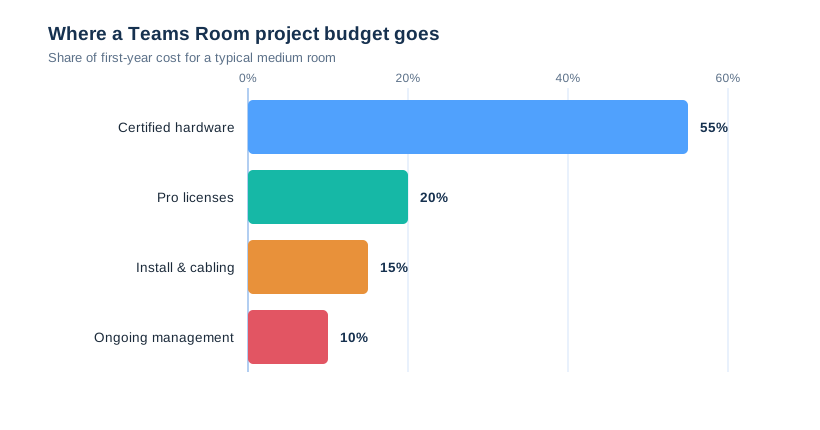
Notice that hardware, not licensing, drives the number. Therefore the cheapest win is right-sizing devices, not haggling over the Pro fee. Installation is the hidden cost. Notably, cabling, mounting and a tidy table cutout add up, so we quote the room, not just the box. Trade-in and reuse can soften the spend. For example, a sound display can often stay while the camera and console are upgraded, so a refresh is rarely a full rip-and-replace. Meanwhile, ongoing management is small but real, so budget for it rather than discovering it later. Refresh cycles belong in the plan too. Specifically, certified devices last years, but cameras and bars do age, so we set a sensible replacement horizon up front. Warranty and support contracts also shape the number. Notably, a few rooms can self-support, but a fleet benefits from a managed-service wrap that guarantees a working room every morning.
📈 The Wintive baseline across 60+ tenants
Patterns repeat across our rooms. Most SMBs over-buy Pro and over-spec hardware, then under-plan management. So our first move is a room-by-room audit, not a purchase order. Specifically, we tag each space by size and usage, then license and equip it to match. The audit also catches dead rooms. Notably, a space that hosts two meetings a month does not need a flagship rig, and spotting that early frees budget for the rooms that matter.
Wintive insight
Across 60+ Microsoft 365 tenants, the costliest mistake with Microsoft Teams Rooms is treating the resource account as harmless. In several audits, room accounts had stale passwords, no conditional access and local admin left open, which made the boardroom console the softest target in the tenant. Therefore our baseline hardens every room account, requires a compliant device, enrolls each room in Pro management, and reviews health monthly. Critically, we standardise on one Android bar for small rooms and one Windows kit for large ones, because a tidy fleet is far cheaper to run than a zoo of one-off devices.
We also write the boring parts down. Specifically, we template the resource-account script, the calendar settings and the device standard, so every new room starts from a known-good baseline rather than a fresh argument. That template is also how we scale. Consequently, the tenth room takes a fraction of the time the first one did, because nothing is improvised.
| What we standardise | Default we use | Why it matters |
|---|---|---|
| Small rooms | Android all-in-one bar | Fast, cheap, low upkeep |
| Large rooms | Windows + PTZ + ceiling mics | Handles dual screen and scale |
| Licensing | Basic huddle, Pro presenting rooms | Spend matches usage |
| Room account | Hardened + compliant device | Closes the boardroom back door |
🚨 Common Microsoft Teams Rooms mistakes
Over-buying Microsoft Teams Rooms Pro
Pro is great for presenting rooms, yet wasteful on a quiet huddle space. Therefore put Basic where it fits and save Pro for the rooms that earn it.
Using uncertified hardware
A random webcam may log in, but it breaks features and support. So fit only certified devices, even when a cheaper part is tempting. The saving is false anyway. Therefore a cheap webcam that breaks one board meeting costs more in lost time than the certified bar it replaced. Compatibility is the deeper reason. Specifically, certified devices get firmware and Teams updates tested by Microsoft, so they keep working as the platform changes.
Resale value holds up better too. As a result, a certified device keeps some worth at refresh time, while a random webcam is simply landfill.
Leaving the room account exposed
An unmanaged resource account is a real risk. Consequently, harden it, require a compliant device, and rotate the password, exactly as you would any privileged login. Treat it as part of your security baseline, not a one-off. As a result, the room account shows up in the same reviews as every other privileged identity. We also disable interactive sign-in beyond what the room needs. Consequently, the account can run the console but cannot be used as a general login. Physical security counts too. Specifically, the console and compute unit sit in a locked enclosure where possible, so nobody walks off with a signed-in device.
📚 More for Growing Businesses
🔍 Planning meeting rooms and want the tenant checked first?
The M365 Instant Audit scans your tenant in under 10 minutes: license waste, plan right-sizing, MFA coverage, security posture and compliance gaps. As a result, you get a full PDF report with prioritized fixes, delivered instantly.
❓ Microsoft Teams Rooms: Frequently Asked Questions
It is a certified room system that runs Teams meetings from a shared console, driving the screen, camera and microphones as one managed unit. Anyone can walk in and join with one touch, with no host laptop or cables.
Teams Rooms Basic is free for up to 25 rooms per tenant and covers scheduled meetings, one-touch join and content sharing. Teams Rooms Pro is a paid per-room license that adds dual screen, central management and advanced security.
Pro adds dual screen and Front row, intelligent audio and video, the Pro management portal, advanced security and analytics, and removes the 25-room cap. So presenting rooms and large rooms belong on Pro. Pro also unlocks proactive support. As a result, a managed room rarely fails in front of a client, which is the whole point of paying for it.
Android bars suit small and huddle rooms because they are cheap and low-maintenance. Windows systems suit large or complex rooms that need dual screens and heavy cameras. Most SMBs run Android with a few Windows rooms. A mixed fleet is normal and fine. Specifically, most tenants we run blend Android huddle bars with a couple of Windows boardrooms, and Teams treats them all the same.
Yes. Only Teams-certified devices are supported, and uncertified gear breaks features and support.
Create a room resource mailbox, assign a Teams Rooms license, set calendar processing to auto-accept, then pair a certified device. In PowerShell, New-Mailbox -Room and Set-CalendarProcessing do the heavy lifting.