

Microsoft Teams Premium features sit behind a paid add-on, and the list keeps growing — AI meeting recap, watermarking, advanced webinars, virtual appointments and more. The trouble is telling the genuinely useful upgrades from the ones your team will never open. Buy blindly and you waste licences. Skip it without checking and you miss real protection and time savings.
This guide breaks down every part of Microsoft Teams Premium for IT admins and the businesses they advise. If you are still mapping how tools connect to Teams, start with our guide to Microsoft Teams integration. It groups the features into four clear pillars and explains what each one does. It also sets out the pricing and licensing, then shows the PowerShell to assign and track it. By the end you can decide who needs it and who does not, with no guesswork.
📋 Free: the M365 Audit Checklist (50 points)
Before you add another paid licence, see what you already own and where it is going to waste across your Microsoft 365 tenant.
⭐ What Microsoft Teams Premium is
Microsoft Teams Premium is an optional add-on licence that layers extra capabilities onto the Teams you already run. It does not replace your Microsoft 365 plan, and it is not a separate app. For the basics underneath it, see how to use Microsoft Teams. Instead, it unlocks AI, security and engagement features inside the same Teams client your staff open every day. You licence only the people who need those extras.
Eligibility is the first checkpoint. The add-on attaches to common commercial plans. That includes Microsoft 365 Business Basic, Standard and Premium, plus Enterprise E3 and E5. So most organisations can buy it without changing their base plan. It is sold per user and billed like any other licence, which means you can start with a single team and grow from there. Frontline and education variants differ, so confirm your own plan before you commit.
In short: Microsoft Teams Premium features fall into four pillars. Two are AI productivity (intelligent recap, live translations) and advanced meeting protection (watermarking, encryption, sensitivity labels). The others are engagement (advanced webinars, town halls, virtual appointments) and management (analytics, branded meetings, tailored policies). It is a paid add-on of around $10 per user per month, licensed per person. It stacks on any eligible Microsoft 365 plan rather than replacing it.
Microsoft positions it as the upgrade for organisations that run meetings at scale or under compliance rules. You can read the official capability list in the Teams Premium documentation, which Microsoft updates as features move in and out. The rest of this guide turns that list into decisions you can act on.
Confirm the list before you buy
Keep one caveat in mind throughout. Microsoft has reshuffled this line-up more than once, moving a few capabilities toward Microsoft 365 Copilot and renaming others. Because of that churn, the safest habit is to check the current list against your tenant before a purchase rather than trusting an older blog. Treat the four pillars below as the stable shape, and the exact feature names as the detail to verify.
🔎 Microsoft Teams Premium features at a glance
The fastest way to understand the add-on is to group it into four pillars. Most of what people call “the premium features” lands in one of these buckets, and each pillar appeals to a different kind of buyer. AI productivity wins back time, protection satisfies compliance, engagement powers events, and management gives admins control.
Seen this way, the add-on is really four products in one. A finance team might buy it purely for protection, while a marketing team wants only the events pillar. That overlap is useful, because a single licence covers whichever pillar a given user needs. Still, it also means a feature your neighbours love may be irrelevant to you, which is exactly why a pillar-by-pillar read beats a single yes-or-no.
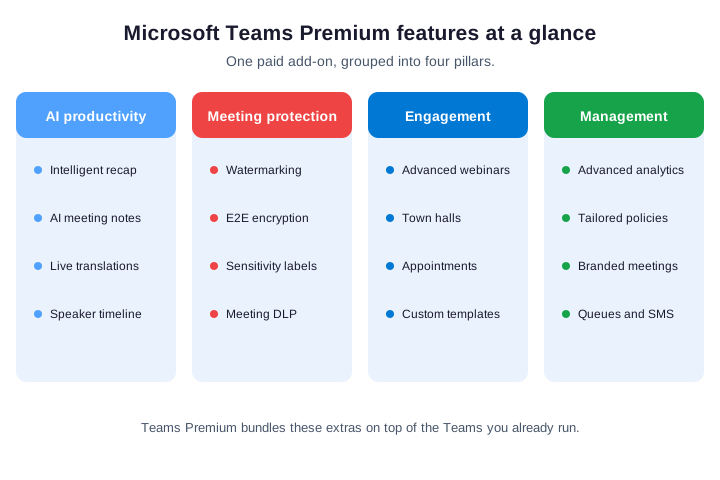
The table maps the headline features to their pillar and the team that usually asks for them. Use it to spot which pillar actually matters to you before you weigh up the cost, then read on for the detail behind each one. In our experience, most buyers find that just one or two pillars justify the entire licence.
| Pillar | Headline features | Who asks for it |
|---|---|---|
| AI productivity | Intelligent recap, AI notes, live translations | Busy managers and global teams |
| Meeting protection | Watermarking, encryption, sensitivity labels | Legal, finance and regulated firms |
| Engagement | Advanced webinars, town halls, appointments | Marketing and client-facing teams |
| Management | Analytics, branded meetings, tailored policies | IT and operations |
🤖 Microsoft Teams Premium features for AI productivity
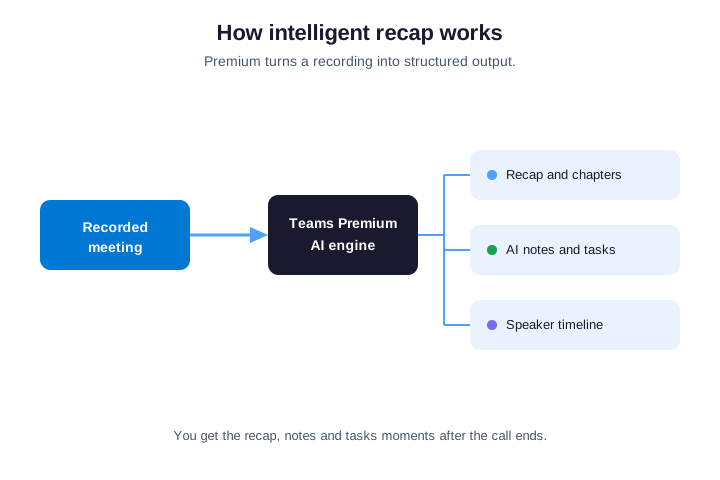
The first of the Microsoft Teams Premium features most people notice is AI. Intelligent recap records a meeting and returns a structured summary. You get chapters that jump you to a topic, AI-generated notes and suggested tasks. A speaker timeline even shows who said what. A latecomer can catch up in a minute instead of watching an hour of video.
Recap lives in the meeting chat and the calendar event, so it is easy to find afterward. The notes and action items are editable, and the speaker timeline lets you scrub straight to a person or a shared screen. For recurring meetings, that turns a pile of recordings into a searchable record your team will actually revisit.
Live translations and captions
The same pillar helps global teams meet without a language barrier. Live translated captions render speech into a chosen language in real time, so a call across regions stays inclusive. Because the translation runs inside Teams, nobody installs another tool. For distributed companies, this alone can justify the upgrade for a subset of staff.
Worth noting, a few of these AI capabilities also ship with Microsoft 365 Copilot, and the exact split shifts over time. If your organisation already runs Copilot, check what overlaps before you pay twice. For everyone else, Teams Premium remains the most direct way to switch the AI meeting features on.
🛡️ Microsoft Teams Premium features for meeting protection
The Microsoft Teams Premium features for protection are where regulated businesses pay attention. Teams Premium adds advanced meeting protection that goes well beyond the standard lobby. Watermarking stamps the screen and shared content with the viewer identity, which deters anyone tempted to photograph a confidential deck. It is a small feature with an outsized effect on behaviour.
Watermarking covers both the shared content and the video feed, and it follows the viewer across the meeting. It will not stop a determined leaker with a second camera, but it removes the casual screenshot and creates accountability. For boards, deal rooms and HR conversations, that shift in behaviour is often the whole point.
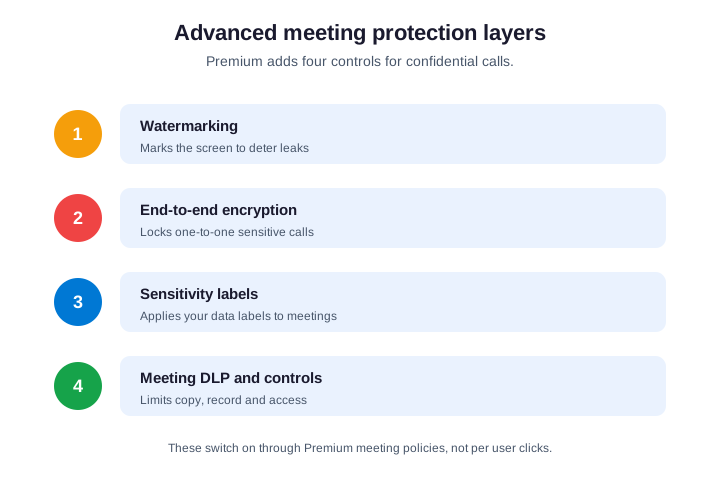
The protection runs deeper than a watermark. End-to-end encryption secures sensitive one-to-one calls, sensitivity labels apply your existing data classifications to meetings, and meeting controls limit who can record, copy or join. Crucially, an admin sets these through a Premium meeting policy, so the rules apply automatically rather than relying on each organiser to remember.
Where the protection has limits
A couple of limits are worth setting expectations on. End-to-end encryption applies to one-to-one calls and turns off some features like recording while it is active, by design. Sensitivity labels, meanwhile, only help if your organisation already uses them in Microsoft Purview. So the protection pillar rewards a tenant that has done the groundwork on classification first.
🎟️ Advanced webinars and town halls
The Microsoft Teams Premium features for engagement upgrade Teams from meetings to events. Advanced webinars add registration waitlists, manual approval, a virtual green room for presenters, and the ability to manage what attendees see. Town halls go further, broadcasting to large audiences with a structured, one-to-many experience and richer production controls.
Capacity is the practical difference. Standard meetings suit a room or a department, whereas town halls scale to very large audiences and add features like an external encoder feed and post-event attendee reporting. Presenters get a green room to prepare off-camera, and organisers control exactly what the audience sees. For an all-hands or a product launch, that polish matters.
For a marketing or learning team, this removes the need for a separate webinar platform: you run the event on the same tool staff already know, keep the registration data inside Microsoft 365, and reuse the recording afterward. The data side is the quiet benefit, because attendance and engagement stay where your compliance and retention rules already apply, rather than being exported from a throwaway platform. So a single add-on covers both internal town halls and external lead-generation events, with the records under one roof.
📅 Advanced virtual appointments
The fourth engagement upgrade targets client-facing teams. Advanced virtual appointments build on Bookings with SMS text reminders, a branded and personalised waiting room, on-the-day queue management, and analytics on no-shows and wait times. A clinic, a bank or an advisor can run scheduled customer meetings at scale without a third-party tool.
The payoff is fewer missed appointments and a smoother experience for people who are not Teams users themselves. Because a customer joins from a browser link, they need no account and no app. For any business that books appointments all day, this is a quiet but real reason to look at the add-on.
Under the hood it builds on Bookings, so a team that already schedules through Microsoft 365 gets an upgrade rather than a new system. Staff manage the day from a single queue view, customers receive automated reminders that cut no-shows, and managers get reporting on wait times. For a clinic or an advisory desk, those reminders alone can pay for the licence.
🎨 Branded and custom meetings
Cutting across the pillars is a set of customisation options. Teams Premium lets you apply organisational branding to meetings and the lobby. You can build meeting templates that lock the right settings for a meeting type. It also offers custom together-mode scenes. An admin can enforce, for example, that all client calls use a template with recording on and chat limited.
Templates are the underrated win here. Instead of training every organiser to configure a secure meeting, you ship a template that does it for them. So the protection and branding features above become consistent by default, which is exactly what governance teams want.
Branding reaches the lobby, the meeting backgrounds and the together-mode scenes, so external guests see a professional, on-brand experience. None of it requires design skills from the organiser, because the admin builds the template once. As a result, every client call looks the part without anyone thinking about it.
💰 What the Microsoft Teams Premium features cost
Pricing for the Microsoft Teams Premium features is the question that decides most rollouts. Teams Premium lists at around $10 per user per month, billed as an add-on on top of an eligible Microsoft 365 plan. It is not bundled into Business or Enterprise plans, and it is not sold as a standalone Teams licence. You add it only to the users who will use the features.
Billing follows the usual Microsoft pattern, with annual and monthly commitment options at different rates. Microsoft has also run introductory promotions in the past, so the headline figure can move. Whatever the exact number on your invoice, the model stays the same: a per-user add-on you switch on for the people who need it.
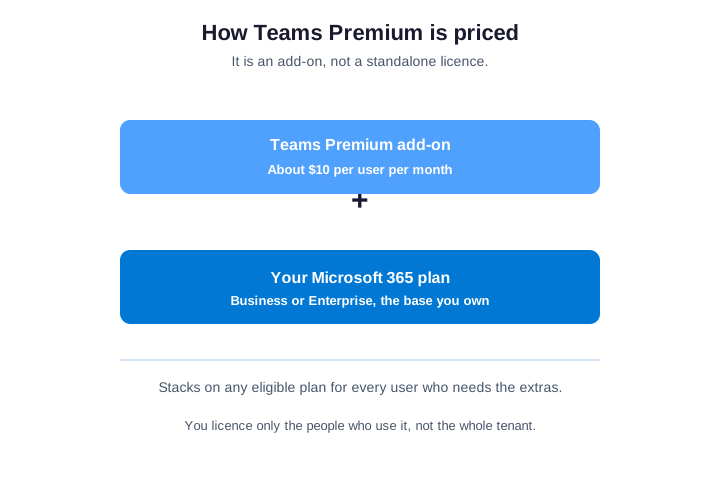
Because it is per user, the cost scales with how carefully you target it. Licensing a regulated team of twenty is a modest line item, while licensing an entire company “just in case” is where budgets get wasted. So the pricing model rewards a clear answer to one question: who genuinely needs these features?
A useful rule of thumb is to price the add-on against the tool it replaces. If Teams Premium removes a separate webinar platform or an appointment system, the per-user cost often looks small next to the subscription it retires. Framed as a replacement rather than an extra, the maths is far easier to defend to a budget holder.
⚖️ Teams Premium versus what you already have
Plenty of solid features come with standard Teams, so it is worth drawing the line clearly. Standard Teams already gives you meetings, recording, background blur, basic together mode, and the standard lobby. Teams Premium adds the AI recap, the advanced protection, the advanced events and the management layer on top of all that.
It helps to be precise about the boundary so nobody pays for what they already have. Background blur, custom backgrounds, basic together mode, meeting recording and transcription are all standard. The premium line begins at the intelligent, the protected and the large-scale — the features that need extra compute or compliance behind them.
One nuance trips people up: Microsoft has moved some AI capabilities between Teams Premium and Microsoft 365 Copilot over time, so a few recap features can come with either licence — confirm the current split before you buy both. Because that boundary moves, treat the table below as a snapshot rather than gospel, and when you are about to buy, open the Microsoft documentation and confirm the exact placement of any feature you are counting on. That two-minute check saves an awkward conversation later.
| Capability | Standard Teams | Teams Premium |
|---|---|---|
| Meetings and recording | Included | Included |
| Intelligent recap and AI notes | No | Yes |
| Watermarking and advanced protection | No | Yes |
| Advanced webinars and town halls | Basic only | Yes |
| Virtual appointments at scale | Basic Bookings | Yes |
🧭 Who needs the Microsoft Teams Premium features
Honestly, not everyone does. The add-on pays off fastest for three groups. One runs confidential or regulated meetings, while a second hosts large webinars or town halls. A third takes client appointments at volume. If a group does none of these, standard Teams is usually enough for now.
In our experience, advanced meeting protection is the single feature that turns a “nice to have” into a purchase. A law firm or a finance team handling deal data will license Teams Premium for that group alone, because watermarking and labelled meetings answer a question their clients and auditors actually ask. The AI features are a welcome bonus on top, not the reason they buy.
Mapping it to real roles makes the call concrete. A legal or finance team leans on protection, a marketing or enablement team lives in the events pillar, and a customer-facing desk runs on virtual appointments. Most other staff, who simply attend internal calls, rarely touch a premium feature. That uneven pattern is precisely why a blanket rollout wastes money.
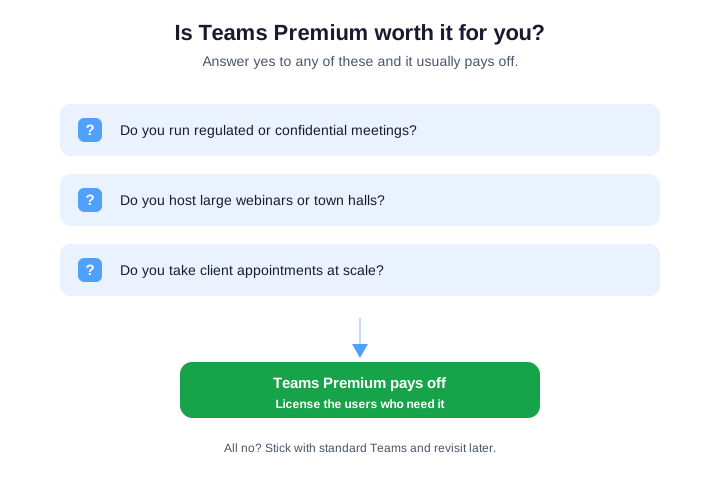
This is why per-user licensing matters so much. Rather than a tenant-wide switch, treat Teams Premium as a tool you hand to the roles that benefit. A practical rollout licenses one department, measures the result, and expands only where the features get used.
Group-based licensing makes that approach painless to run. Assign Teams Premium to a security group in Entra ID, and membership changes add or remove the licence automatically as people join or leave the team. So the rollout scales without anyone hand-editing licences one by one each month.
🛒 Buy and assign Teams Premium licences
Once you know who needs it, assigning the licence is straightforward. You buy the add-on in the Microsoft 365 admin center, then assign it per user there or through PowerShell. For anything beyond a handful of users, the Microsoft Graph PowerShell module is faster and repeatable. First, confirm the licence exists in your tenant and how many seats are free.
# Find your Teams Premium licenses (Microsoft Graph PowerShell)
Connect-MgGraph -Scopes "Organization.Read.All"
Get-MgSubscribedSku | Where-Object { $_.SkuPartNumber -like "*Teams_Premium*" } |
  Select-Object SkuPartNumber, ConsumedUnits, @{n='Total';e={$_.PrepaidUnits.Enabled}}
With the SKU confirmed, assign it to a user in one command. The same pattern scales to a group if you pipe in a list of accounts, which is how you license a whole department in seconds.
For larger estates, prefer group-based licensing over per-user assignment so the licence follows role changes on its own. Whichever method you choose, keep a short record of who was licensed and why. That note turns a future audit into a five-minute confirmation instead of an investigation.
# Assign Teams Premium to a user (Microsoft Graph PowerShell)
Connect-MgGraph -Scopes "User.ReadWrite.All","Organization.Read.All"
$sku = (Get-MgSubscribedSku | Where-Object { $_.SkuPartNumber -like "*Teams_Premium*" }).SkuId
Set-MgUserLicense -UserId user@contoso.com -AddLicenses @{SkuId=$sku} -RemoveLicenses @()
📊 Track who has a licence and whether it is used
Assigning the licence is only half the job; you also want to know it is earning its place. Start by listing exactly who holds a Teams Premium licence today, so you can match it against the people who should. Unused assignments are the most common source of quiet waste.
# List users who already hold a Teams Premium license
$sku = (Get-MgSubscribedSku | Where-Object { $_.SkuPartNumber -like "*Teams_Premium*" }).SkuId
Get-MgUser -All -Property DisplayName,AssignedLicenses |
  Where-Object { $_.AssignedLicenses.SkuId -contains $sku } |
  Select-Object DisplayName
Pair that list with a quarterly review of meeting and usage activity. Where a licence sits idle, reclaim it and put it on someone who runs the events or handles the confidential calls. That simple loop keeps the spend matched to real use rather than good intentions.
Usage reports close the gap between assigned and active. The Teams admin center and Graph both expose per-user activity. So you can see whether a licensed person actually runs the events or protected meetings the add-on was meant for. Where the activity is missing, that licence is your next saving.
🛫 A staged rollout for Teams Premium
A staged rollout beats a tenant-wide switch. Start with one department that has a clear need, such as legal or marketing. License that group, set up the templates and policies, and let them use the features for a few weeks. The pilot proves the value before you spend more.
Then expand on evidence, not hope. Review the usage data, keep the licences that get used, and reclaim the ones that do not. Roll the add-on out to the next team only when a real need appears. This keeps the cost tied to outcomes the whole way.
🤝 How Wintive helps you get this right
We treat Teams Premium as a targeting exercise, not a blanket purchase. We map which roles run regulated meetings, host events or book appointments, then license exactly those people and leave the rest on standard Teams. Templates and meeting policies do the enforcement, so the protection features apply without asking staff to remember settings.
After rollout, a short quarterly review keeps it honest: who still uses the add-on, what sits idle, and where a reassignment saves money. The result is a Teams estate where every premium licence is justified, which is far cheaper than discovering a tenant-wide purchase nobody needed.
If you would rather not run this in-house, it is exactly the kind of targeted, repeatable work a managed partner handles well. Either way, the principle holds: licence Microsoft Teams Premium features by role, enforce them with templates, and review them on a rhythm. That is how the add-on stays an asset instead of a line item nobody can explain.
📚 More for IT admins
🔍 Want to know exactly which licenses you are paying for?
The M365 Instant Audit scans your tenant in under 10 minutes. It checks license waste, plan right-sizing, MFA coverage, security posture and compliance gaps. As a result, you get a full PDF report with prioritized fixes, delivered instantly.
❓ Microsoft Teams Premium features: Frequently Asked Questions
Teams Premium is a paid add-on licence that adds AI, security and engagement features to the Teams you already run. It does not replace your Microsoft 365 plan; it stacks on top of an eligible plan and is assigned per user, so you license only the people who need the extras.
They fall into four pillars: AI productivity (intelligent recap, AI notes, live translations), advanced meeting protection (watermarking, end-to-end encryption, sensitivity labels), engagement (advanced webinars, town halls, virtual appointments) and management (analytics, branded meetings, tailored policies).
It lists at around $10 per user per month as an add-on on top of an eligible Microsoft 365 plan. Pricing is per user with annual and monthly options, and Microsoft has run promotions, so confirm the current rate. You pay only for the people you assign it to.
No. It is not bundled into Business or Enterprise plans and it is not a standalone Teams licence. You buy it separately in the Microsoft 365 admin center and attach it to an eligible plan such as Business Standard, Business Premium, E3 or E5.
Not always. Microsoft has moved some AI meeting features between Teams Premium and Microsoft 365 Copilot, so a few capabilities overlap. If you run Copilot, check the current split before buying both; the protection, webinar and appointment features remain unique to Teams Premium.