

Most teams start on a basic email plan, then hit a wall. Exchange Online Plan 2 is the licence they grow into, because it doubles the mailbox and adds the compliance tools that regulated work demands. So it sits one step above Plan 1, aimed at firms that must keep, search, and protect their email. This guide explains what it adds, what it costs, and exactly when the upgrade pays off.
We wrote it for the admin weighing the step up, not just listing features. Therefore you will find real prices, the 100 GB mailbox, the unlimited archive, and the PowerShell to assign a seat. By the end, you will know whether this plan fits your team or whether Plan 1 or a fuller bundle serves you better.
📋 Free: the M365 Audit Checklist (50 points)
Before you upgrade a single seat, see where your tenant actually stands today.
🎯 What is Exchange Online Plan 2?
Exchange Online Plan 2 is the advanced, cloud-hosted business email licence from Microsoft. In short, it gives each user a 100 GB mailbox, an unlimited archive, and a full set of compliance tools. Microsoft runs the service and backs it with a 99.9% uptime promise. So you get the same reliable email as Plan 1, plus the governance that auditors expect.
The compliance angle is the whole reason this plan exists. Where Plan 1 stops at email, Plan 2 adds data loss prevention, retention policies, and legal hold. Because of that, it suits firms in finance, law, healthcare, and any team that must prove what it kept. It targets governance, not just delivery.
People also call it Exchange Online (Plan 2), the E3 mailbox tier, or simply the advanced Exchange licence. The product name holds steady though. Whenever a quote lists “EXCHANGEENTERPRISE”, that line points to this exact licence.
In short: Exchange Online Plan 2 is Microsoft’s advanced email licence. It gives each user a 100 GB mailbox, an unlimited auto-expanding archive, data loss prevention, retention, and litigation hold, for roughly $8 per user per month on an annual term. It doubles Plan 1’s storage and adds the compliance suite that regulated teams need. Choose it when you must retain, search, or protect email, or when a 50 GB mailbox no longer fits.
💷 Exchange Online Plan 2 pricing
Price usually frames the decision, so let us start there. Exchange Online Plan 2 costs roughly $8 per user per month on an annual commitment. That is about double the entry-level email plan, and a monthly term runs a little higher. Microsoft adjusts list prices over time, so treat these numbers as a close guide rather than a contract.
The extra cost buys compliance, not just storage. You pay more than for Plan 1, yet you gain the archive, retention, and legal hold that a regulator may demand. Compared with a full E3 suite, the standalone licence stays far cheaper, because it skips the Office apps and Teams. So you pay only for the email governance you actually use.
| Licence | Approx. price / user / month | What you mainly get |
|---|---|---|
| Exchange Online Plan 1 | ~ $4 | 50 GB email, custom domain |
| Exchange Online Plan 2 | ~ $8 | 100 GB + unlimited archive + DLP |
| Microsoft 365 E3 | ~ $36 | Plan 2 email + full Office suite |
One planning note matters here. You buy this licence per user, so you can mix it across the team. Many firms put only their regulated or heavy-mailbox staff on Plan 2, then keep everyone else on the cheaper seat. That blend controls the bill while still covering the people who truly need it.
📦 What Exchange Online Plan 2 includes
The feature list reads like a compliance toolkit bolted onto email. You get a 100 GB mailbox, an unlimited auto-expanding archive, and data loss prevention on every message. Retention policies, litigation hold, and in-place eDiscovery round it out. So a regulated team can keep, search, and defend its mail from one licence.
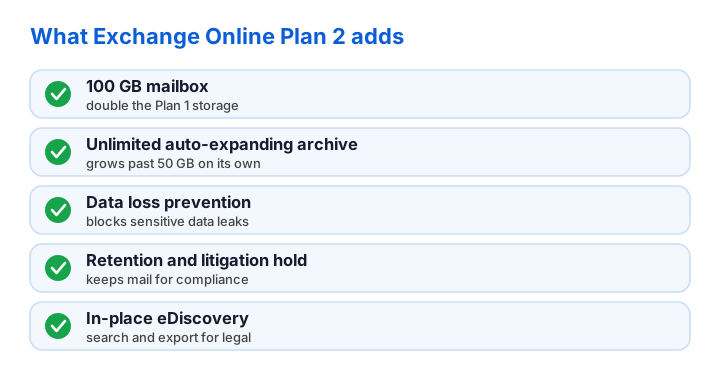
The everyday email still works exactly as before. Users reach their mail through Outlook, a browser, or a phone, and Exchange Online Protection filters spam and malware. Custom-domain addresses and shared mailboxes carry over too. In other words, you lose nothing from the lighter plan, and you gain the governance layer on top.
🗄️ The unlimited auto-expanding archive
The headline feature is the archive, so it deserves a close look. Each user starts with a 100 GB primary mailbox and a separate archive mailbox. When that archive nears its limit, Microsoft grows it automatically, in chunks, up to roughly 1.5 TB. So a heavy mailbox never simply fills and stops.
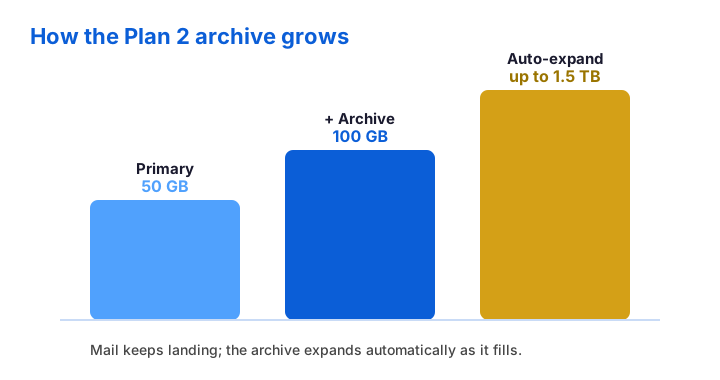
This matters most for long-tenured staff and busy inboxes. An executive who keeps a decade of mail would overrun a 50 GB box quickly. With auto-expansion, that history stays searchable instead of being deleted. Crucially, the archive also satisfies retention rules, because nothing has to leave the platform to free up room.
Expansion is automatic, yet it is not instant. Microsoft provisions more space when the archive crosses a threshold, so plan a little ahead for very heavy users. Still, for nearly every team, the archive simply works in the background. Once enabled, it removes the storage worry that pushes people off the entry plan.
📨 Mailbox size and storage limits
Limits decide whether a plan fits, so know them before you buy. The primary mailbox holds 100 GB, double the entry plan. A single message can still reach 150 MB, which clears large attachments easily. These ceilings comfortably suit even the heaviest everyday users.
Storage is where this plan really pulls ahead. On top of the 100 GB inbox, the auto-expanding archive grows to about 1.5 TB as it fills. So total mail storage per user lands far beyond anything the entry plan offers. For an archivist or a long-serving leader, that headroom is the deciding factor.
Sending limits stay the same across both plans. A mailbox can reach up to 10,000 recipients a day, and Microsoft caps the per-minute rate to curb abuse. Those numbers fit normal business mail without trouble. For bulk newsletters at scale, route the traffic through a dedicated sending service instead.
📨 Custom domain, shared mailboxes, and aliases
Everything you rely on from the entry plan carries straight over, which is easy to miss. Your custom-domain addresses, shared mailboxes, aliases, and distribution groups all work just as before. So the upgrade adds capability without taking anything away. The daily email experience stays familiar for every user.
Shared mailboxes deserve a quick note, because they still cost nothing extra. A team address like support@ stays free as long as it sits under 50 GB and nobody signs in to it directly. Aliases let one person hold several addresses, while distribution groups fan a message out to many. So you keep trimming the licence count the same clever way.
The real change is that these features now sit on a compliant base. A shared mailbox on Plan 2 can carry a litigation hold, and its mail can fall under retention. So the same familiar tools gain governance underneath. For a regulated team, that pairing of convenience and compliance is exactly the point.
🛡️ Data loss prevention, retention, and hold
The compliance trio is what truly sets this plan apart. Data loss prevention scans outgoing mail and blocks sensitive content, such as card numbers or health records. Retention policies then keep or purge mail on a schedule you set. Litigation hold freezes a mailbox when a legal case demands it, so nothing slips away.
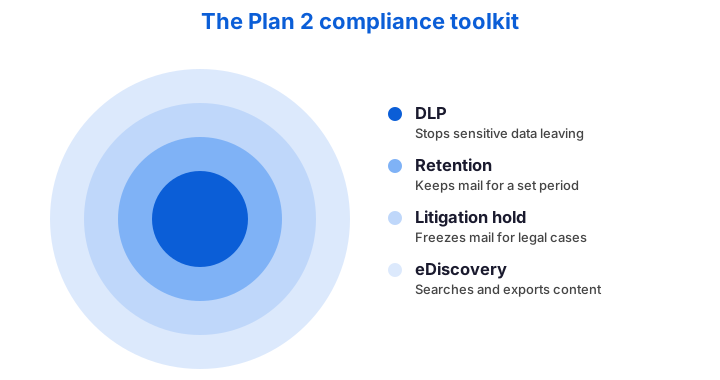
Across the tenants we audit, the trap is assuming an upgrade alone makes you compliant. The tools ship with Plan 2, but they do nothing until you configure them. So budget time to set retention labels, write a DLP policy, and test a hold. A licence on the shelf protects no one, while a tuned policy quietly does its job every day.
In-place eDiscovery completes the set. It lets a compliance officer search across mailboxes, then export the results for legal review. Because the search runs inside the service, the evidence stays consistent and dated. For any team that faces audits or disputes, those four controls turn email from a liability into a defensible record.
⚖️ Exchange Online Plan 2 vs Plan 1
This is the comparison most buyers weigh, so let us settle it. Both plans deliver the same core email on the same platform. The difference is headroom and compliance. Plan 2 doubles the mailbox and adds the governance tools, while Exchange Online Plan 1 keeps things lean and cheap.
| Capability | Plan 1 | Plan 2 |
|---|---|---|
| Mailbox size | 50 GB | 100 GB |
| Auto-expanding archive | No | Yes (to ~1.5 TB) |
| Data loss prevention | No | Yes |
| Retention & litigation hold | No | Yes |
| Approx. price | ~ $4 | ~ $8 |
So the choice comes down to duty, not daily features. A marketing team rarely needs litigation hold, so the entry plan fits. A law firm or a clinic usually does, since regulators expect retained mail. When in doubt, weigh the rules you must meet, because that single factor decides it more often than storage does.
📋 Which plans include Exchange Online Plan 2
You do not always buy this licence on its own, and that confuses buyers. Several Microsoft bundles already include it. Office 365 E3, Office 365 E5, Microsoft 365 E3, and E5 all carry the advanced email tier inside them. So if you run one of those, you already have Plan 2 and should not buy it twice.
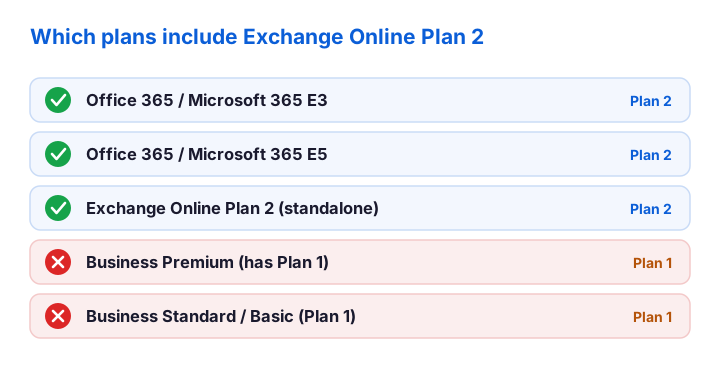
The small-business bundles tell a different story. Business Basic, Standard, and even Business Premium all ship with the entry email plan, not the advanced one. So a Premium subscriber who needs an unlimited archive must still add or step up to Plan 2. Knowing that one fact saves both wasted spend and a nasty compliance surprise.
🤝 Exchange Online Plan 2 vs Business Premium
This pairing causes more confusion than any other, so it is worth slowing down. Business Premium looks like the top small-business plan, and in many ways it is. Yet its email engine is the entry-level Plan 1, not Plan 2. So a Premium mailbox stops at 50 GB and has no unlimited archive or litigation hold.
The costliest assumption we see is “Premium is the best, so its email must be too.” It is not. We regularly meet firms that pay for Business Premium, then discover during an audit that they have no archive or hold at all. So if compliance matters, check the email tier behind the bundle, because the badge on the box does not tell you.
The fix is simple once you know it. You can buy a standalone Plan 2 seat for the staff who need governance, while everyone else stays on Premium. Alternatively, you step the whole tenant up to a Microsoft 365 E3 plan, which folds Plan 2 in. Either way, you match the email tier to the duty, not to the bundle name.
👥 Who should choose Exchange Online Plan 2
This plan rewards a clear set of teams, so match yours against them. Regulated firms top the list, because law, finance, and healthcare all face retention rules. Any business that may face litigation fits too, since legal hold protects evidence. So the licence earns its price wherever compliance is a real duty.
Heavy mailboxes make a second strong case. An executive, an archivist, or a long-serving manager can hold years of mail that a 50 GB box cannot. For them, the unlimited archive alone justifies the step up. So even outside regulated work, storage pressure often points straight to this plan.
Some teams should still pass, and saying so saves money. If your staff only need everyday email and a 50 GB mailbox, the entry plan serves them well. If they also need Teams and the Office apps, a Microsoft 365 bundle fits better. Match the plan to the real duty, because paying for unused compliance is just waste.
🛒 How to buy and assign Exchange Online Plan 2
Buying the plan takes minutes, whether direct or through a partner. In the Microsoft 365 admin center, you add the licences under billing, then assign one per user. A reseller can do the same on your behalf, often with friendlier terms. So pick whichever route matches how you already buy software.
For many seats at once, PowerShell wins easily. You first check how many licences the tenant owns, then assign the right one in a single command. The licence appears as “EXCHANGEENTERPRISE” in Microsoft Graph, which is the part number to match.
# See which licences your tenant owns and how many seats are free
Connect-MgGraph -Scopes "Organization.Read.All","User.ReadWrite.All"
Get-MgSubscribedSku |
  Select SkuPartNumber, @{N='Free';E={$_.PrepaidUnits.Enabled - $_.ConsumedUnits}}

# Assign Exchange Online (Plan 2) to a user
$sku = Get-MgSubscribedSku | Where-Object SkuPartNumber -eq 'EXCHANGEENTERPRISE'
Set-MgUserLicense -UserId sara@contoso.com -AddLicenses @{SkuId=$sku.SkuId} -RemoveLicenses @()
The mailbox upgrades within a few minutes of the assignment. After that, the larger quota and the compliance tools become available to configure. For a batch of users, wrap the command in a loop over a CSV, so moving fifty people takes one script rather than a long afternoon of clicking.
🗂️ Enable the archive and retention
Assigning the licence is only step one, because the compliance tools start switched off. So you enable the archive, then turn on the policies the business needs. Both take a single cmdlet, and you can run them across many mailboxes at once. After that, the governance actually works rather than just sitting in the licence.
# Turn on the auto-expanding archive for a user
Enable-Mailbox -Identity sara@contoso.com -Archive
Enable-Mailbox -Identity sara@contoso.com -AutoExpandingArchive

# Place the mailbox on litigation hold for compliance
Set-Mailbox -Identity sara@contoso.com -LitigationHoldEnabled $true -LitigationHoldDuration 2555
Retention labels and DLP rules live in the compliance portal, not in these cmdlets. Still, the pattern stays the same. You define a policy once, then apply it to the mailboxes that need it. Because the controls run server-side, they keep working even when a user is offline, so your evidence stays complete.
🔁 How to upgrade from Plan 1 to Plan 2
Upgrading is painless, which is the good news. You can move one user or a whole group from Plan 1 to Plan 2 with no mailbox migration. The mailbox stays exactly where it is, while the licence swap unlocks the larger quota and the compliance tools. So there is no downtime and no data move at all.
# Swap Exchange Online (Plan 1) for (Plan 2) on one user, no migration
$p1 = (Get-MgSubscribedSku | Where-Object SkuPartNumber -eq 'EXCHANGESTANDARD').SkuId
$p2 = (Get-MgSubscribedSku | Where-Object SkuPartNumber -eq 'EXCHANGEENTERPRISE').SkuId

Set-MgUserLicense -UserId sara@contoso.com -AddLicenses @{SkuId=$p2} -RemoveLicenses @($p1)
After the swap, enable the archive and switch on any holds you need. The user notices nothing beyond more headroom, because the address and the mail stay put. So you can keep most staff on the cheaper plan and lift only the seats that grow into compliance. That habit ties your spending to real demand.
🔐 Compliance and security best practices
A compliance licence only helps if you run it well, so a few habits matter. Start with least privilege, because broad rights over an archive or a hold are a real risk. Require multi-factor authentication on every account, and review who can open shared or on-hold mailboxes. So the governance tools protect data rather than expose it.
Tune the policies instead of leaving the defaults in place. Write a data loss prevention rule that matches your real sensitive data, then test it on one mailbox first. Set retention to the period your regulator names, not a round-number guess. Because each control is specific, a tuned policy catches the right mail and ignores the rest.
Review the holds and archives on a schedule too. A litigation hold left on forever bloats storage and muddles an audit, so check them quarterly. For the official limits and retention rules, Microsoft documents every figure in the Exchange Online limits reference. Pair that page with your own runbook, and a new admin stays compliant from the first day.
📊 Report on archive and hold status
Once the compliance tools run, you still need to prove they run. A quick report shows which mailboxes have the archive enabled and which sit on hold. So you catch a missed setting before an auditor ever does. PowerShell pulls the whole picture in seconds, not hours.
# List every mailbox with its archive and litigation-hold state
Get-EXOMailbox -ResultSize Unlimited |
  Select DisplayName, ArchiveStatus, LitigationHoldEnabled |
  Export-Csv .\plan2-compliance.csv -NoTypeInformation
Read the export, then act on the gaps it reveals. A regulated mailbox with no hold, or a heavy box with no archive, stands out at once. Because the file is dated, it also doubles as evidence for your records. So one short script both finds the gaps and proves your diligence later.
Schedule the report to run each month, and the picture stays current. From there, you enable any control the file flags as missing. Over time, that habit turns into a simple health check, and every advanced seat keeps doing the job you pay for.
You can also feed the report into a simple alert. Pipe the export to a short script that flags any regulated mailbox without a hold, then email yourself the list each morning. Because the check runs unattended, a new gap surfaces the moment it appears, not months later during an audit. So the report stops being a chore and quietly becomes an early-warning system for your whole compliance posture.
🆚 Exchange Online Plan 2 vs Microsoft 365 E3
Buyers often weigh the standalone licence against a full E3 suite, so the line is worth drawing clearly. Exchange Online Plan 2 covers advanced email and compliance, and little else. Microsoft 365 E3 folds that same email tier into a far wider bundle, with the desktop Office apps, Teams, and extra security. So the real question is scope, not email quality.
Price marks the gap sharply. The standalone email licence costs around $8 per user, while an E3 plan runs several times that. For a team that only needs governed email, the standalone seat saves a great deal across a year. For one that also wants desktop Office and advanced security, the bundle earns its higher price instead.
So match the bundle to the whole need, not just the mailbox. If email compliance is the single goal, the standalone licence wins on cost. If you want one plan to cover apps, collaboration, and security as well, then E3 is the cleaner buy. Either way, the same advanced mailbox sits underneath, so the email itself never changes.
💡 Common Exchange Online Plan 2 mistakes to avoid
A few avoidable errors cost teams real money, so learn them now. The first is buying Plan 2 for everyone when only a handful face compliance rules. The second is the opposite, staying on the entry plan while regulators expect retained mail. Both miss the mark, just in different directions.
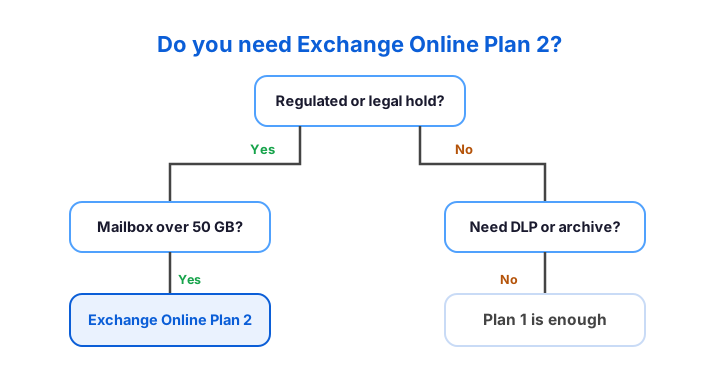
Two more slips waste the upgrade entirely. People assign the licence, then forget to enable the archive or the holds, so the tools never run. Others pay twice by buying a standalone seat on top of an E3 bundle that already includes it. Check the bundle first, then enable what you turn on, because a five-minute review now saves a costly gap later.
So treat the choice as a quick checklist, not a guess. Match the plan to the duty, enable the controls you pay for, and avoid double-licensing. Do that, and Exchange Online Plan 2 delivers exactly the governance a regulated team needs, without a wasted seat anywhere.
📚 More for IT Admins
🔍 Not sure which Microsoft 365 licences you actually need?
The M365 Instant Audit scans your tenant in under 10 minutes. It checks license waste, plan right-sizing, MFA coverage, security posture, and compliance gaps. As a result, you get a full PDF report with prioritized fixes, delivered instantly.
❓ Exchange Online Plan 2: Frequently Asked Questions
Exchange Online Plan 2 is the advanced email licence from Microsoft. It gives each user a 100 GB mailbox, an unlimited auto-expanding archive, and compliance tools such as DLP, retention, and litigation hold. It costs around $8 per user per month.
Plan 2 doubles the mailbox to 100 GB and adds an unlimited archive, data loss prevention, and retention or litigation hold. Plan 1 stays email-only at 50 GB with no compliance tools.
No. Business Premium ships with the entry-level Plan 1, capped at 50 GB and without an unlimited archive or legal hold. For Plan 2, you add a standalone seat or move to a Microsoft 365 E3 plan.
The primary mailbox holds 100 GB. The separate auto-expanding archive then grows automatically, in stages, up to roughly 1.5 TB as it fills, so mail stays searchable instead of being deleted.
It costs roughly $8 per user per month on an annual term, with monthly billing a little higher. Microsoft updates list prices over time, so confirm the current figure before you buy.