

Choosing an email licence for Microsoft 365 sounds simple, until you meet the plan list. Exchange Online Plan 1 is the entry-level business email subscription from Microsoft, and it trips up buyers for one reason. It looks a lot like several other plans, so people pay for the wrong one. This guide fixes that, because it explains exactly what you get, what you pay, and where this licence fits.
We wrote it for the admin who has to choose, not just describe. Therefore you will find real prices, the 50 GB mailbox limit, the gaps versus Plan 2, and the PowerShell to assign a seat. By the end, you will know whether this plan suits your team or whether Business Basic or Plan 2 serves you better.
📋 Free: the M365 Audit Checklist (50 points)
Before you buy or change a licence, see where your tenant actually stands today.
🎯 What is Exchange Online Plan 1?
Exchange Online Plan 1 is a standalone, cloud-hosted business email licence. In short, it gives each user a 50 GB mailbox, a calendar, contacts, and shared mailboxes, all without an on-premises server. Microsoft runs the service, patches it, and backs it with a 99.9% uptime promise. So you get enterprise-grade email without the hardware.
The word “standalone” matters here. You can buy this plan on its own, separate from the Office apps and from Teams. Because of that, it costs less than a full Microsoft 365 bundle. It targets one job and does it well: reliable, secure company email on your own domain.
People also call it Exchange Online (Plan 1), Office 365 Exchange email, or simply the E1 mailbox plan. The official product name stays the same though. Whenever a vendor quote lists “EXCHANGESTANDARD”, that line item points to this exact licence.
In short: Exchange Online Plan 1 is Microsoft’s entry-level email-only licence. It gives each user a 50 GB cloud mailbox, custom-domain email, anti-spam filtering, and a 99.9% uptime promise, for roughly $4 per user per month on an annual term. It does not include Teams, the Office apps, SharePoint, or the unlimited archive and data-loss prevention that Plan 2 adds. Choose it when you need solid business email and nothing more.
💷 Exchange Online Plan 1 pricing
Price is usually the reason people land on this plan, so let us start there. Exchange Online Plan 1 costs roughly $4 per user per month on an annual commitment. A monthly, no-commitment term runs a little higher. Microsoft adjusts list prices over time, so treat these figures as a close guide rather than a contract.
The value becomes clear once you compare it to the bundles. Business Basic costs more because it adds Teams, SharePoint, OneDrive, and the web Office apps. Plan 2 costs more still, since it doubles the mailbox and layers on compliance tools. If your team needs none of those extras, the cheaper email-only seat saves real money across a year.
| Licence | Approx. price / user / month | What you mainly get |
|---|---|---|
| Exchange Online Plan 1 | ~ $4 | 50 GB email, custom domain |
| Business Basic | ~ $6 | Email + Teams + SharePoint + web apps |
| Exchange Online Plan 2 | ~ $8 | 100 GB email + archive + DLP |
One more cost note matters for planning. You buy this licence per user, so 25 staff means 25 seats. Annual billing locks the lower rate, yet it also ties you in for the term. For a stable headcount, the annual price wins easily.
📦 What Exchange Online Plan 1 includes
The feature list is focused, which is the whole point. You get a 50 GB mailbox per user, email on your own domain, and shared mailboxes for teams like sales or support. Calendars, contacts, and global distribution lists come as standard. So a small company can run all of its mail from day one.
Security sits inside the price too. Exchange Online Protection filters spam and malware on every message, while modern authentication guards each sign-in. Users reach their mail through Outlook, a browser, or a phone, because mobile sync works out of the box. Microsoft also promises 99.9% uptime, and it pays service credits when it misses.
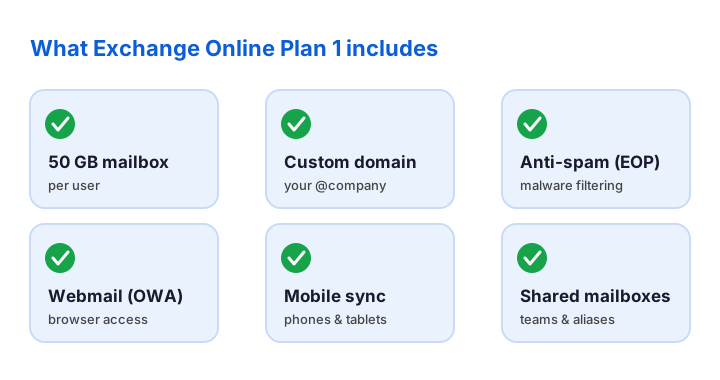
It helps to know the edges as well. This plan covers email and calendars, yet it stops there by design. The Office desktop apps, Teams, and SharePoint all live in other licences. Knowing that line up front saves you from a surprise later, so we map it clearly in the next sections.
⚖️ Exchange Online Plan 1 vs Plan 2
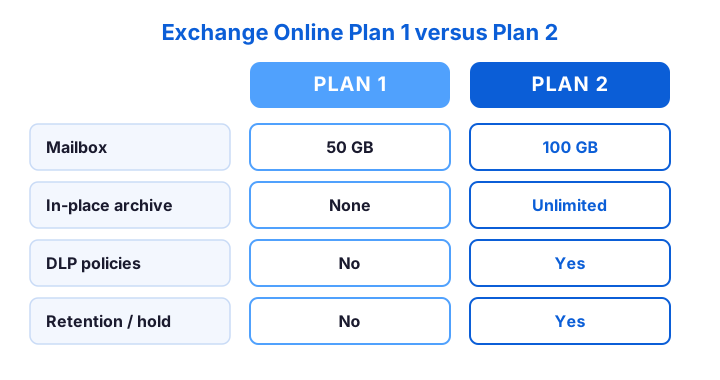
This is the comparison most buyers actually search for, so let us settle it. Both plans deliver the same core email service on the same platform. The difference is headroom and compliance. Plan 2 doubles the mailbox and adds tools that larger or regulated teams need, while Plan 1 keeps things lean.
The four real differences
Four things separate the two plans, and the rest is identical. First, storage: 50 GB on Plan 1 versus 100 GB on Plan 2. Second, archiving: Plan 2 adds an unlimited, auto-expanding archive, whereas Plan 1 has none. Third, data-loss prevention runs only on Plan 2. Fourth, retention and litigation hold also belong to Plan 2 alone.
So the choice comes down to compliance, not features you touch daily. A marketing team rarely needs litigation hold, so Plan 1 fits. A law firm or a clinic usually does need it, since regulators expect retained mail. When in doubt, weigh the rules you must meet, because that single factor decides it more often than storage does.
🤝 Does Exchange Online Plan 1 include Teams?
No, and this is the single biggest misunderstanding we see. Exchange Online Plan 1 covers email, calendars, and contacts only. It does not include Microsoft Teams, the desktop Office apps, SharePoint, or OneDrive. Those tools sit in the Microsoft 365 bundles instead, such as Business Basic or Business Standard.
The mix-up is easy to understand though. Many people use “Office 365” to mean everything Microsoft sells, so they assume one email plan unlocks the lot. It does not. If your staff need chat, video meetings, or shared document libraries, then an email-only seat will leave them short.
🆚 Exchange Online Plan 1 vs Business Basic
People weigh these two more than any other pair, and the gap is wider than the price tag suggests. Business Basic costs only about two dollars more per user, yet it adds Teams, SharePoint, OneDrive, and the browser Office apps. So the question is not really price. It is whether you want email alone or a full collaboration suite.
| Feature | Plan 1 (email-only) | Business Basic |
|---|---|---|
| Business email, 50 GB | Yes | Yes |
| Microsoft Teams | No | Yes |
| SharePoint & OneDrive | No | Yes |
| Web Office apps | No | Yes |
| Desktop Office apps | No | No |
So who still picks the email-only seat? Teams that already collaborate elsewhere do. A shop on Google Docs, or one that meets in Zoom, may want only mail from Microsoft. For everyone else, the bundle tends to win, because the extra tools cost little and remove the need to glue services together later.
Across the tenants we manage, the costliest licence mistake is buying email-only seats and then bolting on Teams and OneDrive a la carte. Once you add those pieces, the total often passes Business Basic. So if your team will need Teams within the year, price the bundle first. The all-in seat usually wins on both cost and simplicity.
📨 Mailbox size and message limits
Every plan has limits, and Plan 1 is generous for everyday email. Each user gets a 50 GB mailbox, which holds years of mail for most people. A single message can reach 150 MB, so large attachments still go through. These ceilings rarely pinch a normal office worker.
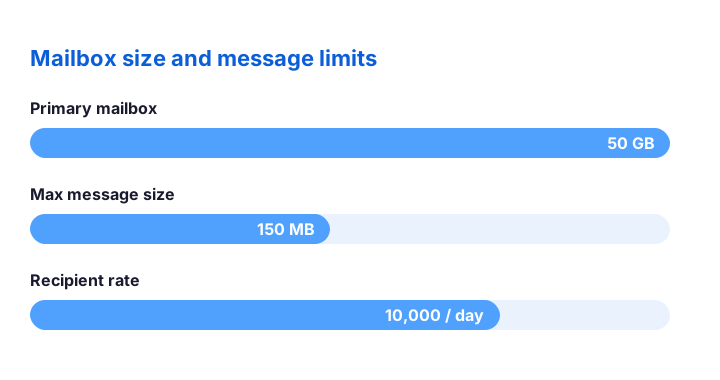
Sending limits protect the service from abuse, so they matter for bulk mail. A mailbox can send to up to 10,000 recipients a day, and Microsoft caps the send rate per minute as well. Those numbers suit normal business email easily. For newsletters or alerts at scale, route the traffic through a dedicated service instead.
One ceiling does deserve a flag. Because Plan 1 has no auto-expanding archive, a heavy mailbox can fill its 50 GB over many years. Most users never reach it. Still, if someone keeps every message forever, plan an archive strategy early, since Plan 2 solves this directly.
🌐 Custom domain support
Professional email needs your own domain, and this plan delivers it fully. You can host addresses like name@yourcompany.com, not a generic Microsoft suffix. The plan even supports multiple accepted domains, so a business with two brands can run both from one tenant. So your branding stays intact across every message.
Setup follows a clear path. First you add and verify the domain in the admin center. Then you publish the MX, SPF, and DKIM records at your DNS host, because those entries route and authenticate your mail. After that, you point each mailbox at the new address. PowerShell makes the checks quick.
# Connect to Exchange Online first
Connect-ExchangeOnline -UserPrincipalName admin@contoso.com

# List the domains your tenant already accepts
Get-AcceptedDomain | Select-Object Name, DomainName, DomainType

# Confirm a user's primary address uses your custom domain
Get-Mailbox -Identity sara@contoso.com | Select PrimarySmtpAddress
Get the DNS records right, and delivery just works. Miss the SPF or DKIM entry though, and your mail may land in spam folders. So verify both after setup, because that one check prevents most early delivery complaints. A quick audit of your records pays off on the first day.
📎 Shared mailboxes, aliases, and groups
This plan does more than hand each person a mailbox, and the extras cost nothing. Shared mailboxes let a team work one address like sales@ or support@ together. A shared mailbox stays free as long as it sits under 50 GB and nobody signs in to it directly. So a small firm can run several team inboxes without buying a seat for each.
Aliases stretch a single mailbox further still. You can give one person several addresses, such as a role name beside their own, and all of it lands in the same inbox. Distribution groups then fan one address out to many people at once, which suits announcements or department lists. Because each tool ships in the plan, you rarely need a workaround.
So map your team patterns before you buy seats. A busy support desk often needs just one licensed agent and a free shared mailbox, not five paid boxes. Used well, these features trim the licence count and keep the monthly bill lean, while every address still routes exactly where it should.
🛒 How to buy and assign Exchange Online Plan 1
Buying the plan takes minutes, whether you go direct or through a partner. In the Microsoft 365 admin center, you add the licences under billing, then assign one to each user. A partner or reseller can do the same on your behalf, often with friendlier terms. So pick whichever route fits how you already buy software.
For many seats at once, PowerShell beats clicking. You first check how many licences your tenant owns, then assign the right one in a single command. The licence shows up as “EXCHANGESTANDARD” in Graph, which is the part number to match.
# See which licences your tenant owns and how many seats are free
Connect-MgGraph -Scopes "Organization.Read.All","User.ReadWrite.All"
Get-MgSubscribedSku |
  Select SkuPartNumber, @{N='Free';E={$_.PrepaidUnits.Enabled - $_.ConsumedUnits}}

# Assign Exchange Online (Plan 1) to a user
$sku = Get-MgSubscribedSku | Where-Object SkuPartNumber -eq 'EXCHANGESTANDARD'
Set-MgUserLicense -UserId sara@contoso.com -AddLicenses @{SkuId=$sku.SkuId} -RemoveLicenses @()
The mailbox appears within a few minutes of the assignment. After that, the user signs in at Outlook on the web and starts sending. For a batch of new starters, wrap the command in a loop over a CSV, so onboarding fifty people takes one script rather than a long afternoon.
🧭 How to activate Exchange Online Plan 1
Once the licence lands on a user, the mailbox provisions on its own. So activation is mostly a first sign-in, not a setup chore. The user opens a browser, goes to the Outlook web app, and signs in with the work account. Within a minute, the inbox appears and mail starts to flow.
A few first-run steps make the experience smooth. The user sets a time zone, adds a signature, and registers for multi-factor authentication when the tenant asks. Outlook on the desktop then finds the account through autodiscover, so no manual server settings are needed. Phones connect the same way through the built-in mail app.
Admins can confirm everything from one command. Running Get-Mailbox -Identity sara@contoso.com shows the mailbox, its database, and its primary address. If the mailbox has not appeared yet, wait a few minutes, because provisioning sometimes lags the licence. After that, the account is live and ready for daily work.
📥 Move your existing email to Exchange Online Plan 1
Most buyers already have mail somewhere, so migration is part of the job. You might move from an old web host, from Google Workspace, or from an on-premises Exchange server. Each source has a clean route, and none of them needs you to lose a single message. So plan the move before you switch any addresses.
Three paths cover almost every case. An IMAP migration pulls mail from nearly any provider, which makes it the go-to for small teams. A cutover migration suits a small on-premises Exchange, while a staged move fits larger ones. For a handful of users, importing PST files by hand works too, though it scales poorly.
Order matters during the move, so follow it closely. First create the new mailboxes, then run the migration batch with New-MigrationBatch while the old system still receives mail. Once messages finish copying, you switch the MX record to Microsoft. Because you cut over only at the end, users keep working throughout, and nothing bounces.
🗄️ Archiving and adding more space
Storage questions come up fast, so it pays to know the limits. Exchange Online Plan 1 gives a fixed 50 GB mailbox and no auto-expanding archive. That suits most users for years. Heavy senders, however, can eventually fill the box, and there is no built-in way to extend it on this plan.
You have two clean options when space runs tight. You can prune old mail with retention rules, or you can move the user to Plan 2 for an unlimited archive. Many teams check archive status first, then upgrade only the few mailboxes that truly need it. PowerShell reports the state quickly.
# Plan 1 has no auto-expanding archive - check the archive state in bulk
Get-EXOMailbox -ResultSize Unlimited |
  Select DisplayName, ArchiveStatus

# Plan 1 mailboxes report ArchiveStatus = None.
# After you move a user to Plan 2, enable the archive:
Enable-Mailbox -Identity sara@contoso.com -Archive
So treat archiving as a per-user decision, not a tenant-wide one. Most people stay comfortably under 50 GB, which keeps your costs low. For the rare power user who hoards every thread, a single Plan 2 seat solves it cleanly. That mix keeps the bill lean while still covering the edge cases.
🔐 Security and compliance limits
The plan secures mail well, yet it draws a clear compliance line. Exchange Online Protection scans every message for spam and malware, and modern authentication protects each login. So the day-to-day security is solid. The deeper governance tools, though, live in Plan 2 and the wider compliance suite.
In the tenants we audit, the riskiest gap is not the licence at all. It is the missing controls on top of it: weak multi-factor rules, broad app permissions, and no review of who can read shared mailboxes. So whichever plan you pick, harden the tenant around it. A cheap mailbox on a tight tenant beats a rich licence left wide open.
Know the gaps before an auditor finds them. Plan 1 has no data-loss prevention, no retention policies, and no litigation hold. A regulated business usually needs at least one of those, so it should size up to Plan 2. For a team with no such duty, the lighter plan stays perfectly safe for normal mail.
👥 Who should choose Exchange Online Plan 1
This plan shines for a few clear profiles, so match yours against them. Frontline and deskless staff fit well, because they need mail but rarely open Office apps. An email-only small business fits too, especially one that already collaborates in other tools. So the licence rewards teams with a narrow, well-defined need.
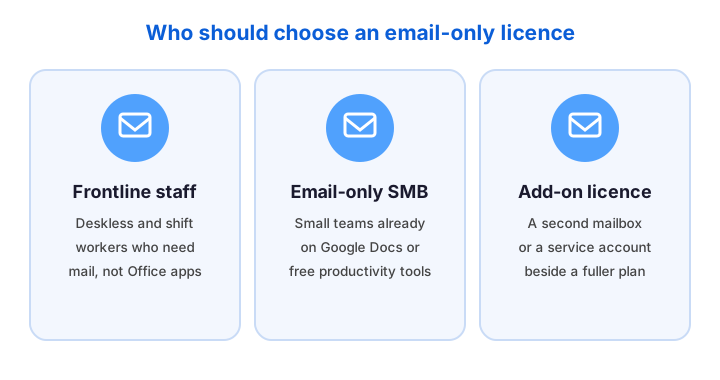
It also works as a supporting licence beside richer plans. A service account, a shared inbox, or a contractor mailbox rarely needs Teams or Office. So a single cheap seat covers it without waste. Mixing plans this way keeps the average cost per user down across the whole tenant.
Some teams should skip it, and that is worth saying plainly. If your staff need chat, meetings, or shared files, then Business Basic serves them better. If you face strict compliance rules, Plan 2 fits instead. Match the plan to the real need, because a cheap seat that blocks daily work is no bargain.
🔁 How to upgrade from Plan 1 to Plan 2
Needs change, so upgrading should be painless, and it is. You can move a single user or a whole group from Plan 1 to Plan 2 with no mailbox migration. The mailbox stays exactly where it is, while the licence swap simply unlocks more storage and the compliance tools. So there is no downtime and no data move.
# Swap Exchange Online (Plan 1) for (Plan 2) on one user, no migration
$p1 = (Get-MgSubscribedSku | Where-Object SkuPartNumber -eq 'EXCHANGESTANDARD').SkuId
$p2 = (Get-MgSubscribedSku | Where-Object SkuPartNumber -eq 'EXCHANGEENTERPRISE').SkuId

Set-MgUserLicense -UserId sara@contoso.com -AddLicenses @{SkuId=$p2} -RemoveLicenses @($p1)
After the swap, enable the archive and turn on any policies you need. The user notices nothing beyond more headroom, because the address and the mail stay put. So you can run Plan 1 as your default and lift only the seats that grow into Plan 2. That habit keeps spending tied to real demand.
✅ Exchange Online Plan 1: a quick decision checklist
Before you commit, run your need through this short checklist. It captures the questions that decide the plan in practice, so you avoid the common over-buy and the common under-buy. Keep it beside your licence list for the next review.
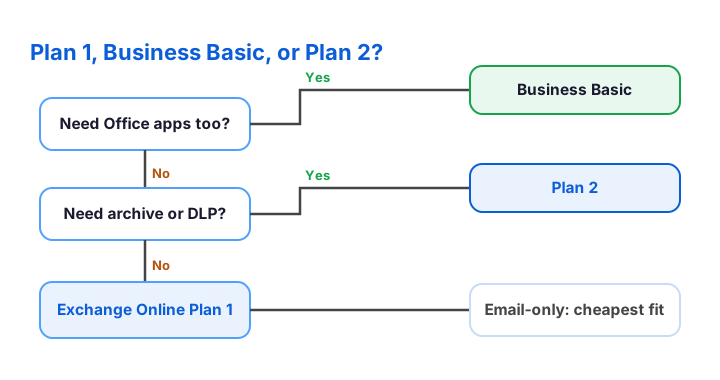
- Do your users need only email and calendars? If yes, this plan fits.
- Will they need Teams, SharePoint, or the Office apps? If yes, choose Business Basic.
- Do you face retention, archive, or DLP rules? If yes, choose Plan 2.
- Is a 50 GB mailbox enough for the next few years? Confirm before you buy.
- Do you bill annually for a stable headcount? That locks the lowest price.
For the official spec, Microsoft lists every limit in its Exchange Online service description. Bookmark it, because the numbers shift as Microsoft updates the service. Pair that page with this guide, and a new admin can size a licence with confidence in minutes rather than days.
💡 Common Exchange Online Plan 1 mistakes to avoid
A few avoidable errors trip up buyers every month, so learn them now. The first is over-buying, paying for a full suite when a 50 GB mailbox would do. The second is the opposite trap, choosing an email-only seat and then missing Teams on day one. Both waste money, just in different directions.
Two technical slips also cost time. People forget the SPF and DKIM records, so their mail drifts into spam. They also ignore the archive ceiling until a mailbox fills up. Check both early, because a five-minute review now saves a support ticket later. With those traps handled, the plan runs quietly for years.
So treat the licence choice as a quick checklist, not a guess. Match the plan to the work, set up the DNS records correctly, and keep an eye on mailbox size. Do that, and Exchange Online Plan 1 delivers exactly what most small teams actually need, at a price that is hard to beat.
📚 More for IT Admins
🔍 Not sure which Microsoft 365 licences you actually need?
The M365 Instant Audit scans your tenant in under 10 minutes. It checks license waste, plan right-sizing, MFA coverage, security posture, and compliance gaps. As a result, you get a full PDF report with prioritized fixes, delivered instantly.
❓ Exchange Online Plan 1: Frequently Asked Questions
Exchange Online Plan 1 is the entry-level, email-only licence from Microsoft. It gives each user a 50 GB cloud mailbox on your own domain, with anti-spam filtering and a 99.9% uptime promise. It does not include Teams or the Office apps.
No. The plan covers email, calendars, and contacts only. For Microsoft Teams, SharePoint, or the Office apps, you need a bundle such as Business Basic or Business Standard.
Plan 2 doubles the mailbox to 100 GB and adds an unlimited archive, data-loss prevention, and retention or litigation hold. Plan 1 stays email-only with a 50 GB mailbox and no compliance tools.
It costs roughly $4 per user per month on an annual term, with monthly billing a little higher. Microsoft updates list prices over time, so confirm the current figure before you buy.
Yes. You swap the licence with no mailbox migration, so the mailbox and address stay put. The user simply gains more storage and the compliance tools straight away.