

Not every worker needs a full mailbox, and Microsoft prices a plan for exactly that. Exchange Online Kiosk is the cheapest email licence in Microsoft 365, built for frontline and shared-device staff. It gives a small, web-based mailbox at a fraction of the cost of a full seat. So before you buy everyone a 50 GB box, it pays to know what Exchange Online Kiosk does, what it leaves out, and who it fits.
This guide is a plain reference, not a sales page. Therefore you will find the real price, the 2 GB limit, the features it skips, and the PowerShell to assign it. By the end, you can decide whether the Kiosk plan saves you money or quietly holds your team back.
📋 Free: the M365 Audit Checklist (50 points)
See which mailboxes are over-licensed and which are under-licensed across your tenant.
🎯 What is Exchange Online Kiosk?
Exchange Online Kiosk is Microsoft’s entry-level, email-only licence for frontline staff. It gives each user a 2 GB mailbox reached through a web browser or a phone. There is no desktop Outlook app and no online archive. So it covers light email for people who rarely sit at a computer.
The plan exists for a specific kind of worker. Think of a retail assistant, a warehouse picker, or a field technician who checks mail on a shared device. These staff need an address and a calendar, yet they never open Word or Teams all day. So a full seat would waste money on features they never touch.
People also call it the Kiosk plan, the frontline email plan, or simply the cheapest Exchange seat. The licence shows up as a low-cost line on a Microsoft quote. Whenever you see a sub-three-dollar email plan, you are almost certainly looking at this one.
In short: Exchange Online Kiosk is the cheapest Microsoft 365 email licence, around $2 per user per month. It gives a 2 GB mailbox reached through Outlook on the web and mobile, with no desktop Outlook app and no online archive. It suits frontline, shared-device, and deskless staff who need light email. For anyone who needs a desktop client, an archive, or a larger box, step up to Exchange Online Plan 1 instead.
💷 Exchange Online Kiosk pricing
Price is the whole reason this plan exists, so start there. Exchange Online Kiosk costs around $2 per user per month on an annual term. That is roughly half the entry-level Plan 1, and a small fraction of a full bundle. Microsoft adjusts list prices over time, so treat the figure as a close guide.
| Licence | Approx. price / user / month | Mailbox |
|---|---|---|
| Exchange Online Kiosk | ~ $2 | 2 GB, web only |
| Exchange Online Plan 1 | ~ $4 | 50 GB, full client |
| Exchange Online Plan 2 | ~ $8 | 100 GB + archive |
The savings add up fast across a large frontline team. Fifty shop-floor staff on the Kiosk plan cost far less than the same number on a full seat. So the plan earns its place wherever you license email at scale. For a knowledge worker, though, the lower price is a false economy, as the next sections explain.
📦 What the Exchange Online Kiosk plan includes
The feature list is deliberately short, which keeps the price low. You get a 2 GB mailbox, webmail through Outlook on the web, and mobile access over Exchange ActiveSync. Shared calendars and basic mail rules come along too. So a frontline worker can send, receive, and schedule without any extra tools.
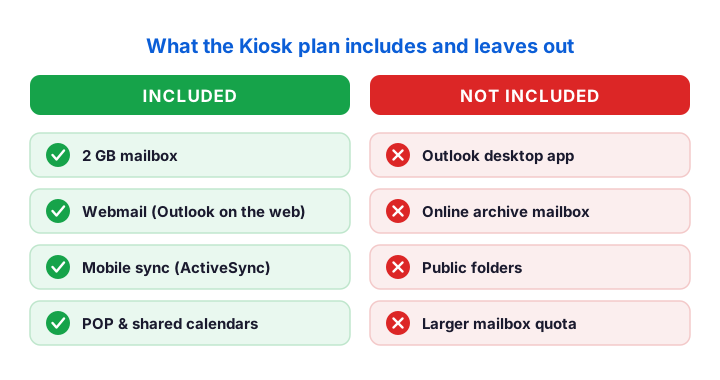
What it leaves out matters just as much. There is no desktop Outlook app, no online archive, and no public folders. The mailbox stays small at 2 GB, with no room to grow. So the plan trades features for price, which is fine for the right user and a problem for the wrong one.
🚫 The limitations you must know first
A cheap plan always comes with trade-offs, so weigh them before you buy. The biggest is the missing desktop Outlook app. Kiosk users work in a browser or on a phone, never in the full client on a PC. So a worker who lives in Outlook all day will feel boxed in fast.
The 2 GB mailbox is the next real limit. It fills quickly for anyone with heavy email or large attachments. Because there is no archive, a full box simply stops taking new mail. So the plan suits light, occasional senders rather than busy inboxes.
A few smaller gaps round out the list. There are no public folders, no large distribution rights, and tighter sending limits. None of these matter to a frontline worker, yet all of them can trip up an office user. So match the plan to the role, and the limits stop being a problem.
Resist the urge to stretch the plan past its design. Some admins try to bolt extra storage or desktop access onto a Kiosk seat, which never ends well. The licence simply does not grant those rights, so any workaround breaks at the worst moment. So when a user outgrows the plan, move them up rather than forcing the cheaper seat to do a job it was never built for.
⚖️ Exchange Online Kiosk vs Plan 1
This is the comparison that decides most purchases, so settle it early. Both plans deliver real Microsoft 365 email on the same platform. The gap is size and access. Plan 1 gives a 50 GB box with the full Outlook client, while the cheaper plan gives 2 GB and web access only.
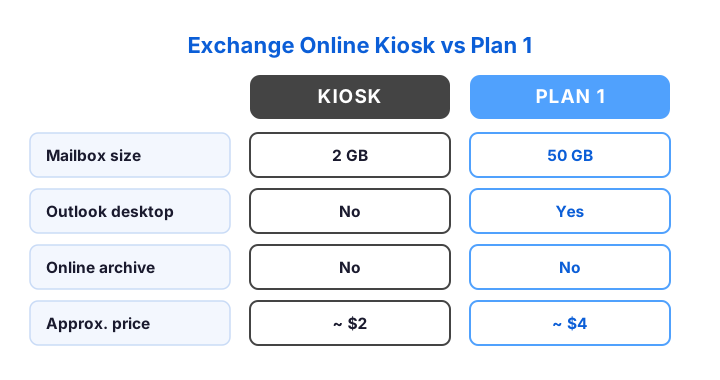
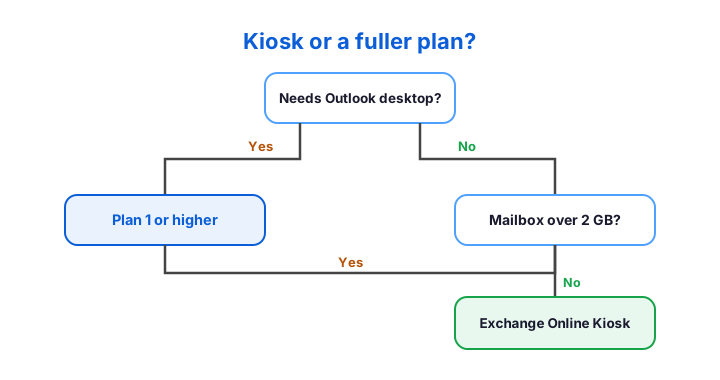
So the choice comes down to the user, not the feature list. If someone needs the desktop Outlook app or a mailbox over 2 GB, Plan 1 is the honest answer. If they only check mail on a shared screen or a phone, the Kiosk plan saves real money. When in doubt, the desktop question alone usually decides it.
Watch the archive line in particular. Neither plan includes an expanding archive, so do not pick Plan 1 expecting one. If a user truly needs to keep years of mail, Plan 2 is the honest answer instead. So the Kiosk-versus-Plan-1 choice is really about the desktop client and the mailbox size, not long-term retention.
💻 How Kiosk users reach their mail
Access is where this plan differs most from a full seat. Users open their mailbox in a browser through Outlook on the web. On a phone, they connect with the built-in mail app over Exchange ActiveSync. So both webmail and mobile work cleanly, which covers most frontline needs.
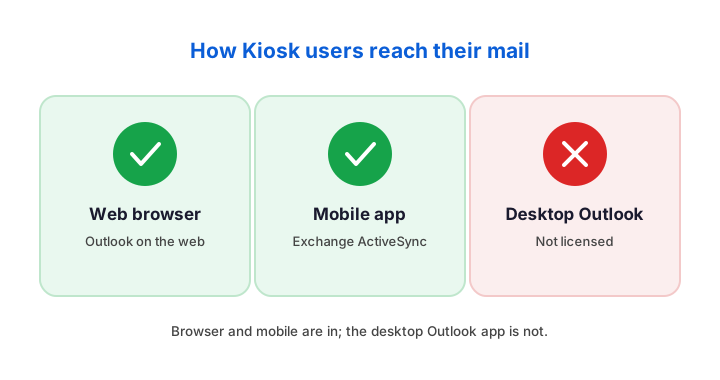
The desktop Outlook app is the clear exception. The licence does not grant the full client on a PC, so a user cannot install and activate it. A shared kiosk machine running the browser is the intended setup. So plan your devices around the web app, and the experience stays smooth.
📨 Mailbox size on the Kiosk plan
The mailbox holds 2 GB, and that number drives every other decision. For a worker who sends a few messages a week, 2 GB lasts a long time. For anyone with daily attachments, it fills within months. So the size suits light use and strains under heavy use.
Because the plan has no archive, there is no overflow valve. When the box hits 2 GB, new mail bounces until the user clears space. So coach Kiosk users to delete old mail and empty the deleted-items folder now and then. When that is not enough, the answer is a bigger plan rather than a workaround.
🔌 Does Exchange Online Kiosk support SMTP AUTH?
This question comes up whenever a printer or an app needs to send mail. The short answer is yes, the Kiosk plan supports authenticated SMTP for sending. So a multifunction printer or a line-of-business app can relay through a Kiosk mailbox. That makes it a cheap home for a device account.
Across the tenants we audit, the smartest use of a Kiosk seat is the service account nobody thinks about. A scan-to-email printer or an alert script needs an address, not Outlook or an archive. So a $2 Kiosk licence covers it for a fraction of a full seat. We routinely cut licence spend just by moving device accounts onto this plan.
One caveat is worth a flag. Microsoft is steadily turning off basic authentication, so confirm that modern authenticated SMTP is enabled for the mailbox. Once it is, the device sends cleanly through the service. So the Kiosk plan stays a tidy, low-cost answer for printers and apps alike.
🖨️ Use a Kiosk mailbox for printers and apps
Cheap mailboxes make ideal homes for devices, which is an easy win. A scan-to-email printer, a help-desk alert script, or a booking app all need an address to send from. None of them need Outlook or an archive, so a single Kiosk seat covers them for a couple of dollars. That swap alone trims many licence bills across a year.
Authenticated SMTP is what makes it work. You enable client submission on the mailbox, then point the device at the Microsoft send endpoint. The cmdlet below turns the setting on for one mailbox and confirms it.
# Enable authenticated SMTP (client submission) on a device mailbox
Set-CASMailbox -Identity printer@contoso.com -SmtpClientAuthenticationDisabled $false

# Confirm the setting took effect
Get-CASMailbox -Identity printer@contoso.com |
  Select DisplayName, SmtpClientAuthenticationDisabled
Keep the account tidy and secure once it sends. Give the device mailbox a strong password and a clear name, then review it now and then. Because Microsoft is retiring basic authentication, lean on modern authenticated SMTP wherever the device supports it. Handled this way, a printer or an app sends reliably for years on a tiny licence.
🔍 Find users you could move to the Kiosk plan
Right-sizing starts with knowing who barely uses their mailbox. A quick report lists every box and its size, which flags the light users at a glance. Anyone sitting on a tiny mailbox and a full seat is a candidate for the cheaper plan. One pass often funds the whole review.
# List mailboxes by size to spot light users on full licences
Connect-ExchangeOnline -UserPrincipalName admin@contoso.com
Get-EXOMailbox -ResultSize Unlimited |
  Get-EXOMailboxStatistics |
  Select DisplayName, TotalItemSize |
  Sort-Object TotalItemSize |
  Export-Csv .\mailbox-sizes.csv -NoTypeInformation
Read the smallest mailboxes at the top of the sorted list. A frontline worker with a near-empty box and a 50 GB seat is paying for room they never use. Move them to the Kiosk plan, and the saving repeats every month. Just confirm they do not need the desktop app before you switch.
Pair the report with a short conversation. A quick check that a user only emails on a shared screen confirms the fit before you change anything. Handled with care, right-sizing trims spend without surprising anyone. The report then becomes a routine you run each quarter.
🔐 Secure Kiosk and shared-device sign-ins
A cheap mailbox still deserves real protection, so do not skip security. Frontline staff often share a device, which raises the stakes if an account is weak. Require multi-factor authentication, and choose methods that suit a shared screen. A small step here prevents a large headache later.
Conditional Access then shapes where these accounts work. You can limit sign-ins to managed devices or trusted locations, which fits a fixed kiosk well. Because the rules apply per group, you treat frontline accounts differently from office ones. That keeps the shared terminal safe without slowing anyone down.
Sign-out habits matter on shared hardware too. Set the web app to end sessions promptly, so the next person cannot read the last one’s mail. A short timeout and a clear sign-out button do most of the work. Treated this way, a shared kiosk stays as safe as a personal laptop.
📱 Set up a Kiosk mailbox on a device
Getting a user onto their mailbox takes only a moment. On a shared PC, they open a browser and sign in to Outlook on the web. On a phone, the built-in mail app connects over Exchange ActiveSync with the same credentials. Within a minute, mail flows on either device.
A shared kiosk machine needs a little planning. Pin the web app in the browser, and set the home page to the sign-in screen. Because several people use the same terminal, a clean sign-out between shifts keeps mailboxes separate. So the setup stays simple while the hand-off stays tidy.
Mobile adds a few choices worth making. Decide whether personal phones may connect, then apply a basic mobile policy if they do. A PIN requirement and remote wipe cover the essentials for a frontline phone. With those in place, a field worker reads mail safely from anywhere.
📋 Kiosk plan limits in detail
It helps to see the hard numbers gathered in one place. The mailbox caps at 2 GB, the plan grants no archive, and the desktop Outlook client is out. Sending limits sit a little lower than a full seat, which suits light use. The table below collects the figures admins ask for most.
| Capability | Kiosk plan | Note |
|---|---|---|
| Mailbox size | 2 GB | No archive to extend it |
| Desktop Outlook | Not included | Web and mobile only |
| Online archive | None | Move to Plan 1 to add one |
| Authenticated SMTP | Supported | Good for device accounts |
Read the table as a fit test, not a wish list. If a user needs anything the right column rules out, the cheaper seat is wrong for them. If every row works for the role, the Kiosk plan is a clean win. So these limits double as a quick yes-or-no for each person.
Keep the table beside your licence list when you plan a rollout, because a quick glance settles most cases before they ever become a ticket. In practice, those same four rows answer the bulk of the questions a frontline manager will ever raise about the plan. So a single screen of facts replaces a long back-and-forth, and the licensing decision stays fast and consistent across the team.
👥 Who should use Exchange Online Kiosk
The plan rewards a clear set of roles, so match yours against them. Frontline and shift staff fit best, because they need mail but not Office apps. Shared-device and deskless field workers fit too, since they sign in briefly on a common screen. So the licence shines wherever email is occasional and the device is shared.
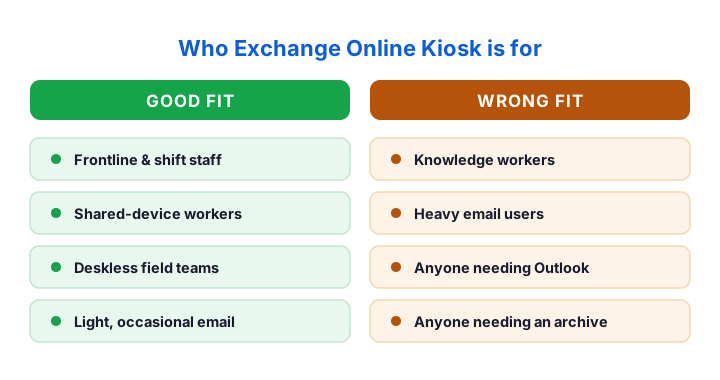
Some users should never sit on this plan, and saying so saves trouble. Knowledge workers, heavy email users, and anyone who lives in Outlook all belong on a fuller seat. The same goes for staff who need an archive for compliance. So reserve the Kiosk plan for light, frontline use, and put everyone else on Plan 1 or above.
Seasonal hiring is a natural fit as well. A shop that doubles its headcount for the holidays can license the extra staff cheaply, then release the seats afterwards. Because the plan is so inexpensive, scaling up and down costs very little. So it suits a workforce that flexes with the calendar, where a full seat would tie up money between the busy spells.
🛒 How to assign an Exchange Online Kiosk license
Assigning the plan takes a minute, whether by clicks or by script. In the admin center, you add the licences under billing, then apply one per user. For a large frontline rollout, PowerShell is far faster. The licence appears under its own SKU part number in Microsoft Graph.
# See your licences, then assign the Kiosk plan to a user
Connect-MgGraph -Scopes "Organization.Read.All","User.ReadWrite.All"
Get-MgSubscribedSku | Select SkuPartNumber, SkuId

# Assign the Exchange Online Kiosk SKU to a frontline user
$sku = Get-MgSubscribedSku | Where-Object SkuPartNumber -eq 'EXCHANGEDESKLESS'
Set-MgUserLicense -UserId picker@contoso.com -AddLicenses @{SkuId=$sku.SkuId} -RemoveLicenses @()
The mailbox appears within a few minutes of the assignment. After that, the user signs in at Outlook on the web and starts sending. For a batch of new starters, wrap the command in a loop over a CSV, so licensing fifty frontline staff takes one script rather than a long afternoon.
🆚 Exchange Online Kiosk vs Microsoft 365 F3
Microsoft also sells a richer frontline bundle, so the two are easy to confuse. The Kiosk plan is email only, while Microsoft 365 F3 adds Teams, web Office apps, and a larger frontline toolkit. So F3 costs more, yet it covers far more than mail. The right pick depends on what your frontline actually does.
Choose by the work, not the label. If your staff truly need only an address and a calendar, the email-only plan is the cheaper, cleaner answer. If they also chat in Teams or open shared files, F3 fits better despite the price. So weigh the whole role before you decide between the two frontline options.
Many companies run a blend across the floor. A picker who only emails sits on the Kiosk plan, while a shift lead who runs Teams gets F3. Because you license per user, you can match each person to the right tier. So the two plans work together rather than competing.
Cost tells the story at a glance. The email-only seat sits near the bottom of the price list, while F3 lands several dollars higher for its extra tools. For a pure email role, that gap is pure saving. For a connected frontline that lives in Teams, the same gap buys real value. So let the daily tools, not the sticker price, settle the call.
⬆️ When to upgrade from the Kiosk plan
Needs change, and the plan should change with them. The clearest trigger is a request for the desktop Outlook app, which the licence cannot grant. The second is a mailbox that keeps filling past 2 GB. When either shows up, a move to Plan 1 solves it without a migration.
The upgrade itself is painless, which helps. You swap the licence for Plan 1, and the mailbox stays exactly where it is. The user keeps their address and history, and simply gains the desktop client and more room. So you can start staff on the Kiosk plan and lift only the ones who outgrow it.
A third trigger is compliance. The moment a frontline role falls under retention or legal-hold rules, the cheaper plan no longer fits, because it carries no archive. So when a worker moves into a regulated task, review their licence at the same time. Catching it early avoids a gap that an auditor would flag much later.
💡 Common Exchange Online Kiosk mistakes
A few avoidable errors turn a smart, cheap plan into a support headache. The first is putting an office worker on it to save a couple of dollars. They soon hit the missing desktop app and the 2 GB wall, and the savings vanish in tickets. So never place a heavy email user here.
Two more slips show up often. People forget that the box has no archive, so a busy user fills it and loses mail flow. Others overlook the plan entirely for printers and service accounts, then pay full price for a device address. So use the Kiosk plan for light and machine accounts, and keep heavy users off it.
For the official figures, Microsoft lists every limit in the Exchange Online limits reference. Bookmark it, because the numbers shift as Microsoft updates the service. Pair that page with this guide, and you can license any frontline team with confidence rather than guesswork.
📚 More for IT Admins
🔍 Paying for full seats where a Kiosk plan would do?
The M365 Instant Audit scans your tenant in under 10 minutes. It checks license waste, plan right-sizing, MFA coverage, security posture, and compliance gaps. As a result, you get a full PDF report with prioritized fixes, delivered instantly.
❓ Exchange Online Kiosk: Frequently Asked Questions
Exchange Online Kiosk is the cheapest Microsoft 365 email licence, about $2 per user per month. It gives a 2 GB mailbox reached through webmail and mobile, with no desktop Outlook app and no archive. It suits frontline and shared-device staff.
The plan costs around $2 per user per month on an annual term, roughly half the entry-level Plan 1. Microsoft updates list prices over time, so confirm the current figure before you buy.
The Kiosk mailbox holds 2 GB. There is no online archive, so a full box stops taking new mail until the user clears space. Heavy email users should move to Plan 1 instead.
No. The Kiosk plan grants webmail and mobile access only. To install and use the full Outlook client on a PC, a user needs Exchange Online Plan 1 or a Microsoft 365 bundle.
Yes. The plan supports authenticated SMTP, so a printer or an app can send through a Kiosk mailbox. Confirm modern authenticated SMTP is enabled, since Microsoft is retiring basic authentication.