

Therefore, the Intune Connector for Active Directory is a small piece of software that lets Windows Autopilot join a new PC to your on-premises domain. It runs on a domain server and bridges the Microsoft cloud and your local Active Directory. Without it, hybrid Autopilot deployments simply cannot domain-join a device.
However, this guide covers the connector end to end. We explain what it does, when you actually need it, and how offline domain join works. Then we walk through the prerequisites, the install, the OU permissions, the 2025 Managed Service Account change, health checks, and the errors that trip teams up. Furthermore, by the end, you can deploy and run it with confidence.
🛡️ Free: M365 Audit Checklist
19-page PDF with 50 hands-on checks covering Entra ID, Exchange Online, SharePoint, Teams, Intune, license waste, and audit logging. PowerShell commands included. Built from 60+ real tenant audits at Wintive.
🧭 What is the Intune Connector for Active Directory
The Intune Connector for Active Directory is a lightweight agent you install on a domain-joined Windows Server. It lets Windows Autopilot perform a Hybrid Azure AD Join by creating the computer object in your on-premises Active Directory and handing the device an offline domain join blob. You only need it for hybrid join. Cloud-native Entra join does not use it. Since 2025 it runs under a Managed Service Account for better security.
Specifically, the Intune Connector for Active Directory is Microsoft’s bridge between Intune in the cloud and your on-premises domain. People also call it the offline domain join connector, or ODJ connector. Its whole job is to let a cloud-managed device join your local Active Directory.
Notably, it was built for one scenario: Windows Autopilot hybrid join. When a new PC runs Autopilot, Intune asks the connector to create a computer account in your domain. Finally, the connector does that, then returns the data the device needs to finish the join. The user never touches a thing.
Critically, it is a small, focused tool. The connector holds no data and stores nothing locally. In practice, it simply listens for requests from Intune and acts on your Active Directory. That simplicity is why it is reliable, but also why permissions and network access matter so much.
As a result, the name has drifted over the years. Microsoft first shipped it as the Offline Domain Join Connector, then renamed it the Intune Connector for Active Directory. Therefore, older blog posts and scripts still use the old name, so do not be thrown when you see both. They are the same tool, and the current download carries the newer name.
🤔 When you need the connector, and when you do not
Before you install anything, confirm you actually need it. However, the connector is only for one join type. The diagram makes the choice clear.
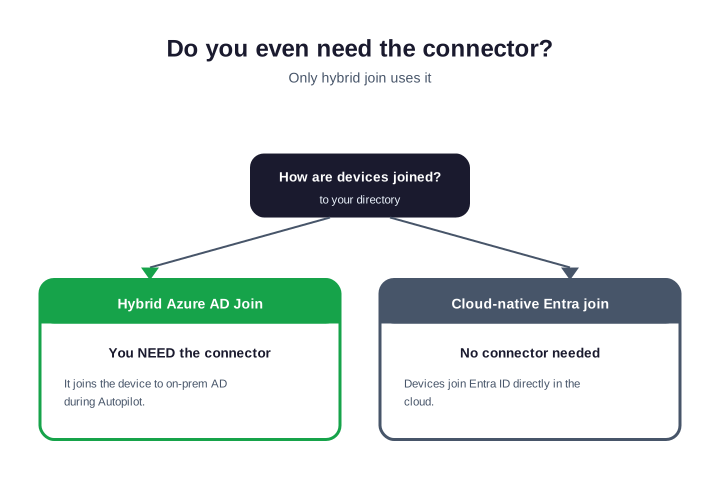
Furthermore, you need the connector for Hybrid Azure AD Join. That is when a device joins both your on-premises Active Directory and Microsoft Entra ID. It suits organisations with legacy apps, file shares, or group policy that still depend on the local domain.
Specifically, you do not need it for cloud-native Entra join. There, devices join Entra ID directly, with no on-premises footprint. Notably, Microsoft now recommends cloud-native join for most new deployments. So if you are greenfield, consider skipping hybrid join, and the connector, entirely.
Finally, the honest trade-off is dependency. Hybrid join keeps you tied to on-premises Active Directory, the connector, and a server that must stay healthy. Critically, cloud-native join removes all three. So hybrid join is the right call only when a real on-premises need, like a legacy line-of-business app, forces it. Otherwise, the connector is one more thing to maintain.
🔗 Where the connector sits in your setup
In practice, the connector lives on a server inside your network, but it talks to the cloud. It is the only on-premises moving part in an otherwise cloud-driven process. The diagram shows the three pieces.
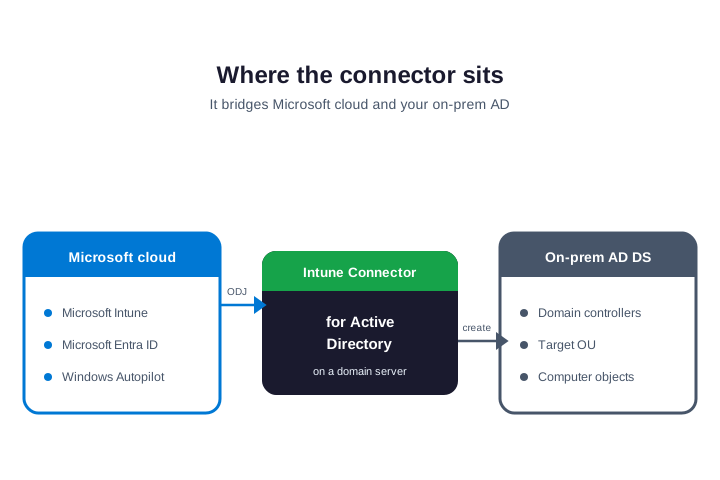
As a result, on one side is the Microsoft cloud: Intune, Entra ID, and Autopilot. On the other is your on-premises Active Directory, with its domain controllers and the target OU. The connector sits in the middle, on a domain-joined Windows Server, and translates cloud requests into local domain actions.
Because it is the bridge, its placement matters. Therefore, it needs reliable line of sight to a domain controller and an open path to the Intune service. Put it on a stable, patched server, not a busy box that reboots often. However, a flaky host means flaky enrolments.
Furthermore, you can install more than one connector, and you should past a pilot. Each one registers with Intune independently, and Intune routes requests to whichever connectors are healthy. So spreading two or three across different servers removes the single point of failure that a lone connector creates.
⚙️ How offline domain join works
Specifically, the magic word here is “offline”. The device joins the domain without ever talking to a domain controller directly. The connector does that part on its behalf, in four steps.
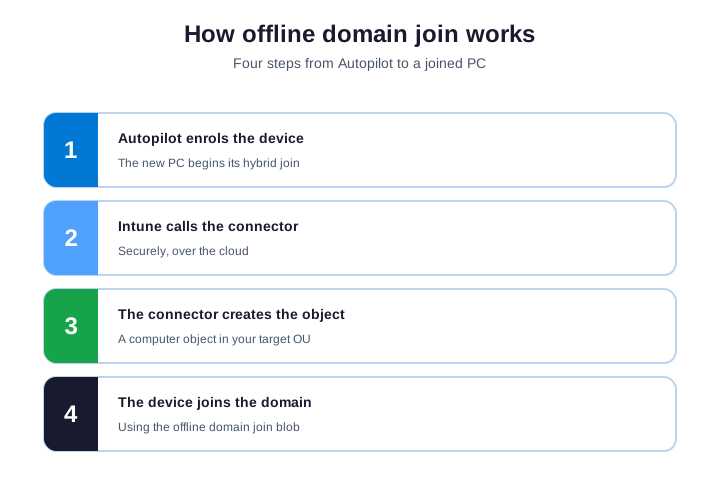
First, Autopilot enrols the new device and starts the hybrid join. Second, Intune calls the connector over the cloud. Notably, third, the connector creates a computer object in your target OU and generates an offline domain join blob. Fourth, the device consumes that blob and completes the domain join, then applies your policies.
Finally, this design is clever and secure. The new PC never needs direct network access to a domain controller during setup, which is perfect for devices shipped straight to a remote worker. The connector is the trusted middleman that makes that possible.
Critically, the offline domain join blob is time-sensitive, which explains a common failure. If a device sits unboxed for too long, or its clock is wrong, the blob can expire before the join finishes. So accurate time on the device and a prompt setup both matter more than people expect.
📋 Intune Connector for Active Directory prerequisites
In practice, a few things must be in place before the connector will work. Get these right first, and the install is painless. The chart lists the essentials.
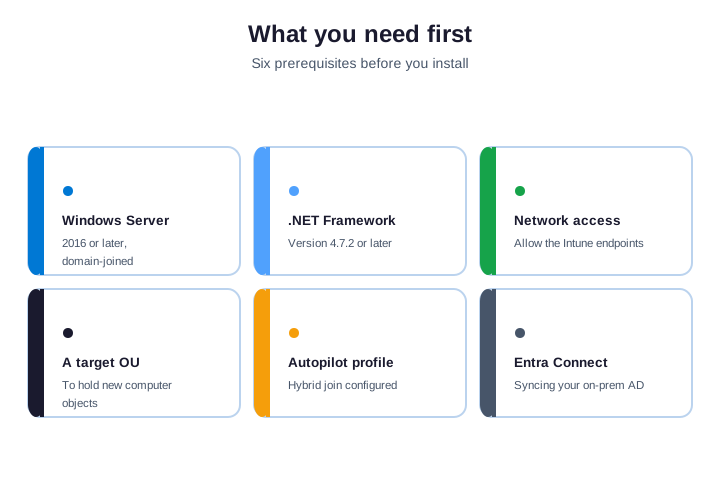
As a result, you need a domain-joined Windows Server (2016 or later) with .NET Framework 4.7.2 or newer. The server needs network access to the Intune endpoints, through your proxy if you use one. You also need a target OU for new computer objects, a working Microsoft Entra Connect sync, and an Autopilot profile set for hybrid join.
| Prerequisite | Detail |
|---|---|
| Windows Server | 2016 or later, domain-joined |
| .NET Framework | Version 4.7.2 or later |
| Network | Outbound access to Intune endpoints |
| Target OU | To hold the new computer objects |
| Entra Connect | Syncing your on-premises AD to Entra ID |
| Autopilot profile | Deployment profile set to hybrid join |
Therefore, the network row trips up locked-down environments most. The connector needs outbound HTTPS to the Intune service endpoints, and it must work through your proxy. However, so if a firewall or proxy change ever breaks enrolments, that path is the first thing to re-check. Microsoft publishes the exact endpoints to allow.
⬇️ How to download and install the connector
Furthermore, with the prerequisites met, the install itself is quick. Plan about fifteen minutes for a first connector.
Specifically, download the installer from the Microsoft download page, or grab it from inside the admin center. In the Intune admin center, go to Tenant administration, then Connectors and tokens, then Intune Connector for Active Directory. Run the installer on your domain server.
Notably, when prompted, sign in with an account that can enrol the connector. After it activates, the connector appears in the admin center with an Active status, usually within a few minutes. Microsoft’s hybrid Autopilot tutorial walks through the exact screens.
Finally, do not configure the Autopilot domain join profile until the connector shows Active. If you do, devices will fail their join with a timeout, because there is nothing yet to create their computer object. Order matters here.
Critically, after it activates, do a quick smoke test. Enrol one pilot device through Autopilot and watch it land in the target OU as a new computer object. In practice, if the object appears and the device joins, the connector is wired correctly. That single test saves you from discovering a problem during a full rollout.
As a result, keep the pilot device handy after it works. It becomes your reference for any future change, like a connector update or an OU move. So when something breaks later, you can re-run the same known-good test and quickly tell whether the connector or something else is at fault.
🔑 Delegate the OU permissions
Therefore, this is the step teams most often miss. The connector account must be allowed to create computer objects in your target OU. Without that right, every device fails with an access-denied error.
However, grant the permission with the Active Directory Delegation of Control wizard, or with a single command. The snippet below delegates the create-computer right on the target OU to the connector account. Adjust the OU path and account name for your domain.
# Delegate "Create Computer objects" on the target OU to the connector account
dsacls "OU=Autopilot Devices,DC=contoso,DC=com" /I:T /G "CONTOSO\svc-intune-odj$:CC;computer"
Furthermore, scope it tightly. Delegate only on the one OU you use for Autopilot devices, never the whole domain. Specifically, that keeps the connector’s power small and your directory safe. Least privilege applies here just as it does everywhere else in Intune.
Notably, prefer the wizard if you are not comfortable with the command line. Right-click the target OU in Active Directory Users and Computers, choose Delegate Control, add the connector account, and grant it the create and manage computer objects rights. The result is the same as the command, just with guardrails.
👤 The Managed Service Account change
Finally, in 2025, Microsoft changed how the connector runs. It now uses a Managed Service Account, or MSA, instead of the old user-based sign-in. This is a security improvement, and it affects both new and existing installs.
Critically, a Managed Service Account has a password that Active Directory rotates automatically. So there is no human credential to leak or to expire. In practice, new connector installs create and use an MSA by default. The command below confirms the account is healthy on the server.
# Verify the connector Managed Service Account is installed and healthy
Test-ADServiceAccount -Identity "svc-intune-odj$"
As a result, if you run an older connector, update it. Re-run the latest installer on the server, and it migrates the connector to the MSA model. Do this before the old authentication method is retired, or your hybrid joins will stop working without warning.
Therefore, the change is good news for security teams. There is no shared password, no account that quietly expires, and nothing for an attacker to phish. So the migration is worth doing promptly, not just to stay supported, but because the Managed Service Account model is genuinely safer than the old approach.
However, the account itself lives in Active Directory and ends with a dollar sign, which marks it as a machine account. You never log in as it and never set its password. So treat it as plumbing: confirm it is healthy, scope its OU rights tightly, and otherwise leave it alone.
🛡️ Keep the connector patched
Furthermore, the connector is security-sensitive, because it can create objects in your directory. Microsoft ships updates to it, including a notable security update in 2025. Treat it like any other critical agent.
Specifically, check the installed version against the latest on the download page every few months. When a new build appears, schedule the update during a quiet window. Notably, the connector is stateless, so updating it is low risk, but hybrid joins pause while the service restarts. So pick a time with no rollouts in flight. The pause is short, usually a minute or two, but a queued enrolment will simply retry afterwards.
Finally, to find your current version, check the installed program in Programs and Features, or the file version of the connector executable on the server. Compare it to the latest build on the download page. Staying within a version or two of current keeps you clear of fixed bugs and known security issues.
There is no auto-update for the connector, so patching is on you. Build a quick check of the connector version into your normal server patch cycle. Because it is a security-sensitive agent that can create objects in your directory, an out-of-date connector is exactly the kind of quiet gap a security audit flags. So keep it current as a matter of routine, not as an afterthought.
Wintive insight. Nine out of ten connector tickets we see are not the connector. They are OU permissions, an expired sign-in, or a network path to Intune that a firewall change quietly broke. So before reinstalling anything, check those three. The connector itself rarely fails once it is set up correctly.
🩺 Check the connector status and health
Critically, you can confirm the connector is healthy in two places. The admin center shows a cloud-side view, and PowerShell shows the server side. Check both when something looks wrong.
In practice, in the Intune admin center, the connector lists as Active or Inactive under Connectors and tokens. On the server, the work is done by a Windows service. The snippet below checks that service and restarts it if it has stopped.
# Check the Intune Connector service on the server
Get-Service -Name "*ODJ*" | Select-Object Name, DisplayName, Status
# Restart it if it shows Stopped
Restart-Service -Name "Intune ODJConnector Service"
As a result, if the service runs but the admin center shows Inactive, the problem is almost always the sign-in token or the network path, not the service itself. So fix authentication and connectivity before you touch the install.
Therefore, for deeper detail, the connector writes to the Windows Event Log on the server. Look under the application logs for the connector source when a join fails. The events name the exact step that broke, which is far more useful than guessing, and it often points straight at a permissions or network cause.
🧰 Troubleshooting common connector errors
However, most connector problems fall into a short list. The table maps each symptom to its usual fix, so you can resolve tickets fast.
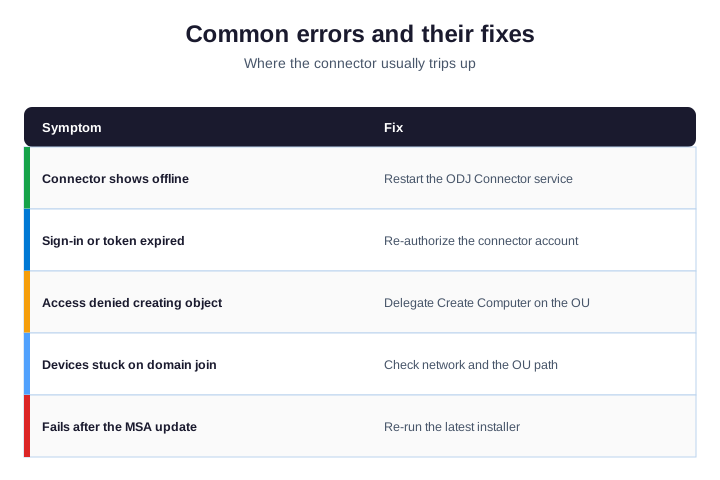
Furthermore, a connector that shows offline usually needs the service restarted or the sign-in renewed. Access denied when creating an object means the OU permissions are missing. Devices stuck on domain join point to a network or OU-path problem, and failures right after the 2025 update mean you should re-run the latest installer.
Specifically, when in doubt, work from the device outward. Read the Autopilot deployment error on the PC, then check the connector status, then the OU permissions, then the network. That order finds the cause faster than reinstalling blind.
Notably, reinstalling is the last resort, not the first. Because the connector is stateless, a reinstall rarely fixes anything that a restart and a re-sign-in would not. So save it for genuine corruption, and spend your time on the permissions, the token, and the network path instead.
🏗️ High availability and best practices
Finally, for anything beyond a pilot, run more than one connector. They are stateless, so Intune simply spreads requests across the ones that are healthy. A second connector means a single server reboot never stalls your enrolments.
Critically, a few habits keep it solid. Put each connector on a dedicated, patched server near a domain controller. In practice, use a tightly scoped OU and account. Monitor the Active status and alert on Inactive. And document the setup, so the next admin is not guessing during an outage.
As a result, treat the connector as production infrastructure, because it is. A failed connector does not break existing devices, but it does stop every new hybrid enrolment cold. So monitor it the way you would a domain controller, and nobody is surprised on the busiest onboarding day of the month.
🗑️ How to uninstall or remove the connector
Therefore, removing the connector is a two-part job: the software on the server, and the entry in the cloud. Do both, or the admin center keeps showing a dead connector.
However, on the server, uninstall Intune Connector for Active Directory from Programs and Features. Then, in the Intune admin center, open Connectors and tokens and remove the now-inactive connector entry. If you are moving to cloud-native join, this cleanup is the last step of retiring hybrid join.
🔀 Not the certificate connector: clearing up the names
Furthermore, Microsoft uses the word “connector” for several different tools, and they are easy to mix up. The one in this guide is only for domain join. The table sorts out the common ones.
| Connector | What it actually does |
|---|---|
| Intune Connector for Active Directory | Hybrid join: creates computer objects (this guide) |
| Certificate Connector for Microsoft Intune | Issues SCEP, PKCS, and PFX certificates |
| Exchange connector | Manages on-premises Exchange mobile devices |
| Service Graph Connector (ServiceNow) | Syncs Intune devices into a ServiceNow CMDB |
Specifically, so if your goal is certificates, you want the certificate connector, not this one. If your goal is hybrid domain join through Autopilot, the Intune Connector for Active Directory is the right tool. Naming aside, they solve completely different problems.
✅ Intune Connector for Active Directory checklist
Notably, condensed, here is how to deploy and run the connector cleanly.
- Confirm you need hybrid join; cloud-native Entra join skips the connector.
- Stand up a domain-joined Windows Server with .NET 4.7.2 and network access.
- Create a dedicated target OU for Autopilot computer objects.
- Install the latest connector and sign in to activate it.
- Delegate create-computer rights on that OU, and nothing wider.
- Confirm it runs under a Managed Service Account, and keep it patched.
- Run a second connector for high availability, and monitor the status.
Finally, at Wintive, we design and run Autopilot and hybrid join for SMBs as part of our Microsoft 365 managed services. We deploy the connector, lock down its permissions, and document the lot. Critically, to get started, contact us for a free consultation. It is quick, and we do the rest.
📚 More for IT admins
In practice, these published Wintive guides go deeper on the topics around Autopilot and Intune. So bookmark the ones that fit your rollout.
🔍 Want a complete audit of your Microsoft 365 tenant?
As a result, the M365 Instant Audit scans your environment in under 10 minutes: license waste, security posture, MFA coverage, compliance gaps, and rightsizing. A full PDF report with prioritized fixes arrives instantly.
❓ Frequently Asked Questions
It is an agent you install on a domain-joined Windows Server. It lets Windows Autopilot create a computer object in your on-premises Active Directory and perform an offline domain join, which enables Hybrid Azure AD Join.
No. The connector is only for Hybrid Azure AD Join. Cloud-native Entra join devices join Entra ID directly and never use it. Microsoft recommends cloud-native join for most new deployments, so you only need the connector when a real on-premises dependency forces hybrid join.
In the Intune admin center, open Tenant administration, then Connectors and tokens. The connector shows Active or Inactive there. On the server, check the Intune ODJ Connector service with PowerShell, and review the Windows Event Log if a join has failed.
Since 2025 the connector runs under a Managed Service Account instead of a user sign-in. Active Directory rotates its password automatically. Update older connectors by re-running the latest installer.
Its account needs the right to create computer objects in your target OU. Delegate that on the one Autopilot OU only, using the Delegation of Control wizard or a dsacls command, never across the whole domain. Scoping it this tightly means a compromise of the connector cannot create objects anywhere else in your directory.
Uninstall Intune Connector for Active Directory from Programs and Features on the server, then remove the inactive connector entry under Connectors and tokens in the Intune admin center. Do both, or the admin center keeps showing a dead connector that can confuse the next person.
🧭 Your next step
Therefore, planning a hybrid Autopilot rollout? First, book a short call. Then we design the join, deploy the connector, and lock down its permissions. However, to start, contact Wintive. It is quick, and we do the rest.