

Therefore, the Intune Company Portal is the app your users touch the most. Yet most guides stop at “add it as a Store app and assign it.” That leaves IT admins guessing on macOS, branding, enrollment, and the tickets that follow. This best-practice guide closes those gaps end to end.
However, it covers what the Company Portal is and how it differs from the website and the Microsoft Intune app. It also shows how to deploy it on every platform. Finally, it covers the branding, enrollment, compliance, and troubleshooting practices a Microsoft Partner uses in production. Furthermore, if you are new to the platform, start with the basics of Microsoft Intune, then come back here for the Company Portal specifics.
🛡️ Free: M365 Audit Checklist
19-page PDF with 50 hands-on checks covering Entra ID, Exchange Online, SharePoint, Teams, Intune, license waste, and audit logging. PowerShell commands included. Built from 60+ real tenant audits at Wintive.
🧭 What the Intune Company Portal actually is
The Intune Company Portal is the end-user agent for Microsoft Intune. In practice, it does three jobs. First, it enrolls a device. That is the core job. Next, it installs approved apps from a self-service catalog. Finally, it shows whether the device meets the rules. Moreover, the app runs on Windows, iOS, iPadOS, macOS, and Android. A browser version exists too. As a result, every action maps to a policy that IT sets centrally.
In practice, the Company Portal does three jobs: it enrolls the device into Microsoft Intune, it installs the apps you approve, and it surfaces compliance state to the user. In short, it is the bridge between the user and the policies you set centrally. Because that bridge is the first thing employees see, a clean, branded Company Portal shapes how much they trust the whole management programme from day one.
Because it sits on top of Intune, the Company Portal inherits everything Intune manages. Specifically, when a user enrolls, Intune registers the device in Microsoft Entra ID, applies configuration profiles, and starts evaluating compliance. From there the app becomes a self-service hub, so routine installs never become help-desk tickets.
🪟 Intune Company Portal: app, website, or Intune app
Notably, three different things carry the word “portal.” As a result, mixing them up creates support calls. Therefore, getting this right is the first Intune Company Portal best practice.
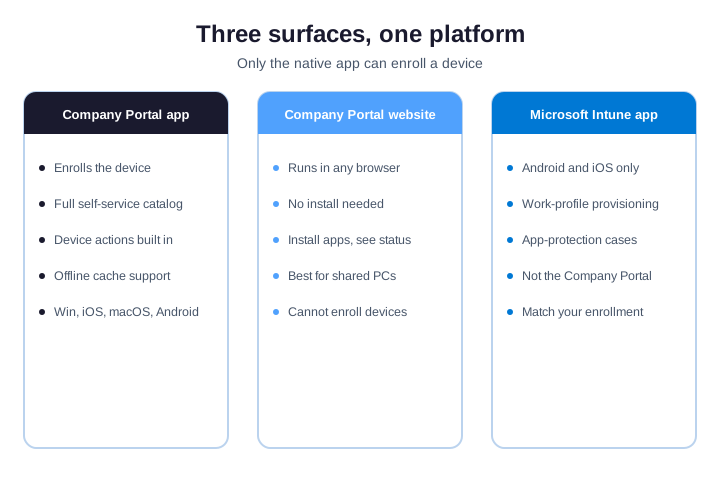
The native app. It runs on Windows, iOS, iPadOS, macOS, and Android. Notably, it is the only surface that can enroll a device, because enrollment needs native OS hooks. Finally, it also works offline for cached content. In addition, it gives the richest experience: notifications, self-service device actions, and platform-specific install flows.
The website. By contrast, the browser version at portal.manage.microsoft.com needs no install. Critically, it suits already-enrolled users who only need to install an app or check compliance from a machine without the native app — a shared workstation, for example. It cannot perform the initial mobile or Windows enrollment.
The Microsoft Intune app. Meanwhile, on Android and iOS, a separate app called Microsoft Intune targets narrower scenarios, mainly Android Enterprise work profile and some app-protection cases. In practice, it is not a drop-in replacement, so decide which app your enrollment method needs before you assign anything.
🌍 Get the Company Portal on every platform
As a result, each platform sources the Intune Company Portal in its own way. For example, Windows uses the Microsoft Store. Meanwhile, Android and iOS use their app stores. Therefore, on the Mac, a signed .pkg does the job, while Linux uses the Microsoft Intune app with Edge. Notably, Mac demand is high yet underserved, so a Mac path is a quick win. However, in every case, deploy through Intune rather than asking users to fetch the app.
In practice, where users obtain the Company Portal, and the role it plays, varies by operating system. Furthermore, the table below is the at-a-glance reference; the platform notes that follow cover the quirks that matter in production.
| Platform | Where to get it | Enrolls? | Catalog |
|---|---|---|---|
| Windows | Microsoft Store (new) | Yes | Full |
| iOS / iPadOS | Apple App Store + VPP | Yes (BYOD) | Full |
| Android | Google Play (managed) | Yes | Full |
| macOS | Signed .pkg via Intune | Yes | Full |
| Linux | Intune app + Microsoft Edge | Limited | None |
Notably, on macOS, where most competitors go silent, users install a signed .pkg. As a result, push it through Intune so the version stays consistent across the fleet rather than relying on manual downloads. Specifically, for the same reason, avoid letting users grab random builds from the web, because a mismatched version is a common source of odd, hard-to-reproduce behaviour. Once installed, the Mac Company Portal handles enrollment, app installs, and compliance exactly like its Windows counterpart, including modern platform single sign-on.
⬇️ Download and install the Intune Company Portal
Notably, end users who self-enroll need a clear path. On Windows it is the Microsoft Store; on iOS and Android, the app stores; on macOS, a signed .pkg from aka.ms/EnrollMyMac. Finally, after install, users sign in with the work account and accept the management profile. Notably, “company portal download” is a high-volume query, so a clean per-OS path matters.
| Platform | Download source | First step after install |
|---|---|---|
| Windows | Microsoft Store | Sign in, then choose Enroll |
| iOS / iPadOS | Apple App Store | Sign in, then install the profile |
| Android | Google Play | Sign in, then set up the work profile |
| macOS | aka.ms/EnrollMyMac (.pkg) | Sign in, then approve the profile |
Critically, tell users the install can take a few minutes. Moreover, a device may briefly show as non-compliant until the first evaluation completes. As a result, that single sentence in your rollout email prevents a wave of “is it broken?” tickets. Then it just works. In practice, for a fully hands-off rollout, however, deploy the app as Required so most users never download it manually at all. On isolated networks without Store access, you can still deploy an offline-licensed package, though it loses automatic updates and adds version drift to manage.
🔑 Sign in to the Company Portal
As a result, users sign in to the Company Portal with their Microsoft 365 work account, the same identity they use for Outlook and Teams. One login. Therefore, done. Therefore, there is no separate Company Portal password to manage. However, when sign-in fails, the cause is almost always identity, not the app. First, check Conditional Access policies that might block the device or require MFA. Next, confirm the user holds an Intune license. Finally, make sure modern authentication is enabled, because a user without a license cannot enroll and the app rejects the sign-in. Furthermore, on Windows, finally, the Web Account Manager handles the token, so single sign-on usually carries the user straight through without a second prompt.
🚀 Deploy the Company Portal through Intune
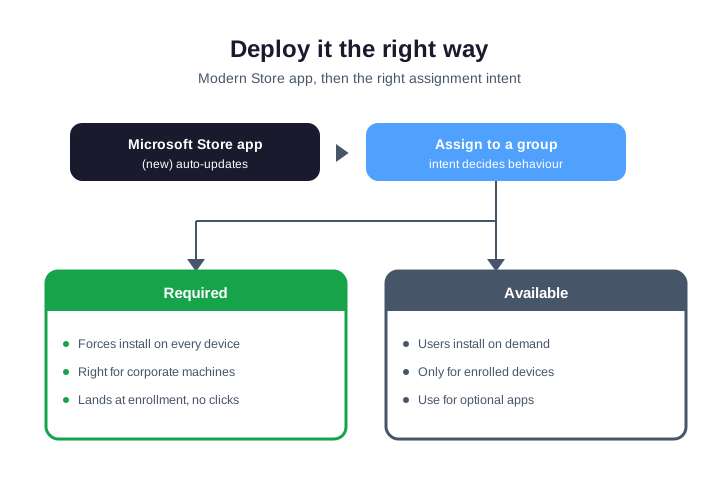
Specifically, deploy the Intune Company Portal from the admin center. As a result, it arrives pre-installed and stays current. Notably, on Windows, use the Microsoft Store app (new), because it auto-updates and installs in the system context. Then assign it Required to device groups, so new machines get it with no user action. For Apple, however, set the MDM push certificate and a VPP token first.
Of course, users should never hunt for the Intune Company Portal themselves. Finally, on Windows, add it as Microsoft Store app (new), following the Microsoft Store app guidance — the Store keeps it updated automatically and installs run in the system context. The decision that trips teams up is the assignment intent.
🎯 Required vs Available assignment
Specifically, choose Required for the Company Portal on corporate devices. Critically, a freshly enrolled machine then receives it without a click. By contrast, reserve Available for optional apps that enrolled users pick on demand. In practice, remember the cardinal rule: an app with no assignment never installs. The snippet below assigns the Store app as Required via Microsoft Graph PowerShell.
# Assign Company Portal (Store app) as Required to a device group
Connect-MgGraph -Scopes "DeviceManagementApps.ReadWrite.All"
$appId   = (Get-MgDeviceAppManagementMobileApp -Filter "displayName eq 'Company Portal'").Id
$groupId = (Get-MgGroup -Filter "displayName eq 'Corporate-Devices'").Id
New-MgDeviceAppManagementMobileAppAssignment -MobileAppId $appId -BodyParameter @{
  target = @{ "@odata.type"="#microsoft.graph.groupAssignmentTarget"; groupId=$groupId }
  intent = "required"
}
Moreover, for Apple platforms, two prerequisites gate everything: configure the Apple MDM push certificate, then add the Company Portal as a volume-purchased (VPP) app with device licensing so it deploys silently. As a result, for Android, add it as a Managed Google Play app; for macOS, assign the .pkg as Required to your Mac group. A dedicated macOS app deployment flow covers the Mac specifics.
🛫 Autopilot, ADE, and zero-touch enrollment
Therefore, with Windows Autopilot and Apple Automated Device Enrollment, a device enrolls during out-of-box setup before anyone opens an app. So there, the Intune Company Portal is not the enrollment tool: it becomes the post-enrollment app catalog and compliance window. Still deploy it as Required, but hide the enroll prompt for those groups.
However, zero-touch provisioning changes the role of the Company Portal. For example, with Autopilot self-deploying or pre-provisioned mode, the device joins Microsoft Entra ID and pulls policy automatically. As a result, users skip the manual enroll step entirely. Therefore, reserve the app-led enrollment flow for BYOD and any device you cannot ship through Autopilot or ADE.
Furthermore, in your customization policy, hide the “enroll device” call to action for Autopilot and ADE groups. Otherwise, users see a confusing invitation to enroll a device that is already managed. In short, mapping each device population to the right path keeps the experience coherent across a mixed fleet. Specifically, document which group uses which path, so a new admin can read the plan in a minute rather than reverse-engineering it from policies. For pre-provisioned Autopilot, moreover, the bulk of policy and apps land in the technician phase, so the device reaches the user already compliant and the Company Portal opens to a ready catalog.
🖥️ Where you manage the Company Portal
Notably, admins configure everything from the Microsoft Intune admin center at intune.microsoft.com. Specifically, app deployment lives under Apps, branding under Tenant administration then Customization, and enrollment settings under Devices then Enrollment. The admin center itself is a high-volume destination, so knowing the map saves time.
# List managed devices with compliance and last sync (Graph)
Connect-MgGraph -Scopes "DeviceManagementManagedDevices.Read.All"
Get-MgDeviceManagementManagedDevice -Top 5 |
  Select-Object deviceName, complianceState, lastSyncDateTime
In short, the Intune Company Portal is the user-facing surface, while the admin center is the control plane behind it. For day-to-day work, you move between Apps to assign the app, Customization to brand it, and the compliance and Conditional Access blades to decide what a compliant device unlocks. Furthermore, scope admin access with role-based access control so help-desk staff manage the Company Portal and apps without touching tenant-wide settings. That way, first-line staff fix the common issues, while only a small group holds the keys to risky settings.
🎨 Branding best practices
A branded Intune Company Portal converts better than the default. Therefore, set it up in Tenant administration, under Customization. There, you get one default policy plus up to 25 targeted policies. First, use a logo with a clear background. Then set the theme color and the company name. Finally, add full support and privacy URLs. As a result, this trust cue lifts enrollment. Small effort, big payoff.
Above all, branding is part of your rollout, not an afterthought (see the Microsoft Company Portal configuration reference). A personalized Company Portal measurably improves enrollment completion because it removes the “is this legitimate?” friction at the moment users decide whether to trust the prompt.
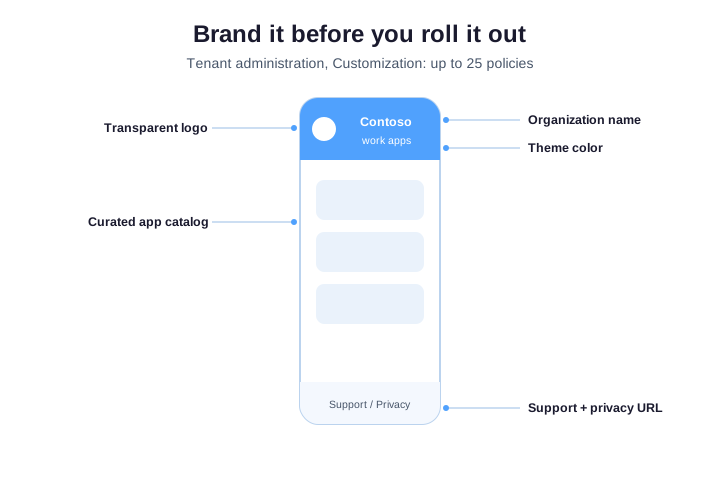
- Transparent-background logo — a transparent PNG renders cleanly on any theme color; a logo on a white rectangle looks broken on a dark theme.
- Organization name and theme color — set a name users recognize instantly and match your primary brand color.
- Complete support information — support contact, phone, email, website, and a privacy statement URL, so a stuck user reaches your help desk, not a dead end.
- Up to 25 targeted policies — present the right identity to the right user groups (customization targets users, not devices).
Wintive insight. Across the SMB tenants we manage, the Intune Company Portal is rarely the problem; the rollout around it is. For example, teams deploy the app but skip branding and a privacy note, so users distrust the prompt and enrollment stalls. As a result, a ten-minute customization pass lifts completion more than any technical tweak.
🛡️ Enrollment best practices
Beyond branding, the Customization blade controls how enrollment behaves. In addition, tune these settings deliberately rather than leaving Microsoft defaults in place.
- Device-enrollment visibility — hide the “enroll device” prompt for Autopilot and ADE groups so users are not invited to enroll an already-managed device.
- Privacy messaging — customize what the app tells users IT can and cannot see; honest, specific text lowers resistance.
- Device categories — prompt users to pick a category at enrollment so dynamic groups apply the right policies automatically.
- Self-service actions — enable safe actions (rename, remove) to cut help-desk volume; disable risky ones to protect the fleet.
Finally, one non-technical practice outweighs the settings: communicate before you deploy. So publish a short internal page. Explain what the Company Portal is and where to get help. After all, enrollment success tracks closely with whether people understood the app first.
🔒 Is the Company Portal safe? What your employer sees
The most common reason users hesitate to enroll is privacy, and the Intune Company Portal answers it directly. Notably, on the head-term search results a Reddit privacy thread ranks on page one, which proves that people worry about what IT can see. Therefore, address it head-on.
| IT can see | IT cannot see |
|---|---|
| Device model and OS version | Personal email content |
| Installed app inventory | Browsing history |
| Compliance and encryption state | Photos and personal files |
| Company app data | Text messages and calls |
In short, with device management IT sees the device, not the person. The Company Portal privacy screen spells this out per platform. As a result, surfacing a clear privacy statement URL in your branding removes the single biggest barrier to enrollment. Be honest here. Trust is the whole game. In addition, the app shows users the exact compliance reasons rather than vague warnings, which builds trust that management is about security, not surveillance. When people understand what the agent does, they stop trying to remove it, and your fleet stays managed.
📲 BYOD vs corporate: the Company Portal on personal devices
On corporate devices, full MDM enrollment through the Company Portal is the norm. On personal (BYOD) devices, however, many organizations prefer app protection (MAM) so they never manage the whole device. In practice, the Intune Company Portal still drives BYOD enrollment where you want device-level compliance, for example to satisfy Conditional Access.
Where users resist full management, app-protection policies secure Microsoft 365 apps without enrolling the device. As a result, you separate company data from personal data, and employees keep their phones private. Therefore, decide per group which model fits, then surface the right enrollment path in the Company Portal. As a rule of thumb, use full enrollment for company-owned hardware and app protection for personal phones, and write that split into your policy so it is consistent. For app protection specifically, policies can require a PIN, block copy-paste into personal apps, and wipe only the company data on demand, all without enrolling the device.
🔄 Compliance and Conditional Access
After enrollment, Intune checks the device against your rules. Then the Intune Company Portal shows the result in plain words. It also shows the exact fix when a check fails. Crucially, that status feeds Conditional Access. As a result, a flagged device loses access until the user fixes it. In short, clear messages turn a ticket into self-service.
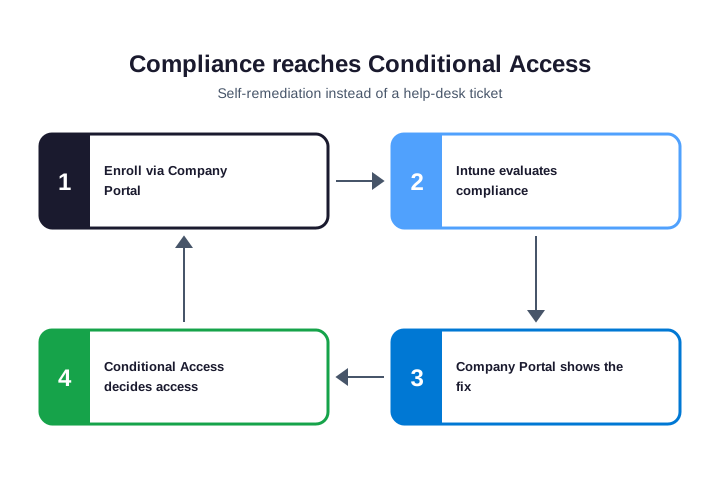
Therefore, configure your compliance policies to write clear remediation messages, because those messages surface directly in the Company Portal. A user sees “your device needs an OS update to access email,” updates, re-syncs, and regains access without ever calling you. Well-written compliance policies, with clear remediation text, carry the policy details. Crucially, the same compliance signal also powers app-based Conditional Access, so even unmanaged BYOD apps can be gated on a healthy device.
🧰 Troubleshooting the Intune Company Portal
In practice, the most-searched Intune Company Portal problems are mundane and fixable. Therefore, build these into your help-desk runbook so first-line staff resolve them fast.
| Symptom | Likely cause | First fix |
|---|---|---|
| Download pending | No sync / Store blocked | Force sync; check Store reachability |
| Sign-in loops | Conditional Access / no license | Verify CA policy and Intune license |
| Blank catalog | Stale token / nothing assigned | Sign out and back in; check assignment |
| Will not enroll | Wrong app or MDM cert missing | Confirm enrollment method and Apple push cert |
Stuck on “download pending.” This usually means the device has not synced with Intune yet, or it cannot reach the Microsoft Store. Force a sync, confirm connectivity to the Store and Microsoft cloud endpoints, and verify the app assignment targets that device group. On Windows, force the sync as shown below. Because Intune syncs on a schedule, a manual sync from the Company Portal usually clears a genuine pending state within a few minutes.
# Force an Intune sync on a Windows device (run as the signed-in user)
Get-ScheduledTask | ? { $_.TaskName -eq "PushLaunch" } | Start-ScheduledTask
# Or: Settings > Accounts > Access work or school > Info > Sync
Reset, reinstall, uninstall. For example, when the app misbehaves after an update, reset it to clear its cache without touching enrollment (Settings > Apps > Company Portal > Advanced options > Reset). Note that uninstalling the Company Portal does not un-enroll the device. Enrollment lives in the OS management stack. Therefore, to remove management, retire or wipe the device through the proper flow.
✅ Intune Company Portal checklist
- Deploy the app through Intune on every platform — never rely on users to find it.
- On Windows, use Microsoft Store app (new) for auto-updates and system-context installs.
- Assign it Required to device groups so enrollment-ready machines receive it automatically.
- Configure the Apple MDM push certificate and a VPP token before touching Apple devices.
- Brand it: recognizable name, transparent logo, theme color, complete support and privacy URLs.
- Tune enrollment visibility, privacy messaging, device categories, and self-service actions.
- Put sync, reset, reinstall, and Conditional Access checks into your help-desk runbook.
- Audit the configuration quarterly — treat Company Portal policy like patching, not a one-time setup. Do it once. Then keep it tidy.
Ultimately, at Wintive we deploy, brand, and harden Intune and the Company Portal for SMBs as part of our Microsoft 365 managed services. If you need help, contact us for a free consultation. In addition, we document the Company Portal rollout so your help desk has a runbook from day one.
📚 More for Intune admins
These published Wintive tutorials go deeper on the Company Portal scenarios most teams meet next. Therefore, bookmark the ones that match your rollout.
🔍 Want a complete audit of your Microsoft 365 tenant?
The M365 Instant Audit scans your environment in under 10 minutes: license waste, security posture, MFA coverage, compliance gaps, and rightsizing. A full PDF report with prioritized fixes arrives instantly.
❓ Frequently Asked Questions
In short, it is the end-user app for Microsoft Intune. Users enroll a device, install approved apps from a self-service catalog, and check compliance. Moreover, it runs on Windows, iOS, iPadOS, macOS, and Android, plus a browser version.
It performs three jobs: device enrollment, self-service app installation, and compliance visibility. As a result, users handle routine tasks without weakening security, because every action maps to a policy IT defines centrally.
The native app can enroll devices and gives the full experience. By contrast, the website at portal.manage.microsoft.com runs in any browser with no install, so it suits enrolled users who only need to grab an app or check status.
In the admin center, open Apps, then All apps, then Add. Next, choose Microsoft Store app (new), search for Company Portal, and assign it as Required to your device group. As a result, it auto-updates and installs in the system context.
First, force a device sync. Next, confirm the device can reach the Microsoft Store and Microsoft cloud endpoints. Finally, verify the app assignment targets that device group. Typically, a blocked Store is the most common Windows cause. Most fixes take a minute. Start with a sync.
Install the signed .pkg, ideally deployed through Intune as a Required app for version consistency, or downloaded from aka.ms/EnrollMyMac. It then handles enrollment, app installs, and compliance just like on Windows.
🧭 Your next step
Ultimately, at Wintive we deploy, brand, and harden the Intune Company Portal for SMBs as part of our Microsoft 365 managed services. In addition, we document the rollout so your help desk has a runbook from day one. To get started, contact us for a free consultation. It is quick. We do the rest.