

The Microsoft Intune Management Extension is the quiet Windows agent that makes a lot of Intune actually work. Without it, your Win32 apps, PowerShell scripts, and proactive remediations simply never run. So when a deployment stalls, this agent is usually where the answer hides. Yet most admins never look at it until something breaks.
This guide fixes that, in plain terms. First you will see what the extension is and why it exists. Then we will cover what it deploys, how it installs, when it runs, and where its logs live. Finally you will get the commands to check, restart, and reinstall it, plus the habits that keep it healthy. Because the agent sits on every managed PC, knowing it well saves hours of guesswork.
🛡️ Free: M365 Audit Checklist
19-page PDF with 50 hands-on checks covering Entra ID, Exchange Online, SharePoint, Teams, Intune, license waste, and audit logging. PowerShell commands included. Built from 60+ real tenant audits at Wintive.
🧭 What the Microsoft Intune Management Extension is
The Microsoft Intune Management Extension, or IME, is a Windows service that Intune installs on managed devices. In short, it runs the workloads the native MDM channel cannot: Win32 apps, PowerShell scripts, proactive remediations, and custom compliance. It checks in roughly every eight hours, pulls its assignments, and writes detailed logs locally. So when an app or script does not land, the IME is the first place you look.
Think of the agent as Intune’s hands on the device. The MDM protocol handles policies and settings well, yet it cannot run arbitrary code. So Microsoft built a separate agent to fill that gap. As a result, anything script-shaped flows through the extension rather than the policy channel.
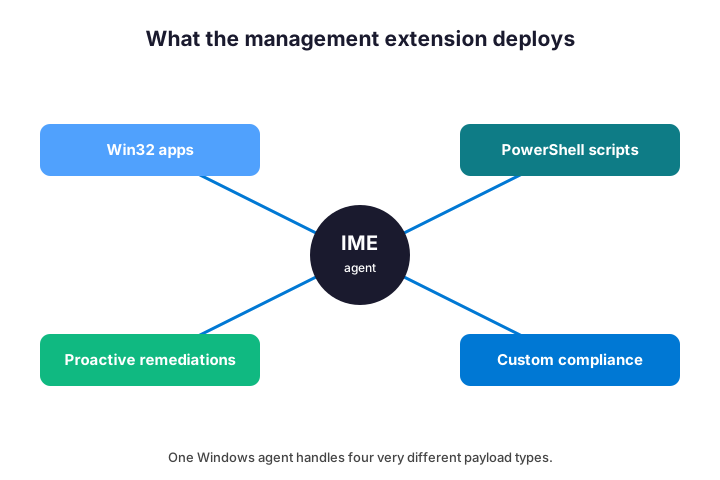
The chart below shows the four payload types it carries. Notice how different they are, from packaged apps to compliance scripts. Because one agent handles them all, a single stuck service can block several features at once. That is exactly why it pays to understand it.
You will also see it named in two places. On the device, the service appears as the Intune Management Extension. In the portal, its work shows up under apps, scripts, and remediations. So the same agent wears several hats, which can confuse a first look.
It usually runs in the SYSTEM context, which is worth remembering. Because it acts as the machine rather than the signed-in user, a script may not see a user profile or a mapped drive. So when a script works for you but not through Intune, context is the first suspect. You can target the user context on PowerShell scripts, yet the default is SYSTEM.
🎯 Why the extension exists
Native MDM was built for settings, not software. It toggles policies, pushes profiles, and enforces configuration cleanly. Still, it was never designed to install a complex desktop app or run a custom script. So Microsoft needed a second channel for those richer jobs.
That second channel is the extension. Because it runs as a local service with system rights, it can do things MDM alone cannot. For example, it installs a packaged Win32 app, then reports the result back to Intune. Meanwhile it can run a PowerShell script once, or on a schedule, to fix a known problem.
The design also keeps the two channels independent, which is deliberate. So a policy can apply perfectly while a script fails, or the reverse. Because they do not depend on each other, you troubleshoot them separately. That independence is a feature, not a flaw, once you stop expecting one to explain the other.
This split matters when you troubleshoot. A failed setting is an MDM problem, while a failed app or script is almost always an extension problem. So knowing which channel owns a task tells you where to look first. Therefore the agent is not an obscure detail; it is half of how Intune manages Windows.
If you came from Configuration Manager, the idea will feel familiar. The extension plays a similar role to the old ConfigMgr client, but for cloud-managed devices. Still, it is lighter and self-managing, so you do not nurse it the way you did the legacy agent. Because it lives and dies with Intune, your effort moves from the device to the portal.
📦 What the extension deploys
The agent carries four kinds of payload, and each behaves a little differently. Win32 apps are packaged installers wrapped in the intunewin format. PowerShell scripts run device-side, often once at enrollment. Proactive remediations pair a detection script with a fix. Custom compliance runs your own checks beyond the built-in rules.
| Payload type | What it is | Common use |
|---|---|---|
| Win32 apps (.intunewin) | Packaged desktop installers | Deploy line-of-business software |
| PowerShell scripts | Run-once device scripts | Configure settings at enrollment |
| Proactive remediations | Detect-and-fix script pairs | Keep devices healthy over time |
| Custom compliance | Scripted compliance checks | Enforce rules the built-ins miss |
Notice that all four share one delivery path. They download to the device, run under the agent, and report back on the next check-in. So a problem with the agent affects every type at once. Because of that shared path, a single log often explains failures across apps and scripts alike.
Knowing the payload type also sets your expectations. A large Win32 app takes time and bandwidth, while a small script finishes in seconds. So when something seems slow, the payload type usually explains it. Therefore match your patience to the job before you assume a fault.
Proactive remediations deserve a special note, because they recur. Unlike a run-once script, a remediation runs on a schedule you set, hourly or daily. So it keeps fixing drift long after the first deployment. Because of that loop, a noisy remediation can generate constant log activity, which is normal rather than a fault.
Win32 apps carry the most moving parts, so they fail most visibly. Each one needs an install command, an uninstall command, and a detection rule. Because detection decides whether Intune calls the app installed, spend your care there.
⚙️ How it installs and triggers
The agent installs itself automatically, so you never deploy it by hand. The trigger is the key detail. As soon as a device receives a Win32 app or a PowerShell script assignment, Intune installs the extension. Until that first assignment, the service may not exist at all.
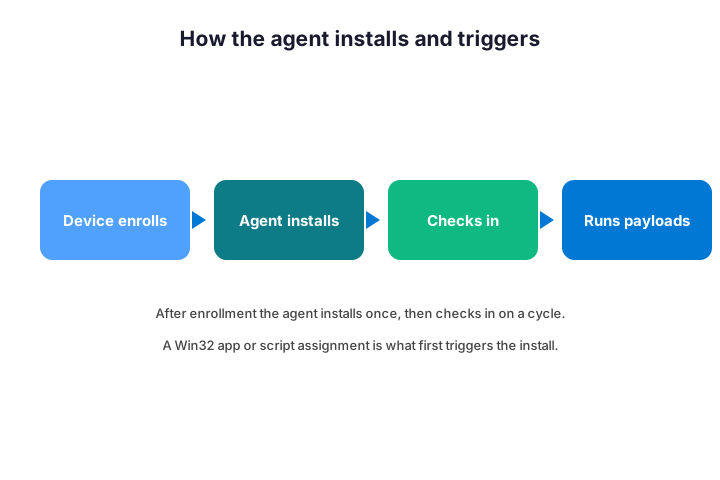
After it lands, the agent registers and starts checking in. So if you assign a script and nothing happens, first confirm the service is even present. The command below checks its status on the device in one line.
# Check the agent service on the device (run PowerShell as admin)
Get-Service -Name IntuneManagementExtension |
  Select Status, StartType, DisplayName
A stopped or missing service explains a surprising share of “my app never installed” tickets. Because the agent installs only after an assignment, a brand-new device can look broken when it is simply waiting. So check the service first, then move on to logs.
One quirk catches people out here. Only a Win32 app or a PowerShell script triggers the install, not a line-of-business MSI pushed through MDM. So a device with only basic policy may never get the agent. Therefore if you plan to use scripts later, assign a small one early, so the agent is already in place when you need it.
🔄 When it runs: the check-in cycle
Timing trips up many admins, so it helps to know the rhythm. The agent does not run your script the instant you assign it. Instead, it works on a cycle, checking in roughly every eight hours for new or changed assignments.
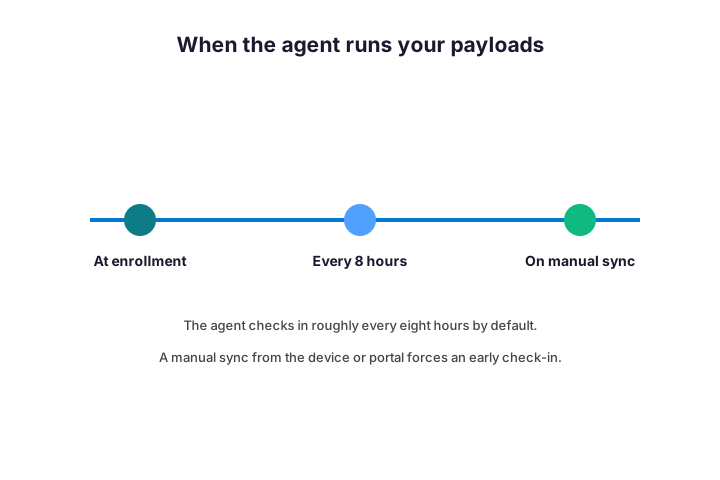
So patience is sometimes the fix. A script you assigned at lunch may simply run that evening. Still, you rarely want to wait when testing. The command below forces an early check-in by restarting the service, which is the fastest way to pull assignments now.
# Force an early check-in: restart the service
Restart-Service -Name IntuneManagementExtension
# Or sync from the device: Settings > Accounts > Access work or school > Sync
Users can also trigger a sync themselves from the device settings. Because that path is self-service, it is handy for remote staff who cannot run PowerShell. So when you guide a user by phone, the portal sync button is usually the simplest instruction.
Failures follow their own rhythm too. When an app or script fails, the agent retries on later check-ins rather than giving up. So a transient problem, such as a busy network, often clears itself by the next cycle. Because of that retry, do not panic at a single failed attempt; watch whether it recovers on its own first.
Plan testing around this cycle, not against it. Because a restart forces an immediate check-in, it is your friend in the lab. In production, though, let the natural cycle do the work, so you do not hammer every device at once. So use the manual sync for a single test machine, and patience for the wider fleet.
🗂️ Where the logs live
When a payload fails, the answer is almost always in the local logs. The agent writes detailed files on the device itself, not just in the portal. So the fastest path to a root cause runs through these files, and they are easy to find once you know the folder.
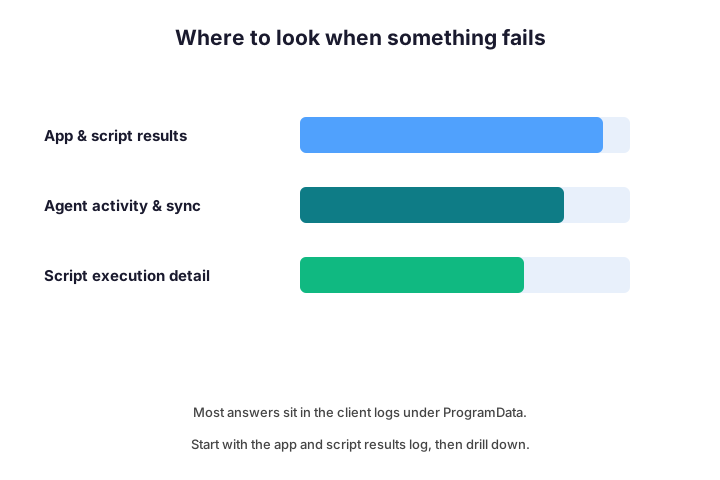
Every log sits under one ProgramData folder. The path below points straight to it, with the three files you will open most. Open them with CMTrace, since it colour-codes errors and follows the live tail.
# The client logs live here - open them with CMTrace or any text viewer
C:\ProgramData\Microsoft\IntuneManagementExtension\Logs\
#   IntuneManagementExtension.log  -> agent activity and check-ins
#   AppWorkload.log                -> Win32 app and script results
#   AgentExecutor.log              -> PowerShell execution detail
Each file answers a different question, so pick by symptom rather than scrolling everything. The table below maps the common files to the problems they explain. For the full file reference, Microsoft lists them in its Intune Management Extension documentation, which is the authority when a line is unclear.
| Log file | What it shows | When to open it |
|---|---|---|
| IntuneManagementExtension.log | Agent activity and check-ins | General or timing issues |
| AppWorkload.log | Win32 app and script results | An app or script fails |
| AgentExecutor.log | PowerShell execution detail | A script errors out |
| ClientHealth.log | Agent health and registration | The agent does nothing at all |
Copy a log out before you experiment on a device, because a reset wipes it. So when a stubborn case lands on your desk, grab the folder first and read it at your leisure. That habit means you never lose the one entry that finally explains the failure.
🔍 How to read the logs
Reading the logs is simpler than it looks once you have a method. Start with the file that matches your symptom, then search for the app or script name. Because each entry carries a timestamp, you can line it up with the check-in that should have run it.
Look for the result codes next. A zero usually means success, while a non-zero code points to the failure. So copy that code into a search, and you often land on the exact cause within minutes. Meanwhile the lines just above the error tell you what the agent was trying to do.
Watch the timestamps for a second clue. If the log shows no recent check-in, your problem is timing or the service, not the script itself. So the absence of an entry is as telling as an error. Therefore read for what is missing, not only for what is red.
A few result codes show up again and again, so learn them. An exit of 0x80070005 means access denied, which usually points to a context or permissions issue. A detection code like 0x87D00324 means the app installed but the detection rule did not match. So the code itself often names the fix, long before any web search does.
🛠️ How to restart the service
Restarting the agent is the single most useful fix, and it is safe to do. A restart forces a fresh check-in, so it both clears transient glitches and pulls new assignments. So before anything drastic, try this first.
You restart it exactly as you would any Windows service. Run the restart command from an elevated prompt, or use the Services console if you prefer a click. Because the agent re-registers on start, a clean restart resolves a large share of stuck deployments.
Give it a few minutes afterwards, then re-check the logs. If the payload now appears and succeeds, you are done. So treat the restart as your default first move, and escalate only when it does not help.
Resist the urge to delete things by hand, though. Some guides suggest clearing the agent cache or registry keys, yet that often causes more harm than good. Because the service rebuilds its own state on a clean restart, a manual purge is rarely needed. So restart, wait, and read, rather than reaching for a delete.
♻️ How to reinstall or re-register the agent
Sometimes a restart is not enough, and the agent itself is damaged. The good news is that you rarely reinstall it by hand. Because Intune owns the agent, stopping it and triggering a sync usually makes the service rebuild itself.
# If the agent is broken, stop it and let Intune reinstall it on the next sync
Stop-Service -Name IntuneManagementExtension -Force
# Trigger an MDM sync; the service re-registers automatically.
# As a last resort, retire and re-enroll the device from the Intune portal.
Work through that sequence patiently, not all at once. First stop the service, then force an MDM sync and wait for the agent to return. If it still misbehaves, the cleanest reset is to retire and re-enroll the device. So reinstalling is less a manual chore and more a guided self-heal.
Keep re-enrollment as a true last resort, though. Because it disrupts the user, you reach for it only when logs show the agent is truly broken. So exhaust the restart and the stop-and-sync first, and most devices recover without it.
Before you re-enroll, capture the logs first. Because re-enrollment wipes the local history, you lose the very evidence that explains the failure. So copy the Logs folder somewhere safe, then reset the device. That way, if the problem returns, you still have the trail to follow.
⚠️ Common errors and how to fix them
Most extension problems fall into a handful of patterns. None are mysterious once you know them, so a short flow handles nearly all of them. The chart below shows the order to work through.
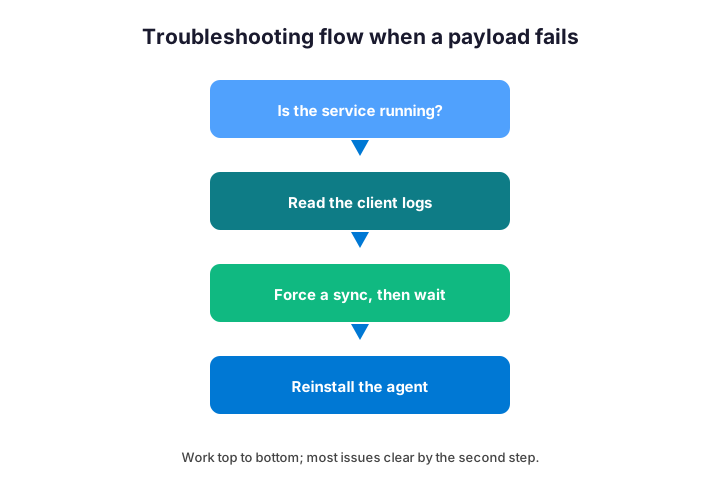
- Service not running: restart it, then re-check after a few minutes.
- App stuck “pending”: the agent has not checked in yet, so force a sync.
- Script fails with a non-zero code: read AgentExecutor.log for the detail.
- Nothing in any log: the agent never installed, so confirm an assignment exists.
- Repeated failures after a restart: stop the service and let it re-register.
Notice the pattern behind the list. Almost every fix is either a sync, a restart, or a log read. So you rarely need deep surgery, and you almost never need to rebuild the device. Therefore a calm, ordered check beats frantic clicking every time.
One error is worth singling out, because it confuses many admins. An app can report failure while it actually installed fine. That gap means the detection rule is wrong, not the install. So when success and failure seem to disagree, fix the detection logic first. Because detection drives the result Intune shows, a sloppy rule produces phantom failures.
🔐 Security: what the agent can do
The extension runs with system rights, so it is powerful by design. That power is exactly why your scripts and apps can install software and change settings. Still, it also means a careless script can do real damage. So treat what you assign with the respect that access deserves.
Good hygiene keeps that power safe. Sign your scripts, test them on a pilot group, and review who can publish assignments. Because the agent will faithfully run whatever Intune sends, your control point is the portal, not the device. So tight roles in Intune matter more than anything on the endpoint.
Mind the execution policy and the platform too. The agent can run unsigned scripts, yet enforcing signing adds a real safety net. Likewise, decide deliberately between 32-bit and 64-bit PowerShell, since the wrong one can break a script that touches the registry. So set these options consciously, rather than leaving them on a default you never chose.
Wintive insight. In the device estates we audit, the extension is rarely the real fault; the assignment is. For example, an untested script or a duplicate app assignment causes most of the noise. As a result, we review what is published far more than we poke at the agent. So before you blame the IME, check what you asked it to do.
✅ Best practices for the extension
A few habits keep the agent quiet and predictable. None take long, yet together they prevent most of the tickets teams open. So build them into how you publish, not just how you fix.
- Always pilot a Win32 app or script on a small group first.
- Use detection rules that are precise, so apps do not reinstall in a loop.
- Keep scripts short, signed, and idempotent, so a re-run is harmless.
- Watch AppWorkload.log after each new assignment goes out.
- Avoid duplicate or conflicting assignments to the same device.
- Document what each script does, for whoever supports it next.
Build a simple monitoring habit on top of the basics. Check the app and script status in the portal after each rollout, and spot-check a device log now and then. Because small problems surface early when you look, you catch them before users do. So a five-minute glance after every change beats a flood of tickets next week.
Pair these with strong device management overall. If you are still shaping your Intune setup, our guide to the Intune Company Portal covers the user side, and our walkthrough of Intune Remote Help covers live support. So the extension becomes one well-understood piece of a tidy whole.
📚 More for Intune admins
These published Wintive guides go deeper on the topics the extension touches. Each one tackles a single area in detail, so you can read only what you need. Therefore bookmark the ones that fit your environment.
🔍 Want a complete audit of your Microsoft 365 tenant?
The M365 Instant Audit scans your environment in under 10 minutes: license waste, security posture, MFA coverage, compliance gaps, and rightsizing. A full PDF report with prioritized fixes arrives instantly.
❓ Frequently Asked Questions
It is a Windows service that Intune installs on managed devices to run Win32 apps, PowerShell scripts, proactive remediations, and custom compliance, which the native MDM channel cannot handle.
They sit in C:\ProgramData\Microsoft\IntuneManagementExtension\Logs on the device. Open IntuneManagementExtension.log, AppWorkload.log, and AgentExecutor.log with CMTrace.
Roughly every eight hours by default. You can force an early check-in by restarting the service or by syncing from the device settings.
Run Restart-Service -Name IntuneManagementExtension from an elevated prompt, or restart it in the Services console. It re-registers and checks in on start.
No. Intune installs it automatically the first time a device receives a Win32 app or PowerShell script assignment, so it can be absent until then.
Usually the agent has not checked in yet. Confirm the service is running, force a sync, then read AppWorkload.log if it still fails.
🧭 Your next step
Next time a deployment stalls, start with the Microsoft Intune Management Extension rather than the portal. Check the service, force a sync, then read the log that matches the symptom. Because that simple routine resolves most issues, it will save you hours. When you want a second pair of eyes on your Intune setup, we are happy to help.
Keep the mental model simple, and the agent stops being a mystery. It installs on first assignment, checks in on a cycle, runs your payloads, and writes everything down. So when something breaks, you already know the four places to look. That clarity, more than any single command, is what turns a scary failure into a five-minute fix.
Related Wintive guides: Microsoft Intune Plan 1 guide, Microsoft Intune pricing breakdown, and Intune Remote Help guide.