

Intune Remote Help is Microsoft’s cloud answer to a familiar problem: a user is stuck, and your help desk needs to see the screen now. It is a paid add-on that lets a verified helper view or take control of an enrolled device, with the trust and audit trail that consumer tools never had. For any business running Microsoft 365, it turns ad-hoc screen sharing into a governed support process.
This guide explains Intune Remote Help for IT admins and the businesses they support. First, it covers what the tool is and how it compares to Quick Assist. It also walks through the licensing, the setup, the RBAC roles, the security model and the PowerShell to manage it. By the end you will know whether Intune Remote Help belongs in your stack and how to roll it out cleanly.
📋 Free: the M365 Audit Checklist (50 points)
Before you buy another add-on, see what your Microsoft 365 tenant already covers across identity, devices and licensing.
🛟 What Intune Remote Help is
Intune Remote Help is a cloud-based remote assistance tool built into Microsoft Intune. A helper opens a session, the user shares a short code, and the helper can then view the screen or, with consent, take full control. Because the connection runs through the Intune service and Microsoft Entra ID, there are no inbound firewall rules to open and no third-party agent to trust.
In short: Intune Remote Help is a paid Microsoft add-on that lets a help desk securely view or control an enrolled device. It authenticates both sides through Microsoft Entra ID, enforces role-based permissions, shows a device compliance warning before connecting, and logs every session. It is the managed, audited alternative to Quick Assist for organisations that already run Microsoft Intune, and it now supports Windows, macOS and Android.
The point of Intune Remote Help is trust on both sides. A user sees who is connecting and grants access explicitly, while the helper sees whether the device is compliant before taking control. Below, the diagram shows how a session links the two through the cloud.
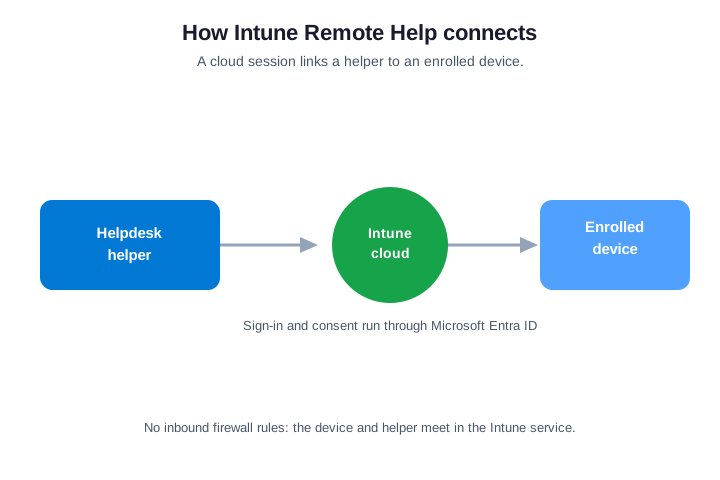
So think of it as remote control with a chain of custody. Indeed, each session ties to a named user, and every connection is logged. The device must meet your rules first. That accountability is the whole point of Intune Remote Help, and it is what consumer screen-sharing never gave you.
⚖️ Intune Remote Help vs Quick Assist and Remote Assistance
Most admins meet three tools with overlapping names, so it helps to separate them. Quick Assist is the free, built-in tool for one-off help over a Microsoft account. Windows Remote Assistance is the legacy option now being retired. Intune Remote Help is the managed, paid service with roles, auditing and device compliance built in.
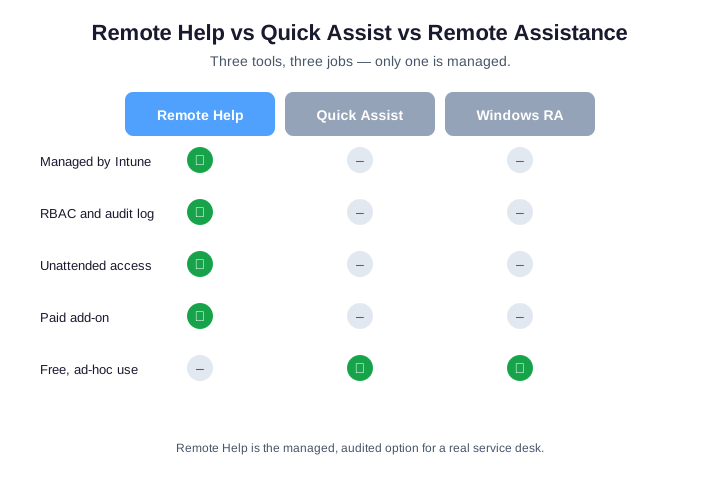
The practical rule is simple. If you need a documented, role-based support process tied to your own tenant, Intune Remote Help is the right tool. If you only need to rescue a relative once, Quick Assist is fine. The table sets out the difference at a glance.
| Capability | Intune Remote Help | Quick Assist |
|---|---|---|
| Managed in Intune | Yes | No |
| Entra ID sign-in for both sides | Yes | Partial |
| RBAC roles and session audit | Yes | No |
| Device compliance warning | Yes | No |
| Unattended access | Yes | No |
| Cost | Paid add-on | Free |
Furthermore, one more difference matters for planning. Quick Assist is here to stay for casual use. Windows Remote Assistance, by contrast, is on its way out. So your long-term, supported choice for managed help is Intune Remote Help, with Quick Assist kept only for the rare one-off.
💰 Intune Remote Help licensing and cost
Intune Remote Help is not included in a standard Intune or Microsoft 365 plan. You buy it either as a standalone add-on or as part of the Microsoft Intune Suite, which bundles it with other endpoint tools. Licensing is per user, and only the helpers who run sessions need it — the people receiving help do not.
So that per-helper model keeps the cost contained. A team of five technicians needs five licences, regardless of how many thousands of devices they support. So the spend tracks the size of your help desk, not the size of your estate, which makes the budgeting refreshingly simple.
If you are weighing the standalone add-on against the full Intune Suite, count the other Suite features you would use, such as endpoint privilege management. When two or three of those apply, the Suite is usually the better value. When you only want Intune Remote Help, the standalone add-on keeps it lean.
Standalone add-on or Intune Suite?
| Buying option | What you get | Best when |
|---|---|---|
| Standalone add-on | Intune Remote Help on its own | You only need remote support |
| Microsoft Intune Suite | Remote Help plus EPM, advanced analytics and more | You will use several endpoint tools |
| Free trial | Full features for a limited window | You are running a pilot first |
Budget the helpers, not the fleet. First, count the technicians who run sessions. Then add a couple of spare seats for cover. That number is your licence count. It rarely grows as fast as the device estate, which keeps Intune Remote Help easy to forecast.
Watch the trial clock too. Microsoft offers a free trial of the add-on, which is ideal for a pilot. Set a reminder before it ends. That way you convert to paid licences on purpose, rather than losing access mid-session or paying for seats you never confirmed.
🧰 Requirements before you start
A few prerequisites need to be in place first. The devices you support must be enrolled in Intune and, for the strongest experience, marked compliant. Both the helper and the user sign in with Microsoft Entra ID accounts in your tenant, and external or personal accounts are blocked by default for security. If you also deliver apps to those devices, see our Intune Company Portal guide.
Platform support has widened over time. Intune Remote Help works on Windows, on macOS, and on Android enrolled devices, with the feature set strongest on Windows. Each platform needs the Remote Help app installed, which you push through Intune rather than asking users to download anything themselves.
| Platform | Remote Help support | Typical use |
|---|---|---|
| Windows | Full view and control | Staff laptops and desktops |
| macOS | View and control | Designers and developers |
| Android | Enrolled-device support | Frontline and shared phones |
Check the small print per platform. Windows gets the deepest feature set. macOS and Android cover the common cases. iOS support is narrower, so confirm it before you promise it. Knowing the limits up front saves an awkward call later.
Tenant settings to check
On the tenant side, an admin enables Remote Help in the Intune admin center. From there you decide two things: whether to allow sessions to unenrolled devices, and whether to require compliance. Turning off support for unmanaged devices is the safer default. Once these switches are set, the feature is ready to deploy.
However, do not skip the compliance switch. Because requiring compliance means a helper is warned before touching a risky device. It is a small setting with a big payoff. Turn it on at the start, and every later session inherits the protection by default.
🔧 How to set up Intune Remote Help
Setting up Intune Remote Help follows three clear stages. First, enable the feature under Tenant administration so the service is switched on for your organisation. Second, deploy the Remote Help app to the devices and helpers that need it. Third, assign the RBAC roles that decide who can do what in a session.
Keeping those stages separate pays off later. Enabling the feature is a one-time switch, deployment is an ongoing app assignment, and the roles are where governance lives. Treating them as distinct steps makes the rollout easy to document and easy to hand to a colleague.
Likewise, pilot it before you scale. First, pick one help-desk team and a small device group, then widen the rollout once they are comfortable. Meanwhile, write the steps down as you go, because a one-page runbook of the tenant settings, the app assignment and the roles lets a new admin or an auditor see exactly how Intune Remote Help was configured.
📦 Deploy the Remote Help app to devices
The Remote Help app installs like any other managed app. You add it in Intune and assign it to a device or user group, and Intune handles the rollout silently. Before you do, it is worth confirming which Windows devices are managed and healthy, because those are the ones a session can reach.
# List managed Windows devices Remote Help can reach (Microsoft Graph PowerShell)
Connect-MgGraph -Scopes "DeviceManagementManagedDevices.Read.All"
Get-MgDeviceManagementManagedDevice -Filter "operatingSystem eq 'Windows'" -Top 10 |
  Select-Object DeviceName, ComplianceState, LastSyncDateTime
With the app assigned, helpers get it automatically on their own machines too. From then on, starting a session is a button inside the device record in Intune, so technicians work from one console rather than juggling separate tools.
In practice, the rollout is quick. Because the app is silent, users notice nothing. Meanwhile, helpers simply see the new button appear. As a result, your service desk is live within a day rather than a sprint.
Assignment choices keep it tidy. Target the app at the helper group and the supported device groups, not the whole tenant. Use a security group so membership changes do the work for you. New technicians then get the app automatically when they join the team.
🔑 Intune Remote Help RBAC roles
Roles are where Intune Remote Help earns its keep over free tools. Rather than every technician having full control of every machine, you grant the least privilege each tier needs. A triage analyst might only view a screen, while a senior engineer can take control and approve a UAC prompt for an administrator action.
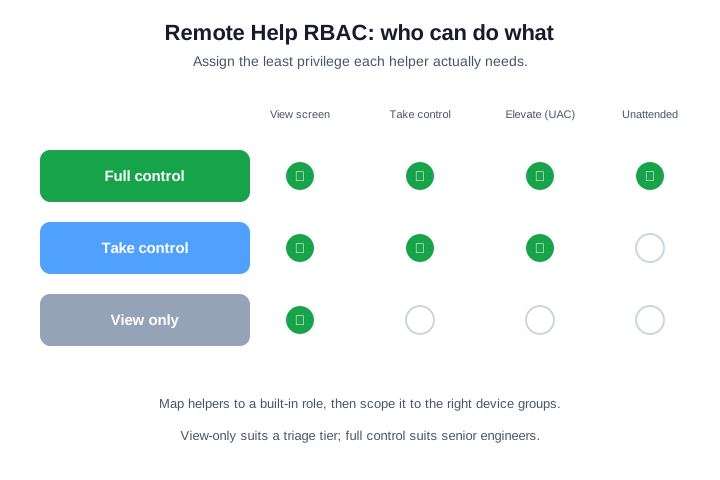
Microsoft ships built-in roles for exactly this, and you scope them to the device groups a team is allowed to touch. So a regional help desk can support its own sites without reaching the rest of the estate. That combination of role plus scope is what turns remote support into a controlled service.
Meanwhile, keep the roles few and clear. Most desks need just two or three tiers. Map them to real jobs, document who sits where, and review the list each quarter. Fewer, well-scoped roles are far easier to audit than a long tail of custom ones.
👥 What happens in a Remote Help session
A session is deliberately explicit at every step. The user requests help or the helper initiates it, a request is sent, and the user enters a short code to confirm. The helper then sees a device compliance warning, so they know if they are about to connect to a risky machine before anything happens.
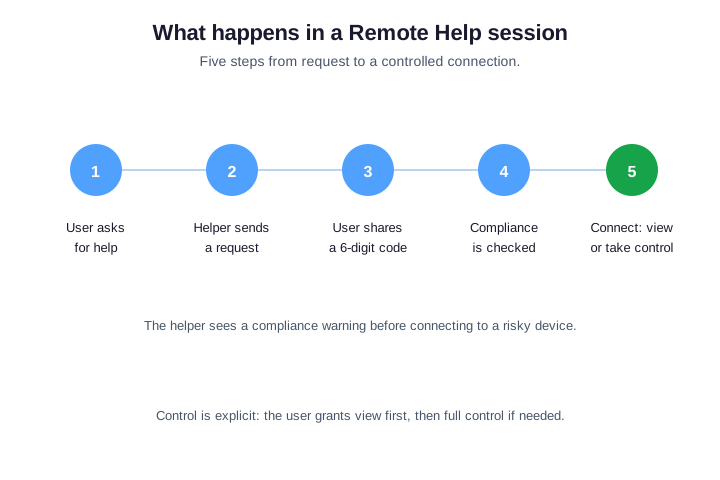
Notice how much consent is built in. At no point does the helper connect silently or without a visible identity. Instead, the user drives each step, from sharing the code to granting control. So that visible, opt-in flow is what separates a managed tool from a back door.
In our experience, the compliance warning is the feature that wins over security teams. Before a technician ever takes control, they see whether the device is compliant, who the user is, and what they are agreeing to. That single screen turns a vague “someone remoted in” into a logged, consented event you can show an auditor. That is exactly why regulated clients move off Quick Assist.
Control is granted in stages, not all at once. The user shares the screen first, and only escalates to full control if the task needs it. Every session is recorded in the audit log, so there is always a record of who connected, to which device, and when.
Crucially, the user stays in control throughout. So they can end the session at any moment. They see the helper’s name the whole time. Nothing happens silently in the background. That visibility is what makes staff comfortable accepting help in the first place.
🌐 Unattended access with Remote Help
Newer to the tool is unattended access, which lets a helper connect to an enrolled device with no one sitting in front of it. That matters for kiosks, shared machines and out-of-hours fixes, where waiting for a user to enter a code is not an option. It is governed by its own permission, so you grant it only to the staff who genuinely need it.
Treat unattended access as the most sensitive capability you hand out. Because it removes the human-in-the-loop consent, it should sit with a small, senior group and stay scoped to the device types that require it. Used carefully, it closes the gap between attended support and full device management.
Still, set a clear rule for when it applies. Generally, reserve unattended access for shared and headless devices, and keep attended sessions as the default for staff laptops. Log it more closely, too, because unattended sessions deserve a second look in each review: confirm who used the right, on which devices, and why, so the most powerful option stays fully accountable.
🔒 Securing Intune Remote Help
Intune Remote Help is built to be the secure option, but you still set the guardrails. Keep sessions limited to compliant, enrolled devices, block personal accounts, and apply Conditional Access so a risky sign-in cannot start a session. Each of these settings narrows who can connect and from where.
Auditing is the other half of the story. Every session writes to the audit log, so a quarterly review can confirm that access matches your roles and that nobody is connecting who should not be. If you are unsure how tight your wider tenant is today, that is exactly the kind of gap a focused audit surfaces.
| Security control | What it does |
|---|---|
| Compliance required | Blocks sessions to non-compliant devices |
| Personal accounts blocked | Limits sign-in to your tenant |
| Conditional Access | Stops risky sign-ins starting a session |
| Session audit log | Records who connected, where and when |
Therefore, make the review routine, not heroic. First, put a recurring date in the calendar. Check roles, licences and the session log together. Close anything that looks off. A short, regular pass keeps Intune Remote Help secure without ever becoming a big project.
📊 Assign and track Remote Help licences
Because licences are per helper, keeping them tidy is easy if you stay on top of it. Start by confirming the add-on exists in your tenant and how many seats are in use, so you know your starting point before assigning anyone.
# Check for the Remote Help / Intune Suite add-on (Microsoft Graph PowerShell)
Connect-MgGraph -Scopes "Organization.Read.All"
Get-MgSubscribedSku | Where-Object { $_.SkuPartNumber -like "*Remote_Help*" -or $_.SkuPartNumber -like "*Intune_Suite*" } |
  Select-Object SkuPartNumber, ConsumedUnits, @{n='Total';e={$_.PrepaidUnits.Enabled}}
Assigning the licence to a technician is then a single command, which scales to a whole help-desk group when you pipe in a list of accounts. Reclaim a seat the moment someone changes role, and the spend stays matched to your active team.
Better still, group-based licensing makes that automatic. Simply assign the add-on to a help-desk security group in Entra ID. Membership changes then add or remove the licence on their own. So a leaver releases a seat the day they move, with no manual clean-up.
# Assign the Remote Help add-on to a helper (Microsoft Graph PowerShell)
$sku = (Get-MgSubscribedSku | Where-Object { $_.SkuPartNumber -like "*Remote_Help*" }).SkuId
Set-MgUserLicense -UserId helpdesk@contoso.com -AddLicenses @{SkuId=$sku} -RemoveLicenses @()
🧭 Who needs Intune Remote Help
Not every organisation needs the paid tool. Intune Remote Help pays off when you run a real help desk, support regulated or confidential users, or manage devices you cannot physically reach. If your support is the occasional favour for a colleague, Quick Assist still does the job for free.
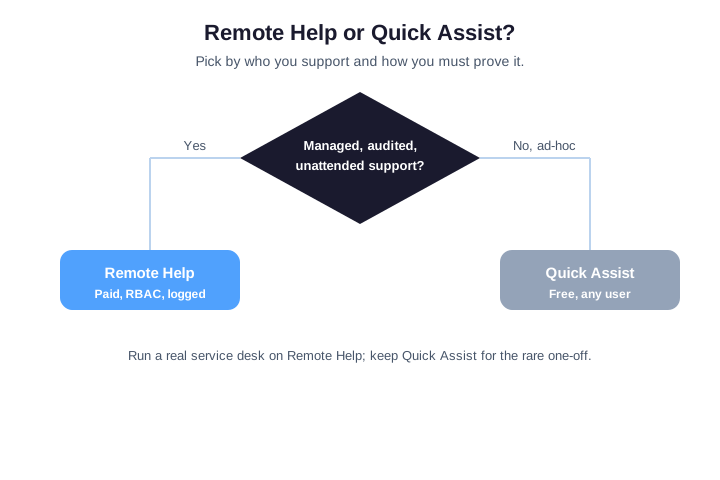
The deciding factor is usually proof. The moment you must show who accessed a device and when, the free tools fall short and Intune Remote Help becomes the obvious choice. For everyone else, it is a sensible upgrade rather than a must-have, and the decision tree above keeps the call quick.
In short, match the tool to the stakes. For occasional, low-risk help, Quick Assist is enough. However, once support becomes a service you must prove, Intune Remote Help earns its licence. Therefore most growing teams land on it eventually.
Additionally, size tips the balance. A handful of staff rarely justifies the licences. A growing help desk almost always does. As your team and device count climb, the audit trail and roles stop being nice extras and start being requirements.
🚦 Common mistakes to avoid
A handful of slips cause most of the trouble. Licensing every technician with full control wastes both money and privilege. Leaving sessions open to unenrolled or non-compliant devices undoes the security benefit. Skipping the audit review means the log exists but nobody reads it, which defeats the point of a managed tool.
Each mistake has an easy counter. Match licences and roles to real tiers, restrict sessions to compliant devices, and put the audit review on a quarterly calendar. None of these takes long, yet together they keep Intune Remote Help a genuine security upgrade rather than a box ticked.
| Common mistake | The fix |
|---|---|
| Full control for everyone | Map roles to support tiers |
| Sessions to non-compliant devices | Require compliance in tenant settings |
| Personal accounts allowed | Block external and personal sign-in |
| Audit log never read | Schedule a quarterly review |
One more habit helps: name an owner. Give a single person responsibility for roles, licences and the review. Ownership stops each task from falling between desks. With one owner, Intune Remote Help stays governed long after the rollout.
Documentation is the quiet fix behind all of them. Write down your roles, your tenant settings, and your review date. Keep it to a page. When an auditor or a new admin asks how support works, you hand them the page instead of reconstructing it from memory.
🤝 How Wintive runs Remote Help for clients
We set Intune Remote Help up the way we would want it audited. That means compliant-only sessions, personal accounts blocked, roles mapped to support tiers, and unattended access reserved for a named few. The result is a help desk that can move fast without ever losing the paper trail.
After go-live, a short quarterly review keeps it honest: who holds a licence, which roles they have, and what the session log shows. If you would rather not manage that yourself, it is exactly the kind of steady, governed work a managed partner takes off your plate.
Either way, the destination is the same. So aim for a help desk that moves fast yet still proves every action. With the roles, the compliance gate and the audit log in place, Intune Remote Help delivers exactly that, and it keeps delivering long after the first rollout.
📚 More for IT admins
🔍 Want to know exactly which licenses you are paying for?
The M365 Instant Audit scans your tenant in under 10 minutes. It checks license waste, plan right-sizing, MFA coverage, security posture and compliance gaps. As a result, you get a full PDF report with prioritized fixes, delivered instantly.
❓ Intune Remote Help: Frequently Asked Questions
It is a paid Microsoft add-on that lets a help desk securely view or take control of an enrolled device. Both sides sign in with Microsoft Entra ID, roles control what a helper can do, and every session is logged, so it is the managed alternative to Quick Assist.
No. It is a paid add-on, sold either on its own or as part of the Microsoft Intune Suite. Licensing is per helper, so only the technicians who run sessions need it. The users who receive help do not need a licence.
Quick Assist is free and built into Windows for one-off help. Intune Remote Help is the managed service: it adds RBAC roles, device compliance warnings, unattended access and a full audit log. Use Quick Assist for ad-hoc favours and Remote Help for a real service desk.
You need either the standalone Remote Help add-on or the Microsoft Intune Suite, on top of an eligible Intune or Microsoft 365 plan. Assign it per helper. A free trial is available if you want to pilot it before buying seats.
Yes. Alongside Windows, Intune Remote Help supports macOS and Android enrolled devices, with the deepest feature set on Windows. Each platform needs the Remote Help app, which you deploy through Intune rather than asking users to install it.