

An Exchange Online license is what gives a user a real, cloud-hosted mailbox — and getting it wrong is where Microsoft 365 bills quietly balloon. Some users need a full mailbox, others only a shared one, and a few need nothing at all. So the difference between a tidy tenant and a wasteful one usually comes down to who holds which licence and why.
This guide explains the Exchange Online license in plain terms for IT admins and the businesses they support. First, it sets out the plans and what each includes. Then it covers shared mailboxes, the common “no licence” error, pricing, and the PowerShell to assign and audit licences. By the end, you will know exactly which Exchange Online license each person needs.
A quick note on scope. This guide covers the cloud Exchange Online license, not on-premises Exchange Server, which is licensed very differently. So if you run a hybrid setup, the cloud side follows the rules below while your on-premises servers keep their own server and CAL licensing. For most small and mid-sized firms, though, everything now sits in the cloud.
📋 Free: the M365 Audit Checklist (50 points)
Before you buy or renew, see which Exchange Online licenses you already own and where they are going to waste.
📧 What an Exchange Online license is
An Exchange Online license grants a user a hosted Exchange mailbox, complete with email, calendar and contacts, managed by Microsoft in the cloud. You can buy it on its own as a standalone plan, or get it bundled inside a Microsoft 365 plan. Either way, the licence is assigned per user, and only a licensed user gets a working mailbox.
In short: an Exchange Online license gives one user a cloud mailbox. The standalone plans are Kiosk (2 GB), Plan 1 (50 GB) and Plan 2 (100 GB with archiving and compliance). The same mailbox is also bundled into Microsoft 365 Business and Enterprise plans. Shared mailboxes under 50 GB need no licence, and assigning the right Exchange Online license per user is the simplest way to control cost.
Because the licence is per user, the goal is to match each person to the smallest plan that does their job. Indeed, that single habit is what keeps email costs predictable. The chart below sets out the standalone options side by side.
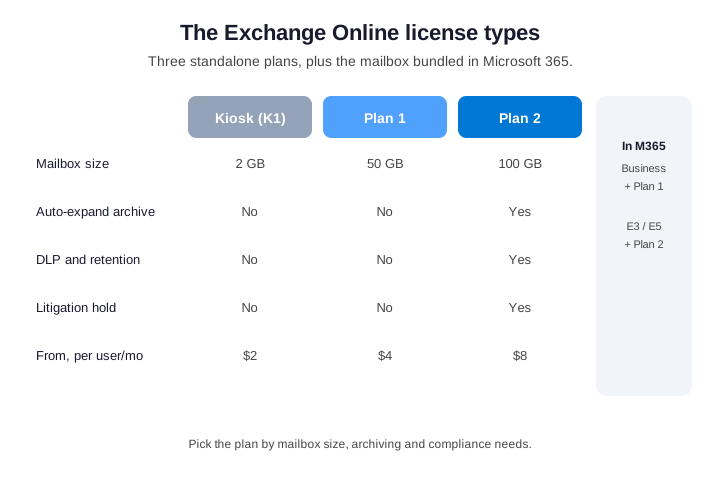
Notice that the licence, not the mailbox, is the unit of cost. So two people on Plan 1 cost twice what one does. Because of that, every unnecessary Exchange Online license is margin lost for nothing. Therefore the auditing habits later in this guide tend to pay for themselves quickly.
🧾 What each Exchange Online license includes
The plans differ mostly in mailbox size and compliance features, as Microsoft sets out in its Exchange Online service description. Kiosk is the lightweight option for frontline staff who use webmail on a shared device. Plan 1 is the standard 50 GB mailbox most office workers need. Plan 2, meanwhile, doubles the storage and adds the archiving, retention and litigation-hold features that regulated teams require.
| Feature | Kiosk | Plan 1 | Plan 2 |
|---|---|---|---|
| Mailbox size | 2 GB | 50 GB | 100 GB |
| Auto-expanding archive | No | No | Yes |
| Data loss prevention | No | No | Yes |
| Litigation hold | No | No | Yes |
| Outlook desktop rights | No | No | No |
One point trips people up: no Exchange Online license includes the Outlook desktop app on its own. So if a user needs installed Office, you license that separately or choose a Microsoft 365 plan that bundles both. That distinction alone prevents a lot of mismatched purchases. And a licence is not a backup, so pair it with a proper Microsoft 365 backup.
Kiosk also carries a few quiet limits beyond storage. For instance, it is built for shared, web-based access rather than a personal Outlook profile. So before you put a regular employee on Kiosk to save a little, confirm they can work entirely from Outlook on the web. Otherwise, Plan 1 is the safer floor for a real desk worker.
🔀 Standalone vs bundled Exchange Online license
There are two routes to the same mailbox. You can buy a standalone Exchange Online license, or you can get one bundled inside a Microsoft 365 plan such as Business Standard or Enterprise E3. The mailbox is the same; what changes is everything wrapped around it.
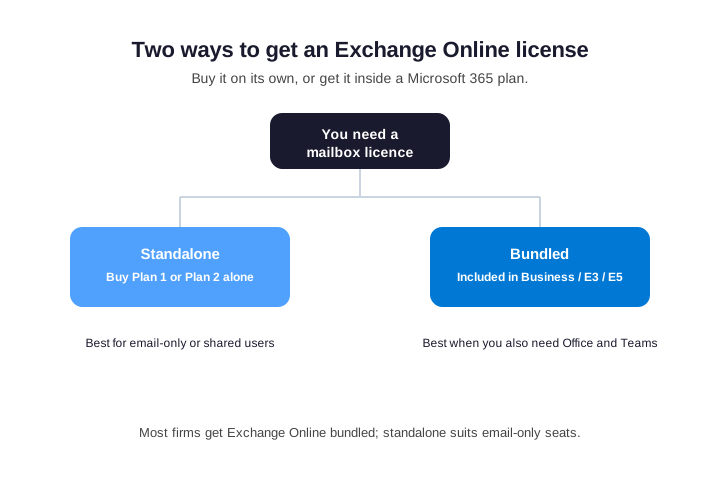
So which route fits? Standalone suits email-only seats, shared accounts and very small teams that need nothing else. Bundled wins the moment people also need Office apps, Teams or SharePoint, because buying those separately costs more than the suite. For most growing firms, the bundle is the better value.
There is a hidden trap worth naming here. Because the mailbox already lives inside Business and Enterprise plans, buying a standalone Exchange Online license on top is double-paying for the same thing. So always check what a user already holds before you add a plan. In practice, that single check catches a surprising amount of waste.
Mixing routes across a tenant is fine, too. Many firms run most staff on a Microsoft 365 suite and add a few standalone Plan 1 seats for email-only roles. So you are never locked into one model. Instead, you match the route to each group, which is exactly how a well-run tenant keeps both cost and complexity down.
📏 Mailbox size and sending limits by plan
Mailbox size is the first thing to check against real usage. Kiosk users get 2 GB, which suits light webmail use, while Plan 1 gives a comfortable 50 GB. Plan 2 starts at 100 GB and, with its auto-expanding archive, effectively removes the storage ceiling for heavy or regulated mailboxes.
| Limit | Kiosk | Plan 1 / Plan 2 |
|---|---|---|
| Primary mailbox | 2 GB | 50 GB / 100 GB |
| Archive mailbox | None | Up to 1.5 TB (Plan 2) |
| Send limit | Standard | Standard |
| Recipients per message | Standard | Standard |
Sending limits, by contrast, are the same across plans, so they rarely drive the choice. Therefore storage and compliance are the levers that matter. When a mailbox keeps filling up, that is the signal to move the user up a plan rather than fight the limit.
It also helps to watch the trend, not just the number. A mailbox creeping toward its limit each month will hit the wall eventually, so plan the move early. Meanwhile a mailbox sitting steady at half-full needs nothing. Reading the direction of travel saves you from both surprise lockouts and premature upgrades.
Archiving changes the storage picture entirely. With Plan 2, the auto-expanding archive grows well beyond the visible 100 GB, so a heavy mailbox effectively stops running out of room. Meanwhile Kiosk and Plan 1 have no archive at all. As a result, storage-bound users almost always belong on Plan 2 rather than a patched-up smaller plan.
🤔 Does Exchange Online include Teams or Office?
This is the question that causes the most confusion, so let us be blunt. A standalone Exchange Online license covers email, calendar and contacts only. It does not include the Office desktop apps, and it does not include Microsoft Teams, SharePoint or OneDrive. Those come from a wider Microsoft 365 plan.
That clarity matters for budgeting. If your team only needs email, a standalone plan is the cheapest route. However, the moment they need chat, files or installed Office, a Microsoft 365 plan that bundles everything is both simpler and cheaper than stacking add-ons. So decide the full need before you buy the licence.
A quick test settles it. Ask whether the user opens anything beyond email in a normal week. If the honest answer is no, a standalone mailbox is plenty. However, if they touch documents, meetings or chat, the bundle is both simpler to manage and cheaper than buying each piece on its own.
👫 Shared mailbox and resource licensing
Here is the rule that saves the most money. A shared mailbox does not need its own Exchange Online license as long as it stays under 50 GB and is used as a shared mailbox, not a personal one. The same is true of room and equipment resource mailboxes. So a busy support inbox can run for free.
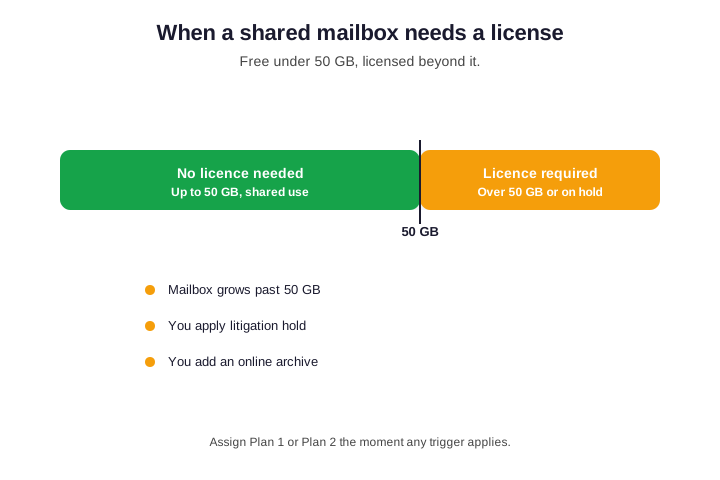
There are clear triggers that flip a shared mailbox into needing a licence. It crosses 50 GB, you place it on litigation hold, or you enable an online archive on it. In any of those cases, assign a plan. Otherwise, leave it unlicensed and enjoy the saving.
In our experience, unlicensed shared mailboxes are the single biggest licensing saving we find in an audit. Teams often assign a full Exchange Online license to every info@, sales@ and support@ address out of habit. Yet most sit well under 50 GB and need nothing. Reclaiming those licences alone frequently pays for a year of our service, before we touch anything else.
Converting a user mailbox to shared is the move people miss. When someone leaves, you can convert their mailbox to a shared one and remove the Exchange Online license, keeping the contents accessible for free. So an offboarding does not have to keep burning a paid seat. That is one of the easiest savings to bake into a leaver process.
⚠️ The “no Exchange Online license” error
Sooner or later you will meet the message that a user “does not have an Exchange Online license”. It appears when someone tries to use a mailbox that is unlicensed, or when a licence was removed and the mailbox is now in its grace period. In short, the mailbox is blocked until a licence is assigned.
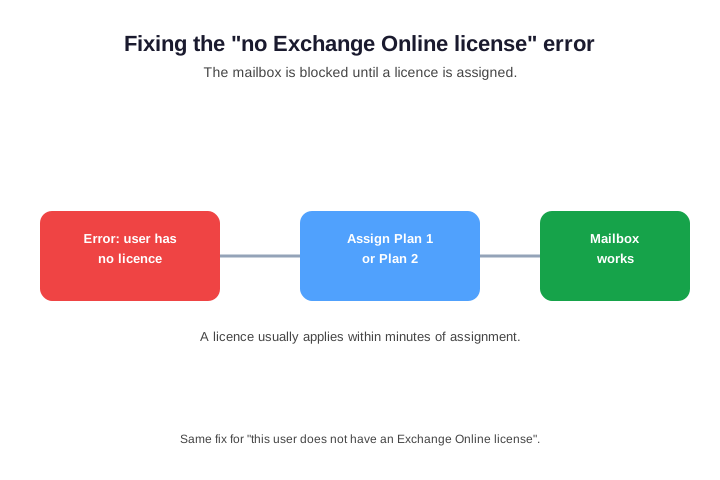
The fix is simple: assign an Exchange Online license, usually Plan 1 or Plan 2, to the affected user. Access typically returns within minutes. If the mailbox was deleted after a long unlicensed period, you may need to restore it, which is why you should never strip a licence without a plan for the mailbox.
The error also shows up after a failed payment or an expired subscription. In that case, the licence simply lapsed, and renewing or reassigning it restores the mailbox. Still, treat every instance as a prompt to check the wider tenant, because one missing licence often signals a messier assignment process underneath.
There is a grace period to lean on as well. After a licence is removed, the mailbox is typically held for 30 days before deletion, so a quick reassignment recovers everything. Still, do not rely on that window as a process. Instead, convert or reassign deliberately, because a mailbox lost after the grace period is far harder to bring back.
🔧 How to assign an Exchange Online license
You can assign a licence in the Microsoft 365 admin center or, for anything beyond a few users, with PowerShell. The Microsoft Graph module is the repeatable way to do it at scale. First, connect and assign the right plan to a user in a single command.
# Assign an Exchange Online license to a user (Microsoft Graph PowerShell)
Connect-MgGraph -Scopes "User.ReadWrite.All","Organization.Read.All"
$sku = (Get-MgSubscribedSku | Where-Object { $_.SkuPartNumber -eq "EXCHANGESTANDARD" }).SkuId  # Plan 1
Set-MgUserLicense -UserId user@contoso.com -AddLicenses @{SkuId=$sku} -RemoveLicenses @()
Here EXCHANGESTANDARD is Plan 1 and EXCHANGEENTERPRISE is Plan 2. Because the command is scriptable, you can pipe in a group of users and license a whole team in one pass. Group-based licensing in Entra ID goes further, applying the licence automatically as people join the group.
Group-based licensing is the approach we recommend at any real scale. Rather than touching each user, you assign the Exchange Online license to a security group and let membership do the work. So a new starter inherits the right mailbox the moment they land in the group. Likewise, a leaver releases the seat as soon as they drop out of it.
One caution with automation: never script a bulk licence removal without a dry run first. Because removing a licence blocks the mailbox, a careless loop can lock out a whole department. So test against a single account, confirm the result, and only then run it across the group. That habit turns a risky command into a safe, repeatable one.
🔎 How to check your Exchange Online licenses
Before you assign anything, it helps to see what you own. The command below lists every Exchange-related SKU in your tenant, with how many seats are used and how many remain. So you always know your starting position.
# Find your Exchange Online license SKUs (Microsoft Graph PowerShell)
Connect-MgGraph -Scopes "Organization.Read.All"
Get-MgSubscribedSku | Where-Object { $_.SkuPartNumber -like "*EXCHANGE*" } |
  Select-Object SkuPartNumber, ConsumedUnits, @{n='Total';e={$_.PrepaidUnits.Enabled}}
Next, list exactly who holds a given licence, so you can match each assignment against the people who should actually have one. Unused or duplicate assignments are the most common source of quiet waste, and this query is how you surface them. Run it before any renewal, and the cleanup usually pays for itself in reclaimed seats.
# List users with an Exchange Online license assigned
$sku = (Get-MgSubscribedSku | Where-Object { $_.SkuPartNumber -like "EXCHANGE*" }).SkuId
Get-MgUser -All -Property DisplayName,AssignedLicenses |
  Where-Object { $_.AssignedLicenses.SkuId -contains $sku } |
  Select-Object DisplayName
💰 Exchange Online license pricing
Pricing is straightforward once you know the plans. Kiosk is the cheapest at a couple of dollars per user, Plan 1 sits in the middle, and Plan 2 roughly doubles Plan 1 for the extra storage and compliance. All three are billed per user, per month, so the cost scales directly with how carefully you assign them.
| Plan | Indicative price | Best for |
|---|---|---|
| Kiosk (K1) | ~$2 user/mo | Frontline, webmail only |
| Plan 1 | ~$4 user/mo | Standard office users |
| Plan 2 | ~$8 user/mo | Compliance and large mailboxes |
Pricing should always be read against the alternative. If a standalone Exchange Online license removes the need for a hosted-exchange contract or a third-party mail host, the per-user figure usually looks small. Framed as a replacement rather than an extra line, the maths is far easier to justify to a budget holder.
Annual billing is the other lever. Most plans are cheaper paid yearly than monthly, so a stable headcount usually commits annually for the discount. However, keep a few monthly seats for short-term staff and contractors. That blend captures the saving without locking you into licences you may not need in three months.
Remember that the same mailbox is included in Microsoft 365 plans. So if you are paying for Office and Teams anyway, you are already paying for the Exchange Online license inside that suite. Double-buying a standalone plan on top is a classic, avoidable waste.
🧭 Which Exchange Online license to choose
Choosing comes down to what the user actually does. A frontline worker on a shared device wants Kiosk. Standard office users want Plan 1. Anyone under compliance rules, or with a very large mailbox, wants Plan 2. Map each person to one of those three and the rest follows.
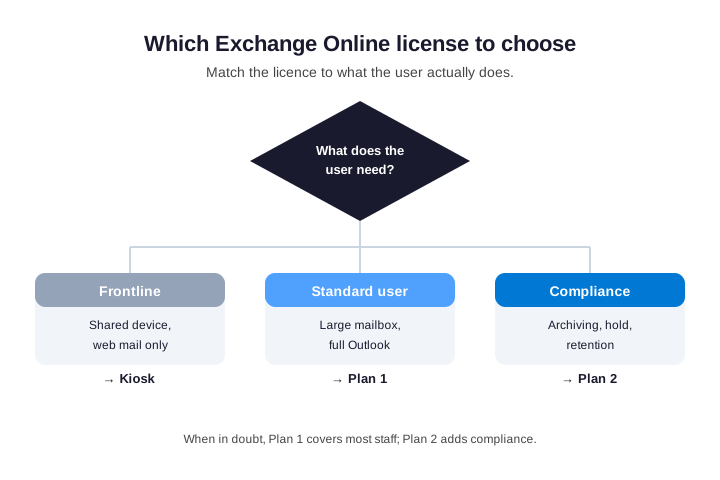
When you are genuinely unsure, Plan 1 is the safe default for most staff, and you can upgrade later without data loss. Still, if a role touches regulated data, start on Plan 2 rather than retrofitting compliance afterward. The decision tree above keeps that call quick.
Do not over-think the edge cases either. The vast majority of staff land cleanly on Plan 1, with a handful of frontline users on Kiosk and your regulated roles on Plan 2. So the goal is not a perfect per-person science. Rather, it is a sensible default plus a short list of exceptions you can defend.
Document the logic once, and the choice scales. Write down which roles map to Kiosk, Plan 1 and Plan 2, then reuse that map at every hire. So onboarding stops being a per-person debate and becomes a quick lookup. Moreover, an auditor or a new admin can read the same map and immediately understand how your Exchange Online license decisions were made.
📩 Exchange Online Essentials and the Kiosk plan
You may also meet Exchange Online Essentials, an older plan sold mainly through Microsoft partners and syndication. In practice, it behaves much like Plan 1, with a 50 GB mailbox and no archiving or compliance extras. So if a quote lists Essentials, read it as a Plan 1 equivalent rather than a separate tier to puzzle over.
Kiosk, by contrast, is the genuine entry point. It gives a 2 GB mailbox for frontline and shared-device staff who live in webmail. Because it is so limited, it suits a narrow group: people who rarely email and never open Outlook on the desktop. For anyone else, the small saving rarely justifies the friction, so Plan 1 remains the sensible floor.
Knowing these names matters at renewal. Resellers mix Essentials, Kiosk and Plan 1 freely, and the labels do not always match what a user needs. Therefore, map each quoted line back to a real mailbox size and feature set before you sign. That habit alone stops a surprising number of mismatched Exchange Online license purchases.
✂️ How to right-size your Exchange Online licenses
Right-sizing is where the savings live. The idea is simple: every quarter, line up who holds which Exchange Online license against what they actually use, then fix the gaps. Most tenants drift over time, so a regular pass keeps the bill matched to reality rather than to last year guesses.
Four checks catch the bulk of the waste. Look for licensed shared mailboxes, users on Plan 2 who never touch compliance, leavers still holding a seat, and standalone plans stacked on a suite that already includes the mailbox. The table turns those into a quick routine.
| Right-size check | Action |
|---|---|
| Licensed shared mailbox under 50 GB | Remove the licence |
| Plan 2 user with no compliance need | Downgrade to Plan 1 |
| Leaver still licensed | Convert to shared, then unlicense |
| Standalone on top of a suite | Drop the duplicate plan |
None of this needs special tooling beyond the PowerShell above. Still, the discipline is what counts: run the same four checks on a schedule, and the waste never builds up in the first place. That steady rhythm is the difference between a controlled bill and a creeping one.
🚦 Common Exchange Online licensing mistakes
A few habits waste money or cause outages. Licensing every shared mailbox by default is the most expensive. Stripping a licence with no plan for the mailbox causes the dreaded error. Double-buying standalone plans on top of a suite is pure waste. And under-licensing a compliance user leaves a gap an auditor will find.
| Mistake | The fix |
|---|---|
| Licensing shared mailboxes | Leave them free under 50 GB |
| Removing a licence with no plan | Reassign or convert the mailbox first |
| Standalone on top of a suite | Use the mailbox already bundled |
| Compliance user on Plan 1 | Move them to Plan 2 |
Each fix is small on its own. Together, however, they turn licensing from a guessing game into a controlled, predictable cost. That is the difference an annual review makes.
🤝 How Wintive manages Exchange Online licensing
We treat licensing as an ongoing discipline, not a one-off purchase. First, we map every user and mailbox to the smallest plan that fits, and we strip licences from shared mailboxes that do not need them. Then we keep a register so every Exchange Online license is justified and easy to explain.
| What we do | Why it matters |
|---|---|
| Right-size each user | Stops over-paying for unused storage |
| Unlicense shared mailboxes | Recovers the biggest single saving |
| Group-based licensing | Keeps assignments automatic and tidy |
| Quarterly review | Catches drift before renewal |
After that, a short quarterly review keeps it clean: who holds a licence, which plan, and whether it still fits. If you would rather not run that yourself, it is exactly the kind of steady, governed work a managed partner takes off your plate.
📚 More for IT admins
🔍 Want to know exactly which licenses you are paying for?
The M365 Instant Audit scans your tenant in under 10 minutes. It checks license waste, plan right-sizing, MFA coverage, security posture and compliance gaps. As a result, you get a full PDF report with prioritized fixes, delivered instantly.
❓ Exchange Online license: Frequently Asked Questions
It is a per-user licence that gives someone a cloud-hosted Exchange mailbox with email, calendar and contacts. You can buy it standalone as Kiosk, Plan 1 or Plan 2, or get the same mailbox bundled inside a Microsoft 365 plan. Only a licensed user has a working mailbox.
No, not while it stays under 50 GB and is used as a shared mailbox. It needs a licence only if it grows past 50 GB, goes on litigation hold, or gets an online archive. So most shared inboxes can run for free.
No. A standalone Exchange Online license covers email, calendar and contacts only. Teams, SharePoint, OneDrive and the Office desktop apps come from a wider Microsoft 365 plan, not from Exchange Online on its own.
Assign an Exchange Online license, usually Plan 1 or Plan 2, to the affected user in the admin center or with PowerShell. Access normally returns within minutes. Avoid removing a licence unless you have a plan for the mailbox first.
Kiosk is the cheapest at roughly a couple of dollars per user per month, Plan 1 sits in the middle, and Plan 2 is about double Plan 1. All are billed per user. Confirm current rates with Microsoft, as pricing changes.