

A Microsoft 365 password reset sounds trivial until it is the CEO locked out before a board call, or a hacked account quietly forwarding mail. There are four ways to do it, each for a different situation, and the difference between a tidy reset and a security incident is knowing which one to reach for. Most tenants get this wrong by leaving it all to the help desk.
This guide covers every path. Wintive runs Microsoft 365 for 60+ tenants, therefore we go past the basic “I forgot my password” into the parts that matter: self-service reset, resetting at scale with PowerShell and Graph, and the full response when an account is compromised. Moreover, every section answers a real question, so you can unlock a user today and harden the whole tenant for good.
🛡️ Free: M365 Audit Checklist
19-page PDF with 50 hands-on checks across Entra ID, Exchange Online, SharePoint, Teams and Intune. Run it before you harden identity, so you start from a clean tenant. PowerShell commands included. Built from 60+ real tenant audits at Wintive.
🔑 What a Microsoft 365 password reset is
Quick answer. A Microsoft 365 password reset changes a user account password in Entra ID, the identity behind Microsoft 365. There are four ways to do it: self-service reset (SSPR) by the user, a reset in the Microsoft 365 admin center, a reset with PowerShell or Graph at scale, and forcing a change at next sign-in. For a compromised account you also revoke sessions and re-require MFA, not just reset the password.
Every Microsoft 365 password reset happens in Entra ID, because that is where the account and its credential live, not in Exchange or Teams. Therefore the same reset unlocks email, files, Teams and every other app at once. Consequently you fix access in one place rather than per service. That single identity is what makes a reset powerful and, if mishandled, risky.
Because the account lives in Entra ID, the same logic applies whether the person uses Outlook, Teams or SharePoint. Specifically, you never reset a Teams password or an Exchange password separately; there is one credential behind them all. Therefore a single Microsoft 365 password reset restores everything at once. As a result, you troubleshoot identity, not individual apps, which is far simpler and faster.
Reset versus change versus unlock
Three words get used interchangeably and should not be. Specifically, a user changes their own known password, an admin resets a forgotten one, and an unlock clears a lockout without changing anything. Therefore the right action depends on whether the password is known, forgotten or just temporarily blocked. As a result, you avoid forcing a full reset when a simple unlock would do.
Getting the vocabulary right also shapes the security response. Specifically, a routine reset and a post-breach reset look the same in the portal but differ entirely in what must follow. Therefore we always ask why the reset is happening before doing it. As a result, a compromised account triggers the full runbook, not just a new password and a shrug.
🗺️ The four ways to reset a password
There is no single reset button; there are four, and each suits a different person and moment. The matrix below maps them to who uses them and when, so you pick the right path instead of defaulting to the help desk every time. So the first decision is which of these four you actually need.
Knowing all four also stops the wrong tool becoming a habit. Specifically, a help desk that only knows the admin center will reset by hand even when SSPR or a script would be faster and safer. Therefore teaching the four paths is part of the rollout, not an afterthought. As a result, each reset uses the lightest, safest method rather than the only one someone happens to know.
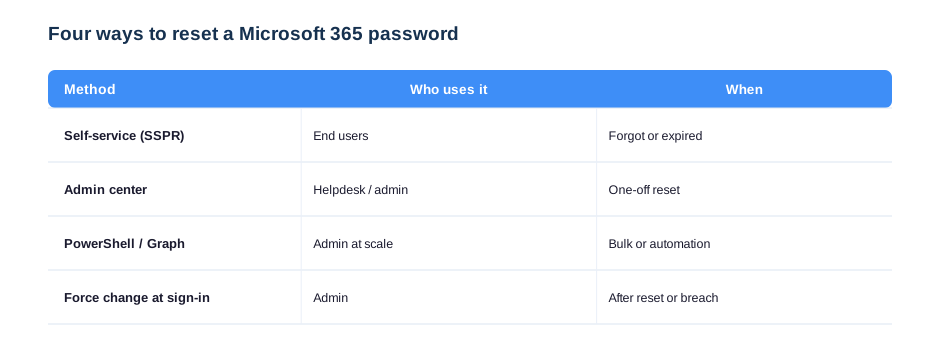
The pattern is simple once you see it. Specifically, users help themselves with SSPR, the help desk uses the admin center for one-offs, admins script PowerShell or Graph for bulk and automation, and a force-change handles the moment after any reset or breach. Therefore most resets should never reach an admin at all. As a result, enabling self-service is the single biggest workload saver in this whole topic.
There is a cost angle worth naming up front. Specifically, every help-desk password reset carries a real labour cost, and they are among the most common tickets any IT team logs. Therefore moving resets to self-service is not just convenient; it directly cuts support load. As a result, enabling SSPR usually pays for itself within weeks of switching it on.
🔄 Self-service password reset (SSPR)
Self-service password reset lets users reset their own password after verifying identity, which removes the most common help-desk ticket there is. Therefore the goal for any tenant is to enable SSPR first, before worrying about admin methods. Microsoft documents the setup in its SSPR tutorial, and the five steps below are the same flow.
The payoff of self-service compounds over time. Specifically, every user who self-serves a reset is one fewer ticket, one fewer interruption, and one fewer chance for a password to be mishandled over chat or email. Therefore the feature keeps paying back long after the short setup. As a result, SSPR is the rare security control that makes life easier and safer at the same time.
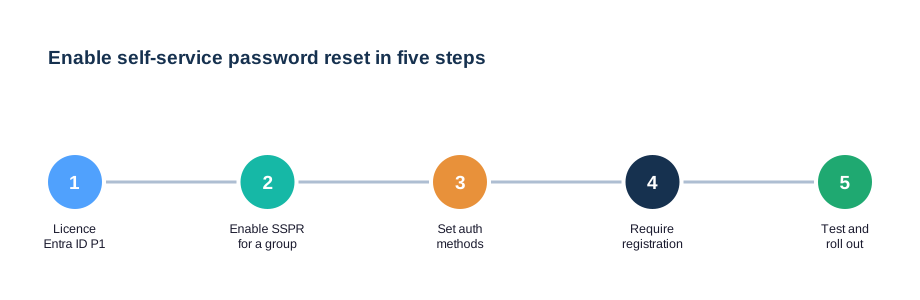
Choosing the right verification methods matters as much as turning the feature on. Specifically, we prefer the Authenticator app and a phone number over weaker email-only options, so a reset cannot be hijacked through a compromised inbox. Therefore the methods you allow define how secure the reset really is. As a result, SSPR strengthens identity instead of opening a side door into it.
Require registration up front
SSPR only helps if people are registered before they get locked out. Specifically, you turn on “require users to register when signing in”, so everyone enrols their methods during normal use rather than in a panic. Therefore the day someone forgets their password, the reset path already works. As a result, a forgotten password becomes a two-minute self-service event, not a support call.
Combining SSPR with password writeback extends it to hybrid setups. Specifically, where an on-premises Active Directory still exists, writeback pushes a cloud reset back down to AD, so the two stay in sync. Therefore even hybrid users get true self-service. As a result, the Microsoft 365 password reset works the same whether the account is cloud-only or synced from on-premises.
It needs the right licence
SSPR is an Entra ID feature, so it needs the right licensing, typically Entra ID P1, which is included in Microsoft 365 Business Premium and the enterprise plans. Therefore check the plan first, as covered in our Business Premium guide. As a result, you confirm the capability is owned before you design the rollout around it.
Even with SSPR on, admins still need reset tools for the edge cases. Specifically, a brand-new starter, a shared account, or a user who has not registered yet all need an admin reset. Therefore the admin methods complement self-service rather than competing with it. As a result, you cover both the everyday and the exceptions without ever emailing a password around.
🛠️ Admin reset: portal, PowerShell and Graph
When an admin must reset a password, there are three tools, and the right one depends on scale. For a single user the admin center is fastest; for many users or automation, PowerShell and Microsoft Graph win. The table below maps the tool to the job so you do not script a one-off or click three hundred times.
| Tool | Best for | How |
|---|---|---|
| Microsoft 365 admin center | One user | Select user, Reset password |
| Microsoft Graph PowerShell | Bulk / automation | Update-MgUser PasswordProfile |
| Exchange / Entra PowerShell | Scripted admin | Connect and script |
| Temporary Access Pass | Passwordless onboarding | Issue a time-limited pass |
At scale we use Microsoft Graph PowerShell, because it resets passwords and sets the force-change flag in one call. Therefore a new starter batch or a post-incident reset runs as a script, not a marathon of clicks. The snippet below resets one user and forces a change at next sign-in.
# Reset a password and force change at next sign-in (Graph PowerShell)
Connect-MgGraph -Scopes "User-PasswordProfile.ReadWrite.All"
$body = @{ Password = "TempPass!2026"; ForceChangePasswordNextSignIn = $true }
Update-MgUser -UserId "jane@contoso.com" -PasswordProfile $body
🔁 Force a change at next sign-in
After any admin reset, the user should set their own password, so you force a change at next sign-in. Therefore the temporary password you set works exactly once, and only the user ends up knowing the real one. Consequently the admin never holds a working credential, which is both safer and cleaner. So force-change is not optional; it is part of every responsible reset.
# Force a password change at next sign-in for many users (Graph PowerShell)
Import-Csv .\users.csv | ForEach-Object {
    Update-MgUser -UserId $_.UPN -PasswordProfile @{
        ForceChangePasswordNextSignIn = $true }
}
Scripting the reset also gives you an audit trail. Specifically, a PowerShell or Graph run can log who reset which account and when, which a hurried click in the portal does not. Therefore at any scale we script it, both for speed and for accountability. As a result, a bulk Microsoft 365 password reset after an incident is both fast and fully recorded.
Avoid emailing the temporary password
Sending a temporary password by email is a classic weak link. Specifically, if the inbox is the thing being recovered, the password never arrives, and if it is another inbox, the credential now sits in plain text. Therefore we hand it over by a second channel, or skip passwords entirely with a Temporary Access Pass. As a result, the reset does not create the next breach.
Force-change pairs naturally with onboarding. Specifically, a new user gets a temporary password and a forced change, so the admin who created the account never knows the final credential. Therefore the handover is clean from day one. As a result, no shared starter password lingers in a spreadsheet waiting to be abused later.
📉 Password expiration and policy
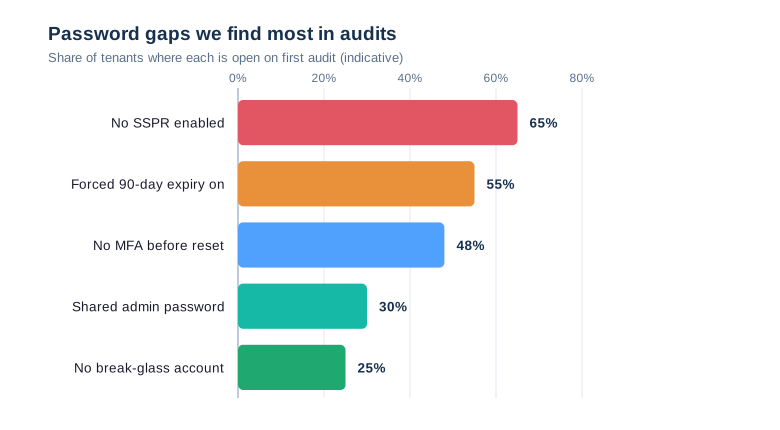
The biggest password mistake is not a reset method at all; it is a policy. Many tenants still force a 90-day expiry, which Microsoft itself now advises against because it pushes people toward weak, predictable passwords. The chart shows the gaps we find most, and forced expiry sits near the top. So the modern stance is long, unique passwords plus MFA, not constant rotation.
💡 Wintive insight
Most tenants we audit still expire passwords every 90 days and have SSPR switched off, which is the worst of both worlds: users invent weaker passwords AND call the help desk to reset them. Therefore we turn forced expiry off, turn SSPR on, and require MFA. As a result, a Microsoft 365 password reset becomes rare and self-served, and the accounts are actually more secure, not less.
The policy shift is backed by Microsoft and the major standards bodies. Specifically, guidance from Microsoft and NIST now favours long, unique passwords plus MFA over scheduled rotation, which research shows simply produces weaker passwords. Therefore dropping forced expiry is the modern, evidence-based stance, not a shortcut. As a result, you align with best practice while cutting reset tickets.
Turn forced expiry off, turn MFA on
The modern baseline flips the old habit. Specifically, you set passwords to never expire, enforce MFA for everyone, and rely on risk detection to catch compromise. Therefore security comes from a strong second factor, not from a password people change to a sticky note every quarter. As a result, you reduce both reset tickets and account takeovers at the same time.
Speed is everything once a takeover is suspected. Specifically, the longer an attacker holds a session, the more mail they read, rules they plant and contacts they phish. Therefore the response is a drill we can run in minutes, not a debate. As a result, a Microsoft 365 password reset becomes the first move of a contained incident rather than the whole, inadequate plan.
🚨 Responding to a compromised account
A Microsoft 365 password reset on a hacked account is necessary but not sufficient, because the attacker may still hold an active session or a hidden rule. Therefore the response is a runbook, not a single click: reset, revoke, re-require MFA, then review. The four steps below are the order we follow on every incident.
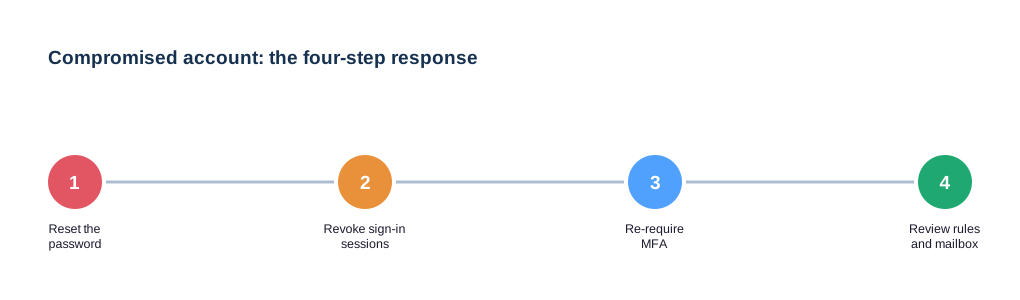
Resetting the password without revoking sessions is the mistake that lets an attacker stay in. Specifically, an existing refresh token keeps working until you revoke it, so the intruder survives the password change. Therefore we always revoke sign-in sessions immediately after the reset. The command below resets nothing but kills every active session for the user.
# Revoke all active sessions after resetting a compromised account
Revoke-MgUserSignInSession -UserId "jane@contoso.com"
# Then re-check MFA methods and mailbox rules for attacker persistence
Conditional Access turns one incident into lasting protection. Specifically, after cleaning the account we tighten sign-in rules so the same attack is blocked next time, for example by requiring compliant devices or blocking risky locations. Therefore each incident hardens the tenant. As a result, the response is not just recovery but a permanent reduction in risk.
Hunt for attacker persistence
After locking the account, look for what the attacker left behind. Specifically, check for new mailbox forwarding rules, added MFA methods and app consents, because these let them back in after a reset. Therefore the reset is the start of the response, not the end. As a result, you close the door fully instead of handing the account back with the lock still picked.
Passwordless also closes the phishing gap that resets cannot. Specifically, a phished password is useless to an attacker when sign-in needs a passkey or the Authenticator on the user device. Therefore the long-term answer to credential theft is to stop relying on the credential. As a result, the Microsoft 365 password reset matters less every year as the password itself fades from the sign-in.
🔐 Toward passwordless
The best Microsoft 365 password reset is the one you never need, which is the promise of passwordless sign-in. Therefore Microsoft is moving tenants toward the Authenticator app, passkeys and Windows Hello, where there is no password to forget or phish. Consequently resets become rare by design. So while passwords remain, the direction of travel is to lean on them less every year.
Rolling out passwordless is a journey, not a switch. Specifically, we start with willing users and high-risk admins, prove the Authenticator and passkey flows, then widen it across the tenant. Therefore each wave builds confidence before the next. As a result, the organisation drifts away from passwords steadily, and the Microsoft 365 password reset quietly becomes a rare event.
Start with Temporary Access Pass
A Temporary Access Pass is the on-ramp to passwordless. Specifically, it is a time-limited code an admin issues so a user can sign in once and set up the Authenticator or a passkey, with no permanent password handover. Therefore onboarding and recovery happen without a reusable password at all. As a result, you cut both reset tickets and the phishing surface in one move.
A Temporary Access Pass is also the cleanest recovery for a fully locked-out user. Specifically, when someone loses their phone and their password at once, a TAP lets them sign in once and re-register, with no password handover. Therefore even the worst lockout has a safe path back. As a result, you avoid the insecure workarounds that lockouts usually tempt people into.
🛠️ The Wintive Microsoft 365 password reset baseline
After enough tenants, the right settings stop being a debate. So we apply the same Microsoft 365 password reset baseline everywhere, then adapt per business. The card below is that baseline, and it makes resets rare, safe and mostly self-served.
We treat this baseline as a standard we deploy, not advice we hand over. Specifically, on every managed tenant we switch SSPR on, turn forced expiry off, enforce MFA and document the compromise runbook, so the settings are live rather than aspirational. Therefore a new client inherits a sane identity posture in the first week. As a result, the Microsoft 365 password reset stops being a recurring fire and becomes a solved, monitored part of the tenant.
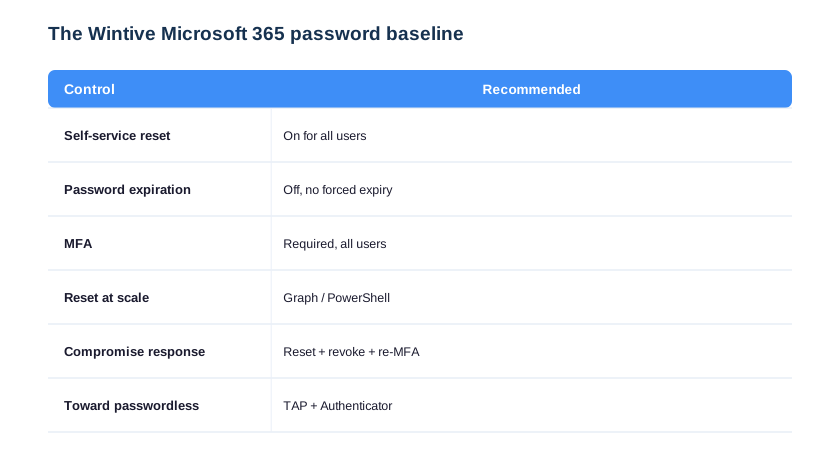
Two lines on this card change everything. First, SSPR on with forced expiry off means users self-serve and stop inventing weak passwords. Second, MFA required for all means a stolen password is not enough to get in. We tune the rest per tenant, but these defaults cut tickets and takeovers together. The same identity-first thinking runs through our Plan 1 vs Plan 2 guide when you size licences.
🚨 Common Microsoft 365 password reset mistakes
These mistakes share a theme: treating identity as a one-time setup rather than a living control. Specifically, SSPR, MFA and policy all drift as a tenant grows and staff change, so what was fine last year is a gap today. Therefore we re-check them on a schedule, not just at onboarding. As a result, the Microsoft 365 password reset experience stays both easy and secure over time.
Leaving SSPR switched off
The costliest mistake is never enabling self-service. Therefore every forgotten password becomes a help-desk ticket and a delay. As a result, switching SSPR on is the single highest-value change, and most tenants have simply never done it.
There is a documentation angle worth adding here too. Specifically, when a reset is part of an incident, we record what was changed and why, so there is a clear trail for the client and any insurer. Therefore the reset is part of an auditable response, not an off-the-cuff fix. As a result, the business can show exactly how a compromise was contained.
Resetting without revoking sessions
The most dangerous mistake is resetting a hacked account and stopping there. Specifically, the attacker keeps an active session until you revoke it. Therefore always revoke sign-in sessions and re-check MFA and mailbox rules. As a result, the reset actually evicts the intruder instead of just annoying them.
Communication softens every one of these fixes. Specifically, telling users that passwords will no longer expire but MFA is now required turns a security change into welcome news. Therefore adoption climbs instead of generating complaints. As a result, the hardening lands smoothly and the help desk hears thanks rather than pushback.
Forcing 90-day expiry
The outdated mistake is still expiring passwords every quarter. Consequently users pick weaker, guessable variations and call to reset them. So turn forced expiry off and lean on MFA instead. As a result, accounts get both easier and safer at once.
Pulling it together, a Microsoft 365 password reset is an identity task, not an app task: enable self-service, script admin resets, force a user-set password, and treat a compromised account as a four-step runbook rather than a single reset. Therefore the tenants that struggle are the ones leaning on the help desk and forced expiry. As a result, the baseline in this guide cuts both tickets and takeovers at the same time.
📚 More for Growing Businesses
🔍 Hardening identity and want the tenant checked first?
The M365 Instant Audit scans your tenant in under 10 minutes: license waste, plan right-sizing, MFA coverage, security posture and compliance gaps. As a result, you get a full PDF report with prioritized fixes, delivered instantly.
❓ Microsoft 365 Password Reset: Frequently Asked Questions
It is changing a user account password in Entra ID, the identity behind Microsoft 365, which unlocks email, files, Teams and every other app at once. It can be done four ways: self-service by the user, in the admin center, with PowerShell or Graph, or by forcing a change at next sign-in.
Enable self-service password reset (SSPR) in Entra ID, choose the authentication methods, and require users to register when they sign in. SSPR needs Entra ID P1, which is included in Microsoft 365 Business Premium. Once on, a forgotten password becomes a two-minute self-service event.
Use Microsoft Graph PowerShell: connect with Connect-MgGraph, then Update-MgUser with a PasswordProfile that sets the new password and ForceChangePasswordNextSignIn to true. This resets and forces a user-set password in one call, and it scales to bulk resets via a CSV loop.
No. Reset the password, then revoke all sign-in sessions with Revoke-MgUserSignInSession, re-require MFA, and review mailbox forwarding rules, added MFA methods and app consents. An attacker keeps an active session until you revoke it, so a reset alone does not evict them.
No, forced expiry is no longer recommended. Microsoft advises against periodic expiration because it leads to weaker, predictable passwords. Set passwords to not expire, enforce MFA for everyone, and rely on risk detection, which reduces both reset tickets and account takeovers.