

You hit send, then your stomach drops. The good news is that a recall message Outlook feature exists. The bad news is that it works far less often than people expect, so a calm understanding of when it succeeds saves a lot of panic. This guide gives you the honest version: when recall works, why it usually fails, and what to do the moment a message leaves your outbox by mistake.
Most articles show three clicks and stop there. We go further, because the clicks are the easy part. First you will see the real success rate and the strict requirements. Then we cover classic Outlook, the new Outlook, the web, and Mac, the recall report, the admin options, and the prevention settings that beat recall entirely. We run Microsoft 365 for small businesses, so this is the practical truth, not the brochure.
Keep one idea in mind as you read. Recall is a narrow, conditional tool, not a guaranteed undo, so the smart play is to understand its limits and lean on prevention. So by the end you will know exactly when to try, when to skip it, and how to stop needing it. That is a calmer place to be than hoping a click saves you.
🛡️ Free: M365 Audit Checklist
19-page PDF with 50 hands-on checks covering Entra ID, Exchange Online, SharePoint, Teams, Intune, license waste, and audit logging. PowerShell commands included. Built from 60+ real tenant audits at Wintive.
🧭 Recall message Outlook: the honest success rate
The recall message Outlook feature tries to delete or replace an email you already sent, but it only works in a narrow set of conditions. In short, both people must be on the same Microsoft 365 organisation, the recipient must not have opened it, and the sender needs classic Outlook for Windows. So recall is a useful safety net inside your own company, yet useless for external mail. When it cannot work, prevention settings like Undo Send matter far more.
Set expectations first, because they are the whole story. Inside one Microsoft 365 organisation, with an unread message, recall often works. Outside it, against Gmail or any other system, it never works. So the chart below shows how the success rate collapses the moment a condition is missing.
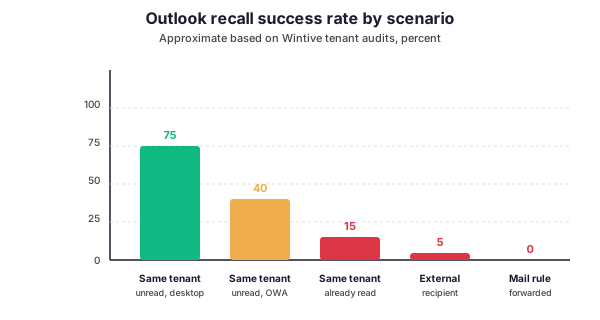
Why so fragile? Because recall is not magic; it simply asks the recipient’s mailbox to delete the original on your behalf. That request only lands inside the same Exchange Online organisation, and only while the message sits unread. So once someone opens it, or once it leaves your tenant, there is nothing to pull back.
Put numbers on it, and the picture sharpens. An internal, unread message has a strong chance of a clean recall. The same message, already opened, drops to near zero. Anything sent outside your tenant is simply impossible to pull back. So a recall message Outlook attempt is really a bet, and the odds depend entirely on the conditions above.
✅ The requirements that make or break it
Recall succeeds or fails on a short list of conditions, and missing any one ends it. So before you try, run down this list rather than hoping. The table makes each requirement and its failure mode clear.
| Requirement | Why it matters | If not met |
|---|---|---|
| Both on the same Microsoft 365 org | Recall is an internal-only action | External mail cannot be recalled |
| Recipient has not opened it | Recall deletes the unread copy | An opened message stays put |
| Classic Outlook for Windows (sender) | That is where recall lives | New Outlook and Mac differ |
| Message recall enabled by the admin | It can be turned off tenant-wide | Every attempt fails silently |
| Recipient using Outlook, not the web only | Behaviour varies by client | Results become unpredictable |
The most common surprise is the external one. If you emailed a client on Gmail or another company, recall simply cannot reach their mailbox. So treat recall as an internal-only tool, and reach for an apology or a follow-up the instant the recipient is outside your organisation.
The organisation boundary is stricter than people think. Even a sister company on its own Microsoft 365 tenant counts as external, so recall stops at the edge of your own directory. So before you try, ask one question: is the recipient inside our tenant? If the answer is no, skip the attempt entirely and write the correction.
The read state is the requirement people forget under pressure. Recall can only remove a copy the recipient has not yet opened, so a single glance at the preview pane ends your chance. Mobile makes this worse, because a phone often marks mail read the instant a notification appears. So assume the clock started the moment you hit send.
🛠️ How to recall a message in Outlook, step by step
In classic Outlook for Windows, the steps are quick once you know where to look. You open the sent item, not the reading pane, and use the Recall option from the Message tab. Then you choose to delete the copy or replace it with a corrected one.
- Open the Sent Items folder and double-click the message to open it fully.
- On the Message tab, choose Actions, then “Recall This Message”.
- Pick “Delete unread copies” or “Delete and replace with a new message”.
- Tick “Tell me if recall succeeds or fails” so you get the report.
- Send the replacement if you chose to replace, then watch for the report.
Speed is everything here. The window closes the moment the recipient opens the email, so a recall message Outlook attempt made within seconds beats one made an hour later. So act fast, and do not assume success until the report confirms it.
One detail trips up newcomers: you must open the message, not just select it. The Recall option lives on the ribbon of the opened sent item, under Actions, so a single click in the list will not show it. So double-click the email first, then look for Actions on the Message tab. Once you have done it once, the path is muscle memory.
Choose between delete and replace with intent, because they behave differently. A plain delete simply removes the unread copy, while replace pulls the original and drops a corrected version in its place. Replace is tempting, yet it doubles the conditions that must hold, so the original still has to be unread for either path to work. So when speed matters most, a clean delete plus a follow-up beats a fancy replace.
🖥️ New Outlook, the web, and where recall lives
Where the feature sits depends on which Outlook you use, and that trips people up. Classic Outlook for Windows has the full recall option. The new Outlook and Outlook on the web have steadily gained a recall action too, though the experience differs from the classic one.
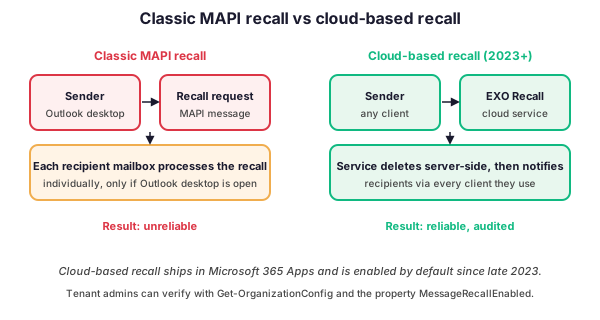
So check your app before you panic. If you are on the new Outlook or the web, look for Recall on the opened sent message, since the menu placement has changed. Meanwhile the same organisation-only rule still applies, no matter which client you click it from.
Outlook for Mac is the outlier worth calling out. Historically it has not offered message recall at all, so Mac senders cannot start one from their client. So a Mac user who needs to pull a message back should ask an admin, or rely on the prevention settings we cover later.
The web client adds its own wrinkle. Outlook on the web focuses on Undo Send rather than a full recall, which is honestly the more useful tool there. So if you live in the browser, lean on the undo window instead of hunting for a recall message Outlook option. The lesson holds across clients: the prevention feature is more reliable than the cure.
❌ Why a recall message Outlook attempt usually fails
Recall has a reputation for failing, and the reasons are predictable. The recipient already opened it, the email went outside your organisation, or the admin disabled recall tenant-wide. So most failures are not bugs; they are conditions you could have checked first.
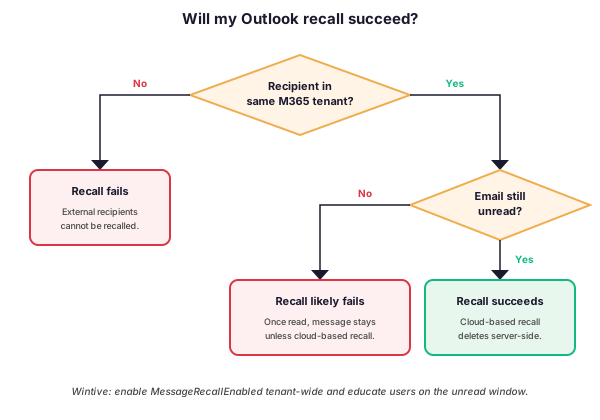
There is also a social catch nobody mentions. A failed recall sends the recipient a notice that you tried to recall the message, which can draw attention to the very email you wanted gone. So weigh that risk; sometimes a quiet correction beats a loud, failed recall message Outlook request.
Run the decision flow above before every attempt. If any branch points to failure, skip the recall and go straight to a follow-up. Because a doomed attempt only wastes time and signals the mistake, knowing when not to try is half the skill.
Timing deserves one more word, because it is the silent killer. People often spot the mistake, draft a careful recall, and only fire it minutes later, by which point the message is read. So if you are going to try, try immediately and worry about wording second. A fast, rough recall beats a slow, polished one every time.
Client mismatch is the last quiet failure. If you sent from Outlook on the web or a Mac, the classic recall flow may simply not be there to run. So check that your app even offers recall before you count on it, and route the request to an admin when it does not. Knowing your own tool is part of knowing the odds.
📬 The recall report and how to confirm it worked
Recall is not silent if you ask it to report. When you tick the notification option, Outlook emails you a success or failure result for each recipient. So you learn whether the original was actually deleted, rather than guessing.
Admins can confirm the bigger picture from Exchange Online. First, check that recall is even enabled for the organisation, because it can be switched off. The command below shows the tenant setting in one line.
# Admins: confirm message recall is enabled for the organisation (Exchange Online PowerShell)
Get-OrganizationConfig | Select-Object MessageRecallEnabled, MessageRecallMaxRecalls
# If it is off, no recall message Outlook attempt will succeed tenant-wide.
A message trace then shows whether the email was delivered and read at all. So if a recall message Outlook attempt reported failure, the trace tells you why. The snippet below pulls the recent trace for a sender.
# Check whether the message was even delivered or read, before you try
Get-MessageTrace -SenderAddress you@contoso.com -StartDate (Get-Date).AddHours(-2) -EndDate (Get-Date) |
  Select Received, RecipientAddress, Subject, Status
Read the report carefully, because it is per recipient. A message to five people can show three successes and two failures in the same notice. So do not read one “succeeded” line and relax; scan the whole report. Where a recipient shows failure, treat that copy as still sitting in their inbox and act accordingly.
The report also takes its time, and that delay matters. Notifications can trickle in over minutes as each mailbox processes the request, so an empty inbox right after you click means nothing yet. So resist the urge to declare victory early, and wait for every recipient line before deciding it is closed. Until then, plan as though the original is still readable.
⏳ Undo Send versus recall: the better everyday tool
For most send-regret moments, Undo Send beats recall outright. It holds your outgoing message for a few seconds, so you can cancel it before it ever leaves. Because it stops the email at your end, it works regardless of the recipient or their system.
You enable it once, then forget it until you need it. In the new Outlook and the web, the setting is “Undo send” with a delay you choose, up to about ten seconds. So unlike a recall message Outlook attempt, it never depends on the other person not opening the email.
Think of the two as different jobs. Undo Send prevents the mistake in the first window, while recall tries to fix one already gone. So turn Undo Send on for everyone, and treat recall as the rarer, conditional backup.
Set the delay to the longest you can tolerate, usually around ten seconds. Those few seconds are enough to catch the wrong recipient, the missing attachment, or the regretted tone. So you trade a tiny pause on every send for a reliable escape hatch. Most people stop needing recall entirely once the undo window is generous.
There is no downside worth worrying about. The brief pause is invisible in practice, since you simply move to the next task while it counts down. So nobody complains about a ten-second hold once they have used it to dodge one embarrassing send. It is the rare setting that is pure upside.
👥 The admin option: a real organisation-wide pull-back
When the stakes are high, an admin has a stronger tool than the client recall. A compliance search can find a message across every mailbox and purge it, which is the genuine “recall” for a leaked or wrong email. So for a serious mistake, escalate to IT rather than clicking Recall yourself.
# The real admin 'recall': remove a message org-wide with a compliance search
New-ComplianceSearch -Name "PullBack" -ExchangeLocation All -ContentMatchQuery 'subject:"Q3 numbers"'
Start-ComplianceSearch -Identity "PullBack"
New-ComplianceSearchAction -SearchName "PullBack" -Purge -PurgeType SoftDelete
Use this power carefully and with authority, since it deletes from other people’s mailboxes. So it suits a real incident, such as payroll sent to the wrong list, not an everyday typo. Because it is logged and auditable, it is also the defensible way to handle a sensitive removal.
It also needs the right permissions, which is the point. Only an admin with eDiscovery or compliance rights can run a purge, so it cannot be abused casually. So agree a simple internal rule: serious leaks go to IT immediately, while small slips get a follow-up email. That clarity stops people clicking Recall in a panic on the wrong kind of mistake.
Speed still matters at this level too. A compliance purge is powerful, but a message already forwarded or downloaded may live on outside the mailbox. So the admin tool is best for containing spread, not erasing every trace. Set the expectation that even IT cannot guarantee a message is truly gone once people have read it.
🛡️ Prevention beats a recall message Outlook every time
The fastest way to win at recall is to need it less. A few settings catch mistakes before they send, so you rarely face the narrow odds of a recall. The chart below shows the three controls we turn on for every client.
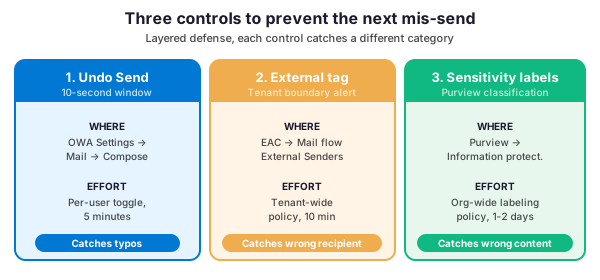
- Turn on Undo Send with the maximum delay for everyone.
- Add a rule that delays all outgoing mail by one or two minutes.
- Warn on external recipients, so a wrong address stands out before sending.
- Double-check the To and Cc lines on anything sensitive.
- Use Bcc for large external sends to avoid reply-all and exposure.
These habits cost nothing and save the worst moments. Because they act before the email leaves, they sidestep every requirement that a recall message Outlook attempt depends on. So prevention is not just safer; it is the only approach that always works.
Roll these out as defaults, not suggestions. An admin can set the send delay and the external-recipient warning for the whole company, so nobody has to remember. So the protection is on from day one, for every user, without training. A recall message Outlook attempt then becomes the rare exception rather than a weekly scramble.
🪤 Common mistakes people make with recall
A few habits turn a recoverable moment into a worse one. None are obvious in the panic of a bad send, so learn them now. Each one is easy to avoid once you know it.
- Assuming recall works on external email; it never does.
- Waiting an hour to try, long after the recipient opened it.
- Skipping the success report, then assuming the email is gone.
- Relying on recall instead of enabling Undo Send for everyone.
- Triggering a failed recall that flags the very email you hid.
The belief gap is the root of most of these. People treat recall as a reliable undo button, so they relax the second they click it. In truth it is a conditional request that often changes nothing at all. So the most useful thing to internalise is exactly when a recall message Outlook attempt cannot help, which lets you skip the false comfort and act.
Wintive insight. Across the tenants we run, recall is the feature people trust most and should trust least. For example, a sender fires a recall message Outlook attempt at a client on Gmail and believes it worked, when nothing happened at all. As a result, we switch on Undo Send and a one-minute send delay for everyone, and the recall question mostly disappears. So we treat recall as a last resort, not a safety blanket.
✅ Recall message Outlook best practices
Pull it together into a short routine you can actually follow. None of it is hard, yet together it turns send-regret from a crisis into a shrug. So adopt these and move on with your day.
- Check the requirements before you try; skip a doomed attempt.
- Act within seconds, and always request the success report.
- For external or opened mail, send a correction instead.
- Escalate a serious leak to an admin compliance purge.
- Above all, enable Undo Send and a send delay so you rarely need recall.
Write the routine down so the whole team shares it. When everyone knows that a recall message Outlook attempt is internal-only and time-critical, nobody wastes the crucial seconds in doubt. So a one-line note in your onboarding pays off the first time someone misfires an email. Shared knowledge turns a frantic moment into a quick, confident decision.
Pair the routine with the right reflexes and it sticks. Train people to pause on the recipient line, not on the recall menu, because the best save happens before send. So when a mistake does slip through, they already know the order: try a fast recall if it is internal and unread, then send a plain correction the moment the odds look thin. That calm sequence, repeated a few times, becomes second nature for the whole team.
Recall is one small piece of a well-run mailbox. If you are tuning Exchange Online more broadly, our guides to Exchange Online Plan 1 vs Plan 2 and connecting to Exchange Online PowerShell cover the admin side. Microsoft also documents the feature in its recall or replace a sent message article, which is the official reference.
📚 More for Microsoft 365 admins
These published Wintive guides go deeper on the mailbox and licensing side. Each one tackles a single area in plain terms, so you do not have to wade through the docs. Therefore bookmark the ones that fit your setup, and tackle them when the question comes up.
🔍 Want a complete audit of your Microsoft 365 tenant?
The M365 Instant Audit scans your environment in under 10 minutes: license waste, security posture, MFA coverage, compliance gaps, and rightsizing. A full PDF report with prioritized fixes arrives instantly.
❓ Frequently Asked Questions
In classic Outlook for Windows, open the sent message, choose Actions then “Recall This Message”, and pick delete or replace. Tick the option to be told if it succeeds.
Because the recipient already opened it, the email went outside your Microsoft 365 organisation, or an admin disabled recall. Recall only deletes an unread copy inside the same tenant.
No. Recall is an internal-only action, so it cannot reach a mailbox outside your organisation. Send a follow-up correction instead.
Historically no. Mac senders cannot start a recall from the client, so they should ask an admin or rely on Undo Send and send delays.
For most cases, yes. Undo Send cancels the email before it leaves, so it works regardless of the recipient or their system, unlike recall.
Yes. A compliance search can purge a message across all mailboxes, which is the genuine organisation-wide pull-back for a serious mistake.
🧭 Your next step
Turn on Undo Send and a short send delay today, because that one change prevents most of the moments where you would reach for recall. Then keep the requirements in mind, so a recall message Outlook attempt is a calm, informed decision rather than a panic. When you want your whole Microsoft 365 setup tightened, we are happy to help.
If you remember only three things, make them these. First, recall only works internally, on an unread message, from classic Outlook. Second, the success report is per recipient, so read all of it. Third, Undo Send and a send delay prevent far more pain than recall ever fixes. Follow that, and an accidental send stops being a disaster.