

Exchange Online archiving confuses a lot of admins, and the official docs do not help. One page lists service-description tables, another covers retention tags, and a Reddit thread literally opens with “confused about Exchange Online archiving”. So this guide answers the real questions in one place.
Wintive has configured archiving across 60+ Microsoft 365 tenants. Therefore, instead of marketing, you get the license truth, the real limits, the PowerShell to enable it, and the one warning that matters most: an archive is not a backup. Moreover, every section maps to a question people actually search.
🛡️ Free: M365 Audit Checklist
19-page PDF with 50 hands-on checks across Entra ID, Exchange Online, SharePoint, Teams and Intune. Run it before you tune archiving, so you start from a clean tenant. PowerShell commands included. Built from 60+ real tenant audits at Wintive.
📨 What Exchange Online archiving actually is
Quick answer. Exchange Online archiving gives each user a second mailbox, the archive, that sits beside the primary one. It moves old mail out of the primary quota automatically, using a retention policy. Plan 2, E3 and E5 auto-expand the archive to 1.5 TB; Business plans and Plan 1 get a fixed 50 GB archive. Critically, the archive is for capacity and retention, not backup.
Primary mailbox vs the archive mailbox
Every user gets a primary mailbox with a hard size limit. The archive is a separate store that appears as “Online Archive” or “Archive” in Outlook and OWA. Because the archive holds older items, the primary stays lean and fast. In practice, users barely notice the move; they just keep searching their mail as usual.
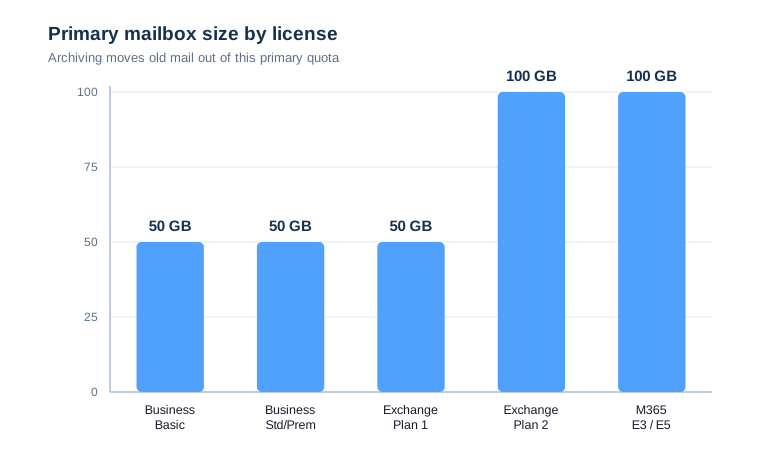
Notice how small the primary quota is. So once a busy user nears the cap, archiving becomes the cheapest fix. Rather than buying extra primary storage, you let the archive absorb the history.
How users see the archive in Outlook and OWA
The archive shows up as a separate node in the folder list, labelled “Online Archive” or “Archive”. Users drag items into it manually, or a policy moves them for you. However, the archive is online only, so it does not sync for offline use in classic Outlook. In practice, that trade-off rarely bothers people, because search still reaches every archived message.
New Outlook and OWA make the archive even more seamless. Both surface it next to the primary mailbox, with the same search box across both stores. So when you brief users, keep it short: their old mail still lives in the same app, just under a folder called Archive. That one sentence prevents most help-desk tickets.
Auto-archiving is on by default in 2026
Microsoft now enables auto-archiving by default for eligible mailboxes. As a result, many tenants already move old mail without anyone configuring it. Still, you should confirm the behaviour rather than assume it, because the default policy may not match your retention needs. So treat the default as a starting point, not a finished design.
The default change also surprised plenty of admins who never opted in. Therefore, audit what your tenant does today before you promise a retention window to a client. In our reviews, the default behaviour was often right, yet the documentation around it was wrong, which is exactly how confusion spreads.
🧾 Which licenses include Exchange Online archiving
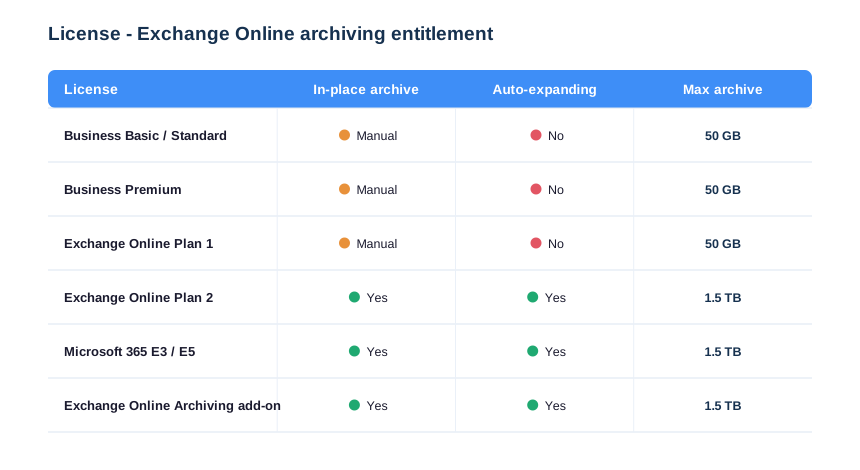
License is where most confusion starts. Every plan includes some archiving, yet only some plans auto-expand. Therefore the table below settles it before you buy anything.
Plans with a manual 50 GB archive
Business Basic, Business Standard, Business Premium and Exchange Online Plan 1 all include a fixed 50 GB archive. However, these plans do not auto-expand. So once the archive fills, you either clean up or move the user to a plan that grows.
Fifty gigabytes sounds large, yet a heavy sender fills it in a few years. So treat the fixed archive as a runway, not a destination. When a user approaches the cap, plan the upgrade early rather than waiting for the bounce-backs to start.
Plans with auto-expanding archive
Exchange Online Plan 2, Microsoft 365 E3 and E5 include auto-expanding archiving. Users on Plan 1 or on-prem Exchange can instead buy the standalone Exchange Online Archiving add-on. Either way, the archive starts at 100 GB and grows automatically toward 1.5 TB.
The practical upshot is simple. If a user generates real volume, put them on a plan that auto-expands and forget about storage. Meanwhile, keep light users on a cheaper plan with the fixed archive. As a result, you pay for growth only where it actually happens.
In short, the matrix above answers the buying question. Business plans and Plan 1 give a fixed 50 GB archive, while Plan 2, E3 and E5 unlock auto-expanding Exchange Online archiving up to 1.5 TB. Plan 1 and on-prem users who need that growth buy the standalone add-on instead.
The Exchange Online archiving add-on vs a plan upgrade
When a Plan 1 user needs more than 50 GB, you face a choice. You can buy the standalone Exchange Online Archiving add-on, or upgrade the user to Plan 2. For a single mailbox, the add-on is usually cheaper. However, once a user also needs data loss prevention or legal hold, the full plan often wins. So compare the whole bundle, not just the archive line.
Shared and resource mailboxes
Shared mailboxes are the classic gotcha. A shared mailbox under 50 GB needs no license, yet it cannot grow an archive or auto-expand without one. Therefore, before you point a busy distribution workflow at a shared mailbox, license it. Otherwise the archive silently stops accepting mail when it hits the cap. Notably, that failure is invisible until users complain.
Resource mailboxes for rooms and equipment follow the same rule. They rarely fill up, so they seldom need archiving. However, exceptions exist. Still, audit them once a year, because a forgotten booking mailbox can quietly accumulate decades of meeting history. A quick report catches it before it becomes a problem.
📈 Exchange Online archiving capacity and limits
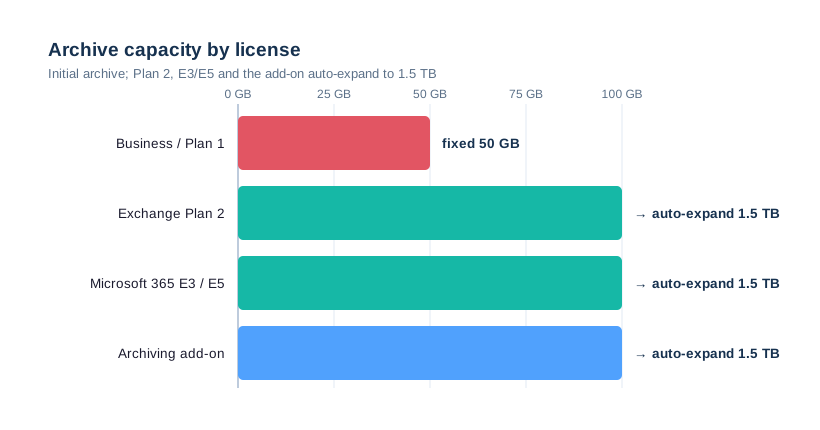
Capacity is the next trap. The numbers look generous, yet a few limits catch teams off guard. Therefore, read them before you promise users unlimited storage.
Auto-expanding archive explained
Auto-expanding archive adds storage in chunks as the archive fills, up to 1.5 TB per user. Once you enable it on a mailbox, the change is permanent for that user. Furthermore, provisioning extra space is not instant; Microsoft can take time to add each increment, so enable it well before a user runs out.
There is a second catch worth knowing. Auto-expanding archives cannot be moved with a simple export, and some migration tools handle them poorly. Therefore, if a tenant-to-tenant move is on the horizon, factor the archive into that plan from the start, not as an afterthought.
It also helps to set expectations with users. Because expansion happens in the background, a heavy user may briefly see the archive look full before the next chunk arrives. In practice, telling them the space is coming stops a flood of help-desk capacity tickets.
Limits that trip teams up
Three limits cause most tickets. First, shared mailboxes need a license to exceed 50 GB or to auto-expand. Second, you cannot search across primary and archive with a single offline scope on every client. Third, importing huge PSTs into an auto-expanding archive is throttled. As a result, planning beats a last-minute scramble.
What counts against the archive quota
Everything moved into the archive counts: mail, calendar items, and large attachments. Recoverable items, however, sit in a separate hidden quota, which is why a mailbox on hold can grow faster than expected. Consequently, when you size a heavy user, account for the hold overhead, not just the visible mail.
Monitoring Exchange Online archiving size with PowerShell
You cannot manage what you do not measure. Therefore, track archive usage before users hit a wall. The script below reports the archive size and quota for every mailbox, sorted by the fullest first. Consequently, you spot the next user to upgrade well in advance.
# Report archive size and quota across the tenant (Exchange Online PowerShell)
Get-Mailbox -ResultSize Unlimited -Filter {ArchiveStatus -eq "Active"} |
  Get-MailboxStatistics -Archive |
  Select-Object DisplayName,
    @{N="ArchiveGB";E={[math]::Round(($_.TotalItemSize.ToString().Split("(")[1].Split(" ")[0].Replace(",","")/1GB),2)}},
    ItemCount |
  Sort-Object ArchiveGB -Descending |
  Export-Csv .\archive-usage.csv -NoTypeInformation
⚙ How to enable Exchange Online archiving
Enabling archiving takes minutes. You can use the admin center, but PowerShell scales across many users. First connect to Exchange Online, which we cover in our Exchange Online PowerShell guide, then run the commands below.
Before you run anything, decide who actually needs an archive. Enabling it for every mailbox, including unlicensed shared ones, just creates noise. As a result, filter to real user mailboxes first, then enable in a controlled batch.
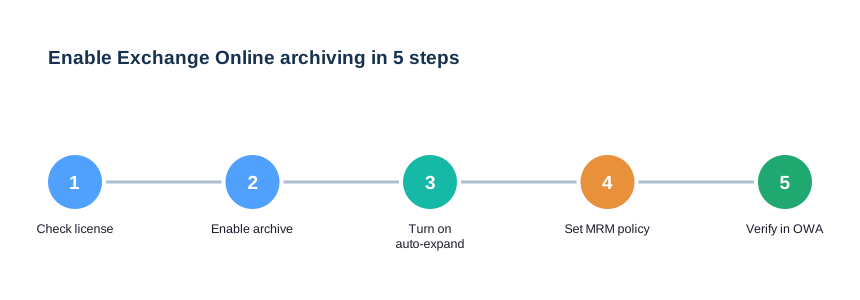
The five steps above map to the commands in this section. First you confirm the license, then you enable the archive, then auto-expansion, then a retention policy, and finally you check the result in OWA. Because each step is quick, a single admin can enable archiving for a small tenant in one sitting.
Enable the archive with PowerShell
The cmdlet below turns on the archive mailbox for one user, then for a whole filtered set. Because it is idempotent, re-running it does no harm.
# Enable the archive mailbox (Exchange Online PowerShell)
# Connect-ExchangeOnline -UserPrincipalName admin@contoso.com

# One user
Enable-Mailbox -Identity "jane@contoso.com" -Archive

# Everyone who does not yet have an archive
Get-Mailbox -ResultSize Unlimited -Filter {ArchiveStatus -eq "None" -and RecipientTypeDetails -eq "UserMailbox"} |
  Enable-Mailbox -Archive

# Confirm
Get-Mailbox jane@contoso.com | Select DisplayName, ArchiveStatus, ArchiveQuota
Turn on auto-expanding archive
Auto-expansion is an organisation setting, then a per-mailbox one. Microsoft documents the behaviour in its auto-archiving guide. Remember that the per-mailbox switch cannot be undone.
# Turn on auto-expanding archive org-wide, then per mailbox
Set-OrganizationConfig -AutoExpandingArchive

# Per mailbox (irreversible once enabled)
Enable-Mailbox "jane@contoso.com" -AutoExpandingArchive

# Verify the archive quota grew beyond the default
Get-Mailbox jane@contoso.com | Select DisplayName, AutoExpandingArchiveEnabled, ArchiveQuota
Roll this out in stages. Enable auto-expansion for the heaviest users first, confirm the quota grows, then widen the net. Because the switch is one-way, a staged rollout lets you catch any surprise before it touches the whole tenant.
🗂 Retention policies that feed the archive
An archive is empty until a policy fills it. Exchange uses retention tags and the Managed Folder Assistant to move old mail automatically. As a result, the default two-year move-to-archive tag does most of the work.
# Apply the default MRM policy and run the assistant now
Set-Mailbox "jane@contoso.com" -RetentionPolicy "Default MRM Policy"

# Force a processing pass instead of waiting for the daily cycle
Start-ManagedFolderAssistant -Identity "jane@contoso.com"

# See which tags are in the policy
Get-RetentionPolicy "Default MRM Policy" | Select -Expand RetentionPolicyTagLinks
Tune the move-to-archive tag to match how your users work. For example, a finance team may keep two years live, while support keeps six months. Consequently, the primary mailbox stays small without hiding anything users still need.
| Retention tag | Action | Default age |
|---|---|---|
| Default 2 year move to archive | Move to archive | 2 years |
| Personal 1 year move to archive | Move to archive | 1 year |
| Personal 5 year move to archive | Move to archive | 5 years |
| Never move to archive | Keep in the primary mailbox | Never |
🛡 Exchange Online archiving is not a backup
This is the warning that matters most. An archive moves mail; it does not protect it. If a user or an attacker deletes items, the archive cannot bring them back after retention lapses. Therefore archiving and backup solve different problems.
Think of it like a bigger filing cabinet versus a fireproof safe with a time machine. Exchange Online archiving gives you the cabinet: more room, neatly sorted. A backup gives you the time machine: the ability to roll a mailbox back to last Tuesday. Because ransomware and fat-finger deletions are real, you want both, not one.
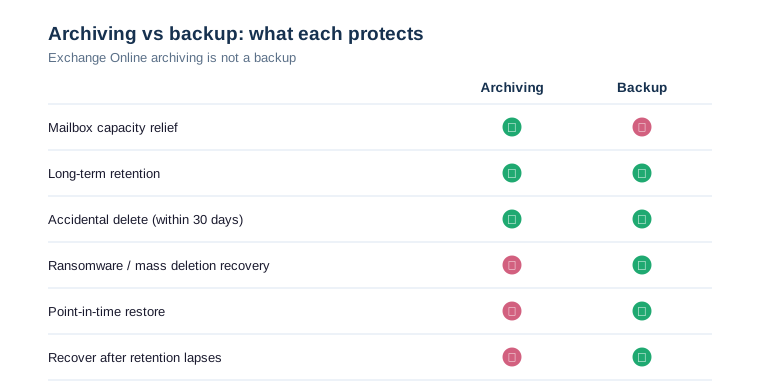
Read the chart row by row and the split is obvious. Archiving wins on capacity and tidy long-term retention, while backup wins on recovery from deletion, ransomware and bad actors. Because the two overlap only in the middle, dropping either one leaves a real gap. Therefore, the safe default is to run both and document which job each one owns.
Wintive insight
Across 60+ Microsoft 365 tenants, the costliest archiving myth is treating the archive as a backup. In several audits, teams had switched off third-party backup because Exchange Online archiving was on, then lost mail to accidental deletion. So our baseline keeps both: archiving for capacity and retention, and a separate backup for point-in-time recovery and ransomware. Critically, we test a restore every quarter, because a backup you never restore is only a hope.
🖥 Exchange Online archiving for Exchange Server
Hybrid shops can archive on-prem mailboxes to the cloud. With the Exchange Online Archiving add-on, an on-prem Exchange 2016 or 2019 user keeps their primary mailbox local while the archive lives in Microsoft 365. As a result, you cut on-prem storage without a full migration. However, you still run hybrid, so plan the certificate and connector work first.
This pattern suits firms that are not ready to leave on-prem yet still drown in mailbox size. Specifically, you offload the cold mail to the cloud archive and buy your on-prem servers a few more years. Later, when you do migrate fully, the archive is already in Microsoft 365 and travels with the user.
One caveat keeps teams honest here. The add-on covers the archive only, so the on-prem primary mailbox still counts against your local storage and backup. Therefore size the move around the cold mail, because the active mailbox stays where it is until a real migration.
🔎 Exchange Online archiving and compliance: eDiscovery, hold
Archiving and compliance overlap, yet they are not the same switch. The archive gives users space; litigation hold and eDiscovery give legal teams certainty. Therefore, a regulated tenant usually needs both, and Exchange Online archiving sits underneath them.
Litigation hold vs a move-to-archive policy
A retention policy moves mail; a litigation hold freezes it. With a hold, nothing is purged, even if a user deletes it, until you release the hold. Therefore holds protect evidence, while archiving protects capacity. The command below places a mailbox on hold and confirms it.
Mixing the two ideas is where teams get burned. They assume a full archive means a safe archive, then discover a deleted item was never on hold. Therefore, keep the mental model clean: archiving is for room and tidy retention, while a hold is for legal certainty. They complement each other, but neither replaces a backup.
# Place a mailbox on litigation hold (Exchange Online PowerShell)
Set-Mailbox "jane@contoso.com" -LitigationHoldEnabled $true -LitigationHoldDuration 2555

# Confirm the hold and its duration (days)
Get-Mailbox jane@contoso.com |
  Select DisplayName, LitigationHoldEnabled, LitigationHoldDuration
Searching the archive in eDiscovery
eDiscovery searches the primary and the archive together, so investigators see the full history. However, a hold needs a qualifying license, usually E3 or E5. As a result, plan licensing around your legal obligations, not just storage.
For most SMBs, the trigger is a specific event: an HR case, a contract dispute, or an auditor request. As a result, rather than holding everything forever, we scope holds to the people and dates that matter. Consequently, the tenant stays compliant without turning every mailbox into a legal archive.
Document every hold you place, including who asked for it and when it can lift. Because an unreviewed hold lingers for years, it quietly inflates storage and complicates offboarding. So a short quarterly review of active holds keeps the tenant both compliant and tidy.
| Mechanism | What it does | Reversible | Typical license |
|---|---|---|---|
| Move-to-archive policy | Frees up the primary mailbox | Yes | Any plan |
| Litigation hold | Freezes all mail for a case | Yes, until released | Plan 2 / E3 / E5 |
| eDiscovery hold | Preserves a scoped set for review | Yes | E3 / E5 |
| Retention label | Keeps or deletes by rule | Policy-bound | E3 / E5 |
📥 Moving existing mail and PSTs into Exchange Online archiving
Many teams arrive with years of mail in PST files, often during an Office 365 migration. The archive is the right home for it, because it keeps that history searchable without bloating the primary mailbox. Therefore, the Microsoft 365 Import service, or a direct import request, moves it in.
# Import a PST straight into a user's archive (Exchange Online PowerShell)
New-MailboxImportRequest -Mailbox "jane@contoso.com" `
  -AzureBlobStorageAccountUri "https://contoso.blob.core.windows.net/ingestion/jane.pst?<SAS>" `
  -AzureSharedAccessSignatureToken "<SAS>" `
  -IsArchive -TargetRootFolder "/" -BadItemLimit 50

# Track progress
Get-MailboxImportRequest | Get-MailboxImportRequestStatistics |
  Select Name, StatusDetail, PercentComplete
Run imports in waves, not all at once. Because the service throttles bulk ingestion, a staged approach finishes faster and avoids failures. Meanwhile, keep the source PSTs until you verify the counts, then retire them for good.
📊 The Wintive archiving baseline across 60+ tenants
Patterns repeat across our tenants. Most SMBs over-buy storage they could have archived, and most under-plan retention. Specifically, we standardise both. Specifically, we template the retention policy, the enablement script and the user comms, so every rollout starts from a known-good baseline.
We also right-size licenses. For a mailbox that only needs capacity, the archive plus a cheaper plan often beats a premium upgrade. Conversely, regulated teams get Plan 2 or E5 for legal hold and auto-expand. Overall, the goal is the lowest license that still clears the compliance bar.
Right-sizing licenses and quarterly reviews
One number sums up the savings. In several audits, right-sizing archive licenses cut the Exchange spend by a fifth, with no loss of capability. So the archive is not only a storage tool; it is a licensing lever. Used well, it keeps both the mailboxes and the invoice under control.
We pair that with quarterly reviews. Each quarter, we check archive growth, retention fit and backup restores on the same call. Consequently, archiving stays a managed system rather than a setting someone flipped once and forgot.
| What we set | Default we use | Why |
|---|---|---|
| Move-to-archive tag | 2 years | Keeps primary lean, mail still searchable |
| Auto-expanding archive | On for Plan 2 / E5 | Future-proofs heavy users |
| Retention / legal hold | Per compliance need | Meets audit requirements |
| Separate backup | Always | Archive is not point-in-time recovery |
🚨 Common Exchange Online archiving mistakes
Treating the archive as a backup
We covered this, yet it stays the number one error. Keep a real backup alongside the archive. Otherwise a single deletion can become permanent.
Enabling auto-expand on the wrong mailboxes
Auto-expansion is permanent per mailbox, so turning it on everywhere is hard to walk back. Enable it where volume justifies it, not as a blanket default. As a result, you keep your options open for the mailboxes that never needed it.
The fix is cheap insurance. A third-party backup for Microsoft 365 costs a few dollars per user each month, and it restores in minutes. Therefore, weigh that against the cost of explaining to a client why last quarter’s invoices are gone for good.
Forgetting the per-mailbox license rule
Shared mailboxes and resource mailboxes need a license to grow past 50 GB or to auto-expand. Therefore, audit them before they silently hit the wall.
A quick monthly report on shared-mailbox archive status removes the surprise entirely. Because the failure is silent, the report is the only early warning you get. Therefore we bake that check into our managed-tenant runbook and review it with the client.
Leaving retention on the default forever
The default two-year tag suits many teams, but not all. Therefore review it yearly, because compliance needs change as the business grows.
A growing firm often tightens retention as it takes on regulated clients. Conversely, a startup may loosen it to keep more history searchable. So the right tag is the one that matches this year’s obligations, not the one you set at launch.
📚 More for Growing Businesses
🔍 Not sure which mailboxes need an archive license?
The M365 Instant Audit scans your tenant in under 10 minutes: license waste, plan right-sizing, MFA coverage, security posture and compliance gaps. As a result, you get a full PDF report with prioritized fixes, delivered instantly.
❓ Exchange Online Archiving: Frequently Asked Questions
It is a second mailbox, the archive, that sits beside the primary one. Specifically, a retention policy moves old mail into it automatically, which keeps the primary mailbox small while everything stays searchable. In practice, users reach it from the same Outlook or OWA window, so nothing feels lost.
Exchange Online Plan 2, Microsoft 365 E3 and E5 include auto-expanding archive up to 1.5 TB. By contrast, Business plans and Plan 1 include only a fixed 50 GB archive, unless you add the standalone archiving add-on. In addition, the add-on suits on-prem users.
Run Enable-Mailbox -Identity user -Archive in Exchange Online PowerShell, or flip the toggle in the admin center. Additionally, for growth beyond the default, enable auto-expanding archive at the organisation and mailbox level.
No, and this is the single most important point. The archive moves mail for capacity and retention, but it cannot restore items after they are deleted and retention lapses. Therefore you still need a separate backup for point-in-time and ransomware recovery, tested with a real restore each quarter.
A fixed archive is 50 GB. An auto-expanding archive starts near 100 GB and grows automatically toward 1.5 TB per user. However, provisioning is gradual, so enable it well before a user runs low.
Yes, in a hybrid setup. Specifically, the Exchange Online Archiving add-on lets an on-prem Exchange 2016 or 2019 user keep the primary mailbox local while the archive lives in Microsoft 365.