

The Outlook OST file size limit is the wall a busy mailbox eventually hits: Outlook stops syncing, throws “your Outlook data file has reached the maximum size”, and the user panics that their email is broken. It is not. The cache simply filled up, and the fix is a known set of registry and configuration changes that every admin should have ready.
This guide gives you all of them. Wintive runs Microsoft 365 for 60+ tenants, therefore we cover not just how to raise the limit, but when to raise it versus shrink the cache instead, and how to stop the problem coming back. Moreover, every section answers a real question, so you can clear the error today and keep OST files healthy across the fleet for good.
🛡️ Free: M365 Audit Checklist
19-page PDF with 50 hands-on checks across Entra ID, Exchange Online, SharePoint, Teams and Intune. Run it before you change OST settings, so you start from a clean tenant. PowerShell commands included. Built from 60+ real tenant audits at Wintive.
📥 What the Outlook OST file size limit is
Quick answer. An OST is the local cache file Outlook builds in Cached Exchange Mode. The default Outlook OST file size limit is 50 GB, and it can be raised to about 100 GB with two registry keys, MaxLargeFileSize and WarnLargeFileSize. When the cache fills, Outlook shows a “maximum size” error and stops syncing. You fix it by raising the limit, shortening the cached sync window, or excluding shared mailboxes from caching.
The OST exists so Outlook stays fast and works offline. Therefore it mirrors your Exchange Online mailbox onto the local disk, and that copy has a maximum size set in the registry. Consequently the limit is a client-side cap, not a mailbox quota; your cloud mailbox can be far larger than the local cache. That distinction is the key to fixing the error the right way, because it tells you to change the client rather than the mailbox almost every time.
There is a simple way to picture it. Specifically, the mailbox is the master copy in the cloud and the OST is a local photocopy Outlook keeps for speed, so the photocopy can be smaller than the original. Therefore you can cache three months locally while years of mail sit safely on the server. As a result, the Outlook OST file size limit only ever caps the copy, never your actual email.
The cache, not the mailbox
People confuse the OST cap with their mailbox size, but they are separate. Specifically, your Exchange Online mailbox might allow 50 or 100 GB depending on plan, while the OST is just the local slice Outlook keeps, covered in our Exchange Online mailbox size guide. Therefore hitting the Outlook OST file size limit does not mean your mailbox is full. As a result, the fix is usually a local setting, not a mailbox change.
Knowing the cache is disposable changes how you treat the error. Specifically, because the OST rebuilds from the server, the worst outcome of hitting the limit is inconvenience, not data loss. Therefore you can act calmly and pick the cleanest fix rather than panicking. As a result, the size-limit error becomes a routine task instead of an emergency.
📏 OST and PST size limits
Before changing anything, it helps to know the actual numbers, because guesswork here causes corruption. The matrix below shows the default cap, the registry maximum, and the two keys that control it. So once you know these values, the fix is precise rather than trial and error.
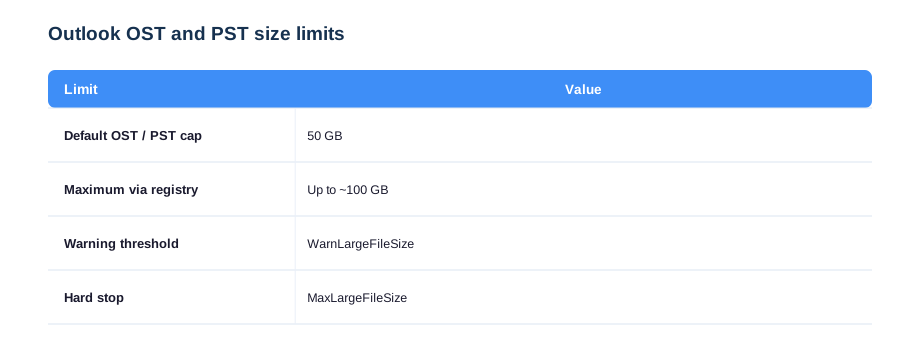
The default cap is 50 GB and the practical maximum is around 100 GB, set by two DWORD registry values. Specifically, MaxLargeFileSize is the hard ceiling and WarnLargeFileSize is the point Outlook starts warning, and the warning value must stay below the maximum. Therefore you always set them as a pair, with sensible headroom between them. As a result, Outlook warns the user before it hard-stops, instead of failing without notice.
The two registry values are versioned, which trips people up. Specifically, the Office version number in the key path (16.0 for Microsoft 365 and 2016 onward) must match the installed Outlook, or the setting is silently ignored. Therefore we confirm the build before writing the keys. As a result, the change actually takes effect instead of appearing to fail for no reason.
Why the 50 GB default exists
The 50 GB default is deliberate, not arbitrary. Specifically, a giant OST on a slow disk makes Outlook sluggish and slow to search, so Microsoft caps it to protect performance. Therefore raising the cap is reasonable on a fast SSD but risky on an old laptop with a spinning drive. As a result, we treat the Outlook OST file size limit as a performance decision, not just a storage one.
Performance is the quiet reason behind the whole topic. Specifically, search, startup and folder switching all slow as an OST grows, so a smaller cache often feels faster than a bigger one. Therefore raising the Outlook OST file size limit can make Outlook worse, not better, on the wrong hardware. As a result, we always weigh speed against capacity before touching the cap.
⚠️ The maximum size error explained
The error users report is “your Outlook data file has reached the maximum size”, and it means exactly that: the OST hit its configured cap and cannot grow. Therefore new mail stops downloading to the cache, even though it is safe on the server. Consequently the user sees missing recent mail and assumes the worst, when nothing has actually been lost.
The error has a predictable trigger worth knowing. Specifically, it almost always appears on heavy mailboxes, delegates with many shared folders, or users who cache everything, not on light accounts. Therefore the fix usually targets sync scope, not the cap itself. As a result, you treat the cause rather than just lifting the ceiling and waiting for it to fill again.
Confirm it is the cache, not the mailbox
Before touching the registry, confirm the diagnosis. Specifically, check the mailbox in the web app, where all the mail is present and correct, which proves the problem is the local OST. Therefore you avoid chasing a mailbox quota that is not the issue. As a result, you apply the right fix the first time instead of escalating to the wrong team.
First, decide whether raising it is even the right call. Specifically, on a fast SSD with a genuinely large mailbox, a bigger cap is fine, but on older hardware shrinking the cache is better. Therefore we make the increase a deliberate exception, not a reflex. As a result, the Outlook OST file size limit goes up only where the machine can carry it.
🔧 How to increase the Outlook OST file size limit
When a fast machine genuinely needs a bigger cache, you raise the Outlook OST file size limit with two registry keys. The four steps below do it safely, and Microsoft documents the same values in its OST and PST size guide. So this is the supported method, not a hack.
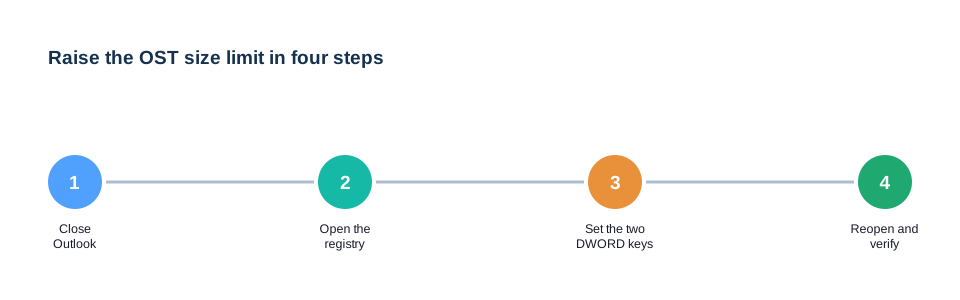
The two values live under the Outlook policy key for your Office version, and both are DWORDs measured in bytes. Therefore you set MaxLargeFileSize to the new ceiling and WarnLargeFileSize a little below it, then restart Outlook. The snippet below sets a 75 GB ceiling with a 71 GB warning for Microsoft 365 Outlook.
# Raise the OST cap to ~75 GB (Outlook in Microsoft 365 / Click-to-Run)
# Values are in MB; 76800 MB = 75 GB, 72704 MB = 71 GB warning
$key = "HKCU:\Software\Policies\Microsoft\office\16.0\outlook\PST"
New-Item -Path $key -Force | Out-Null
Set-ItemProperty -Path $key -Name "MaxLargeFileSize"  -Type DWord -Value 76800
Set-ItemProperty -Path $key -Name "WarnLargeFileSize" -Type DWord -Value 72704
Set the warning value with real headroom below the maximum. Specifically, leaving several gigabytes between WarnLargeFileSize and MaxLargeFileSize gives users time to act before Outlook hard-stops. Therefore people get a nudge, not a wall. As a result, you avoid the support spike that comes when a cache fills with no warning at all.
Push it to the fleet with GPO or Intune
Editing one machine is fine; editing fifty is not. Therefore we deploy the same two values through Group Policy or Intune so every desktop shares one OST policy. Consequently nobody hits the cap unexpectedly, and the setting survives a reinstall. As a result, the Outlook OST file size limit becomes a managed standard rather than a per-user surprise.
📉 How to reduce an oversized OST instead
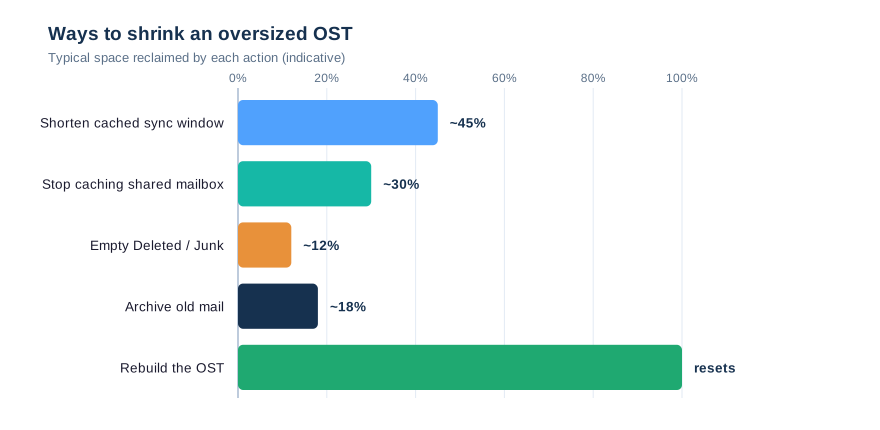
Raising the cap is not always the right move; often shrinking the cache is better, especially on older hardware. The chart shows the actions that reclaim the most space, from shortening the sync window to dropping shared-mailbox caching. So before you raise the limit, ask whether the OST should be that big at all.
💡 Wintive insight
Nine times out of ten the right fix is not a bigger Outlook OST file size limit; it is a shorter sync window. Therefore we set Cached Exchange Mode to keep three to twelve months locally instead of everything, and the OST shrinks overnight. As a result, Outlook gets faster, the error disappears, and the disk stops filling, without touching the registry at all.
The reduce-first approach also future-proofs the machine. Specifically, a cache capped at a few months stays small even as the mailbox keeps growing in the cloud, so the problem does not simply return in a year. Therefore shrinking the window is a permanent fix, while raising the cap only delays the next wall. As a result, we reach for the slider long before we reach for the registry.
Shorten the cached sync window
The biggest lever is the “mail to keep offline” slider in Cached Exchange Mode. Specifically, dropping it from All to twelve or three months tells Outlook to cache only recent mail while the rest stays on the server, searchable on demand. Therefore the OST shrinks dramatically without losing access to anything. As a result, most oversized-cache problems vanish with one setting change.
Shortening the window has a side benefit beyond size. Specifically, a smaller, recent cache makes Outlook search and startup noticeably faster, so users often thank you for a change you made to save disk. Therefore the fix improves the daily experience, not just the storage numbers. As a result, the smaller cache is an easy sell to the people using it.
⚖️ OST versus PST
People reach for a PST when an OST fills up, but that is usually the wrong tool. An OST is a rebuildable cache of the server; a PST is a portable archive that lives only on the disk. The comparison below shows why they are not interchangeable. So understanding the difference stops a fix from becoming a data-loss risk.
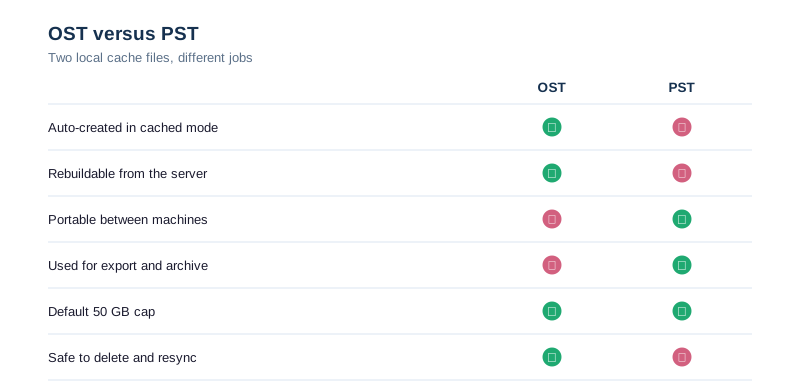
PST files also fail in ways an OST never does. Specifically, a PST on a network share corrupts easily and is unsupported by Microsoft, while an OST lives on the local disk by design. Therefore the PST route trades a tidy cache warning for a fragile, unsupported archive. As a result, we keep mail in the mailbox and let the OST do its job.
Do not move mail into a PST to save space
Dragging mail into a local PST to shrink the OST is a classic mistake. Specifically, a PST is unprotected, unbacked-up and easily lost or corrupted, so it trades a cache warning for real data risk. Therefore we keep mail in the mailbox and use archiving instead, as covered in our Exchange Online archiving guide. As a result, old mail stays safe and searchable in the cloud, not stranded on one laptop.
🗃️ Cached mode and shared mailboxes
The single biggest cause of a bloated OST is auto-mapped shared mailboxes being cached on top of the primary one. By default, Outlook downloads every shared mailbox a user can open into the same OST, which multiplies its size. Therefore controlling shared-mailbox caching is often the real fix behind a size-limit error.
| Setting | Effect on OST | Wintive default |
|---|---|---|
| Cached Exchange Mode | Builds the local OST | On for desktops |
| Download shared folders | Caches shared mailboxes | Off |
| Sync slider | How much mail is cached | 3 to 12 months |
| Online mode | No OST at all | For VDI / shared PCs |
Auto-mapping is what makes this sneaky. Specifically, when an admin grants full access to a shared mailbox, Outlook auto-maps and caches it without anyone choosing to, so the OST grows silently. Therefore disabling shared-folder download is often the highest-impact single change. As a result, the Outlook OST file size limit stops being hit across a whole team of delegates.
Turn off shared-mailbox download
The fix is one setting: stop Outlook caching shared mailboxes. Specifically, disabling “Download shared folders” means a shared mailbox is accessed online rather than copied into the user OST. Therefore a delegate with ten shared mailboxes no longer carries ten extra caches. As a result, the primary OST stays small and the size-limit error stops recurring.
# Cap the cached sync window to 12 months and stop caching shared mailboxes
$k = "HKCU:\Software\Policies\Microsoft\office\16.0\outlook\cached mode"
New-Item -Path $k -Force | Out-Null
Set-ItemProperty -Path $k -Name "SyncWindowSetting"    -Type DWord -Value 12
Set-ItemProperty -Path $k -Name "DownloadSharedFolders" -Type DWord -Value 0
Pushing these two values by policy fixes the problem fleet-wide, not one PC at a time. Specifically, SyncWindowSetting caps how much mail each OST caches and DownloadSharedFolders stops delegate mailboxes piling on. Therefore the Outlook OST file size limit rarely gets hit once both are set. As a result, you prevent the error instead of forever reacting to it.
🔄 Rebuilding a corrupt or oversized OST
Sometimes the cleanest fix is to rebuild the OST from scratch, because it is, by design, disposable. Since the OST is only a cache of the server, deleting it forces Outlook to download a fresh, compact copy. Therefore a bloated or corrupt OST is fixed by rebuilding, not repairing. So this is the reset button when other tweaks are not enough.
# Rebuild the OST: close Outlook, then rename the cache file
# Outlook recreates a clean OST on next launch
Stop-Process -Name OUTLOOK -Force -ErrorAction SilentlyContinue
$ost = "$env:LOCALAPPDATA\Microsoft\Outlook"
Get-ChildItem "$ost\*.ost" | Rename-Item -NewName { $_.Name + ".old" }
There is one precaution with a rebuild worth stating. Specifically, any mail held only locally, such as items dragged into a local PST, is not on the server and will not come back, so confirm everything important is in the mailbox first. Therefore a rebuild is perfectly safe for a normal cached account but not for one used as an archive. As a result, we keep mail in the mailbox precisely so the OST stays disposable.
Rebuild beats merging into a PST
Rebuilding is safe precisely because nothing lives only in the OST. Specifically, every message is on the server, so a fresh OST simply re-downloads within your sync window. Therefore you never risk data by deleting an OST, unlike merging mail into a fragile PST. As a result, the rebuild is the calm, reversible fix, and the new cache respects the current size settings.
Rebuilding is also our go-to when an OST is merely corrupt, not oversized. Specifically, a profile that crashes, refuses to sync or shows duplicate items is usually fixed faster by a clean rebuild than by hours of repair. Therefore we rebuild early rather than chasing odd cache faults. As a result, the user is back to a healthy mailbox in minutes, with the current size settings applied.
🛠️ The Wintive Outlook OST file size limit baseline
After enough fleets, the right settings stop being a debate. So we apply the same Outlook OST file size limit baseline everywhere, then adjust per machine. The card below is that baseline, and it keeps OST files fast and small without anyone hitting the wall.
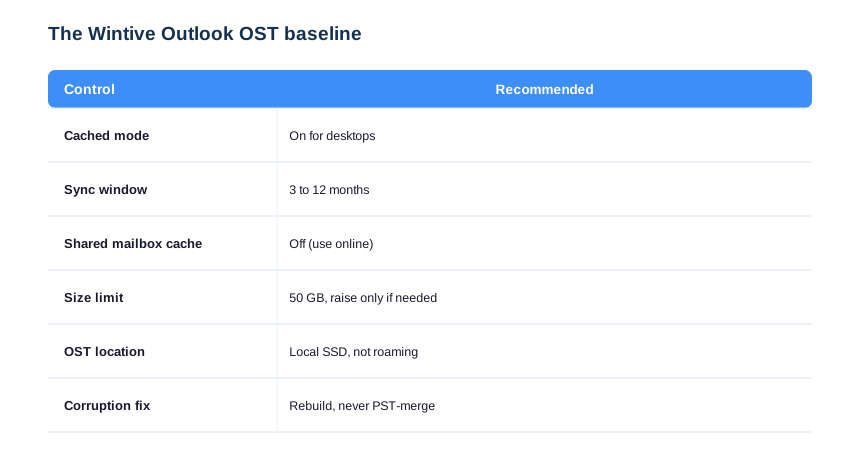
Two lines on this card prevent most tickets. First, a three-to-twelve-month sync window keeps the OST small on every desktop. Second, turning off shared-mailbox caching stops the most common bloat at the source. We raise the size limit only on fast machines that genuinely need it, but with these defaults few ever do. The same discipline pairs with right-sizing the cloud mailbox in our Plan 1 vs Plan 2 guide.
Treat the baseline as prevention, not cleanup. Specifically, applying the sync window and shared-folder settings before users hit the wall means the size-limit error rarely happens in the first place. Therefore the best Outlook OST file size limit fix is the one you deploy ahead of time. As a result, the help desk stops seeing the same ticket every few months.
🚨 Common Outlook OST file size limit mistakes
Raising the cap on a slow disk
The costliest mistake is raising the Outlook OST file size limit on an old machine with a spinning drive. Therefore Outlook becomes slow and search crawls, trading one problem for another. As a result, we shrink the cache on such machines instead, and reserve a bigger cap for fast SSDs.
Slow disks deserve a special mention here. Specifically, on a machine with a spinning hard drive, even the default cache can feel heavy, so the answer is a shorter window or online mode, never a larger Outlook OST file size limit. Therefore hardware drives the decision as much as mailbox size. As a result, we match the cache strategy to the disk, not just to the inbox.
Moving mail into a PST
The second mistake is offloading mail into a local PST to free space. Consequently the data leaves the protected mailbox for an unbacked-up file that can vanish with the laptop. So archive in the cloud instead, never into a PST. As a result, nothing important ends up stranded on a single disk.
Ignoring shared-mailbox caching
The classic oversight is leaving shared-mailbox download on. Specifically, it silently doubles or triples an OST for every delegate. Therefore turn it off and let shared mailboxes open online. As a result, the size-limit error stops coming back across the whole team.
Pulling it together, the Outlook OST file size limit is a local performance setting, not a mailbox quota: raise it on fast machines that truly need it, shrink the cache on everything else, and never offload mail into a fragile PST. Therefore the durable fix is usually a shorter sync window plus disabled shared-folder caching, deployed before users hit the wall. As a result, the maximum-size error stops being a recurring ticket and becomes a solved problem.
📚 More for Growing Businesses
🔍 Cleaning up Outlook and want the tenant checked first?
The M365 Instant Audit scans your tenant in under 10 minutes: license waste, plan right-sizing, MFA coverage, security posture and compliance gaps. As a result, you get a full PDF report with prioritized fixes, delivered instantly.
❓ Outlook OST File Size Limit: Frequently Asked Questions
It is the maximum size of the local OST cache Outlook builds in Cached Exchange Mode. The default is 50 GB, and it can be raised to about 100 GB with the MaxLargeFileSize and WarnLargeFileSize registry values. It is a client-side cap, separate from your Exchange Online mailbox quota.
Close Outlook, then set two DWORD registry values under the Outlook PST policy key for your Office version: MaxLargeFileSize for the ceiling and WarnLargeFileSize a little below it, both in megabytes. Reopen Outlook to apply. Deploy the same values by GPO or Intune across a fleet.
No. The error only means the local cache is full; all your mail is safe on the Exchange Online server and visible in the web app. Fix it by raising the limit, shortening the cached sync window, or turning off shared-mailbox caching, and the recent mail downloads again.
Usually shrink it. On most machines, shortening the Cached Exchange Mode sync window to three to twelve months and disabling shared-mailbox download fixes the problem without a bigger cache. Raise the limit only on fast SSD machines that genuinely need a large local cache.
Yes. The OST is only a cache of your server mailbox, so deleting or renaming it makes Outlook rebuild a clean copy on next launch within your sync window. This is the standard fix for a corrupt or bloated OST, and unlike a PST, nothing is stored only in the OST.