

If you manage Microsoft 365, you will eventually need to connect to Exchange Online PowerShell. The admin center is fine for one mailbox, but it falls apart fast across hundreds. PowerShell, by contrast, lets you read and change thousands of mailboxes in seconds. So this guide walks the whole path, from a clean install to secure, automated connections.
Everything here uses the current REST-based module, not the retired Basic Auth endpoint. Therefore the commands work in 2026 and pass a modern security review. We also flag the mistakes that lock admins out, because most connection failures come from the same two or three causes.
📋 Free: the M365 Audit Checklist (50 points)
Before you script anything, see where your tenant actually stands.
🎯 What you need before you connect to Exchange Online PowerShell
First, check three things. You need PowerShell 7 (or Windows PowerShell 5.1), a network that allows outbound HTTPS, and an account with an Exchange admin role. Most failures trace back to the last one, so confirm the role before you start.
PowerShell 7 is the better choice in 2026, because it is cross-platform and faster. Still, the module also runs on Windows PowerShell 5.1 if that is all you have. On a Mac or a Linux box, install PowerShell 7 first, then follow the same steps. The cmdlets behave the same way on every platform.
Next, decide which account you will use. A dedicated admin account beats your everyday mailbox, because it keeps risky sessions away from your daily work. Moreover, it makes auditing far cleaner later. You should also enable multi-factor authentication on that account, since the module now expects modern auth by default.
Finally, make sure your execution policy allows the module to load. On a locked-down workstation, run PowerShell as administrator once and set the policy to RemoteSigned. If a corporate proxy sits in the way, the connection may also need the proxy address. After that groundwork, the install step below will work without complaint.
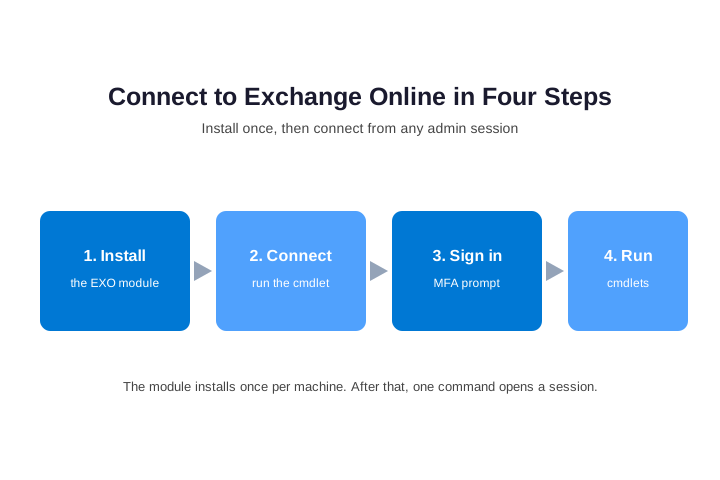
In short: install the module once with Install-Module ExchangeOnlineManagement, then run Connect-ExchangeOnline -UserPrincipalName you@domain.com and complete the MFA prompt. For scripts and scheduled jobs, switch to certificate-based app-only authentication instead of a password. Always use a dedicated admin account, the least privilege that fits, and disconnect when you finish.
📦 Install the Exchange Online PowerShell module
The module is called ExchangeOnlineManagement, and it lives in the PowerShell Gallery. You install it once per machine, then update it now and then. Run the command below in an elevated PowerShell window.
# Install for your user (no admin rights needed)
Install-Module -Name ExchangeOnlineManagement -Scope CurrentUser

# Or install for all users on the machine (run as admin)
Install-Module -Name ExchangeOnlineManagement -Scope AllUsers

# Check the version you have
Get-Module -ListAvailable ExchangeOnlineManagement
If the gallery is not trusted yet, PowerShell asks you to confirm. Answer yes, and the install finishes in under a minute. Should the command fail behind a proxy, set the gallery as trusted first with Set-PSRepository, then try again. On an offline server, download the module on a connected machine and copy it across.
To upgrade later, run Update-Module ExchangeOnlineManagement and the module pulls the newest release. Keeping it current matters, because Microsoft ships fixes and new cmdlets often. As a rule, update the module before you troubleshoot anything, since a stale version is the most common hidden cause of failures.
🔌 Connect to Exchange Online PowerShell: the core command
With the module in place, one cmdlet opens a session. Pass your admin sign-in name, and the module handles the rest. A browser window appears, you complete MFA, and the prompt returns ready for work.
# Import the module (optional - it auto-loads on first use)
Import-Module ExchangeOnlineManagement

# Connect with your admin UPN; a modern-auth window opens for MFA
Connect-ExchangeOnline -UserPrincipalName admin@contoso.com

# Confirm the session is live
Get-ConnectionInformation
That is the whole connection for a person at a keyboard. The session then stays open until you close it or it times out. Because the module uses REST under the hood, it is faster and far more stable than the old remote sessions were.
A few parameters help in special cases. Add -ShowBanner:$false to hide the startup banner in scripts. On a server with no browser, use the -Device flag, and the module gives you a code to enter on a phone instead. These small switches keep the same command working everywhere.
Connect to Exchange Online PowerShell with MFA
You do not need a special switch for MFA anymore. The module triggers modern authentication on its own, so the browser prompt handles your second factor. If your tenant uses Conditional Access, the same policies apply here, which is exactly what you want. In other words, the admin shell respects the same guardrails as the rest of Microsoft 365.
🔐 Connect to Exchange Online PowerShell with app-only auth
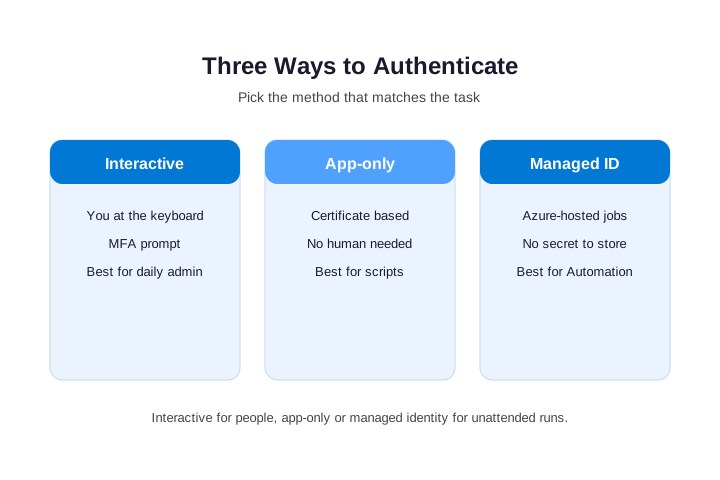
A person can answer an MFA prompt, but a scheduled task cannot. So for automation, use app-only authentication with a certificate. You register an app in Microsoft Entra ID, grant it the Exchange role, and attach a certificate. The script then signs in with no password and no human.
The setup takes four short steps. First, register an application in Entra ID. Then grant it the Exchange.ManageAsApp API permission and admin consent. Next, assign the app a suitable Exchange role, such as a custom least-privilege role. Finally, create a certificate and upload its public key to the app registration.
# App-only connection for scripts (no interactive prompt)
Connect-ExchangeOnline `
  -AppId "00000000-0000-0000-0000-000000000000" `
  -CertificateThumbprint "A1B2C3D4E5F6..." `
  -Organization "contoso.onmicrosoft.com"
This method is the safe way to run jobs at night. Crucially, there is no stored password to steal, and the certificate can expire on a schedule you control. Managed identity is a third option when the script runs inside Azure, because then the platform holds the credential for you. Either way, rotate the certificate before it lapses, or the job stops without warning.
📨 Connect to Security & Compliance PowerShell too
The same module also reaches the Security & Compliance center. That is where you manage retention, eDiscovery, and audit searches. The command is a sibling of the main one, so it feels familiar right away.
# Connect to the Security & Compliance PowerShell endpoint
Connect-IPPSSession -UserPrincipalName admin@contoso.com

# Example: list retention policies
Get-RetentionCompliancePolicy | Select Name, Enabled
You can hold both sessions at once, which is handy during an investigation. Just remember which endpoint each cmdlet belongs to, because the two sets do not overlap. When you finish, disconnect both so no privileged session lingers.
🧩 Module versions: EXO V3 REST versus legacy Basic Auth
Older guides still show the retired approach, and that trips people up. Basic Auth and the remote-session model are gone. The current module (V3) is REST-based, faster, and works with MFA out of the box. Here is how the two compare.
| What changed | Legacy (retired) | EXO V3 (current) |
|---|---|---|
| Sign-in | Basic Auth, password only | Modern auth with MFA |
| Transport | WinRM remote session | REST over HTTPS |
| Speed | Slow on bulk reads | Fast, bulk-optimized |
| Cmdlet prefix | Get-Mailbox | Get-EXOMailbox (faster) |
| Status in 2026 | Blocked | Supported |
The new cmdlets matter for big tenants. The Get-EXO* family was built for bulk reads, so a report that once took ten minutes now finishes in seconds. For one-off changes, the classic cmdlets still work. For reporting across thousands of mailboxes, reach for the faster set every time.
🛠️ Useful commands once you connect to Exchange Online PowerShell
Once the session is live, the real work begins. The faster Get-EXO* cmdlets are built for bulk reads, so prefer them for reporting. Here are a few you will use every week.
Across the tenants we manage, the single most common error is an old script that still calls the retired endpoint. The fix is almost always the same. You update the module, swap to Connect-ExchangeOnline, and the job runs again. So if a scheduled task broke recently, start there before you touch anything else.
# List every mailbox (fast, REST-based cmdlet)
Get-EXOMailbox -ResultSize Unlimited | Select DisplayName, PrimarySmtpAddress

# Check who has full access to a shared mailbox
Get-EXOMailboxPermission -Identity "sales@contoso.com"

# Export mailbox sizes to CSV for a report
Get-EXOMailbox -ResultSize Unlimited |
  Get-EXOMailboxStatistics |
  Select DisplayName, TotalItemSize |
  Export-Csv .\mailbox-sizes.csv -NoTypeInformation
From here you can grant permissions, set forwarding rules, or export reports to CSV. Because the cmdlets pipe cleanly, you build powerful one-liners quickly. Still, test any change on one mailbox first, then scale it out once you trust the result. That habit has saved many admins from a very long undo.
🔑 Use a managed identity for Azure-hosted scripts
App-only with a certificate is great, but it still leaves a certificate to rotate. When your script runs inside Azure, a managed identity removes even that. The platform holds the credential, and your code never sees a secret at all. So this is the cleanest option for automation that lives in the cloud.
The setup is short. You enable a managed identity on the Azure resource, such as an Automation account or a Function. Then you grant that identity the Exchange role it needs, exactly as you would for an app registration. Finally, the script connects with the managed-identity switch, and no thumbprint or password appears anywhere.
Because there is nothing to store, there is nothing to leak. Moreover, you never get the 2 a.m. call about an expired certificate. For any recurring job hosted in Azure, reach for a managed identity first. Fall back to a certificate only when the script must run somewhere Azure identities cannot reach.
📇 Real admin tasks you will run after you connect
The connection is only the doorway. The value comes from the tasks behind it, and a few come up almost every week. So it helps to know the cmdlets that handle them before you need them in a hurry.
Mailbox permissions top the list. To give one person access to a shared mailbox, you run Add-MailboxPermission with the user and the AccessRights you want. To set an out-of-office reply for someone on leave, you use Set-MailboxAutoReplyConfiguration. Both take seconds and beat clicking through the admin center.
Mail flow is the next big one. You add or remove a member of a distribution group with Add-DistributionGroupMember, and you set forwarding with Set-Mailbox and the ForwardingSmtpAddress parameter. For an offboarding, you can convert a mailbox to shared in a single line. Because each task is one cmdlet, you script the whole leaver process end to end.
Reporting closes the loop. Pull licence usage, mailbox sizes, or forwarding rules, then export them to CSV for your records. Auditors love that, because the evidence is consistent and dated. Once these tasks live in saved scripts, your team runs them the same way every time, with no guesswork.
⏰ Automate the connection on a schedule
Reports are most useful when they run themselves. So once a script works by hand, schedule it. On a server, Task Scheduler calls PowerShell at a set time. In the cloud, Azure Automation runs the same script with a managed identity and no stored secret.
Whichever host you pick, the pattern stays the same. The script connects with app-only authentication, does its job, and disconnects at the end. Because there is no password and no prompt, it runs unattended for months. Just watch the certificate expiry date, and renew it ahead of time.
🔄 Disconnect the session cleanly
When the work is done, close the session on purpose. Leaving it open wastes a connection slot and keeps a privileged session alive longer than it should be. One command handles it.
# Close the Exchange Online session
Disconnect-ExchangeOnline -Confirm:$false
In a script, add this line to a finally block so the session always closes, even if the job errors out. As a result, you never leave orphaned sessions behind. That habit keeps your tenant tidy and your audit trail honest. It also avoids the throttling that builds up when stale sessions pile on.
⚠️ Troubleshooting common connection errors
Most connection problems fall into a short list. When something fails, work down this table before you reinstall anything. In practice, the cause is usually a role, a policy, or a stale module.
| Symptom | Likely cause | Fix |
|---|---|---|
| “Access denied” after sign-in | Account lacks an Exchange role | Assign an Exchange admin role in Entra |
| The cmdlet is not recognized | Module not imported or not installed | Run Install-Module, then Import-Module |
| Sign-in window never appears | Old module still loaded | Close PowerShell, update the module |
| Blocked by Conditional Access | Policy excludes the location or device | Adjust the policy or use a compliant device |
| App-only fails silently | Certificate or API permission missing | Recheck the thumbprint and the granted role |
When none of these apply, run Get-ConnectionInformation to see the live session state. Often it reveals a session that quietly expired. Then a quick reconnect clears it, and you are back to work. If you see “Basic authentication is disabled”, you are on a retired path entirely; update the module and switch to Connect-ExchangeOnline, because Microsoft retired basic authentication for Exchange Online in 2023, so it no longer connects at all anywhere. If the error mentions throttling, wait a minute and retry, because the service limits how fast you connect.
✅ Security best practices for Exchange Online PowerShell
A PowerShell session is powerful, so treat it with care. The habits below keep that power from becoming a risk. None of them slow you down, yet together they shrink your attack surface a lot.
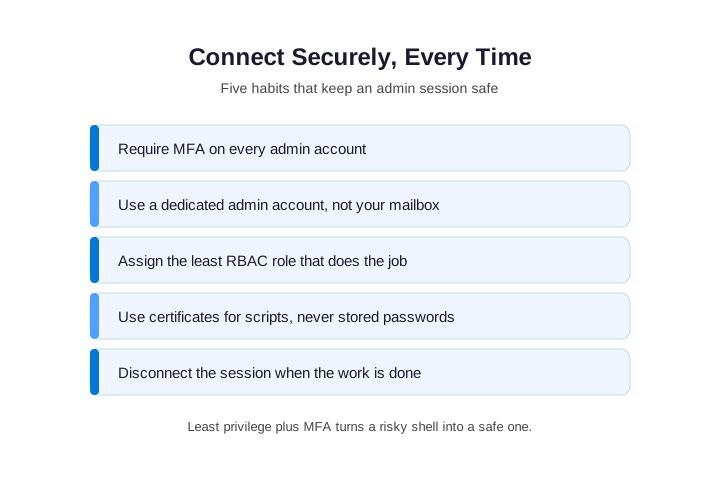
Above all, require MFA on every admin account and use a dedicated admin identity. Then assign the least RBAC role that still does the job, because a help-desk task rarely needs global rights. For scripts, lean on certificates rather than stored passwords. Finally, disconnect when you finish, so no privileged session lingers past its welcome.
For the official reference, Microsoft documents every parameter in the Exchange Online PowerShell module guide. Bookmark it, because the cmdlet set grows with each release. When a new parameter appears, that page lists it first. Pair it with your own runbook, and a new admin gets productive fast.
📋 Connect to Exchange Online PowerShell: a quick reference
Here is the whole connect to Exchange Online PowerShell flow in one place. Keep it near your console for the next time you spin up a session.
- Install the module:
Install-Module ExchangeOnlineManagement. - Connect:
Connect-ExchangeOnline -UserPrincipalName you@domain.com. - Complete the MFA prompt in the browser window.
- Run your cmdlets, ideally the faster
Get-EXO*set. - Disconnect:
Disconnect-ExchangeOnline.
That sequence covers the daily case. For automation, swap step two for the app-only command, and the rest stays the same. Because the pattern is consistent, you can teach a new admin in minutes. Keep this list in your runbook, and the connection stops being something anyone has to remember.
🌐 Connect to Exchange Online PowerShell from Mac or Linux
Admins are not all on Windows, and the module knows it. Because PowerShell 7 is cross-platform, the same cmdlets run on macOS and Linux. So a Mac admin connects exactly the way a Windows admin does. The only real difference is how you install PowerShell itself.
| Platform | Install PowerShell 7 |
|---|---|
| Windows | winget install Microsoft.PowerShell |
| macOS | brew install –cask powershell |
| Linux | Use your distro package manager |
On a Mac, install PowerShell 7 with Homebrew, then install the module as usual. After that, run the same connect command. A browser tab opens for sign-in, and MFA works without any extra setup. Linux follows the same idea through its package manager.
One caveat is worth knowing. A headless Linux server has no browser, so use the device-code flow instead. The module then prints a short code, and you finish sign-in on a phone or laptop. As a result, even a remote server connects cleanly without a desktop.
🔁 Switch between multiple Microsoft 365 tenants
Consultants and managed providers rarely touch one tenant. So the module lets you hold several sessions at once. The trick is a command prefix, which keeps each tenant’s cmdlets separate. Without it, the sessions blur together and mistakes follow.
With prefixes in place, you never run a command against the wrong tenant by accident. Moreover, the prompt stays readable even with three or four clients open. When you finish a client, disconnect that session alone, and leave the others running.
🎚️ Use a least-privilege RBAC role, not Global Admin
It is tempting to connect as a Global Administrator, because everything just works. Yet that habit is exactly what attackers hope for. A leaked global session can rewrite your whole tenant. So grant the smallest role that still does the task.
In the tenants we audit, the riskiest finding is an app registration that holds far more rights than it uses. So scope each app to a single Exchange role. Then, if its certificate ever leaks, the damage stays small.
Exchange uses role-based access control, which means you can scope rights tightly. A help-desk operator might only need to read mailboxes and reset a few settings. Therefore, build a custom role group with just those rights. Then connect with that account for daily work.
For automation, the same rule applies to the app registration. Give the app one Exchange role, not a pile of them. Because the app runs unattended, a tight scope limits the blast radius if its certificate ever leaks. In short, least privilege is cheap insurance.
📊 Build a report after you connect to Exchange Online PowerShell
A first report is the fastest way to feel the power of the shell. Most admins start with mailbox sizes or sign-in settings, since those answer real questions. The pattern is always the same: read, filter, then export. Once you see it work, the rest follows.
The recipe is always the same three moves. You read the mailboxes, filter for the condition you care about, then export the result to a CSV. For example, to find every mailbox with no archive enabled, you pipe Get-EXOMailbox into a Where-Object filter and out to Export-Csv. The file lands in your working folder, ready to open in a spreadsheet. Once that one report works, you reuse the pattern for licences, forwarding rules, or sign-in settings. As a result, the shell turns a half-day of clicking into a single repeatable command, and the same script runs again next month without any changes at all.
Save that script, and you can rerun it any month in seconds. Better still, schedule it so the report lands in your inbox on its own. From there, you adapt the filter for any question your team asks. The shell turns a half-day of clicking into a single command.
🚑 Fix: Connect-ExchangeOnline is not recognized
This is the error admins hit most, so it deserves its own fix. The message means PowerShell cannot find the cmdlet, which has three usual causes. First, the module is not installed. Second, it is installed but not imported into this session. Third, you are in an old window that loaded before the install finished.
Work through them in order. Run Get-Module -ListAvailable ExchangeOnlineManagement to confirm the install. If nothing returns, install it as shown earlier. If it lists a version, run Import-Module ExchangeOnlineManagement to load it. Then try the connect command again, and the cmdlet resolves.
If it still fails, close PowerShell completely and open a fresh window. A stale session often holds an old path. On a managed workstation, also check that the execution policy allows the module to load. After a clean restart, the connect command works almost every time.
🎛️ Key Connect-ExchangeOnline parameters to know
A handful of parameters cover almost every connection. Keep this short reference nearby, and you rarely need the full docs. Each one solves a specific real-world case.
| Parameter | What it does | When to use it |
|---|---|---|
| -UserPrincipalName | Signs in as a named admin | Everyday interactive work |
| -Device | Shows a code for sign-in | Servers with no browser |
| -ShowBanner:$false | Hides the startup banner | Clean script output |
| -Prefix | Scopes cmdlets per tenant | Multiple tenants at once |
| -AppId + -CertificateThumbprint | App-only sign-in | Unattended automation |
| -ManagedIdentity | Uses an Azure identity | Scripts hosted in Azure |
📚 More for IT Admins
🔍 See what a single cmdlet cannot tell you
PowerShell checks one setting at a time. Our automated review reads 50 security settings across your tenant in minutes.
❓ Exchange Online PowerShell: Frequently Asked Questions
Install the ExchangeOnlineManagement module, then run Connect-ExchangeOnline with your admin UPN and complete the MFA prompt.
You need the ExchangeOnlineManagement module (V3) from the PowerShell Gallery. The old Basic Auth path is retired and no longer connects.
Yes. Use app-only authentication with a certificate, or a managed identity when the script runs inside Azure. Neither stores a password.
The account usually lacks an Exchange admin role. Assign the right role in Microsoft Entra ID, then reconnect and the cmdlets work.