

Office 365 migration services move your email, files, and users to Microsoft 365 without the downtime and data loss that scare most teams. Therefore, done right, the switch is invisible to staff. Done wrong, it costs days of lost mail and trust. Therefore, this guide shows what good migration services cover, and how a Microsoft Partner runs one from start to finish.
However, we cover the migration types, every source you can move from, the phase-by-phase process, a pre-migration checklist, tools versus a partner, the real cost, and the mistakes that wreck projects. If you are weighing Microsoft licences first, start with the basics, then come back here for the move itself.
🛡️ Free: M365 Audit Checklist
19-page PDF with 50 hands-on checks covering Entra ID, Exchange Online, SharePoint, Teams, Intune, license waste, and audit logging. PowerShell commands included. Built from 60+ real tenant audits at Wintive.
🧭 What Office 365 migration services cover
Office 365 migration services plan and run your move to Microsoft 365. In short, they inventory your data, pick the right migration type, pilot it, move users in batches, and verify nothing is lost. A good provider also handles DNS, mail flow, and the cutover, usually after hours. The goal is simple. Your team logs in the next morning, and everything just works.
Furthermore, at its core, a migration service owns the whole move. First, it maps what you have. Then it picks the safest path. Next, it moves the data. Finally, it checks the result. Meanwhile, you keep working, because the provider does the heavy lifting.
Specifically, that split is the whole point of paying for the service. You stay focused on your work. Notably, the provider stays focused on the move. You get the outcome without the late nights. Finally, you also get someone to call when a mailbox acts up. Experience matters more than any single tool. Critically, someone who has run fifty moves spots trouble before it spreads. That instinct is hard to buy and easy to undervalue.
Crucially, you buy certainty, not just a tool. In practice, migrations rarely fail on the data. They fail on the planning, the timing, and the follow-up. As a result, get those three right, and the rest takes care of itself. We obsess over exactly those three, on every single move, because that is where real migrations are won or lost in the field. Therefore, for a small team with no spare IT hours, that trade is usually worth it.
🚀 Why move to Microsoft 365
Before the how, a quick why. However, most teams move for three plain reasons: cost, security, and simplicity. In other words, they are tired of patching old servers and paying for tools that barely talk to each other.
Furthermore, Microsoft 365 puts mail, files, chat, and meetings in one place. As a result, there is no on-prem server to maintain. Specifically, updates land on their own. Security tools come built in. Notably, for a small team, that alone is worth the move. Fewer moving parts means fewer things to break. Finally, quiet infrastructure is a feature, not a boast. Your staff should never think about where their mail lives. Critically, they should just open it and work. That is the quiet win a clean migration delivers.
In practice, there is a money angle too. An old Exchange server costs more than it looks. As a result, you pay for hardware, backups, patching, and downtime. Move to the cloud, and those costs turn into one predictable per-user fee. Therefore, the migration often pays for itself within a year. Therefore, run the math on your current server. The number usually surprises people. However, add the hours your team loses to patching and downtime. Suddenly the cloud looks cheap, not expensive.
Finally, remote work made the cloud the default. Furthermore, staff need their mail and files from anywhere, on any device. A cloud tenant does that out of the box. Specifically, an old server does not. So the move is less a luxury now, and more a baseline. Notably, your competitors already made the switch. Staying on an old server is now the risky choice, not the safe one.
🔀 The four Office 365 migration types
Finally, there is no single way to migrate. Instead, the right path depends on your source, your size, and how much downtime you can take. The four common types are below.
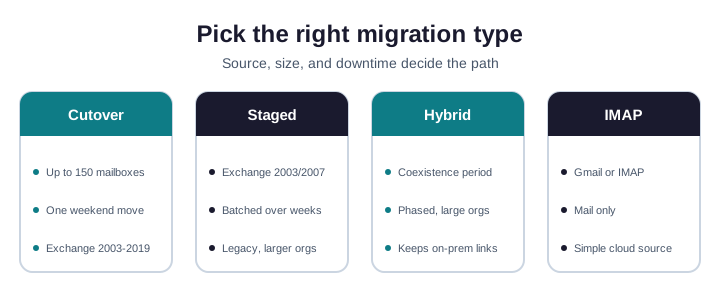
In practice, small teams use cutover. Critically, they move in one weekend, and Monday is normal. Larger or legacy setups use staged or hybrid, so the move is gradual. In practice, for Gmail or other IMAP mail, a simple IMAP migration moves the inbox. A good provider picks the type for you, then explains why in plain words.
As a result, hybrid deserves a note. It keeps your old Exchange and the cloud in sync for a while. As a result, you migrate at your own pace, with no hard cutover night. Therefore, it costs more to set up, though. So most small firms skip it and choose cutover instead.
🔁 Cutover or hybrid: how to choose
However, two types cause the most debate: cutover and hybrid. The choice comes down to size and patience. So here is the plain rule.
Furthermore, choose cutover when you have fewer than about 150 mailboxes. It is one clean move, usually over a weekend. Specifically, by Monday, everyone is on the cloud. It is simple, fast, and cheap. For most small firms, it is the right call.
Notably, choose hybrid when you are larger, or when you cannot take any cutover night at all. Hybrid keeps your old Exchange and the cloud in step for a while. As a result, you move people in waves, at your own pace. Finally, it costs more to set up, though, and it adds moving parts.
In practice, most SMBs we work with pick cutover. Critically, hybrid is for bigger or stricter setups. When in doubt, ask your provider to size both, then compare the downtime and the price. In practice, the right answer is usually obvious once you see the numbers. We show both side by side. Then you decide with facts, not fear. As a result, migration anxiety usually comes from the unknown. Once the plan is on paper, the fear fades. Therefore, clarity is half the service. We share the plan, the schedule, and the rollback up front. However, you always know what happens next.
🌉 Every source for your Office 365 migration
Furthermore, you can reach Microsoft 365 from almost anywhere. As a result, the source rarely blocks a move; it just changes the method. The diagram shows the common starting points.
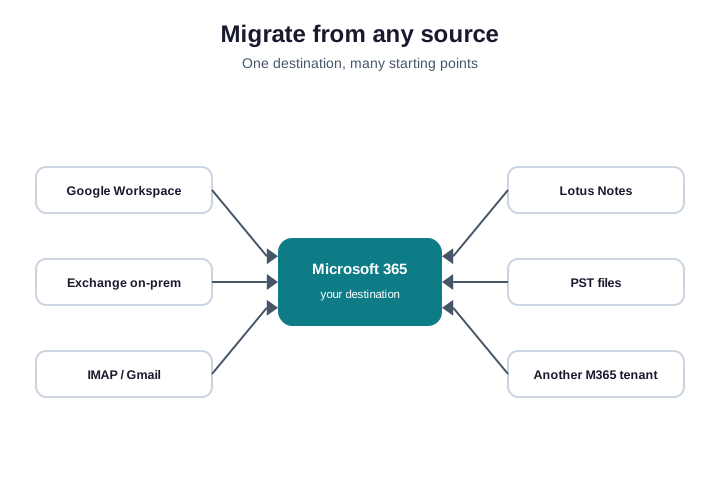
Specifically, from Google Workspace, a provider moves mail, calendars, contacts, and Drive files. From on-prem Exchange, cutover or hybrid does the job. IMAP and Gmail move mail only, so calendars and contacts need a separate step.
Notably, other sources are common too. Lotus Notes needs a special tool, so plan extra time. Finally, loose PST files import straight into the cloud. Finally, a tenant-to-tenant move merges two Microsoft 365 tenants after a buyout or rebrand. Critically, each path has its own quirks. A provider knows them, so you do not learn them the hard way. In practice, document the source and its version before you start. Older systems hide the nastiest surprises, and they always need extra time. As a result, each source has a known recipe. We follow it, and we test it on the pilot first.
📦 Office 365 migration: what moves, what stays
Therefore, set expectations early. Most data moves cleanly. However, a few things do not, and that is normal. Knowing the gaps up front saves arguments later. Furthermore, honesty here builds trust. Nobody likes a surprise after go-live. Specifically, we would rather lose a deal than hide a limitation. That stance has earned us more clients than it has cost. Notably, trust, once built, makes every later project easier. We treat the first migration as the start of a relationship, not a one-off transaction.
Finally, mail, calendars, and contacts move well. Shared mailboxes and distribution lists move too, with care. Critically, files move from Drive or a file server into OneDrive and SharePoint. However, very old items can lag, and some metadata shifts. For example, mail rules and signatures often need a quick re-set after the move. In practice, mobile mail apps reconnect too. We walk users through that in one short note, so it never becomes a ticket storm.
As a result, a few things never travel. Third-party app links break and must be rebuilt. Therefore, local archives outside the mailbox need a manual import. So a good plan lists these gaps in advance. Then nobody is surprised on day one. However, we hand you that list before we start. It is short, but it matters.
🗺️ The migration process, phase by phase
Furthermore, a clean Office 365 migration services project follows five phases. Skip one, and surprises pile up at go-live. Follow them, and the cutover is calm.
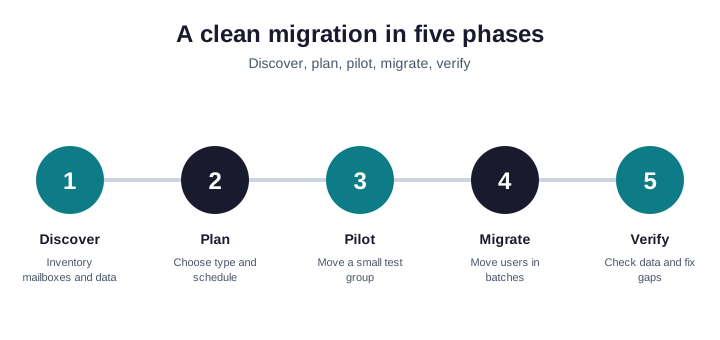
First, discovery maps every mailbox, alias, and shared folder. Second, planning sets the type and the schedule. Specifically, third, a pilot moves a few users to catch problems early. Fourth, the bulk move runs in batches, usually after hours. Notably, the snippet below starts a cutover batch from Exchange Online PowerShell. For the full cmdlet reference, see Microsoft’s mailbox migration guide.
# Start a cutover migration batch (Exchange Online PowerShell)
New-MigrationBatch -Name "Cutover-2026" -SourceEndpoint "OnPremEndpoint" -TimeZone "UTC" -AutoStart
Get-MigrationBatch | Format-Table Identity, Status, TotalCount, SyncedCount
Finally, fifth, verification checks that every mailbox arrived. The provider compares item counts on both sides. Then it fixes any gaps before anyone notices. Critically, only after that does the old system get switched off. We never rush this step. In practice, a verified move is the only kind worth doing.
⏱️ How long does an Office 365 migration take
As a result, timelines vary, but the shape is predictable. The data move itself is often the fastest part. The prep and the verify take the real time.
Therefore, for a small team, plan two to three weeks end to end. Discovery and planning take a few days. However, the pilot takes a few more. The bulk move usually runs over a weekend. Then a week of cleanup follows, just to be safe.
Furthermore, larger or hybrid moves take longer, of course. Even so, the user-facing cutover stays short. Specifically, users feel one quiet switch, not a long outage. That is the whole design. That is the trick. Notably, the heavy work happens in the background, so staff feel only one quiet switch. A provider sizes the timeline during discovery, then holds to it. Finally, you get a date, not a guess. That is the difference between a service and a science project.
📋 The pre-migration checklist
Critically, most migration pain is avoidable. Specifically, it comes from skipped prep. Run this short checklist before you move a single mailbox.
| Before you migrate | Why it matters |
|---|---|
| Verify your domain in M365 | Mail cannot route without it |
| Right-size and assign licences | No licence, no mailbox |
| Lower the DNS TTL | Cutover propagates faster |
| Inventory shared mailboxes and aliases | These are the items teams forget |
| Tell users the date and the impact | Calm users raise fewer tickets |
In practice, above all, do the discovery first. You cannot move what you have not counted. Therefore, a provider always audits before quoting a fixed plan. As a result, that audit is also where hidden costs show up early, while they are still cheap to handle. A surprise found in week one is free. Therefore, the same surprise at go-live is expensive.
🧰 DIY tools versus a migration partner
However, you can buy a migration tool and do it yourself. Tools like the native wizard, Quest, or CodeTwo all work. However, the tool is not the hard part. Furthermore, the planning, the cutover timing, and the fix-it-fast are. The chart compares the two routes.
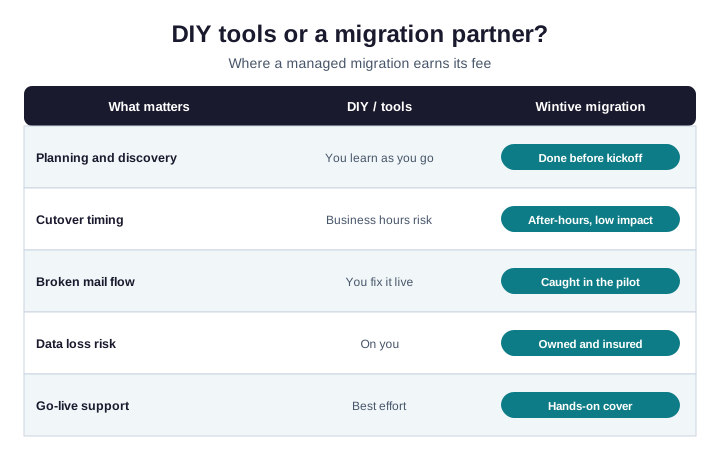
In short, a tool moves bytes. Specifically, a partner owns the result. For a small team with no spare IT hours, the partner route is usually cheaper once you count the risk and the lost time. Notably, for a team with a strong admin, a tool plus a plan can work fine. The key is honest capacity. Finally, a migration eats more hours than people expect, and it always lands at the worst week. Be honest about which you are. Critically, there is no shame in either choice. There is only the risk of picking wrong.
Wintive insight. Across the moves we run, the data almost never fails. The plan does. For example, a forgotten shared mailbox or a daytime cutover causes most of the pain. As a result, we spend more time on discovery than on the move itself. That is why a fixed quote comes after the audit, never before.
🪤 The mistakes that wreck migrations
In practice, after dozens of moves, the same errors repeat. For example, teams forget shared mailboxes, miss a DNS record, or cut over on a Monday morning. As a result, each one turns a quiet move into a noisy outage. So learn them once, and design them out.
- No discovery. You move blind and miss data.
- Daytime cutover. Broken mail hits during business hours.
- Forgotten aliases. Replies bounce for weeks.
- No pilot. The first sign of trouble is the whole company.
- No rollback plan. One snag, and there is no way back.
Therefore, notice the pattern. None of these are technical failures. However, they are planning failures. That is good news, because planning is the cheapest thing to fix. Furthermore, a short, honest discovery removes most of them at once. So we front-load the thinking. The move itself then feels almost boring, which is exactly the goal. Boring is good here. Boring means nothing broke. Drama in IT is almost always a planning gap. We would rather over-prepare than improvise at midnight.
💸 What Office 365 migration services cost
Office 365 migration services price depends on a few clear drivers, not magic. As a result, an honest provider quotes a fixed fee after discovery, never before. Here is what moves the number.
| Cost driver | Effect on price |
|---|---|
| Number of users | The biggest factor by far |
| Source platform | Lotus Notes costs more |
| Data volume | Large mailboxes take longer |
| Hybrid or coexistence | Adds setup and time |
| After-hours cutover | A small premium, worth it |
In practice, most SMB moves are a flat per-user fee plus a setup charge. Therefore, ask for the fixed number after discovery. Also confirm what after-hours support is included. A cheap quote with daytime-only support is not really cheaper. Hidden hours always resurface as your hours. Budget for the move and a small buffer. Overruns usually come from data nobody counted, not from the tool. Read the quote with that in mind. Ask what happens at 2am if mail breaks. The answer tells you everything. A real service has a name and a number. Tools, by contrast, only point you to a forum.
🔐 Office 365 migration security
A migration touches every mailbox, so it is also a security moment. First, turn on multi-factor authentication before the move, not after. Next, confirm no mail is auto-forwarded out. Finally, verify the new tenant is locked down on day one. The check below lists migrated users and flags any that stalled.
# Verify migrated users and spot any that stalled
Get-MigrationUser -BatchId "Cutover-2026" |
  Where-Object { $_.Status -ne "Completed" } |
  Format-Table Identity, Status, SkippedItemCount
Right after cutover, tighten email security so the fresh tenant is not an easy target. Attackers watch for new tenants with default settings. So close that gap the same week. A clean move plus weak filtering is still a real risk. So we treat the cutover and the lockdown as one job. They are not two projects. The same week we cut over, we turn on MFA and tune the spam filter. As a result, the new tenant is hard to attack from day one.
🐧 Google Workspace to Microsoft 365 migration
Moving from Google Workspace is one of the most common requests, usually after weighing Google Workspace vs Office 365. The good news is that it is well-trodden. Mail, calendars, and contacts move with a Google migration source. Drive files move to OneDrive and SharePoint. The snippet shows the endpoint setup. Microsoft also documents the steps in its IMAP and Google migration docs.
# Create a Google Workspace migration endpoint, then a batch
New-MigrationEndpoint -Gmail -Name "GWS" -ServiceAccountKeyFileData $key -EmailAddress admin@yourdomain.com
New-MigrationBatch -Name "GWS-Batch" -SourceEndpoint "GWS" -CSVData $csv -AutoStart
One tip from experience: move files in waves, and keep both systems live for a short overlap. As a result, nobody loses access while the cutover settles. Then retire Google once the last user is verified. Also remember to rebuild any shared Drives as SharePoint sites, because the structure does not map one to one. Plan that mapping early. It is the part teams most often underestimate.
🧹 After the migration: the first week
With Office 365 migration services, the move is not the finish line. The first week decides whether users feel calm or annoyed. So plan it as carefully as the cutover. Staff judge the whole project by that first week. Make it smooth, and the move is remembered as easy.
Day one, reset signatures and mail rules, since these often need a touch. Confirm mobile mail reconnects, and repoint any Outlook clients that did not switch on their own. Watch the helpdesk closely, and fix small snags fast. Quick wins early build confidence across the team. Keep a simple log of every fix. That log becomes your runbook for the next office or the next merger.
Give it a few days first, just to be safe. Within the week, decommission the old system once every mailbox is verified. Update any app that pointed at the old server. Finally, hold a short review. What went well? What would you change? That habit makes the next move even smoother. Small lessons add up. Over many moves, they become a calm, repeatable routine. That routine is exactly what you are buying when you hire a partner. Schedule a short review a month later too. By then, real usage has surfaced any leftover gaps, and closing them is quick.
✅ Migration best-practices checklist
Condensed, this is what a smooth Office 365 migration looks like in the field.
- Audit and inventory before you quote or schedule.
- Pick the migration type from the source and the size.
- Lower DNS TTL and verify the domain early.
- Pilot a small group, then move the rest in batches.
- Cut over after hours, with a rollback plan ready.
- Turn on MFA and tighten email security on day one.
- Verify every mailbox, then retire the old system.
- Reset signatures and rules, and watch the helpdesk for a week.
Ultimately, at Wintive we plan and run Office 365 migration services for SMBs as part of our Microsoft 365 managed services. In addition, we document the move, so your team has a clear record. To get started, contact us for a free consultation. It is quick. We do the rest.
📚 More for migrating teams
These published Wintive guides go deeper on the topics a migration raises next. Therefore, bookmark the ones that fit your move.
🔍 Want a complete audit of your Microsoft 365 tenant?
The M365 Instant Audit scans your environment in under 10 minutes: license waste, security posture, MFA coverage, compliance gaps, and rightsizing. A full PDF report with prioritized fixes arrives instantly.
❓ Frequently Asked Questions
In short, they are a managed service that moves your email, files, and users to Microsoft 365. A provider plans the move, runs it in batches, and verifies the result, usually after hours so staff are not disrupted.
It runs in five phases: discover, plan, pilot, migrate, and verify. First, the provider inventories your data. Then it picks the type, moves a pilot group, moves everyone in batches, and checks that nothing is lost.
There are four common types: cutover for small teams, staged for legacy Exchange, hybrid for large or phased moves, and IMAP for Gmail or other mail-only sources. Your source and size decide which one fits.
Yes. Mail, calendars, and contacts move with a Google migration source, and Drive files move to OneDrive and SharePoint. As a rule, keep both systems live for a short overlap so nobody loses access.
No, when it is done right. A good provider cuts over after hours and keeps mail flowing. Staff log in the next morning and keep working, while the old system is retired once every mailbox is verified.
Most SMB moves are a flat per-user fee plus a setup charge. The number depends on user count, source platform, and data volume. Therefore, ask for a fixed quote after discovery, not before.
🧭 Your next step
Ready to move? First, book a short call. Then we audit your setup and quote a fixed plan. Finally, we run the migration after hours, so your team barely notices. To start, contact Wintive. It is quick. We do the rest.