

Therefore, a PST to Office 365 migration moves old Outlook data files into your cloud mailboxes, where the data is searchable, backed up, and safe. Microsoft gives you three free ways to do it, and there are paid tools for harder jobs. This guide walks through every method, with no vendor sales pitch.
However, we start with what the migration involves, then cover Network Upload, Drive Shipping, and the manual Outlook method. We show when a third-party tool earns its price, how to prepare your PST files, and how to fix the errors that come up. By the end, you can pick a method and run it cleanly.
🛡️ Free: M365 Audit Checklist
19-page PDF with 50 hands-on checks covering Entra ID, Exchange Online, SharePoint, Teams, Intune, license waste, and audit logging. PowerShell commands included. Built from 60+ real tenant audits at Wintive.
🧭 What a PST to Office 365 migration involves
A PST to Office 365 migration imports Outlook .pst data files into Exchange Online mailboxes. Microsoft offers three free methods: Network Upload, where you copy PSTs to Azure and import them in bulk; Drive Shipping, where you mail an encrypted disk; and a manual Outlook import for a few files. Paid tools add automation for large or complex jobs. You prepare the PSTs, map each one to a mailbox, then run the import and verify it.
Furthermore, a PST file is Outlook’s local data store. For years, staff archived old email into PST files on laptops and network shares. Specifically, they are fragile, hard to search, and never backed up. Moving that data into Office 365 fixes all three problems at once.
Notably, the migration itself is a copy job with rules. You point a method at your PST files, tell it which mailbox each file belongs to, and let it import the messages. The original PSTs stay untouched until you confirm the data landed safely.
Finally, there is no single right method. The best choice depends on how many PST files you have, how big they are, and how much bandwidth you can spare. We will match a method to your situation later in this guide.
Critically, it helps to know why this matters beyond tidiness. PST files on a laptop vanish when the laptop dies, and they sit outside every backup, retention, and search policy you run. In practice, so a PST to Office 365 migration is as much a data-protection move as a cleanup. The data becomes recoverable, discoverable, and governed the moment it lands in the cloud.
🗂️ Four ways to import PST files
As a result, there are four routes into Office 365, and three of them cost nothing. The chart shows each one, and the table compares them at a glance.
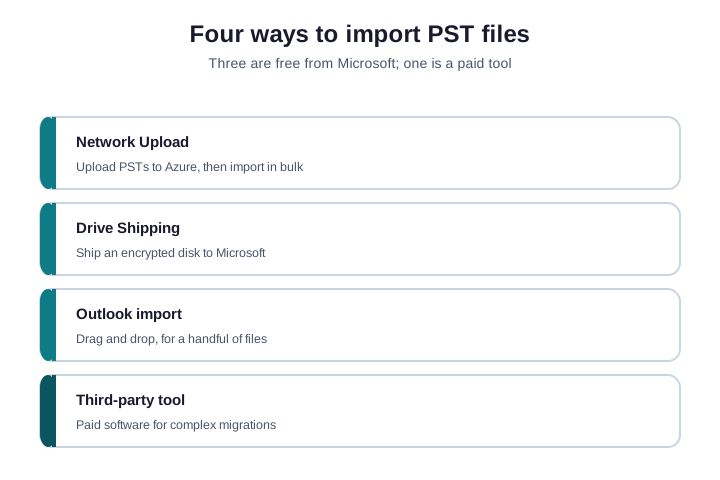
Network Upload copies your PSTs to Microsoft’s cloud, then imports them in bulk. Drive Shipping mails a physical disk to Microsoft. Outlook import drags files in by hand. Therefore, a third-party tool automates the whole thing for a fee.
| Method | Cost | Best for |
|---|---|---|
| Network Upload | Free | Most migrations, many PSTs over the network |
| Drive Shipping | Small fee | Huge data or slow internet |
| Outlook import | Free | A handful of small files |
| Third-party tool | Paid | Complex jobs and granular control |
However, notice that three of the four cost nothing. Microsoft built the import service into the platform precisely so you do not have to buy a tool for a routine job. So unless your situation is genuinely complex, you can run a complete PST to Office 365 migration without spending a penny on software.
☁️ Method 1: Network Upload
Furthermore, network Upload is the method most teams should use. It is free, it handles many PST files at once, and Microsoft runs it from the Purview portal. The flow has four clear steps.
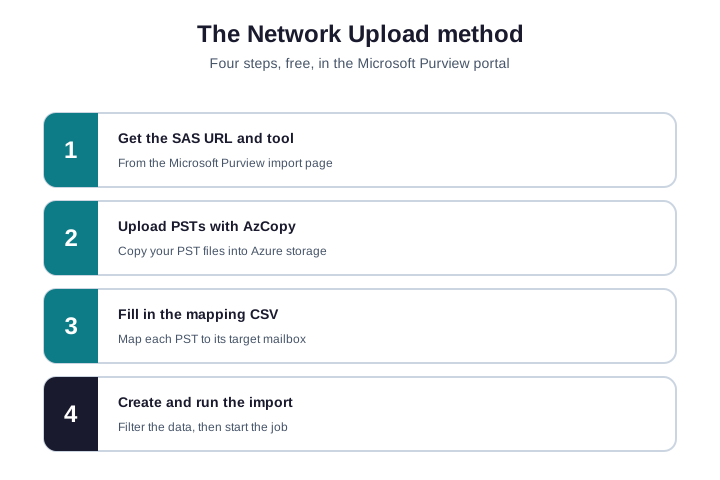
First, open the import page in the Microsoft Purview portal and copy the SAS URL and the AzCopy tool. Second, use AzCopy to upload your PST files into the Azure storage location. Specifically, the command below copies a whole folder of PSTs in one run.
# Upload a folder of PST files to Azure with AzCopy
azcopy.exe copy "C:\PSTs" "<SAS URL from the Purview import page>" --recursive
Notably, third, fill in a mapping CSV that tells Microsoft which mailbox each PST belongs to. Fourth, create the import job, let it analyse the data, then start the import. Microsoft documents the exact screens in its Network Upload guide.
Finally, the upload is the slow part, because it moves your data over the internet. The import itself, once the files are in Azure, is fast. So start the upload at the end of a day and it is often done by morning.
Critically, two prerequisites catch people out. You need the Mailbox Import Export role, which even a Global Administrator lacks by default, so assign it in the admin center first. In practice, you also need outbound access to Azure storage for AzCopy to work. Sort both before you begin, and the four steps run without a snag.
📦 Method 2: Drive Shipping
As a result, drive Shipping suits two cases: a very large volume of PST data, or an internet link too slow to upload it. Instead of uploading, you copy the PSTs to an encrypted hard drive and mail it to Microsoft.
Therefore, the steps mirror Network Upload, with one swap. You still prepare a mapping CSV, but you copy the PSTs to a BitLocker-encrypted drive and ship it. However, Microsoft imports the data on its side, then returns or disposes of the drive. There is a small per-drive fee for the service.
Furthermore, for most small and mid-sized teams, Network Upload is faster and simpler. Drive Shipping only wins when the data runs to terabytes, or when uploading would saturate a fragile connection for days. So treat it as the exception, not the default.
Specifically, when you do ship a drive, encryption is mandatory. Microsoft requires the disk to be BitLocker-encrypted, and you supply the key with the job. Notably, so the data is protected in transit, even though it travels physically. Keep a copy of the PSTs until the import is confirmed, because a drive can be lost in the post like anything else.
🖱️ Method 3: Manual Outlook import
Finally, for a handful of files, you do not need any of the cloud machinery. Outlook can import a PST straight into a mailbox it is connected to. It is the quickest path for one or two users.
Critically, in Outlook, use File, then Open & Export, then Import/Export, and choose to import from a PST. The data uploads through Outlook into the cloud mailbox. It works, but it is slow and manual, and it ties up the user’s Outlook while it runs.
In practice, the limit is scale. Importing more than a few files this way is tedious and error-prone, and it depends on each user’s machine staying on. So use it for the odd file, and switch to Network Upload the moment you have more than a few.
As a result, there is also a quality catch. Importing through Outlook depends on that one machine staying awake and connected for the whole transfer. Therefore, if the laptop sleeps or drops Wi-Fi, the import can stall or duplicate items. So even for small jobs, a stable connection matters more than people assume.
🧰 When a third-party tool is worth it
However, plenty of vendors sell PST migration tools, and the search results are full of them. They are not snake oil, but they are not always needed either. The native methods are free and handle most jobs.
Furthermore, a paid tool earns its price in specific cases. You have thousands of scattered PSTs and want automatic discovery. Specifically, you need granular control, like filtering by date or folder. You are not comfortable with Azure and AzCopy. Notably, or you want a vendor’s support line during the project. In those cases, a tool can save real time.
Finally, be honest about your situation before you buy. For a straightforward import of known PST files, Network Upload does the same job for free. So price the tool against the hours it actually saves you, not against the fear of doing it yourself.
Critically, one more caution on the search results. Many of the top pages for this topic are tool vendors, so their advice naturally leans toward buying. In practice, that does not make them wrong, but it does make them biased. Read the free Microsoft method first, then decide whether a tool adds enough to justify the cost.
🎯 Which PST to Office 365 method to use
As a result, the right method comes down to three things: how many PST files you have, how big they are, and your bandwidth. The chart sorts most teams in one pass.
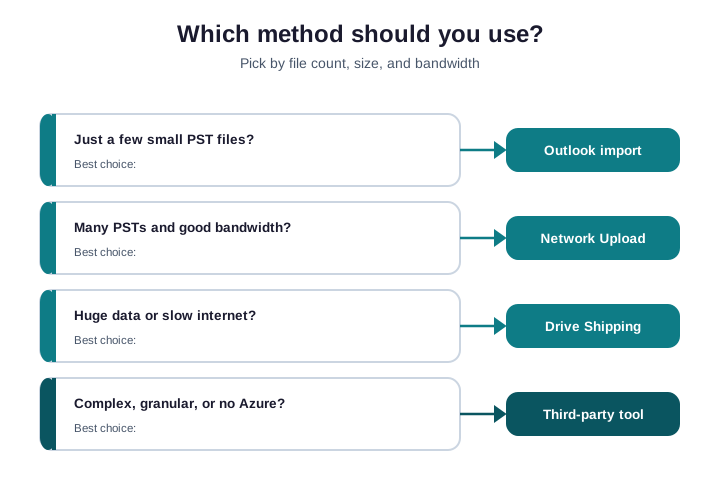
Therefore, a few small files? Use Outlook. However, many PSTs with decent internet? Network Upload is the answer, and it is free. Furthermore, terabytes of data or a slow link? Drive Shipping. Specifically, a complex job, or no appetite for Azure? A third-party tool. When in doubt, start with Network Upload.
Notably, you can also mix methods on one project. Use Outlook for the two urgent files a user needs today, then run Network Upload for the bulk overnight. Finally, so the decision is not all-or-nothing. Match each batch of PSTs to the method that fits it best, and the whole migration moves faster.
A quick word on what gets imported. A PST file holds more than email: calendar items, contacts, and tasks come across in the same job. So a single import can restore a user’s whole Outlook history, not just their inbox. That is part of why pulling scattered PSTs into the cloud is worth the effort.
Wintive insight. The migration is rarely where projects fail. The discovery is. Teams forget the PSTs sitting on a departed employee’s laptop or buried in a home folder. So we hunt down every PST first, map each one to an owner, and only then import. A found PST is free to handle; a missed one becomes a frantic restore six months later.
📥 Import to a mailbox, shared mailbox, or archive
Critically, a PST does not have to land in a user’s primary inbox. You can route it to a few different destinations, and the mapping file controls which. The table lists the options.
| Target | When to use it |
|---|---|
| Primary mailbox | Restoring a user’s own old email |
| Online archive | Old mail you want kept but out of the inbox |
| Shared mailbox | Team or departed-employee archives |
| Another user’s mailbox | Consolidating after someone leaves |
In practice, the online archive is the unsung hero here. It keeps years of old mail searchable without bloating the main mailbox or the user’s Outlook. As a result, so for genuine archives, import to the archive, not the inbox. It keeps day-to-day Outlook fast.
Therefore, routing to the right target also affects licensing and retention. An online archive may need the right plan to be available, and shared mailboxes have their own size limits. So check that the destination can hold the data before you import, rather than discovering a cap halfway through.
🗺️ The mapping file, explained
However, both Network Upload and Drive Shipping need a mapping CSV. It is a small text file that pairs each PST with its destination. Get the columns right and the import just works.
Furthermore, the key columns are the file name, the target mailbox, and whether it goes to the archive. The sample below imports one PST into a user mailbox and one into a shared mailbox. Match the headers exactly, because the import is fussy about them.
Workload,FilePath,Name,Mailbox,IsArchive,TargetRootFolder
Exchange,,anna.pst,anna@contoso.com,FALSE,/
Exchange,,sales-archive.pst,sales@contoso.com,FALSE,/Imported
Specifically, keep the file simple and double-check the mailbox addresses. A typo in an address is the most common reason a row is skipped. So validate the CSV against your real mailboxes before you create the job.
Notably, the IsArchive column is the one worth understanding. Set it to TRUE and the PST lands in the user’s online archive instead of the primary mailbox. Finally, the TargetRootFolder column then controls which folder the messages appear under. So with two small columns, you decide both where and how the data arrives.
🧹 Prepare your PST files first
Critically, a clean import starts with clean inputs. Spend an hour on preparation and you avoid most failures. The chart lists the six checks that matter.
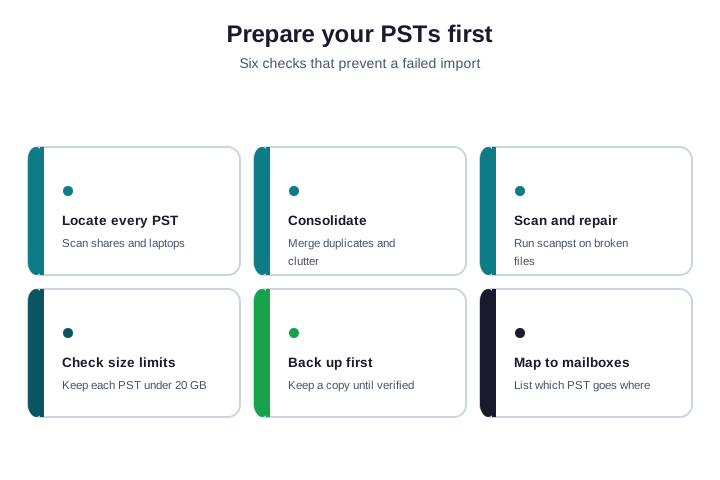
In practice, start by finding every PST file, on shares and on laptops. The command below scans a file server and lists each PST with its size in gigabytes, so you can spot the oversized ones.
# Find every PST file on a share and list its size in GB
Get-ChildItem -Path "\\fileserver\shares" -Recurse -Filter *.pst |
  Select-Object FullName, @{Name="GB";Expression={[math]::Round($_.Length/1GB,2)}} |
  Sort-Object GB -Descending
Then consolidate duplicates, run scanpst on any corrupt files, and split anything much larger than 20 GB, since huge PSTs are slow and fragile. As a result, keep a backup copy until the import is verified. Good prep is the cheapest insurance in the whole project.
Therefore, sizing deserves special care. A PST near or above 20 GB is slow to upload and far more likely to be corrupt, which can fail a whole job. However, so split large files with Outlook or a tool before you start. Ten clean 5 GB files import far more reliably than one fragile 50 GB monster.
🩺 Troubleshoot and cancel an import
Furthermore, most import problems are small and quick to fix. The table maps the common symptoms to their causes, so you can resolve them without guesswork.
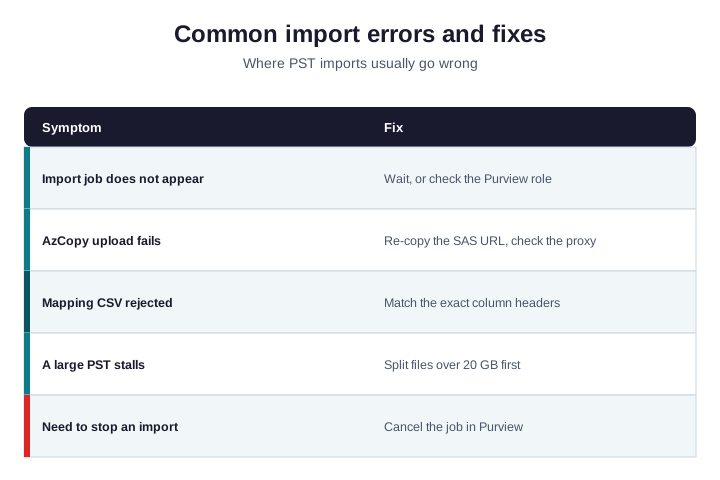
Specifically, if the import job does not appear, you usually lack the right Purview role, or it just needs a moment. If AzCopy fails, re-copy the SAS URL and check your proxy. Notably, a rejected mapping CSV almost always means a header does not match. And a stalled large PST should be split before you retry.
Finally, you can also stop an import in progress. In the Purview portal, open the import job and cancel it. Critically, the PSTs already in Azure stay there until you remove them, so nothing is lost. So a mistaken job is easy to undo, not a disaster.
In practice, permissions cause more tickets than the data ever does. If a whole job will not start, the account almost always lacks the Mailbox Import Export role. As a result, if single rows are skipped, the mailbox address in that row is usually wrong. So check the role first and the addresses second, and most failures explain themselves.
🔒 Security and compliance after the import
Therefore, the job is not done when the data lands. Those PST files are still sitting on shares and laptops, unencrypted and unmanaged. Leaving them there undoes the whole point of the migration.
However, once you verify the import, remove the source PSTs from end-user devices and shares. The data now lives in Exchange Online, where it is backed up, searchable, and covered by your retention and security policies. If old email is sensitive, this cleanup is also a compliance win, because it pulls scattered copies into one governed place.
Furthermore, once the data is in Exchange Online, you can apply real controls to it. Retention policies keep it for as long as the rules require and no longer. Specifically, litigation hold preserves it during a dispute. So the migration does not just move email; it brings years of scattered archives under the same governance as everything else in your tenant.
Notably, do not skip the verification step before you delete anything. Open a sample of the imported mailboxes and confirm the folders, dates, and counts look right. Finally, only once you are satisfied the data truly arrived should you remove the source PSTs. A migration is finished when it is verified, not when the job says complete.
⏱️ How long a PST to Office 365 migration takes
Critically, the honest answer is that it depends on data size and your upload speed, not on the number of steps. The work splits into preparation, upload, and import, and the upload dominates the clock.
In practice, preparation, finding and cleaning the PSTs, takes a few hours to a day for most small teams. The AzCopy upload then runs at the speed of your internet link, which can mean overnight for tens of gigabytes. The import inside Microsoft, once the files are in Azure, is usually quick and runs in the background.
As a result, so a typical small-business PST migration lands in a few days end to end, with most of that being unattended upload time. Drive Shipping changes the shape, trading days of upload for the time a disk spends in the post. Either way, plan the cutover around the upload, because that is the part you cannot rush.
Therefore, build in a buffer, too. Real migrations meet a corrupt file or a wrong mailbox address, and fixing those costs an hour here and there. However, so add a little slack to the plan rather than promising a same-day finish. A calm, verified migration beats a rushed one that has to be redone.
✅ PST to Office 365 migration checklist
Furthermore, condensed, here is how a clean PST migration runs.
- Find every PST file on shares and laptops before you start.
- Consolidate, repair, and split anything over about 20 GB.
- Pick the method by file count, data size, and bandwidth.
- Use free Network Upload for most jobs; ship a drive only for huge data.
- Map each PST to the right mailbox or archive in the CSV.
- Run the import, then verify the data actually arrived.
- Remove the source PSTs from devices once the import is confirmed.
Specifically, at Wintive, we plan and run PST and email migrations for SMBs as part of our Microsoft 365 managed services. We hunt down every file, import it cleanly, and tidy up after. Notably, to get started, contact us for a free consultation. It is quick, and we do the rest.
📚 More for migrating teams
Finally, these published Wintive guides go deeper on the topics a migration raises next. So bookmark the ones that fit your move.
🔍 Want a complete audit of your Microsoft 365 tenant?
Critically, the M365 Instant Audit scans your environment in under 10 minutes: license waste, security posture, MFA coverage, compliance gaps, and rightsizing. A full PDF report with prioritized fixes arrives instantly.
❓ Frequently Asked Questions
The simplest free method is Network Upload. You copy your PST files to Azure with AzCopy, fill in a mapping CSV that pairs each file with a mailbox, then create and run an import job in the Microsoft Purview portal. For one or two small files, importing directly through Outlook is even quicker.
The native Microsoft methods are free. Network Upload and the manual Outlook import cost nothing, and Drive Shipping has only a small per-drive fee. Third-party tools are the paid option, used for large or complex jobs. So most teams complete a PST to Office 365 migration without buying any software at all.
There is no hard cap, but keep each PST under about 20 GB. Larger files import slowly and are more likely to be corrupt. Split oversized PSTs before you upload them, and run scanpst on any that look damaged.
Yes. Open the import job in the Microsoft Purview portal and cancel it. The PST files already uploaded to Azure remain there until you remove them, so cancelling a job loses no data.
Often, yes. Importing genuine archives to the online archive keeps years of old email searchable without bloating the primary mailbox or slowing Outlook. Use the IsArchive flag in the mapping file to send a PST there.
🧭 Your next step
In practice, got a pile of PST files to move? First, book a short call. Then we find every file, map it, and run the import cleanly. As a result, to start, contact Wintive. It is quick, and we do the rest.