

A Gmail to Office 365 migration moves your email, contacts, and calendar from Google into Microsoft 365 without losing a message. Done well, your team signs in to Outlook the next morning, and everything is simply there. Still, the move has a few Google-specific traps, from labels that turn into folders to data that does not transfer at all. So this guide walks the whole journey, with the methods, the steps, and the quirks to expect.
We run these moves for small businesses, so the advice below is practical rather than theoretical. First you will see what actually moves and how. Then we will compare the migration methods, work through the phases, and handle the DNS cutover. Finally you will get the quirks and a clean checklist. Because email is the heartbeat of most teams, a calm, ordered move matters more than a fast one.
🛡️ Free: M365 Audit Checklist
19-page PDF with 50 hands-on checks covering Entra ID, Exchange Online, SharePoint, Teams, Intune, license waste, and audit logging. PowerShell commands included. Built from 60+ real tenant audits at Wintive.
🧭 Gmail to Office 365 migration: the overview
A Gmail to Office 365 migration copies mail, contacts, and calendars from Google Workspace into Exchange Online. In short, you verify your domain, connect Google to Microsoft 365, pilot a few users, migrate everyone in waves, then switch the MX record at cutover. The native Google Workspace migration handles most moves, while IMAP covers personal Gmail. So plan the method first, and the rest follows in order.
At its core, the move maps each Google service onto a Microsoft 365 equivalent. Gmail becomes Exchange Online, Google Contacts becomes Outlook People, and Google Calendar becomes the Outlook calendar. Meanwhile Google Drive files move into OneDrive through a separate step.
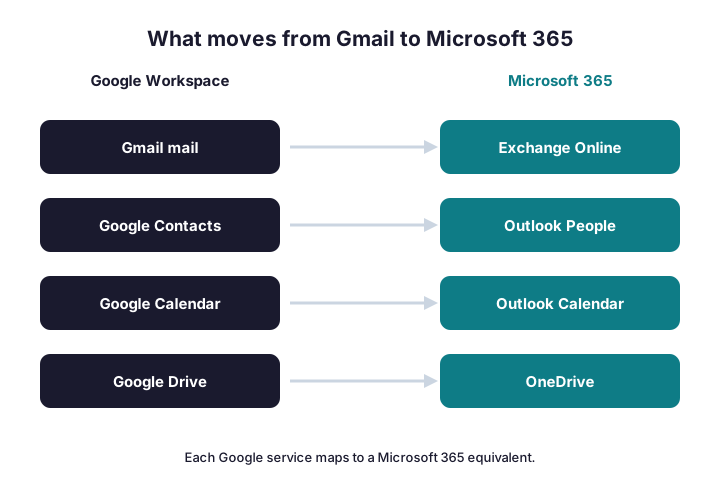
Notice that mail is the easy part, since the native tools handle it cleanly. The collaboration data, such as shared Drive folders or Google Sites, needs more thought. So the size of your move depends less on email and more on how much you built inside Google beyond the inbox.
It also helps to know why teams make this move at all. Many arrive because the rest of their stack is already Microsoft, from Teams to Office apps. Others want one bill, one identity, and one support line instead of two. So the migration is rarely about email quality; it is about pulling everything under a single roof.
This guide focuses on the mailbox side, where most teams start. If your move is really a whole-tenant project, our companion guide to G Suite migration to Office 365 covers the wider Workspace angle. So read this for the email move, and that one for the full estate.
🔀 The three ways to migrate
You have three realistic methods, and each suits a different situation. The Google Workspace migration is the native option built into the Exchange admin center, and it moves mail, calendar, and contacts together. IMAP migration moves mail only, which fits a personal Gmail account. A third-party tool adds automation and covers Drive when the move is large.
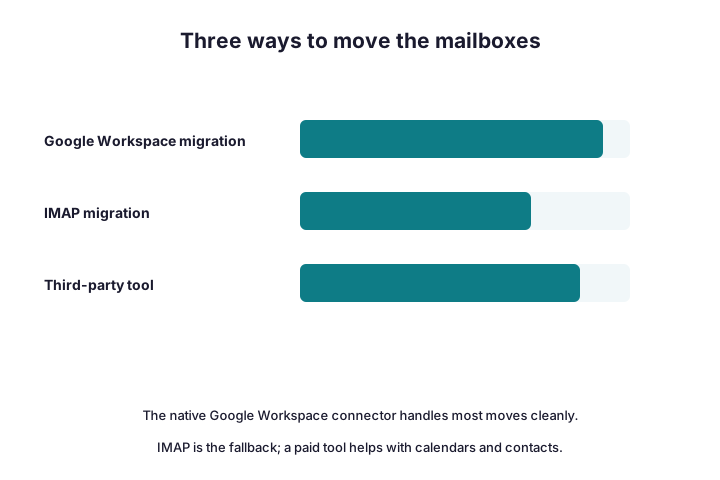
For most Workspace tenants, the native Google Workspace migration is the right call. It connects securely to Google, then copies each mailbox in full. Microsoft documents the exact setup in its guide to migrating Google Workspace mailboxes, which is the reference to keep open.
| Method | Moves | Best for |
|---|---|---|
| Google Workspace migration | Mail, calendar, contacts | Most Workspace tenants |
| IMAP migration | Mail only | Personal Gmail or simple moves |
| Third-party tool | Mail, calendar, contacts, Drive | Large or complex moves |
Each method has limits worth knowing before you commit. The native connector throttles large transfers, so a data-heavy tenant simply needs more nights. IMAP, meanwhile, ignores calendars and contacts entirely, which catches people out. So read the fine print on item size and folder limits, then plan the waves around them rather than against them.
A quick word on history, since it worries people. The native migration copies your full mailbox with original dates and folders, so nothing is truncated.
Pick the method by what you must move, not by habit. If you only need email, IMAP is quick and simple. If you need calendars and contacts too, lean on the native connector. So match the tool to the data, and you avoid doing the job twice.
📥 What moves, and what stays behind
Some things cross over cleanly, while others need a plan. Email, contacts, and calendar events move well with the native tools. Drive files move too, though through a separate migration step into OneDrive and SharePoint.
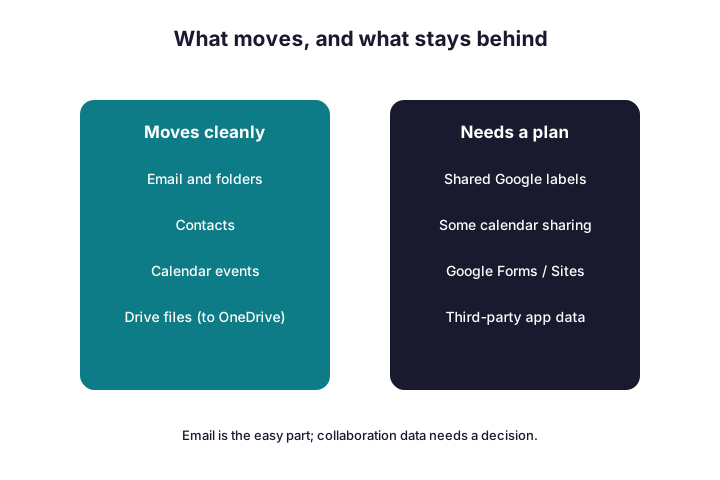
Other Google features have no direct twin, so decide what to do with them early. Google Forms, Sites, and shared-drive sharing rules do not simply appear in Microsoft 365. Meanwhile data inside third-party apps that signed in with Google needs its own plan. So list these before you start, and nobody is surprised later.
Drive deserves its own mention, since files matter as much as mail. You move Google Drive into OneDrive and SharePoint with a separate migration step, not the mailbox connector. Microsoft provides a migration manager for exactly this, so the files land with their folder structure intact. So plan the Drive move alongside the mailbox move, but treat it as a distinct task.
The honest rule is simple. Treat email as the easy, automated part, and treat everything collaborative as a project of its own. Because that split sets expectations, it stops the move from feeling like it failed when a Google Site does not carry over.
🏷️ How Gmail labels become Outlook folders
Gmail and Outlook organise mail differently, and this catches users out. Gmail uses labels, where one message can carry several. Outlook uses folders, where a message lives in one place. So during the move, each label becomes a folder.
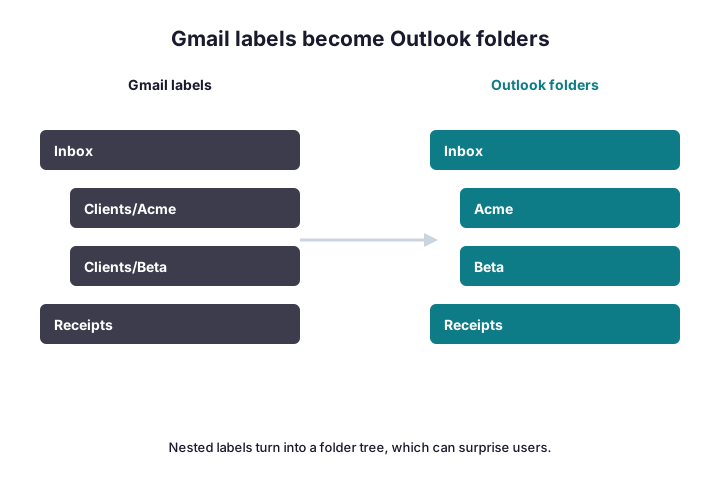
The quirk appears when a message has more than one label. Because a folder holds a single copy, that message can be duplicated into each matching folder. So a tidy Gmail inbox can look cluttered in Outlook at first. Warn users about this, and the surprise turns into a shrug rather than a ticket.
Filters are the other Gmail habit that does not survive. Your Gmail filters and categories sort mail automatically, yet they do not become Outlook rules. So after the move, users rebuild the few rules they truly rely on. Because most people lean on only two or three, this is a small job rather than a real loss.
A little tidying before the move helps a lot. Ask power users to prune unused labels, since fewer labels mean fewer folders. So the cleaner the Gmail side, the cleaner the Outlook result. That five-minute habit saves a confusing first morning.
🗺️ The migration step by step
The whole move follows a clear shape, so you always know the next step. First you prepare both sides. Then you connect Google to Microsoft 365, pilot a few users, migrate everyone in waves, and finally switch DNS at cutover.
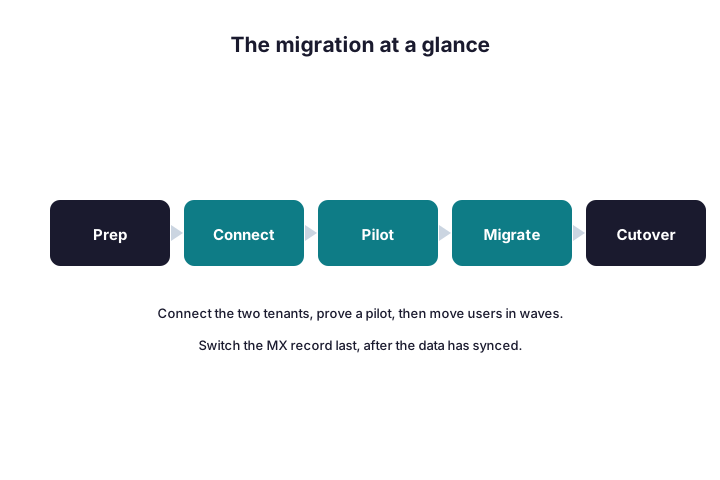
Notice where the effort sits, just like any move. Preparation and connection take real time, while the cutover itself is short. So if a plan rushes the setup, treat that as a warning rather than a shortcut. The phases below expand each step into what you actually do.
Communication runs alongside every phase, and it matters as much as the tooling. Tell users what changes, when, and where to get help, all before the move reaches them. Because surprise breeds resistance, a clear note beats a clever script. So send the “here is what is happening” email early, and the project feels smooth even when a detail wobbles.
⚙️ Phase 1: prepare both sides
Preparation decides how smooth the rest feels. On the Microsoft side, you add and verify your domain, then assign licences. On the Google side, you confirm admin access and tidy the mailboxes you are about to move.
# Step 1: add and verify your domain in Microsoft 365 first
Connect-MgGraph -Scopes "Domain.ReadWrite.All"
Get-MgDomain | Select Id, IsVerified, IsDefault
# Add the TXT record Microsoft gives you at your DNS host, then verify.- Add and verify your domain in Microsoft 365.
- Assign an Exchange Online licence to every user.
- Create the matching user accounts in Microsoft 365.
- Confirm super-admin access on the Google side.
- Lower the DNS TTL on your MX record a day ahead.
User mapping is the detail that makes or breaks this phase. You build a simple CSV that pairs each Google address with its new Microsoft 365 mailbox. Because the migration reads that file to know who goes where, a typo sends mail to the wrong box. So check the mapping twice, especially any address that changed during the move.
Do not switch any DNS yet, though. Because mail must keep flowing to Google until the very end, you only lower the TTL now. So you set up everything in parallel, then flip the switch once, at cutover.
🔗 Phase 2: connect Google to Microsoft 365
Next you build the bridge between the two clouds. In the Exchange admin center, you create a migration endpoint that points at Google. The native method authorises access with a Google service account or a sign-in, so Microsoft can read each mailbox.
This step is fiddly, so take it slowly. You create a project on the Google side, grant the right scopes, and paste the details into Microsoft 365. Because a wrong scope blocks the whole batch, double-check the permissions before you continue.
Treat this as a super-admin task on both clouds. You need full rights in Google to authorise the read, and a global admin in Microsoft 365 to build the endpoint. So line up those accounts before you start, since a half-privileged login stalls here. Because the bridge spans two tenants, both sides must trust it fully.
Once the endpoint connects, test it against a single mailbox. So you confirm the bridge works before you trust it with everyone. If that test mailbox migrates cleanly, the connection is sound, and you can move on to the pilot.
Most failures at this stage trace back to permissions. An expired token, a missing scope, or a disabled API on the Google side will stall the batch quietly. So when a test mailbox refuses to move, check the authorisation before you blame the data. Because the error messages are vague here, the permission screen is almost always the real culprit.
👥 Phase 3: pilot, then migrate in waves
Never move everyone at once. Instead, you migrate a small pilot group first and prove the whole runbook. So if a surprise appears, it touches a handful of people, not the company.
# Step 3: start the Google Workspace migration batch (Exchange Online PowerShell)
New-MigrationBatch -Name "GoogleWave1" -SourceEndpoint "GoogleEndpoint" `
  -CSVData ([System.IO.File]::ReadAllBytes(".\users.csv")) -AutoStart
Get-MigrationBatch | Format-Table Identity, Status, TotalCount, SyncedCount- Pick five to ten friendly users for the pilot.
- Migrate them, then check mail, calendar, and contacts.
- Confirm labels-as-folders looks acceptable to them.
- Group the rest into waves of a sensible size.
- Let each batch finish syncing before its cutover.
Size the waves to your bandwidth and Google’s limits, not your impatience. Because Google throttles large reads, a data-heavy batch simply needs more hours. So start each wave early and let it sync in the background, while users keep working in Gmail. A patient batch beats a rushed one that trips a rate limit halfway through.
Watch the synced count on every batch. Because a stalled migration usually means a throttle or a permission gap, the number tells you where to look. So when a wave reaches one hundred percent, it is ready for the final step.
🌐 Phase 4: DNS and the cutover
The cutover is the moment mail starts arriving in Microsoft 365. You do it after hours, so any hiccup stays away from the working day. With the TTL already low, the change propagates in minutes.
# Step 4: check and switch DNS at cutover
Resolve-DnsName -Type MX yourdomain.com
Resolve-DnsName -Type TXT yourdomain.com   # confirm the new SPF record
# Point MX to Microsoft 365 only after every mailbox has synced.- Run a final sync so no recent mail is missed.
- Switch the MX record to Microsoft 365.
- Update the SPF, DKIM, and DMARC records too.
- Send a test message in and out, then confirm it lands.
- Keep a rollback note with the old Google records.
Because you documented every old value, reverting is quick if something looks wrong. So the cutover stays a calm, reversible step. Once mail flows to Outlook and the queue is clear, the migration is effectively done.
Remember the autodiscover record, since it shapes the user experience. With it pointed at Microsoft 365, Outlook and phones reconfigure themselves with little fuss. Without it, users wrestle with manual server settings. So set autodiscover alongside the MX change, and the first login feels automatic rather than awkward.
🧹 Phase 5: the first week
The move is not finished when the last batch syncs. The first week decides how users feel about the whole change. So you verify the things that quietly break, while everyone is paying attention.
- Confirm mail flows both ways for every user.
- Check that calendars and contacts came across.
- Rebuild any Outlook profile or mobile account that lags.
- Show users where their labels now live as folders.
- Decommission Google only after a safe grace period.
A little training goes a long way here. Show people the Outlook basics and where old mail sits, and the tickets dry up. So a two-minute walkthrough on day one prevents a week of confusion.
Keep the Google tenant alive for a short grace period, too. Because a stray message or a forgotten shared inbox can surface days later, you do not cancel Workspace immediately. So leave it read-only for a couple of weeks, confirm nothing is missing, then close it for good. That patience is the cheapest insurance in the whole move.
Set forwarding as a safety net during that window. If a contact still emails the old Google address, a forward sends it on to Microsoft 365. So nobody loses a message while the world updates its address book. Because external senders are slow to change, this quiet step catches the stragglers for weeks.
⚠️ Gmail-specific quirks to expect
A few Google habits do not translate, so name them up front. None are dealbreakers, yet each one surprises a team that did not expect it. So scan this list before you start.
- Multi-label messages can duplicate into several Outlook folders.
- Google “categories” and filters do not carry over as rules.
- Personal Gmail supports IMAP only, so calendar and contacts move by export.
- Shared Drive permissions need re-creating in SharePoint.
- App passwords or OAuth scopes may block access until fixed.
Shared mailboxes and aliases need a deliberate plan as well. A Google group used as a shared inbox does not become an Exchange shared mailbox on its own. So you recreate those on the Microsoft side and re-add the members. Because teams lean on these quietly, mapping them early avoids a “we lost the support inbox” moment after cutover.
Wintive insight. In the Google moves we run, the email almost never fails; the expectations do. For example, labels-as-folders or a missing Google Site causes most of the “it broke” calls, even though nothing actually broke. As a result, we spend more time setting expectations than fixing data. So tell users what changes before the move, and the project feels effortless.
💸 Cost, and personal Gmail versus Workspace
Two questions come up about money and account type. On cost, the move itself is cheap with native tools; you mainly pay for the Microsoft 365 licences going forward. A third-party tool adds a small per-mailbox fee when you need its extra coverage.
Account type changes the method, not the goal. A Google Workspace tenant uses the native migration, which carries mail, calendar, and contacts. A personal Gmail account has no Workspace connector, so you use IMAP for mail and export calendar and contacts by hand. So check which one you have before you pick a path.
For a personal Gmail move, the export tools fill the gaps. You download contacts as a CSV and your calendar as an ICS file, then import both into Outlook. Because this is manual, it suits one or two accounts rather than a whole company. So a sole trader can do it in an afternoon, while a team should stay on the native connector.
Plan for a short overlap, because you pay both vendors briefly. During the move, Workspace still bills while Microsoft 365 starts, so the two subscriptions run side by side for a few weeks. That overlap is normal and worth it, since it keeps a safety net under the data. So budget for it rather than rushing to cancel Google on cutover night.
Either way, the destination is the same tidy Outlook mailbox. Because the heavy lifting is automated, the cost is mostly your time and attention, not software. So budget for planning and communication, which is where a smooth move is really won.
✅ Your Gmail to Office 365 migration checklist
Keep this list beside you during the move. Work top to bottom, and tick each item before you start the next wave.
- Verify your domain and assign Microsoft 365 licences.
- Tidy Gmail labels, and brief users on folders.
- Build and test the migration endpoint to Google.
- Pilot five to ten users and capture the lessons.
- Migrate in waves, watching the synced count.
- Switch MX, SPF, DKIM, and DMARC at the cutover.
- Verify mail, calendar, and contacts in the first week.
- Decommission Google after a safe grace period.
Assign an owner to each line, because a task with no name rarely gets done. One person handles DNS, another the Google connection, and someone owns the go-live call. So when a wave starts, nobody wonders whose job it is. That clarity keeps the move calm even when something needs a second try.
For the wider context, our guides to Office 365 cloud migration and the full Office 365 migration checklist go deeper on the journey around this email move. So use them together for a complete picture.
📚 More for migrating teams
These published Wintive guides answer the questions a move raises next. Each one tackles a single decision in detail, so you do not start from scratch. Therefore bookmark the ones that fit your plan.
🔍 Want a complete audit of your Microsoft 365 tenant?
The M365 Instant Audit scans your environment in under 10 minutes: license waste, security posture, MFA coverage, compliance gaps, and rightsizing. A full PDF report with prioritized fixes arrives instantly.
❓ Frequently Asked Questions
Verify your domain, connect Google to Microsoft 365 with the Google Workspace migration or IMAP, pilot a few users, migrate in waves, then switch the MX record at cutover.
Yes, with the native Google Workspace migration. IMAP moves mail only, so a personal Gmail account needs calendar and contacts exported by hand.
Each label becomes a folder. A message with several labels can be copied into several folders, so a tidy inbox may look cluttered at first.
No. Mail keeps flowing to Google until the cutover, and the final sync copies anything recent before you switch the MX record.
Yes. Microsoft’s native Google Workspace and IMAP migrations are free; you mainly pay for the Microsoft 365 licences. Paid tools only help with large or complex moves.
A small move can finish within a week, while larger tenants run across several weeks of batches. Setup and clean-up, not the sync, drive the clock.
🧭 Your next step
Start by choosing your method and verifying your domain, because both decide everything that follows. Once the bridge to Google is tested, the rest of this Gmail to Office 365 migration is a simple matter of working through the waves. When you want a second pair of eyes, we are happy to plan the whole move with you.
If you remember only three things, make them these. First, the native connector moves mail, calendar, and contacts, so reach for it before anything paid. Second, warn users that labels become folders, and the biggest surprise disappears. Third, switch DNS last, after everything has synced. So follow that order, communicate clearly, keep the old tenant for a grace period, and a Google move becomes an ordinary, boring week of work rather than a leap of faith.
Related Wintive guides: best Office 365 migration tool, how to choose a migration service, and Office 365 cloud migration guide.