

This office 365 migration checklist turns a nervous, all-or-nothing move into a calm, ordered project. Work the phases in sequence, tick each task, and nothing important slips. So instead of hoping the cutover goes well, you know it will. We built this list from dozens of real small-business moves, so it captures the steps teams forget, not just the obvious ones.
Here is how to use it. Each phase below has a short explanation, a tick-list of tasks, and a chart or table where it helps. First you plan and prepare. Then you pilot, migrate in waves, cut over after hours, and verify the first week. Finally you decommission the old kit. Because every phase gates the next, you never run ahead of your own readiness.
🛡️ Free: M365 Audit Checklist
19-page PDF with 50 hands-on checks covering Entra ID, Exchange Online, SharePoint, Teams, Intune, license waste, and audit logging. PowerShell commands included. Built from 60+ real tenant audits at Wintive.
🧭 The office 365 migration checklist in one view
A complete office 365 migration checklist runs in eight phases: discovery, prepare the tenant, sort DNS and mail flow, pilot, migrate in waves, cut over after hours, verify the first week, and decommission. In short, you inventory everything first, move users in small batches, and confirm nothing is lost before retiring the old servers. So the move feels boring, which is exactly what you want.
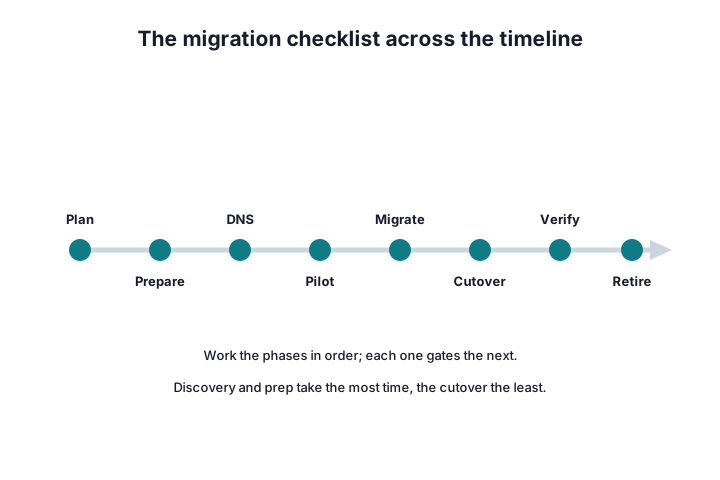
The timeline below shows the whole journey at a glance. Notice where the effort sits. Discovery and preparation eat most of the calendar, while the cutover itself takes a single evening. So if a plan rushes the early phases, treat that as a warning, not a time-saver.
One choice shapes everything else, so settle it early. Your discovery findings decide the migration type: a quick cutover for small tenants, a staged move for mid-sized ones, or a hybrid for large or cautious teams. Because each type changes the steps that follow, pin it down before Phase 2. So the checklist below flexes to match whichever route fits you.
Keep this order as you read on. Each phase below expands into its own tick-list, so you can work straight down the page. Therefore you can print this guide, hand it to whoever runs the move, and trust nothing gets skipped.
🔍 Phase 1 — Discovery and inventory
Every safe move starts with an honest inventory, not a guess. Before you touch anything, you list what you have and how big it is. So the rest of the plan rests on facts, and the quote or schedule stops being guesswork.
- Count mailboxes, shared mailboxes, and resource calendars.
- Measure each mailbox size, so you can sequence the waves.
- List distribution groups and any public folders.
- Note apps and devices that send mail, such as scanners.
- Record the current DNS host and the MX records.
- Flag any compliance or retention obligations early.
Write down the source environment too, not just the mailboxes. Note the Exchange version, whether a hybrid setup already exists, and where the domain is hosted. Because those details decide the migration type, they shape the whole plan. So a thorough discovery now saves a painful surprise on cutover night.
The command below exports every mailbox and its size to a file. So you start the project with a real number, not a hunch.
# Phase 1: inventory every mailbox and its size (Exchange Online PowerShell)
Get-EXOMailbox -ResultSize Unlimited |
  Get-EXOMailboxStatistics |
  Select DisplayName, TotalItemSize, ItemCount |
  Sort TotalItemSize -Descending | Export-Csv .\inventory.csv -NoTypeInformation
✅ Phase 2 — Prepare the tenant and licences
With the inventory in hand, you ready the destination. This phase is pure groundwork, so users notice nothing yet. Still, skipping it is where most moves go wrong later.
Security belongs in the groundwork, not as an afterthought. A brand-new tenant is a soft target, so harden it before any data lands. Turn on multi-factor authentication, trim admin roles, and block legacy protocols from the start. Because attackers probe new tenants quickly, doing this early closes the door before anyone knocks.
| Prep task | Why it matters | Done when |
|---|---|---|
| Verify your domain in Microsoft 365 | Mail cannot route without it | Domain shows “Healthy” |
| Right-size and assign licences | No licence means no mailbox | Every user is licensed |
| Clean up accounts and groups | Stale objects break sync | Directory is tidy |
| Set up a cloud SMTP relay | Scanners and apps still send mail | Test message arrives |
| Turn on MFA and Conditional Access | A new tenant is a target | Policies are enforced |
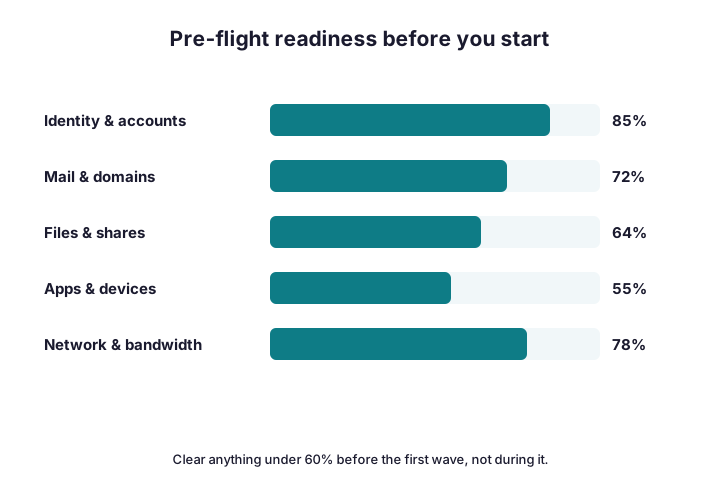
Score your readiness before you continue, because gaps here become incidents on cutover night. The chart below grades the pillars that matter most. Where a bar sits low, fix it now rather than during the move.
The SMTP relay deserves a special mention, since it is the classic miss. Printers, scanners, and old apps often send mail through your on-premises server. So when that server retires, they go silent unless you point them at a cloud relay first. Set it up early, send a test, and tick it off before you forget.
🌐 Phase 3 — DNS, mail flow, and TTL
DNS is the quiet hero of any move, so give it real attention. The trick is timing. You lower the time-to-live on your records a day ahead, so the cutover propagates in minutes instead of hours.
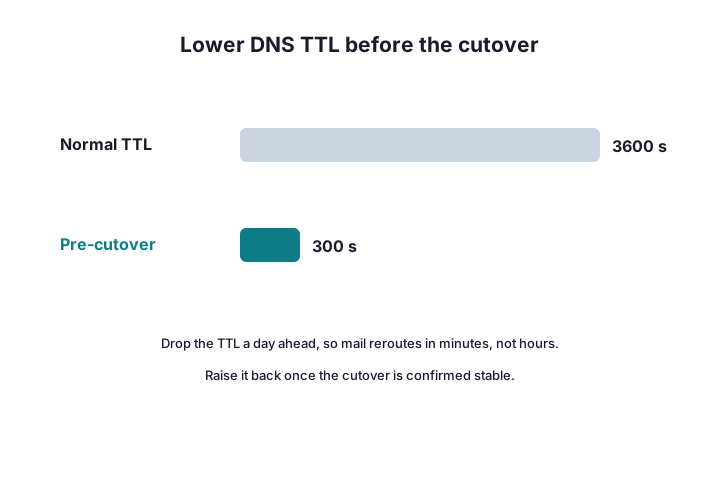
- Lower the TTL on your MX and autodiscover records the day before.
- Document the current MX, SPF, DKIM, and DMARC values.
- Plan the new records, but do not switch them yet.
- Confirm who controls the DNS zone, so nobody is blocked at cutover.
- Schedule the record change for the cutover window only.
Do not skip the email-authentication records either, because they protect your reputation. SPF tells the world which servers may send for you. DKIM signs your mail, and DMARC sets the policy when a check fails. So after the cutover, update all three for Microsoft 365, or your messages may land in spam.
Because mail flow depends entirely on these records, treat them as the most fragile part of the plan. So write down every value before you change a thing, and you always have a way back.
👥 Phase 4 — Plan and run the pilot
Never move everyone at once. Instead, you pick a small pilot group and prove the whole runbook on them first. So when a surprise appears, it touches ten people, not the entire company.
- Choose five to ten friendly users across different teams.
- Migrate the pilot exactly as you plan to migrate everyone.
- Check mail flow, mobile, and Outlook profiles for each one.
- Gather feedback, then fix the rough edges in the runbook.
- Only scale to the next wave once the pilot is genuinely happy.
Set clear success criteria for the pilot, so “done” is not a feeling. Mail flows both ways, the calendar works, mobile reconnects, and the user is comfortable. Until every box is ticked, you do not scale. Because a shaky pilot only multiplies its problems, this gate is the most valuable one in the plan.
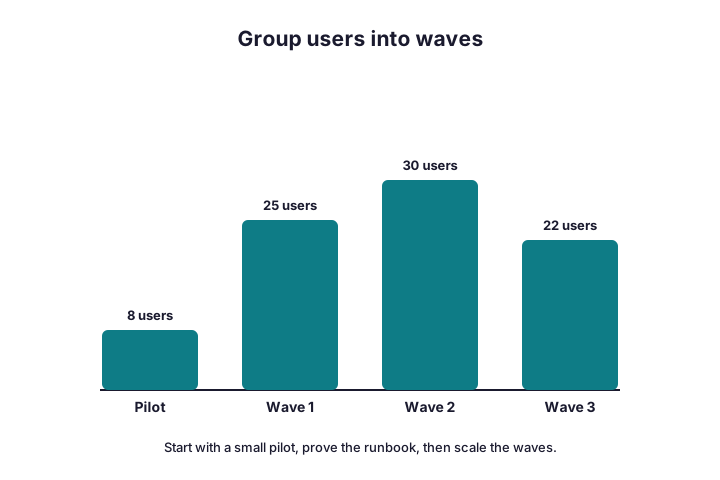
Group the rest of your users into waves of a sensible size, as the chart shows. Therefore each wave runs on a script that already worked, and confidence grows with every batch.
🚚 Phase 5 — Migrate in waves
Now the real movement begins, one wave at a time. You start a batch, watch it sync, and only schedule its cutover once it reaches one hundred percent. So nothing flips live until the data is fully copied.
# Phase 5: start a wave and watch it sync (Exchange Online PowerShell)
New-MigrationBatch -Name "Wave1" -SourceEndpoint "OnPremEndpoint" -TimeZone "UTC" -AutoStart
Get-MigrationBatch | Format-Table Identity, Status, TotalCount, SyncedCount- Start each wave a few days before its planned cutover.
- Watch the synced count; a stall means a throttle or a bad mapping.
- Communicate the date and the “what changes” note to each wave.
- Keep the source and cloud in sync until the very last moment.
- Hold a short go or no-go check before every cutover.
Size the waves to your bandwidth, not your impatience. Microsoft throttles very large syncs, and your upload speed caps the rest. So a data-heavy wave simply needs more nights, and pushing harder rarely helps. Start each batch early, and let it sync quietly in the background while people keep working.
Pace the waves around people, not just data. Because a Friday cutover gives the weekend to settle, many teams prefer it. So map the calendar to your business, then let the tooling follow.
🔁 Phase 6 — The cutover
The cutover is the moment mail starts flowing to the cloud. Do it after hours, so a hiccup never lands in the middle of a workday. With the TTL already low, the switch propagates fast.
# Phase 6: confirm DNS and mail routing before and after the cutover
Resolve-DnsName -Type MX contoso.com
Resolve-DnsName -Type TXT contoso.com   # check the SPF record
Resolve-DnsName autodiscover.contoso.com -Type CNAME- Run the final delta sync so no recent mail is missed.
- Switch the MX record to Microsoft 365 in the cutover window.
- Confirm the SPF, DKIM, and DMARC records point to the cloud.
- Send a test message in and out, then check it arrives.
- Watch the queue for an hour before you call it done.
Hold a short go or no-go check before you flip anything. Is the wave fully synced, is someone on call, and is the rollback note ready? If any answer is no, you wait. Because five minutes of confirmation prevents hours of cleanup, this tiny ritual earns its place every time.
Keep a rollback note beside you, just in case. Because you documented every old value in Phase 3, reverting is quick if something looks wrong. So the cutover stays a calm, reversible step rather than a leap of faith.
🧹 Phase 7 — The first week after go-live
The move is not finished when the last batch syncs. The first week decides how users feel about the whole project. So you verify the things that quietly break, while everyone is still paying attention.
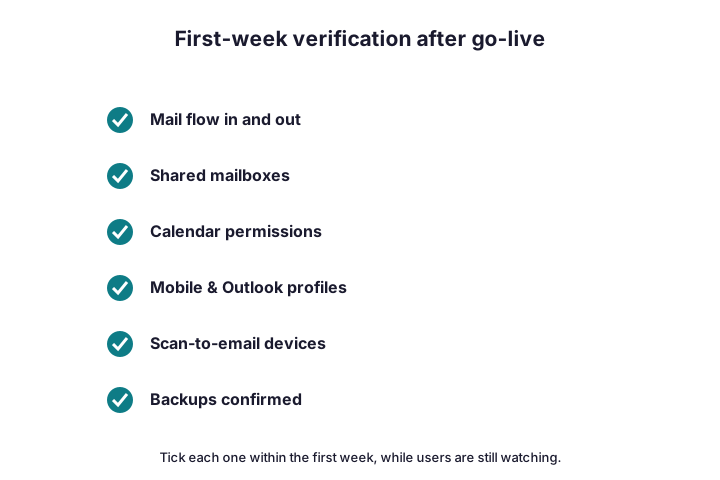
- Confirm mail flows both in and out for every team.
- Check shared mailboxes and calendar permissions.
- Rebuild any Outlook profile or mobile account that misbehaves.
- Re-point scan-to-email devices at the cloud relay.
- Verify your backup is running before you trust the new tenant.
A little training goes a long way in this first week. Show people where mail, files, and Teams now live, and most questions evaporate. So record a two-minute clip or send a one-page guide before go-live. Because confident users open fewer tickets, that small effort pays for itself within days.
Fix the small things fast, because quick wins build trust. Walk the floor, or ping each team, and ask what feels off. So a missing printer or a lost delegate gets caught in hours, not weeks.
🗑️ Phase 8 — Decommission and clean up
Once the dust settles, you retire the old world deliberately. Rushing this step risks deleting something you still need, so give it a week or two of breathing room first. Then close it down for good.
- Confirm every mailbox and shared mailbox is fully in the cloud.
- Keep the old server read-only for a short grace period.
- Cancel the contracts and licences the old kit carried.
- Remove stale DNS records and any leftover connectors.
- Document the final state for whoever supports it next.
Think about long-term retention before you wipe anything. Some industries must keep old mail for years, so check the rules first. If a legal hold or an archive applies, confirm the data lives safely in the cloud before the source disappears. Because deletion is permanent, this check is the one you never want to skip.
Treat decommissioning as part of the project, not an afterthought. Because an idle old server still costs power and risk, switching it off is the last real saving of the move.
🪤 The tasks teams forget
Most painful moves trip over the same overlooked items. None of them are technical, yet each one bites at the worst moment. So scan this short list before every cutover.
- Shared mailboxes that nobody owns, but everybody uses.
- Scan-to-email printers and line-of-business apps that relay mail.
- Public folders that quietly hold years of records.
- Calendar delegates and room mailboxes.
- A daytime cutover that guarantees angry calls.
Catch these during discovery, not at the cutover. A simple way is to ask each department what they send mail from and who shares an inbox. Because the answers rarely live in any system, you have to ask people directly. So a few short conversations now prevent the classic “the scanner stopped working” call later.
Wintive insight. Across the moves we run, the data almost never fails; the plan does. For example, a forgotten shared mailbox or a daytime cutover causes most of the pain. As a result, we spend more time on discovery than on the move itself. So a thorough checklist is not bureaucracy; it is the cheapest insurance you can buy.
🧰 The tools you will use
You do not need exotic software for most moves. Microsoft ships native tooling that covers the common cases for free. The Exchange admin centre runs mailbox batches, while the SharePoint Migration Tool handles files.
For trickier sources, paid tools like BitTitan or ShareGate add automation and reporting. Whichever you choose, the pattern stays the same: connect the source, map users, run a batch. Microsoft documents the native steps in its mailbox migration guide, which is the reference to keep open.
Match the tool to the source rather than the brand. For a single Exchange server, the native batch wizard usually suffices. For scattered PST files or a messy Google estate, a paid tool earns its fee in saved hours. So price each option against the time it returns, and the choice becomes obvious.
Lean on the reporting, whichever tool you pick. A good migration report shows what synced, what failed, and what still lags. Because that visibility turns guesswork into facts, never run a wave blind. So watch the dashboard during each batch, and you catch a throttle or a bad mapping long before a user does.
If you would rather not run any of this yourself, our office 365 migration services follow exactly this checklist for you, end to end. So you get the ordered result without the late nights.
⏱️ How long each phase takes
Timelines vary with size and data volume, yet the shape is predictable. The table below gives a realistic clock for a small-business move. Use it to set expectations, then adjust for your own numbers.
| Phase | Typical time (SMB) | Gate to the next |
|---|---|---|
| Discovery & inventory | 2–5 days | Inventory signed off |
| Prepare tenant & DNS | 2–4 days | Domain verified, TTL lowered |
| Pilot wave | 3–5 days | Pilot users happy |
| Migration waves | 1–3 weeks | All data synced |
| Cutover | One evening | Mail flows to the cloud |
| First week & cleanup | 5–7 days | Tickets back to normal |
Two things stretch the clock more than data ever does. The first is decisions: agreeing a cutover window or chasing an absent approver can add days. The second is clean-up, since loose ends always surface late. So build slack into the schedule, and treat any “we can do it in a weekend” promise for a large tenant with healthy doubt.
Two numbers move this clock most: your headcount and your upload speed. More users mean more waves, while a slow connection stretches every sync. So a fifty-person firm on fast fibre can finish in days, yet a smaller team on a thin line may need longer. Measure both before you promise a date.
Notice that the slow parts are rarely technical. Instead, decisions and clean-up eat the calendar, so plan around your people. For the wider picture of the journey, see our guide to office 365 cloud migration.
📋 The complete printable checklist
Here is the whole thing in one place, ready to print and tick. Work top to bottom, and do not move to a new phase until the current one is done.
- Discovery: inventory mailboxes, sizes, groups, public folders, and mail-sending apps.
- Prepare: verify the domain, assign licences, clean accounts, set the SMTP relay, enable MFA.
- DNS: lower the TTL, document MX, SPF, DKIM, and DMARC, plan the new records.
- Pilot: migrate a small friendly group and capture the lessons.
- Waves: migrate in batches, watch the sync, communicate each date.
- Cutover: final delta sync, switch the MX after hours, test mail flow.
- First week: verify shared mailboxes, calendars, devices, and backups.
- Decommission: retire the old server, cancel contracts, remove stale records.
Assign an owner to each line, because a task with no name rarely gets done. One person runs DNS, another handles licences, and someone owns the go-live call. So when a wave starts, nobody wonders whose job it is. That clarity, more than any tool, is what keeps a move calm.
Keep this recap somewhere visible during the move. Because a shared checklist keeps everyone honest, it does more for a smooth result than any single tool.
📥 Make it a living checklist
Do not throw this list away once the move is done. Save it as a template, because the next office or acquisition will need the same steps. So each migration makes the following one faster and calmer.
Adapt it as you learn, too. Add the quirk that caught you out, or the app nobody remembered. Because your version captures your environment, it beats any generic guide over time. So treat the checklist as a document that grows, not a one-off you delete.
It doubles as a handover tool as well. When a new admin joins, the checklist explains exactly how your moves run. So knowledge stops living in one person’s head, and the next migration does not depend on who happens to be around. That resilience is worth as much as the steps themselves.
📚 More for migrating teams
These published Wintive guides go deeper on the questions a move raises next. Each one tackles a single decision in detail, so you do not have to research it from scratch. Therefore bookmark the ones that fit your plan, and work through them in your own time.
🔍 Want a complete audit of your Microsoft 365 tenant?
The M365 Instant Audit scans your environment in under 10 minutes: license waste, security posture, MFA coverage, compliance gaps, and rightsizing. A full PDF report with prioritized fixes arrives instantly.
❓ Frequently Asked Questions
It is an ordered list of tasks for moving email and data to Microsoft 365, grouped into phases: discovery, preparation, DNS, pilot, migration waves, cutover, verification, and decommission.
Discovery and inventory, prepare the tenant, sort DNS and mail flow, pilot, migrate in waves, cut over after hours, verify the first week, and decommission the old servers.
Shared mailboxes, scan-to-email devices, public folders, calendar delegates, and the danger of a daytime cutover. A discovery phase catches all of them.
After hours, once a wave has fully synced and you have lowered the DNS TTL. An evening or weekend cutover keeps any hiccup away from working hours.
A small move can finish within a week, while a few hundred users run across several weeks of batches. Discovery and clean-up, not the move itself, drive the clock.
Native Microsoft tools cover most small moves for free. A provider or paid tool helps with large, messy, or compliance-heavy migrations.
🧭 Your next step
Start with Phase 1 today, because a real inventory decides everything that follows. Once you know what you have, the rest of this office 365 migration checklist becomes a simple matter of working down the list. When you want a second pair of eyes, we are happy to plan the whole move with you.
If you remember only three things, make them these. First, discovery prevents almost every nasty surprise, so never rush it. Second, a pilot turns a company-wide risk into a ten-person test. Third, an after-hours cutover keeps the bumps away from working time. So follow the order, tick each box, and the move stops being scary and starts being routine.
Above all, do not treat the move as a single dramatic event. It is a sequence of small, verified steps, each one safe to pause on. Because you confirm every phase before the next, you are never far from solid ground. So take it one tick at a time, and a daunting migration becomes an ordinary week of work.
Related Wintive guides: Gmail to Office 365 migration, G Suite migration to Office 365, and how to choose a migration service.