

Microsoft 365 Business Voice was the simple way to add phone calls to Microsoft Teams. However, Microsoft retired it in June 2022. Therefore, if you are searching for it today, the real question is what to buy instead.
Furthermore, this guide answers that in plain terms. Specifically, we explain what Microsoft 365 Business Voice was, why it went away, and exactly which Teams Phone licences replace it now. In addition, you get the upgrade path, the current price math, a feature list, and PowerShell to check your own tenant. By the end, your calling setup will be clear.
🛡️ Free: M365 Audit Checklist
19-page PDF with 50 hands-on checks covering Entra ID, Exchange Online, SharePoint, Teams, Intune, license waste, and audit logging. PowerShell commands included. Built from 60+ real tenant audits at Wintive.
🧭 Microsoft 365 Business Voice: the short answer
Microsoft 365 Business Voice retired in June 2022. Microsoft now splits the same calling into separate Teams Phone licences. To rebuild it, you buy Teams Phone Standard for the phone system, a Teams Calling Plan for outside calls, and Audio Conferencing for dial-in meetings. Existing customers are not moved automatically, so you must switch the licences yourself. In short, the product changed name and shape, but the Teams calling experience stayed the same.
Critically, nothing about Microsoft 365 Business Voice is sold to new customers anymore. Instead, Microsoft unbundled it into Teams Phone parts. Therefore, the feature set survives, but the licensing looks different now.
Notably, the change is mostly about the bill, not the technology. Your phone numbers, voicemails, and call flows all stay put. Therefore, moving off Business Voice is a licence swap, not a migration. As a result, callers never notice the switch.
In practice, that trips up a lot of small businesses. They search for Business Voice, find old blog posts, and buy the wrong thing. So this guide maps every old piece to its current name. As a result, you can rebuild the exact same phone system on Teams today, without guesswork.
⏳ What happened to Microsoft 365 Business Voice
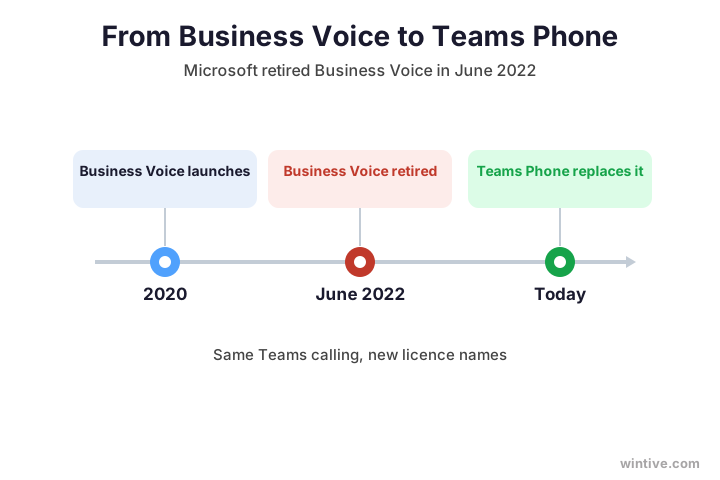
First, the timeline. Microsoft launched Business Voice as an easy calling add-on for small teams on Teams. Then, in June 2022, it retired the product. Therefore, you can no longer buy Microsoft 365 Business Voice as a single bundle.
Importantly, Microsoft made the move to simplify its calling line-up. Before, Business Voice sat apart from the enterprise phone tools. Now, a single Teams Phone family serves every size of business. Therefore, small and large firms buy from the same menu, just in different amounts.
However, the calling did not disappear. Instead, Microsoft moved it into the broader Teams Phone family, which serves businesses of every size. As a result, the same call queues, auto attendants, and voicemail live on under new licence names. The timeline below shows the shift.
📞 What Microsoft 365 Business Voice actually was
To choose a replacement, you first need to know what Business Voice did. Essentially, it was a cloud phone system inside Teams. Specifically, it bundled three things: the phone system, a domestic calling plan, and audio conferencing.
Moreover, the bundle was popular precisely because it was simple. You added one licence, and Teams became a phone. Therefore, owners did not have to learn carrier jargon or stitch tools together. In short, Business Voice hid the complexity that you now choose for yourself. It was also built squarely for small businesses. Specifically, you could add it to any Microsoft 365 plan that included Teams, up to 300 users. Therefore, a firm on Business Basic, Standard, or Premium could turn Teams into a full office phone system in minutes. Notably, it gave each user a real phone number, voicemail, and the ability to call any landline or mobile.
In short, Business Voice was Teams plus a phone line. So the goal of any replacement is simple. You want that same Teams calling, just licensed the new way.
🔁 What replaces Microsoft 365 Business Voice
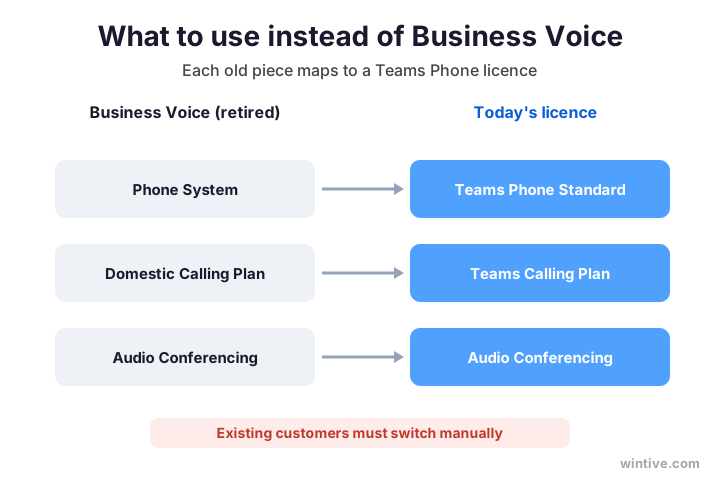
Now the important part. Microsoft recommends three add-on licences to rebuild Business Voice. Specifically, you license Teams Phone Standard, a Teams Calling Plan, and Audio Conferencing. Together, they recreate the old bundle exactly.
Critically, the order of these parts matters. Teams Phone Standard comes first, because it is the engine. The calling plan and audio conferencing then plug into it. Therefore, never buy a calling plan alone and expect a working phone system.
Furthermore, each piece maps cleanly to an old one. Teams Phone Standard is the phone system itself. The Teams Calling Plan handles outside calls to landlines and mobiles. Audio Conferencing covers dial-in meetings. Therefore, nothing is lost in the move. The chart shows the mapping at a glance.
🧩 The three licences you buy now
Let us break those three licences down. First, Teams Phone Standard turns Teams into a phone system. It adds call control, auto attendants, call queues, and voicemail. However, on its own, it cannot place calls to the outside phone network.
Furthermore, the split brings a hidden benefit. You can mix licence types across the team, rather than buying one flat bundle for all. For instance, reception gets the full set, while a back-office user gets none. Therefore, the new model is often cheaper once you right-size it.
Second, a Teams Calling Plan adds that outside line. Specifically, it connects Teams to the public phone network so users can dial real numbers. Third, Audio Conferencing lets people join meetings by phone. Therefore, you usually want all three for a full Business Voice replacement. To start, check what your tenant already owns.
# See which calling licences your tenant holds (Graph PowerShell)
Connect-MgGraph -Scopes "Organization.Read.All"
Get-MgSubscribedSku | Select-Object SkuPartNumber, ConsumedUnits, PrepaidUnits
Specifically, run that and look for Teams Phone and calling-plan SKUs. Often a tenant already holds part of the stack through a bundle. Therefore, you may need fewer add-ons than you expect.
📦 Bundles that simplify the licensing
Helpfully, you do not always buy three separate parts. Microsoft also sells Teams Phone with Calling Plan as a single SKU. Therefore, one line item covers both the phone system and outside calling. As a result, the shopping list shrinks for a typical small business.
Moreover, other bundles suit different needs. For example, Teams Phone Mobile fits staff who use a mobile number as their work line. Specifically, it ties the carrier SIM to Teams, so one number rings both. Therefore, compare the bundles before buying parts one by one. In short, a bundle is often simpler and cheaper than assembling the pieces yourself.
Furthermore, read what each bundle includes before you assume. Some pair the phone system with a domestic plan only, while others add international minutes. Therefore, judge a bundle by its inclusions, not its name. As a result, you avoid buying a second plan you never needed.
☎️ How your calls reach the phone network
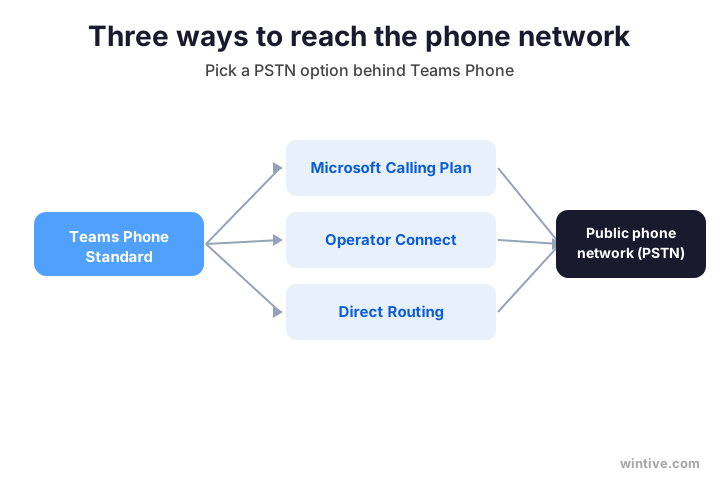
Next, decide how Teams connects to the outside phone network. This step did not exist in the simple Business Voice bundle, because it was built in. Now, however, you pick one of three paths. Therefore, this choice matters for cost and control.
Specifically, the three paths differ in effort and price. A Calling Plan is fastest, since Microsoft acts as your carrier. Operator Connect keeps your current provider with light setup. Direct Routing offers the most control, yet it needs real technical work.
Specifically, the simplest path is a Microsoft Calling Plan, where Microsoft is your phone carrier. Alternatively, Operator Connect lets you keep a third-party carrier with easy setup. Finally, Direct Routing connects your own telephony through a session border controller. So small teams usually pick a Calling Plan, while larger firms lean to Operator Connect or Direct Routing. The diagram compares the three.
💷 What Teams calling costs now
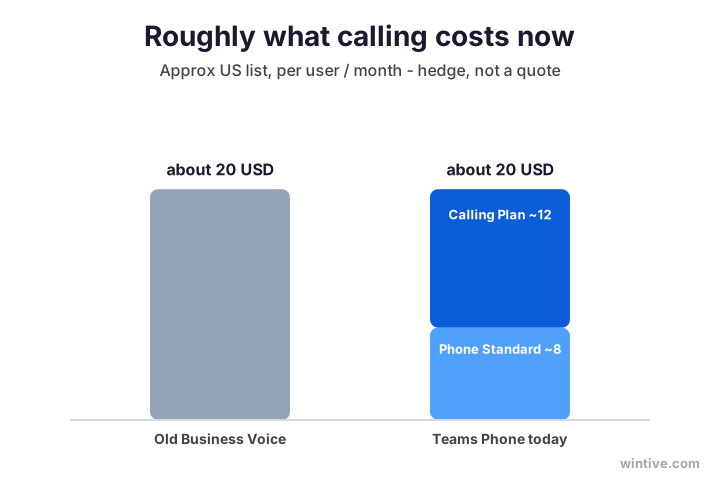
Naturally, price is the next question. The exact figures change, so treat these as rough US list prices per user each month. Generally, Teams Phone Standard runs around 8 USD. A domestic Calling Plan adds roughly 12 to 15 USD on top.
In addition, check what you already own before buying. Some Microsoft 365 plans include audio conferencing, and a few include the phone system itself. Therefore, you might need only a calling plan to finish the stack. As a result, you avoid paying twice for the same feature.
Therefore, a full replacement lands near the old Business Voice price of about 20 USD per user. However, you now pay in parts, which gives you flexibility. For example, a user who never calls outside lines needs only Teams Phone Standard. As a result, you can right-size each person instead of buying one flat bundle. The bars below show the rough split.
Above all, do not let the sticker price decide alone. A cheaper plan that drops outside calling is no bargain. Therefore, price the full stack each user truly needs, then compare options. As a result, the real cost becomes clear and fair.
📋 Calling features you keep
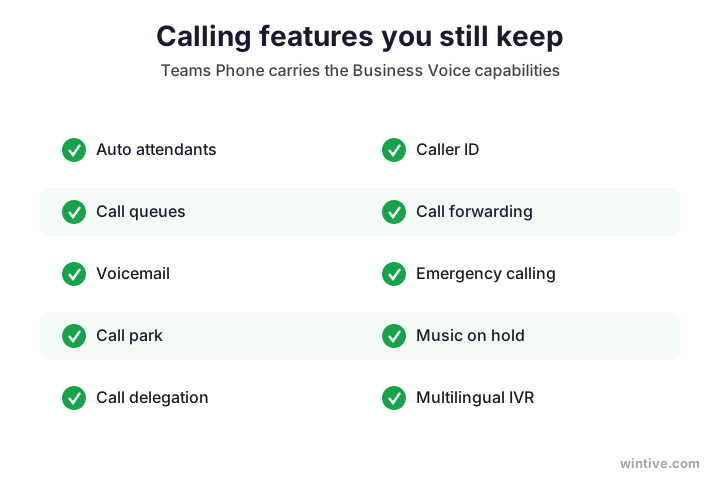
Reassuringly, you lose no calling features in the move. Teams Phone carries everything Business Voice offered. Specifically, auto attendants, call queues, voicemail, and call park all remain.
Beyond the basics, Teams Phone adds touches Business Voice never had. Specifically, it ties calling to Teams chat, meetings, and presence in one app. Therefore, a missed call, a voicemail, and a follow-up message all sit together. As a result, the move quietly improves daily work.
Moreover, the everyday tools stay too. Caller ID, call forwarding, music on hold, and call delegation work just as before. In addition, emergency calling and multilingual menus are still there. Therefore, your users will not notice a downgrade. The grid below lists the main features you keep.
🔢 Business Voice vs Teams Phone, side by side
To make the change concrete, here is the old model next to the new one. Scan the rows that matter to your team.
| Item | Old Business Voice | Teams Phone today |
|---|---|---|
| Phone system | Included | Teams Phone Standard |
| Outside calls | Domestic Calling Plan | Calling Plan, Operator Connect, or Direct Routing |
| Dial-in meetings | Included | Audio Conferencing |
| User limit | Up to 300 | Any size |
| Sold to new customers | No (retired 2022) | Yes |
Notably, the biggest practical change is the user limit. Business Voice capped at 300 seats. Teams Phone, by contrast, scales to any size. Therefore, the new model fits both a tiny team and a large enterprise.
In addition, the new model removes that small-business ceiling for good. So a firm that grows past 300 staff keeps the very same phone system. Therefore, you never face a forced change purely because you hired more people.
Therefore, treat this table as a shopping list. Match each old row to its new licence, and your order is complete. In short, three add-ons now rebuild what one bundle used to do.
🚚 Already on Business Voice? How to move
Importantly, Microsoft does not move existing Business Voice customers automatically. Therefore, you must switch the licences yourself before the old service lapses. However, the change is not hard, and your numbers and settings carry over.
Reassuringly, the sequence protects your service. You add the new licences first, confirm calling works, and only then drop the old one. Therefore, no user loses their line mid-switch. In short, overlap the licences for a day, and the cutover stays invisible.
In practice, you assign the new add-ons, then remove the retired one. First, add Teams Phone Standard to each calling user.
# Assign Teams Phone Standard to a user (Graph PowerShell)
Connect-MgGraph -Scopes "User.ReadWrite.All"
$sku = (Get-MgSubscribedSku | Where-Object SkuPartNumber -eq "MCOEV").SkuId
Set-MgUserLicense -UserId user@yourdomain.com -AddLicenses @{SkuId=$sku} -RemoveLicenses @()
Then add a Calling Plan and Audio Conferencing the same way. After that, confirm each user still has a number and can call out. Finally, remove the old Business Voice licence once everyone is moved.
📞 Keeping your existing phone numbers
Reassuringly, you keep your current phone numbers when you move. Specifically, you port them from your old carrier into Teams. Therefore, customers dial the same numbers as always, and nothing on your cards or website changes.
However, porting takes a little planning. First, you submit a port order with your account details. Then, Microsoft coordinates the transfer with your carrier. Meanwhile, your old service keeps running until the port completes. Therefore, schedule the cutover for a quiet window, so the switch lands with no gap in service.
Importantly, never cancel your old carrier before the port finishes. Otherwise, you risk losing the numbers entirely. Therefore, keep the old line active until Teams confirms the transfer. In short, patience here protects your most public asset, your phone number.
🛠️ Set up Teams Phone: the first steps
Once the licences are in place, a short setup turns calling on. The table lists the first moves, in order. Therefore, work through them before you hand out numbers.
Moreover, the order matters, because each step builds on the last. A number without a calling plan cannot dial out, and a queue without numbers has nothing to route. Therefore, follow the sequence rather than jumping ahead.
| Step | What it does |
|---|---|
| Assign Teams Phone Standard | Turns on the phone system per user |
| Add a Calling Plan or carrier | Connects to the outside phone network |
| Assign phone numbers | Gives each user a real line |
| Set emergency addresses | Routes 911 to the right location |
| Build auto attendants and queues | Routes inbound calls |
In addition, set an emergency address for every user before go-live. This step is easy to skip, yet it matters for safety and compliance. Therefore, never leave it for later.
Likewise, write down each number and its owner as you go. A simple list prevents confusion when staff join or leave. Therefore, keep that record current from the very first day.
🧪 Confirm calling actually works
Critically, a licence is not a working phone. You still have to confirm each user is enabled and has a number. Therefore, verify before you tell the team calling is live.
In practice, one command shows whether a user is ready. The check below lists their calling status and assigned line.
# Confirm a user is enabled for Teams calling (Teams PowerShell)
Connect-MicrosoftTeams
Get-CsOnlineUser -Identity user@yourdomain.com |
  Select-Object DisplayName, EnterpriseVoiceEnabled, LineUri
Finally, test from the user side as well. Have someone place and receive a real outside call before launch day. Therefore, you catch a missing number or plan while it is still easy to fix. As a result, calling goes live with no surprises.
Wintive insight. Across the SMB tenants we audit, the most common calling mistake is half-finished licensing. A user gets Teams Phone Standard but no Calling Plan, so they can take internal calls yet cannot dial out. As a result, the phone looks broken. Always pair the phone system with a connectivity option, then test a real outbound call before launch.
🏢 Which plans Teams Phone attaches to
Reassuringly, Teams Phone adds onto the Microsoft 365 plans you already run, such as Microsoft 365 Business Premium. So you do not switch your base subscription to get calling. Instead, you layer the calling licences on top.
Furthermore, the add-on model keeps your base subscription stable. You do not migrate mailboxes or rebuild Teams to gain calling. Instead, the phone features switch on once the licence applies. Therefore, the change touches billing far more than your users.
| Your base plan | Can add Teams Phone? |
|---|---|
| Business Basic, Standard, Premium | Yes |
| Enterprise E1 and E3 | Yes |
| Enterprise E5 | Teams Phone is already included |
| Frontline F1 and F3 | Yes |
Notably, Microsoft 365 E5 already bundles Teams Phone Standard. Therefore, E5 users only need a calling plan or carrier for outside lines. So check your plan before buying anything extra. If you are still choosing a base plan, our Business Premium vs E3 guide compares the options.
🚤 The mistake most teams make
Meanwhile, the classic error is waiting too long to move off Business Voice. The service is retired, so support and changes are limited. Therefore, drifting on the old licence is a risk, not a saving.
Moreover, a second trap is choosing the wrong connectivity path in a rush. A Calling Plan is easy, yet it is not always the cheapest at scale. Therefore, compare it against Operator Connect before you commit every user. As a result, you avoid a costly switch later.
Conversely, some teams overbuy. They give every user a full Calling Plan when many never dial outside lines. However, an internal-only user needs just Teams Phone Standard. So right-size each person, and the bill drops. As a result, you pay for outside calling only where it is truly used.
👤 Who actually needs a calling licence
Of course, not everyone needs a phone line. So decide by role, not by habit. Specifically, give Teams Phone to staff who take or make outside calls, such as sales, support, and reception.
However, be honest about real usage, not job titles. Some managers rarely call out, while some assistants do so all day. Therefore, look at who actually dials external numbers. As a result, you assign calling plans where they earn their cost.
However, many internal users are fine with Teams meetings and chat alone. Therefore, they need no calling licence at all. In addition, a shared reception line can cover a whole front desk with one number. As a result, careful assignment keeps the cost sensible. In short, match the licence to the job.
| Role | Recommended licence |
|---|---|
| Sales, support, reception | Teams Phone Standard plus a Calling Plan |
| Internal-only staff | No calling licence needed |
| Shared front desk | One shared number on a single line |
🆘 Emergency calling and compliance
Critically, calling brings duties that meetings do not. Above all, emergency calls must reach the right responders. Therefore, every Teams Phone user needs a registered emergency address.
Specifically, Teams supports dynamic emergency calling, which can detect a user location and route 911 correctly. Moreover, you should confirm this before go-live, not after. For the official requirements, see Microsoft’s Teams calling documentation. As a result, you stay both safe and compliant from day one.
Furthermore, keep those addresses current as people move. Specifically, a stale location can send responders to the wrong place. Therefore, review emergency details whenever someone changes desks or works from home. As a result, the safety net stays accurate over time.
✅ Quick decision checklist
Condensed, here is how to replace Microsoft 365 Business Voice with confidence.
- Business Voice retired in June 2022; it is no longer sold.
- Rebuild it with Teams Phone Standard plus a Calling Plan.
- Add Audio Conferencing for dial-in meetings.
- Pick one connectivity path: Calling Plan, Operator Connect, or Direct Routing.
- Existing customers must switch the licences manually.
- Microsoft 365 E5 already includes Teams Phone Standard.
- Set an emergency address for every calling user.
- Right-size: only outside callers need a Calling Plan.
Ultimately, at Wintive we move SMBs off Business Voice and set up Teams Phone properly, as part of our managed services. Moreover, we right-size every calling licence so you never overpay. To get started, contact us for a free consultation. It is quick, and we do the rest.
📚 More for Microsoft 365 teams
Therefore, these published Wintive guides go deeper on the topics this change raises next. So bookmark the ones that fit your setup.
🔍 Want a complete audit of your Microsoft 365 tenant?
The M365 Instant Audit scans your environment in under 10 minutes: license waste, security posture, MFA coverage, compliance gaps, and rightsizing. A full PDF report with prioritized fixes arrives instantly.
❓ Frequently Asked Questions
No. Microsoft retired Business Voice in June 2022, and it is no longer sold to new customers. The same calling now comes from Teams Phone licences instead.
Teams Phone Standard for the phone system, a Teams Calling Plan for outside calls, and Audio Conferencing for dial-in meetings. Together they rebuild the old Business Voice bundle.
Yes. Existing customers are not transitioned automatically. You assign the new Teams Phone licences yourself, then remove the retired Business Voice licence once everyone is moved.
Roughly the same. Teams Phone Standard runs about 8 USD per user, and a domestic Calling Plan adds around 12 to 15 USD, near the old 20 USD bundle. Prices are approximate and change.
Yes. Auto attendants, call queues, voicemail, caller ID, call park, and emergency calling all carry over. Your users see no downgrade in day-to-day calling.
Microsoft 365 E5 includes Teams Phone Standard. On other plans, such as Business Premium, you add it as a separate licence plus a calling plan for outside lines.
🧭 Your next step
Still unsure how to replace Microsoft 365 Business Voice? First, book a short call. Then we review your users, your numbers, and your plans. Finally, we set up Teams Phone and right-size every licence. To start, contact Wintive. It is quick, and we do the rest.