

Moving a whole company off Google is a big step, and the email is only the start. A g suite migration to office 365 also has to carry your Drive files, calendars, contacts, and shared sites, without losing a thing. So a clean plan matters far more than any single tool. This guide walks the whole path, vendor-neutral, from a first inventory to a calm cutover.
We wrote it for the admin who owns the move, not as a sales pitch for one product. Therefore you will find the free native route, the honest case for a paid tool, the real gotchas, and the PowerShell to check your work. By the end, you can run the project from a checklist instead of a guess.
📋 Free: the M365 Audit Checklist (50 points)
Before you cut over, see exactly how your new Microsoft 365 tenant is configured.
🎯 What a G Suite migration to Office 365 involves
At its heart, the move swaps one cloud suite for another. Your mail leaves Gmail for Exchange Online, your files leave Drive for OneDrive and SharePoint, and your accounts land in Microsoft Entra ID. So the project touches every service your team uses each day. A good plan keeps each piece in order, so nothing falls through.
The work splits into three layers. First comes identity, where you create the new accounts and verify your domain. Then comes data, where mail, files, and calendars cross over. Finally comes cutover, where you switch mail flow to Microsoft and retire Google. Because each layer builds on the last, order is everything.
Most small teams finish in two to six weeks. A clean tenant, a tidy file store, and clear user comms shorten that window. A sprawling Drive or years of mail can stretch it. Either way, the steps stay the same, so you can pace the move to fit your team.
In short: a g suite migration to office 365 moves Gmail into Exchange Online, Google Drive into OneDrive and SharePoint, and your accounts into Microsoft Entra ID. You inventory the data, set up the tenant, verify your domain, pilot a small batch, migrate users in waves, then switch the MX record at cutover. Small teams can use the free native IMAP route; larger or file-heavy moves are smoother with a third-party tool.
🤔 Why teams move from G Suite to Office 365
Before the how, it helps to know the why, because the reason shapes the plan. Most teams move for one of three drivers. They want the full Office apps their clients already use, they want Teams for calls and chat, or they want tighter security and compliance. So the migration is rarely about email alone.
Cost often plays a part too, though it cuts both ways. Microsoft 365 bundles the apps, email, and storage that a team might otherwise buy piece by piece. For a business already paying for Office on the side, the move can simplify the bill. So price the whole stack, not just the mail, when you compare the two suites.
Integration is the quiet winner for many teams. When mail, files, chat, and the Office apps share one login and one security model, daily work gets smoother. Because everything sits in a single tenant, admins manage it from one place. So the move buys more than features; it buys a joined-up platform that is easier to run.
🗺️ What moves where: Google to Microsoft
Before you move anything, map each Google service to its Microsoft home. Gmail becomes Exchange Online, and Google Drive splits between OneDrive and SharePoint. Google Calendar and Contacts fold into Outlook, while Google Sites land in SharePoint. So every tool has a clear destination, which keeps the plan simple.
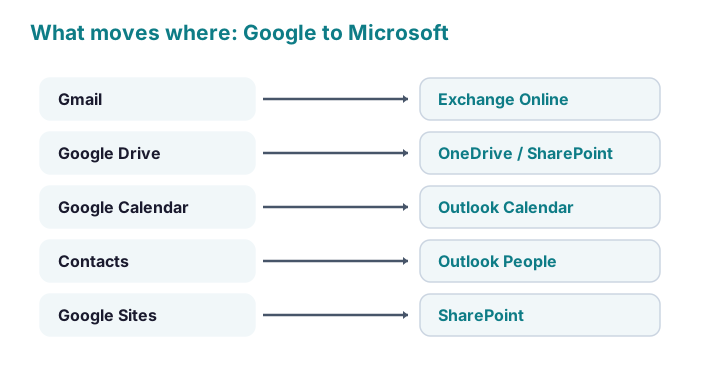
The split of Drive trips people up most. Personal files belong in OneDrive, while shared drives and team content belong in SharePoint. So decide that line early, because it shapes how you move the files later. A quick map of who owns what saves hours of sorting during the move itself.
🧭 The five phases of the migration
A migration runs best as five clear phases, each finished before the next begins. You assess, prepare, pilot, migrate, then cut over. Because every phase has a clear exit, you always know where you stand. That structure also makes it easy to pause and resume if work gets busy.
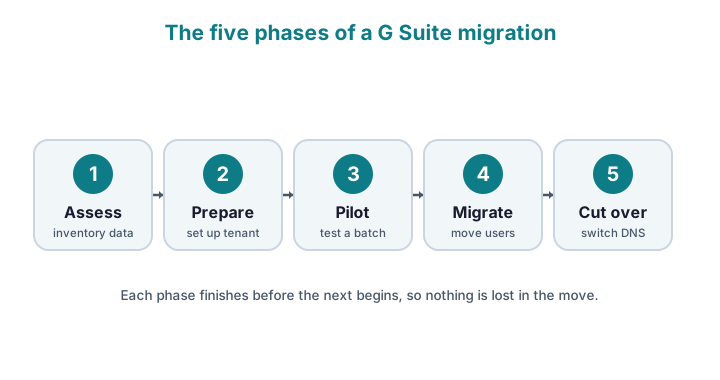
The pilot phase earns its keep. You move a small batch of friendly users first, then watch for snags before the bulk run. So any surprise shows up on five mailboxes, not five hundred. Once the pilot lands clean, the rest of the migration becomes a confident repeat of the same steps.
🧰 Native migration vs a third-party tool
Here is the choice that shapes the whole project. Microsoft includes a free IMAP migration that moves mail well, but only mail. A paid tool from a vendor like BitTitan or ShareGate also carries Drive files, calendars, and permissions, with reporting on top. So the trade is cost against scope.
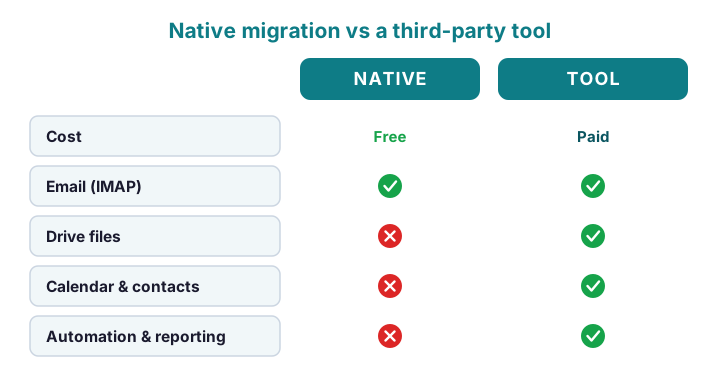
So when does each one win? For a small team that mostly needs mail, the native route saves real money. For a larger move, or one with heavy Drive content and tight deadlines, a tool pays for itself in saved hours. Many teams blend both, using native for mail and a tool only for files.
💰 What a G Suite migration to Office 365 costs
Budget shapes every migration, so price the whole move up front. The largest line is the Microsoft 365 licences, billed for each user every month. A small team on a basic plan pays a modest fee, while richer plans cost more. So count your users and choose the plan before anything else.
A paid migration tool adds a one-off cost, usually priced per mailbox. For a small, mail-only move, you skip that and lean on the free native route. For a larger or file-heavy move, the tool often pays for itself in saved hours. So weigh the licence fee against the labour it removes from your team.
Time carries a hidden cost of its own. Planning, testing, and user support all draw real hours from the people running the move. A rushed project that drops mail costs far more than a careful one. So budget for the effort as well as the licences, and the whole job stays predictable from start to finish.
📋 Before you migrate: the pre-migration checklist
Most migration pain comes from skipped prep, so slow down here. Start with an inventory of users, shared mailboxes, groups, and Drive owners. Then buy the right Microsoft 365 licences and confirm you hold admin access on both sides. So the move starts from a known state, not a hopeful one.
Across the migrations we run, the step teams skip most is the data clean-up. People move years of dead mailboxes, stale shared drives, and ex-staff accounts, then pay to store the clutter. So prune before you move, not after. A shorter list migrates faster, costs less, and leaves the new tenant tidy from day one.
Communication belongs on the checklist too. Tell users what changes, when, and what they must do on the day. Set a date for the cutover, and warn them that the old and new systems may both run briefly. Because people fear surprises more than effort, clear notice prevents most support calls.
🌐 DNS, the MX record, and the cutover
The cutover is the single riskiest step, so treat it with care. Until you change the MX record, mail still flows to Google. The moment you switch it, new mail lands in Microsoft instead. So you verify your domain in the new tenant first, then change DNS only once the mailboxes are ready.
# In the new tenant, verify the domain and check accepted domains
Connect-ExchangeOnline -UserPrincipalName admin@contoso.com
Get-AcceptedDomain | Select-Object Name, DomainName, DomainType

# Confirm a test mailbox carries the right primary address
Get-Mailbox -Identity pilot@contoso.com | Select PrimarySmtpAddress
Lower your DNS time-to-live a day ahead, so the change spreads fast. Then update the MX, SPF, and DKIM records together, because mail needs all three to route and authenticate. After the switch, send a test message both ways. Once it lands cleanly, the cutover is done and the new platform owns your mail.
📨 Migrate the mailboxes
Mailboxes move through an IMAP migration, which Microsoft drives for free. You create a migration endpoint that points at Gmail, then feed it a CSV of users and app passwords. The service copies mail in the background while people keep working. So nobody loses access during the copy itself.
# Create an IMAP endpoint for G Suite, then start a migration batch
$ep = New-MigrationEndpoint -IMAP -Name "GSuite" -RemoteServer imap.gmail.com -Port 993 -Security Ssl

New-MigrationBatch -Name "Wave1" -SourceEndpoint $ep.Identity `
  -CSVData ([System.IO.File]::ReadAllBytes("C:\wave1.csv")) `
  -TargetDeliveryDomain contoso.onmicrosoft.com
Start-MigrationBatch -Identity "Wave1"
Run the move in waves rather than all at once. A wave of twenty users is easy to watch and easy to fix. Because IMAP copies only mail, you still need a separate plan for Drive, calendars, and contacts. So treat this batch as the email half of the project, and pair it with the file steps below.
📁 Migrate Google Drive to OneDrive and SharePoint
Files are where a migration gets messy, so give them their own plan. Personal Drive content belongs in each user’s OneDrive, while shared drives map to SharePoint sites. Microsoft offers a Migration Manager that pulls Google Drive across, and most paid tools do the same with more control. So pick the route that fits your file volume.
Permissions need real attention here. Google sharing rarely maps one-to-one onto Microsoft, so review who can open what after the copy. Google Docs also convert to Word, Excel, and PowerPoint, which can shift a little formatting. So spot-check a sample of important files, then fix any sharing that did not carry over.
Sequence the files around the mail move. Many teams copy Drive in the background during the pilot, then run a final sync near cutover to catch recent changes. Because files change daily, that last sync matters. Done well, users open the new OneDrive and find everything exactly where they expect it.
📅 Calendars, contacts, and shared drives
The smaller items still deserve a plan, because users notice when they break. Calendars and contacts move with most paid tools, or through an export and import for a small team. Shared drives need an owner on the Microsoft side before they cross. So assign those owners early, and the rest follows smoothly.
| Item | Best route | Watch out for |
|---|---|---|
| Native IMAP migration | App passwords, throttling | |
| Drive files | Migration Manager or a tool | Permissions, Docs conversion |
| Calendar | Tool or export and import | Recurring events, invites |
| Contacts | Export and import (CSV) | Groups, photos |
Recurring calendar events are the classic snag, so test a few first. An invite series can lose a guest list or shift a time zone in the move. A quick check on one busy calendar catches it early. After that, you can move the rest with confidence rather than crossed fingers.
👥 Help users through the first week
The migration is not finished when the data lands; it ends when people work happily. So plan the first week as carefully as the move itself. Send a short guide on signing in, opening Outlook, and finding files. Because most questions repeat, one clear note prevents a flood of tickets.
Small differences trip users up early. Gmail labels now look like Outlook folders, while shared Drive files now live in SharePoint. A quick map of old-to-new spots settles most of the worry. So show people where their familiar things moved, rather than assuming they will simply find them.
Keep a fast support channel open for a fortnight. A staffed chat or inbox catches the odd missing file or calendar gap while it is still easy to fix. Once the questions slow to a trickle, the move has truly landed. So treat that first week as the final, human phase of the whole project.
🗓️ A typical migration timeline
It helps to see the whole project on one line. A small move runs over four to six weeks, with the phases overlapping a little. You plan in week one, build the tenant in week two, then pilot and migrate across the middle weeks. The cutover lands near the end, once the data is in place.
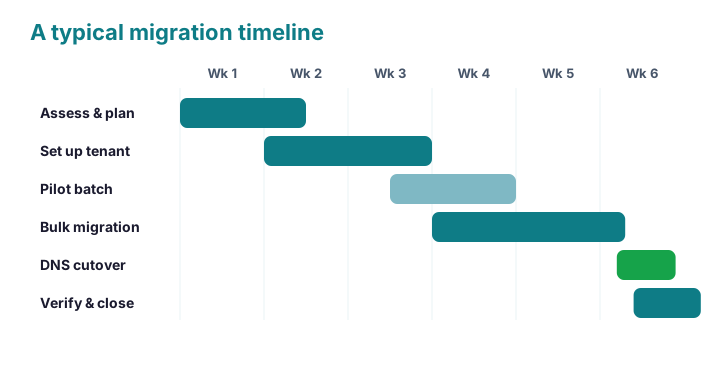
Build slack into the schedule on purpose. Data copies often run longer than you expect, and a busy week can slow user testing. So leave a buffer before the cutover date, rather than promising the tightest path. A move that lands a few days late but clean beats a rushed one that drops mail.
⚠️ Common problems and how to fix them
A few issues come up on almost every move, so know them in advance. Duplicated emails are the classic one, usually caused by running a batch twice. Missing labels, broken sharing, and shifted calendar invites round out the list. Because each has a known fix, none of them needs to derail the project.
| Problem | Likely cause | Fix |
|---|---|---|
| Duplicated emails | A batch ran twice | Remove the batch, resync once cleanly |
| Labels missing | Gmail labels became folders | Expected; map key labels to folders |
| Sharing broke | Google permissions did not map | Reset sharing on moved files |
| Mail still hits Gmail | MX record not yet changed | Update the MX and lower the TTL |
Duplicated mail worries people most, yet it is the easiest to undo. It almost always means a batch synced twice, so you remove the batch and resync once. Gmail labels, meanwhile, simply become folders, which is normal rather than broken. So treat that change as expected, and map the few labels that truly matter.
📊 Track progress and report each wave
A migration runs smoother when you can see it. Track each wave by its batch, and watch the synced item counts climb. So a stalled mailbox shows up at once, rather than at cutover. A simple dashboard or a weekly export keeps everyone aligned on where the project stands.
Reporting also reassures the people who signed the cheque. A short status note each week, showing users moved and data copied, builds quiet confidence. Because the numbers are concrete, nobody has to guess how the work is going. So a five-minute report each Friday buys a surprising amount of goodwill.
Keep the final report as a record once you finish. It shows what moved, when it moved, and that the counts matched the source. Auditors and managers both value that paper trail. So close the project with a clean summary, and the migration leaves proof of a job done right.
🔁 Coexistence: running both during the move
For a larger team, you rarely flip everyone in one night. Instead, both systems run side by side for a short window. So mail must flow to whoever has already moved, while the rest stay on Google. A little routing keeps that period calm rather than chaotic.
The trick is to forward mail the right way during coexistence. While a user still lives on Google, you route their mail there; once they move, you route it to Microsoft. Because the cutover happens per wave, nobody waits for the whole company. So a fifty-person firm can move over two or three calm weekends.
A shared directory smooths the in-between period. When people on both systems still find each other in one address book, internal mail flows without bounces. So sync contacts or set a simple forwarding rule before the first wave moves across. That small step keeps the company feeling like one team, even while two platforms run underneath. Once the final wave lands, you retire the bridge and run wholly on Microsoft.
✅ After the cutover: verify and decommission
The move is not done until you prove it is done. After cutover, confirm every mailbox provisioned and that item counts match the source. Check that mail flows both ways and that files opened cleanly. So you catch any gap while the old system still exists as a safety net.
# Confirm mailboxes provisioned and review the batch results
Get-EXOMailbox -ResultSize Unlimited | Measure-Object
Get-MigrationUser -BatchId "Wave1" |
  Select Identity, Status, SyncedItemCount
Run a short list of checks the morning after cutover. Confirm new mail arrives, that a reply leaves cleanly, and that a shared mailbox still opens for its team. Spot-check a few migrated files and one busy calendar as well. Because you look while Google still stands, any gap is easy to repair. So a ten-minute round of checks turns the riskiest morning into a quiet one.
Keep Google running for a grace period before you switch it off. A week or two lets stragglers surface a missing file or a forgotten calendar. Once nobody reports a gap, you cancel the Google subscription and reclaim the cost. So decommission last, only after the new platform has earned your trust.
🧭 Native or a paid tool: how to decide
If you take one decision away, make it this one. The native route fits a small, mail-first move on a tight budget. A paid tool fits a larger move, heavy Drive content, or a deadline that leaves no room for manual steps. So weigh size, scope, and time, then pick once and commit.
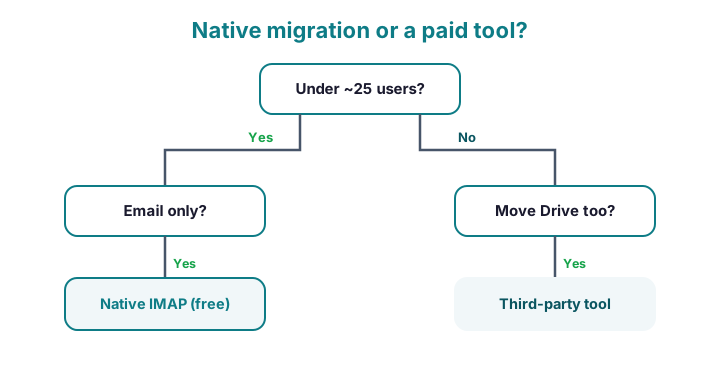
In the projects we audit after the fact, the regret is rarely the tool choice. It is the lack of a rollback plan and a verified backup before cutover. So whichever route you pick, keep Google live until counts match, and snapshot your data first. A tested fallback turns a risky night into a routine one.
Cost should not decide it alone, because time has a price too. A free route that burns a week of admin hours can cost more than a tool. So count the hours, not just the licence. Once you price the whole effort, the right choice usually becomes obvious for your size of move.
Reversibility matters more than people expect. A native move is easy to pause and resume, while a tool run can be harder to unwind mid-flight. So if your team is new to migrations, the simpler route lowers the stakes. You can always layer a tool on top later for the files, once the mail is safely across.
💡 Common G Suite migration mistakes to avoid
A few avoidable errors cause most of the pain, so learn them now. The first is skipping the pilot and moving everyone at once. The second is changing the MX record before the mailboxes are ready, which scatters new mail. Both turn a calm move into a long night.
Two more slips show up often. People forget to plan for Drive files and treat the project as email only, then scramble later. Others kill the Google subscription too soon, before anyone confirms the data arrived. So keep the old system live, and give files the same care as mail.
For the official steps, Microsoft documents the native path in its G Suite mailbox migration guide. Pair that page with this plan, and you cover both the how and the why. So a first-time admin can run the move with a clear map rather than guesswork.
📚 More for IT Admins
🔍 Migrating to Microsoft 365? Start it the right way.
The M365 Instant Audit scans your new tenant in under 10 minutes. It checks license waste, MFA coverage, security posture, and configuration gaps. As a result, you get a full PDF report with prioritized fixes, delivered instantly.
❓ G Suite migration to Office 365: Frequently Asked Questions
You inventory your data, set up the Microsoft 365 tenant, verify your domain, and pilot a small batch. Then you migrate mailboxes by IMAP, move Drive files to OneDrive and SharePoint, and switch the MX record at cutover.
Yes. Microsoft includes a free IMAP migration that moves email. It does not carry Drive files, calendars, or contacts, so a file-heavy move often needs a paid tool as well.
Most small teams finish in two to six weeks. A clean tenant and a tidy file store shorten that window, while a large Drive or years of mail can stretch it.
Duplicated mail almost always means a migration batch ran twice. Remove the batch, then resync the affected users once cleanly, and the duplicates clear.
Yes. Google Docs become Word, Sheets become Excel, and Slides become PowerPoint. The conversion can shift minor formatting, so spot-check important files after the move.