

An office 365 cloud migration moves your email, files, and identities off ageing on-premises servers and into Microsoft’s cloud. So the prize is real: no more patching boxes at midnight, and your team works from anywhere. Still, a rushed move breaks mail flow and rattles users. Therefore this guide walks the whole journey, from a cloud-readiness check to your first week live.
We run these moves for small businesses, so the advice below is practical, not theoretical. First you will see how cloud pricing differs from on-premises. Then you will choose hybrid or cutover, follow a five-phase plan, dodge the common risks, and land safely. Because the data rarely fails, while the plan often does, we spend most of our time on discovery.
🛡️ Free: M365 Audit Checklist
19-page PDF with 50 hands-on checks covering Entra ID, Exchange Online, SharePoint, Teams, Intune, license waste, and audit logging. PowerShell commands included. Built from 60+ real tenant audits at Wintive.
🧭 What an office 365 cloud migration actually involves
An office 365 cloud migration moves mailboxes, files, and accounts into Exchange Online, SharePoint, OneDrive, and Entra ID. In short, you inventory what you have, pick a route, pilot it, move users in waves, and verify nothing is lost. A good plan also covers DNS, mail flow, and the cutover, usually after hours. The goal is simple. Your team signs in the next morning, and everything just works.
At its core, the move swaps servers you own for services Microsoft runs. Your mailboxes land in Exchange Online. Files move to SharePoint and OneDrive. Accounts live in Entra ID, the cloud directory. Meanwhile Teams replaces the old phone system and chat tools.
Because the workloads differ, you migrate them in a sensible order. Identity goes first, since everything else depends on it. Then email, then files, then apps. So a clear sequence keeps users productive while the move runs underneath them.
A short setup step comes before any data moves. First you create the tenant, verify your domain, and buy the right licences. Then you connect the source to Microsoft 365 so the tools can read it. Only after that groundwork does the first wave begin, which is why preparation, not speed, defines a smooth move.
Expect almost no visible downtime when the plan is right. During the move, old and new systems usually coexist, so mail keeps flowing. Then, on cutover night, the final delta syncs and DNS points to the cloud. By morning, Outlook simply reconnects to Exchange Online.
☁️ Does Microsoft 365 really run in the cloud?
Yes, and that is the whole point. Microsoft 365 is a software-as-a-service suite that runs in Microsoft’s data centres. So you reach it over the internet from any device, with no server to host on your premises.
On-premises Office, by contrast, lived on hardware in your office. You bought the servers, patched them, and replaced them every few years. In the cloud, Microsoft handles the plumbing, while you manage users, data, and policy. As a result, your job shifts from keeping the lights on to governing the service well.
Two extras come baked in. First, the apps update themselves, so you always run the current version. Second, your data sits in a chosen region, which helps with residency and compliance questions. This shift matters for budgeting too, because you trade a big purchase for a predictable monthly fee. Next we will put real numbers on that difference.
🏢 On-premises versus the Microsoft cloud
The clearest way to see the change is the money. On-premises email means buying servers, licences, and backup kit up front. Then you pay to power, cool, and patch them for years. The cloud flips that into a flat per-user subscription.
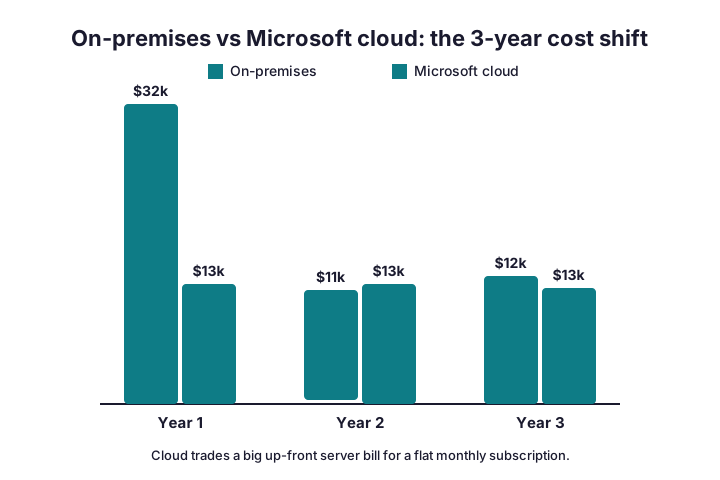
So the cloud rarely looks cheaper on a spreadsheet for year one alone. Over three years, though, the picture changes. You drop the refresh cycle, the maintenance hours, and the surprise repairs. Moreover the cloud folds in security and compliance tooling you would otherwise buy separately.
Do not forget the hidden on-premises costs either. Electricity, cooling, and a server cupboard all add up quietly. Downtime costs more still, since a dead Exchange box stops the whole company. Because the cloud pushes those risks to Microsoft, the real comparison is rarely just the licence price.
Scale tells the same story. When you hire five people, you simply add five licences in minutes. By contrast, an on-premises server has a fixed ceiling, so growth eventually forces another big purchase. Remote work seals the case, because cloud apps reach any laptop or phone without a clunky VPN back to the office.
✅ Is your environment cloud-ready?
Before you touch a mailbox, score your environment honestly. A short readiness check saves weeks of pain later. Specifically, you look at identity, email, files, apps, network, and licences. Each pillar can block the move if you ignore it.
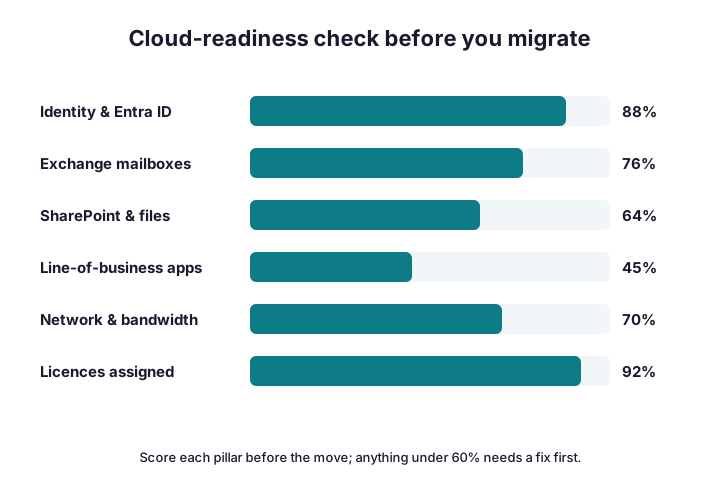
Identity usually needs the most work, since stale accounts and messy groups must be cleaned first. Network matters too, because the initial sync pushes a lot of data; budget a few megabits per active user. Apps hide surprises, such as scanners and line-of-business tools that relay mail through your old server.
Where a pillar scores low, fix it before the move, not during it. For example, you might retire dead accounts, raise bandwidth, or set up a cloud SMTP relay for devices. Otherwise those small gaps become live incidents on cutover night.
🔀 The seven types of cloud migration, and the two that fit
People often ask about the “seven Rs” of cloud migration. They describe the choices you face for each workload. For an office 365 cloud migration, two of them do most of the work, so do not overthink the rest.
- Rehost — lift mailboxes and files straight into the cloud as they are.
- Replatform — move and modernise, such as on-prem files into SharePoint.
- Repurchase — swap an old app for a SaaS equivalent.
- Refactor — rewrite an app for the cloud (rare for SMBs).
- Relocate — shift virtual machines without changes.
- Retain — keep a workload on-premises for now.
- Retire — switch off what nobody uses.
Most SMB moves are rehost for email and replatform for files. Meanwhile retire is the quiet winner, because every server you switch off is one you never pay for again. Map each workload to one R during planning, and the project plans itself.
A quick example shows how it works. Your mailboxes rehost into Exchange Online untouched. Your shared drive replatforms into SharePoint, where it gains versioning and search. Meanwhile that dusty fax server retires, and the ancient CRM repurchases as a modern SaaS tool. So one short workshop usually settles every workload.
🔁 Hybrid or cutover: which route fits you
Two routes lead to the cloud, and the right one depends on your size. Cutover moves everyone in one go, usually over a weekend. Hybrid keeps on-premises and cloud running side by side while you migrate in batches.
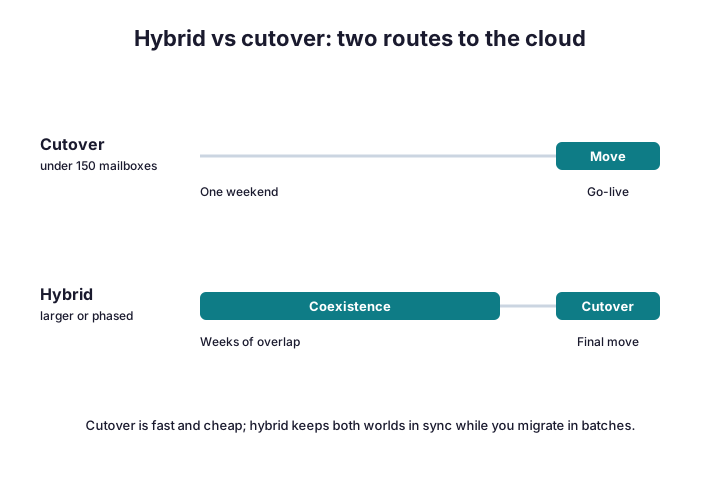
Under roughly 150 mailboxes, cutover is fast, cheap, and clean. Above that, or when downtime scares you, hybrid earns its keep. Because hybrid syncs both worlds, users barely notice the change. Still, it adds setup, so reserve it for moves that truly need coexistence.
There is also a middle path. Express or staged migrations move data in waves without a full hybrid build. So if you sit just above the cutover line, ask your partner about a minimal-hybrid option first. That choice often saves both time and licence cost.
🗺️ The five-phase office 365 cloud migration plan
Every successful move follows the same five phases. First you assess. Then you plan, pilot, migrate, and finally optimise. Discovery takes the most time, while the move itself is short.
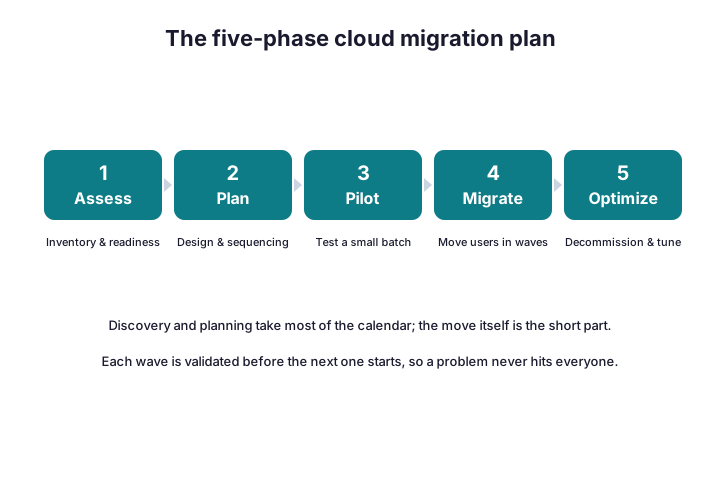
Start the assessment with a real inventory, not a guess. The command below exports every mailbox and its size, so you can sequence the waves sensibly.
# Inventory mailboxes and sizes before you move (Exchange Online PowerShell)
Get-EXOMailbox -ResultSize Unlimited |
  Get-EXOMailboxStatistics |
  Select DisplayName, TotalItemSize, ItemCount |
  Sort TotalItemSize -Descending | Export-Csv .\mailbox-inventory.csv -NoTypeInformation
From that inventory, you group users into waves and pick a pilot of friendly testers. Keep the pilot small, ideally five to ten people across different teams. Once it lands cleanly, each later wave follows the same script. Finally, the optimise phase tightens security and switches off the old kit.
Each phase has a clear deliverable, so nobody guesses where things stand. Assess produces the inventory and a readiness score. Plan produces the wave schedule and the cutover date. Pilot proves the runbook on real users, while migrate repeats it at scale. So when optimise ends, the project closes with the servers powered down for good.
📦 What moves to the cloud, and what stays behind
A migration is also a clear-out. As each workload lands in the cloud, the matching on-premises box can retire. So the table below maps where everything goes.
| What moves to the cloud | Where it lands | What you leave behind |
|---|---|---|
| Mailboxes, calendars, contacts | Exchange Online | The on-premises Exchange server |
| File shares and documents | SharePoint & OneDrive | Aging file servers and NAS boxes |
| Identities and groups | Entra ID | The local Active Directory (or sync it) |
| Chat, meetings, calls | Microsoft Teams | On-premises PBX hardware |
| Line-of-business data | Azure or a SaaS app | Servers you no longer patch |
Notice that Active Directory can either retire or sync to Entra ID. Many SMBs keep a small sync for a while, then cut it once nothing depends on it. Watch the awkward leftovers too, such as public folders, shared mailboxes, and scan-to-email devices. Either way, the direction is one-way: toward the cloud.
Phone systems deserve their own line. If you still run a PBX, Teams Phone can absorb it, though number porting takes lead time. So start that conversation with your carrier early, well before the cutover. Likewise, map any app that sends mail, because each one needs a new home before the old server goes dark.
⏱️ How long does it take?
Timelines vary with size and data volume, yet the shape is predictable. A small cutover of under 50 users often finishes inside a week. A hybrid move of a few hundred users runs across several weeks of batches.
The slow parts are rarely technical. Instead, decisions and clean-up eat the calendar. For example, agreeing a cutover window or chasing a forgotten shared mailbox can add days. Because of that, we plan the schedule around people, not just data.
Two technical limits also shape the clock. First, your upload speed caps how fast data leaves the building. Second, Microsoft throttles very large syncs to protect the service. So a tenant with huge mailboxes simply needs more nights, and no tool removes that ceiling.
A rough rule helps you plan. Most connections move somewhere between five and fifteen gigabytes of mail per hour. So a 25-user firm with average mailboxes usually finishes its initial sync overnight. By contrast, an archive-heavy team with huge mailboxes might spread the same step across a long weekend.
🧰 The tools that move your data
Microsoft ships native migration tooling, and it covers most SMB moves for free. The Exchange admin centre runs mailbox batches, while the SharePoint Migration Tool handles files. For trickier sources, third-party tools like BitTitan or ShareGate add automation and reporting.
Whichever tool you pick, the pattern is the same: connect the source, map users, and run a batch. The snippet below starts a wave and reports its sync status. For deeper reference, Microsoft documents every step in its mailbox migration guide.
# Start a migration batch and watch it sync (Exchange Online PowerShell)
New-MigrationBatch -Name "CloudMove-Wave1" -SourceEndpoint "OnPremEndpoint" -TimeZone "UTC" -AutoStart
Get-MigrationBatch | Format-Table Identity, Status, TotalCount, SyncedCount
Watch the synced count closely, since a stalled batch usually points to a throttled source or a bad mapping. When a wave reaches one hundred percent, you schedule its cutover and lower the DNS records. Native tools win for Exchange and Google Workspace, while paid tools shine on PST files and tenant-to-tenant moves.
Choose the tool to fit the source, not the brand name. For a single Exchange server, the native batch wizard is usually enough. For scattered PST archives or a messy Google estate, a paid tool pays for itself in saved hours. So price the licence against the time it returns, and the decision becomes obvious.
⚠️ The real risks of cloud migration
People worry about losing data, yet that is the least likely failure. The bigger risks are downtime, broken mail flow, licence waste, and users who feel ambushed. So plotting each risk by likelihood and impact keeps your attention where it belongs.
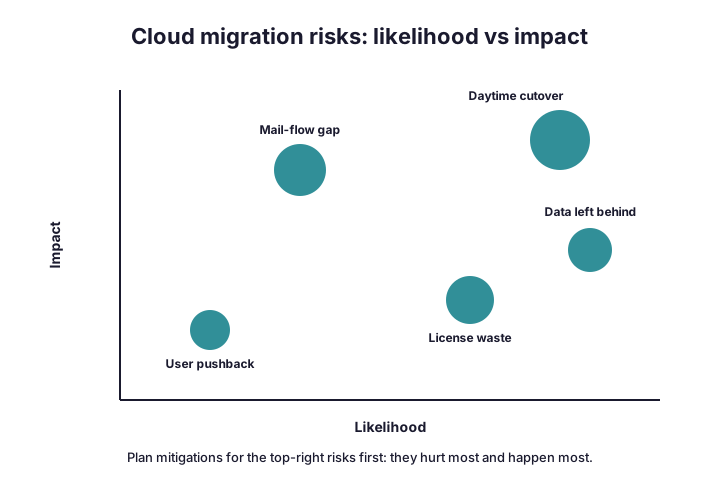
Each risk has a cheap fix. Pilot first, so surprises hit ten people, not everyone. Cut over after hours, because a daytime switch guarantees angry calls. Right-size licences early, since paying for unused seats wastes money every month. Tell users what changes, and the pushback mostly disappears.
Wintive insight. Across the moves we run, the data almost never fails; the plan does. For example, a daytime cutover or a forgotten shared mailbox causes most of the pain. As a result, we spend more time on discovery than on the move itself. That is also why a fixed quote comes after the audit, never before.
💸 What an office 365 cloud migration costs
Cost splits into three honest buckets: the licences, the move, and the cleanup. Licences are a monthly per-user fee. The move is a one-off, priced per mailbox or per user. Cleanup is mostly admin time.
| Cost line | Typical SMB range | What drives it |
|---|---|---|
| Microsoft 365 licences | $6–$22 per user / month | Plan tier and add-ons |
| Migration project (DIY tools) | $2–$5 per mailbox | Data volume and source |
| Migration with a partner | $15–$40 per user | Complexity and hand-holding |
| Bandwidth or temporary kit | $0–$1,500 one-off | Data size and deadline |
| Post-move tuning | A few hours of admin time | Policies, security, cleanup |
Picture a 25-person firm as an example. Business Standard licences run about $315 a month, while a partner-led move might cost $1,000 once. So the first-year total stays modest next to the price of a failed in-house attempt.
Beware the cheap headline. A two-dollar mailbox move sounds great, until a daytime cutover costs you a day of lost work. Therefore weigh the project price against the risk it removes, rather than the sticker alone.
Remember the savings that land on the other side too. Once the move ends, you cancel the server warranty, the backup appliance, and often a line on the power bill. So the monthly licence is not pure new spend; it quietly replaces costs you already carried. Over a few years, many SMBs come out roughly even, with far less risk.
🔐 Securing the tenant once you land
A fresh cloud tenant is a soft target on day one. So lock it down before you celebrate. Turn on multi-factor authentication for everyone, block legacy protocols, and review admin roles. These three steps stop the vast majority of attacks.
Conditional Access is the tool that enforces the rules. The commands below connect to Graph and point you to the policy you need first.
# Require MFA on day one in the new tenant (Microsoft Graph PowerShell)
Connect-MgGraph -Scopes "Policy.ReadWrite.ConditionalAccess"
# Then build a Conditional Access policy that requires MFA for all users
# Portal path: Entra admin center > Protection > Conditional Access > New policy
After that, switch on audit logging and a sensible retention policy. Then check your Microsoft Secure Score, which grades the tenant and suggests the next fix. Because the cloud keeps a record of everything, you will want those logs the day you actually need them.
One myth deserves a direct answer. Microsoft keeps your service running, yet it does not back up your data the way an old tape did. So treat retention and recovery as your job, not theirs. For anything you cannot lose, add a third-party backup, since a deleted mailbox or a ransomware hit waits for no one.
🧹 Your first week in the cloud
The move is not finished when the last batch syncs. The first week decides how users feel about the whole project. So check mail flow, shared mailboxes, and calendar permissions early, while everyone is paying attention.
Walk the floor, or ping each team, and ask what feels off. Typically you find a missing printer, an Outlook profile to rebuild, or a delegate who lost access. Fix those fast, because small wins build trust.
A little training goes a long way too. Show people OneDrive, Teams, and how to find old mail, and the tickets dry up. Then, once things settle, you retire the old servers for good and cancel the contracts they carried.
Watch one simple signal to judge success: the ticket curve. In a healthy move, questions spike on day one and then fall fast through the week. If they keep climbing instead, something slipped through the pilot, so dig in early. Because momentum matters, a quick win on Monday sets the tone for the whole rollout.
🪤 Mistakes that derail a cloud migration
Most failed moves trip over the same handful of mistakes. None of them are technical, yet each one hurts. So learn the pattern, and you sidestep the worst days.
- Cutting over during the day — users notice every hiccup in real time.
- Skipping the pilot — small problems then hit everyone at once.
- Forgetting shared mailboxes — the classic invisible workload that breaks late.
- Ignoring scan-to-email devices — printers and apps that relay mail stop sending.
- Leaving MFA off — a brand-new tenant is a magnet for attackers.
Notice the theme: communication and discovery, not code. Because we have seen each of these break a Friday night, our runbook checks them by default. So the move feels boring, and boring is exactly what you want.
✅ The office 365 cloud migration checklist
Keep this list close, since it captures the steps teams most often miss. Work top to bottom, and tick each item before you move to the next wave.
- Verify your domain and lower the DNS TTL ahead of the cutover.
- Right-size and assign licences, because no licence means no mailbox.
- Clean up identities and groups before you sync them.
- Inventory mailboxes, shared mailboxes, and public folders.
- Set up a cloud SMTP relay for scanners and apps that send mail.
- Pilot a small, friendly wave and capture the lessons.
- Schedule each cutover after hours, never in the middle of the day.
- Turn on MFA and Conditional Access on day one.
- Confirm mail flow and backups before you retire any server.
If your team would rather hand the whole move to specialists, our office 365 migration services cover planning, the cutover, and the clean-up end to end.
📚 More for migrating teams
These published Wintive guides go deeper on the questions a move raises next. Therefore bookmark the ones that fit your plan.
🔍 Want a complete audit of your Microsoft 365 tenant?
The M365 Instant Audit scans your environment in under 10 minutes: license waste, security posture, MFA coverage, compliance gaps, and rightsizing. A full PDF report with prioritized fixes arrives instantly.
❓ Frequently Asked Questions
It is the process of moving your email, files, and accounts from on-premises servers into Microsoft 365 cloud services such as Exchange Online, SharePoint, OneDrive, and Entra ID.
The “seven Rs” are rehost, replatform, repurchase, refactor, relocate, retain, and retire. Most Office 365 moves combine rehost for email and replatform for files.
The biggest risks are downtime, broken mail flow, licence waste, and poor user adoption. A pilot wave and an after-hours cutover remove most of them.
Microsoft’s native tools, the Exchange migration batches and the SharePoint Migration Tool, cover most SMB moves for free. Tools like BitTitan or ShareGate help with complex sources.
A small cutover often finishes within a week, while a hybrid move of a few hundred users runs across several weeks of batches.
No. Old and new systems coexist during the move, so mail keeps flowing. The final cutover only redirects new mail to the cloud once everything has synced.
🧭 Your next step
Start with a readiness check and a real inventory, because both decide everything that follows. Once you know what you have, the route, the plan, and the budget fall into place. When you are ready to move, we are happy to plan the whole journey with you.
Related Wintive guides: Office 365 migration checklist, Gmail to Office 365 migration guide, and best Office 365 migration tool.