

Search for an office 365 migration tool and the results split into two camps. On one side sit vendor product pages from BitTitan, CodeTwo and Quest. On the other sit Microsoft Learn docs and a free Store app. Neither camp tells a small business which tool actually fits its move.
This guide closes that gap. Wintive has run these migrations across 60+ Microsoft 365 tenants, so we compare native and third-party options by scenario, not by marketing. Moreover, every section maps to a real question admins ask, from IMAP mailboxes to tenant-to-tenant cutovers. As a result, you can pick the right path in minutes, then plan the project with confidence.
🛡️ Free: M365 Audit Checklist
19-page PDF with 50 hands-on checks across Entra ID, Exchange Online, SharePoint, Teams and Intune. Run it before you migrate, so you move a clean tenant. PowerShell commands included. Built from 60+ real tenant audits at Wintive.
🎯 What an office 365 migration tool actually does
Quick answer. An office 365 migration tool moves mailboxes, files or sites into Microsoft 365 while preserving folder structure, permissions and metadata. Native Microsoft tools are free and cover most moves. Third-party tools add scheduling, delta sync and reporting. For most SMBs, the right default is native first, third-party only when scale or coexistence demands it.
The job behind the label
Every migration tool does three things. First, it reads a source system, whether that is Gmail, on-prem Exchange or a file share. Second, it copies content into Microsoft 365 over a supported API. Third, it tracks what moved, what failed and what still needs a delta pass. Because the source and the target differ on every project, no single tool wins every time.
Native tools ship inside the Exchange admin center, the SharePoint admin center and Microsoft 365 itself. Third-party tools wrap those same APIs with a console, throttling logic and richer reports. Therefore the real question is rarely “which product is best”, but “which tool fits this scenario at this size”.
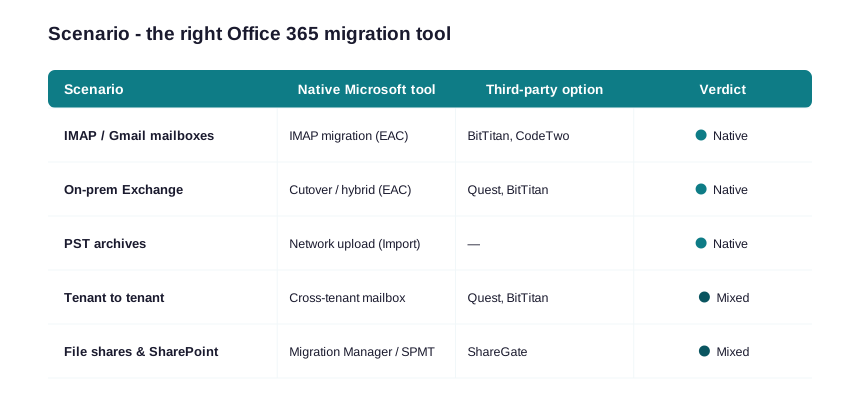
The matrix above is our starting point on every engagement. Notably, it answers the most common long-tail searches in one view, so the team stops guessing and starts scoping.
Read it from left to right. First, find the row that matches your source. Next, check whether the native column already covers you. Finally, only step into the third-party column when scale, coexistence or mixed workloads force the issue. Because the default leans native, most small tenants spend nothing on tooling at all.
🧰 Native office 365 migration tool options that cost nothing
Microsoft ships capable migration tooling at no extra cost. For many small tenants, these native options finish the whole project. So before you buy a license, learn what the platform already gives you.
Exchange mail migration advisor and IMAP
The Exchange admin center runs cutover, staged and IMAP migrations for mailboxes. For Gmail or any IMAP host, you upload a CSV of mailboxes and the service syncs them in the background. Microsoft documents the entry point in its mail migration advisor, which picks the right batch type for you. In practice, IMAP handles email only, so calendars and contacts need a separate export.
SharePoint Migration Tool and Migration Manager
For files, the SharePoint Migration Tool moves on-prem file shares and SharePoint Server content into Microsoft 365. Migration Manager, inside the SharePoint admin center, scales the same job across many agents. Both preserve folder paths, and both map permissions when you provide a mapping file.
Cross-tenant mailbox migration
Microsoft also offers native cross-tenant mailbox migration for tenant-to-tenant moves. It uses a trust between the two tenants and moves mailboxes without a third-party hop. However, it covers mailboxes only, so OneDrive, SharePoint and Teams still need a separate plan.
Setup takes some patience. You create an application in the target tenant, grant it consent in the source, and configure an organisation relationship on both sides. Then you move users in batches, exactly like an on-prem move. Because the trust is explicit, the data never leaves Microsoft, which keeps security and compliance teams comfortable.
| Native tool | Best for | Source | License needed |
|---|---|---|---|
| IMAP migration (EAC) | Gmail and IMAP mailboxes | Any IMAP host | None |
| Cutover / staged (EAC) | On-prem Exchange email | Exchange 2010+ | None |
| Network upload (Import) | PST archives | PST files | None |
| SharePoint Migration Tool | File shares and SP Server | UNC paths, SPS | None |
| Cross-tenant mailbox | Tenant to tenant email | Source Microsoft 365 | Cross-tenant SKU |
🧭 Match the scenario to the right office 365 migration tool
Scenario drives the choice. Below, each subheading answers a specific search, so you land on the right tool without trial and error. Because the long-tail demand is real, we treat every case as a first-class path.
IMAP and Google Workspace to Microsoft 365
Gmail and Google Workspace move over IMAP for mail, then through a separate pass for Drive files. For mail, the native IMAP batch is usually enough. For Drive, however, a third-party tool saves real effort because it maps Google Docs to Office formats and keeps sharing intact. So the split decision is mail native, files assisted.
Shared drives add one more wrinkle. Because Google shared drives have no direct Microsoft 365 twin, you map each one to a SharePoint site or a Teams files tab. Plan that mapping before the move, since renaming sites afterwards breaks links. In practice, a short naming workshop with the client prevents most of the cleanup.
On-prem Exchange: cutover, staged or hybrid
On-prem Exchange offers three native routes. Cutover suits fewer than 150 mailboxes in one weekend. Staged suits larger Exchange 2010 estates in waves. Hybrid suits organisations that need long coexistence and a gradual move. Therefore the mailbox count and the coexistence window decide the route, not the brand of any tool.
Hybrid coexistence in practice
Hybrid is powerful, yet it carries the most moving parts. You run the Hybrid Configuration Wizard, keep at least one on-prem Exchange server for management, and let mail flow both ways during the move. Consequently, hybrid fits regulated firms and slow, careful migrations. For a clean small-business cutover, however, it is usually overkill.
PST archives into Microsoft 365
PST files move through the Microsoft 365 Import service, and old mail often lands in Exchange Online archiving. You either upload over the network or ship a drive. Then a CSV maps each PST to its target mailbox or archive. For a handful of PSTs, the network upload finishes in an afternoon.
Permissions and metadata a migration can break
Content is the easy part; permissions are the hard part. Native and third-party tools both copy data faster than they copy access rights. Specifically, file shares carry NTFS permissions that rarely map one-to-one to SharePoint groups. Therefore you supply a mapping file, then spot-check sensitive sites by hand after the move. Created and modified dates also need care, because some tools stamp the migration date instead of the original.
The PowerShell below kicks off a native cutover batch from the Exchange admin side. First connect to Exchange Online, which we cover in our Exchange Online PowerShell guide, then create the batch.
# Native cutover migration batch (Exchange Online PowerShell)
# Prereq: Connect-ExchangeOnline -UserPrincipalName admin@contoso.com

# 1) Store the on-prem admin credential for the migration endpoint
$cred = Get-Credential

# 2) Create an Outlook Anywhere (RPC) migration endpoint
$ep = New-MigrationEndpoint -ExchangeOutlookAnywhere -Name "OnPrem-Cutover" `
  -Autodiscover -EmailAddress admin@contoso.com -Credentials $cred

# 3) Launch the cutover batch and notify the admin on completion
New-MigrationBatch -Name "Cutover-2026" -SourceEndpoint $ep.Identity `
  -CutoverMigration -NotificationEmails "it@contoso.com" -AutoStart

# 4) Watch progress until the batch reports Synced / Completed
Get-MigrationBatch -Identity "Cutover-2026" | Format-List Status,TotalCount,SyncedCount
Notice that the native batch reports counts you can audit. Consequently, you always know how many mailboxes synced before you flip DNS.
🔁 The office 365 to office 365 migration tool case
Tenant-to-tenant moves follow a merger, a divestiture or a rebrand. Here the choice gets sharper. Native cross-tenant mailbox migration moves email cleanly, yet it stops at the mailbox boundary. So for OneDrive, SharePoint and Teams, most teams reach for a third-party tool that handles all workloads in one console.
The throughput you can expect varies widely by method. The chart below sets honest expectations, because a weekend cutover only works when the numbers support it.
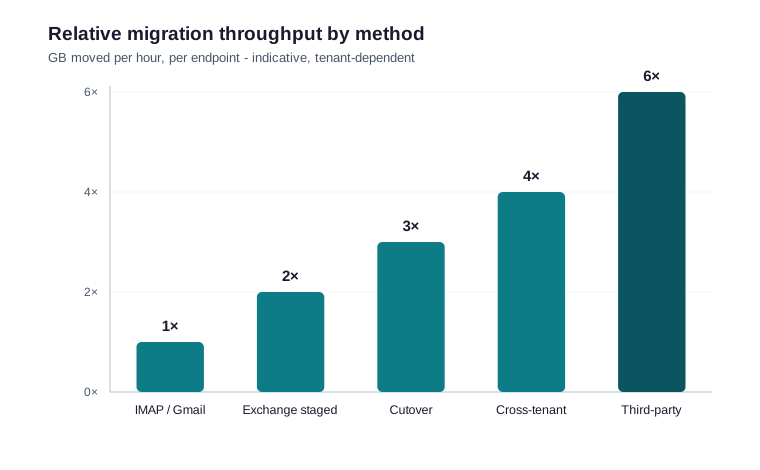
Cross-tenant identity matters too. Before any data moves, you provision or match users in the target tenant. The snippet below previews the source mailboxes and their sizes, so you can sequence the largest accounts first.
# Cross-tenant: inventory source mailboxes by size (Exchange Online PowerShell)
# Run against the SOURCE tenant before scheduling the move

Get-EXOMailbox -ResultSize Unlimited |
  Get-EXOMailboxStatistics |
  Select-Object DisplayName,
    @{N="GB";E={[math]::Round($_.TotalItemSize.Value.ToBytes()/1GB,2)}},
    ItemCount |
  Sort-Object GB -Descending |
  Export-Csv .\source-mailbox-sizes.csv -NoTypeInformation
Identity and licensing before the move
No data moves until identities and licenses line up in the target tenant. First, you create or match every user. Second, you assign the right Microsoft 365 license, because an unlicensed mailbox cannot receive content. The snippet below assigns licenses in bulk, so the pilot batch never stalls on a missing SKU.
# Assign Microsoft 365 licenses in bulk before migration (Microsoft Graph PowerShell)
# Connect-MgGraph -Scopes "User.ReadWrite.All","Organization.Read.All"

$skuId = (Get-MgSubscribedSku |
  Where-Object SkuPartNumber -eq "O365_BUSINESS_PREMIUM").SkuId

Import-Csv .\target-users.csv | ForEach-Object {
  Update-MgUser -UserId $_.UPN -UsageLocation "US"
  Set-MgUserLicense -UserId $_.UPN `
    -AddLicenses @{ SkuId = $skuId } -RemoveLicenses @()
}
💸 When a third-party office 365 migration tool is worth it
Third-party tools earn their fee in three situations: large scale, long coexistence and mixed workloads. Below the line, native tooling wins on cost. Above it, automation pays for itself. So the decision is economic, not emotional.
BitTitan, CodeTwo, Quest and ShareGate
BitTitan MigrationWiz and Quest On Demand suit large mailbox and tenant-to-tenant projects. CodeTwo focuses on mailbox and public-folder moves with a clean wizard. ShareGate leads for SharePoint, OneDrive and Teams content with strong reporting. Each one wraps the same Microsoft APIs, yet each adds scheduling and retry logic that native tools lack.
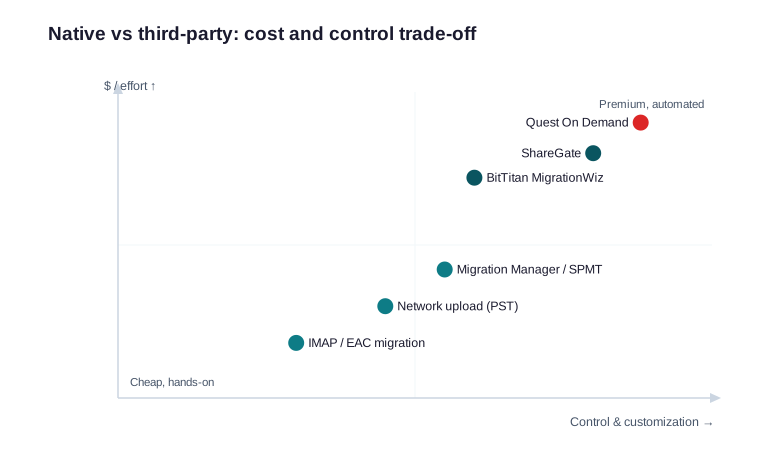
The quadrant makes the trade-off visible. As you move right toward more control, cost and effort rise together. Therefore the goal is the lowest-cost point that still clears your scenario.
Total cost of an office 365 migration tool
Sticker price hides the real number. A per-mailbox license looks cheap, yet the true cost adds engineer hours, project risk and rework. For example, a free native move that drags a senior admin through three messy weekends can cost more than a paid tool that finishes in two days. So we price every option as license plus labour plus risk, then compare totals. Often the paid tool wins on large projects, while native wins easily on small ones.
Choosing an office 365 migration tool by mailbox size
Mailbox count is the fastest filter. Under 50 seats, native tools almost always win, because the labour stays small. Between 50 and 300 seats, the decision depends on coexistence and the file workload. Above 300 seats, or with heavy Teams and SharePoint data, a third-party tool usually pays for itself in saved hours. Consequently, the headcount alone narrows the shortlist before any demo.
🚦 Throughput, throttling and pre-migration checks
Migrations rarely fail on copy logic. Instead, they stall on throttling, bad source data and skipped discovery. So the pre-migration pass matters more than the tool. The chart below shows where the project clock really goes.
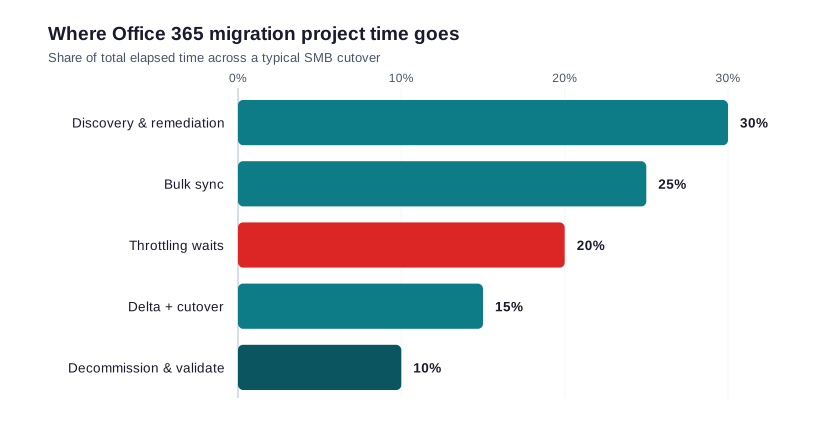
Discovery and remediation eat the largest share, because dirty source data slows every later phase. Meanwhile, Microsoft throttles bulk traffic to protect the service, so realistic windows beat optimistic ones. The check below confirms a batch is healthy before you trust it.
Throttling deserves respect rather than fear. It does not break a migration; it simply paces it. So you spread large mailboxes across several days, and you let delta passes catch the stragglers. As a result, the cutover weekend handles a small final sync instead of the whole dataset.
# Pre-cutover health check: surface failed and stalled items
Get-MigrationUser -BatchId "Cutover-2026" |
  Where-Object { $_.Status -ne "Synced" } |
  Select-Object Identity, Status, SkippedItemCount, LastSyncTime |
  Sort-Object SkippedItemCount -Descending

# A non-zero SkippedItemCount usually means corrupt items or size limits.
# Investigate before you cut over DNS, not after.
Wintive insight
Across 60+ Microsoft 365 tenants, the single biggest delay is skipped discovery, not slow copying. In 7 of 10 audits, the source held stale accounts, oversized mailboxes or shared mailboxes treated as users. Therefore our office 365 migration tool playbook starts with a one-week discovery sprint: inventory mailboxes and sites, flag oversize and corrupt items, map permissions, and lock a realistic cutover window before a single byte moves.
🗓 A five-phase office 365 migration tool rollout
A clean rollout follows five phases. Each phase has an owner and an exit test, so nothing slips. Below, the schedule assumes a fifty-seat tenant, yet the shape holds at larger sizes too.
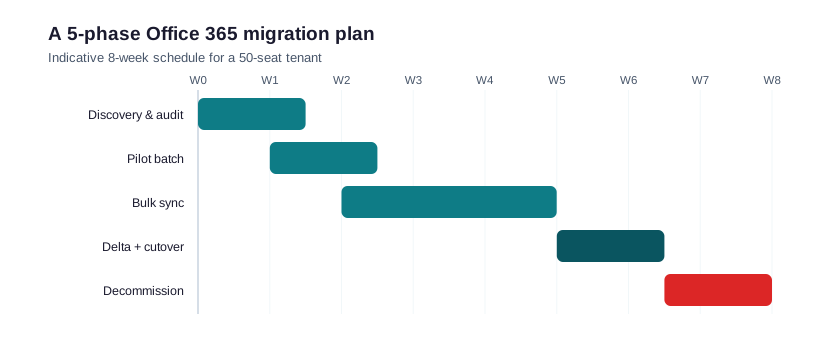
First comes discovery and audit. Second, a pilot batch of friendly users proves the path. Third, the bulk sync runs in the background for days. Fourth, a short delta pass and the DNS cutover finish the move. Finally, you decommission the source and validate mail flow. Because each phase gates the next, surprises stay small.
📈 The Wintive baseline across 60+ tenants
Patterns repeat across our migrations. For small tenants under 150 mailboxes, native tools finish the job nine times out of ten. Above that line, or when Teams and SharePoint move together, a third-party tool saves days. Overall, the cost of the tool is tiny next to the cost of a botched cutover.
| Tool | Strongest at | Pricing model | When we pick it |
|---|---|---|---|
| BitTitan MigrationWiz | Mail and tenant-to-tenant | Per license | High mailbox counts |
| CodeTwo | Mailbox and public folders | Per mailbox | Email-only moves |
| Quest On Demand | Full tenant-to-tenant | Subscription | Mergers, coexistence |
| ShareGate | SharePoint, OneDrive, Teams | Per user / year | Heavy file and Teams moves |
We also standardise the boring parts. Specifically, we template the discovery CSV, the permission map and the cutover runbook, so every project starts from a known-good baseline rather than a blank page. If you would rather hand the whole move to a team, our Office 365 migration services follow exactly this method.
One more pattern surprises clients. Tooling is rarely the bottleneck; people and data are. Because users hoard old mail and shadow file shares, the discovery numbers almost always beat the original estimate. Therefore we add a buffer to every plan, and we communicate the cutover date twice. As a result, the move lands on schedule and the help desk stays quiet.
🔐 Security during an office 365 migration tool project
Migrations quietly widen your attack surface. Service accounts gain broad access, and admins often relax controls to “just get it done”. So security cannot be an afterthought. Instead, you bake it into the runbook from the first batch.
MFA, conditional access and migration accounts
Migration accounts need strong protection, because they can read every mailbox. Therefore you scope them tightly, enforce MFA, and remove their rights the day the project ends. Meanwhile, keep conditional access on for normal users; you rarely need a blanket exclusion. If a tool truly needs an exception, apply it to one named account, not to everyone.
DNS cutover: MX, Autodiscover, SPF and DKIM
The DNS cutover is the moment mail actually moves. You point the MX record at Microsoft 365, update Autodiscover, and publish SPF and DKIM so mail stays trusted. Skip DKIM and your first campaign lands in spam. The check below confirms the public records before and after the flip.
# Verify mail-routing DNS before and after the cutover (PowerShell)
$domain = "contoso.com"
Resolve-DnsName -Type MX    $domain            | Select NameExchange, Preference
Resolve-DnsName -Type TXT   $domain            | Where Strings -match "spf1"
Resolve-DnsName -Type CNAME "autodiscover.$domain"
Resolve-DnsName -Type CNAME "selector1._domainkey.$domain"  # DKIM
# After cutover, MX should resolve to *.mail.protection.outlook.com
Run this check twice: once to capture the old state, then again after the flip. As a result, you can prove mail flow moved cleanly and roll back fast if a record looks wrong.
| Account or control | During migration | After cutover |
|---|---|---|
| Migration service account | Scoped, MFA on | Disabled the same day |
| Conditional access | Keep on for users | Tighten, remove exceptions |
| Global admin count | Two, monitored | Back to minimum |
| Audit logging | On and watched | Reviewed weekly |
Notice the pattern: every loosened control has a closing date. Because access creep is the most common audit finding we see, we write the clean-up into the runbook itself. Consequently, the project ends with a tighter tenant than it started, not a looser one.
✅ Office 365 migration tool post-cutover validation
A migration is not done when the sync finishes. It is done when users work without noticing. So the final phase is a short, structured validation pass, not a victory email.
What to test in the first 24 hours
Check five things straight away. First, send and receive external mail for a pilot user. Second, open a migrated calendar and a shared mailbox. Third, confirm OneDrive files sync on a real laptop. Fourth, post in a migrated Teams channel. Finally, watch the message trace for non-delivery reports. Because problems surface early, this pass turns a risky weekend into a calm Monday.
Your office 365 migration tool checklist
Keep a single checklist that every project reuses. Confirm discovery is signed off, licenses are assigned, and the permission map is approved. Verify the pilot batch passed, the delta window is booked, and DNS records are staged. Finally, schedule the source decommission and the security clean-up. Because the list never changes, each new migration gets safer and faster than the last.
Communication belongs on that list too. Tell users when the cutover happens, what changes, and where to get help. Meanwhile, brief the help desk so it expects the first-day questions. As a result, a smooth migration feels boring to everyone outside the project, which is exactly the goal.
🚨 Five office 365 migration mistakes we see most
Skipping discovery to save a week
Teams that skip discovery pay for it later. Oversized mailboxes and corrupt items surface mid-cutover, when fixing them is hardest. So spend the week up front.
Underestimating throttling windows
Optimistic schedules ignore Microsoft throttling. As a result, the weekend cutover spills into Monday. Size the window from real throughput, not best-case math.
Forgetting OneDrive, Teams and shared mailboxes
Mail gets the spotlight, yet files and Teams hold just as much risk. Conversely, a plan that covers every workload from day one avoids the painful second project.
No rollback or coexistence plan
A cutover without a fallback is a gamble. Keep mail flow working in both places during the delta window, so a problem never becomes an outage.
Treating the tool as the whole project
The tool is maybe a fifth of the work. Discovery, communication, licensing and validation make up the rest. Therefore teams that obsess over the product, yet skip the runbook, still struggle. In short, a modest tool with a strong process beats a premium tool with none.
📚 More for Growing Businesses
🔍 Want your tenant checked before you migrate?
The M365 Instant Audit scans your environment in under 10 minutes: license waste, plan right-sizing, MFA coverage, security posture and compliance gaps. As a result, you get a full PDF report with prioritized fixes, delivered instantly.
❓ Office 365 Migration Tool: Frequently Asked Questions
Yes. Microsoft ships free native tools: IMAP, cutover and staged migration in the Exchange admin center, the Import service for PST files, and the SharePoint Migration Tool. Most small tenants need nothing more.
Mail moves well over the native IMAP migration. Google Drive files, however, are easier with a third-party tool such as ShareGate, because it maps Google formats to Office.
Not always. Native cross-tenant mailbox migration moves email between tenants. Once OneDrive, SharePoint and Teams must move too, a tool such as Quest or BitTitan usually pays for itself.
Plan for two to eight weeks for a small tenant. Discovery takes the most calendar time, while the bulk sync runs in the background and the cutover lasts a weekend.
Skipped discovery. Stale accounts and corrupt items surface mid-cutover, when they are hardest to fix. Therefore a one-week discovery pass removes most of that risk first.
Native tools split the job between Exchange and the SharePoint Migration Tool. A third-party tool such as ShareGate handles mail and files in one console, which suits larger projects.
Folder structure travels reliably. Permissions need more care, because file-share rights rarely map cleanly to SharePoint groups. So you supply a mapping file and spot-check sensitive sites afterwards.
Under 50 seats with simple mail, many teams self-serve with native tools. Above that, or with tight downtime limits, a guided cutover usually beats a risky weekend.