

Microsoft Teams integration is the reason Teams stops being a chat window and becomes the place work actually happens. Rather than juggling a dozen browser tabs, your people pull the tools, files and alerts they need straight into a channel. Handled well, that consolidation saves real time every day. Left unmanaged, it quietly opens your tenant to apps that nobody ever vetted.
This guide is written for IT admins and the businesses they support, who know how to use Microsoft Teams. It maps the five kinds of Microsoft Teams integration, shows the architecture sitting under every team, and walks through the admin controls and PowerShell that keep the whole thing governed. Whether you manage one tenant or many, the same five-part model keeps every decision quick, consistent and easy to defend to a security reviewer. The aim is a clear mental model you can act on, not a long list of apps to install and forget.
📋 Free: the M365 Audit Checklist (50 points)
Any Microsoft Teams integration is only as safe as the tenant behind it. See where yours stands today across identity, apps and data.
🧩 What Microsoft Teams integration really means
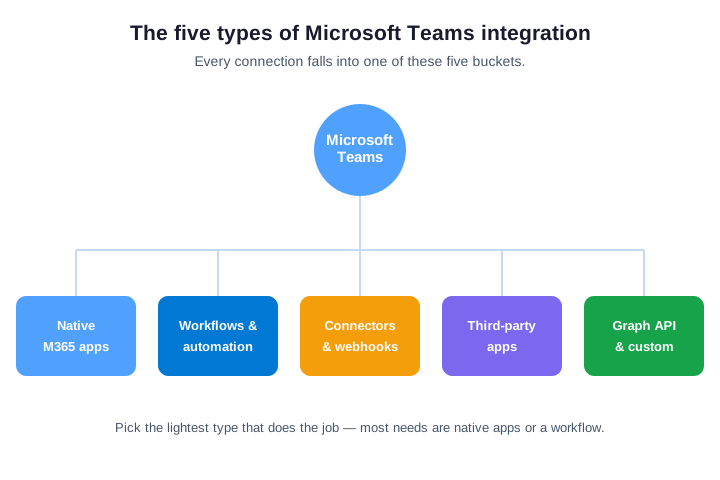
At its simplest, a Microsoft Teams integration connects an outside capability to the Teams client so it works inside your conversations. That link can be a built-in Microsoft 365 app, a no-code Power Automate workflow, a connector or webhook, a third-party app from the store, or a custom build on the Graph API. Each form behaves differently, and each carries its own level of risk.
In short: Microsoft Teams integration means bringing other tools, data and automation into Teams. It comes in five forms — native Microsoft 365 apps, Power Automate workflows, connectors and webhooks, third-party store apps, and custom apps on the Graph API. Native apps and workflows cover most needs, while admins govern the rest through app permission and setup policies. Treat every integration as part of your security surface, not just a convenience.
Knowing which of the five types you face is the whole game. The type tells you who can switch it on, where the data flows, and which policy controls it. So before you approve any request, name the type first. The map below is the model the rest of this guide follows.
Why the type decides the risk
A native app stays inside Microsoft 365, so it inherits your identity and compliance settings. By contrast, a third-party app sends data to an outside vendor under permissions a user consents to. Because those two sit at opposite ends of the risk scale, the same word can mean a safe default or a real exposure. Naming the type turns a vague request into a clear decision you can defend.
🏗️ The architecture behind Microsoft Teams integration
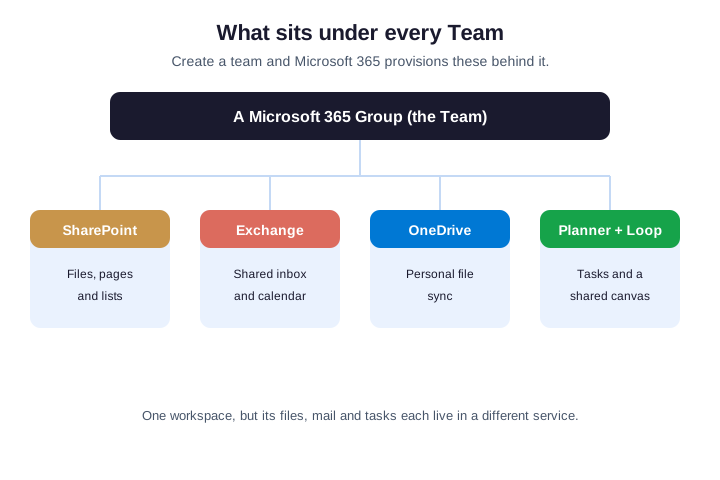
Every team you create is really a Microsoft 365 Group, and that group quietly provisions a stack of services. A SharePoint site stores the files behind each channel. An Exchange group mailbox holds shared email and the calendar. OneDrive handles private file sharing, while Planner and Loop add tasks and a shared canvas. So one team spreads its data across four different services at once.
What this means in practice
Every Microsoft Teams integration plugs into that stack, not into some standalone app. Pin a document to a channel and it lives in SharePoint. Fire a workflow and it touches the group. Because of this, your existing controls already do a lot of the work. A sensitivity label on the group, your external sharing rules, and Conditional Access all shape what an app can reach. Tightening the foundation therefore tightens every integration on top of it.
🧱 Native Microsoft Teams integration with Microsoft 365
The safest integrations are the ones Microsoft already ships, and some of them are extended in the paid tier covered in our guide to Microsoft Teams Premium features. These native apps surface tools you own through tabs, bots and the app rail, with no extra licensing and no third-party data sharing. A single channel can hold a SharePoint library, a Planner board, a Power BI dashboard and a Forms poll side by side. For most teams, this alone covers the bulk of what they ask for.
There is more in the box than people expect. Lists tracks issues and inventory, Loop shares live components, Stream holds recordings, and Shifts manages frontline rotas. Since all of them stay inside Microsoft 365, they inherit your compliance and identity settings automatically. That makes the built-ins the first thing to reach for before anyone shops the store.
Where an app can live matters too. A channel app is shared by the whole team, while a personal app sits in your own left rail. The table maps the common built-ins, what each one adds, and where it shows up.
| Built-in app | What it adds | Where it appears |
|---|---|---|
| SharePoint | Document libraries and pages | The Files tab in every channel |
| Planner / Tasks | Shared boards and to-dos | A channel tab or the Tasks app |
| Power BI | Live dashboards and reports | A pinned channel tab |
| Forms | Polls, quizzes and surveys | A tab or an in-channel poll |
| Lists | Issue, asset and event tracking | A channel tab |
| Approvals | Sign-off requests inside chat | The Approvals app |
⚙️ Workflows: no-code automation in Teams
The Workflows app, powered by Power Automate, is where automation lives now. It replaces the old habit of wiring up notifications by hand. From a template gallery you can post a message when a form is submitted, save attachments to a SharePoint library, or alert a channel when a record changes. None of it needs code, so a non-technical owner can build a useful flow in minutes.
Where a workflow fits
Reach for a workflow whenever the request is “tell us when” or “do this automatically.” Since flows run on triggers, they handle the repetitive glue between apps that used to eat an afternoon. A message action can kick off an approval, a scheduled flow can post a daily summary, and an adaptive card can collect a quick response right in the channel. So the dull parts of a process simply disappear into the background.
Keeping automation governed
Speed should not cost you control. Admins shape what flows may do through data loss prevention policies, which sort connectors into business and non-business groups and block risky mixes. Meanwhile environment settings decide who can build at all. You can therefore hand owners genuine automation power while still drawing a firm line around sensitive data.
🔌 Connectors, webhooks and the shift to Workflows
Connectors and incoming webhooks were the original way to push outside alerts into a channel. They still appear in older guides, yet Microsoft has been retiring the legacy Office 365 connector model and steering everyone toward Workflows instead. If you still rely on a connector for build alerts, RSS or a monitoring tool, treat it as borrowed time and plan the rebuild now rather than after it breaks.
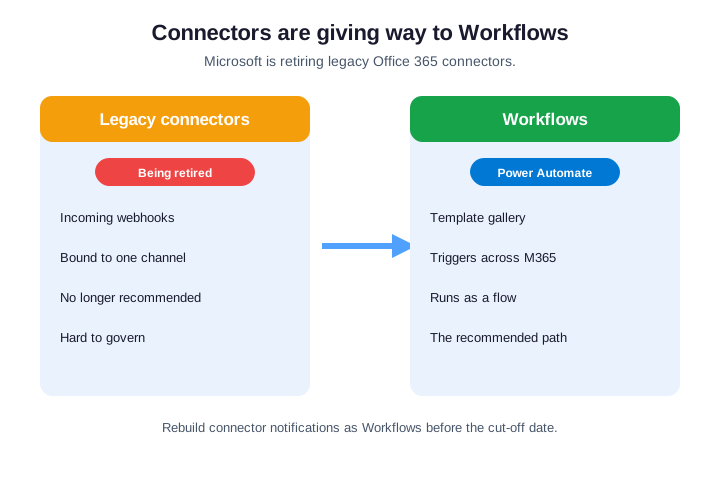
An incoming webhook is still handy for a quick, one-way post from a script or service, and that pattern now lives inside Workflows too. For anything ongoing, a flow is more durable, easier to audit, and far simpler to govern than a raw webhook URL pasted into a channel. Audit your channels for old connectors, list what each one does, then recreate only the ones you still need as workflows.
Finding them is the first chore. Open the manage-connectors view on a channel, or sweep the tenant from the admin side, and note every connector still in use. Any Microsoft Teams integration that depends on one becomes a small migration project, so schedule the rebuild rather than discovering the gap when a notification silently stops arriving.
🛒 Third-party Microsoft Teams integration
Plenty of work happens in tools Microsoft does not make, and the Teams store is full of them. Salesforce, monday.com, ServiceNow, Asana, Jira and Zoom all publish apps that add tabs, bots or meeting extensions. Installed well, they let a team act on a CRM record or a ticket without leaving the chat. Installed carelessly, they hand an outside vendor a doorway into your tenant.
It helps to know the shapes a third-party app can take. A tab embeds a web view, a bot answers in chat, a message extension pulls records into a conversation, and a meeting app adds tools to a call. Each shape requests its own permissions, which a user or an admin must consent to before it works.
In practice, the third-party app store is where governance slips first. A single user clicks “Add,” grants a broad permission, and suddenly an outside vendor can read profile data for an entire team. For most of our clients the fix is not banning apps — it is an allow-list of vetted ones plus an approval step for everything else. That single change removes the bulk of the risk while keeping the tools people genuinely need.
Scope matters as much as approval. An app added to one team stays contained, whereas an org-wide deployment reaches everyone at once. Decide the blast radius before you say yes, and prefer the narrowest install that still does the job.
🧪 Custom apps on the Microsoft Graph and Teams API
When no existing app fits, the Teams developer platform and Microsoft Graph let you build your own. Custom apps can add tabs, bots, message extensions and adaptive cards, all backed by Graph permissions you consent to explicitly. This is also how a line-of-business system gains a real presence in Teams. It is the most powerful route, and the one that most needs admin oversight and a named owner.
You do not have to be a developer to live with the Graph, though. The same API lets admins inventory what is already installed across the tenant. As an example, the command below lists every app added to a specific team, which is the first step in any clean-up.
# List the apps installed in a specific team (Microsoft Graph PowerShell)
Connect-MgGraph -Scopes "TeamsAppInstallation.ReadForTeam.All"
Get-MgTeamInstalledApp -TeamId <team-id> -ExpandProperty teamsApp |
  Select-Object @{n='App';e={$_.TeamsApp.DisplayName}}
🛡️ Govern Microsoft Teams integration from the admin center
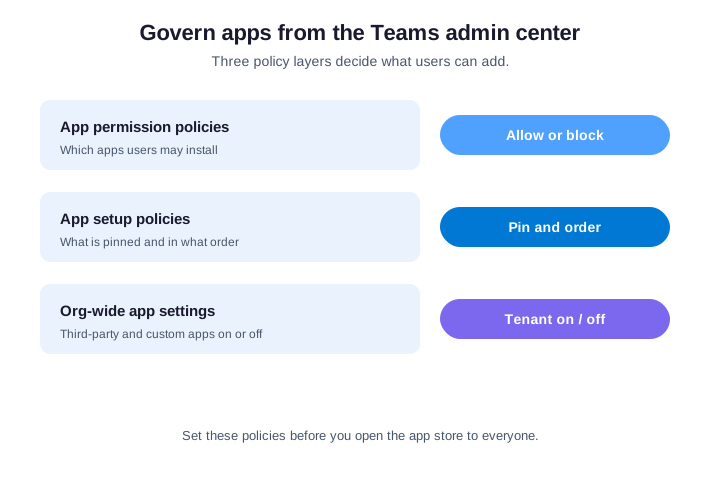
Three policy layers in the Teams admin center decide what users can do. App permission policies set which apps are allowed at all. App setup policies decide what is pinned and in what order. Org-wide app settings act as the master switch for third-party and custom apps. Together they turn an open store into a curated one that still feels generous to users.
Begin by reading the policy you already have before you change anything, so you do not loosen something by accident. The command below shows which catalog types your permission policy allows, for both global and custom apps. So you know exactly what your current baseline permits before you touch a single setting.
# Review which app types users are allowed to add (Teams PowerShell)
Connect-MicrosoftTeams
Get-CsTeamsAppPermissionPolicy |
  Select-Object Identity, DefaultCatalogAppsType, GlobalCatalogAppsType
Next, check what your default setup policy pins for everyone. Confirming the pinned set stops surprise apps from appearing on the app bar after a rollout, and it keeps the experience consistent across staff. It also gives new starters a familiar layout from day one. They get a ready-made app bar rather than a blank one to work out for themselves.
# See the apps pinned by your default setup policy
Get-CsTeamsAppSetupPolicy -Identity Global |
  Select-Object Identity, PinnedAppBarApps
🔐 Keep every connection secure
Each integration is a permission grant, so treat it like one. Review the OAuth scopes an app requests before you consent, and prefer apps that ask for the least. Conditional Access should still apply to Teams, so a risky sign-in cannot quietly ride an app into your data. And because workflows can move information between services, your data loss prevention rules need to cover those connectors too.
Visibility is the other half. Microsoft Defender for Cloud Apps can flag risky OAuth grants, while the audit log records who added what and when. A short quarterly review of installed apps, granted permissions and active flows catches most drift before it becomes a problem. If you are unsure where your tenant stands today, that review is exactly what a focused audit delivers.
Guest and external access deserve the same scrutiny. When an app or a shared channel reaches partners outside your tenant, confirm that guest accounts still need their access and that sharing links have not gone stale. Treating outside collaborators as part of the same review keeps a tidy Microsoft Teams integration from slowly leaking access over time.
📊 Measure whether integrations get used
An app nobody opens is risk without reward, so measure adoption before you expand. Microsoft Graph returns a per-user activity report that shows who actually works inside Teams over a period. Read alongside your installed-app inventory, it tells you which integrations earn their place and which to retire. Export it to CSV and you have evidence for a review rather than a hunch.
# Teams activity report for the last 30 days (Microsoft Graph PowerShell)
Connect-MgGraph -Scopes "Reports.Read.All"
Get-MgReportTeamsUserActivityUserDetail -Period D30 -OutFile teams-activity.csv
Treat low usage as a prompt, not a verdict. Sometimes an app needs better onboarding, and sometimes it simply does not fit how the team works. Either way, the numbers turn a vague “do we still need this?” into a decision you can stand behind.
Adoption data also guides licensing. Where a paid third-party app sees little use, a native alternative may cover the same ground for nothing extra. Reading usage against cost keeps each Microsoft Teams integration earning its place rather than quietly padding the monthly bill.
📨 Connecting a tool like Salesforce or monday.com
The practical steps are similar for most store apps. An admin first allows the app in the permission policy, then a team owner adds it to the right channel as a tab or a bot. The user signs in to the outside service once, which links the two accounts. From then on, records and updates surface in the channel without anyone leaving Teams.
The vendor side usually needs a little setup as well. A CRM like Salesforce maps which objects appear, while a work tool like monday.com chooses which boards to surface. Because the sign-in carries the user own permissions, people only ever see what they are already allowed to see in the source system. So this kind of Microsoft Teams integration stays as tight as the account behind it.
Removing the link should be just as clean. When someone leaves or a contract ends, revoke the app and the connected account together, then confirm no orphaned consent lingers in Entra ID. Tidy off-boarding keeps a once-useful connection from turning into a forgotten back door.
🚦 Microsoft Teams integration mistakes to avoid
A few patterns cause most of the pain. Opening the store to everyone with no approval invites shadow apps. Leaving legacy connectors in place sets a quiet time bomb for the day they stop working. Granting broad consent without reading the scopes hands away more than anyone intended. And letting teams multiply without owners leaves orphaned workspaces that integrations keep feeding.
Each one has a simple counter. Set an allow-list and an approval flow, migrate connectors to Workflows, read every consent prompt, and give every team a named owner. None of these is hard on its own. Together they are the difference between a Microsoft Teams integration that helps and one you discover during an incident.
🛠️ A simple rollout plan for new apps
A staged rollout beats a big-bang switch every time. Start with a small pilot team that tests the app against real work for a week or two. If it proves useful, move it onto your allow-list and pin it through a setup policy so the right people find it. Anything outside that list then flows through a quick approval, which keeps a human in the loop without slowing everyone down.
Close the loop with the review you already run. Each quarter, the same usage data tells you whether to widen the pilot, leave the app as it is, or pull it back. That cadence keeps your app catalog matched to how the business actually works, instead of growing by accident.
A short register makes the plan stick. Record every approved app, its owner, the scopes it was granted and the date it was last reviewed. Such a register turns each Microsoft Teams integration into a documented decision, so a new admin can pick up the catalog without guessing why anything is there.
🧭 Choose the right Microsoft Teams integration
When a request lands, resolve it to one of the five types and the rest follows. Ask what the user is really trying to connect. A Microsoft 365 tool points to a native app. Anything framed as “tell us when” points to a workflow. SaaS tools already in the store point to a vetted third-party app, while a bespoke system points to a Graph build.
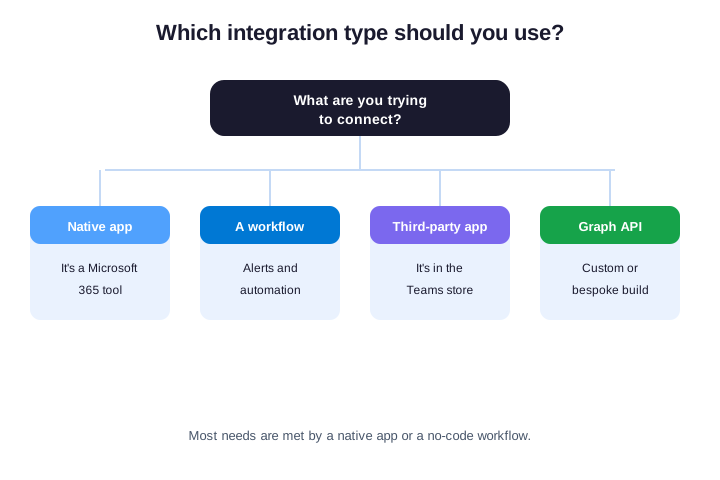
Before any of that, it helps to know what you already run. Connecting to Teams PowerShell and listing every team surfaces the duplicates and orphans that integrations tend to pile onto. So run this inventory first. Deciding how to connect a new tool is far easier once you can see the teams, owners and visibility involved.
# List every team so you know what you are integrating into
Connect-MicrosoftTeams
Get-Team | Select-Object DisplayName, GroupId, Visibility |
  Sort-Object DisplayName
With that picture in hand, the table pairs each type with what it suits best and who governs it. Deciding both at once keeps the control attached to the choice. In practice, you never approve an integration without already knowing which policy will govern it. That discipline is how a tidy tenant stays tidy as it grows.
| Integration type | Best for | Who governs it |
|---|---|---|
| Native Microsoft 365 app | Tools you already own | Built in, lowest risk |
| Workflow (Power Automate) | Alerts and no-code automation | Maker plus DLP policy |
| Third-party store app | A SaaS tool a team relies on | App permission policy |
| Custom / Graph app | A bespoke or line-of-business need | Developer plus admin consent |
🤝 How Wintive approaches Teams integration
We start every engagement with the foundation, not the apps. That means confirming identity, Conditional Access, sharing rules and the policies above are sound before a single integration goes live. With a healthy base, native apps and workflows can be opened up generously, since the guardrails already hold. Third-party and custom apps then move through a short approval that keeps a human in the loop.
From there it becomes routine. A quarterly review trims unused apps, retires stray connectors and re-checks consents, so the tenant stays clean instead of drifting. That steady rhythm is what turns a Microsoft Teams integration programme from a sprawl of half-used apps into a tidy hub your business can trust.
Most teams do not need a big project to get there. They need the foundation checked, a short allow-list agreed, and a rhythm someone actually keeps. Whether you run that in-house or lean on a partner, the same simple loop keeps Teams useful without letting it sprawl. Either way, the payoff is identical: a Microsoft Teams integration estate that people trust, auditors accept, and any admin can explain on a given day without scrambling for the context behind each app.
📚 More for IT admins
🔍 Strong integrations start with a healthy tenant
The more your business runs inside Teams, the more your Microsoft 365 settings matter. Our checklist reviews 50 of them so you can find the gaps before an app does.
❓ Microsoft Teams integration: Frequently Asked Questions
It connects an outside capability to the Teams client so it works inside your chats and channels. The connection can be a native Microsoft 365 app, a Power Automate workflow, a connector or webhook, a third-party store app, or a custom Graph build. Each type is governed in its own way.
A connector is the older model that pushed alerts into a channel, and Microsoft is retiring it. A workflow, powered by Power Automate, is the modern replacement. Workflows are more durable and far easier to govern, so rebuild any connectors you still rely on as flows.
Power Automate is the engine behind the Workflows app in Teams. It lets anyone build no-code automations from a template, such as posting a message when a form is submitted. Admins keep control through data loss prevention policies that decide what data a flow may touch.
Use the Teams admin center. App permission policies set which apps are allowed, app setup policies decide what is pinned, and org-wide settings act as the master switch for third-party and custom apps. Together they turn an open store into a curated allow-list.
Yes. Both publish apps in the Teams store that add tabs or bots, so a team can act on a CRM record or a board without leaving the chat. An admin allows the app, an owner adds it, and the user signs in once, so they see only what the source system already permits.